Profile settings are personal to your account and apply across all organizations you belong to. You can find them under Settings, then Profile.
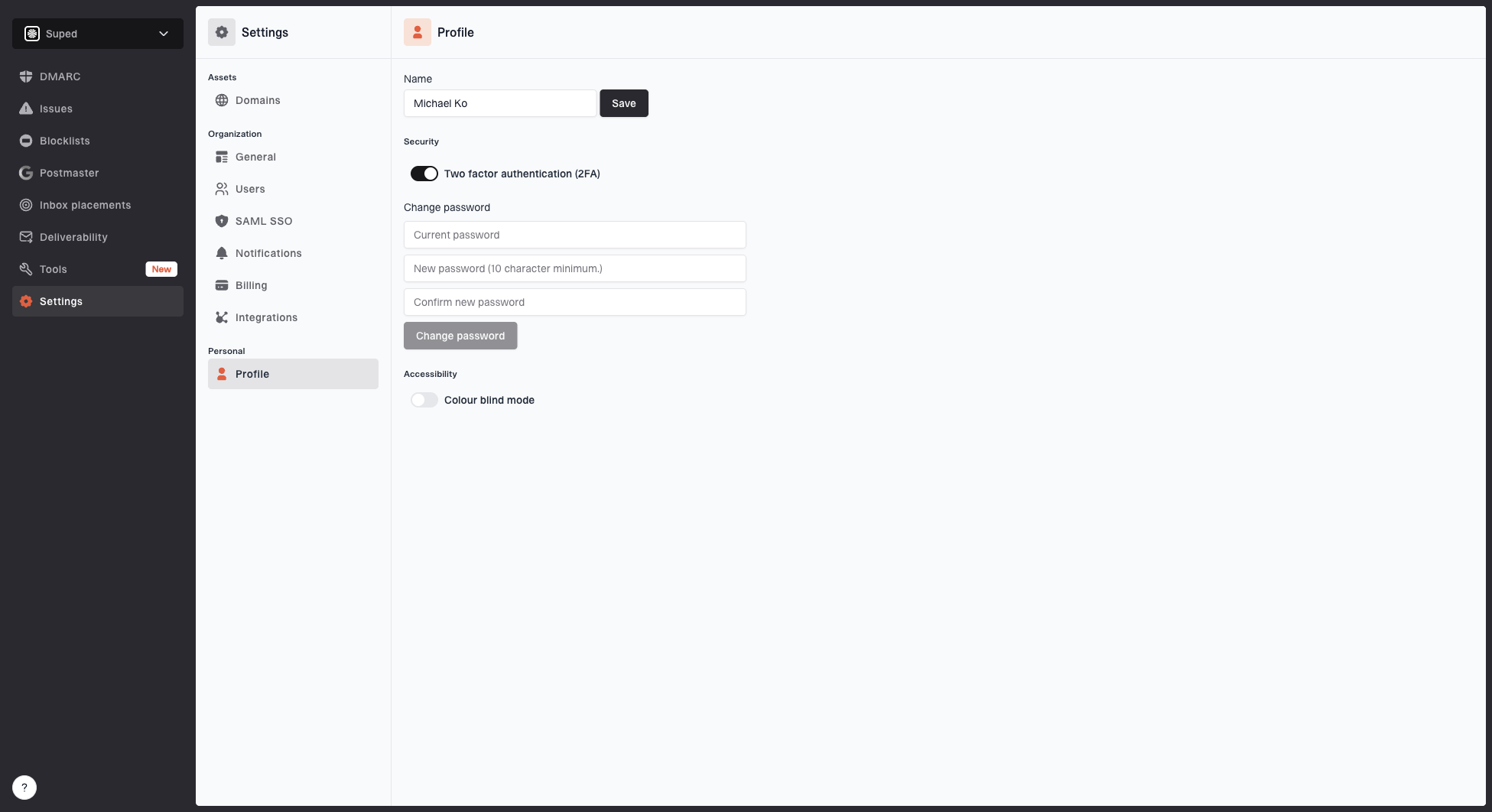
Profile settings page showing name, password, and account security settings
Change password
If you signed up with an email and password, you can update your password from the Profile settings page.
- Enter your current password to verify your identity.
- Enter your new password. It must be at least 10 characters long.
- Confirm your new password and click Change password.
If your current password is incorrect an error will be shown. The change password form is not shown for accounts that use Google or SAML sign-in.
Forgot your password
If you are not logged in and cannot remember your password, you can request a reset link from the login page.
How to reset your password
- Go to the login page and enter your email address.
- Click Forgot your password?
- Enter your email address in the dialog that appears and click Send.
- Check your inbox for a reset email. It should arrive within 5 minutes. If you cannot find it, check your spam folder.
- Click the link in the email to set a new password. The link expires after 30 minutes.
If the email address is not registered on Suped, or if you have requested too many resets in a short period, you will see an error message. If you continue to have trouble, contact us directly from the dialog.


