
Deliverability brings Google Postmaster data into Suped so you can track sender compliance, user-reported spam, and delivery failures for your domains. The feature is in beta and is available for non-MSP organizations. It reports on mail sent to personal Gmail accounts, not all mailbox providers or individual messages.
Enable Deliverability
You need access to your domain's DNS to verify ownership. You should expect to need roughly 100 or more emails per day to personal Gmail accounts before Google provides data. This is an approximate volume guideline, not a guarantee that every metric will be available.
- Open Domains in your organization and add the domain if it is not already listed.
- Click Enable in the Deliverability column, then click Enable in the dialog.
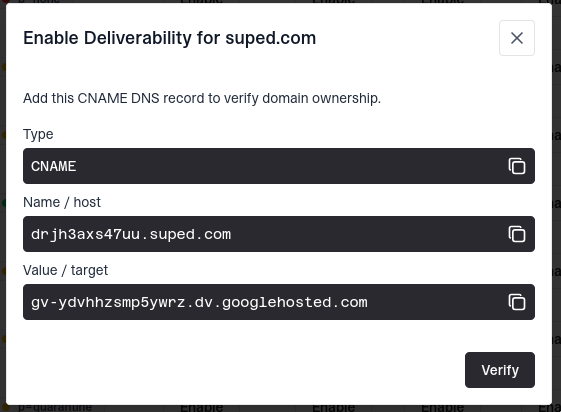
- Add the displayed CNAME record at your DNS provider. Copy the Name / host and Value / target exactly as shown.
- Return to Suped and click Verify. If Google cannot verify the record yet, check the values, allow time for DNS changes to propagate, and try again.
- Open Deliverability to see the domain's data. Reporting can take a few days and depends on sufficient Gmail sending volume.
A domain previously used for Deliverability in another Suped organization cannot be enabled in a different organization. Contact contact@suped.com if you need help moving it.
Read the overview
Each enabled domain has a row with three indicators. The overview uses the last seven days of data.
- Compliance — The number of compliant checks out of the total checks in the most recent assessment observed during that period. A red indicator means at least one check needs work. Unspecified checks are not counted as compliant, but do not by themselves make the indicator red.
- Spam report rate — The average daily user-reported spam rate across days with available data. Below 0.1% is green, 0.1% to below 0.3% is amber, and 0.3% or higher is red.
- Bounce rate — The average daily rate of rejected and temporarily failed deliveries across days with available data. Any nonzero rate has a red indicator.
These rates are averages of daily rates, not volume-weighted rates for the whole week. No data means Google has not provided that metric; it does not mean the rate is zero.

Investigate a domain
Choose View data for a domain to open its details. The default date range is the last 30 days, including today. Use the date picker to change the period.
Sender compliance
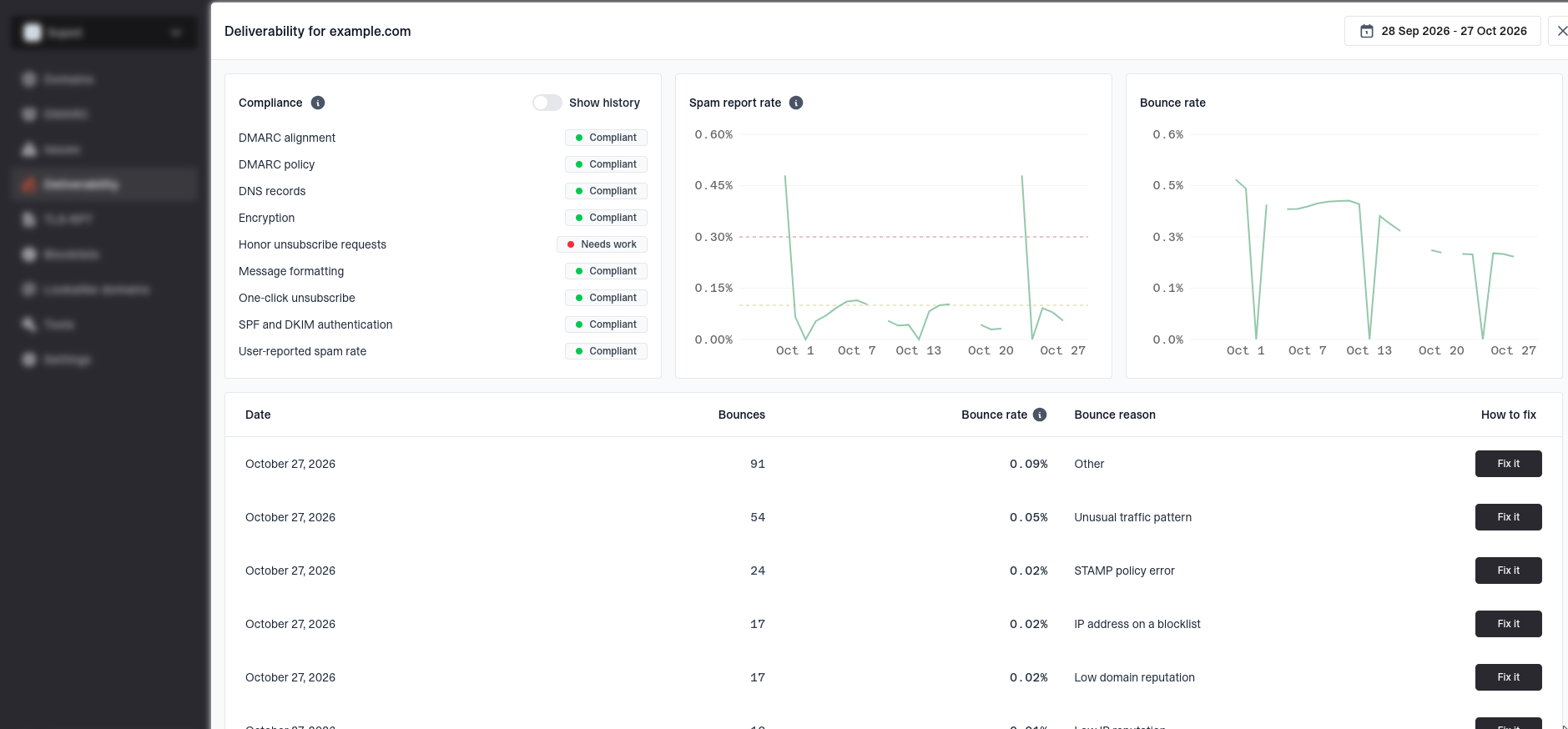
The Compliance card shows the latest available assessment in the selected period. Depending on what Google reports, checks can include SPF, DKIM, DMARC policy and alignment, message formatting, DNS records, encryption, spam reports, and unsubscribe requirements. Review checks marked as needing work and any accompanying explanation.
Turn on Show history to see the proportions of compliant, needs-work, and unspecified checks over time. Hover over a day to see its breakdown. Compliance dates represent when Suped observed Google's assessment, rather than the date of a particular email campaign.
Spam and bounce trends
The Spam report rate and Bounce rate charts show daily values. Hover over a point for its rate; bounce tooltips also show counts when available. Dashed lines on the spam chart mark 0.1% and 0.3%. Aim to keep spam reports below 0.1% and avoid reaching Google's 0.3% bulk-sender threshold. Gaps indicate missing observations, not zero rates.
Understand bounce reasons
Beneath the charts, the bounce table groups rejected and temporarily failed deliveries by date and reason. It shows the bounce count, rate when available, and Google's reason, such as low domain reputation, an IP address on a blocklist, bad or missing PTR records, spammy content, or unusual traffic patterns.
Open How to fix for an explanation and suggested next steps. Use your email provider's delivery logs to find the full SMTP response and identify the affected messages. Google's categories help guide investigation; they are not individual message logs.
Why data may be missing
- Newly enabled domains can take a few days to show data.
- Google may withhold data when sending volume or recipient feedback is too low. Some metrics can be available while others remain missing.
- Mail sent to other mailbox providers does not contribute to these Gmail metrics.
Deliverability is not an inbox placement test. A low spam report rate or compliant assessment does not guarantee that every message reaches the inbox. Pair these signals with your sending provider's logs and Suped's DMARC monitoring to investigate authentication and delivery together.
Disable Deliverability
In Domains, hover over the tick in the domain's Deliverability column, click the edit button, then click Disable. This stops monitoring and deletes its saved deliverability data in Suped. Enabling it again starts collection again and may retrieve historical statistics still available from Google; previous saved compliance observations are deleted.


