
PSA integrations are available to all MSP organizations. We'd love your feedback and to walk you through the integration on a call. Reach out to contact@suped.com.
The ConnectWise PSA integration connects your MSP's Suped client organizations to ConnectWise companies. Once linked, Suped creates service tickets for open issues, maintains company custom fields, and optionally updates agreement quantities for billing.
Before you start
- You must be an administrator of the parent MSP organization in Suped, with access to regular features rather than a billing-only account. Configure the integration in the parent organization, not an individual client organization.
- You need access to create an API member, assign its security role, and generate API keys in ConnectWise PSA.
- Prepare an active service board with an active default status and a default team, plus a ticket priority. These are needed even if your main goal is importing clients or syncing billing quantities.
- For agreement quantity syncing, select an invoicing product and ensure each linked company has exactly one active, currently effective agreement. See the invoicing section below.
Open Settings → PSA integration in your MSP organization.
Create a ConnectWise API member
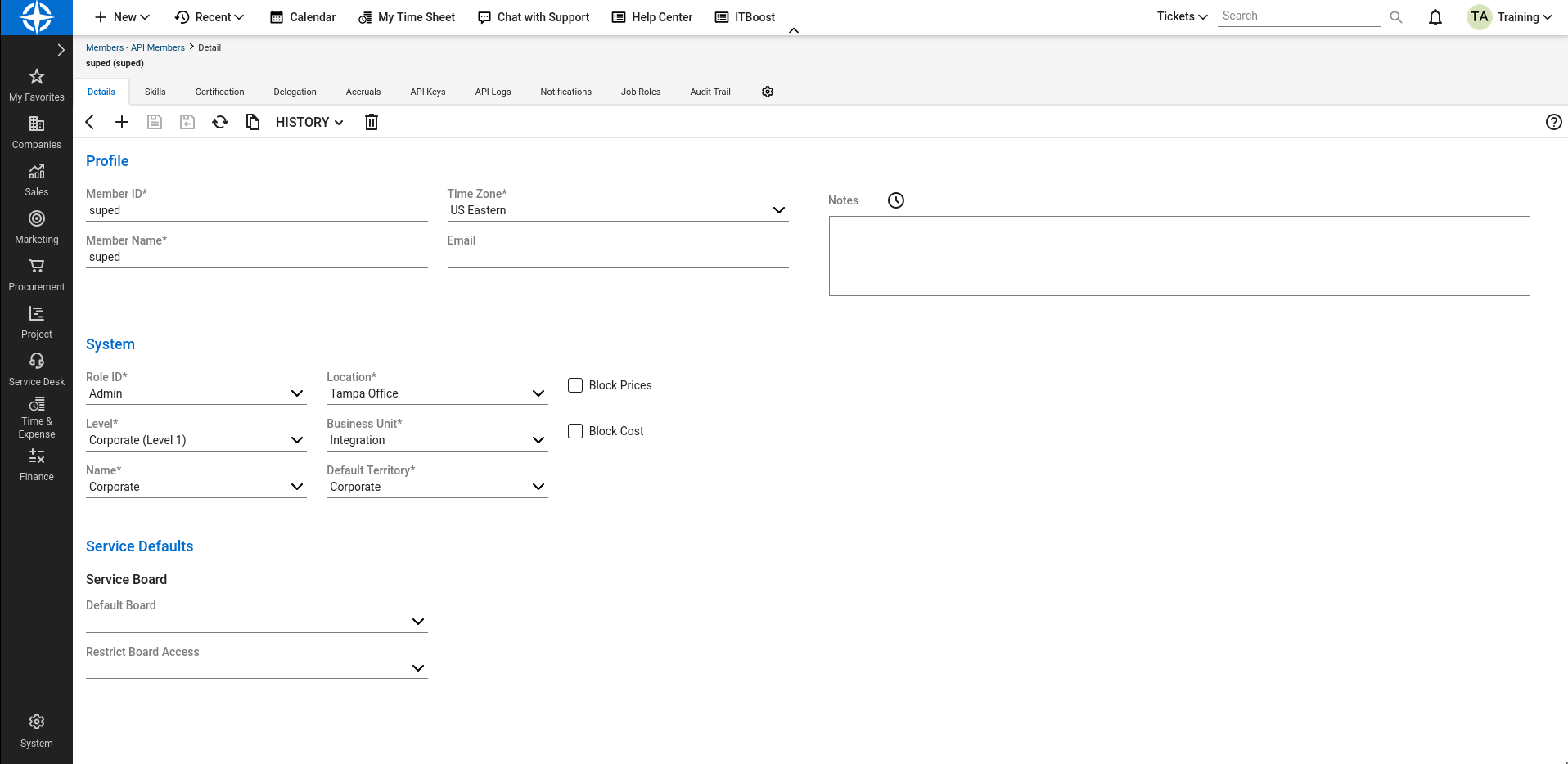
- In ConnectWise PSA, open System → Members and select the API Members tab.
- Add a new API member for Suped. Give it a recognizable member ID and name, such as
supedandSuped integration. - Assign a security role that permits the operations listed below and complete the required member details, including the location and business unit for your environment. You can use the existing Admin role if you prefer not to configure a new role. Save the member.
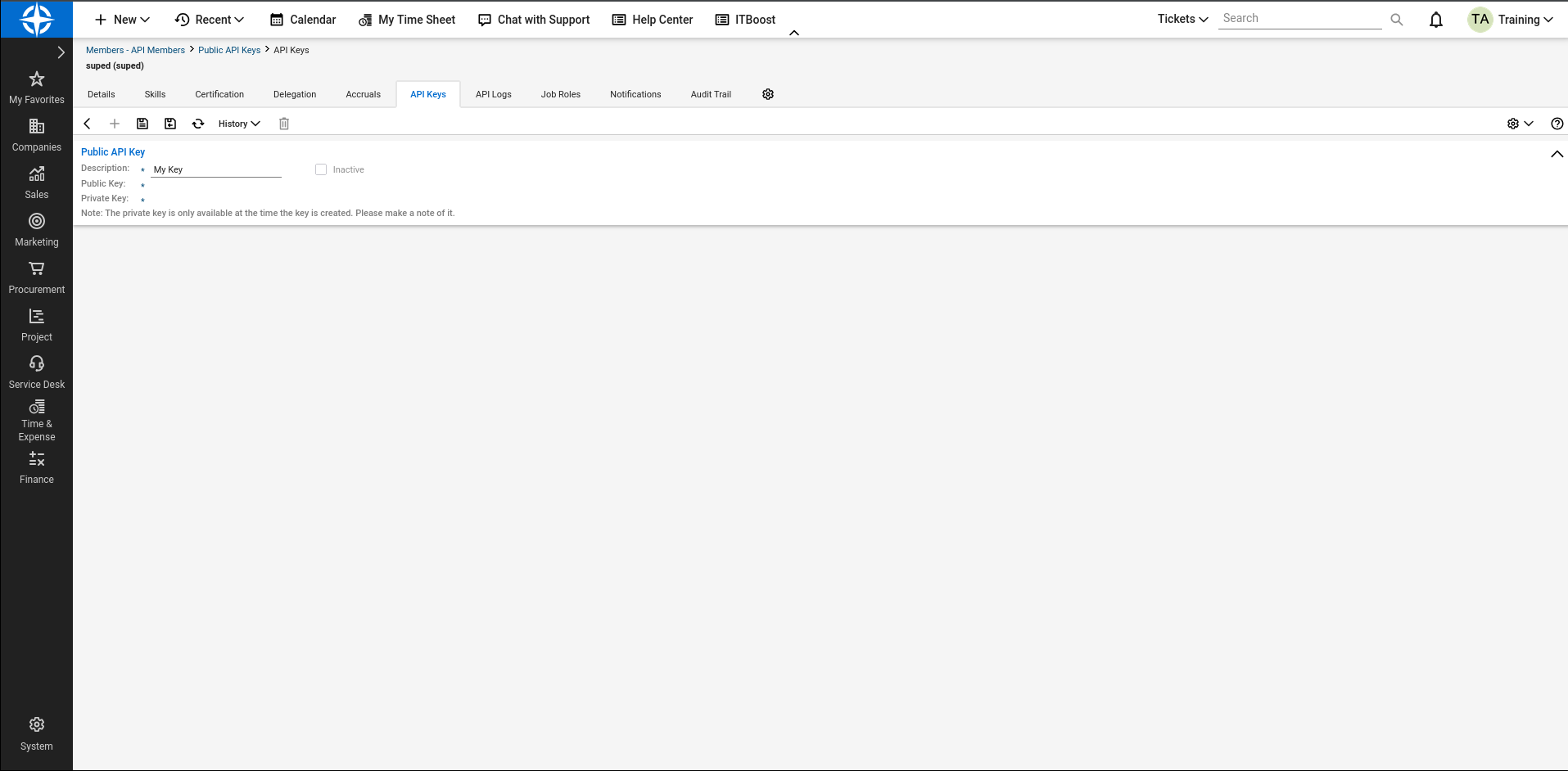
- Open the member's API Keys tab, add a key, enter a description such as
Suped, and save it. - Copy the public key and private key for the Suped connection form. Capture the private key when it is generated; ConnectWise does not show it again after you leave the key creation screen.
API permissions
The API member's security role and location/business-unit access must cover the companies and service boards you want to use. The integration needs the following permissions in ConnectWise. Set each listed level to All:
| Module | Action | Level | Used for |
|---|---|---|---|
| Companies | Company Maintenance | Edit + Inquire | Edit: Updating Suped custom-field values on companies. Inquire: Reading companies for importing, linking, and syncing. |
| Finance | Agreements | Add + Edit + Inquire | Add: Creating agreement additions for invoicing sync. Edit: Updating billable domain quantities on agreement additions. Inquire: Reading agreements and additions for invoicing sync. |
| Procurement | Product Catalog | Add + Inquire | Add: Creating the Suped invoicing product. Inquire: Reading catalog products when loading integration settings, even without invoicing sync. |
| Service Desk | Service Tickets | Add + Inquire | Add: Sending Suped issues to your service board as tickets. Inquire: Reading existing service tickets. |
| System | API Reports | Inquire | Finding the company overview pod to create custom fields. |
| System | My Company | Inquire | Checking the base currency when creating a product. |
| System | Table Setup | Add + Inquire | Add: Creating missing Suped company custom fields. Inquire: Reading service boards, statuses, teams, types, priorities, product types, categories, subcategories, and custom-field definitions. |
Configure these permissions in System → Security Roles. Suped does not require delete access for these operations.
Connect Suped to ConnectWise
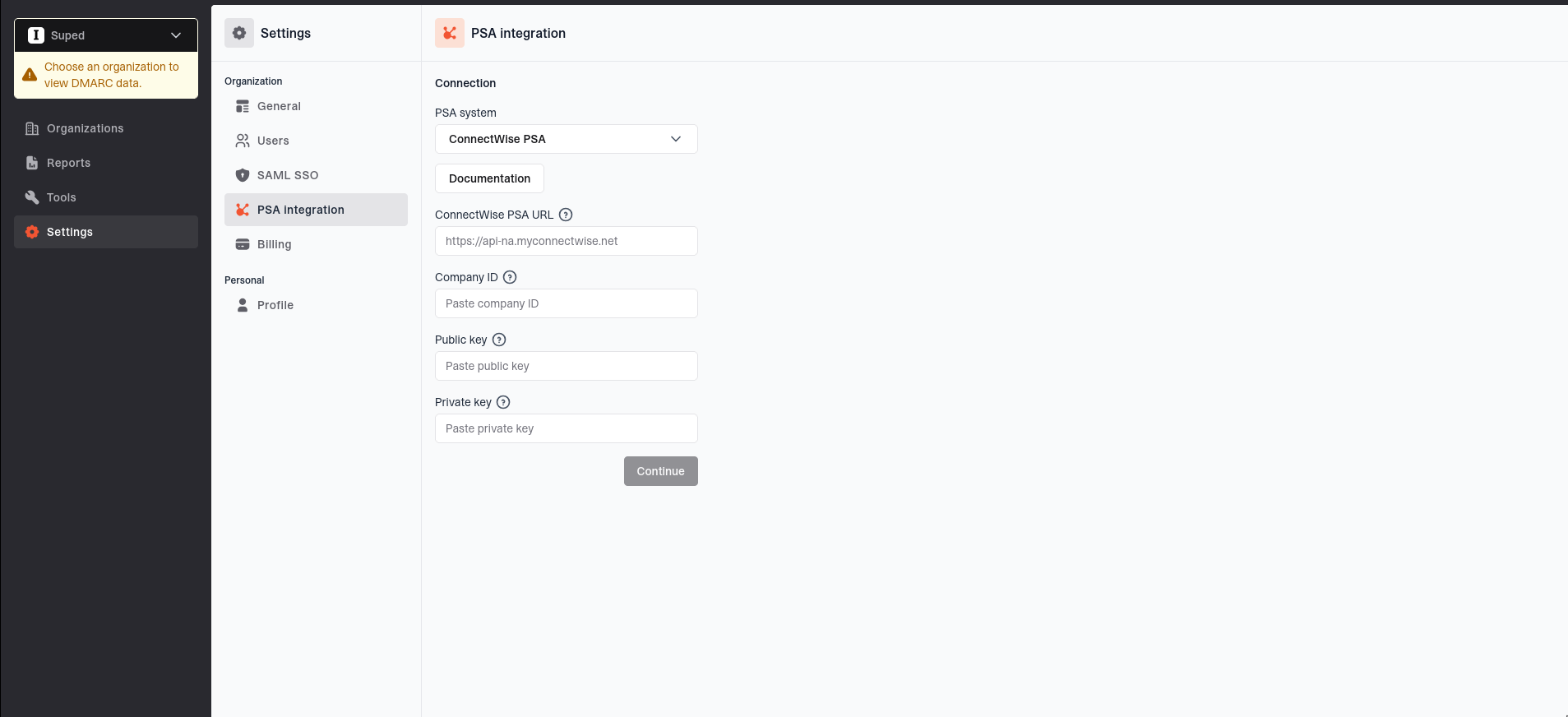
- In your Suped MSP organization, open Settings → PSA integration.
- Set PSA system to ConnectWise PSA.
- Enter the connection details below.
- Click Continue. Suped uses the credentials to load ticket options and catalog products from ConnectWise.
- Configure ticket syncing and optional invoicing syncing, then click Save. Clicking Continue alone does not save the integration.
| Field | What to enter |
|---|---|
| ConnectWise PSA URL | Your ConnectWise PSA API host, for example https://api-na.myconnectwise.net for a North American cloud environment. Use the host appropriate to your region or self-hosted installation. Suped adds the REST API path; do not paste a login page path, query string, or fragment. |
| Company ID | The Company value used to sign in to your ConnectWise instance. This is not the numeric ID of a client company. |
| Public key | The public key generated for your Suped API member. |
| Private key | The private key from the same API key pair. |
You do not need to register a separate ConnectWise developer client ID; Suped supplies its own integration client ID.
Configure ticket syncing
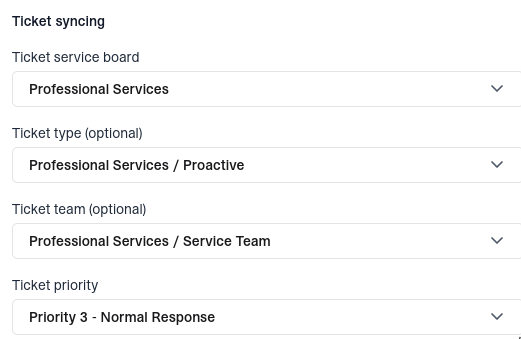
- Ticket service board: Required. Only active service boards with an active default status and a default team are listed. Project boards are excluded.
- Ticket type: Required. Choose a type from the selected board. Changing the type clears the selected priority.
- Ticket team (optional): Choose a team from the selected board, or leave No ticket team selected to let ConnectWise use its default team.
- Ticket priority: Required. All tickets created by this integration use the selected priority.
Types and teams are filtered to the selected service board. Changing the board clears any type or team selection that belongs to another board. New tickets use the board's default status.
What appears in a ticket
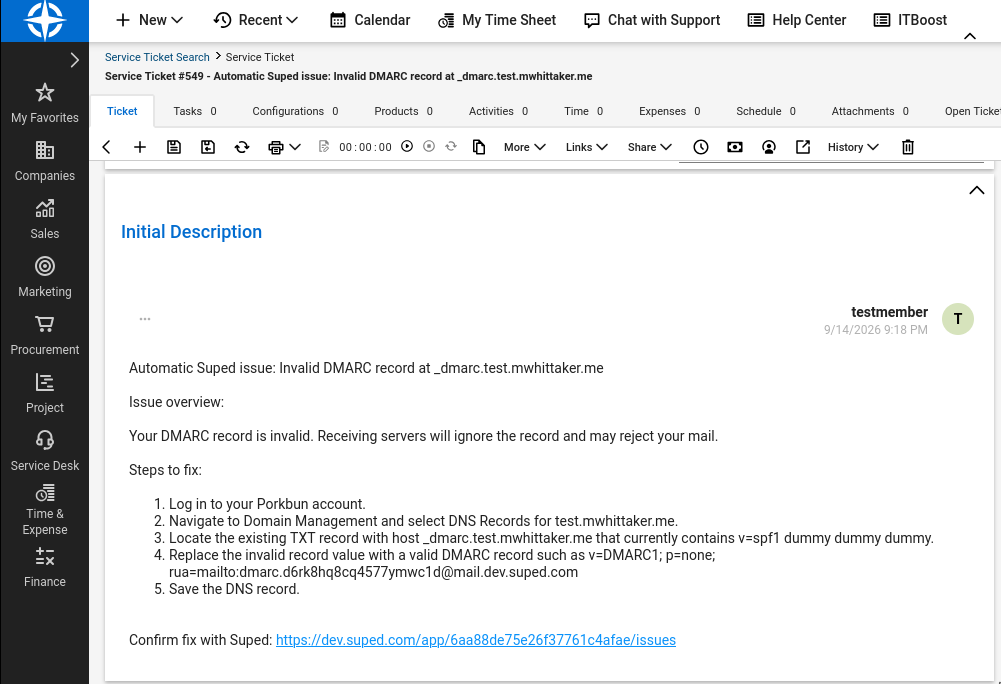
Suped creates tickets for open issues in linked client organizations with Sync issues enabled, including existing open issues on the first sync. Resolved and dismissed issues are skipped. Each ticket is assigned to the linked ConnectWise company and includes:
- A summary beginning with
Automatic Suped issue:. - An overview of the issue and affected sources.
- Numbered steps to fix the issue.
- A link to the organization's Suped Issues page to confirm the fix.
ConnectWise summaries are limited to 100 characters. Suped shortens longer summaries and includes the full title in the initial description. An issue that has already been sent is skipped on subsequent syncs. If Suped later reopens a previously resolved issue and marks it for syncing again, it can create a new ticket.
Ticket syncing is one-way ticket creation. Closing or editing a ConnectWise ticket does not resolve the issue in Suped, and resolving or dismissing an issue in Suped does not close the ConnectWise ticket. Follow the ticket's Suped link to verify a fix in Suped, and manage the ticket's status in ConnectWise separately.
In a linked organization's Issues list, the PSA synced column shows each issue's sync result. Click a success indicator to open its ConnectWise ticket. Hover over an unsuccessful indicator to see the error or whether syncing has not yet been attempted.
Configure invoicing syncing
Under Invoicing syncing, use Choose invoicing product to select a catalog product, or click Or create product. To leave agreement syncing disabled, select No invoicing sync. Company custom fields and issue ticket creation still work with invoicing sync disabled.
The selected product applies to all linked clients. Suped syncs each client's billable domain count to that product's agreement addition; it does not create or send invoices. Configure your client-facing prices and billing arrangements in ConnectWise.
Create a product from Suped
If the product list already contains Suped Domains, the create button is disabled. Select the existing product instead.
Click Or create product to create a product in your ConnectWise catalog. Suped automatically selects the new product for invoicing sync. Click Save to apply your settings. The product is created with these details:
- Identifier:
Suped Domains. - Description:
Suped billable domains. - Customer description:
Suped email authentication monitoring per domain. - Product class:
Agreement.
ConnectWise must have an active product type and an active subcategory under an active category. Suped prefers default types and subcategories when available, otherwise it uses the first available active options.
When your MSP has an available monthly Suped billing price, Suped uses that per-domain amount as the product's cost when your ConnectWise base currency matches your Suped billing currency. This sets the cost, not your client-facing selling price. If the price is unavailable or the currencies do not match, the product is created without a cost. This does not prevent agreement quantity syncing.
Agreement requirements and quantity updates
For each linked ConnectWise company, Suped looks for an agreement that:
- Has an agreement status of
Active. - Is not canceled.
- Has a start date on or before today.
- Has no ending date, or an end date on or after today.
Exactly one agreement must meet these requirements. If none or more than one match, Suped skips that company's agreement update rather than choosing an agreement for you. Date comparisons use the UTC date.
On the matching agreement, Suped finds additions for the selected product that have not been canceled as of today. If there is one, Suped replaces its quantity with the current billable domain count, including zero. If there are none, Suped creates a billable addition with that quantity and current-period proration disabled. If multiple active additions match, the update is skipped.
Existing additions have only their quantity updated. Suped does not overwrite their pricing or other billing settings. A zero count sets the quantity to zero rather than deleting or canceling the addition.
Link existing client organizations
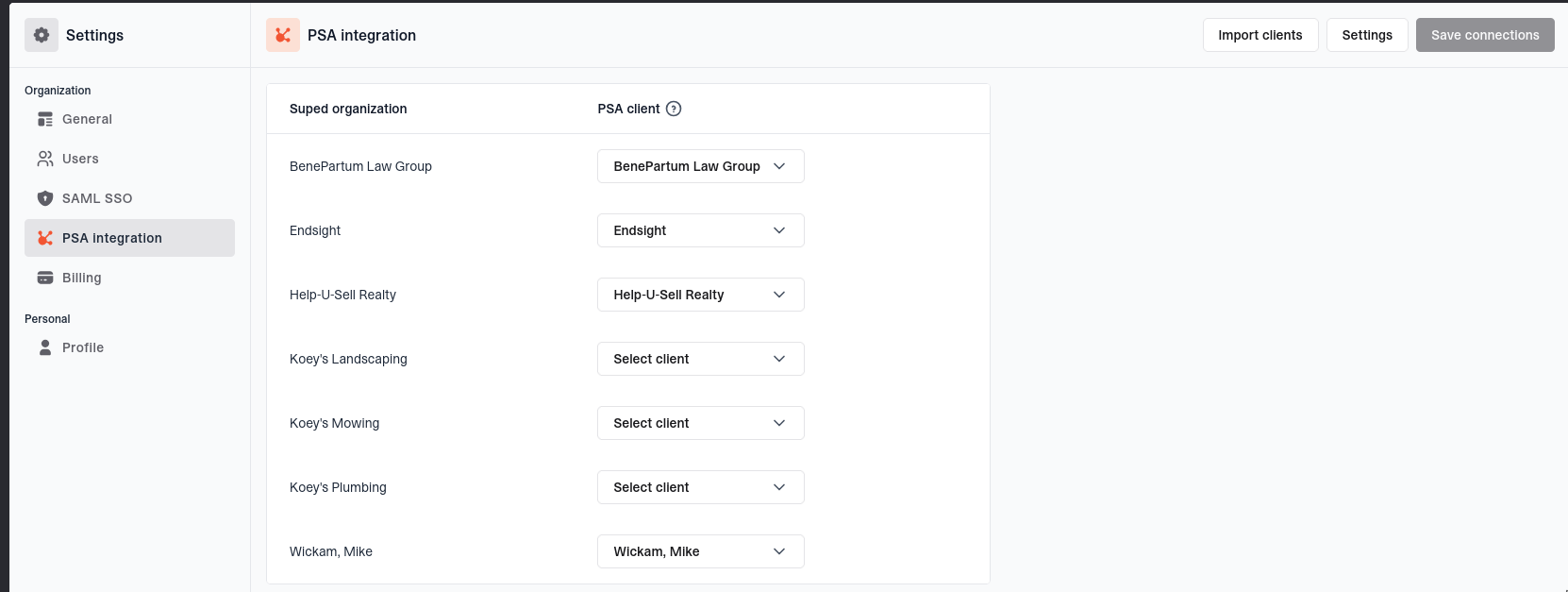
- After saving the integration, find the client in the Suped organization column.
- Select the corresponding ConnectWise company in the PSA client column. You can search by company name.
- Set Sync issues for each linked organization to control whether Suped creates tickets for its issues.
- Repeat for other clients, then click Save connections.
Each ConnectWise company can be linked to only one Suped organization. Saving a new link queues a background sync for that organization. Linking does not import or change the existing organization's domains.
Turning off Sync issues leaves company custom-field syncing and any enabled invoicing sync running. Existing tickets remain in place. The new-tab buttons beside the organization and PSA client open its Suped Issues page and ConnectWise company, respectively.
Import clients from ConnectWise
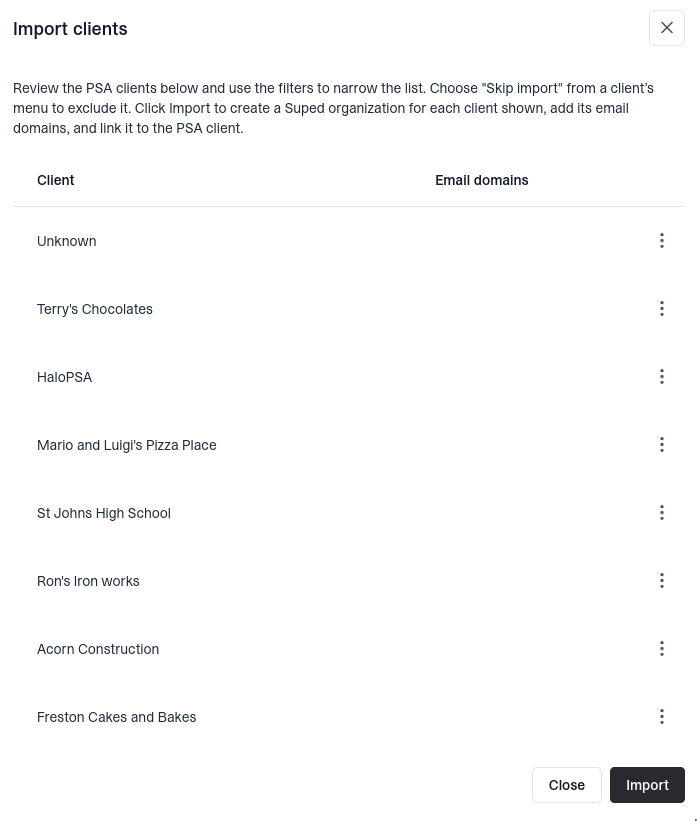
Use Import clients when the client does not already have a Suped organization. To avoid creating a second organization for an existing client, link the existing organization instead.
- Click Import clients. Only companies not already linked to a Suped organization are shown; deleted ConnectWise companies are excluded.
- When available, use the Type and Status filters to narrow the list. Each filter only appears when the available clients have those values. If a Customer type exists, it is selected by default. The status filter initially includes all statuses.
- Review the company names and Email domains column. Clients are selected by default. Use the row switches to choose clients, or the header switch to select or deselect all visible clients.
- Click Import to import selected companies in the filtered list.
Suped creates a child organization using each company's name, adds its valid domain, links the organization to the company, and queues its first sync with issue syncing enabled by default. For ConnectWise, the suggested domain comes from the company's website hostname, not its contacts' email addresses. A leading www. is removed when importing. If the website is missing or invalid, the organization is still created without a domain.
Review imported domains in each client organization, add any additional email domains, and complete DMARC reporting setup. Importing does not change DNS records. The import is a one-time action; later company name or website changes are not continuously imported.
Company custom fields and billable domains
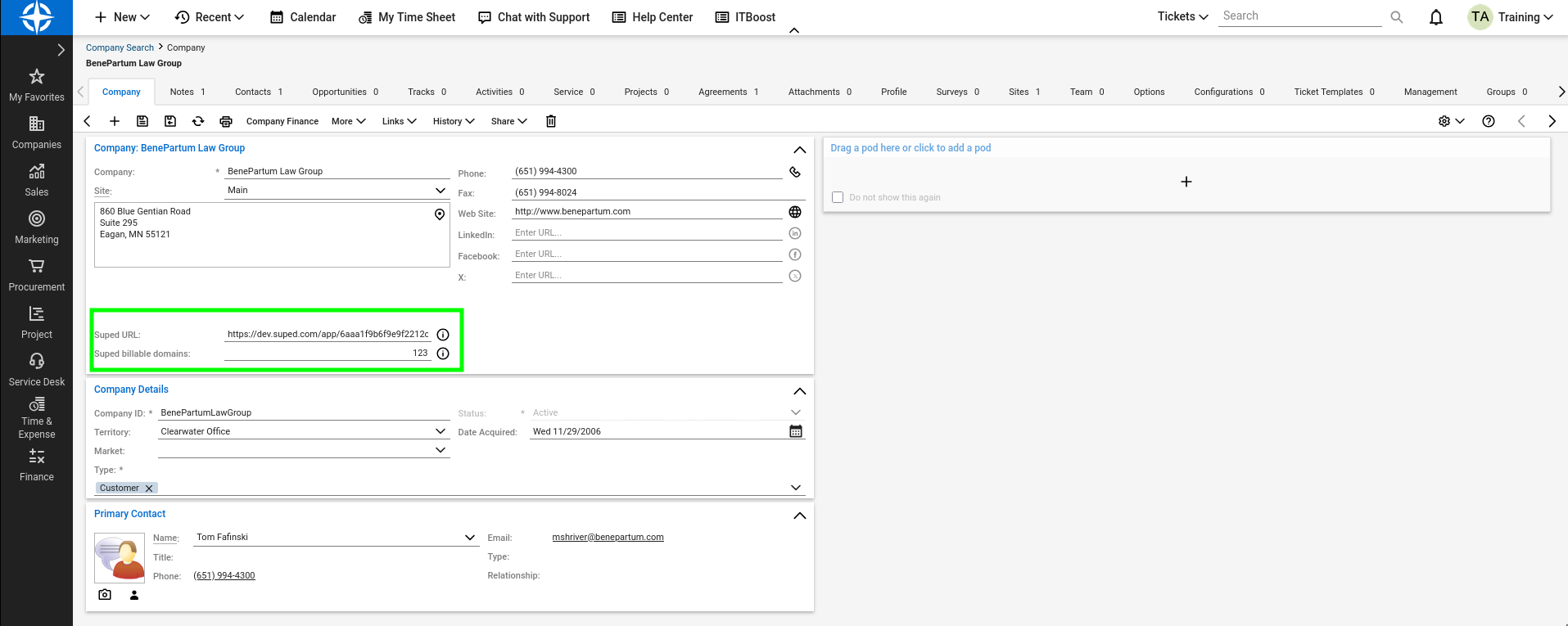
Suped automatically creates missing custom fields on the ConnectWise company overview and updates them for each linked company:
- Suped URL: A text field linking to the client organization's settings in Suped.
- Suped billable domains: A whole-number field with the organization's current billable domain count.
A domain is billable if it has received DMARC reports in the last 30 days, uses SPF flattening or MTA-STS, has Hosted DKIM or lookalike monitoring enabled, or has a BIMI asset set. Archived domains are excluded. Subdomains count separately when they meet these conditions. Adding a domain alone does not necessarily increase the billable count.
The same count is used for the company custom field and the agreement addition. Company fields continue to sync when invoicing sync is disabled or an agreement cannot be selected.
Sync timing and verification
Linking or importing an organization queues an initial background sync. Saving a change to a linked organization's Sync issues switch, changed credentials, or a changed invoicing product also queues a sync. A daily job queues linked organizations throughout the day. Allow the next daily sync for new issues, billable domain changes, or ticket-routing changes.
- Confirm the organization-to-company mapping is saved on the PSA integration page.
- In ConnectWise, check the company's Suped URL and Suped billable domains fields.
- If the organization has an open issue that has not already been synced, check the selected service board for its Suped ticket.
- If invoicing sync is enabled, check the matching agreement's product addition and compare its quantity with Suped billable domains.
The Invoice synced column on the PSA integration page shows progress, success, or an error for each linked organization. Hover over the indicator for details, such as a missing agreement or duplicate product additions. Statuses refresh automatically every 10 seconds. When invoicing sync is disabled, the indicator reports that no invoicing product is configured; company custom fields and enabled issue syncing can still work.
Change or remove the integration
Update credentials or settings
Click Settings on the PSA integration page to change credentials, ticket routing, or the invoicing product. Changing a credential requires clicking Continue to reload options and clears the ticket settings and invoicing product selection. Reselect the product if you want invoicing sync to continue, select ticket settings, and click Save.
Routing changes apply to future ticket creation; existing tickets are not moved or updated. Changing the invoicing product does not remove additions for the previously selected product. Review those additions in ConnectWise before using a replacement product.
Unlink a client
Set the organization's PSA client back to Select client, then click Save connections. This stops future syncing for that organization without deleting the Suped organization or the ConnectWise company.
Disable invoicing sync or disconnect completely
To stop only agreement quantity updates, open Settings, set Choose invoicing product to No invoicing sync, and save. To remove the integration, set PSA system back to Select PSA system and click Save. Removing the integration clears its saved configuration, all client links, and issue sync history. Saving a different PSA provider also clears the existing client links and issue sync history.
Disconnecting, unlinking, or disabling invoicing sync does not delete existing ConnectWise tickets, custom fields, products, or agreement additions, and does not reset their quantities. Review any recurring agreement charges in ConnectWise separately. Unlinking alone preserves issue sync history. Removing the integration or switching providers resets that history, so linking clients again can create new tickets for issues that are still open.
Troubleshooting
Connection fails or options will not load
Check the API host and region, the login Company ID, and that both keys belong to the same active API member. Verify the member's security role and access to your locations and business units. Loading options reads the product catalog as well as service boards, statuses, teams, types, and priorities, even when you plan to disable invoicing sync.
A service board, type, or team is missing
The board must be an active service board, not a project board, with an active default status and a default team. Types and teams must be active and belong to the selected board. After correcting the ConnectWise configuration, reopen Settings to reload the options, or click Continue again if you are still connecting for the first time.
A client or domain is missing from import
Check any available Type and Status filters and whether the company is already linked. Confirm the API member can read the company and that it has not been deleted. Domain suggestions use the company's website field; a contact email address alone does not provide an import domain. Add any missing email domains directly to the Suped client organization.
Tickets are not appearing
Confirm the integration and client connection have both been saved, then allow for the background sync. Check that Sync issues is enabled and saved for the organization, and inspect the issue's PSA synced indicator for errors. Check that the issue is open and has not already been synced, and that the API member can create tickets for that company on the selected board. Resolving, dismissing, or previously syncing an issue prevents it from being sent as a new ticket during an ordinary sync.
Custom fields are missing or stale
Check company read/edit access, user-defined field read/create access, and access to the system reports API used to find the company overview pod. The company overview must have space for new custom fields. An existing field with a Suped caption should use the expected type: text for Suped URL and a number for Suped billable domains. Allow for the daily sync after correcting permissions.
Product creation fails
Ensure ConnectWise has an active product type, category, and subcategory, and that the API member can read them and create catalog products. You can also select an existing suitable catalog product instead of creating one. If a product was created without a cost, check that your MSP has an available monthly Suped billing price and that its currency matches your ConnectWise base currency.
Agreement quantities are not updating
- Check that an invoicing product is selected and saved.
- Confirm the company is linked to the correct Suped organization.
- Ensure exactly one agreement is active, not canceled, and currently effective. Suped does not choose between multiple eligible agreements.
- Check for duplicate active additions of the selected product on that agreement.
- Verify the API member can read agreements and create or edit additions.
- Hover over the Invoice synced indicator for the reported error and allow for the next daily sync after correcting it.
If company custom fields update but the agreement does not, review the invoicing-specific requirements above. Suped can continue updating custom fields even when an agreement update is skipped or fails. If the problem persists, contact Suped with the affected organization and ConnectWise company so we can check the sync logs.


