
PSA integrations are available to all MSP organizations. We'd love your feedback and to walk you through the integration on a call. Reach out to contact@suped.com.
The Autotask integration links your MSP's Suped client organizations to Autotask companies. Suped creates tickets for open issues in linked organizations with issue syncing enabled, and maintains company custom fields with a Suped link and billable domain count.
Before you start
- You must be an administrator of the parent MSP organization in Suped, with access to regular features rather than a billing-only account. Configure the integration in the parent organization, not an individual client organization.
- You need permission to create an API user in Autotask, generate its credentials, and assign an API tracking identifier.
- Prepare an active ticket category, ticket type and priority, and at least one active ticket status. A queue is optional. Ticket settings are required even if your main goal is importing clients.
- Companies you want to import or link must be active and have the Customer company type in Autotask.
Create an Autotask API user
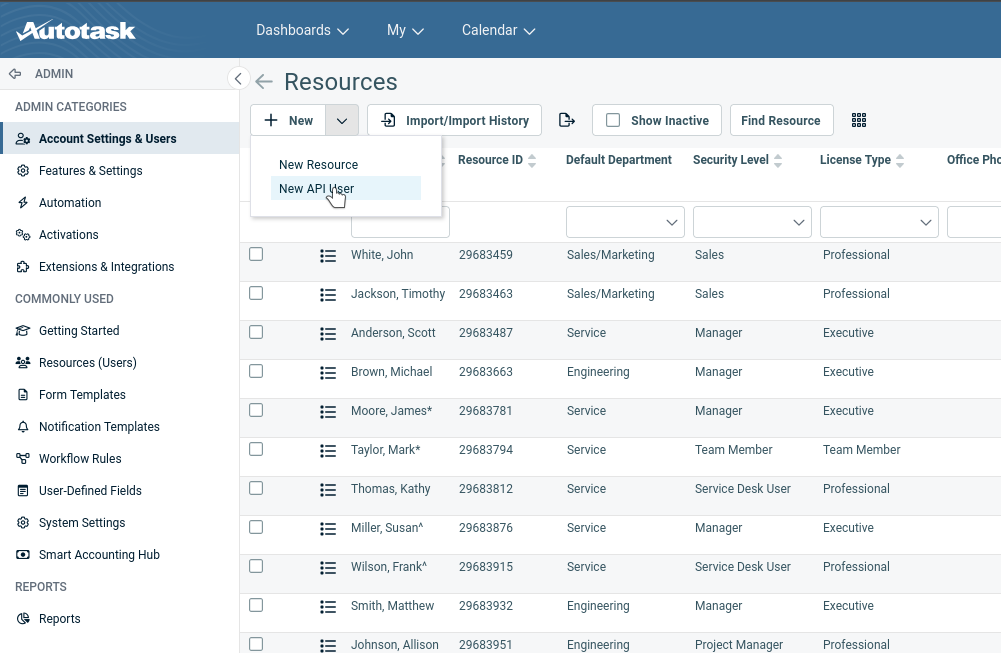
- In Autotask, open Admin → Resources (Users) and use New API User to create a resource for Suped.
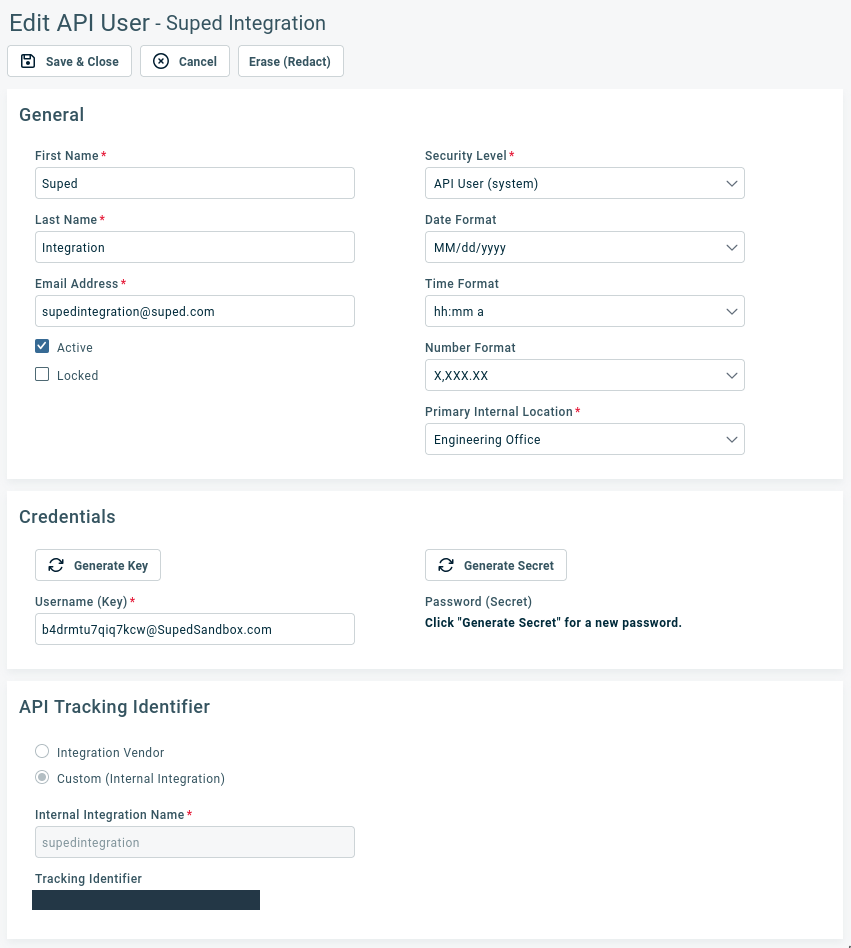
- Enter a recognizable name for the resource and complete the required details. Assign the API User (API-only) security level, or a copy of that level with the permissions listed below.
- Generate the API user's Username and Secret, then copy both for Suped.
- Configure the API Tracking Identifier for the user. Use the Suped vendor entry if available. For a custom identifier, choose Custom (Internal Integration) and use the generated tracking identifier.
- Copy the tracking identifier and save the API user. You will enter that identifier as the API integration code in Suped.
Autotask REST API access requires an API-only user. Use its generated credentials rather than your normal Autotask sign-in details. The standard API User (API-only) security level provides broad API access; a restricted copy must still allow all operations used by Suped.
API permissions
The API user's security level must allow access to the customer companies and ticket settings you want to use, along with these operations:
| Area | Required access | Used for |
|---|---|---|
| Companies | Read companies and update their user-defined field values. | Importing, linking, and syncing company information. |
| User-defined field definitions | Read and create company user-defined fields. | Creating missing Suped company custom fields. |
| Ticket field metadata | Read ticket categories, types, queues, priorities, and statuses. | Loading settings and choosing the initial ticket status. |
| Tickets | Create tickets for linked companies. | Sending open Suped issues to Autotask. |
For Autotask's requirements for API-only users and tracking identifiers, see its REST API security and authentication documentation.
Connect Suped to Autotask
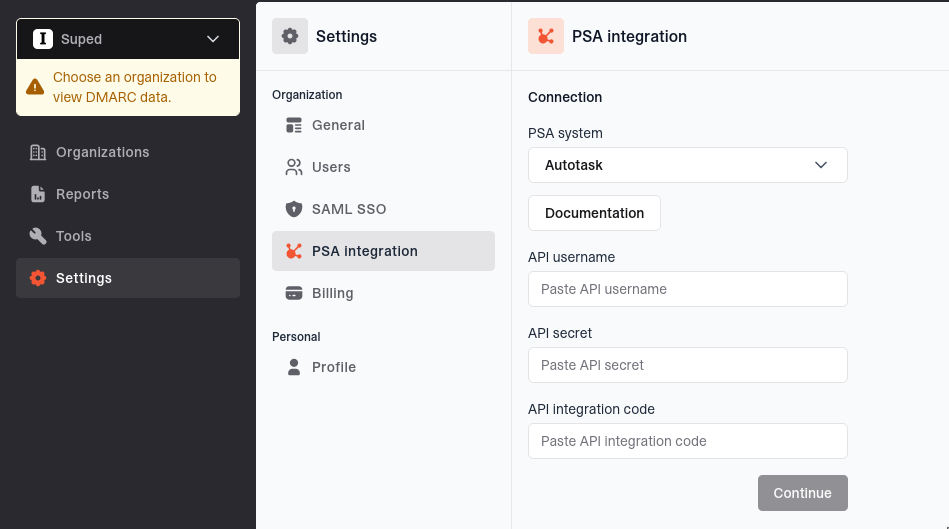
- In your Suped MSP organization, open Settings → PSA integration.
- Set PSA system to Autotask.
- Enter the connection details below.
- Click Continue to connect and load the ticket options from Autotask.
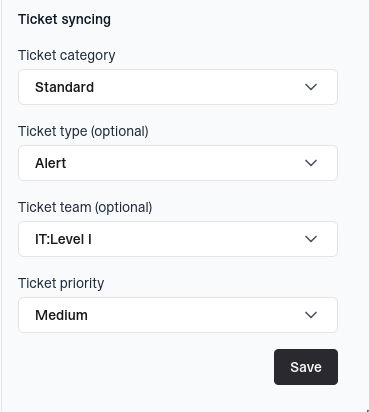
- Configure ticket syncing, then click Save. Clicking Continue alone does not save the integration.
| Field | What to enter |
|---|---|
| API username | The username generated for the Suped API user. |
| API secret | The secret generated for that API user. |
| API integration code | The API tracking identifier assigned to that user. |
You do not need to enter an Autotask URL or select a region. Suped discovers the correct API zone from your API username.
Configure ticket syncing
- Ticket category: Required. Select the Autotask category for Suped tickets.
- Ticket type: Required. Select a type. Changing the type clears the selected priority.
- Ticket team (optional): This maps to an Autotask queue. Choose the queue for Suped tickets or leave No ticket team selected.
- Ticket priority: Required. All tickets created by the integration use this priority.
Suped lists active options returned by Autotask. If you leave the queue unset, Suped omits it from the request and Autotask's defaults and rules apply. Choose a category whose required fields can be satisfied by these settings and the ticket's title, description, company, and status.
Suped selects the initial status automatically: the active default status, otherwise an active status named New, otherwise the first active status returned by Autotask. You do not select a status in Suped. Click Save to finish setup.
Link existing client organizations
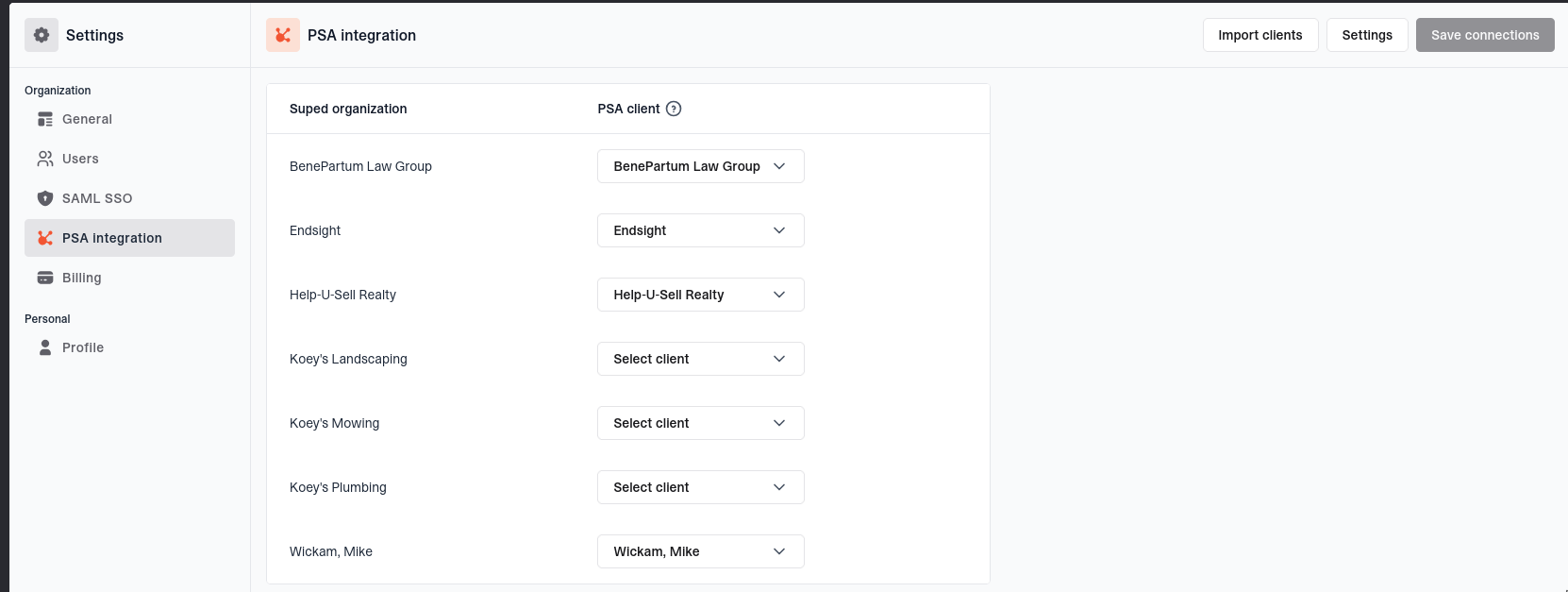
- Find the client organization in the Suped organization column on the PSA integration page.
- Select the matching Autotask customer company in the PSA client column. You can search by name.
- Set Sync issues for each linked organization to control whether Suped creates tickets for its issues.
- Repeat for other clients, then click Save connections.
Each Autotask company can be linked to only one Suped organization. Saving a new link queues the first background sync. Linking an existing organization does not import or change its domains.
Turning off Sync issues leaves company custom-field syncing enabled and does not delete existing tickets. The new-tab buttons beside the organization and PSA client open its Suped Issues page and Autotask company, respectively.
Import clients from Autotask
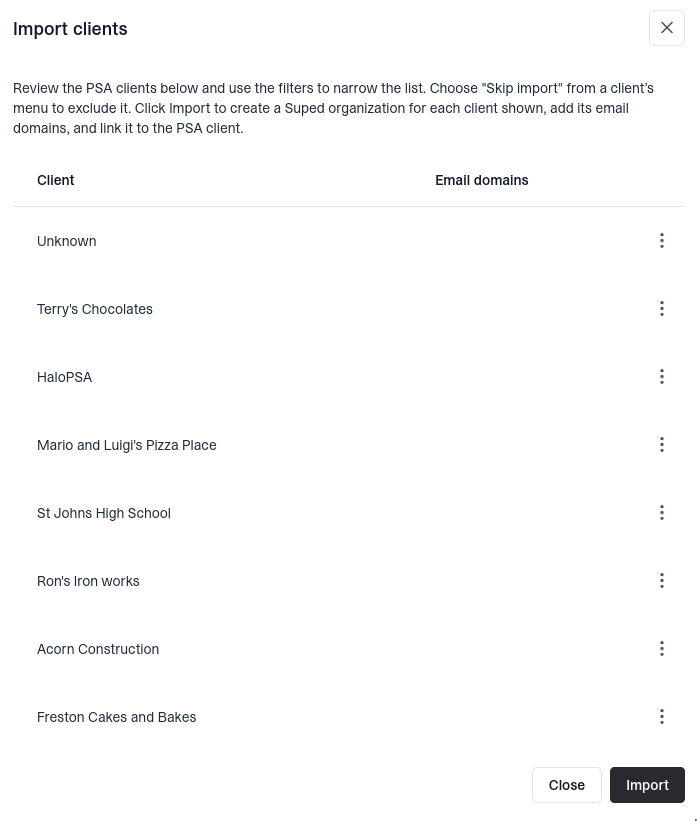
Use Import clients for customers that do not already have a Suped organization. Link existing organizations instead to avoid creating duplicates.
- Click Import clients. Suped lists active Autotask companies with the Customer company type, excluding those already linked to a Suped organization.
- Review the Client and Email domains columns. Clients are selected by default. Use the row switches to choose clients, or the header switch to select or deselect all visible clients.
- Click Import to create an organization for each selected company shown.
Suped creates a child organization using the company's name, adds its valid suggested domain, links it to the company, and queues its first sync with issue syncing enabled by default. The suggested domain comes from the company's web address hostname, not from its contacts' email addresses. A leading www. is removed when importing.
If the web address is missing or invalid, Suped still creates the organization without a domain. Review the imported domains, add any additional email domains, and complete DMARC reporting setup. Importing does not change DNS records. It is a one-time action; later company name and web address changes are not continuously imported.
Company custom fields and billable domains
Suped creates missing company user-defined fields and updates them for each linked Autotask company:
- Suped URL: A String field linking to the client organization's settings in Suped.
- Suped billable domains: A Numeric field containing the organization's current billable domain count.
A domain is billable if it has received DMARC reports in the last 30 days, uses SPF flattening or MTA-STS, has Hosted DKIM or lookalike monitoring enabled, or has a BIMI asset set. Archived domains are excluded. Subdomains count separately when they meet these conditions. Adding a domain alone does not necessarily increase the billable count.
Custom fields sync even when Sync issues is off. Autotask invoicing sync is not currently available; the billable domain field does not update contracts or invoices.
How issue tickets work
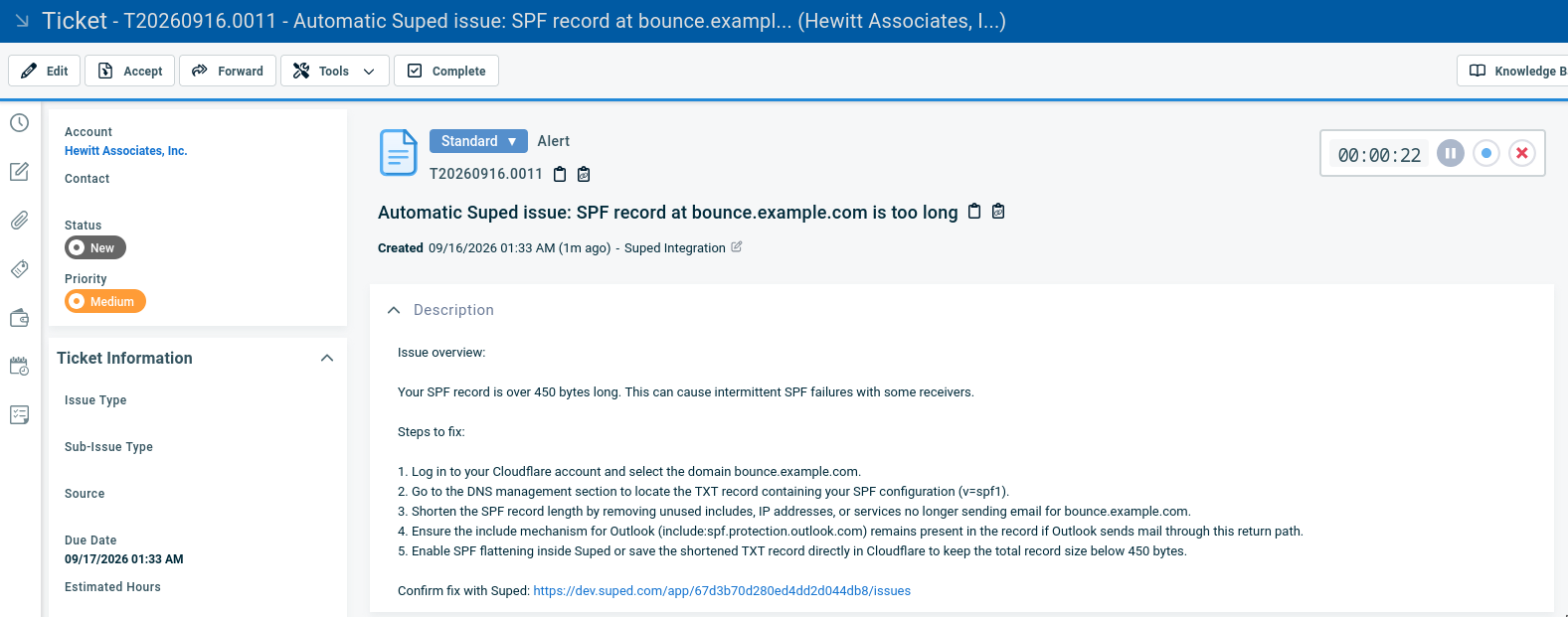
Suped creates tickets for open issues in linked organizations with Sync issues enabled, including existing open issues on the first sync. Resolved and dismissed issues are skipped. Each ticket is associated with the linked Autotask company and includes:
- A title beginning with
Automatic Suped issue:. - An overview of the issue and affected sources.
- Numbered steps to fix the issue.
- A link to the organization's Suped Issues page to confirm the fix.
Once an issue has been sent, ordinary syncs do not send it again. If Suped later reopens a previously resolved issue and marks it for syncing again, it can create a new ticket.
Ticket syncing is one-way ticket creation. Closing or editing an Autotask ticket does not resolve the issue in Suped, and resolving or dismissing an issue in Suped does not close the Autotask ticket. Use the ticket's Suped link to verify the fix and manage the ticket status separately in Autotask.
In a linked organization's Issues list, the PSA synced column shows each issue's sync result. Click a success indicator to open its Autotask ticket. Hover over an unsuccessful indicator to see the error or whether syncing has not yet been attempted.
Sync timing and verification
Linking or importing an organization queues an initial background sync. Saving a change to a linked organization's Sync issues switch or saving changed credentials also queues a sync. A daily job queues linked organizations throughout the day. Allow the next daily sync for new issues, billable domain changes, or ticket-routing changes.
- Confirm the organization-to-company mapping is saved in Suped.
- Check the company's Suped URL and Suped billable domains fields in Autotask.
- If the organization has an open issue that has not already been sent, check Autotask for its ticket and confirm the company and routing.
Change or remove the integration
Update credentials or ticket settings
Click Settings on the PSA integration page. Update the credentials or ticket settings, then click Save. Changing credentials requires clicking Continue to reload the available options and reselecting ticket settings before saving. Routing changes apply to future ticket creation; existing tickets are not moved or updated.
Unlink a client
Set the organization's PSA client back to Select client and click Save connections. This stops future syncing without deleting the Suped organization or Autotask company.
Remove the integration
Open Settings, set PSA system back to Select PSA system, and click Save. This removes the saved integration configuration and clears all client links and issue sync history. Saving a different PSA provider also clears the existing links and issue sync history.
Unlinking or disconnecting leaves existing Autotask tickets and custom fields in place. Unlinking alone preserves issue sync history. Removing the integration or switching providers resets that history, so linking clients again can create new tickets for issues that are still open.
Troubleshooting
Connection fails or options will not load
Check that the username, secret, and API integration code all belong to the same active API user. The resource must have an API-only security level and a tracking identifier. Suped uses the username to find your API zone, so an incorrect username can also prevent zone discovery. For restricted security levels, check access to ticket field metadata.
A company or domain is missing from import
Only active Customer companies are listed. Check the company's type, active status, the API user's access, and whether it is already linked. Domain suggestions come from the company's web address; a contact email address alone does not provide an import domain. Add missing email domains directly in Suped after importing.
A queue or another ticket option is missing
Autotask queues appear under Ticket team in Suped. Only active picklist options are listed. After enabling an option or adjusting API permissions in Autotask, reopen Settings to reload the choices, or click Continue again during initial setup.
Tickets are not appearing
Confirm the integration and client connection are saved, then allow for the background sync. Check that Sync issues is enabled and saved for the organization, and inspect the issue's PSA synced indicator for errors. The issue must be open and not already synced. Check that the API user can create tickets for the company, at least one ticket status is active, and the selected category does not require additional fields that Suped does not send. If your configuration requires a type or queue, select one in Suped.
Company custom fields are missing or stale
Check that the API user can read and create company user-defined field definitions and update company field values. Existing fields must use String for Suped URL and Numeric for Suped billable domains. If a field has the wrong type, rename it in Autotask so Suped can recreate it with the correct type on the next sync.


