Why is Google Postmaster Tools not showing domain or IP reputation?

Published 8 Aug 2025
Updated 11 Oct 2026
13 min read
Summarize with
Updated on 11 Oct 2026: We updated the domain verification steps and clarified what Gmail spam rates and Suped email tests can confirm.
The direct answer depends on which Google Postmaster Tools version you are viewing. The updated v2 interface does not include Domain Reputation or IP Reputation. If a reputation chart is visible but blank in legacy v1, the usual causes are low personal Gmail traffic, an authenticated-domain mismatch, normal processing delay, or a reporting gap.
Google's current deprecation notice postpones the legacy v1 web-interface retirement without a replacement date. Google still plans to retire legacy v1, while v2 and the v2 API omit the two reputation dashboards.
A missing panel is not a health verdict. Check the current v2 Compliance status and Deliverability analysis, Gmail spam rate, authentication, delivery errors, traffic volume, DMARC sources, and blocklist (blacklist) status before changing sending infrastructure.
Missing dashboards versus blank charts
Google Postmaster Tools has two separate missing-data scenarios. In v2, the absence of Domain Reputation and IP Reputation is expected because those dashboards are not included. In legacy v1, which remains available while deprecation is postponed, blank charts often mean low data volume, exact-domain scope mismatch, or a temporary reporting gap.
- V2 omission: The updated web interface and v2 API do not provide Domain Reputation or IP Reputation. Google says replacement dashboards are planned but has not published a launch date.
- Low Gmail volume: Legacy dashboards suppress data on low-volume days to protect recipient privacy. Only traffic sent to personal Gmail accounts contributes to these views.
- Authenticated-domain mismatch: Legacy domain reputation data uses the exact domain authenticated by DKIM or SPF, so a root domain and its sending subdomain can show different results.
- Reporting delay or gap: Dashboard data is not real time. It usually updates within 24 hours, can take longer, and historical gaps are not guaranteed to backfill.
- Compliance is separate: A v2 compliance result does not control whether a legacy reputation chart appears because the dashboards use different scopes and datasets.
Do not read blank as good
A blank reputation chart does not mean Gmail thinks your mail is good or bad. It means Google is not showing that metric for the selected authenticated domain and date range, including the sending IPs covered by the view.
Legacy v1 and v2 behave differently
Start by identifying the interface or API version. Google postponed the legacy web-interface deprecation, but it still encourages senders to move to v2. The version determines whether there is a reputation chart to troubleshoot at all. The postponed web-interface retirement does not cancel the required v1 API migration.
|
|
|
|---|---|---|
V2 web interface | Domain and IP reputation dashboards are absent | Use Compliance status, Deliverability analysis, Spam Rate, Authentication, Feedback Loop, Encryption, and Delivery Errors |
Legacy v1 web interface | Reputation dashboards can remain visible while deprecation is postponed | Troubleshoot low volume, the exact authenticated domain, UTC dates, or reporting gaps |
V2 API | Domain and IP reputation endpoints are not included | Migrate trafficStats calls to domains.domainStats.query and use domains.getComplianceStatus; keep delivery logs for missing metrics |
How reputation visibility differs across current Postmaster Tools versions.
Google's API migration guide explains the new resources and date-range queries. V2 has no domain or IP reputation fields, so switching API versions does not restore those scores.
Check the version first
An absent dashboard in v2 is expected. A visible but empty chart in legacy v1 requires data troubleshooting. This one distinction prevents most unnecessary DNS and IP changes.
Why reputation data is missing
The legacy reputation views gave senders a simple Gmail-specific rating. Google says these ratings are slow to reflect behavior changes, can be difficult to act on, and can mislead senders because reputation is only one factor in delivery. That explains the v2 omission, but a blank legacy v1 chart still needs a separate diagnosis.
|
|
|
|---|---|---|
V2 interface | No reputation dashboard | Current v2 metrics |
Low personal Gmail traffic | Blank or partial legacy dates | Daily Gmail recipient volume |
Authenticated-domain mismatch | Root differs from subdomain | DKIM signing domain (d=) and SPF Return-Path domain |
Normal processing lag | Recent dates are missing | UTC dates and processing time |
Unverified domain or missing account access | Domain missing from selection or access denied | DNS verification and the signed-in account's domain permissions |
Reporting gap | Older dates stop and resume | Date-by-date sending logs |
Common reasons Google Postmaster Tools does not show domain or IP reputation.
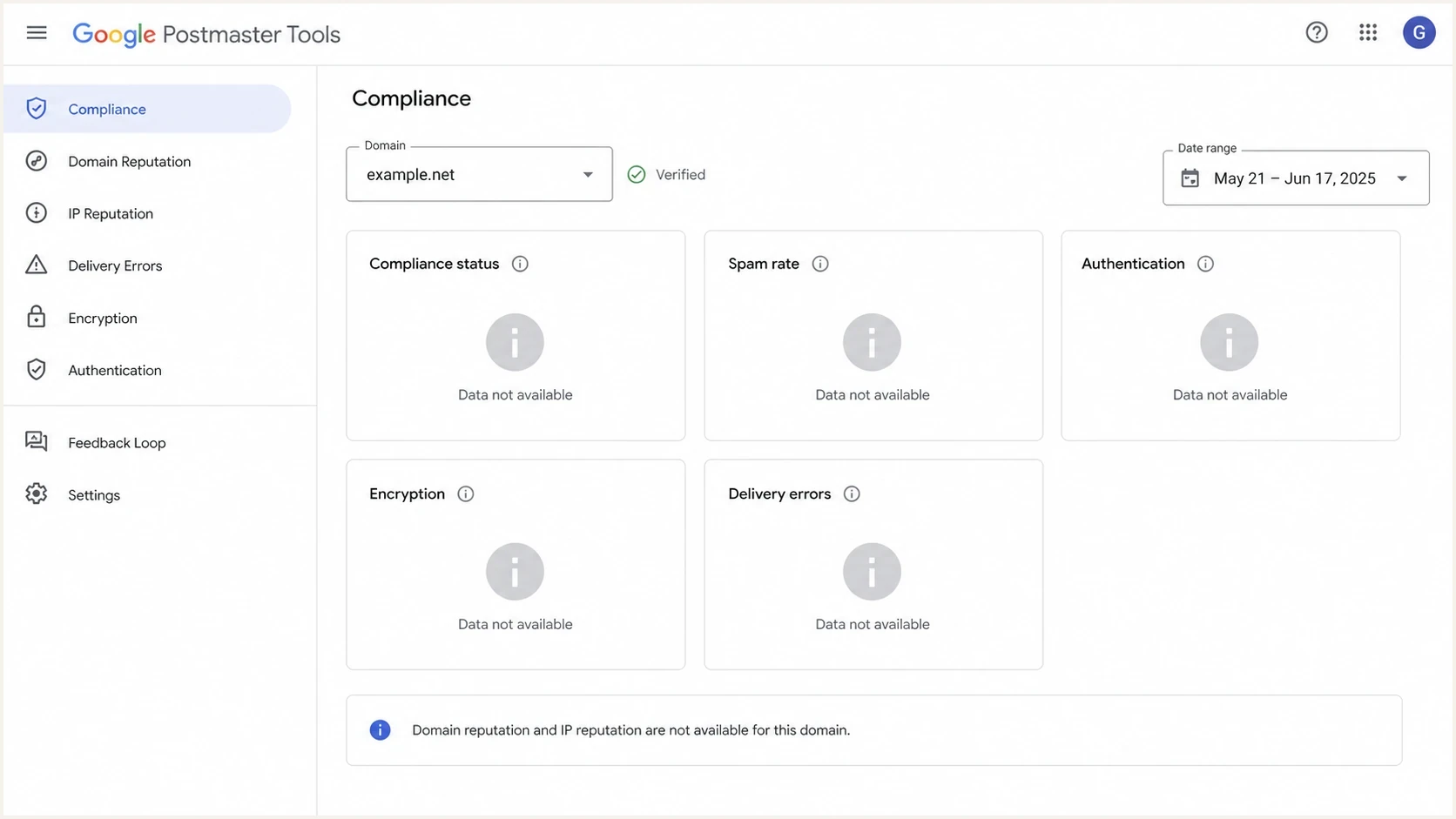
Google Postmaster Tools dashboard with domain and IP reputation data unavailable.
In v2, the reputation panels are absent while Compliance status, Spam Rate, Authentication, Feedback Loop, and Delivery Errors can keep updating. In legacy v1, those other metrics can also update while Domain Reputation and IP Reputation are blank. Neither pattern is a clean delivery verdict.
The related Suped article on reputation discontinuation explains Google's planned transition and the signals senders can use instead.
Check volume, domain scope, and compliance
The first practical step is to separate a delivery problem from a visibility problem. Check the interface version, recent traffic to personal Gmail accounts, the exact authenticated domain, and any v2 compliance failures before changing DNS or sending routes.
Troubleshooting priorities
These categories help prioritize investigation; they are not Gmail reputation ratings or data-volume thresholds.
Healthy check
green
Authenticated mail, stable Gmail traffic, low complaints, and no major compliance warnings.
Needs review
yellow
Partial dates, root and subdomain mismatch, or spam rate close to Gmail limits.
High risk
red
Authentication failures, complaint spikes, large deferrals, or unknown sending sources.
Google does not publish a universal dashboard minimum. Only personal Gmail recipients (@gmail.com and @googlemail.com) count; Google Workspace recipients on custom domains do not. The 5,000-messages-per-day bulk-sender rule is not a dashboard visibility threshold. Privacy filtering can leave low-volume days blank even within a longer date range. Do not increase sending just to populate a chart. Suped has a related explainer on required Gmail volume for diagnosing smaller senders.
- Confirm the authenticated domain: Check a passing DKIM d= domain on messages delivered to Gmail and the SPF-authenticated Return-Path domain. Compare these identities with the domain selected in legacy v1.
- Understand compliance scope: The Compliance status dashboard reports for the primary domain and uses data from its subdomains. "No data found" means insufficient qualifying messages for that requirement, not a failed compliance check.
- Allow processing time: Google uses UTC and typically updates dashboard data within 24 hours, but it can take longer. Check a 30- or 90-day range to find older reporting days; this does not override daily privacy filtering. Compliance changes can take up to seven days to appear.
- Review v2 recommendations: Open Deliverability analysis under Compliance status for recommendations about low volume, failed delivery, spam rate, recipient interaction, or sender requirements.
- Escalate carefully: If a verified, high-volume legacy v1 domain stays blank beyond normal processing time, record the affected domain, UTC dates, Gmail volume, and authentication results. Use Help in Postmaster Tools to submit feedback; compare symptoms with this public support thread.
Verify ownership and the DKIM signing domain
Domain verification proves ownership; it does not prove that Gmail sees traffic authenticated for that domain. Google's setup instructions require an authenticated sending domain and verified ownership before data appears.
- Check Manage Domains for verified status. Publish Google's TXT or CNAME token and complete Verify. The signed-in account needs ownership or access granted by an owner.
- Add the sending subdomain for independent charts. A verified primary domain removes the need to verify its subdomains separately, but you still need to add them.
- In a delivered Gmail message, choose "Show original" and inspect Authentication-Results. Compare the passing DKIM d= and SPF Return-Path domains with your selection, rather than relying on the visible From address.
- If only the provider's domain has a passing DKIM signature, configure custom DKIM for your domain. Provider-domain authentication does not populate your domain's DKIM-based data.
Example message identities (simplified)text
Visible From domain: example.com
DKIM signing domain (d=): mail.example.com
SPF / Return-Path domain: bounces.example.com
DKIM selector (s=): campaign
For this example, add mail.example.com for DKIM-based data and bounces.example.com for SPF-based data. The DKIM selector identifies the key; it is not the domain to add.
What to monitor instead
No single metric replaces Domain Reputation or IP Reputation. Use a working set of Gmail and domain-level signals: v2 Compliance status, Deliverability analysis, Spam Rate, Feedback Loop data, authentication, delivery errors, DMARC reports, and sending logs. Google recommends keeping user-reported spam below 0.1% and avoiding 0.3% or higher, as described in its sender guidelines.
A low spam rate does not prove inbox placement: it measures recipient spam reports on DKIM-authenticated mail delivered to engaged recipients' inboxes and excludes messages Gmail automatically sends to spam. Check delivery logs alongside the Google dashboard documentation.
Legacy reputation view
- Simple label: High, medium, low, or bad gave a quick read but not the root cause.
- Gmail-only scope: The rating described Gmail's view of authenticated traffic to personal Gmail accounts.
- Lagging signal: Behavior changes could take time to affect the displayed reputation rating.
Current monitoring signals
- Authentication: SPF, DKIM, and DMARC show whether authorized senders pass and meet alignment requirements.
- Recipient response: Spam complaints, unsubscribes, bounces, and deferrals show how recipients and Gmail react.
- Infrastructure: DNS, TLS, source inventory, and blocklist (blacklist) status expose technical causes.
Use Suped's domain health check to review DNS, then send a message through your normal sending system to the unique address provided by Suped's email tester. Compare the received-message results with DMARC aggregate data.
Email tester
Send a real email to this address. Suped shows a results button when the test is ready.
?/43tests passed
The tester checks the message received by Suped, including authentication, headers, and TLS on that SMTP connection. It does not measure Gmail inbox placement or the TLS connection to Gmail. Send a separate message to a Gmail mailbox to inspect Gmail's received headers and placement.
Example DMARC TXT recordDNS
Host:
_dmarc.example.com

Value:
v=DMARC1; p=none; rua=mailto:dmarc-reports@example.com;
This illustrative monitoring record uses the default relaxed DMARC alignment. Replace example.com and the report address with your own domain and configured reporting destination. A p=none policy requests reports without requesting quarantine or rejection; it does not restore Postmaster reputation data.
Where DMARC and Suped fit
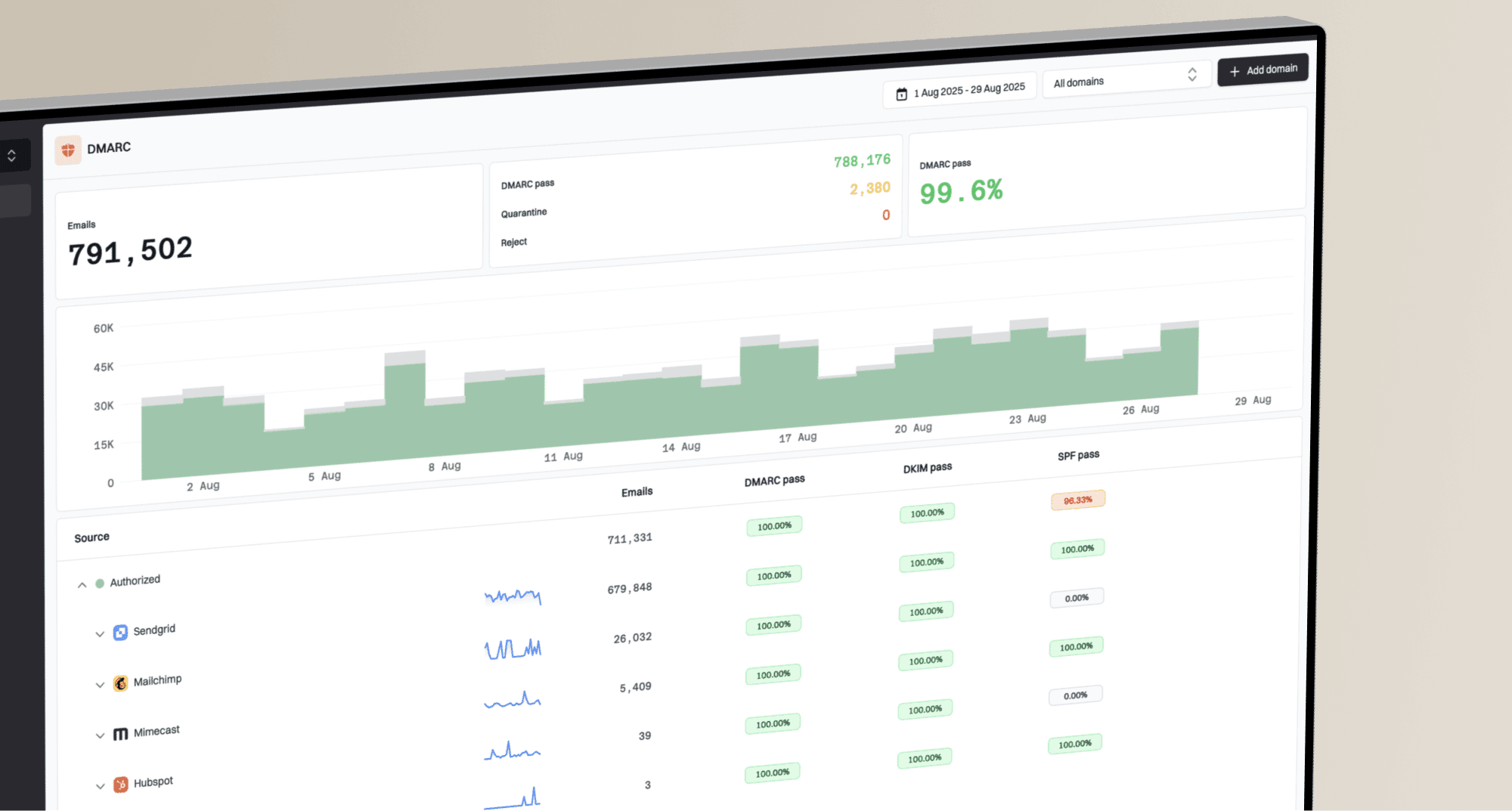
The missing Google reputation panels make DMARC reporting more useful for source-level diagnosis. Google Postmaster Tools reports Gmail signals, while DMARC aggregate reports identify systems sending as your domain across participating receivers and show which sources pass or fail authentication. These reports do not contain Gmail reputation scores or prove inbox placement; a DMARC pass confirms authentication with the required domain relationship.
Suped's DMARC monitoring supports this workflow by inventorying senders, surfacing authentication failures, staging policy changes, and alerting teams when failure rates change.
Issues page showing top issues, verified sources, unverified sources, and authentication pass rates
- Issue detection: Suped highlights failing sources and provides steps for correcting authentication problems.
- Alerts: Suped can notify the team when failure rates change instead of waiting for a reputation rating.
- Reputation checks: Suped's blocklist monitoring tracks domain and IP listings across major blocklists and blacklists. A listing is a separate signal, not Gmail's internal reputation score.
A practical troubleshooting path
Do not change IPs because a reputation panel is absent or blank. An infrastructure change can reset warmup, introduce new reputation uncertainty, and hide the original cause. Check the Postmaster Tools version, domain scope, recent sending changes, authentication, audience quality, and delivery logs first.
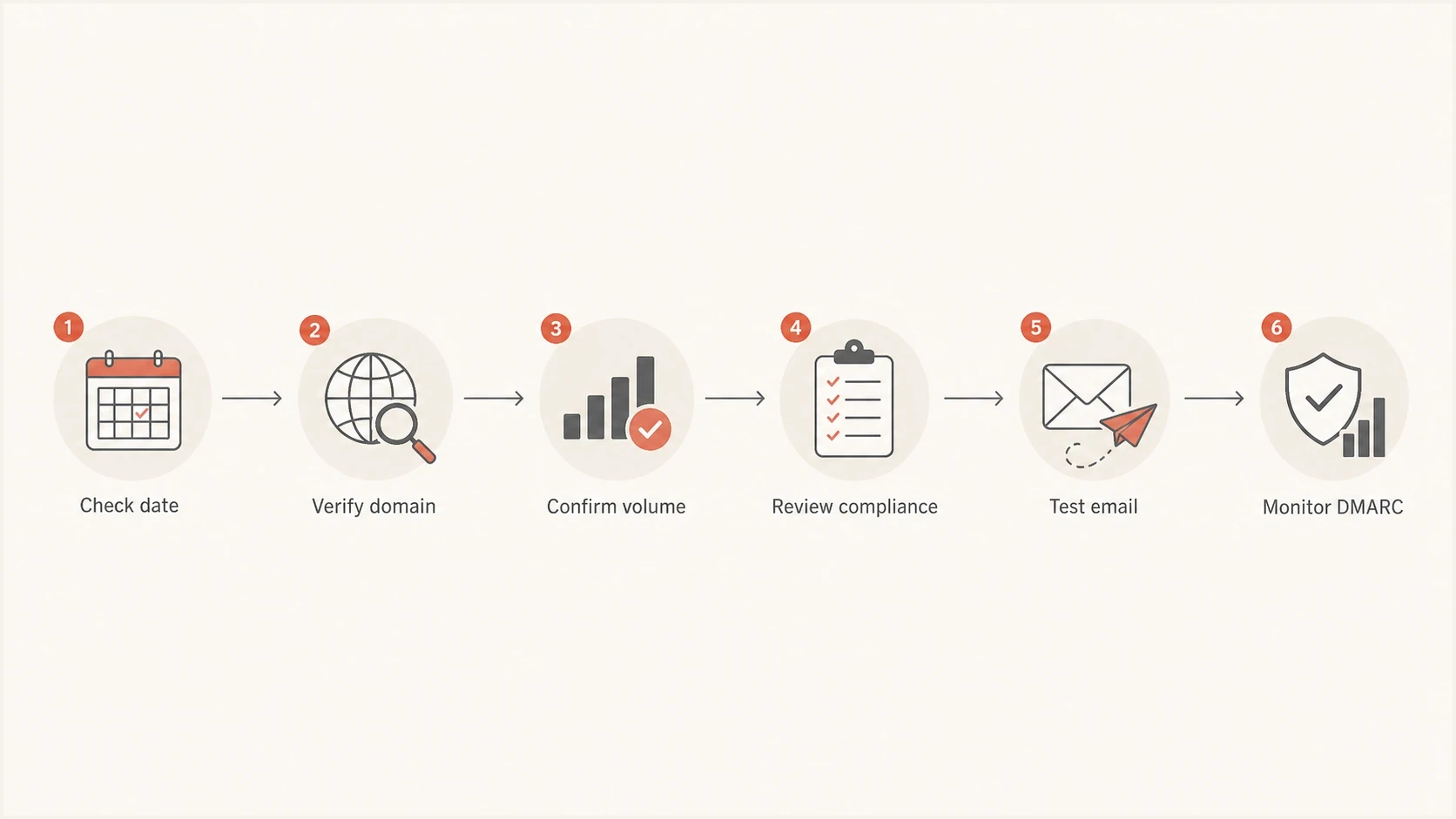
Google Postmaster Tools reputation troubleshooting flowchart covering domain verification and Gmail sending volume.
- Check the version: If you are using v2, the reputation dashboards are absent by design. If a legacy v1 chart is visible but blank, continue with data checks.
- Check the domain: Confirm verified ownership and account access. Open "Show original" in a delivered Gmail message and compare the passing DKIM d= and SPF Return-Path domains with the domain selected in legacy v1.
- Check the traffic: Confirm that the exact domain has enough recent traffic to personal Gmail accounts for Google to display privacy-safe data.
- Check compliance: Fix spam-rate, authentication, TLS, DNS, message-formatting, and unsubscribe warnings even when they are not the reason a legacy chart is blank.
- Check the message: Send a test to Suped's email tester for authentication and sending-setup checks. Send a separate message to a Gmail mailbox to inspect Gmail's headers and delivery placement.
- Check the sources: Review each sender in DMARC aggregate reports so unknown or misconfigured systems do not damage Gmail delivery quietly.
If the entire Postmaster Tools setup appears broken rather than only reputation visibility, use the related page on Postmaster Tools fixes before changing DNS or routing.
Views from the trenches
Best practices
Track Gmail signals beside DMARC, not instead of aggregate reports and source checks.
Verify the exact DKIM d= domain that sends mail, including all campaign subdomains.
Keep Gmail complaints low and review complaint spikes by campaign and audience promptly.
Common pitfalls
Treating a blank legacy chart as proof of good reputation hides delivery problems.
Checking only primary compliance misses sender issues shown in other dashboards.
Expecting historical backfill wastes time when Gmail leaves reporting gaps unfilled.
Expert tips
Use a weekly source inventory so new senders are caught before compliance breaks.
Compare Gmail complaints with bounce and deferral logs before changing IP routing.
Document each DNS change date so missing data can be mapped to real sending events.
Marketer view
Marketer from Email Geeks says reputation data stopped across many domains around January 14, 2025, then returned for some later dates without filling the missing gap.
2025-01-22 - Email Geeks
Marketer view
Marketer from Email Geeks says compliant domains also lacked domain and IP reputation in v2, so compliance status did not fully explain the blank panels.
2025-01-22 - Email Geeks
How to act on missing reputation data
Use the signals beneath the old rating: authentication, DMARC sources, complaint rate, Feedback Loop data, bounce and deferral logs, blocklist (blacklist) status, and domain-specific Gmail diagnostics. These signals support action even without a simple reputation label.
Best next move
Use Google Postmaster Tools for the Gmail data it still provides. Use Suped to map DMARC sources, diagnose SPF and DKIM failures, stage DMARC policy, receive alerts, and track reputation risks outside Google's reputation dashboards.