How to fix Google Postmaster Tools not working?

Updated on 20 Aug 2026: We updated this guide for Postmaster Tools v2, current reporting delays, and Google's delivery issue workflow.
If Google Postmaster Tools is not working, separate four different problems: the page will not load, the domain is not verified, dashboards show no data, or a dashboard you used in the legacy interface is absent from v2. Start with account access and browser state, then check domain verification, then confirm the domain sends enough authenticated mail to personal Gmail or googlemail addresses.
The practical short answer is to refresh the page, sign out and back in, try the domain menu, confirm the Google account has access, re-check the verification DNS record, and allow time for Gmail data to populate. If the dashboard remains empty or stale, validate SPF, DKIM, DMARC, TLS, sending IPs, feedback loop signals, and complaint signals outside Postmaster Tools so reporting delays do not stop delivery work.
Postmaster Tools is available to all senders, including bulk senders, but its data only covers mail sent to personal Gmail accounts. A small sender, a new sending domain, or a domain that mostly reaches Google Workspace inboxes can have correct email authentication and still show limited data.
Fix the interface first
When the Postmaster Tools interface itself is broken, the fix is usually account and session related. Start with the simple checks because they often restore the dashboard without changing DNS or mail configuration.
- Refresh the session: Reload the page, then sign out of every Google account in that browser and sign back into the account that owns the domain.
- Try another browser: Open Postmaster Tools in a clean browser profile with extensions disabled, especially privacy, script blocking, and account-switching extensions.
- Use the domain menu: Return to Manage Domains, open a verified domain, then use the Domain menu at the top of the dashboard to select the domain you need.
- Check access: Confirm the account is an owner or has been granted dashboard access. Users need a Google account, and access can be added only on verified domains.
- Test later: If multiple accounts and browsers fail at the same time, treat it as a Google-side issue and keep monitoring authentication and delivery data elsewhere.
A broken Google Postmaster Tools UI does not mean Gmail delivery is broken. It means the reporting surface is unavailable, stale, or missing data. Keep sending checks separate from dashboard checks.
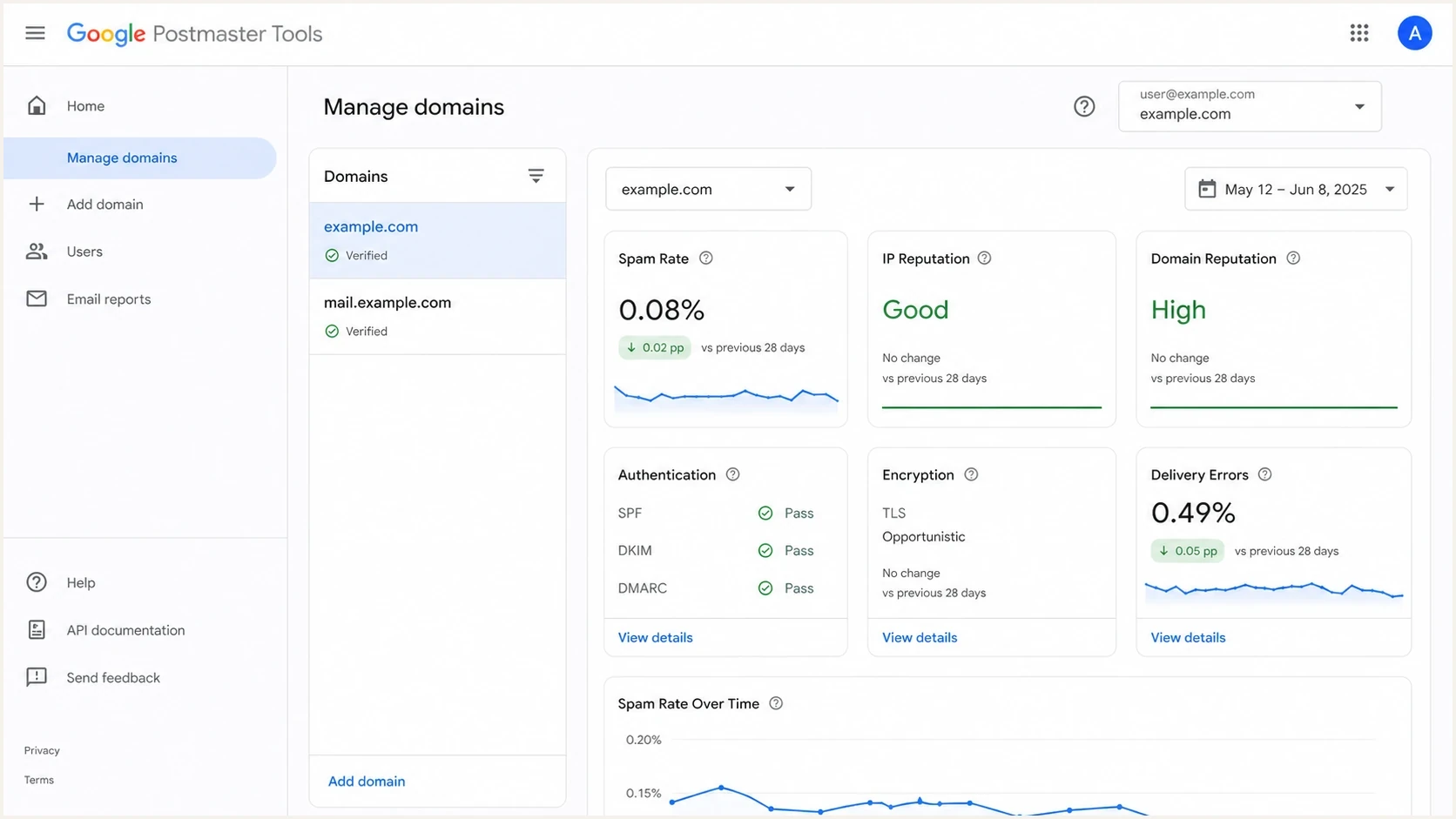
Google Postmaster Tools Manage Domains view with domain picker and reputation dashboards.
If the domain menu gets you into the dashboard, do not assume the original route is healthy. It only proves that access through the domain menu works. Still check verification and data freshness before making sender changes.
Check whether the dashboard moved in v2
Google launched Postmaster Tools v2 in 2024 and encourages senders to use it. Google has postponed the retirement of the legacy web interface, so both interfaces can still affect what a user expects to see. The deprecation notice says the legacy interface will eventually be retired, but Google has not published a replacement date.
- Compliance status is available in v2. It checks current sender requirements and reports Compliant, Needs work, or No data found.
- Domain Reputation and IP Reputation are not available in v2. Google plans to retire those legacy dashboards, so their absence in v2 is expected behavior.
- The Compliance status dashboard reports at the primary-domain level. It uses subdomain traffic when it evaluates the primary domain.
- API users must migrate to v2. The v2 API uses domainStats queries, supports date ranges and batch queries, and provides a compliance-status method.
If only a Domain Reputation or IP Reputation panel is missing after switching to v2, do not change DNS. Check Compliance status, Spam rate, Authentication, Encryption, and Delivery errors instead.
Check verification and ownership
A verified domain is required before Postmaster Tools shows data. Google's setup page says the dashboards do not display information until the domain is verified. Verification usually updates right away but can take up to 10 minutes.
A common mistake is verifying the wrong domain. Google asks you to add the domain used to authenticate outgoing email with SPF, DKIM, or both. In practice, that means the DKIM d= domain or the SPF Return-Path domain, not simply the brand domain people see in the From address.
For subdomains, verify the primary domain first when possible, then add sending subdomains if you need independent dashboards. If the primary domain is verified, its subdomains do not need separate verification. If multiple Google accounts need owner-level access, set up separate DNS verification records for each account.
Example DNS verification TXT recordDNS
example.com. 3600 IN TXT "google-site-verification=abc123exampletoken"
|
|
|
|---|---|---|
Cannot verify | TXT or CNAME token missing | Check DNS value and host |
No domains | Wrong account or no access | Switch login or ask owner |
No data | Low volume or reporting delay | Confirm traffic and wait |
Authentication blank | Wrong authenticated domain | Add DKIM or SPF domain |
Use this table to decide what to fix first.
For a deeper setup walkthrough, keep a separate checklist for domain verification. Verification problems are DNS or access problems until the record and account permissions are confirmed.
Understand missing or stale data
If the UI loads and the domain is verified, the next question is whether Gmail has enough qualifying traffic to show the dashboard. Postmaster Tools reports on mail sent to personal Gmail and googlemail accounts, not Google Workspace inboxes. Low volume, recent setup, or a domain that does not send directly to Gmail can leave dashboards empty.
UI problem
- Page state: The dashboard fails across one browser, one account, or one route through the domain list.
- Likely fix: Refresh, clear session state, switch accounts, use a different browser, or open the domain through the Domain menu.
- Risk level: Low. Do not change DNS or sending systems until you confirm the data itself is wrong.
Data problem
- Traffic state: The dashboard loads, but spam rate, compliance, authentication, or error panels are blank or delayed.
- Likely fix: Verify the sending domain, wait for enough Gmail traffic, and compare the result against DMARC aggregate reports.
- Risk level: Medium. Missing data can hide real authentication or delivery problems.
Google's sender FAQ explains that Postmaster Tools includes delivery errors, spam reports, feedback loops, authentication, encryption, and related diagnostics. It also states that a domain that does not send can show no authentication results, even if SPF and DKIM are configured.
Dashboard data is not real time. Google says it typically updates within 24 hours but can take longer, and Postmaster Tools uses UTC. Low daily volume can suppress data to protect Gmail user privacy. After a Compliance status fix, allow up to seven days for the new status to appear.
How to read missing Postmaster data
Treat empty dashboards differently depending on verification, traffic, and freshness.
Verified and sending
Monitor
Use external logs and DMARC reports while waiting for Google data.
Verified but low traffic
Wait
Expect missing panels until Gmail has enough data to protect user privacy.
Not verified
Fix DNS
Fix the DNS verification record before treating the dashboard as broken.
Wrong sending domain
Add domain
Add the DKIM d= domain or SPF Return-Path domain actually used in mail.
If your issue is an empty dashboard, compare the symptoms with this guide on no data. If data stopped on a certain day, record the last complete UTC date, check recent Gmail traffic and authentication, then wait through the normal reporting delay before changing production mail.
Verify email authentication outside Google
Postmaster Tools is useful, but it is not the only source of truth. When it is not working, confirm that Gmail can authenticate real mail and that the DNS records support the traffic being sent.
Baseline authentication records to checkDNS
example.com. 3600 IN TXT "v=spf1 include:_spf.example.net -all"
selector1._domainkey.example.com. 3600 IN TXT "v=DKIM1; k=rsa; p=MIIB..."
_dmarc.example.com. 3600 IN TXT "v=DMARC1; p=none; rua=mailto:dmarc@example.com"
- Check the SPF result. Confirm the sending IP is authorized and the record stays within the 10 DNS lookup limit.
- Check the DKIM result. Confirm the selector in the message has a matching public key and the signature validates after forwarding or message changes.
- Check the DMARC result. Confirm the From domain aligns with the SPF identity, the DKIM identity, or both, and that aggregate reports arrive.
- Test a real message. Send a campaign-style message and inspect the headers with an email tester before relying on dashboard percentages.
?
What's your domain score?
Deep-scan SPF, DKIM & DMARC records for email deliverability and security issues.
A broader domain health check can catch DNS issues that make Postmaster Tools look broken, including missing DMARC, invalid SPF, broken DKIM selectors, poor reverse DNS, or weak mail security records.
DMARC record detail view showing SPF, DKIM, DMARC, rDNS diagnostics, and DNS records
Suped's product supports this workflow by collecting DMARC aggregate reports and connecting authentication results to sending sources. When Google Postmaster Tools is delayed or blank, Suped can still show which senders pass SPF, DKIM, and DMARC, which sources need attention, and whether a domain or IP appears on a blocklist or blacklist.
Investigate reputation and delivery symptoms
Sometimes Postmaster Tools is working, but the available numbers look incomplete. Domain Reputation and IP Reputation are absent from v2, while the legacy interface remains available during Google's postponed deprecation. Authentication rates can also look low when you view the wrong domain, and Delivery errors report specific failure classes rather than the complete mailbox placement result.
Do not use one Postmaster Tools panel as a complete deliverability diagnosis. Match it against DMARC aggregate data, message headers, bounce logs, unsubscribe signals, complaint trends, and blocklist or blacklist status.
For DMARC-heavy teams, DMARC monitoring fills the reporting gap because it uses aggregate reports from receiving mail systems, not only the Google interface. Suped's blocklist monitoring can track domain and IP listings while Postmaster Tools data is delayed.
What to compare when Google data is missing
Use multiple signals so a broken dashboard does not stop delivery work.
Use first
Use next
Escalate
Critical
If you manage several domains or client accounts, keep daily checks running even when a single mailbox provider dashboard lags. Suped supports this workflow with multi-domain DMARC reporting, automated issue detection, remediation steps, and alerts when authentication failures cross a threshold.
A practical recovery workflow
Use this order because it prevents unnecessary DNS edits and makes each failure visible. Answer one question at a time: can you access the tool, does Google trust your ownership, does Gmail have enough data, and does your mail authenticate correctly?
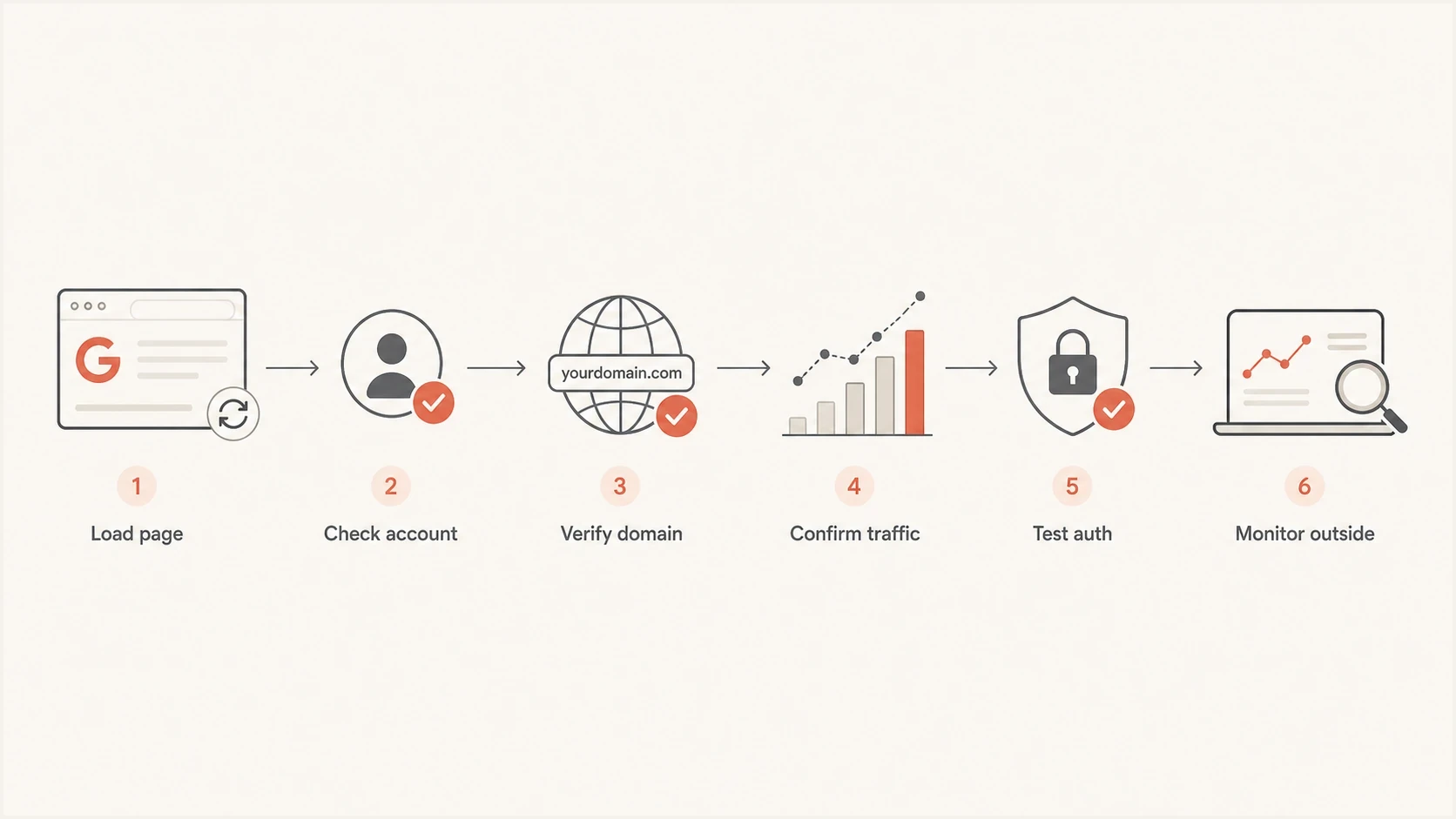
Flowchart for fixing Google Postmaster Tools access, verification, no data, and authentication checks.
- Check access first. Use a clean browser session and confirm the Google account can see the domain list.
- Check ownership next. Re-check the verification token, DNS host, TTL, and whether the record was added at the intended primary domain or subdomain.
- Check traffic. Confirm the domain sends mail to personal Gmail accounts and allow for the UTC-based reporting delay.
- Check headers. Inspect delivered messages to confirm SPF, DKIM, DMARC, TLS, and the domain added to Postmaster Tools match the identities used in mail.
- Keep monitoring. Use DMARC reports, blocklist or blacklist checks, and bounce logs until the Google dashboard catches up.
If mail authenticates, Gmail bounces remain normal, and independent reputation signals remain stable, wait through a temporary Postmaster Tools reporting issue instead of changing production sending.
For messages Gmail incorrectly classifies as spam or phishing, rejects, or temporarily fails, use Report delivery issue in Postmaster Tools. Google requires a verified domain, owner access, compliance with its sender guidelines, SPF and DKIM authentication, and a From domain that matches the selected domain. Submit the affected message details, then track the report under Reported issues.
Views from the trenches
Best practices
Separate browser access checks from mail authentication checks before changing DNS records.
Verify the exact DKIM or SPF sending domain that Gmail sees, not only the brand domain.
Keep DMARC reporting active so Google dashboard delays do not block daily sender monitoring.
Common pitfalls
Treating an empty Postmaster dashboard as a sending outage causes unnecessary DNS changes.
Checking only the root domain misses subdomains used for return-paths or DKIM signing.
Waiting for Google data without checking headers leaves SPF or DKIM failures unnoticed.
Expert tips
Use the domain selector after opening another domain when a specific dashboard route fails.
Compare Postmaster authentication panels with DMARC aggregate reports before escalating.
Record the first missing-data date so stale Google reporting is easier to separate from fixes.
Marketer from Email Geeks says the issue appeared across multiple accounts and browsers, which pointed to a Google-side interface problem rather than a local sender setup issue.
2023-02-10 - Email Geeks
Marketer from Email Geeks says several refreshes restored access in some cases, so session state and browser routing should be checked before changing DNS.
2023-02-09 - Email Geeks
Final Google Postmaster Tools checks
Check the interface first: refresh, switch accounts, use a clean browser, and select the domain through Manage Domains. Then verify the DNS token and confirm that you added the DKIM or SPF domain Gmail actually sees.
If the dashboard still shows no data, check traffic volume, the last complete UTC date, domain scope, and authentication results. Keep delivery work moving with message headers, DMARC aggregate reports, bounce logs, and blocklist or blacklist status. Suped's product can keep those authentication and listing checks visible while Postmaster Tools is late or unavailable.




