Why is Microsoft Outlook blocking my email and how can I fix it?

Published 11 Jun 2025
Updated 25 Oct 2026
26 min read
Summarize with
Updated on 25 Oct 2026: We clarified Microsoft's block codes and added the steps to restore a restricted Microsoft 365 sender account.
Microsoft Outlook blocks, defers, rate-limits, junks, or quarantines email when Microsoft distrusts the sending IP, sending domain, tracking domain, message content, recipient behavior, mailbox policy, reverse DNS, HELO identity, or traffic pattern. Start by separating the visible symptom: an SMTP rejection or non-delivery report (NDR), a temporary 421 deferral, accepted mail in Junk or Other, a Microsoft 365 quarantine, a blocked Outlook.com account, a full mailbox or OneDrive storage quota, an Outlook app sync issue, or a recipient-side tenant rule.
For self-hosted mail on a VPS, prove SMTP egress before opening a Microsoft case because some hosting providers block outbound SMTP ports or require an approved relay. If direct Microsoft 365 mail works while a third-party sending route fails, Microsoft is judging separate mail streams, not only one visible From domain. If one consumer Outlook.com account is temporarily blocked after unusual sign-in activity, handle that as account recovery rather than sender reputation.
If the bounce says S3150, start with the sending IP named in the NDR and ask its provider to investigate the IP or network block. The code alone does not establish that a tracking domain or URL caused the rejection. Check linked domains separately when reviewing the full mail stream. A clean public blocklist (blacklist) check does not rule out a Microsoft internal block, and removing an external listing does not automatically remove an Outlook.com block.
When someone says Outlook is blocking email, treat that as mail to Outlook.com, Hotmail, Live, MSN, or a Microsoft 365 recipient protected by Exchange Online Protection. Consumer and Microsoft 365 recipients have different support and admin paths, and the visible symptom changes. One sender sees a hard bounce, another sees throttling, and another sees accepted mail pushed to Junk or quarantine. Confirm the scope before changing DNS or sending volume: one recipient, one tenant, all Microsoft consumer domains, or the whole Microsoft-hosted audience. A Microsoft-only campaign does not cause a block by itself, but it concentrates volume against one receiver, so weak reputation becomes visible faster. Start by sending a controlled test through Suped's email tester, then split Microsoft-family results away from blended campaign averages. For accepted-but-junked mail, separate recent Microsoft engagers from inactive Microsoft recipients before changing infrastructure.
Common reasons Outlook blocks email
The fastest path is to treat the block as a reputation, authentication, and traffic-shape incident, not as a single DNS problem. A perfect SPF record will not rescue mail from a sender with high complaints, spam trap hits, namespace mining behavior, connection pressure, or a poor shared IP. A clean audience will not rescue mail with broken DKIM signing or suspicious tracking domains. Microsoft combines signals, so the fix has to cover the whole message path.
- IP reputation: Microsoft is rejecting mail from the sending IP or a related network range because prior traffic looked abusive, unwanted, or risky.
- Domain reputation: The visible From domain, bounce domain, tracking domain, or linked domain has poor reputation even when the IP looks clean.
- Authentication: SPF, DKIM, or DMARC fails, passes without the right domain match, or changes between normal mail and the blocked stream.
- High-volume rules: A domain sending 5,000 or more messages in one day to Outlook.com consumer services under the same 5322.From domain must have both SPF and DKIM pass, publish DMARC at p=none or stronger, and pass DMARC through aligned SPF or DKIM.
- Recipient behavior: Junk complaints damage sender reputation. Low confirmation or engagement rates are reasons to review consent and targeting, rather than proof of a specific filtering decision.
- Recipient-side controls: Microsoft 365 quarantine, transport rules, spam confidence level (SCL), blocked senders, tenant policy, full storage, or an Outlook.com account block can prevent inbox delivery without a sender reputation block.
- List quality: Old addresses, typo addresses, recycled accounts, spam traps, and address probing create negative signals even when the campaign is legitimate.
- Rate limits: 421 RP-001, RP-002, or RP-003 responses are temporary deferrals tied to rate or connection pressure, often because IP or domain reputation is not strong enough for the current traffic shape.
- Microsoft 365 sender limits: Exchange Online mailbox sending can hit 30 messages per minute, 10,000 recipients per day, per-message recipient limits, the tenant external recipient rate limit, or the 100-external-recipient restriction for default onmicrosoft.com domains.
- Shared network: A provider network issue can affect your mail even when your own campaign practices are reasonable.
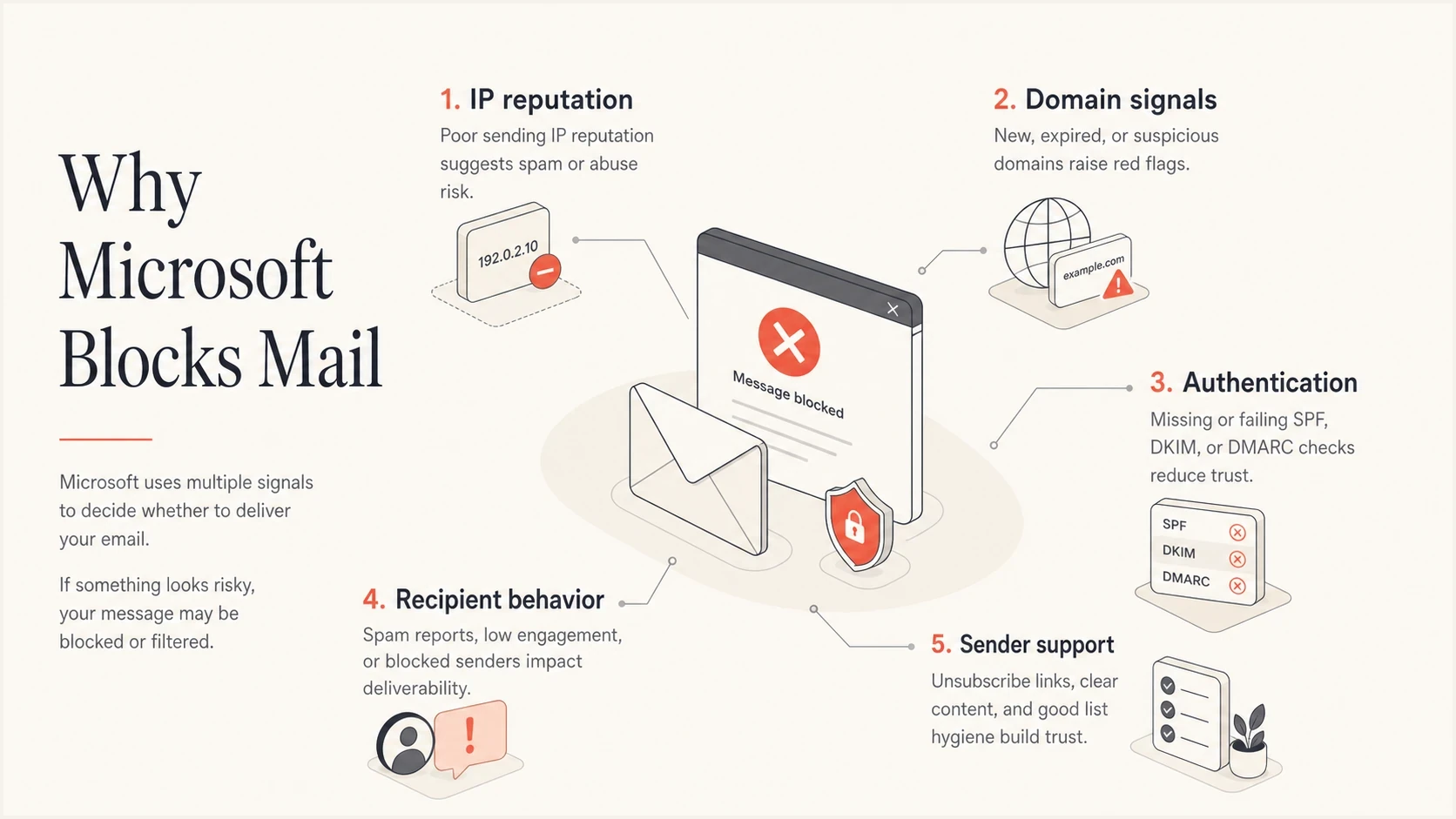
Infographic showing Outlook email blocking causes, including IP reputation, domain signals, authentication, recipient behavior, and sender support.
Do not automatically retry a permanent 5xx rejection. Pause the affected stream, preserve the full NDR and raw headers, and fix the cause before sending a new controlled test. For temporary 4xx responses, keep messages queued with normal backoff.
What the bounce code is telling you
SMTP logs show whether Microsoft rejected a message, temporarily deferred it, or accepted it. An NDR records a delivery failure; it does not show the eventual folder for accepted mail. If there is no SMTP bounce, check Junk, Other, quarantine, mailbox storage, account status, and message trace before treating the case as a sender block. A connection timeout before the SMTP banner points to transport, firewall, provider egress, or routing, not a Microsoft reputation decision.
A hard 5.7.1 rejection is a policy block. A 5.7.511 access denied response means Microsoft 365 has banned the sending source, but it does not use the standard blocked-IP portal. Follow the NDR by forwarding the full NDR code and blocked IP to delist@microsoft.com. By contrast, a 5.7.606-649 banned sending IP response uses the Office 365 Anti-Spam IP Delist Portal. After a permanent 5xx response, do not retransmit that message to that recipient. Send a new controlled test only after remediation. Follow Microsoft's delisting instructions for the route specified by the NDR.
If the NDR says "You do not have permissions to send to this email address," treat recipient policy as the first suspect. A distribution group or mailbox configured to reject external senders needs recipient-admin review of delivery management, permitted senders, mail flow rules, and message trace. For 5.7.703, the sending organization has blocked a recipient address or domain in its Tenant Allow/Block List. Its admin must review the entry; one blocked recipient prevents delivery of the entire message, including to other recipients.
Typical Microsoft rejectiontext
5.7.1 delivery not authorized
Messages from [13.111.85.198] were not sent.
Part of their network is on our block list (S3150).
For Microsoft-specific blocks, use Microsoft troubleshooting after you gather evidence. The current Postmaster guidance ties many 421 and 550 responses to IP or domain reputation, complaint rate, list accuracy, content, reverse DNS, and sender authentication. Outlook.com has enforced its high-volume requirements since May 5, 2025. The current 550 5.7.515 response means a domain sending 5,000 or more messages in one day under the same 5322.From domain has not met the required authentication level. Both SPF and DKIM must pass, DMARC must be published at p=none or stronger, and DMARC must pass through aligned SPF or DKIM. See Microsoft's 5.7.515 guidance for the authentication checks required at the domain level.
If the sender is Microsoft 365, 550 5.7.233 points to tenant external recipient enforcement, and 550 5.7.236 points to the default onmicrosoft.com external sending limit. These are sending-side limits, not proof that Outlook.com blocked your domain for reputation. If you see a different code, compare it with related patterns such as S3140 errors before deciding whether the problem is IP reputation, content reputation, throttling, or authentication.
|
|
|
|---|---|---|
SMTP timeout | No transport path | Test egress |
S3150 | Sending IP or network block | Ask provider and Outlook.com support |
5.7.1 | Policy or permission rejection | Read the full NDR |
5.1.8 | Restricted outbound sender | Secure account, then admin unblock |
5.7.511 | Banned sender | Email full NDR |
5.7.606-649 | Banned sending IP | Use IP delist portal |
No permissions | Recipient policy | Ask recipient admin |
5.7.515 | High-volume auth failure | Meet sender requirements |
5.7.233 | Tenant external recipient limit | Check outbound volume |
5.7.236 | onmicrosoft.com external limit | Use verified domain |
5.7.703 | Sending tenant blocks a recipient | Ask sending tenant admin |
421 | Rate or connection limit | Back off volume |
SC-001 | Content or reputation reject | Inspect content |
SC-002 | Namespace mining | Stop probing |
SC-003 | Open proxy or relay | Secure source |
SC-004 | Complaint-based IP block | Reduce complaints |
DY-001 | Dynamic sending IP | Use an appropriate outbound route |
DY-002 | Suspected compromised source | Investigate and secure the source |
OU-001 | External blocklist signal | Investigate the named listing |
OU-002 | Content or IP/domain reputation | Inspect content and reputation |
Junk | Filtered after acceptance | Inspect headers and recipient settings |
Quarantine | Tenant policy hit | Check message trace |
Common Microsoft symptoms and first actions.
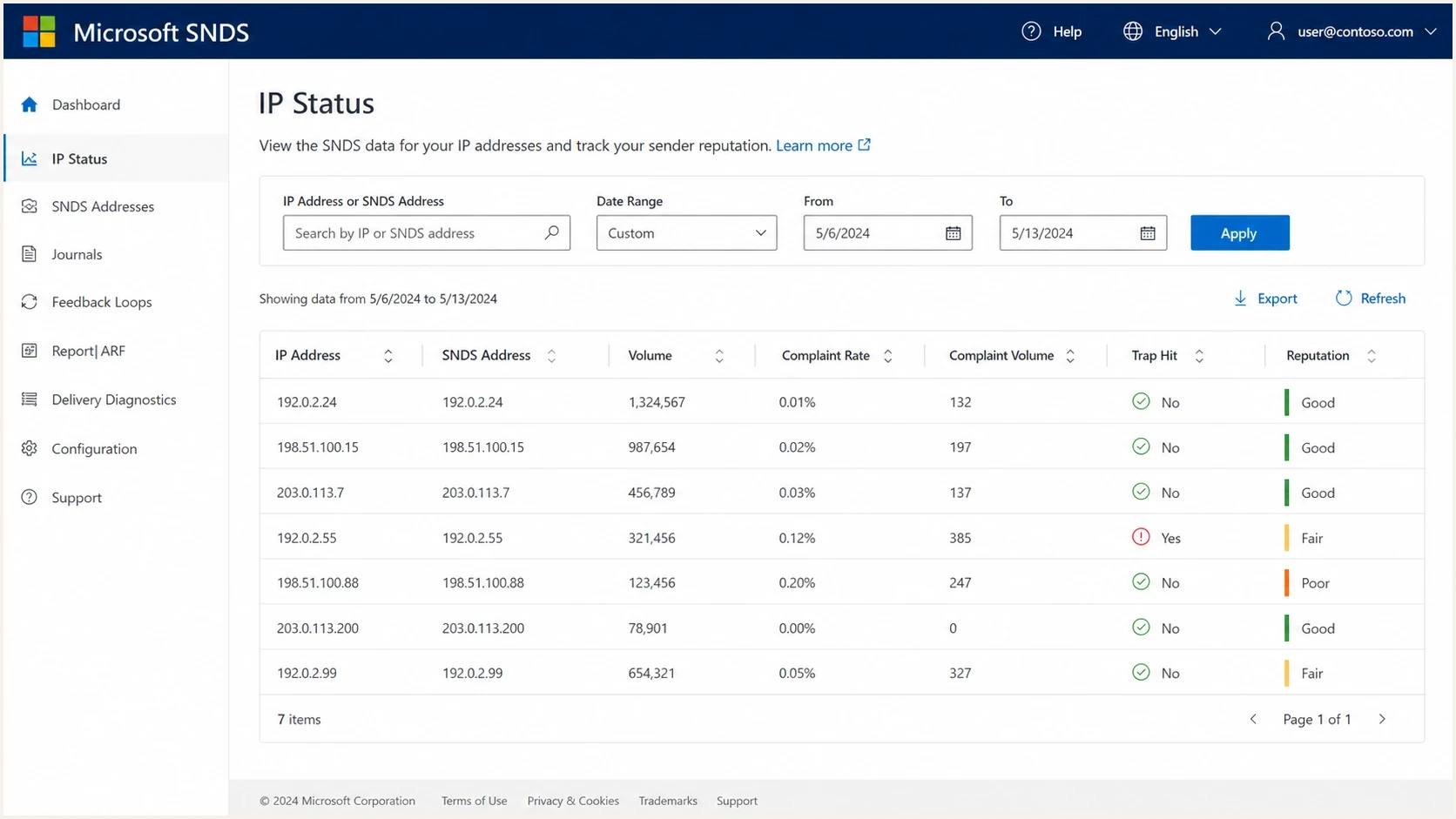
Microsoft SNDS view of sending IP reputation, complaint rates, and spam trap hits.
When Outlook is throttling instead of blocking
A logged Microsoft 421 response confirms a temporary deferral. Late delivery alone does not identify which system caused the delay. A 421 response, RP-001, RP-002, or RP-003 points to rate or connection pressure, usually tied to IP or domain reputation. Treat this as an early warning signal, not proof that Microsoft has placed the sender on a permanent blacklist.
If the sender uses Microsoft 365, separate Exchange Online sender limits from inbound Outlook.com throttling. Published Exchange Online controls include 30 messages per minute, 10,000 recipients per mailbox in a 24-hour window, a per-message recipient limit that admins can set as high as 1,000, the tenant external recipient rate limit, and a 100-external-recipient rolling limit for default onmicrosoft.com domains. Excess submissions at the 30-message-per-minute limit are queued into following minutes rather than generating a reputation-block NDR. Use the live NDR and tenant settings to identify which control fired, because a mailbox, tenant, or default-domain limit needs a different fix than an Outlook.com reputation block. Compare the result with Exchange Online sending limits.
- Reduce Microsoft-family hourly caps before cutting global volume, because other mailbox providers can look normal while Outlook.com and Hotmail are slowing down.
- Let the retry queue drain and use normal backoff. Stacking new campaigns into a delayed queue adds pressure.
- Keep simultaneous connections below Microsoft's published 500-connection ceiling and lower them further if 421 responses continue.
- Send recent engagers first, then reintroduce older segments only after deferrals stay low for several campaign windows.
- Ask the sending platform for attempted-delivery timestamps, temporary SMTP responses, connection counts, and accepted delivery pace so you can prove where the delay happened.
- For Microsoft 365 senders, check the Tenant Outbound External Recipients report in the Exchange admin center and mailbox recipient totals before opening a sender reputation case.
A Microsoft-only send changes the traffic shape because every message enters the same receiver family. If retries clear later, use the accepted delivery pace as the next cap instead of scheduling another Microsoft-heavy campaign into the delayed queue.
When Microsoft 365 blocks your account from sending
A 550 5.1.8 Access denied, bad outbound sender response means Exchange Online restricted the sending account. Receiving can still work. Repeated messages with one recipient each still count toward sending limits and outbound spam controls.
An authorized admin should follow Microsoft's restricted-user instructions after identifying why the account was restricted.
- Review message trace, outbound-spam alerts, and the sending pattern that triggered the restriction.
- Check sign-in activity and forwarding rules. If the account was compromised, reset its password, revoke sessions, remove unauthorized access, and enable MFA before restoring sending.
- In Microsoft Defender, open Email & collaboration > Review > Restricted entities. Select the mailbox, choose Unblock, and complete the security recommendations.
- Send one test after removal and monitor the result. Restrictions normally clear within one hour, with up to 24 hours for technical delays.
Keep bulk campaigns on a route intended for that volume and review the applicable outbound spam policy before resuming. Removing the restriction without addressing the triggering activity leaves the cause unresolved.
When newsletters and confirmations land in Junk
Accepted mail in Junk is not the same as an SMTP block. For newsletters, signup confirmations, and welcome emails, group Microsoft-family results separately from blended campaign averages. Compare confirmation rate, click rate, replies, tagged site visits, complaints, and unsubscribes. Opens alone can mislead because image loading and security prefetching distort them.
Fix the first messages before changing the whole program. Keep the confirmation email simple, use one confirm link, remove nonessential social and marketplace links, keep the sender name consistent, and tell new Outlook or Hotmail subscribers on the thank-you page to check Junk Email, click Not junk, and add the sender to safe senders or contacts. Outlook.com does not offer a sender-side allowlist that bypasses filtering. Safe senders settings apply to wanted mail at the mailbox level; they do not restore messages rejected during SMTP or override every Microsoft 365 security verdict.
- Use confirmation rate as the first metric for signup flows, because a low Outlook or Hotmail confirmation rate often exposes Junk placement before campaign metrics do.
- Use recent engagement as the restart gate, because Microsoft needs a fresh pattern of wanted mail after a bad run.
- Use one clean linked domain in the earliest emails, because tracking redirects, image hosts, and unrelated links can drag reputation.
- Use replies, direct site visits, and support messages as intent signals when open tracking looks unreliable.
Rule out recipient-side issues
Before treating every failed delivery as an Outlook block, confirm where the failure occurred. Microsoft separates sender problems from Outlook.com account blocks, app issues, mailbox storage, OneDrive storage limits, service health, message trace results, quarantine, Tenant Allow/Block List entries, and tenant policy. A consumer Outlook.com account can be temporarily blocked after unusual sign-in activity, and a full Outlook.com mailbox or OneDrive storage quota can stop mail even when sender reputation is fine. After freeing storage, ask the sender to send a new message; mail rejected while storage was full is not delivered automatically.
If one recipient cannot receive any mail, or Outlook on the web receives mail while the desktop app does not, do not change sender DNS yet. First prove whether the issue is an end-user account problem, an admin-controlled Microsoft 365 policy, a Microsoft 365 service incident, or a sender-side reputation block. If verification codes, invoices, or meeting invites never reach Junk, ask for rules, forwarding, safe senders, blocked senders, quarantine, Tenant Allow/Block List entries, and message trace checks before filing a sender delist request. If the web inbox receives the message, check inbox view filters and update the desktop app. In classic Outlook, a Working Offline status is resolved through Send/Receive > Work Offline. See Microsoft's Outlook connection checks for version-specific steps.
If mail is being sent from a personal Outlook.com account, check the account's own quota before diagnosing recipient-side blocking. Microsoft 365 subscribers can send to 5,000 recipients per day, up to 500 recipients per message, with a daily limit of 1,000 recipients they have not contacted before. Limits vary with usage history and are lower for non-subscribers or new accounts until the account establishes credibility.
- One consumer account: Check sign-in status, mailbox and OneDrive storage, sending quota, Focused Inbox, Other tab, forwarding, inbox rules, junk settings, blocked senders, safe senders, and account recovery before blaming sender reputation.
- One Microsoft 365 user: Ask the admin to check message trace, quarantine, SCL, transport rules, anti-spam policy, Tenant Allow/Block List entries, licensing, delivery management, and the Outlook app profile.
- Many Microsoft recipients: Check Microsoft 365 service health and fresh test messages, then compare Microsoft-only results with non-Microsoft mailbox providers.
- Only your domain or IP: Treat it as a sender-side reputation, blocklist or blacklist, authentication, content, or audience-quality issue.
In Outlook.com or Outlook on the web, open Settings > Mail > Junk email. Remove an incorrectly blocked address or domain, or add a trusted sender under Safe senders and domains. Save the change. Microsoft's sender settings instructions distinguish these mailbox settings from server-side rejection. For Microsoft 365 quarantine mistakes, the recipient admin should review the verdict and submit the message as a false positive using Microsoft's false-positive workflow.
This scope check prevents the wrong fix. A blocked Microsoft account needs account recovery. A tenant quarantine or Tenant Allow/Block List issue needs admin review. A sender block needs evidence, reputation repair, authentication cleanup, and Microsoft sender support.
A practical fix sequence
Identify which mail stream caused the issue, fix that stream, then provide Microsoft with evidence that the triggering activity has stopped. Random DNS changes, content rewrites, and ticket submissions without bounce samples waste time.
- Save evidence: Keep the full SMTP response or NDR, timestamps, Message-ID, remote host, sending IP, envelope sender, From domain, DKIM selector, campaign name, recipient domain, Microsoft code, exact SMTP wording, SCL, quarantine reason, accepted count, deferred count, final bounce count, queue time, and recipient object clues when available.
- Scope Microsoft impact: Separate Microsoft consumer domains and Microsoft 365 recipients, then split hard bounces, 4xx deferrals, late completions, Junk placement, quarantine, and 5.7.511 access denied responses.
- Test transport: For self-hosted VPS senders, confirm the server can reach Microsoft MX hosts on port 25 or an authenticated relay on the submission port you use. A timeout or connection refusal points to hosting egress, firewall, or routing before Microsoft reputation.
- Check server filtering: Review outbound antivirus, firewall SMTP inspection, and internet email protection settings on the sending host or gateway. If one setting rewrites, delays, or blocks outbound SMTP, run a controlled test after the mail admin changes that setting.
- Pause the stream: Stop the campaign, automation, form notification, or transactional class that is generating the block.
- Separate mail: Keep essential transactional mail and bulk marketing on distinct subdomains and sending streams. Separation helps troubleshooting but does not guarantee independent reputation or bypass Microsoft policy.
- Authenticate: Run a domain health check and verify SPF, DKIM, DMARC, reverse DNS, and HELO identity. A domain sending 5,000 or more messages in one day to Outlook.com consumer services under the same 5322.From domain needs both SPF and DKIM to pass, DMARC at p=none or stronger, and DMARC alignment through SPF or DKIM. Microsoft recommends moving toward p=reject when ready.
- Check listings: Check IPs, From domains, return-path domains, tracking domains, and linked domains against major blocklists. If an IP-behavior listing is present, pause listed IPs, isolate the campaign, customer, compromised source, or stale list segment, then request removal only after the cause is removed.
- Review Microsoft data: If you control the IPs, use Smart Network Data Services (SNDS) for IP-level signals and the Junk Mail Reporting Program (JMRP) for complaint feedback. Suppress reported recipients and compare these signals with bounce logs; ask your provider for the data on shared IPs.
- Review content: Remove broken links, URL shorteners, risky redirects, stale tracking domains, image maps, image-only CTAs, IP-address URLs, unclear destination links, and misleading subject lines.
- Clean audience: Suppress users who ignore repeated mail, hard bounce, complain, or never confirm interest. For Microsoft-family domains, apply the rule across campaigns and automations, then restart with recent engagers, often 30 to 90 days depending on volume.
- Recover wanted-mail signals: For signup and welcome flows, put the instruction outside the email too. Ask recent subscribers to check Junk Email, open the welcome message, click Not junk, add the sender to safe senders or contacts, reply when appropriate, and complete the confirmation quickly.
- Stop probing addresses: Do not validate Outlook.com addresses by testing recipients at the SMTP layer. Microsoft blocks IPs used for namespace mining.
- Throttle carefully: For 421 or RP deferrals, lower Microsoft-specific hourly caps, reduce simultaneous connections, let retries drain, and use the accepted delivery pace as the next cap before increasing volume. For Microsoft 365 outbound limit NDRs, wait for the rolling window to clear and reduce external recipient volume instead of retrying the same send.
- Submit evidence: Use Outlook.com sender support for consumer-domain blocks, the Office 365 Anti-Spam IP Delist Portal for 5.7.606-649 blocked-IP NDRs, and delist@microsoft.com with the full NDR and blocked IP for 5.7.511. A 5.1.8 restriction needs the sending account's admin; recipient filtering needs the recipient admin, and 5.7.703 needs the sending tenant admin. Include bounce samples, Message-ID, remote host, remediation steps, the exact stream you paused, and what changed before the request.
The records below are illustrative. Replace the SPF include and DKIM key with values from your sending provider, and configure the reporting mailbox before publishing. Start DMARC monitoring at p=none, review legitimate sources, then move to enforcement after they pass.
Illustrative authentication recordstext
_dmarc.example.com. 300 IN TXT (
  "v=DMARC1; p=none; "
  "rua=mailto:dmarc-reports@example.com"
)

example.com. 300 IN TXT "v=spf1 include:_spf.sender.example -all"

selector1._domainkey.example.com. 300 IN TXT (
  "v=DKIM1; k=rsa; p=MIIBIjANBgkqh..."
)
Ticket quality matters. The first Microsoft response is often automated and says mitigation is unavailable. Reply with precise evidence, stay brief, list what you stopped, and ask whether Microsoft can share a header, subject line, or traffic pattern that identifies the abusive stream you need to stop.
Microsoft support follow-up templatetext
Subject: Follow-up for Microsoft delivery block

Hello,

Please review the affected mail stream again. Since the last response, we completed the following remediation and captured a fresh test result.

Sending IP: x.x.x.x
Envelope sender: bounces@example.com
Header-from domain: example.com
Recipient scope: Outlook.com, Hotmail, Live, MSN, or Microsoft 365
First observed: [UTC timestamp]
Latest test: [UTC timestamp]
SMTP or NDR response: 550 5.7.1 S3150
Message-ID samples: abc123@example.com, def456@example.com
Authentication: SPF pass, DKIM pass, DMARC pass
Reverse DNS and HELO: mail.example.com

Remediation completed:
- Paused the affected stream
- Suppressed inactive and recently bouncing Microsoft-family recipients
- Checked IP, From domain, return-path domain, tracking domain, and linked domains for blocklist and blacklist listings
- Removed risky redirects and nonessential links
- Reduced Microsoft-specific sending rate and connection counts

Please review the blocked sending IP and advise whether further remediation is required.

Thank you.
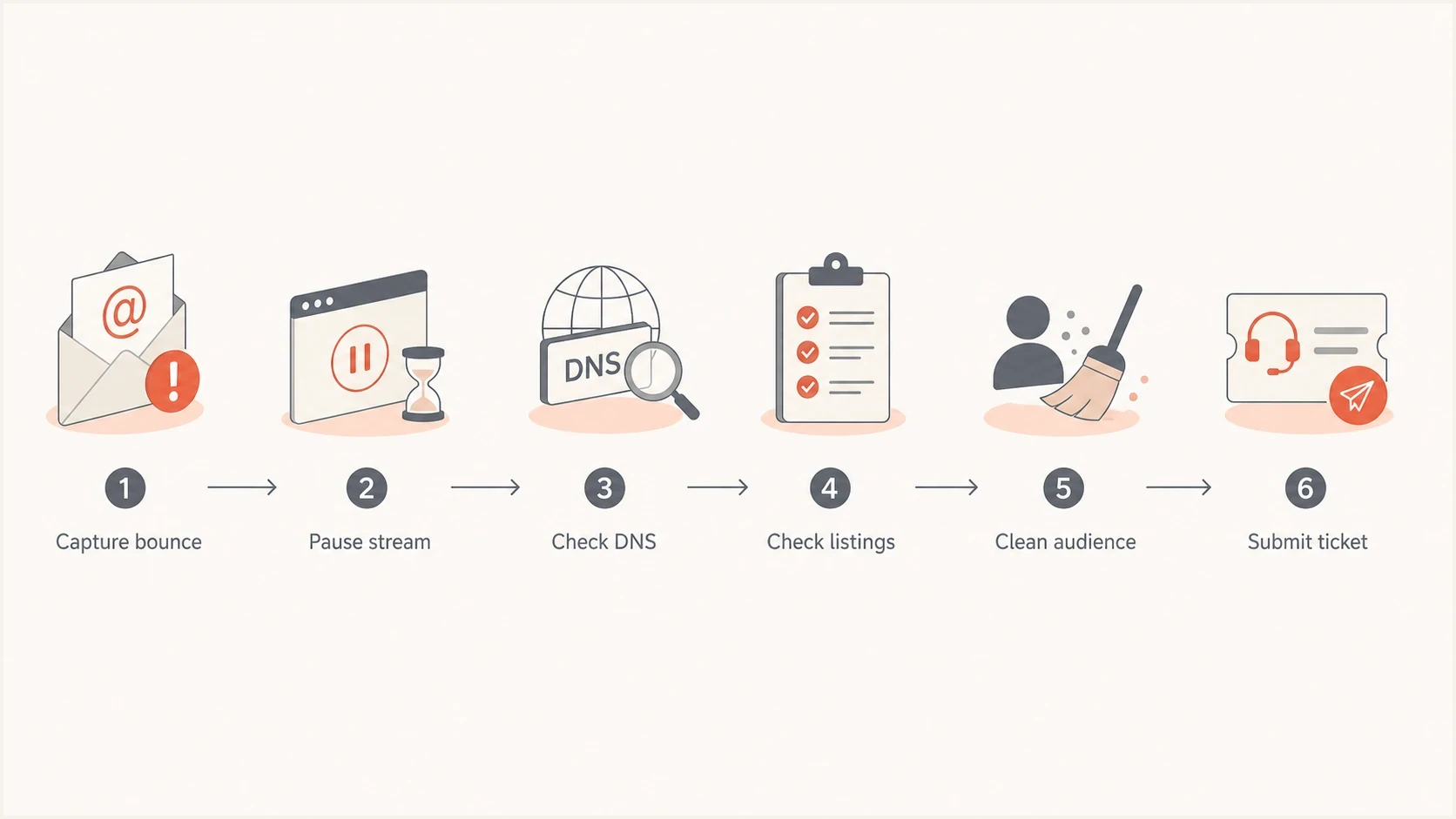
Steps to fix Outlook email blocks: capture the bounce, pause sending, check DNS and blocklists, clean the audience, and contact Microsoft.
When the support route stalls
Microsoft sender support and recipient-admin routes sometimes answer with an automated denial or no visible update. Add fresh evidence to the existing case before opening a new ticket. Keep one thread when you can, add fresh evidence, and ask for a specific review of the blocked IP, linked domain, sender account, or tenant rule.
- Reply on the original case with one current summary: full NDR, sending IP, domain, Message-ID, timestamps, authentication results, and remediation.
- Follow the response window stated in the case. For 5.7.511, Microsoft says it will provide next steps within 48 hours after receiving the full NDR and blocked IP.
- Avoid duplicate requests because separate tickets split the evidence and make the case harder to route.
- If the recipient tenant controls the block, ask the admin to check message trace, quarantine, transport rules, delivery management, and Tenant Allow/Block List entries.
- If Outlook.com sender support does not mitigate the block, keep remediation active, retest with a small Microsoft-family segment, and submit fresh evidence only after the sending pattern has changed.
The follow-up should show that risk changed. A useful reply says which stream stopped, which list segments were suppressed, which linked domains were cleaned up, how Microsoft-specific volume changed, and what the latest test returned.
Check reputation, authentication, and content together
The most common mistake is checking only the domain in the From address. Microsoft evaluates the whole message. That includes the connecting IP, PTR record, envelope sender, DKIM signing domain, visible From domain, tracking host, image hosts, redirect chain, HELO identity, and the links a recipient sees.
When an IP-behavior blocklist listing appears with Outlook or Hotmail blocks, do not treat the listing as a simple cleanup item. It usually points to behavior on the sending IP, such as unwanted bulk traffic, poor suppression, compromised sources, snowshoe-like sending, or stale recipients. Pause the listed IPs, identify the source, and keep evidence of the stop before requesting removal.
This is why an email can pass DMARC and still get blocked. DMARC proves a domain match through SPF or DKIM. It does not prove that recipients want the mail, that every linked domain has good reputation, or that a shared sending network is clean.
What Microsoft sees
- Connection: Sending IP, reverse DNS, HELO, and traffic consistency.
- Identity: SPF, DKIM, DMARC, and whether identifiers line up.
- Behavior: Complaints, bounces, spam traps, engagement, and retry patterns.
- Content: URLs, redirects, tracking domains, images, and subject lines.
What you control
- DNS: Keep SPF lean, DKIM stable, and DMARC matched to the visible domain.
- Segmentation: Send to recent, consenting, and engaged recipients first.
- Routing: Split transactional and marketing traffic before trouble starts.
- Monitoring: Watch authentication, blocklist, blacklist, complaint, and bounce signals together.
Run a broad check before submitting a ticket. If SPF is broken, DKIM is missing, the tracking domain is listed, DMARC reports show an unknown source, reverse DNS does not match the sending identity, the HELO name is wrong, or the unsubscribe path is hard to find, Microsoft support will not fix the underlying issue for you.
?
What's your domain score?
Deep-scan SPF, DKIM & DMARC records for email deliverability and security issues.
For Microsoft-family recipients, compare engagement, confirmation, and deferrals separately by stream. Outlook and Hotmail can dip while other mailbox providers stay stable, especially after a stale list import, a new automation, or a campaign to recipients who have not opened, clicked, purchased, replied, logged in, confirmed, or otherwise interacted recently. If Microsoft opens and opt-outs fall together while click-to-open stays steady, suspect partial Junk placement before blaming the subject line alone.
When accepted mail goes to Junk instead of bouncing, inspect raw headers for SCL, BCL, SFV, CAT, delivery destination, and Authentication-Results. A single seed inbox is weak evidence. A repeated pattern across several Microsoft-family samples is useful. Validate seed tests against real Microsoft confirmations, opens, clicks, complaints, bounces, replies, tagged site visits, and revenue before changing infrastructure.
Content also matters. If Outlook blocks remote images or removes unsafe HTML, the message still needs live text, normal anchor links, a visible call to action, useful image alt text, and a clear unsubscribe path. Avoid IP-address URLs, URL shorteners, unclear redirects, image-only layouts, and image maps because they reduce trust and clicks.
After the DNS layer is clean, keep watching reputation. Suped's blocklist monitoring pairs listing visibility with DMARC, SPF, DKIM, and deliverability context, so a Microsoft block is easier to connect to the sending source that changed.
A clean check does not guarantee inbox placement, but it removes the easy reasons for Microsoft to reject the mail. Once authentication and reputation basics are clean, the remaining work is usually audience quality, complaint reduction, wanted-mail signals, and sender support escalation.
When the sending route is shared or new
Shared sending infrastructure complicates Outlook blocks. The bounce can name an IP that belongs to your sending provider, but that does not prove your own campaign caused the block. It also does not clear you. Microsoft can react to a shared network, a bad customer on the same pool, a domain in your content, or a pattern unique to your account.
This is also why Microsoft 365 direct mail can work while the same visible domain fails through a third-party platform. Microsoft sees a different IP, return path, DKIM signing domain, tracking host, volume pattern, and recipient engagement profile. Compare those headers and links before changing SPF or DMARC for the entire domain.
New IPs and VPS-hosted mail are another common trap. If a VPS cannot connect to SMTP ports, fix provider egress or use an authenticated outbound route before asking Microsoft for review. If SMTP works but Microsoft returns S3150, 5.7.511, or 421, follow the code-specific reputation, DNS, and sending-rate checks. For Exchange Online 5.7.705 or 5.7.708 errors, involve the sending tenant admin and Microsoft Support after reviewing abuse or low-IP-reputation causes, particularly for trial tenants. New IPs usually need a controlled ramp before Outlook.com has enough good history, and Microsoft expects list accuracy, low complaint rates, and current SNDS and JMRP coverage for the new IPs. See Microsoft's tenant-block guidance for those Exchange Online errors.
Your responsibility
- Evidence: Collect bounces, timestamps, campaign IDs, and exact recipient domains.
- Hygiene: Remove inactive and risky Microsoft recipients before resuming.
- Content: Check every linked host, not only the sender domain.
Provider responsibility
- IP pool: Confirm whether other senders share the blocked network.
- IP ramp: Confirm whether the provider moved you to a new IP or pool.
- Queueing: Provide attempted-delivery timestamps, accepted counts, deferred counts, final bounces, and retry behavior when mail is delayed.
- Escalation: Ask Microsoft for mitigation when the provider controls the IP.
- Routing: Move healthy mail to a cleaner route if the pool is damaged.
If only Microsoft-family domains are affected, treat it as a Microsoft-specific deliverability issue, not a global email outage. Focus on Microsoft bounces, engagement, and sender support rather than rewriting the entire program. For deeper Microsoft-only patterns, compare the symptoms with Microsoft domain blocks.
Do not respond by blocking Outlook, Hotmail, Live, or MSN addresses at signup. That hides the symptom and damages customer access. Fix the mail stream, reduce unwanted mail, and keep critical transactional mail isolated from higher-risk marketing traffic.
When Google Workspace, Gmail SMTP, or CRM mail is the blocked stream
Gmail SMTP and Google Workspace mailbox SMTP work best for mailbox-style sending. If normal one-to-one email reaches Microsoft-family inboxes but CRM-generated messages land in Junk or bounce, the domain itself is not the only suspect. Microsoft is judging the CRM route as its own stream.
A new Google Workspace business has the same issue even when the messages are operational. Password resets, invoices, account notices, and support replies still need SPF, DKIM, DMARC, clean content, low complaints, and a steady sending pattern before Outlook has enough trust history.
That stream can carry different signals: shared Google sending infrastructure, repeated templates, tracking links, repeated commercial calls to action, sending cadence, low replies, deletes without reading, and complaints. SPF, DKIM, and DMARC passing only proves the message is authorized to use the domain. It does not prove recipients want that automated message.
- Test the route: Send the same controlled sample through Google Workspace SMTP and the production app route, then compare Microsoft-only placement.
- Compare headers: Check sending IP, return-path domain, DKIM signing domain, selector, tracking host, HELO, and Authentication-Results for each route.
- Separate roles: Keep human replies on Gmail SMTP and move automated CRM sequences, form follow-ups, and repeated offer mail to a route built for that traffic.
- Judge Microsoft separately: Split Microsoft-family results away from other mailbox averages.
This test matters because CRM mail can look like bulk mail even when it includes names, company fields, or a few personalized lines. If the Google Workspace SMTP path performs worse at Microsoft than the same message on another authenticated route, fix routing, cadence, consent, template similarity, and link reputation before asking Microsoft to delist the sender.
How Suped fits the workflow
Suped's DMARC platform fits this workflow when the issue is bigger than a single bounce. Suped combines DMARC, SPF, and DKIM monitoring with blocklist and blacklist monitoring and real-time alerts. Teams can connect a Microsoft block to the source, domain, or authentication pattern that changed.
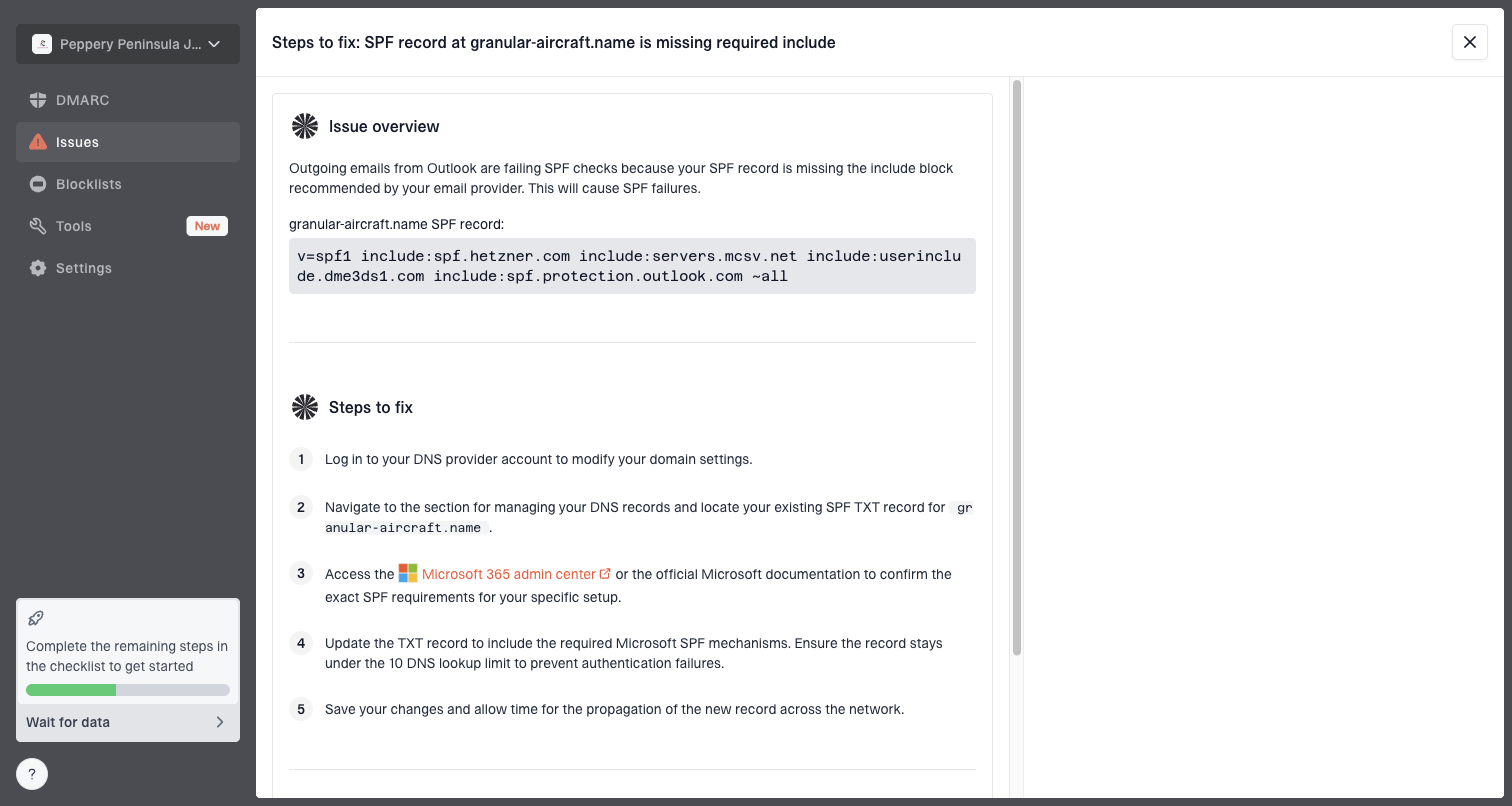
Issue steps to fix dialog showing the issue overview, tailored fix steps, and verification action
For Outlook blocking, compare the source IPs and authentication results in Suped's DMARC reports with the affected route in your SMTP logs. Suped's issue detection and steps to fix help assign authentication work to the DNS owner or sending platform. Keep the original NDR and message trace alongside that evidence, because DMARC aggregate reports do not show an individual message's bounce or inbox placement.
- Issue detection: Suped identifies failing SPF, DKIM, DMARC, unknown sources, and suspicious sender changes.
- Real-time alerts: Teams can react when authentication failures or reputation changes cross a threshold.
- Hosted SPF: You can manage authorized senders and avoid SPF lookup limits without constant DNS edits.
- Hosted DMARC: Policy staging is simpler when you need to move gradually toward quarantine or reject.
- Blocklist data: You can monitor domain and IP listings that create Microsoft delivery risk.
- MSP view: Agencies and managed service providers can manage many client domains without losing context.
Views from the trenches
Best practices
Preserve full bounce samples before fixes so provider tickets stay specific and useful.
Check sending IPs, tracking domains, and linked domains before blaming one asset.
Reply to automated denials with evidence and ask for headers or subject clues politely.
Common pitfalls
Teams chase SPF changes while the tracking domain or content reputation drives the block.
Microsoft-only blocks get treated as global outages, which leads to broad, risky changes.
Support tickets fail when they omit timestamps, IPs, samples, and remediation notes.
Expert tips
Separate transactional mail from campaigns before reputation trouble affects core access.
Suppress inactive Microsoft recipients before resuming volume after a reputation block.
Use Microsoft sender data as a clue, then validate with bounces, complaints, and DMARC reports.
Marketer view
Marketer from Email Geeks says Microsoft block wording can point at a linked domain, not only the IP shown in the bounce.
2020-07-02 - Email Geeks
Marketer view
Marketer from Email Geeks says the first Microsoft support reply is often automated, so a polite follow-up with evidence is worth sending.
2020-07-02 - Email Geeks
Frequently asked questions
SPF and DKIM passing proves parts of sender authentication, not overall trust. Microsoft still evaluates IP reputation, domain reputation, linked domains, complaints, engagement, volume, connection behavior, content signals, and whether DMARC passes with the visible From domain.
S3150 identifies an Outlook.com sending-IP or network block; it does not identify a linked domain as the cause. 5.7.511 is a banned-sender case that requires sending the full NDR and blocked IP to delist@microsoft.com. 5.7.606-649 is a banned sending IP case for the Office 365 Anti-Spam IP Delist Portal. 5.7.515 means Outlook.com rejected high-volume mail that did not meet its authentication requirements.
A 550 5.1.8 "bad outbound sender" NDR means the Microsoft 365 sending account is restricted and needs its admin to investigate and unblock it. Recipient problems involve mailbox storage, inbox rules, blocked senders, account status, or Microsoft 365 filtering. Message trace and quarantine checks help separate recipient filtering from SMTP rejection. For 5.7.703, ask the sending tenant admin to review its blocked recipient entry.
Confirm SPF, DKIM, DMARC, headers, IP reputation, and linked domains first. Then slow Microsoft-family volume, send to recent engagers, and ask new subscribers on the thank-you page to check Junk Email, click Not junk, and add the sender to safe senders or contacts. Track confirmation rate, clicks, replies, and tagged site visits because opens alone can mislead.
Yes. Microsoft judges each route and linked domain. Google Workspace, Gmail SMTP, or CRM-generated templates can pass authentication but still look like new, bulk, or unwanted mail. Compare the route, headers, DKIM signing domain, return path, tracking domain, audience quality, and Microsoft-only engagement before asking Microsoft to delist the sender.
Do not continue full-volume sending into a hard block. For temporary 421 or RP throttling, continue only at reduced Microsoft-specific caps, respect backoff, and let retries drain before increasing volume. For Microsoft 365 outbound limit NDRs, wait for the rolling window to clear and reduce external-recipient volume before resuming. For Junk placement, restart with recent Microsoft engagers and keep signup confirmations simple.