What is the new Microsoft SNDS URL?

Published 30 Jun 2026
Updated 1 Sep 2026
10 min read
Summarize with
Updated on 1 Sep 2026: We updated this guide after Microsoft's SNDS migration, including automated access changes and the removal of trap hit counts.
The new Microsoft SNDS URL is Microsoft SNDS portal. The old sender support SNDS path redirects to Microsoft's Substrate-based portal, which replaced the previous sender support site.
Current Microsoft SNDS URL
https://substrate.office.com/ip-domain-management-snds/SNDS
Update bookmarks, runbooks, scripts, and internal support docs to use the new address. If your team manages sender reputation for Microsoft consumer mailboxes, keep SNDS in operational checks, but do not treat it as the only signal. It is Microsoft-specific IP reputation data, not a full domain, DMARC, SPF, DKIM, blocklist, or blacklist monitoring system.
The main risk is stale automation. A person clicking a bookmark sees the redirect and adapts. A script, saved approval link, internal wiki, or support macro can keep pointing at old infrastructure. Treat the URL change as a small migration project for every team that touches deliverability.
The new SNDS URL
Use the Substrate URL for Microsoft Smart Network Data Service access. Microsoft's page names the service as Outlook.com Smart Network Data Services and says deliverability to Outlook.com depends on sender reputation. SNDS gives IP owners data about IP reputation, mail volume, complaint signals, recipient data, and access to the Junk Mail Reporting Program.
Keep the exact canonical URL in documentation and avoid storing redirected variants. That makes access reviews easier because analysts and automation point to the same place. It also helps when an approval email or automated access workflow behaves differently than the visible portal.
|
|
|
|---|---|---|
Portal | Substrate SNDS | |
Old site | Redirect only | Do not bookmark |
Access | Microsoft account | IP owner approval |
Data | IP level | Microsoft mailbox view |
Compact reference for the SNDS migration.
Do not rely on old automated links
Microsoft's current announcement says automated access URLs beginning with the old sender support SNDS path were deprecated on June 22, 2026. Any workflow that still stores one of those links needs a controlled replacement through Automated Data Access in the new portal.
- Bookmark: Save the new Substrate URL in browser profiles and team docs.
- Scripts: Replace old automated access URLs instead of relying on redirects.
- Approvals: Recheck pending IP authorization requests after migration.
What changed in the migration
The new portal changes more than the address. The interface has a different navigation model, a search function, Microsoft account sign-in, and separate pages for data, IP status, access requests, access control, profile editing, FAQs, JMRP, and Automated Data Access. The cleaner separation helps with routine work, but migration-period data still needs context because reputation data is useful only when the account and IP scope are stable.
The domain column is also worth checking closely. In some sender setups, analysts expect to reason about the visible From domain, while reputation systems often expose return-path or envelope context. If the column is not the identifier your team expects, document that difference before using it in a reputation report.
Old portal behavior
- Address: The older sender support SNDS path was the common entry point.
- Automation: Stored access links often lived in scripts and analyst runbooks.
- Approval: IP authorization links were often handled through email workflows.
New portal behavior
- Address: The Substrate SNDS path is the current portal location.
- Login: Microsoft account authentication is part of the main flow.
- Access: New approvals show clearer remove and renew actions.
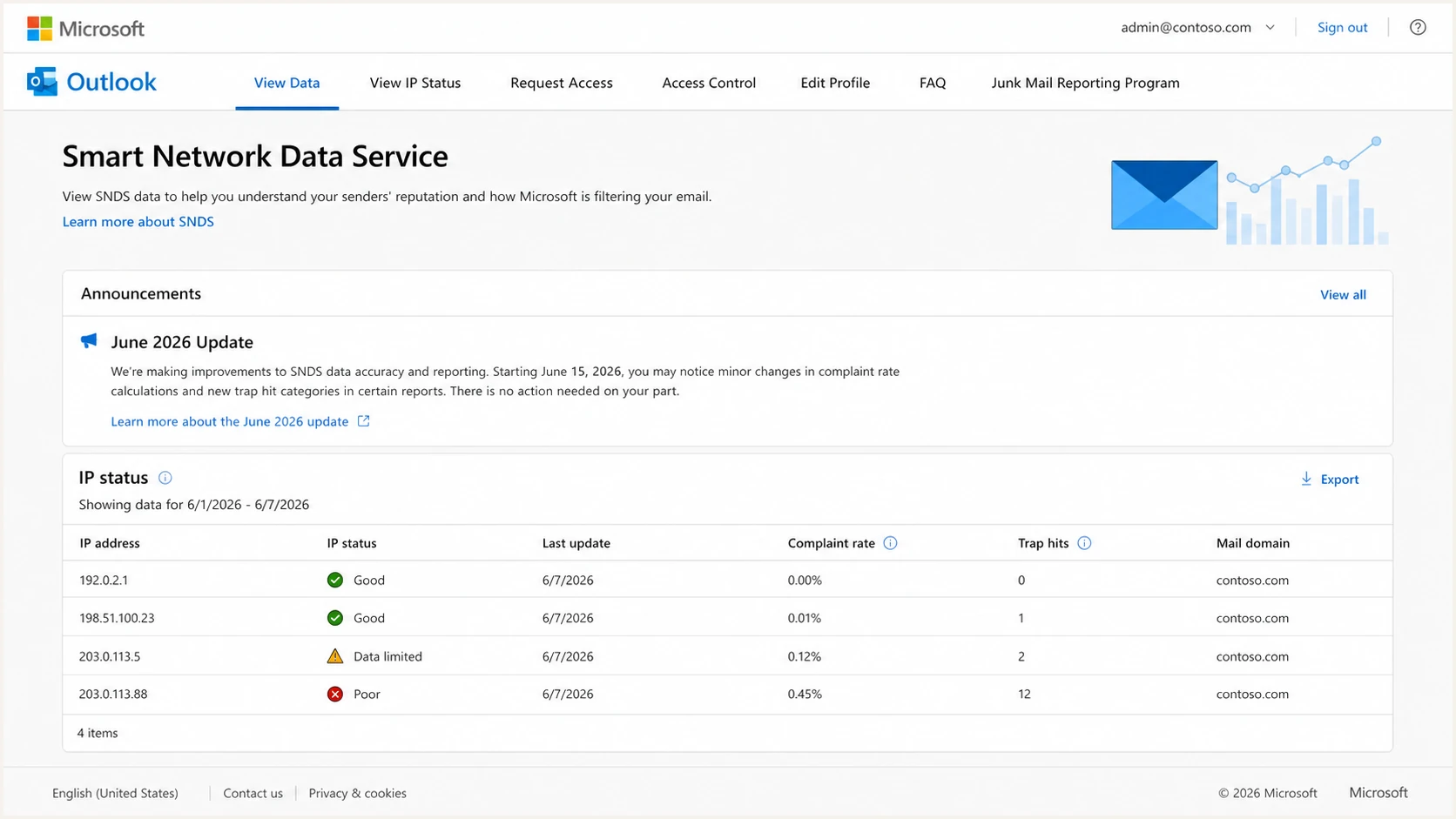
Example screenshot of the Microsoft Smart Network Data Service portal.
A new URL does not make old data comparisons automatically clean. If a metric changes sharply around the migration date, separate migration effects from sending effects before changing mail strategy. A sudden color change, a larger recipient data gap, or duplicated IP ranges can be a portal artifact rather than a sending event.
Trap hit counts are no longer current data
Microsoft stopped including trap hit counts in Data Report on July 22, 2026. Treat their absence after that cutoff as expected portal behavior, not a drop to zero, and do not compare post-cutoff reports directly with earlier trap-count values.
How to use the new portal
A practical workflow is to confirm access first, verify what the portal shows for each IP range, then compare SNDS signals against bounce logs, complaint feeds, campaign volume, and authentication data. SNDS is useful because it gives Microsoft's view of your IP reputation. It does not explain every filtering decision or replace domain-level monitoring.
- Open: Go to the new Substrate SNDS URL and sign in with the Microsoft account used for sender reputation work.
- Request: Ask for access to the IPs you control and keep the network owner approval path documented.
- Verify: Check View Data and View IP Status for the same ranges before making a reputation decision.
- Compare: Match SNDS changes against Microsoft bounce codes, volume, complaint rate, and authentication results.
- Document: Record which account owns access, which ranges are approved, and when links were refreshed.
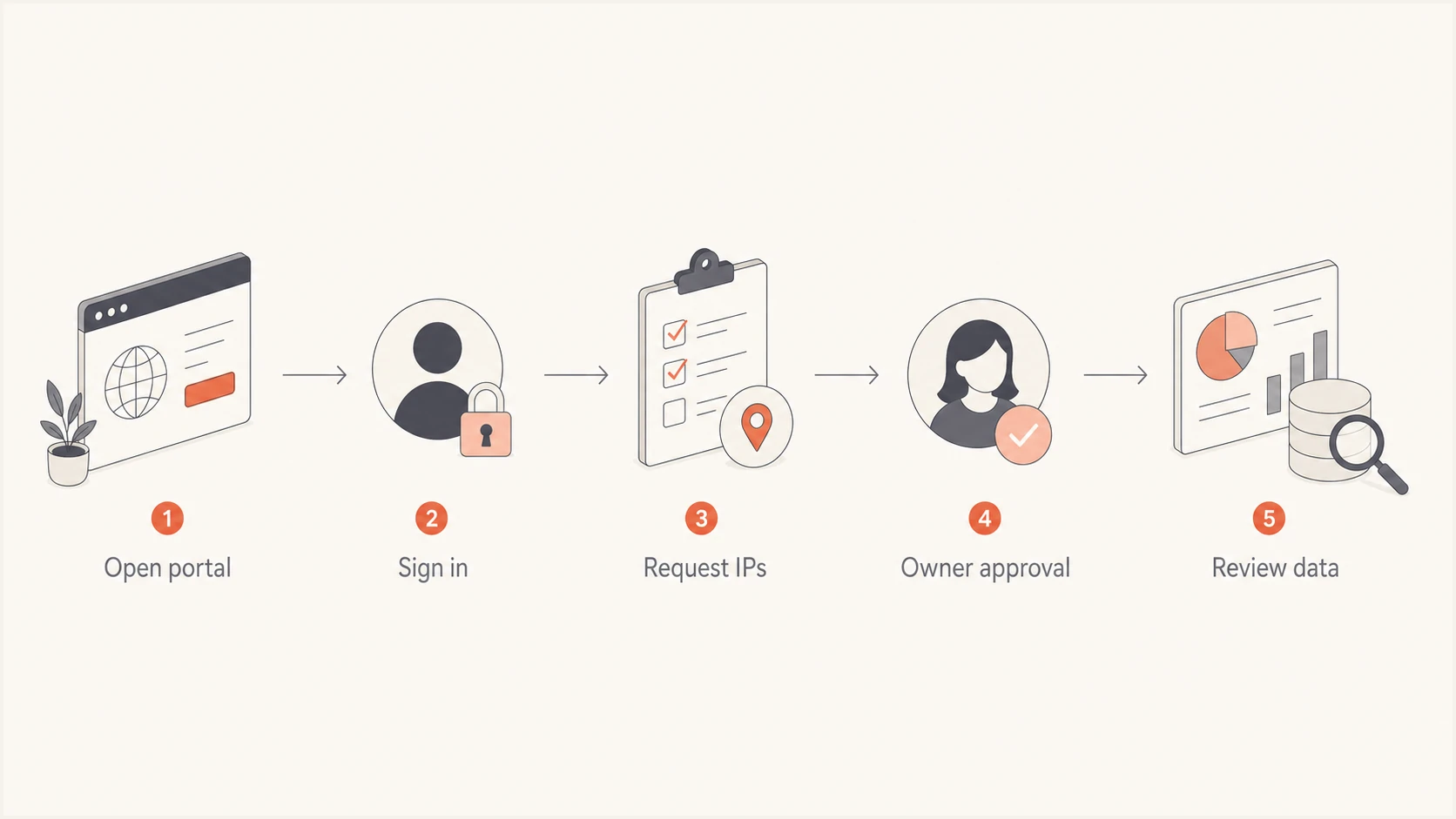
Flowchart showing the Microsoft SNDS access process.
What to check before trusting SNDS data
Before treating a new SNDS screen as evidence of a reputation change, check for account-level migration issues, missing ranges, duplicate ranges, stale authorization, and mismatched dates. That small check prevents noisy portal data from becoming a false incident.
- Dates: Confirm the newest rows cover the expected delivery window.
- Ranges: Confirm the account shows only IP ranges that belong in scope.
- Columns: Confirm the mail domain field matches the return path context.
Automated data access after the migration
Manual SNDS use and automated data access are separate workflows. Manual use starts with Microsoft account sign-in. Scripts and reporting integrations need a current link generated inside Automated Data Access. Legacy links under the old sender support path were deprecated, so a browser redirect does not prove that an automated pull still works.
- Open: Type the current SNDS portal URL into the browser instead of following a link in an expiry email.
- Verify: Sign in with the expected Microsoft account and open Automated Data Access.
- Replace: Generate or verify the current access link, then replace the stored secret in each authorized integration.
- Test: Run a controlled data pull and confirm dates and IP-range coverage before restoring the schedule.
If link creation fails
Microsoft says some users see "There was a problem saving your changes. Please try again." when creating an automated link. Its published workaround is to open Edit Profile, make a change, save the profile, and then create the link again.
- Do not retry old links: Replace them through the signed-in portal.
- Do not expose the link: Store it as a secret because it grants automated access to SNDS data.
- Do not trust email alone: Confirm any expiry notice inside the portal before changing credentials.
Record which account generated the link, which job uses it, and when the replacement was tested. This makes the next expiry or migration notice a controlled credential change instead of an outage investigation.
What to do if SNDS looks wrong
If SNDS looks wrong after the move, slow down before changing warmup, throttling, suppression, or campaign routing. Migration-specific friction has included approval links that did not resolve during the early move, pages that loaded poorly for very large account scopes, and IP status views that showed unexpected ranges.
How to classify SNDS migration signals
Use this operational triage model before making sender reputation changes.
Normal
Act on data
Portal loads, ranges are correct, and data matches expected dates.
Review
Compare logs
Data changed sharply, but mail volume or bounces did not move.
Hold
Fix access
Approvals, ranges, or pages are clearly broken for the account.
Use evidence from more than one source. Check whether the same IPs also show Microsoft deferrals, S3150-style rejections, elevated complaint rate, bad URL reputation, or a broader blocklist (blacklist) problem. A real incident usually has more than one signal.
- Access issue: Refresh the portal session, check the approval account, and retry from the new URL.
- Data issue: Export or record visible rows, then compare against prior SNDS data by date.
- Reputation issue: Compare SNDS with complaint, bounce, authentication, and blacklist data.
- Microsoft issue: Use sender support when Outlook.com delivery is actively affected.
For a wider checklist, keep a separate Microsoft SNDS troubleshooting note for SNDS issues and another note for whether SNDS covers Office 365 domains. Those distinctions matter because SNDS is primarily an IP reputation view for Outlook.com consumer infrastructure, not a complete view of every Microsoft-hosted domain.
How Suped fits next to SNDS
SNDS and Suped cover different parts of the same operational problem. SNDS shows what Microsoft exposes about IP reputation for Outlook.com. Suped's product gives teams one place to monitor DMARC, SPF, DKIM, hosted DMARC, hosted SPF, SPF flattening, MTA-STS, blocklist monitoring, and deliverability signals across domains. That wider view helps teams connect Microsoft-specific IP evidence with domain authentication and ongoing alerts.
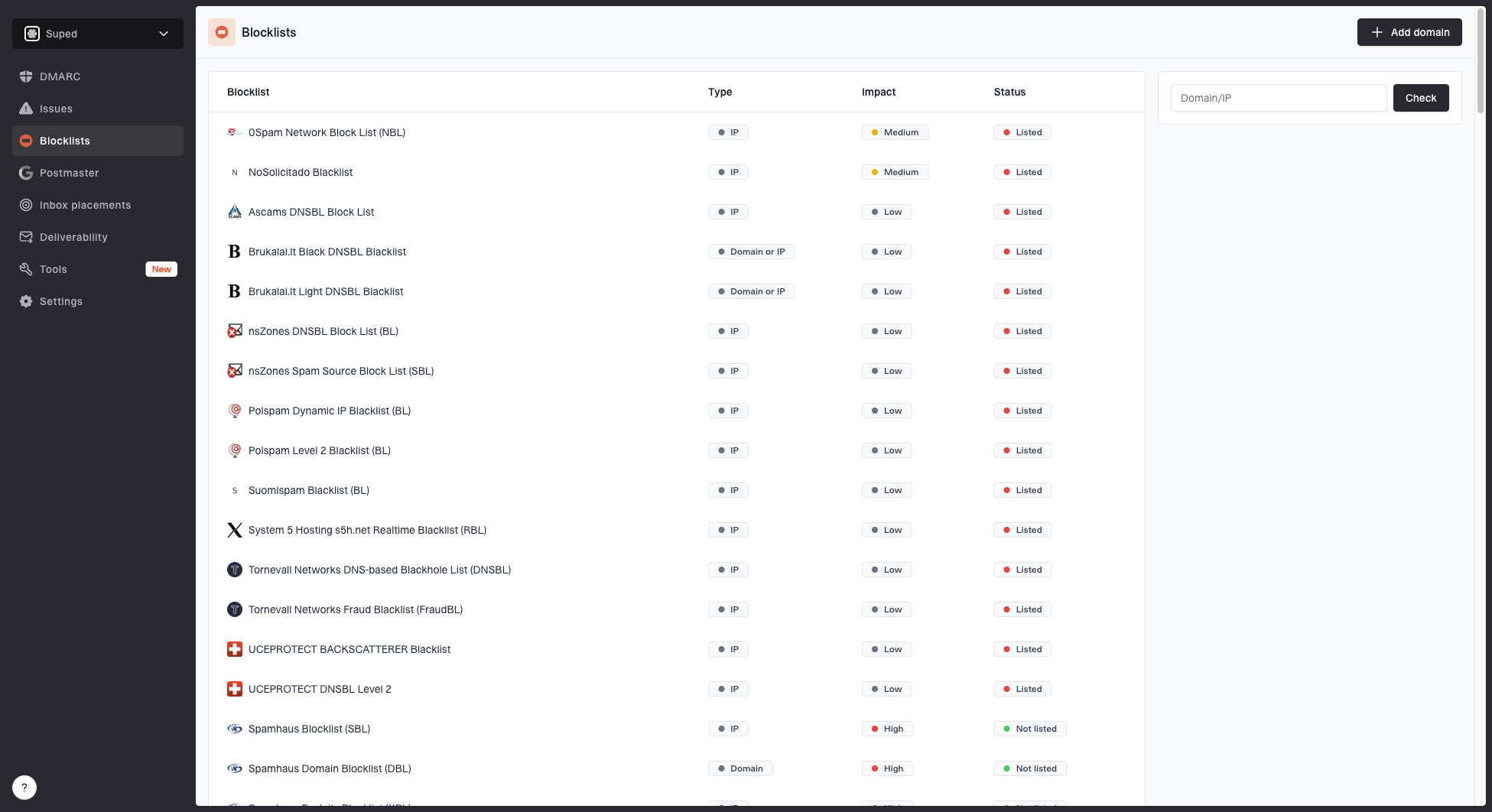
Blocklist monitoring page showing domain and IP checks across blocklists with importance and status
Use SNDS for Microsoft-specific IP evidence. Use Suped's product workflow for domain-level causes: whether DMARC is passing, whether SPF is near lookup limits, whether DKIM selectors are missing, whether a domain or IP is on a blocklist, and whether an alert needs action. That separates a portal check from an ongoing email authentication program.
?
What's your domain score?
Deep-scan SPF, DKIM & DMARC records for email deliverability and security issues.
If you are investigating a Microsoft delivery issue, start with the new SNDS portal, then widen the check. Suped's domain health check helps confirm whether DMARC, SPF, and DKIM are healthy before you blame reputation. For reputation operations across multiple IPs or domains, blocklist monitoring catches broader listing problems that SNDS does not cover. A plain reference list of blocklists is useful when you need to explain which blacklist or blocklist signals matter to an operations team.
Views from the trenches
Best practices
Update stored SNDS URLs in runbooks, scripts, alerts, and browser bookmarks in one pass.
Compare new portal data with bounce logs before changing throttles or sender routing.
Keep IP approval ownership documented, including who can renew or remove access.
Common pitfalls
Treating a sudden color change as reputation loss without checking migration timing.
Leaving legacy automated access links in scripts after the sender support migration.
Using SNDS alone to diagnose Microsoft delivery without DMARC and blocklist evidence.
Expert tips
Capture a daily snapshot during portal changes so later comparisons have context.
Test access with a small account scope before loading very large IP inventories.
Store automated links as secrets and test replacements before restoring scheduled pulls.
Marketer from Email Geeks says the new SNDS URL is live, but teams should verify whether approval links and access pages work for their account before relying on the data.
2026-06-09 - Email Geeks
Marketer from Email Geeks says the redirected sender support URL confirms the move, but the June 2026 update was easy to miss if teams relied on old bookmarks.
2026-06-09 - Email Geeks
What to do after the SNDS migration
The new Microsoft SNDS URL is the Substrate portal, and the old sender support SNDS address is legacy. Update anything that stores the old path, retest access for every account that owns IP ranges, and separate portal migration noise from real reputation movement.
SNDS remains useful because Microsoft gives senders direct evidence about Outlook.com reputation. It is not enough on its own. Combine SNDS with DMARC reporting, SPF and DKIM checks, bounce analysis, complaint monitoring, blocklist and blacklist checks, and clear alerts. Suped's product supports that workflow by bringing authentication results, reputation alerts, hosted records, and remediation steps into one place.