How to resolve Office 365 SCL rating issues for corporate email from Google Workspace?

Updated on 10 Oct 2026: We updated our SCL troubleshooting steps to distinguish Microsoft's cloud verdicts and use the correct support paths.
To resolve Office 365 SCL rating issues for corporate email sent with Google Workspace, start by proving that the mail is authenticated, wanted, and separated from risky bulk or third-party streams. Then collect full headers from Microsoft 365 recipients, record SCL alongside the CAT verdict category and SFV filtering verdict, and match the message against Google Workspace Email Log Search. For junk or quarantine false positives, the affected recipient tenant should submit the message to Microsoft. Use the IP delist portal only when the NDR directs you there for a blocked sending IP.
Start with the receiving service's filtering evidence. Microsoft 365 can filter authenticated Google Workspace mail because its verdict also depends on content, sender reputation, recipient tenant policy, complaint signals, previous behavior, and Microsoft Defender detections. SCL alone does not determine the verdict or delivery action in cloud mailboxes.
- Confirm the symptom: Get headers from affected Microsoft 365 recipients and record SCL, CAT, SFV, delivery action, recipient tenant, sender address, and exact send time.
- Prove authentication: Check SPF, DKIM, DMARC, visible From domain alignment, and Google Workspace DKIM signing before asking Microsoft to review anything.
- Separate mail streams: Keep corporate one-to-one mail separate from marketing, transactional, support, affiliate, and sales automation traffic.
- Escalate correctly: Use recipient-side false-positive submission for junk or quarantine errors, and use sender.office.com only when the blocked-IP NDR directs you there.
What SCL 9 tells you in Microsoft 365
SCL is Microsoft's Spam Confidence Level. In Microsoft 365 cloud mailboxes, SCL 9 alone does not establish a high confidence spam verdict or explain placement. Read CAT for the verdict category and check the applied policy and delivery location. Authentication is required evidence, but Microsoft still decides placement using its own filtering and tenant controls.
If you need the baseline terminology first, read SCL and BCL basics. Microsoft's SCL guidance explains why the same SCL value can accompany different cloud verdicts. SCL remains significant for on-premises Exchange and hybrid delivery.
|
|
|
|---|---|---|
SCL 9 | Spam confidence value | Check CAT and the applied policy for the cloud verdict |
CAT | Verdict category | Distinguishes spam, phishing, spoofing, and other detections |
BCL | Bulk complaint level | Shows whether bulk filtering contributed |
Authentication | SPF, DKIM, DMARC, and compauth | Shows identity results, not guaranteed placement |
Override | Tenant or user policy | Can change the final delivery action |
Compact Microsoft 365 signals to capture before remediation.
For a sudden filtering change, investigate account compromise, sender reputation, message content, and recipient policy changes. Check whether corporate mail shares a sender domain with bulk traffic, but do not infer the cause or a shared reputation penalty from SCL alone.
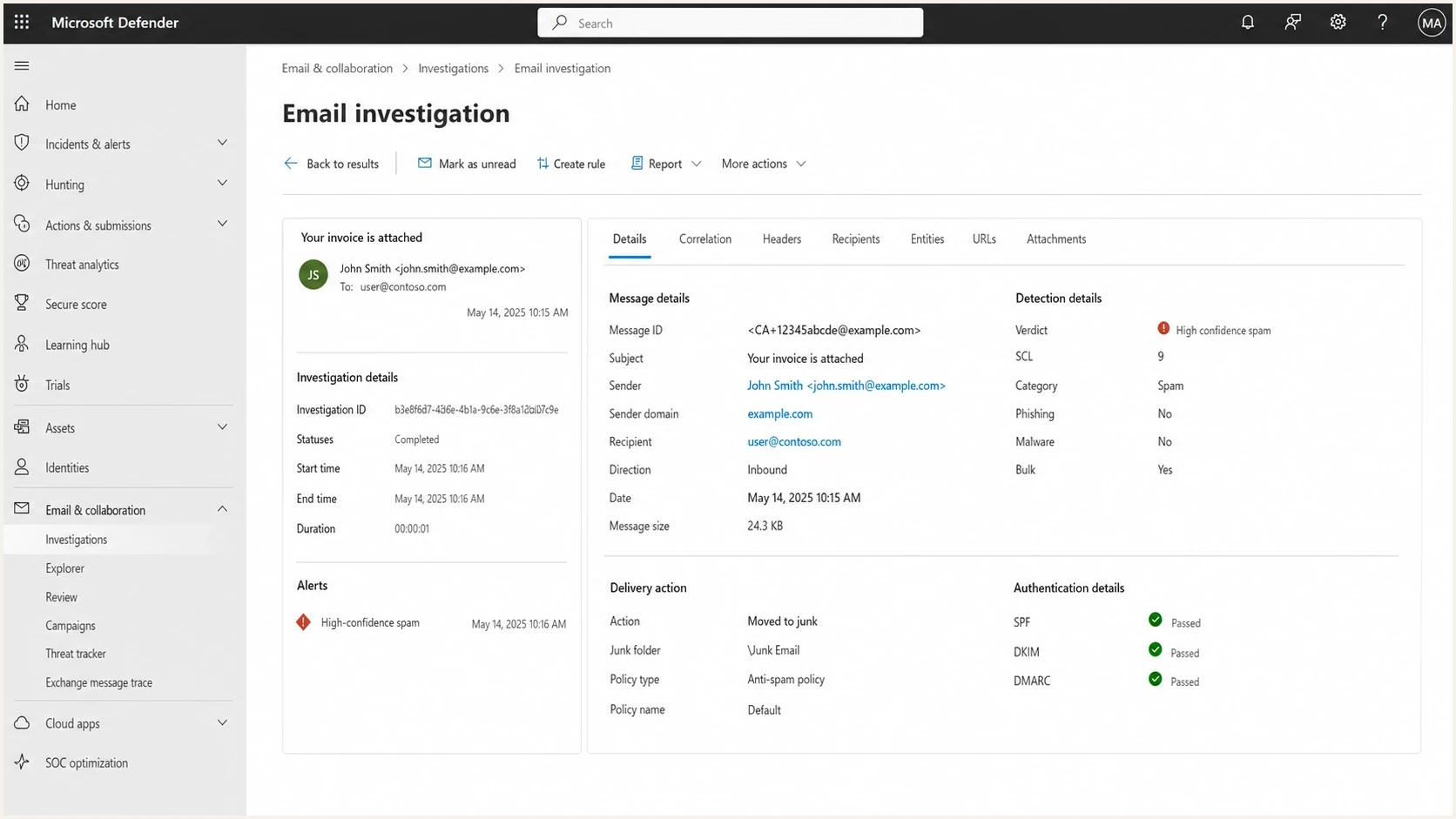
Microsoft Defender portal message details showing SCL 9 for an authenticated inbound email.
Fast triage before contacting Microsoft
Before opening a Microsoft case, build a packet that makes the issue easy to understand. Microsoft support and filtering teams are not helped by "our client is important" or "nothing changed." They need headers, recipient evidence, repeatable test results, and a reason to believe the sender is not causing the signal.
Run a real inbox test using the same Google Workspace sender, signature, and message type that failed. A stripped-down test message proves less than people think. If the normal mail has calendar links, attachments, disclaimers, tracking URLs, or a CRM signature block, test that normal mail.
- Collect headers: Save original headers from affected Microsoft 365 recipients and unaffected controls, including different recipient tenants where available. Keep the original .eml or .msg files for submission.
- Match the message: Record the Internet Message-ID in Google Workspace Email Log Search and match it to the recipient tenant's message trace. Record Microsoft's network message ID separately; it is a different identifier.
- Compare recipients: Separate failures caused by Microsoft filtering from failures caused by one tenant's transport rules, block entries, or quarantine policy.
- Check account risk: Review recent Google Workspace logins, OAuth grants, forwarding rules, mailbox delegates, and unusual sending volume.
- Freeze bulk sends: Pause cold outreach, affiliate activity, scraped-list campaigns, and aggressive marketing while the corporate stream recovers.
- Record examples: Keep exact timestamps, subject lines, sender addresses, recipient domains, SCL, CAT and SFV values, and final delivery actions.
Email tester
Send a real email to this address. Suped shows a results button when the test is ready.
?/43tests passed
The goal is to prove what Microsoft saw. If representative authenticated mail is filtered at multiple Microsoft 365 tenants and Google Workspace Email Log Search confirms successful handoff, compare the recipient-side categories and policies. Google's handoff status does not establish Microsoft inbox placement. If Google's logs show rejection or a routing failure, ask Google Workspace support to investigate that outbound path.
Choose the correct intake path
Microsoft uses different paths for message misclassification and IP blocking. An affected Microsoft 365 tenant can submit wanted mail as a false positive. The sender-side delist portal applies when an NDR identifies a blocked source IP and directs the sender to that portal.
- For SCL 9 placement: Ask the recipient's Microsoft 365 administrator to inspect and submit the original message as clean.
- For an IP block NDR: Follow the exact NDR instructions. Use sender.office.com only when directed; code 5.7.511 requires a different process.
- For business impact: Use recipient-side Microsoft support after the tenant has collected trace data and submitted the false positive.
Trace the Microsoft verdict and policy
An SCL 9 value alone does not identify the cloud verdict or the component responsible. Read CAT and SFV in X-Forefront-Antispam-Report together with X-MS-Exchange-Organization-SCL, Authentication-Results, and any X-CustomSpam header. Use the category to distinguish spam from phishing or spoofing before choosing a fix.
|
|
|
|---|---|---|
CAT:HSPM / CAT:SPM | High confidence spam / spam | Check the applied anti-spam policy and delivery location |
CAT:PHSH / CAT:HPHSH / CAT:SPOOF | Phishing / high confidence phishing / spoofing | Inspect the detection and authentication evidence |
SFV:SPM | Spam filtering marked the message as spam | Read CAT and submit a confirmed false positive |
SFV:SKS | A rule or hybrid Exchange marked the message as spam before filtering | Trace the mail flow rule or on-premises spam decision |
SFV:BLK | The sender matched the user's Blocked Senders list | Check the recipient's Outlook block entries |
SFV:SKB | The sender matched an anti-spam policy block entry | Check the policy's blocked senders and domains |
compauth=fail | Composite authentication failed | Read the reason code and check the authentication and routing evidence |
X-CustomSpam | An advanced spam filter setting matched | Review that setting for the affected recipient |
Header values that narrow an SCL 9 investigation.
The recipient administrator should locate the message in Microsoft 365 message trace and open its Email entity details when available. Compare original and latest delivery locations, detection technology, policy action, and Primary override: Source. Those fields show whether Microsoft filtering or an organization or user setting changed delivery. Consult Microsoft's header reference for the field definitions.
- Locate the exact message: Search with the network message ID, sender, recipient, and timestamp rather than relying on the subject alone.
- Inspect the verdict source: Check CAT, SFV, SCL, BCL, compauth, X-CustomSpam, detection technology, and Primary override: Source.
- Correct tenant causes: Fix the specific mail flow rule, user block, tenant block, or policy identified by the evidence. Check policy precedence: Strict and Standard preset security policies take priority over custom and default anti-spam policies.
- Submit filtering errors: If Microsoft filtering misclassified wanted mail, have the recipient administrator submit the original message as clean through the Defender Submissions page.
- Retest the same pattern: Send a representative message and compare the new headers and delivery action with the saved baseline.
Avoid blanket SCL bypass rules
Do not create a broad transport rule that sets SCL to -1 for an entire external domain or allow all Google shared sending IPs. A bypass request weakens filtering and does not override every detection. Correct the specific tenant cause or submit the false positive, then verify the next delivery with fresh headers.
Prove Google Workspace authentication first
The authentication baseline has to be clean before you ask Microsoft to reconsider anything. For Google Workspace, SPF must authorize the actual outbound source, and DKIM should use a 2048-bit key when the DNS provider supports it. DMARC needs a discoverable policy for the visible From domain, either published directly or inherited, and a pass through SPF or DKIM with the required domain match.
Use a domain health check for the sending domain, then keep ongoing DMARC monitoring active while you make changes. One-time DNS checks help, but SCL cases need timelines that show which source sent the mail, what authenticated, and when the failures started.
Google Workspace authentication baselinetext
Name: example.com
Type: TXT
Value: "v=spf1 include:_spf.google.com ~all"

Name: google._domainkey.example.com
Type: TXT
Value: "v=DKIM1; k=rsa; p=PUBLIC_KEY"

Name: _dmarc.example.com
Type: TXT
Value: "v=DMARC1; p=none; rua=mailto:dmarc@example.com"
The SPF example applies only when Google is the domain's sole outbound source. Do not overwrite authorized senders that still need to send. Map every legitimate source first, keep SPF within the 10-lookup limit including nested includes, and publish one SPF record for the hostname. Replace PUBLIC_KEY with the key generated in Google Admin and replace the example reporting address with a monitored destination. The p=none example collects reports without requesting quarantine or rejection.
Choose p=reject based on source verification, rather than the SCL score. First use reporting data to prove every legitimate stream. Stage enforcement once the sources are identified; if reports already confirm that legitimate mail passes DMARC, an SCL 9 result is not a reason to postpone protection against domain spoofing.
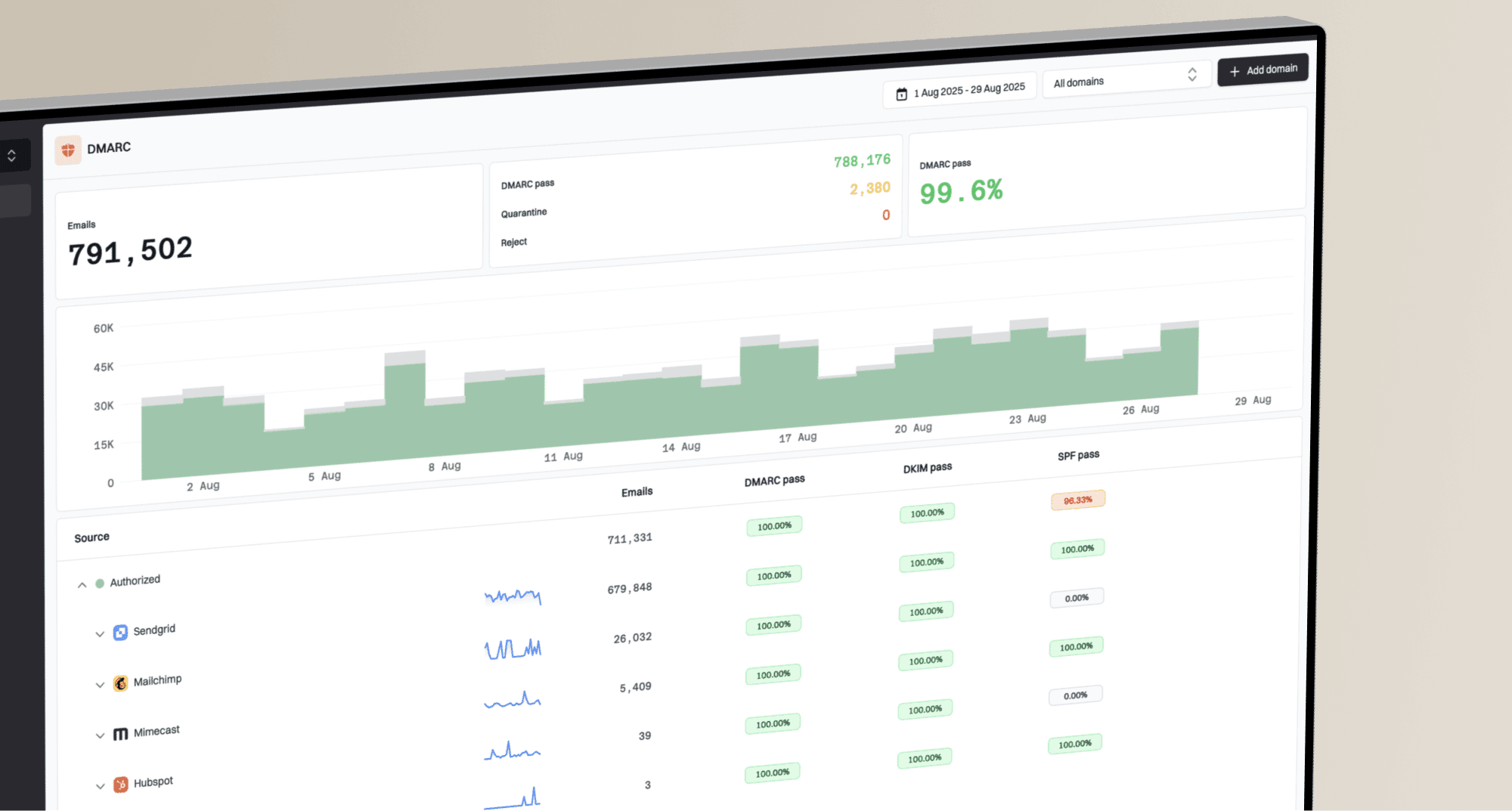
DMARC record detail view showing SPF, DKIM, DMARC, rDNS diagnostics, and DNS records
Suped is our DMARC and email authentication platform. Use its aggregate reporting to identify reported sending sources and compare authentication failures before and after DNS changes. DMARC aggregate reports do not contain Microsoft SCL or CAT verdicts, so pair Suped's authentication evidence with recipient headers and message trace when investigating inbox placement.
- Google SPF: Stay within the 10-lookup limit, including nested includes, and remove old vendors that no longer send for the domain.
- Google DKIM: Publish the selector and 2048-bit public key, then select Start authentication in Google Admin under Apps > Google Workspace > Gmail > Authenticate email. Confirm the received DKIM signature uses your sending domain and Microsoft reports a pass. Follow Google's DKIM setup steps for each sending domain.
- DMARC domain match: Confirm DMARC passes for the visible From domain. SPF on an unrelated bounce domain or DKIM with an unrelated signing domain does not establish that match.
- Subdomain policy: Check the effective DMARC policy for each sending subdomain. Publish a separate policy where that stream needs different handling; subdomains otherwise inherit an applicable parent policy.
Separate corporate mail from risky streams
When corporate Google Workspace mail gets SCL 9, check closely for reputation bleed. Corporate mail can be clean while Microsoft still reacts to related-domain behavior, such as marketing complaints, affiliate traffic, cold sales sequences, support mail with risky attachments, or transactional mail sent through vendors that share the parent domain identity.
This is where subdomain segmentation matters. The corporate stream should be predictable: human users, expected message volume, clean signatures, no tracking-heavy templates, and no bulk behavior. Bulk and automated streams should have their own subdomains, authentication, and monitoring. Subdomains make diagnosis and source control easier, but do not guarantee independent reputation or immediate recovery.
Mixed sender identity
- Corporate risk: People mail uses the same sender domain as campaigns and automations.
- Harder proof: DMARC reports show many senders under one domain.
- Noisy fixes: A bad campaign can make clean mail harder to defend.
Separated sender identity
- Corporate proof: Google Workspace mail has its own source pattern.
- Cleaner reports: Each stream has its own DNS and DMARC data.
- Targeted response: You can pause one source without breaking everything.
Check blocklist and blacklist status for related domains and any dedicated IPs you control. Google Workspace customers do not control Google's shared outbound IP reputation, so a listing for a Google IP is not evidence that the customer caused the SCL 9 verdict. A blocklist (blacklist) result is a separate signal, not the same as Microsoft's message-level SCL. Use blocklist monitoring to watch assets you control during recovery.
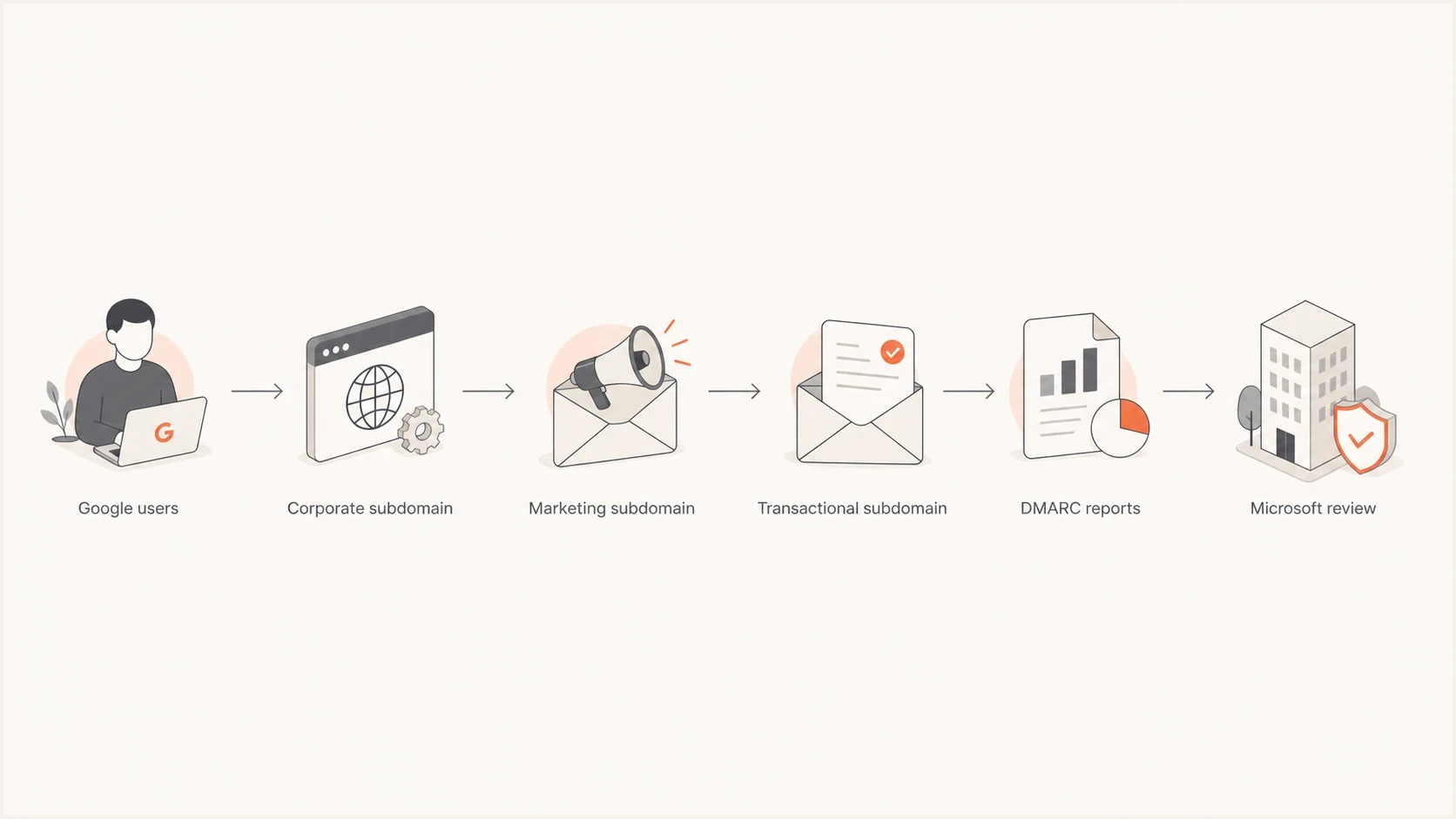
Flowchart showing Google Workspace corporate mail separated from marketing and transactional streams before Microsoft review.
Separate Microsoft 365 and Outlook.com cases
The Outlook app can display a Microsoft 365 business mailbox or a personal Outlook.com account. Identify the receiving service before escalating. An Outlook screenshot alone does not establish that the recipient belongs to a Microsoft 365 tenant.
- For Microsoft 365 business recipients, ask the receiving tenant administrator for message trace, verdict details, and a false-positive submission.
- For personal Outlook.com, Hotmail, or Live recipients, use the Outlook.com sender support process for persistent filtering. A Microsoft 365 tenant submission does not cover those consumer mailboxes.
A personal Outlook.com recipient can mark wanted mail as Not junk and remove a mistaken blocked-sender entry, following Microsoft's Outlook.com instructions. Treat that action as recipient feedback, then retest. Keep consumer and business examples separate in the evidence packet.
Choose the correct Microsoft escalation path
Use sender.office.com only when the NDR directs you to the Office 365 Anti-Spam IP Delist Portal, such as a 550 5.7.606-649 banned sending IP response. For 5.7.511, follow the NDR's instruction to send the full error and IP address to delist@microsoft.com instead. Neither process reviews accepted mail delivered to junk or quarantine. See Microsoft's delisting instructions for the error-specific route.
For wanted mail delivered to junk or quarantine, ask the affected Microsoft 365 administrator to find the original message, review its Email entity and message trace details, and submit it to Microsoft as clean. If the false positive continues or affects important business mail, that receiving organization should open a Microsoft support ticket with the trace and submission results. Submit a recent original message by network message ID or as an .eml or .msg file; Microsoft accepts mailbox messages up to 30 days old when they are still available. Choose "I've confirmed it's clean" after checking the content, retain the submission ID and result, and release wanted quarantined messages separately. Follow Microsoft's submission instructions for the available options.
Public examples such as a Microsoft Q&A report and community SCL 9 reports describe filtering despite reported authentication passes, including after a domain-spoofing incident. Treat these reports as examples; their descriptions do not establish the cause or a recovery deadline for your domain.
- Classify the failure: Separate an NDR and IP block from accepted mail that Microsoft moved to junk or quarantine.
- Submit recipient-side: For SCL false positives, have the Microsoft 365 recipient administrator submit the original message as clean.
- Use delisting only when directed: For a blocked-IP NDR, follow its exact instructions and submit the listed IP through sender.office.com when applicable.
- Open support with evidence: If recipient-side submission does not resolve wanted business mail, ask the affected tenant to open a Microsoft support case.
What to include in the ticket
A useful ticket has raw headers, internet and network message IDs, SCL, CAT and SFV values, recipient domains, send times with timezone, authentication results, Google Workspace Email Log Search confirmation, sending account and IP, original message files, the Microsoft submission ID and result, and a note describing whether bulk traffic has been paused.
For broader Microsoft handling, compare your packet with Microsoft reevaluation steps before submitting.
Retest content and verify recovery
If corporate Google Workspace mail is authenticated and wanted, use the recipient verdict to choose the next test. Investigate reputation and stream separation when the evidence points there, and test message content when links or attachments coincide with the filtering change.
Start with the domain tree. The organizational domain should carry identity and policy. Corporate mail should use the main domain or a clearly controlled subdomain. Marketing, sales automation, transactional mail, support systems, and partner mail should each have their own subdomain and authenticated source map.
- Pause questionable traffic: Stop cold outbound, affiliate mail, old-list campaigns, and high-complaint segments until the SCL pattern changes.
- Audit Google accounts: Look for compromised users, new OAuth grants, mailbox forwarding, unexpected delegates, and suspicious API access.
- Simplify content: Test plain business mail, then add signature blocks, calendar links, attachments, and tracked links one at a time. If removing a signature URL changes the result, inspect its redirects and final destination, then submit a confirmed false positive with the original message.
- Stage DMARC policy: Move known-good streams toward quarantine or reject after reporting confirms legitimate senders.
- Track Microsoft separately: Measure Microsoft 365 independently because success at Gmail does not prove success at Outlook or Exchange Online Protection.
Microsoft does not publish a fixed recovery time for an SCL issue. For an established company, compare the first failed message with a complaint spike, new sending source, compromised mailbox, routing change, or DNS change. After a spoofing incident, verify that unauthorized traffic has stopped and legitimate sources pass DMARC before tightening policy. Record that incident timeline for Microsoft rather than assuming a permanent historical reputation flag.
Recovery checklist for Microsoft 365 inbox placement
Use a disciplined sequence: identify the receiving service, capture SCL and CAT with the original headers, match the message across Google Workspace and Microsoft 365 logs, trace the verdict and effective policy, verify authentication, audit account and sending behavior, then use the escalation path that matches the failure. Confirm recovery with fresh representative messages and actual recipient delivery locations, rather than a lower SCL alone.