How long does SNDS support take to respond?

Published 3 Jul 2026
Updated 4 Sep 2026
11 min read
Summarize with

Updated on 4 Sep 2026: We clarified the sender-support timeline and added Microsoft's 2026 SNDS portal changes.
Microsoft does not publish a fixed response-time SLA for Outlook.com sender support. Field reports put many first replies within 24 hours, and some cases move to mitigation within 24 to 48 hours when the sender answers quickly. If no confirmation or first response arrives after 24 hours, use that point to check the submission and send one clean replacement request.
That timing is a working rule, not a Microsoft guarantee. Response times vary with the case and the support queue. Before resubmitting, check spam or junk folders for the confirmation message and verify that the original form was completed.
- Normal checkpoint: Use 24 hours as the point where unconfirmed silence becomes actionable.
- Fast cases: Some IP reviews move within 24 to 48 hours after a prompt first response.
- Stalled cases: If no confirmation arrives after a day, check delivery of the receipt and resubmit once.
- Parallel work: Keep tuning sending volume, complaints, authentication, and reputation while waiting.
What to expect after submitting to sender support
SNDS is useful because it shows Microsoft-side signals for authorized IP space, including traffic data, complaint data, filter results, malware or open-proxy indicators, JMRP feedback, and IP status. The official SNDS FAQ describes SNDS as data about mail activity seen from your IPs, not as a guaranteed mitigation channel. That distinction matters when Outlook.com delivery is degraded but the SNDS view looks green.
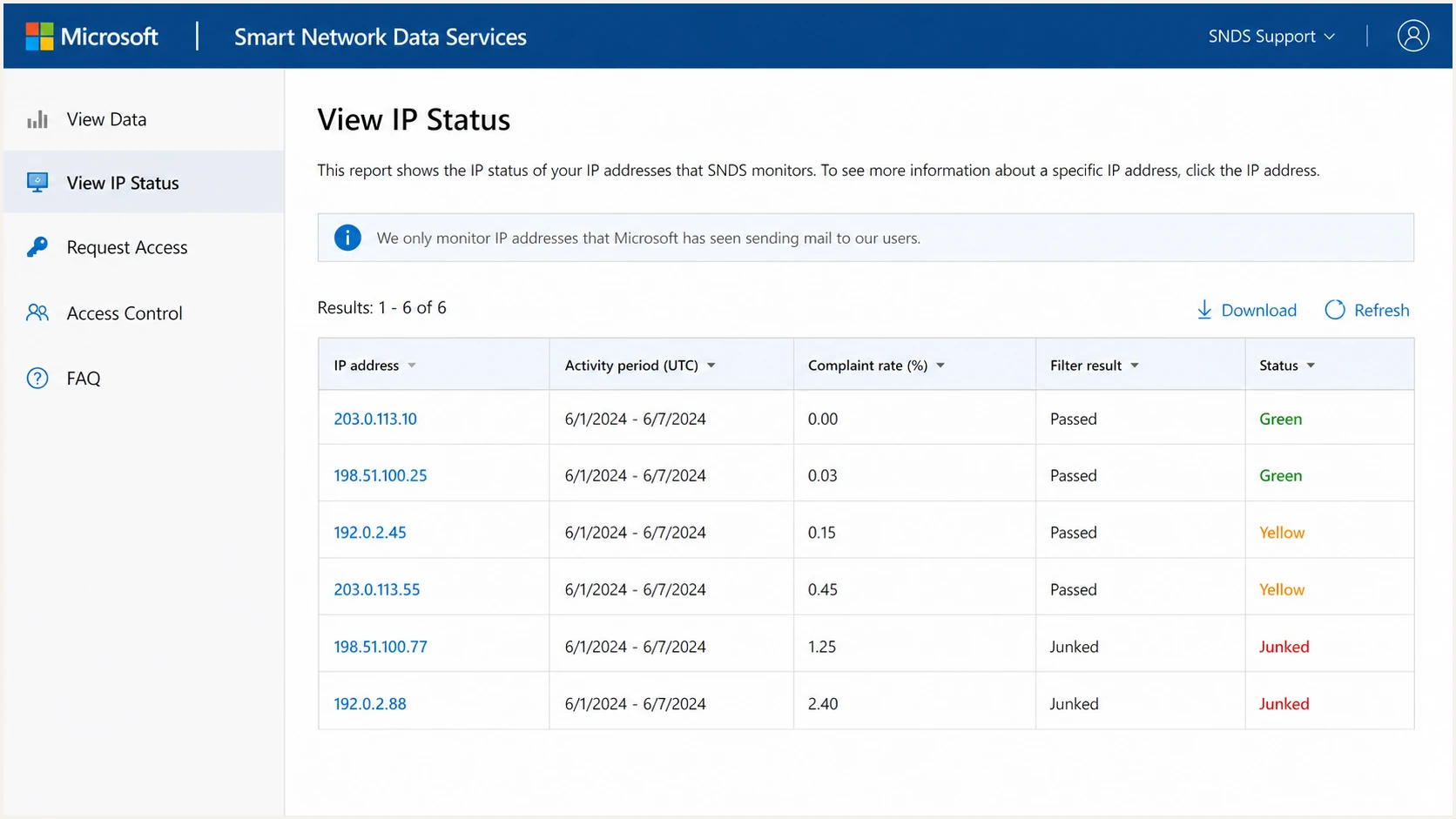
Microsoft SNDS screen showing IP status and sender reputation data.
Separate SNDS access from sender support. SNDS authorization for IP ranges is largely automated, and Microsoft directs registration trouble to the SNDS contact address listed in its FAQ. Outlook.com throttling, rate limits, junking, or blocking belong in the separate sender-support workflow. A sender can have valid SNDS access and still wait on a mitigation response.
|
|
|
|---|---|---|
Auto-reply | Same day | Save the receipt and prepare evidence |
First review | Often under 24 hours | Reply quickly |
Case movement | Sometimes 24 to 48 hours | Keep shaping active |
No confirmation | Over 24 hours | Check receipt delivery, then resubmit once |
Operational timing guide for Outlook.com sender-support requests, not a published SLA.
Do not wait without a receipt
A missing auto-reply after 24 hours does not prove that Microsoft rejected or lost the case. It is a practical reason to confirm receipt and replace the request if no confirmation exists.
- Restart cleanly: Submit a new request with complete IP, timestamp, and SMTP evidence.
- Avoid flooding: Do not send multiple partial requests that split the same incident.
- Keep records: Track each submission time, affected IP, confirmation, and response status.
What changed in the new SNDS portal
Microsoft's new SNDS portal replaced the previous SNDS site during 2026. Legacy automated-access URLs under the old sendersupport.olc.protection.outlook.com SNDS path passed their June 22, 2026 deprecation date, so scripts that still use those endpoints need a new automated data link from the current portal.
- Portal migration: Use the current substrate.office.com SNDS portal for IP data and access control.
- Automated data: Regenerate legacy automated links instead of treating a failed feed as a support delay.
- Trap visibility: Trap-hit counts stopped appearing in the Data Report on July 22, 2026.
- JMRP access: The current portal includes JMRP enrollment and feedback-loop management.
Do not read a missing trap count as proof that an IP had no trap activity. Also keep SNDS report timing separate from support timing. Microsoft aggregates the previous day's data around midnight Pacific time, says processing can take a couple of hours, and keeps report data available for 90 days. None of those windows predicts when sender support will answer.
When to resubmit the request
Use 24 hours as the resubmission checkpoint when neither a confirmation nor a first response arrives. Check the receipt path first, then send one cleaner packet. A second request is not a formal escalation. It replaces a submission that has no evidence of reaching the support queue.
Outlook.com sender support thresholds
Use these operational timing bands to decide whether to wait, gather evidence, or submit again.
0 to 4 hours
Wait
A reply in this window is normal for fast cases.
4 to 24 hours
Prepare
Gather logs, bounces, and traffic details.
24 to 48 hours
Resubmit
Check for a receipt, then replace an unconfirmed request.
Over 48 hours
Operate
Focus on remediation and routing changes while keeping the case documented.
This matters most when the problem is an Outlook.com or Hotmail rate limit on IPs that had clean history. Microsoft can throttle a subset of a pool while leaving other IPs untouched. Mitigation can also be granted on some IPs while one IP remains constrained. Track each IP separately instead of assuming the whole pool has one reputation state.
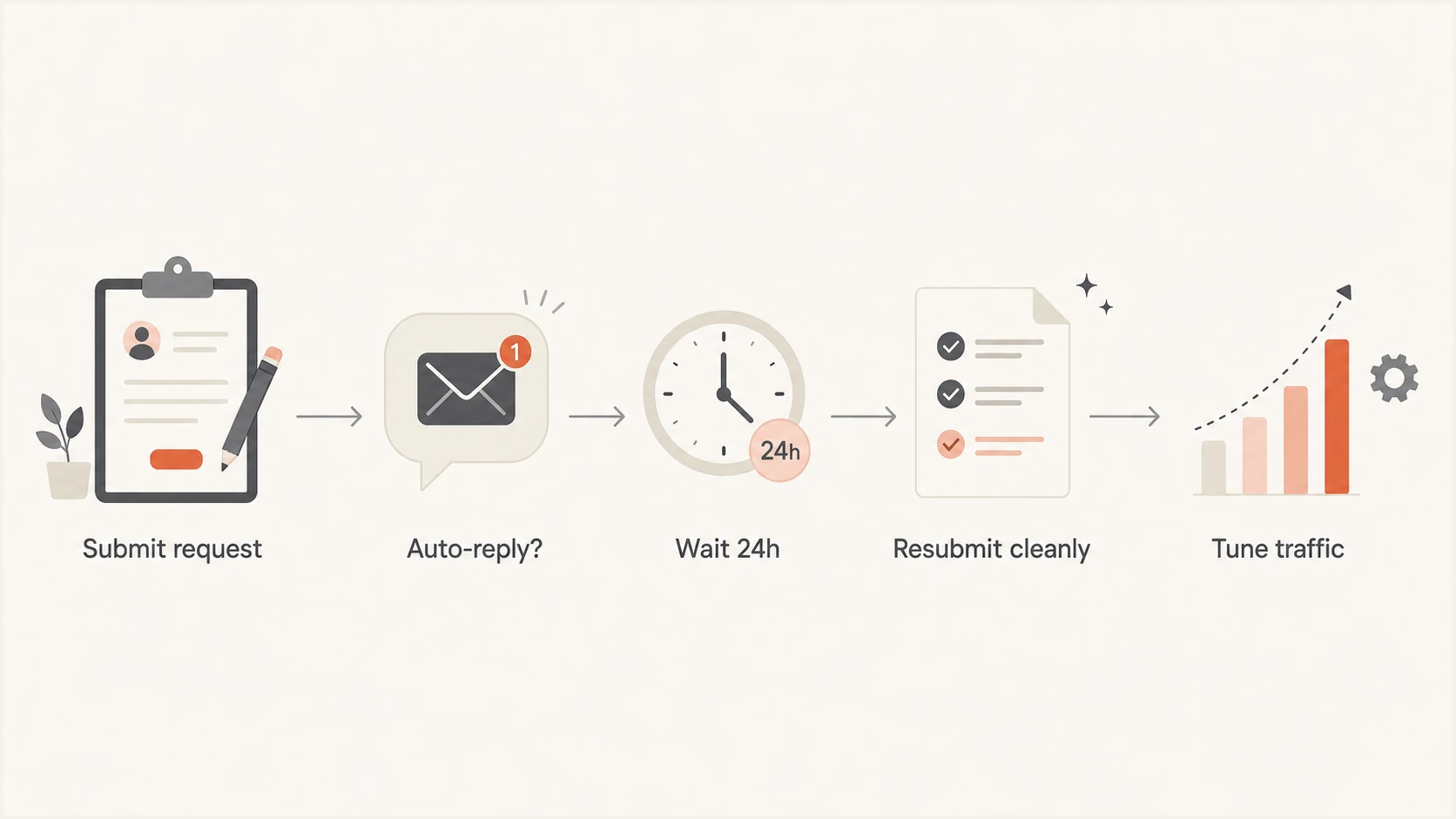
Flowchart showing when to wait, resubmit, and tune traffic for SNDS support.
What to include in a sender support request
A clean request gives Microsoft enough information to connect the symptom to the affected sending infrastructure without a long back-and-forth. Keep it factual. A clean blocklist or blacklist result does not prove the IP is safe, and one green SNDS color is not the whole case.
Outlook.com sender support request packettext
Subject: Outlook.com rate limit review for specific sending IPs

Affected IPs:
203.0.113.10
203.0.113.11

Affected destinations:
outlook.com, hotmail.com, live.com, msn.com

Observed SMTP response:
451 4.7.500 Server busy. Please try again later.

First observed:
2026-09-03 09:20 UTC

Recent changes:
No new mail stream. No new customer segment. Volume reduced by 35%.

SNDS status:
Green for affected IPs. No abnormal IP status visible.

Authentication:
SPF pass. DKIM pass. DMARC pass.

Actions already taken:
Reduced concurrency. Slowed retry cadence. Suppressed risky segments.

Request:
Please review the listed IPs for Outlook.com rate limiting.
The exact SMTP response is more useful than a general statement that Microsoft is throttling. The affected destination family also matters. A problem isolated to Outlook.com consumer mail does not have the same operational path as a Microsoft 365 tenant-specific issue.
- Exact IPs: List only IPs with current symptoms, not the entire pool by default.
- SMTP proof: Include response codes, timestamps, and recipient domains.
- Recent changes: State volume changes, new streams, customer events, or no change at all.
- Fixes taken: Mention shaping, suppression, complaint cleanup, and authentication checks.
What to fix while waiting
Do not make the support queue the only plan. While waiting for sender support, check whether traffic shaping, retry control, list suppression, segmentation, and authentication cleanup reduce the problem. The fastest operational path often starts with making the sending pattern easier for Outlook.com to accept before a support response arrives.
Waiting only
- Slow feedback: The queue decides when you learn anything new.
- Limited detail: A mitigation reply rarely explains every reputation signal.
- Pool risk: One affected IP can keep retry pressure high.
Parallel remediation
- Cleaner retries: Reduce concurrency and avoid aggressive retry bursts.
- Better proof: Collect fresh SMTP responses and test results.
- Lower risk: Pause segments with complaints or poor engagement.
Start with a real test message when the symptom is inconsistent. The email tester is useful when you need to inspect authentication, headers, content signals, and delivery clues from an actual message instead of relying only on DNS records.
Email tester
Send a real email to this address. Suped shows a results button when the test is ready.
?/43tests passed
Then check the domain-wide basics. A domain health check catches common DMARC, SPF, DKIM, and DNS issues that weaken a sender case. These checks do not make Microsoft respond faster, but they stop avoidable problems from making the review harder.
Check the high-volume sender rule
Domains sending more than 5,000 messages per day to Outlook.com addresses must pass SPF, DKIM, and DMARC under Microsoft's current policy. A 550 5.7.515 rejection points to this authentication requirement, so fix the policy failure before treating the problem as a slow support case.
Why SNDS can look green while delivery is bad
A green SNDS filter result is useful, but it does not guarantee normal inbox placement or acceptance. SNDS data is aggregated. Microsoft delivery decisions also consider current traffic behavior, recipient feedback, retry patterns, authentication, content, and reputation signals that are not exposed in one place.
A sender can see clean historical SNDS data, then hit a sudden rate limit on active IPs. Heavy throttling helps when volume pressure is the issue, but it does not fix a complaint spike, poor segmentation, bad retry cadence, or a routing pattern that keeps one IP under pressure.
If you are diagnosing that gap, the sibling page on common SNDS issues is a useful reference point. Compare SNDS data against bounce logs, complaint feeds, mail stream changes, and broader blocklists because a blocklist or blacklist listing can explain pressure that SNDS alone does not show.
|
|
|
|---|---|---|
Green filter | Low visible spam rate | No throttling |
Low complaints | Low reported complaint rate | Safe retry behavior |
Valid authentication | Identity checks pass | Strong reputation |
No abnormal IP status | No current blocked, bot, or junked flag | Normal inbox placement |
What visible SNDS data does and does not prove.
Where Suped fits
Suped's product does not replace Microsoft SNDS or Outlook.com sender support. It gives teams ongoing context while a request is pending by connecting DMARC monitoring, SPF, DKIM, blocklist monitoring, and deliverability signals in one workflow.
Issues page showing top issues, verified sources, unverified sources, and authentication pass rates
Use SNDS for Microsoft-side IP data and sender support for mitigation requests. Use Suped for authentication visibility, issue detection, alerts, hosted SPF, SPF flattening, hosted DMARC, hosted MTA-STS, and blocklist monitoring across the domains and IPs that send mail.
A practical operating setup
Keep Microsoft support requests concise, and keep monitoring continuous. A ticket is one event. Reputation management is a daily operating process.
- SNDS role: Microsoft IP data and sender symptoms.
- Sender support role: Outlook.com deliverability troubleshooting and mitigation requests.
- Suped role: Authentication monitoring, alerts, issue detection, and repair workflow.
- Team role: Traffic shaping, complaint cleanup, suppression, and clear evidence.
Views from the trenches
Best practices
Check for a receipt after 24 hours of silence, then send one complete replacement request.
Keep shaping changes active while waiting because Microsoft publishes no response-time SLA.
Track each affected IP separately, since one pool can have mixed Microsoft outcomes.
Common pitfalls
Waiting several days without a receipt leaves active Microsoft throttling unmanaged.
Assuming green SNDS data proves safety ignores rate limits, complaints, and pool behavior.
Resubmitting vague tickets without timestamps and SMTP responses slows the first review.
Expert tips
Use a 24-hour timer, then replace an unconfirmed case instead of adding ticket noise.
Treat mitigation and remediation as parallel work, not a serial support dependency.
Compare SNDS with live test mail, bounces, complaints, and blocklist or blacklist signals.
A marketer in Email Geeks reports that some first replies arrive within 24 hours and prompt follow-up can produce movement within 24 to 48 hours.
2026-06-19 - Email Geeks
A marketer in Email Geeks uses 24 hours without an automatic receipt as the point to check the submission and send one clean replacement.
2026-06-20 - Email Geeks
A practical SNDS support rule
Use 24 hours as an operational decision point, not a promised deadline. If sender support responds inside that window, answer quickly and keep the case focused. If no confirmation arrives, check the receipt path and submit one complete replacement request while continuing remediation.
Traffic shaping, complaint control, authentication checks, and blocklist or blacklist monitoring can shorten the incident while the request sits in the queue. Support response time and operational recovery time are separate measures.