
How to fix Gsuite sender reputation issues when business emails are sent to quarantine in Outlook?

Updated on 23 Sep 2026: We updated this guide with current Microsoft verdict signals, Google Workspace DKIM activation steps, Outlook.com bulk-sender requirements, and a check for compromised accounts.
Fix Google Workspace sender reputation issues with Outlook quarantine by proving the exact sending path first, then fixing authentication, then rebuilding recent reputation with clean one-to-one mail. Treat this as a Microsoft filtering verdict on a Google Workspace sender, not as an Outlook app problem.
The fast path is straightforward: get the original headers and quarantine details, confirm whether Gmail or another app sent the message, inspect the Microsoft CAT and SFV verdicts, make DKIM pass for the visible From domain, keep SPF valid and under lookup limits, publish DMARC with reporting, pause bulk sends, and test real messages to Microsoft recipients.
If proper DKIM was added only after the problem started, authentication can begin passing after the DNS record propagates and signing is active, but Microsoft reputation does not reset instantly. Microsoft publishes no guaranteed recovery clock. Retest clean person-to-person mail over several days, and if authenticated messages remain quarantined, ask a recipient admin to submit a false positive with the original headers.
Immediate fix order
- Path: Find out whether Gmail, a CRM, an SMTP relay, or a bulk tool sent the message.
- Auth: Make SPF, DKIM, and DMARC pass for the domain users see in the From address.
- Evidence: Get headers, CAT and SFV values, and the quarantine reason before changing content.
- Recovery: Send only wanted business mail while Microsoft learns the fixed identity again.
Confirm the sending path before changing DNS
G Suite is now Google Workspace, but the failure pattern is the same: a business user sends mail, a Microsoft recipient sees it in quarantine, and everyone assumes the Google account has a reputation problem. Sometimes that is true. Often the real problem is that the message did not come directly from Gmail, or it used a third-party sender that never had DKIM and DMARC set up for the same domain.
Split the investigation into two paths because the fix changes completely when a tool is involved. A typed Gmail message should authenticate through Google. A CRM, mail merge app, helpdesk, or bulk platform needs its own DKIM, return-path, and DMARC domain-match checks.
Gmail or Google Workspace
- Route: The user composes in Gmail or an official Google client.
- DKIM: The signature should use the sender's domain, not only a Google domain.
- SPF: The sending IP should be covered by Google's include.
- Fix: Enable Google DKIM, keep SPF clean, and monitor DMARC reports.
CRM, mail merge, or bulk tool
- Route: The user still appears as the sender, but another system transmits.
- DKIM: The tool needs a domain-matching signature of its own.
- SPF: The envelope domain can differ, so SPF alone is not enough.
- Fix: Authenticate the tool or stop using it until business mail recovers.
A Microsoft quarantine detail screen is useful because it distinguishes spam, high-confidence spam, spoofing, phishing, malware, tenant rules, and user blocks. Without that verdict, DNS or content changes become guesswork.
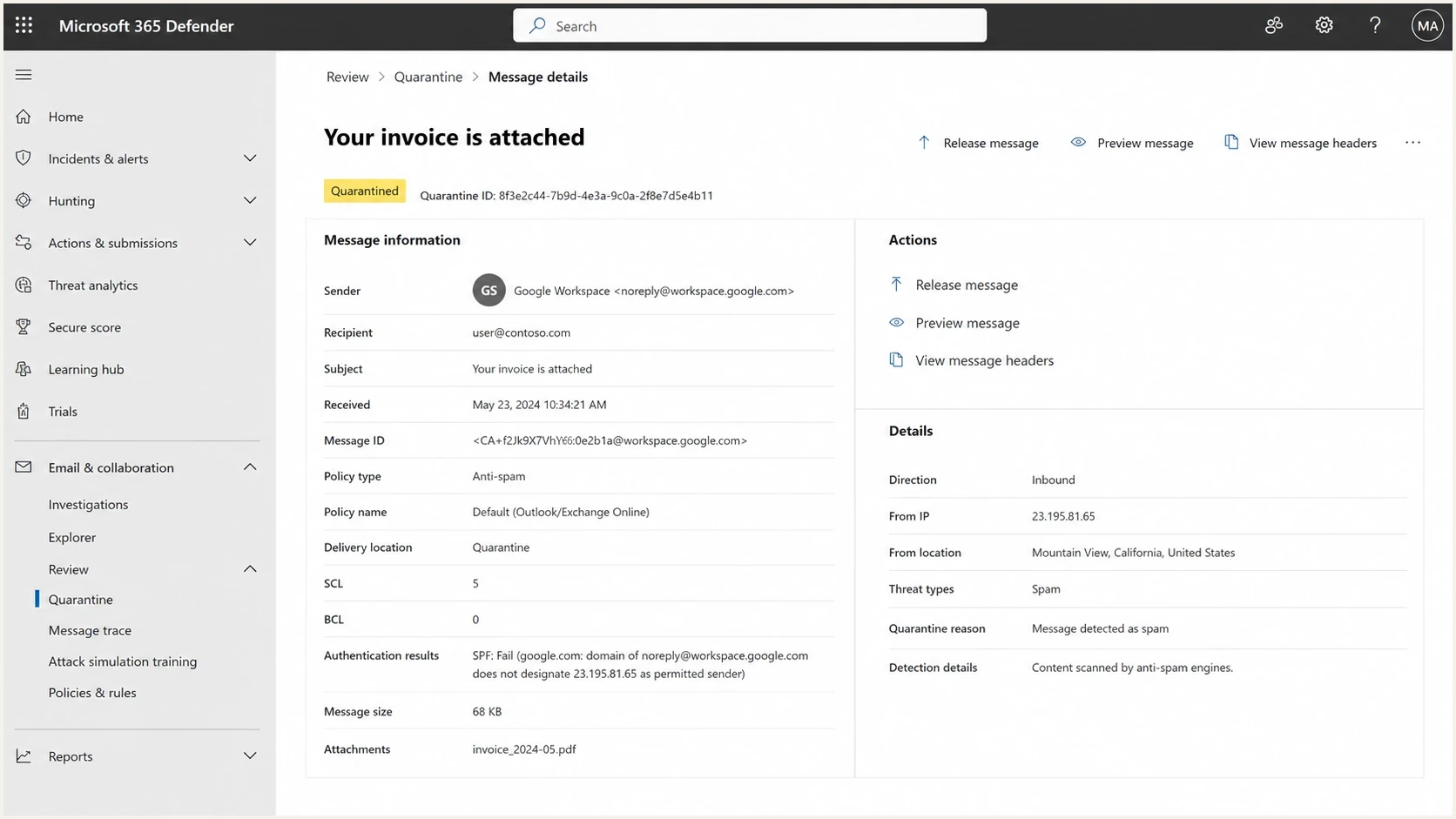
Microsoft Defender for Office 365 quarantine details for a Google Workspace email.
Read the headers and quarantine verdict
Ask a Microsoft 365 recipient admin for the original headers, message trace, and quarantine details. A screenshot that says "quarantined" is not enough. Collect the authentication results, CAT and SFV values, spam confidence level, bulk complaint level, phishing verdict, composite authentication result, and any mail-flow rule or spoof intelligence reason.
Useful header lines to inspecttext
Authentication-Results: spf=pass smtp.mailfrom=example.com;
 dkim=pass header.d=example.com;
 dmarc=pass action=none header.from=example.com;
 compauth=pass reason=100
X-Forefront-Antispam-Report: CAT:SPM; SCL:5; BCL:0; PCL:0; SFV:SPM;
X-MS-Exchange-Organization-AuthAs: Anonymous
|
|
|
|---|---|---|
DKIM fail | Signature did not validate | Check selector, key, and message changes |
DMARC fail | No passing method matched From | Fix the SPF or DKIM domain match |
CAT:SPM or HSPM | Spam or high-confidence spam category | Submit a confirmed false positive |
SFV:BLK or SKS | A user block or mail-flow rule affected filtering | Review blocked senders and tenant rules |
SCL high | Microsoft assigned a spam score | Use CAT and SFV to find the cause |
BCL high | Message looks like bulk mail | Pause bulk sends and check consent |
Spoof or compauth fail | Microsoft distrusts the claimed identity | Read the reason code and fix identity |
Compact map of Microsoft-side signals to next actions.
SCL 5 means Microsoft classified the message as spam, but it does not identify the underlying cause. CAT, SFV, BCL, composite authentication, overrides, and message trace provide the evidence needed to separate a sender problem from a recipient policy.
For a deeper Microsoft 365 quarantine workflow, compare the evidence against Outlook quarantine fixes. If the affected recipients use consumer Outlook.com rather than Microsoft 365 tenants, Microsoft sender support is the relevant escalation path.
Fix Google Workspace authentication
If DKIM was missing, start there. In the Google Admin console, generate a 2048-bit key when the DNS host supports it, publish the TXT record, then start authentication for the domain. Publishing the record alone does not make Google sign mail. A valid signature often survives forwarding when the signed content remains unchanged, while SPF can fail after forwarding because the connecting IP changes.
Then review SPF. A Google-only domain normally needs Google's include plus any legitimate third-party senders. Do not publish multiple SPF TXT records at the root. Do not keep old vendors in SPF after they stop sending. SPF evaluation permits no more than 10 DNS lookups, so unnecessary includes can produce a permanent error and make incident response harder.
SPF for Google Workspace onlytext
v=spf1 include:_spf.google.com ~all
Starter DMARC monitoring policytext
v=DMARC1; p=none; rua=mailto:dmarc-reports@example.com
A p=none policy collects aggregate reports but does not tell receivers to quarantine or reject failing mail. Review those reports, fix every legitimate source, then move to an enforcement policy when legitimate mail consistently passes DMARC.
Do not stop at SPF
SPF passes on the envelope sender. DMARC checks whether a passing SPF or DKIM domain matches the visible From domain. For Google Workspace business mail, domain-matching DKIM is often the cleanest signal when messages are forwarded.
- One record: Keep a single SPF TXT record for the domain.
- Domain match: Make DKIM sign with the same domain users see.
- Reports: Use aggregate DMARC data to identify spoofing and unknown senders.
Outlook.com has a separate bulk-sender rule
Domains sending more than 5,000 messages a day to Outlook.com consumer addresses must pass SPF and DKIM, publish DMARC with at least p=none, and meet the DMARC domain-match requirement. Noncompliant mail can be rejected with 550 5.7.515. This rule covers Outlook.com, Hotmail.com, and Live.com consumer mailboxes. It does not explain a Microsoft 365 tenant quarantine by itself.
Google's sender guidelines apply to delivery into Gmail, not Microsoft 365. Their baseline checks still help here: authenticate mail, keep DNS valid, control spam complaints, and avoid abrupt sending changes.
If you need a quick outside-in view, run a domain health check and confirm that DMARC, SPF, and DKIM are all visible from public DNS.
?
What's your domain score?
Deep-scan SPF, DKIM & DMARC records for email deliverability and security issues.
Check the reputation signals Microsoft uses
Authentication verifies identity. Reputation affects trust. Microsoft can still quarantine mail after DKIM and DMARC pass if the recent pattern looks risky: sudden volume, poor engagement, repeated sends to stale contacts, misleading subjects, link-heavy signatures, or unwanted mail from a compromised account.
Check the domain and any dedicated sending IP against blocklist and blacklist sources, but interpret results carefully. Google Workspace often uses shared infrastructure, so a listed shared IP is less actionable than a listed domain, a bad link domain, or authentication failures tied to your domain.
Quarantine recovery priorities
Use the highest-risk active issue to decide what to fix first.
Broken authentication
Fix now
DKIM or DMARC fails on real mail.
Mixed routing
Isolate
Gmail and tools send as the same domain.
Clean business mail
Rebuild
Replies and one-to-one mail pass checks.
For ongoing reputation checks, use blocklist monitoring to catch domain or IP listings before support teams learn about quarantine from customers.
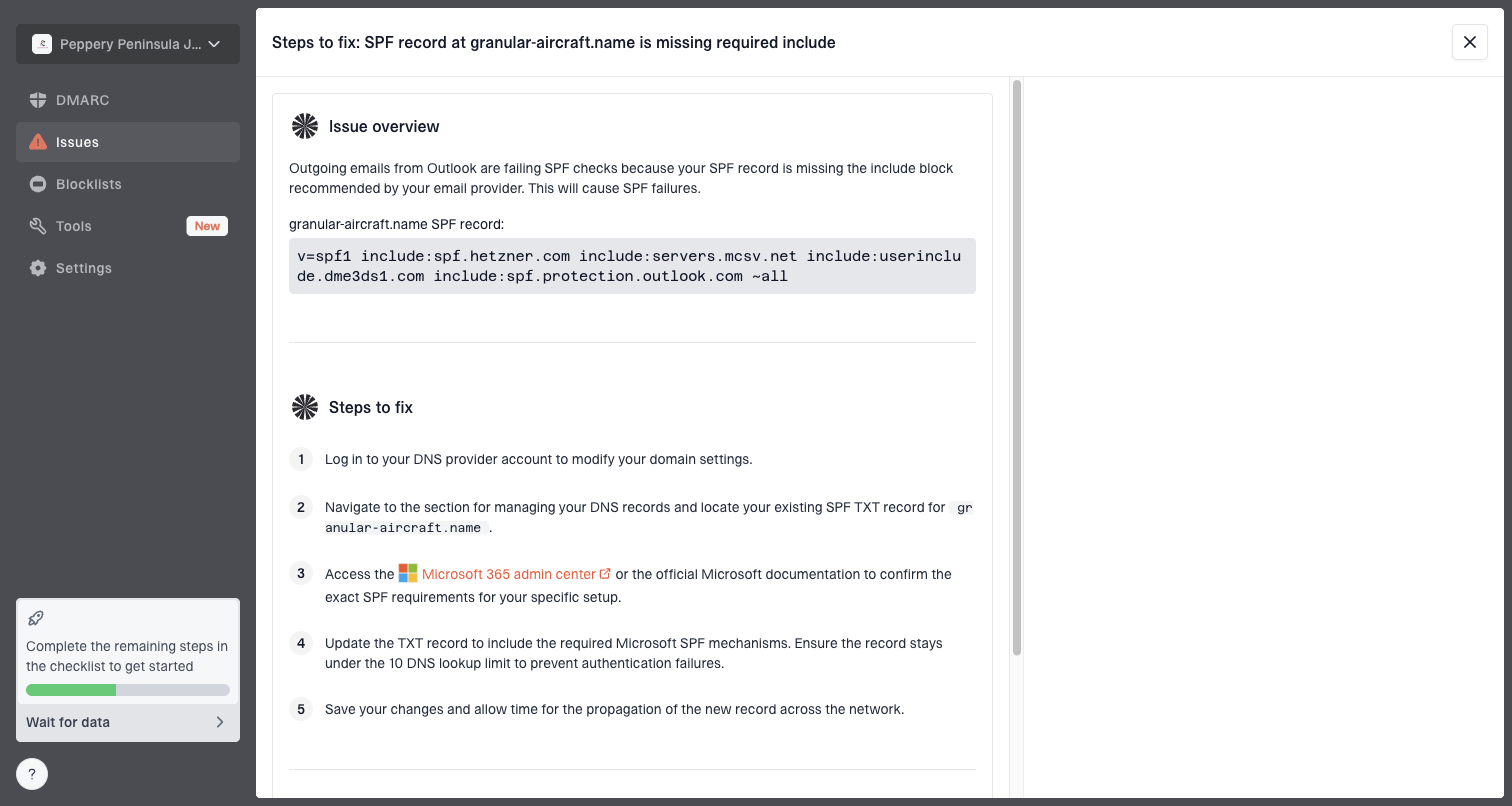
Issue steps to fix dialog showing the issue overview, tailored fix steps, and verification action
Suped's product supports this workflow by bringing DMARC aggregate data, SPF and DKIM checks, blocklist monitoring, alerts, and remediation steps together. Use Suped to map each sending source, confirm that authentication matches the visible From domain, and keep watching for regressions after Microsoft 365 accepts the mail again.
If the domain was spoofed, DMARC monitoring shows which sources participating receivers observed and how those messages authenticated. Aggregate reports are delayed, and not every receiver sends them, so use the data as source evidence rather than a real-time record of every spoofing attempt.
Rule out account compromise
A sudden reputation drop after previously clean delivery can follow unauthorized sending from a Google Workspace mailbox or connected app. Mail sent through the real account can pass SPF, DKIM, and DMARC, so successful authentication does not rule out compromise.
- Review activity: Use Google Workspace email logs and admin audit events to find unexpected volume, recipients, or sending times.
- Inspect access: Check recent sign-ins, connected apps, app passwords, delegates, filters, and forwarding rules.
- Contain the account: Suspend sending if needed, revoke active sessions, remove unknown access, reset credentials, and require multifactor authentication.
- Preserve evidence: Record timestamps, sender addresses, network message IDs, and the affected routes before cleanup.
After containment, retest direct Gmail mail first. Do not reconnect an app or resume campaigns until its access and sending behavior have been verified.
Send controlled tests and rebuild trust
After DNS is corrected, test like a recipient, not like a DNS checker. Send a normal business email from Gmail to a Microsoft 365 mailbox, reply to it, then send the same kind of message through any connected tool. Compare headers and quarantine outcomes. Use an email tester for a separate content and authentication read, then validate the result with a real Microsoft recipient.
Email tester
Send a real email to this address. Suped shows a results button when the test is ready.
?/43tests passed
Keep the recovery period boring. That means no sales blasts, no recycled lists, no new tracking domain, no URL shorteners, no sudden signature redesign, and no mail merge experiments. The goal is to create a recent pattern of wanted, authenticated, person-to-person mail.
- Baseline: Send one plain Gmail message to a Microsoft 365 mailbox and save the headers.
- Compare: Send one message through each connected app and compare authentication.
- Reduce: Pause bulk and cold outreach until business mail stops hitting quarantine.
- Ask: Request CAT, SFV, SCL, BCL, composite authentication, and spoof details from a recipient admin.
- Track: Log test date, sender, route, subject, authentication, Microsoft verdict, and final placement.
Measure outcomes, not a promised timeline
Microsoft publishes no fixed domain-reputation recovery curve. Continue controlled tests only while authentication passes and complaint risk stays low. Use repeated placement results and recipient-side verdicts to decide when to resume normal volume.
Submit confirmed false positives to Microsoft
Once a direct Gmail test passes SPF, DKIM, and DMARC but Microsoft 365 still quarantines it, ask the recipient tenant's security admin to release the message and submit it to Microsoft as a false positive. This receiver-side step gives Microsoft the exact message and filtering verdict. It does not replace sender-side authentication fixes, and a later submission verdict does not automatically release similar messages already in quarantine.
- Preserve evidence: Save the original headers, network message ID, quarantine reason, sender, and recipient.
- Confirm the route: Verify that the submitted message came directly through Google Workspace and passed authentication.
- Submit the message: In Microsoft Defender quarantine, release it and choose the option to send it to Microsoft to improve detection.
- Limit temporary access: If the submission workflow offers a temporary allow entry, keep it narrow and remove it after the verdict or expiry.
- Read the verdict: Review the submission result, correct any tenant policy issue it identifies, release affected messages manually, and retest.
Do not use a permanent domain allowlist
A broad allowed-domain entry can bypass parts of spam filtering and email authentication checks, which creates spoofing risk. Use a temporary entry only to restore urgent mail while the admin waits for Microsoft's submission verdict.
If one Microsoft 365 tenant quarantines the message while other tenants accept the same authenticated test, inspect that tenant's anti-spam policy, anti-phishing policy, mail flow rules, blocked senders, and impersonation settings. If several unrelated tenants quarantine the same mail, focus on the sender domain, message content, URLs, complaint history, and the Microsoft verdicts.
Use a controlled recovery sequence
A quarantine incident needs a written sequence because random changes make it harder to know what worked. Document each change and avoid changing more than one major variable between tests unless authentication is clearly broken.
- Preserve: Save headers from quarantined messages and identify every sending system.
- Repair: Activate Google Workspace DKIM, clean SPF, publish DMARC reporting, and contain any compromised account.
- Isolate: Stop tool-sent mail that cannot pass domain-matching DKIM.
- Test: Send normal business mail, record Microsoft placement and verdicts, and keep volume stable.
- Restore: Submit confirmed false positives and reintroduce one verified sending tool at a time after direct Gmail mail is stable.
Avoid reputation shortcuts
Do not move staff to a fresh domain, rotate display names, or ask every recipient to allowlist the sender as the main fix. Those moves hide the evidence and create a second reputation problem. Fix the identity, prove clean mail, then escalate with the data if Microsoft still quarantines it.
Views from the trenches
Best practices
Verify the exact sending app before changing DNS because Gmail and a CRM leave different traces.
Keep bulk mail off the business domain until Microsoft accepts normal replies again consistently.
Use DMARC reports to prove whether spoofing or a third-party sender caused the failure.
Common pitfalls
Assuming a 500-contact send is harmless hides weak engagement and sudden volume changes.
Publishing DKIM after the incident fixes authentication, but reputation still needs clean mail.
Treating Outlook quarantine as an Outlook bug misses Microsoft 365 filtering evidence in headers.
Expert tips
Compare one Gmail web message with one tool-sent message to separate domain and app issues.
Ask the recipient admin for SCL, compauth, and spoof details before changing content.
Pause link-heavy signatures during recovery so tests measure the domain, not extra signals.
Expert view
Expert from Email Geeks says the first check is whether the business mail is truly one-to-one and not a small bulk campaign with weak engagement.
2021-07-08 - Email Geeks
Marketer view
Marketer from Email Geeks says a previous bulk send through a separate app matters because Microsoft can connect domain identity, content, and recent engagement.
2021-07-08 - Email Geeks
The fix for Google Workspace quarantine
Start with the Microsoft verdict, prove the sending route, make Google Workspace DKIM pass, clean SPF, publish DMARC reporting, check for account compromise, and stop unauthenticated tool sends until the domain has clean recent traffic.
If the issue started suddenly and proper DKIM was only added after the fact, missing authentication is a credible root cause, but DKIM alone does not guarantee inbox placement. Keep business sending predictable, document every test, and escalate with headers when authentication passes but Microsoft still quarantines the message.
Frequently asked questions
DKIM can start passing after DNS propagation and Google activates signing, but Microsoft publishes no guaranteed reputation-recovery time. Test clean business mail over several days, and submit an authenticated false positive if quarantine continues.
SPF helps, but it does not fix the issue by itself. DMARC needs a passing SPF or DKIM domain to match the visible From domain. DKIM is often more reliable for Google Workspace mail that gets forwarded.
No. Moving to a new domain usually creates a colder sender with no history and hides the evidence. Fix the existing domain unless it was used for sustained abusive sending.
Yes. Unauthorized sources can misuse the domain, while a compromised real account can send mail that still passes authentication. Use DMARC aggregate data to find outside sources and Google Workspace activity records to investigate mail sent through real accounts.
Ask for the original headers, network message ID, message trace, quarantine policy name, CAT, SFV, SCL, BCL, phishing verdict, composite authentication result, and spoof intelligence details.
Authentication proves domain identity, not inbox placement. Use CAT, SFV, BCL, and message trace to identify the Microsoft verdict. Ask the recipient admin to submit a confirmed false positive. If only one tenant quarantines it, review that tenant's policies and mail flow rules. If several tenants do it, investigate domain reputation, content, URLs, complaint history, and account activity.