
How can I resolve email deliverability issues with Proofpoint when emails are not bouncing or going to spam?

Published 3 Jul 2025
Updated 17 Oct 2026
15 min read
Summarize with
Updated on 17 Oct 2026: We clarified queued delivery, Proofpoint log searches, and DMARC checks for missing emails with no bounce.
When Proofpoint recipients do not receive your email, and you see no bounce and no spam-folder placement, check for quarantine, a delivery queue, or a downstream mailbox action before assuming the cause. Confirm which system accepted the SMTP transaction, test with a real message, isolate content and URL signals, verify authentication and reputation, pause broad campaign sends to the confirmed affected domains, then ask one or more recipient admins to confirm what their Proofpoint logs show.
Do not start by assuming the IP is blocklisted or blacklisted. A clean public lookup does not rule out quarantine, tenant policy, URL reputation, attachment rules, business filtering, or a downstream mailbox action. The missing signal is the recipient-side disposition.
- First answer: resolve the issue by collecting message-level evidence, not by repeatedly sending to the same affected addresses.
- Possible causes: Proofpoint quarantine, queued delivery, a customer tenant rule, or a downstream mailbox action after the SMTP handoff.
- Best next move: get one affected recipient to ask their mail admin for the message log result and disposition reason.
- Sender-side fix: reduce risk signals, clean the Proofpoint segment, test content changes, and keep SPF, DKIM, DMARC, rDNS, and sending identity consistent.
What silent Proofpoint filtering usually means
A message can disappear from the sender's point of view even when the SMTP transaction looked accepted. Confirm a final 250 response after the message DATA, not just a 250 response to MAIL FROM or RCPT TO. This confirms acceptance by that SMTP server, which can still queue or filter the message. With Proofpoint, that filtering can happen at the gateway, within a quarantine workflow, through tenant-specific policy, or through a downstream Microsoft 365 route.
Separate Proofpoint troubleshooting into two tracks. The first checks whether the sender has an identifiable technical defect. The second checks whether Proofpoint, the recipient tenant, or the downstream mailbox applied a policy after the SMTP handoff.
No bounce does not mean successful inbox delivery. Check the sending service's delivery events and the envelope sender (Return-Path), because delivery status notifications go there rather than necessarily to the visible From address. Proofpoint's current sender guidance states that content filtering can return no SMTP error, so recipient-side logs remain necessary.
What you can see
- SMTP result: accepted, deferred, rejected, or timed out at your ESP or MTA.
- Authentication: SPF, DKIM, DMARC, rDNS, HELO, and domain-match results.
- Public reputation: blocklist and blacklist status for sending IPs and domains.
What the recipient can see
- Disposition: delivered, quarantined, discarded, held, or routed to review.
- Policy reason: content, URL, impersonation, attachment, bulk mail, or tenant rule.
- Admin action: release, allow, report false positive, or keep blocked.
That second track matters more in B2B than in consumer mailbox troubleshooting. A corporate security team filters for the employer's risk tolerance, business needs, local policy, and internal complaints. If users repeatedly treat the message pattern as unwanted, the sender needs cleaner targeting, clearer content, lower frequency, and direct recipient demand.
Start by proving the pattern
Group affected subscribers by receiving path and MX host. A concentration on visible Proofpoint MX records is useful evidence, but it is not definitive. An integrated deployment can leave Microsoft 365 visible in MX while mail is routed through Proofpoint later, so confirm the path with the receiving hostname in your SMTP log or with the recipient admin.
Compare the affected segment against similar business domains without Proofpoint in the confirmed path, Microsoft 365 domains without Proofpoint in that path, and consumer mailbox domains. A seed-list result showing Microsoft 365 spam placement and a subscriber report showing Proofpoint non-delivery can be related, but they are not the same failure.
|
|
|
|---|---|---|
Receiving path | Confirms Proofpoint involvement | SMTP and DNS logs |
Final SMTP response after DATA | Proves the exact handoff result | ESP or MTA logs |
Message-ID and queue ID | Lets admins correlate records | Original headers and MTA logs |
Envelope identities | Catches address and routing errors | SMTP transaction |
Send time and time zone | Narrows the recipient search | Campaign record |
URL list | Surfaces content triggers | Email body |
Auth results | Identifies authentication defects | Header test |
Evidence to collect before changing content or contacting anyone.
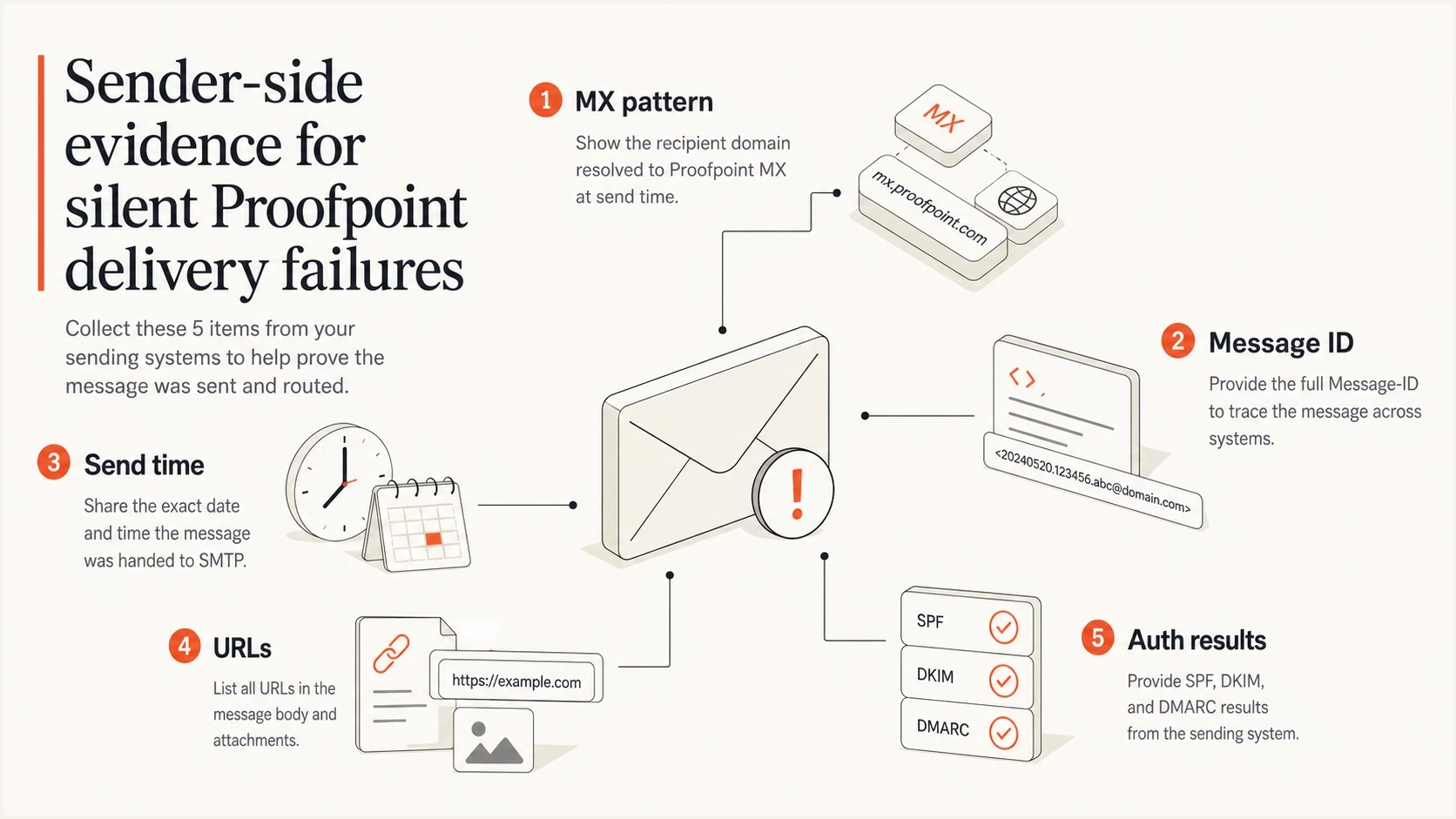
Proofpoint email troubleshooting checklist with MX records, Message-ID, send time, URLs, and authentication checks.
For the message-level test, send a fresh copy to a controlled recipient that can share headers and admin log details. A real message is better than theory. Suped's email tester provides a concrete inspection point for authentication, content, and configuration before a recipient admin spends time on their side.
Email tester
Send a real email to this address. Suped shows a results button when the test is ready.
?/43tests passed
The output from a test does not prove Proofpoint's internal decision, but it prevents an escalation where the recipient admin finds a basic sender error first. Confirm that the From domain, DKIM domain, envelope sender, sending IP, receiving host, and visible links make sense before escalation. Match the test to the original sending stream; an email tester does not reproduce the affected recipient's tenant policy.
Check authentication and sender identity
Proofpoint can filter mail that passes SPF, DKIM, and DMARC, but broken authentication still weakens every other explanation. Verify DNS records, then test actual message headers because a correct-looking DNS record can still fail in the live message.
DMARC needs one authenticated domain match: either SPF must pass and its envelope sender domain must match the visible From domain under DMARC rules, or DKIM must pass and its signing domain must match. Strict mode requires identical domains; relaxed mode permits the same organizational domain under DMARC rules. Also check forward and reverse DNS, use a fully qualified HELO/EHLO hostname consistent with the PTR record, and avoid malformed MIME or headers. Suped's domain health checker checks DMARC, SPF, and DKIM together so related DNS defects are easier to spot.
Domain health checker sample results showing DMARC, SPF, DKIM scorecards and detailed validation checks
Collect DMARC aggregate reports during the investigation. They show which sources are passing, failing, or sending outside the expected pattern. They contain aggregate authentication results and policy dispositions, not a searchable per-message Proofpoint trace or proof of inbox delivery.
Baseline DMARC monitoring recorddns
_dmarc.example.com. 3600 IN TXT "v=DMARC1; p=none; rua=mailto:dmarc@example.com"
The record above is an example for a domain starting DMARC monitoring. Replace the domain and report address with your own values. Keep an existing quarantine or reject policy while troubleshooting; weakening it does not fix Proofpoint classification.
Suped's DMARC monitoring turns aggregate reports into source-level evidence and issue-specific fix steps. During a Proofpoint incident, use that evidence to answer whether legitimate sources authenticate consistently before asking the recipient admin to investigate classification.
Authentication checklist
- SPF: passes for the real sending IP and stays within the DNS lookup limit.
- DKIM: passes with a valid signature and an expected signing domain.
- DMARC: passes when SPF or DKIM passes with the required domain match. Aggregate reporting is configured separately with rua and is not required for a pass.
- rDNS and HELO: the PTR hostname resolves back to the sending IP and matches the HELO/EHLO identity.
Audit content like a security filter would
If the same email reaches many inboxes but disappears at Proofpoint-protected domains, content and URL reputation move up the suspect list. Bad content does not mean bad writing. It means some element resembles mail that corporate filters have seen in unwanted campaigns.
The usual culprits are third-party tracking domains, affiliate links, link shorteners, recycled landing pages, image-heavy layouts, attachments, or a call to action that looks risky. Remove one variable at a time so each test can identify a cause.
Content test priorities
Troubleshooting priorities, not published Proofpoint scoring thresholds or guarantees of delivery.
Start
Establish a baseline
Short plain-text message, no links or attachments
Then
Change one variable
One branded link, then the HTML template and tracking separately
Investigate first
Resolve the finding
Known unsafe URLs, suspicious redirects, or an attachment flagged in logs
Inspect every linked domain, including redirects and shared tracking hosts. If a branded website was compromised or recently repaired, remove malicious files and redirects, secure the site, then request reassessment with the cleanup evidence through the recipient admin. Authentication alone will not repair a linked domain's reputation.
Use a controlled test sequence: start with plain text without links or attachments, add one branded link, then test the normal template and tracking separately. If the plain version arrives but the full version vanishes, the evidence points to content or URL filtering rather than a general Proofpoint outage.
- Plain version: send a short message without links, images, or attachments through the same authenticated sending stream. Add one branded link in a separate test.
- Template test: send the same text and single tested link inside the standard HTML template without tracking or extra URLs.
- Tracking test: enable normal tracking and compare recipient-side logs or delivery reports.
- Full test: restore each remaining link or attachment in a separate test after the simpler tests pass; check recipient-side logs for each change.
This sequence also protects reputation. If Proofpoint already distrusts a sender or campaign pattern, repeated identical sends can add pressure. A smaller, controlled test with one cooperative recipient provides better evidence with less risk.
Pause the affected segment before retesting
If a cluster of affected domains uses Proofpoint, suppress that cluster from normal campaign sends until the issue is understood. Pause the confirmed affected campaign stream, rather than every recipient whose MX suggests Proofpoint. Repeat sends do not explain a missing message.
The suppression does not need to be permanent. Keep sending to recipients with confirmed delivery and permission, and use the affected segment only for controlled tests or user-requested transactional messages where the recipient is actively waiting.
Keep sending when
- Receipts: the recipient confirms receipt after delivery or quarantine release.
- Engagement: the recipient has confirmed receipt, replied, or used the account recently. Security scanners generate automated clicks, so clicks alone do not prove human engagement.
- Purpose: the message has direct business value to that recipient.
Pause sending when
- Silence: the address has no recent engagement or visible demand.
- Pattern: multiple domains under Proofpoint show the same missing-mail behavior.
- Risk: the message uses risky URLs, affiliates, attachments, or stale audiences.
List hygiene helps when logs or recipient feedback show unwanted marketing mail; it does not repair a delivery queue or routing fault. Keep recipients who clearly want the mail and suppress those without recent demand. For marketing mail, verify opt-in records, remove invalid or long-unengaged addresses, provide one-click unsubscribe, honor opt-outs promptly, and investigate complaint spikes.
If you also see reputation symptoms, check IP and domain status across blocklists and blacklists. Suped's blocklist monitoring keeps those checks in the same deliverability workflow instead of treating them as a one-off lookup.
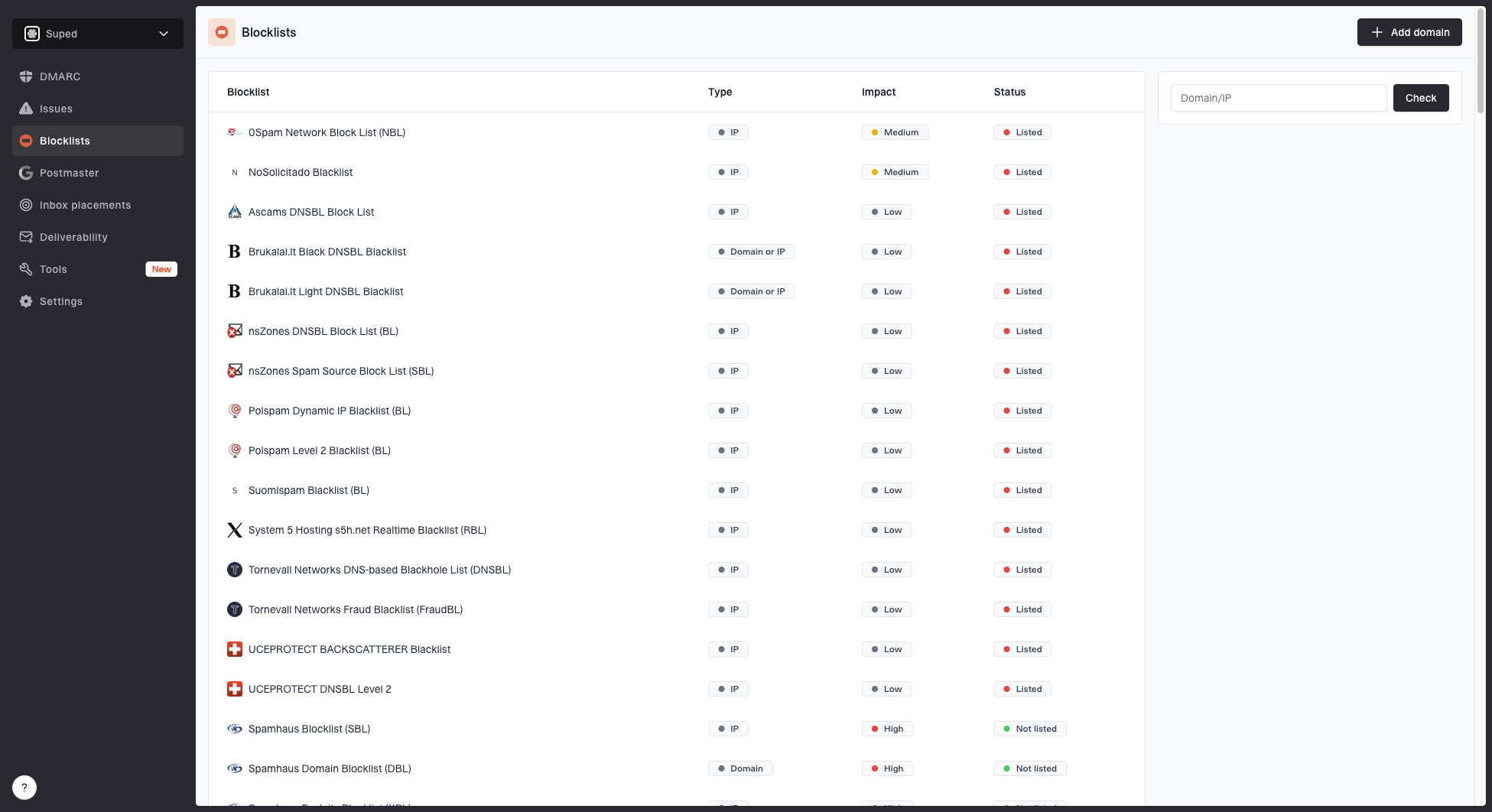
Blocklist monitoring page showing domain and IP checks across blocklists with importance and status
Escalate with the right evidence
The best escalation route is usually through an affected recipient, not a generic sender complaint. If the recipient wants the mail and it has work value, ask them to contact their mail admin. That admin can check Proofpoint quarantine, Email Logs, local policy, and the downstream message trace.
Give the recipient a compact evidence pack, not a long narrative. Include the header From address, envelope sender, exact recipient, send time with time zone, subject, message ID, sending IP, receiving hostname, queue ID if available, and full final SMTP response after DATA.
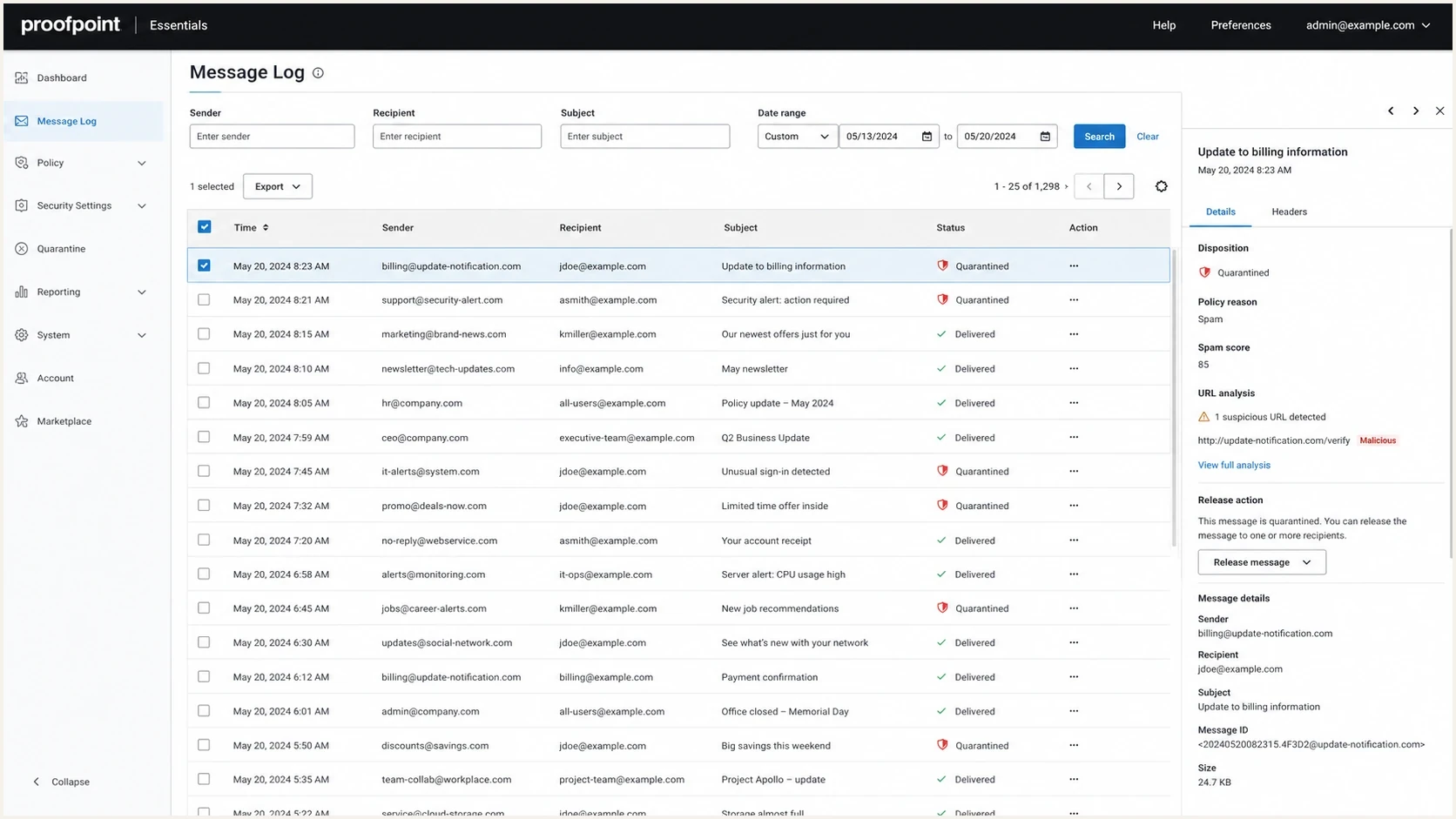
Proofpoint Essentials message log showing a quarantined email and disposition details.
Evidence pack for a recipient admintext
Header From: newsletter@example.com
Envelope sender: bounce@example.com
Recipient: person@company.example
Subject: June account update
Sent: 2026-06-04 10:15 AEST
Message-ID: <abc123@example.com>
Sending IP: 203.0.113.10
Receiving host: mx1.example.proofpoint.com
SMTP stage: final reply after DATA
SMTP response: 250 2.0.0 accepted for delivery
Queue ID: include if returned by the receiving server
Bounce received: no
If Proofpoint support needs to investigate, keep the same evidence pack and add the Proofpoint Essentials permalink, full internet headers, and original message body when available. If logs show misclassification, request a false-positive review. If they show queued delivery or a routing failure, open a mail-flow case instead and include the latest delivery-attempt error.
A recipient admin has more leverage than the sender. They can see the Proofpoint disposition, quarantine reason, local policy, user reports, and message permalink. If their organization does not want the mail, there is no sender-side switch that overrides that decision.
For deeper IP reputation symptoms, compare the case against Proofpoint deferral patterns and sender reputation evidence. The same method applies: isolate the affected receiver group, avoid duplicate manual sends while normal SMTP retries continue, and collect logs before changing everything at once. A related troubleshooting path is covered in Proofpoint deferrals.
Use the Proofpoint log outcome as the decision point
Ask the recipient admin to search the correct Proofpoint tenant and service with the exact sender, recipient, and timestamp. Check the time zone, inbound direction, aliases, and an unrestricted status filter, then correlate the message ID in the details. Request the detailed log entry or permalink when available. In Proofpoint Essentials, admins can also view messages hidden or deleted by end users, so an empty user view is not conclusive.
- Quarantined or held: read the classification reason, correct the cited sender or content issue, then have the admin release and report a false positive when appropriate.
- Queued or deferred after acceptance: inspect Proofpoint's delivery attempts to the next server and follow the queue checks below.
- Delivered onward: confirm the next server accepted the message, then investigate its message trace, transport rules, mailbox rules, and post-delivery remediation. A delivered status at the gateway does not establish inbox placement.
- Rejected or deferred before acceptance: use the complete SMTP reply and sender retry history to fix the stated authentication, reputation, protocol, or rate issue.
- No Proofpoint Essentials record: broaden the search, verify account permissions and retention, and check the recipient address, route, receiving hostname, and sender logs. If the sender has a final 250 from Proofpoint but no matching record is visible, ask the recipient admin to escalate that discrepancy.
Report a false positive through the admin log
The Proofpoint Essentials Log Search workflow requires an administrator. The admin finds the message, opens Actions, selects Report as false positive, clicks Apply, adds context, permits Proofpoint to inspect the message, and clicks Report. A user safe-sender entry does not replace this classification review. Any allowlist exception should be limited to the verified sender and the policy identified in the logs.
Do not resend the same campaign until the log outcome changes or the suspected trigger has been removed. A new test should use a new message ID and a recorded send time so the admin can distinguish it from the original.
Check queued mail and delivery delays
A message accepted by Proofpoint can remain queued when the next server is unavailable or returns a temporary SMTP error. A queue is different from quarantine: releasing a message does not repair the downstream connection.
- Ask the admin for the queue ID, next-hop server, latest delivery-attempt time, and full error.
- Check the destination route, SMTP connectivity, TLS errors, and Microsoft 365 connector restrictions against that error.
- Let normal delivery retries continue while the receiving admin fixes the fault. Avoid duplicate manual sends.
- If the queue persists, preserve the log entry and ask support to confirm its state and retry window.
Proofpoint Essentials includes email spooling for mail-server outages. Confirm whether the message is awaiting delivery or still being processed; a queue label alone does not establish its final outcome.
Separate Proofpoint from Microsoft 365 symptoms
Many organizations use Proofpoint with Microsoft 365, so symptoms can overlap. A Microsoft 365 business mailbox placing a seed message in spam does not automatically explain why a Proofpoint-protected recipient received nothing. Treat those as adjacent signals until recipient-side logs connect them.
The split matters because each system can act on different signals. Proofpoint can quarantine before the mailbox sees the message. Microsoft 365 can apply spam or security policy after Proofpoint passes mail onward, and post-delivery remediation can remove a message after it first appears. Each tenant has its own rules.
|
|
|
|---|---|---|
No inbox | Proofpoint or downstream | Both message logs |
Spam folder | Mailbox | Headers |
Deferral | Sender-to-gateway or gateway-to-mailbox | Sender logs and next-hop delivery error |
Reject | SMTP | Full SMTP reply and sender delivery events |
How to read mixed Proofpoint and Microsoft 365 symptoms.
Do not overfit to seed lists. They provide directional signals, but real B2B filtering depends on tenant policy, user reports, and message history. One affected subscriber who can request a log entry provides stronger evidence than a seed result that cannot explain quarantine.
Use Suped to keep the investigation organized
Suped's DMARC reporting and email authentication platform helps investigate sender-side authentication failures and unexpected sending sources. Use its DMARC reports and blocklist (blacklist) monitoring alongside the SMTP evidence collected for the recipient admin.
Use Suped to monitor authentication stability and investigate the sending source associated with a failing message. Match those findings to the send time and sending IP in your SMTP logs; get quarantine and routing decisions from the recipient admin.
Issues page showing top issues, verified sources, unverified sources, and authentication pass rates
For MSPs and agencies, the multi-tenant dashboard keeps each client's evidence separate. One client can have clean authentication and a content problem, while another can have an unexpected sender failing DKIM.
Use Suped for the sender-side part of the workflow: monitor DMARC sources, correct authentication defects, watch blocklist and blacklist signals, and preserve evidence for the recipient-admin escalation. Proofpoint disposition and tenant policy still come from the recipient side.
Practical troubleshooting checks
Best practices
Segment confirmed affected domains so controlled tests stay separate from normal campaign sends.
Give recipient admins message IDs, send times, and IPs so they can find the exact log entry.
Test stripped-down content first, then add templates, tracking, and links one change at a time.
Common pitfalls
Assuming no bounce means delivery hides quarantine, queue delays, and local policy decisions.
Treating public blocklist status as final misses private and tenant-level filtering signals.
Treating scanner clicks as human engagement hides whether recipients actually want the mail.
Expert tips
Ask one motivated subscriber to request admin review, because their tenant owns the policy.
Keep the escalation brief and factual, with authentication checks completed before asking.
Separate Proofpoint symptoms from Microsoft 365 spam placement until logs connect the two.