
How to set up DMARC/DKIM/SPF for Google Cloud

Set up SPF for the server that delivers your email, enable DKIM signing on that sender, and publish a DMARC TXT record for your From domain. Cloud DNS can host these records, but Google Cloud has no universal SPF include or project-wide DKIM switch.
I first identify whether the application sends through Google Workspace SMTP relay or a mail server I control on Compute Engine. Hosting an application on Google Cloud does not make its email Google Workspace mail. The records depend on the actual sending route.
Add your domain
Open the domain at its authoritative DNS host. In Cloud DNS, use its existing public zone. Create a zone only for a planned DNS migration, not to verify an email sender.
- Open the project. Select your project in Google Cloud Console and open Cloud DNS. Enable the API if required and obtain DNS editing permissions.
- Create the zone. For a new zone, click Create zone, choose Public, enter zone name example-com and DNS name example.com, then click Create.
- Delegate safely. Before moving an existing domain, copy its current records and preserve DNSSEC continuity. Open Registrar setup and configure the assigned name servers at your registrar.
- Verify authority. Compare the public NS response with the assigned name servers. Private zones are invisible to external mail receivers.
Google Cloud does not require a separate email domain approval for a mail server you operate. Google Workspace requires its own domain ownership verification if you choose its SMTP relay; complete the Google Admin verification task using its unique DNS token.
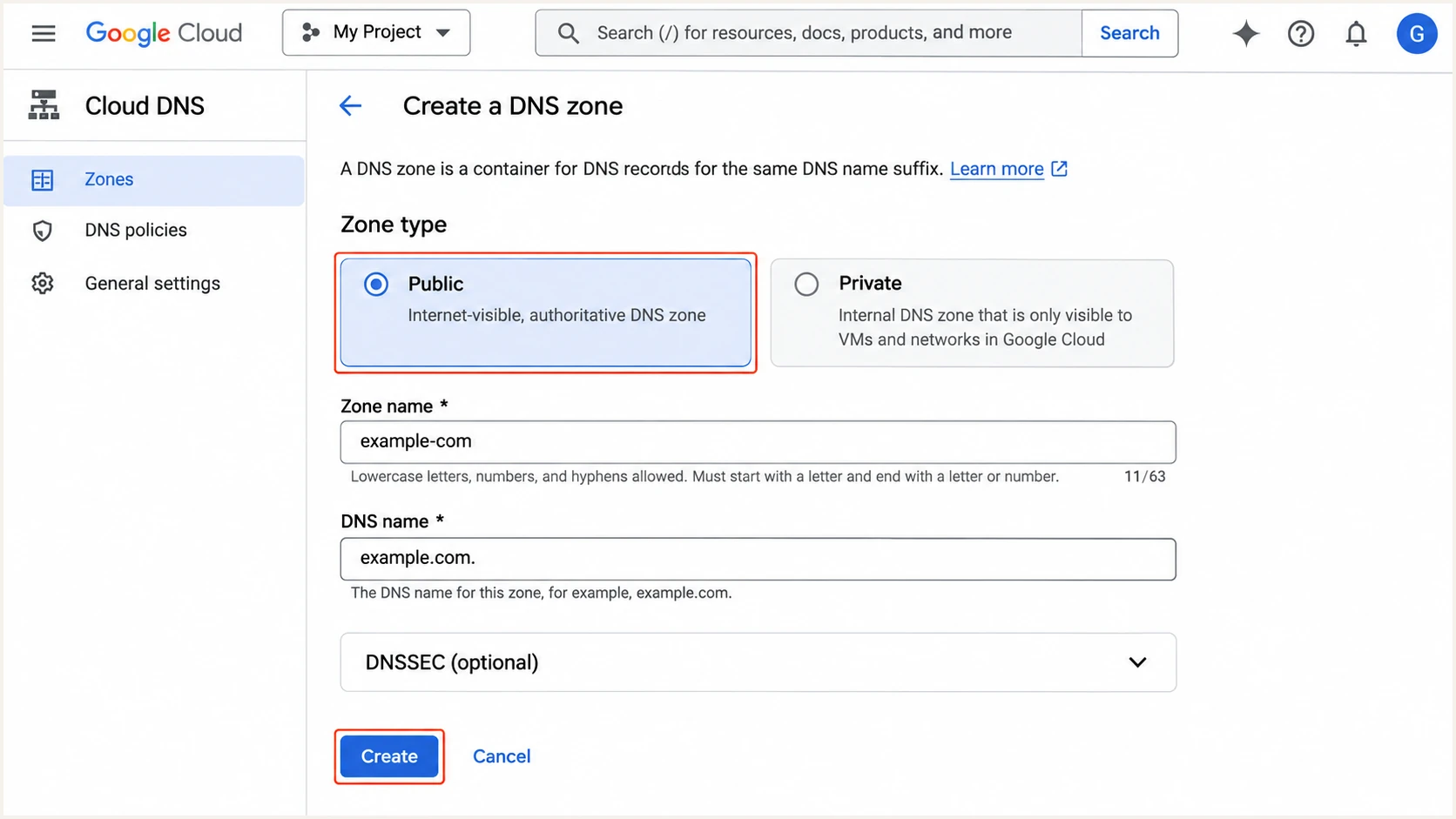
Illustrative Cloud DNS screen for creating a public zone for example.com.
Confirm public delegation before adding authentication records. A zone appearing in the console does not make it authoritative.
Run these in Cloud Shell. Replace example-com and example.com with your zone name and domain.
Compare the configured and public name serversbash
gcloud dns managed-zones describe example-com \
  --format="value(nameServers)"
dig +short NS example.com
If the names differ, use the current DNS host or finish the planned migration. Outgoing authentication does not require a new MX record.
If your application relays through Workspace, use the Google Workspace setup for its account-specific domain verification. Keep Cloud DNS as the record editor when it is authoritative.
Set up SPF
SPF checks the SMTP envelope sender domain, visible in a delivered message as Return-Path. Authorize the public IP that connects to the recipient, which is the relay IP when your application uses a relay.
- Identify the route. For direct delivery, authorize the stable public sending IP. For Workspace relay, authorize Google mail servers rather than the application VM.
- Set the envelope. Set SMTP MAIL FROM to your domain, such as bounces@example.com. Changing Reply-To or inserting a Return-Path header does not set the envelope.
- Edit one record. Open Cloud DNS > public zone > Add standard. Select TXT; leave DNS name blank for the apex. Preserve existing TXT values and keep one SPF value.
- Limit authorization. Merge legitimate senders into one SPF value. Stay within 10 DNS-querying terms, counting nested includes. Never authorize all Google Cloud IPs.
Direct Compute Engine delivery
Example for a domain whose only sender is one static IPv4 address. Replace the documentation IP before publishing.
SPF TXT value at example.comtext
v=spf1 ip4:203.0.113.10 -all
Google Workspace relay
Use this Google-provided example when all recipient-facing mail leaves through Google Workspace. It does not authorize arbitrary Compute Engine VMs.
SPF TXT value at example.comtext
v=spf1 include:_spf.google.com ~all
For Workspace relay, configure Google Admin > Apps > Google Workspace > Gmail > Routing > SMTP relay service. Restrict allowed senders to your domains, authorize your known static egress IP, and require TLS. Configure the application for smtp-relay.gmail.com on port 587 with STARTTLS.
Use the checker on the envelope sender domain after saving. For bounces@bounce.example.com, check bounce.example.com and publish its SPF there; SPF does not inherit the parent domain record.
SPF checker
Find SPF syntax issues, lookup limits, and weak records.
?/16tests passed
Send through the production route and confirm SPF pass for the expected envelope domain. Authorize the actual IPv6 address too if the server uses IPv6.
A mail server you control supports a custom envelope domain. If your chosen relay keeps a provider-owned Return-Path, adding SPF to your From domain cannot fix SPF alignment. In that case, the relay manages SPF, and passing DKIM with your domain is the DMARC path.
Set up DKIM
Cloud DNS publishes the public key; the sender keeps the private key and signs messages. I use a dedicated selector to rotate each sending route independently.
- Generate a key. For your own server, generate a 2048-bit RSA key pair using the commands below. Use selector gcp2026. A hosted relay supplies its public record.
- Publish the public key. Create a TXT record named gcp2026._domainkey in the example.com public zone. Build its value with v=DKIM1; k=rsa; p= followed immediately by the generated Base64 public key.
- Enable signing. Configure your mail server signer with domain example.com, selector gcp2026, algorithm rsa-sha256, and the private key file. This setting belongs to the mail server.
- Use Workspace controls. For Workspace relay, open Google Admin > Apps > Google Workspace > Gmail > Authenticate email. Select your verified domain, click Generate new record, select 2048 bits, publish the supplied TXT record, then click Start authentication.
- Check the signature. Send from the application and confirm DKIM pass with d=example.com and the expected s= selector. Publishing the public key alone does not enable signing.
These commands print the public key as one Base64 string. Restrict the private file to the signer; publish only the public output.
Generate a key for a self-managed sender onlybash
umask 077
openssl genpkey -algorithm RSA -out gcp2026.private \
  -pkeyopt rsa_keygen_bits:2048
openssl pkey -in gcp2026.private -pubout -outform DER \
  | openssl base64 -A
printf "\n"
For a long DKIM TXT value in Cloud DNS, split the value into adjacent quoted strings, each at most 255 bytes, within one TXT record value. Preserve every key character. Do not use Add item to create separate records for the pieces.
For Workspace, copy its generated selector and public key exactly. Do not substitute the self-managed selector or key.
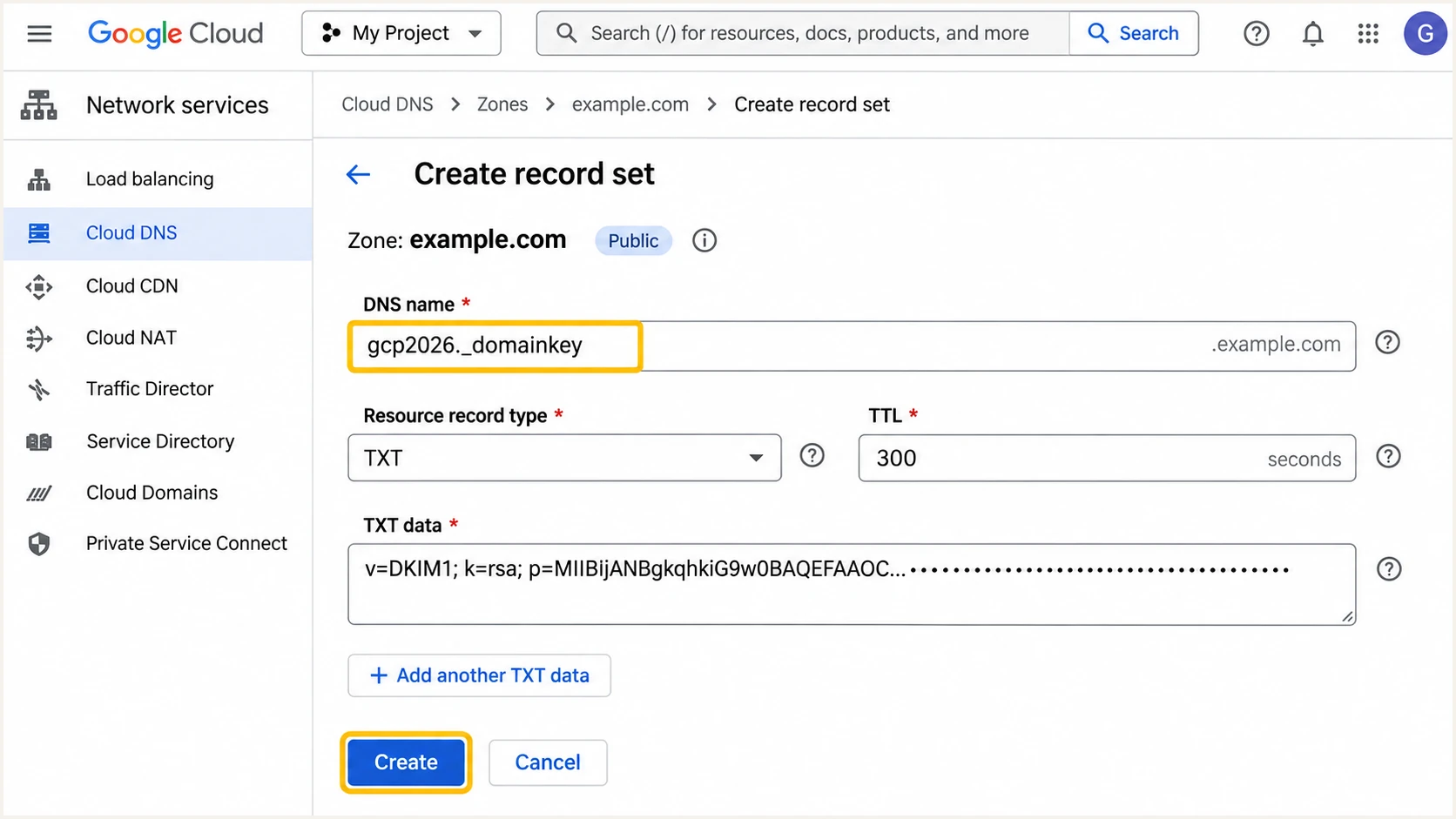
Illustrative Cloud DNS DKIM record; the public key is obscured.
Query the selector in the outgoing DKIM-Signature header. Allow cached DNS answers to expire before diagnosing an old key response.
For Workspace, newly enabled Gmail domains require 24-72 hours before key generation is available. If Start authentication cannot find the record, check the public DNS response and the full selector name before generating another key.
Set up DMARC
Publish DMARC for the visible From domain after testing SPF and DKIM. Start a new policy at p=none for monitoring. If the domain already uses p=quarantine or p=reject, keep that enforcement while adding the Google Cloud sending route.
- Choose the domain. For mail with From: alerts@example.com, configure _dmarc.example.com. A dedicated From subdomain such as alerts.example.com can have its own record at _dmarc.alerts.example.com.
- Create the TXT record. In Cloud DNS, open your authoritative public zone and click Add standard. Enter _dmarc as DNS name, select TXT, and choose a suitable TTL such as 300 seconds during setup.
- Set reporting. Replace dmarc@example.com in the template with your real reporting mailbox or assigned aggregate-report destination.
- Keep one policy. Edit an existing DMARC TXT value instead of adding a second policy. Save, then check the full _dmarc hostname publicly.
Build the value with the DMARC record generator. The following exact template requests aggregate reports without requesting quarantine or rejection for DMARC failures.
Monitoring TXT value for _dmarc.example.comtext
v=DMARC1; p=none; rua=mailto:dmarc@example.com
Provision the real reporting mailbox. External reporting destinations also require authorization from their domain; follow the report processor instructions.
DMARC passes when SPF passes with domain alignment or DKIM passes with domain alignment. Under the default relaxed rules, example.com and bounce.example.com can satisfy alignment; a provider-owned domain cannot.
DMARC checker
Look up a domain's DMARC record and catch policy issues.
?/7tests passed
Enter the visible From domain in the checker, rather than the application hostname or your Google Cloud project ID. Confirm that one valid policy is found and that the reporting address is correct.
Leave strict alignment settings out of the initial policy unless you require exact domain matches. For example, aspf=s would prevent bounce.example.com from satisfying SPF alignment for a From domain of example.com.
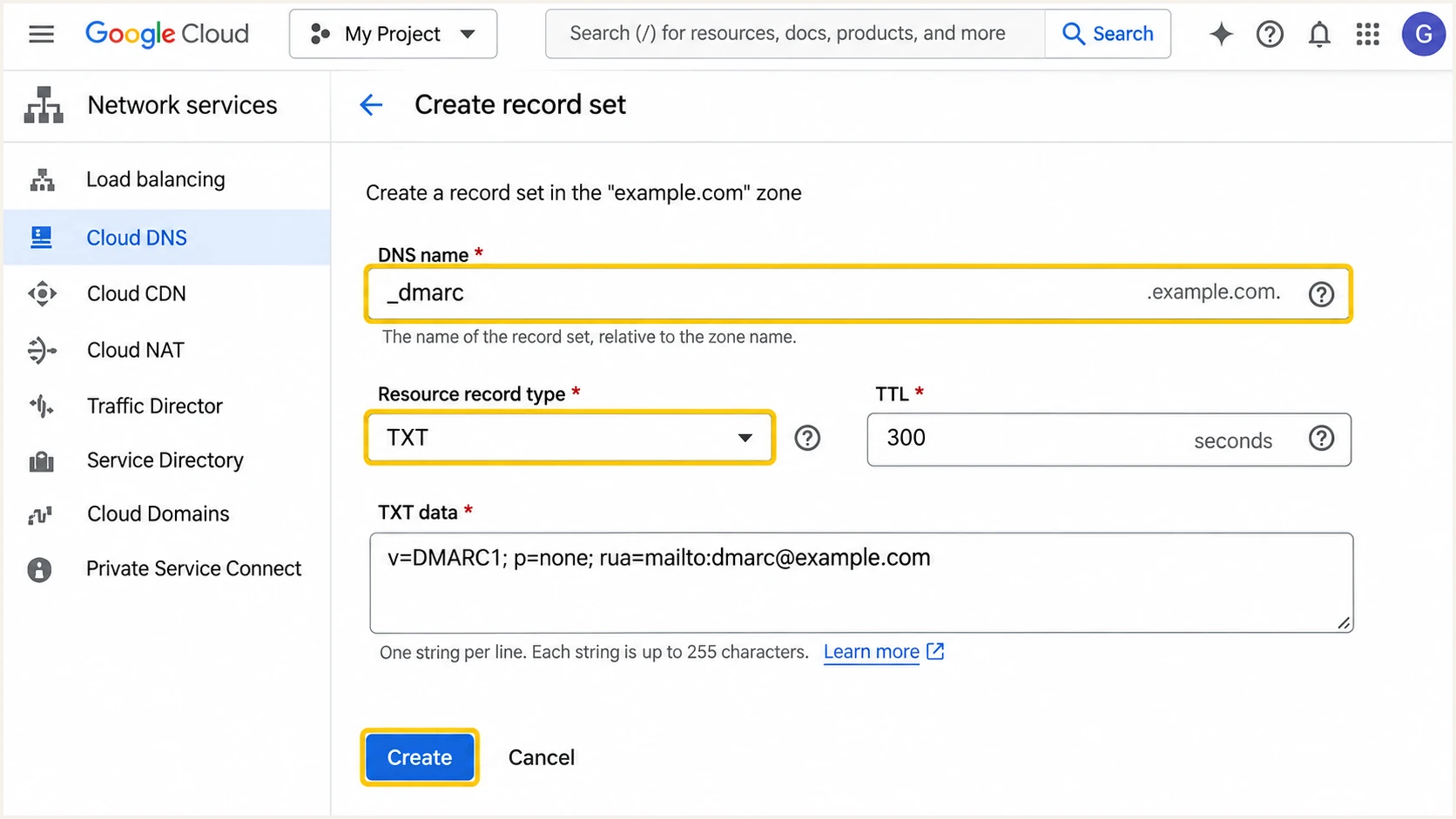
Illustrative Cloud DNS DMARC form using a placeholder reporting address.
DMARC is configured in public DNS. There is no additional DMARC activation button in Google Cloud or Google Admin.
The monitoring policy leaves receiver filtering in place. It does not improve SPF or DKIM by itself, and a passing result does not guarantee inbox placement.
Verify and troubleshoot
I test through the real application and its relay. Sending manually through another account does not verify the application.
- Read the headers. In Gmail, select More > Show original. Inspect receiver Authentication-Results for SPF, DKIM, DMARC, and the authenticated domains.
- Check public DNS. Query the records below using the message s= selector. Check the zone, delegation, hostname, and cache when records are missing.
- Fix the route. For a timeout before SMTP delivery, investigate networking. Google Cloud generally blocks external destination port 25, with exceptions for some projects. Port 587 or 465 can reach a relay, subject to firewall rules.
- Check reverse DNS. For direct Compute Engine sending, publish an A record for mail.example.com pointing to the sending IP. Under VM instances > instance > Edit > Network interfaces > primary interface, configure Public DNS PTR record for that hostname.
A Compute Engine PTR is configured on the VM network interface, not by creating an arbitrary reverse zone in Cloud DNS. Confirm the hostname resolves back to the same IP. A relay manages the PTR for its recipient-facing IP.
Query the records used by this examplebash
dig +short TXT example.com
dig +short TXT gcp2026._domainkey.example.com
dig +short TXT _dmarc.example.com
dig +short -x 203.0.113.10
dig +short A mail.example.com
For the quickest message-level check, use the email tester. Send to the address it supplies using the application itself. It returns a diagnosis of the received message, including authentication and delivery-related checks.
Test each route again after changing the relay or key. DNS lookups do not prove that the sender signs messages.
Email tester
Send a real email to this address. Suped shows a results button when the test is ready.
?/43tests passed
A passing test verifies that message and route. Check scheduled jobs and regional deployments separately.
Use the failure pattern to choose the next change. An SPF alignment error with passing, matching DKIM is different from a message that fails both authentication paths.
|
|
|---|---|
SPF permerror | Duplicates; lookup limit |
SPF mismatch | Envelope domain; egress IP |
DKIM missing | Signing enabled |
DKIM fail | Selector; key; message changes |
DMARC fail | From-domain alignment |
SMTP timeout | Port; firewall; relay |
Common failure patterns and the next check.
Fix DNS syntax errors before changing policy. If a gateway modifies the body after DKIM signing, move signing after that modification or remove the modification, then send another test.
Do not add an unfamiliar IP to SPF just because it appears in a DMARC report. Confirm that it belongs to an application or relay you operate.
Get alerted when it breaks
Our DMARC monitoring in Suped turns receiver reports into source-level diagnostics and issue notifications. It is the practical ongoing workflow for detecting a new VM IP, a missing DKIM key, or a sending route that stops passing DMARC.
- Enable issue alerts. With reporting active, open Suped notification settings and enable Issues detected. Route notifications to the team that can change Cloud DNS and the sending application.
- Review new sources. Enable Sending sources need verification. Check the source IP and authenticated domains against your deployment inventory before marking a source verified.
- Investigate failures. Use Suped Data view to filter by source, IP, or reporter. Open Detail view for the SPF and DKIM diagnostics, then fix the relevant DNS record or application setting.
- Check changes. Enable DMARC summary emails and compare failures with DNS history and deployments. For direct sending, also monitor the public IP for a blocklist (blacklist) listing.
Keep application logs for SMTP failures. DMARC reports describe messages receivers evaluated, not connections that never delivered a message.
Allow for report delivery
Suped alerts depend on the data available. DMARC aggregate reports commonly arrive daily and are not guaranteed for every receiver. Use application monitoring for immediate SMTP failures and Suped for authentication issues detected in incoming reports.
After a repair, send another application test and check subsequent reports. The test confirms the repair before the next report arrives.
Use an alert recipient independent of the monitored application so a sending failure does not hide notifications.
Secure your domain with p=reject
I move to p=reject after identifying and testing every legitimate route. Suped source verification and failure diagnostics support that decision; an overall pass percentage is insufficient.
- Cover a full cycle. Observe routine traffic and infrequent jobs, including billing runs. Identify each sender and fix legitimate failures before enforcing.
- Keep DKIM reliable. Require passing DKIM with your domain on each route. SPF also contributes when its envelope domain matches under the configured rules. Keep old public keys available while signed mail is still in transit.
- Stage enforcement. For a domain currently at p=none, move to p=quarantine, inspect legitimate failures, then use p=reject. A dedicated sending subdomain allows a narrower rollout. Keep existing quarantine or reject policies in place.
- Check subdomains. Review inherited policy and any explicit subdomain DMARC records. Protect unused subdomains too, and continue checking legitimate mail after enforcement changes.
Suped Hosted DMARC lets teams manage policy changes in our dashboard after the hosted DNS setup. If you manage DMARC directly in Cloud DNS, edit the existing TXT value there instead. Keep one authoritative policy mechanism.
Final TXT value after validation, replace the report addresstext
v=DMARC1; p=reject; rua=mailto:dmarc@example.com
Preserve the real reporting destination and continue reviewing Suped alerts after deployments.
A reject policy asks receivers to reject messages that fail DMARC, subject to their local handling rules. It does not block a message that passes through another valid authentication path.
Enforce on verified sending routes
Use Suped to confirm legitimate sources have a working DMARC authentication path before each policy change. Keep reporting active at p=reject so a replaced VM or disabled signer is visible after the rollout.
Retest application messages whenever a deployment changes SMTP settings, egress IPs, or DKIM keys.
Document who owns DNS and mail-server repairs with the alert recipient.
Frequency asked questions
There is no universal Google Cloud SPF record. For direct sending, authorize the actual public sending IP with ip4 or ip6. For Google Workspace delivery, use its _spf.google.com include. Publish SPF at the envelope sender domain and preserve other legitimate senders in one SPF value.
No. Cloud DNS hosts the public record. Your mail server or SMTP relay generates or manages the key and signs outgoing messages. Workspace keys are generated in Google Admin, followed by publishing the public record and starting authentication.
The suffix bc.googleusercontent.com is associated with Google Compute Engine infrastructure. It identifies hosting infrastructure, not a specific application or a trusted sender. Google Cloud also documents googleusercontent.com as a default PTR domain. Confirm the source IP, message authentication, and your application inventory before authorizing it.
Yes. A passing DKIM signature whose signing domain satisfies DMARC alignment with the From domain is enough. If a relay uses its own Return-Path domain, SPF alignment can fail even when SPF authentication passes. Configure your own envelope domain when supported; otherwise rely on passing DKIM with domain alignment.
Google Cloud generally restricts external destination port 25, although some projects have exceptions. A valid SPF or DMARC record does not open that port. Configure submission to your relay on port 587 with STARTTLS or port 465 with implicit TLS, and check egress firewall rules.
Keep the existing enforcement. Configure and test the new Google Cloud sending route before production use, then monitor its SPF and DKIM results. Use a dedicated sending subdomain with an explicit policy when a separate rollout is needed.




