
Why does MXToolBox say my DKIM Signature is not verified?

Published 15 Apr 2025
Updated 19 Oct 2026
13 min read
Summarize with
DKIM checker
Check selector records and public key configuration.
?/7tests passed
Updated on 19 Oct 2026: We added route-by-route DKIM testing and clarified how to interpret body-hash, signature, and permanent verification errors.
MXToolBox says "DKIM Signature is not verified" when the DKIM-Signature header it tested does not validate against the message body and the public key it found in DNS. That does not automatically mean your DKIM DNS record is wrong. The record is often valid, but the submitted message source has stray whitespace, changed line wrapping, altered MIME transfer encoding, missing signed headers, or an incomplete body.
The fast answer is this: retest the exact same email using the complete raw source, check the selector and domain in the DKIM-Signature header, confirm the public key resolves, then compare that result with the Authentication-Results header added by the receiving mailbox. If the receiving system says dkim=pass for the same message, treat the MXToolBox result as a warning to investigate, not as final proof of a broken signing setup.
- Most common cause: the submitted source was changed, wrapped, or did not include the complete body.
- Most important check: look at the receiver's Authentication-Results header for the same email.
- Most urgent fix: repair the real signing path if recipient headers show DKIM fail or permerror.
- Most practical workflow: use one-message checks for diagnosis, then monitor DMARC reports continuously.
The direct answer
MXToolBox is checking the DKIM signature, not only the DKIM DNS record. A DNS lookup can show a syntactically valid public key while a message-level DKIM test still fails. DKIM verification depends on five things being consistent at the same time: the signed message body, the selected headers, the d= signing domain, the s= selector, and the public key published at that selector.
That is why the exact wording matters. "DKIM record not found" points toward DNS. "DKIM Signature Body Hash Not Verified" means the canonicalized body did not match bh=. "DKIM Signature is not verified" points toward the overall message verification. If the body hash passes but the overall signature fails, inspect the signed headers, signature syntax, algorithm, and key pair.
Fast triage rule
If MXToolBox is the only place showing a DKIM signature failure, do not rotate keys or change DNS immediately. First confirm the same email's raw headers at the destination mailbox. Use the Authentication-Results field written by that receiver, not an earlier copy that another system could have inserted.
- Passing receiver: if the mailbox shows dkim=pass, the tested production signing path worked for that message.
- Failing receiver: if the mailbox shows dkim=fail, check the signer, content modification, and DNS key.
- Permanent error: if the mailbox shows dkim=permerror, inspect required fields, signature syntax, and the published key. Retrying the same unchanged message will not resolve it.
- Temporary result: if the mailbox shows dkim=temperror, retest because a temporary DNS or verifier problem interrupted the check.
- No signature result: if the mailbox shows dkim=none, confirm that the sending source adds a DKIM-Signature header.
- No reports: if you have no receiver evidence, review DMARC aggregate data before changing policy.
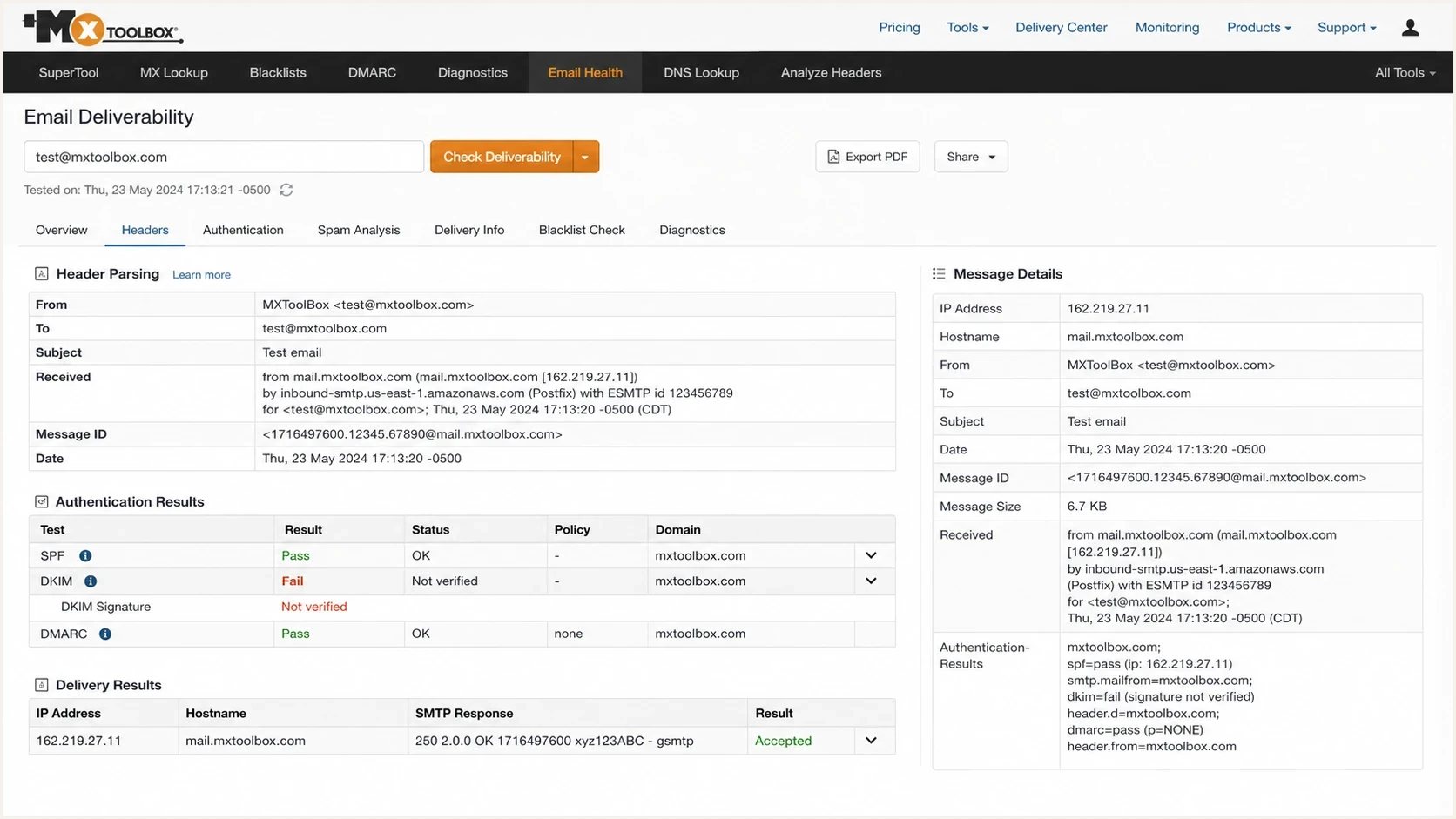
MXToolBox email deliverability screen showing a DKIM signature not verified result.
A public ServerFault case describes the same pattern: DKIM validated at the receiver, but MXToolBox reported the submitted signature as not verified. MXToolBox also documents a known copy-related problem and advises testing the complete downloaded message source.
Use the complete .eml source
A DKIM body hash cannot be retested from headers alone. The verifier needs the original headers, the blank line that separates them from the body, and the complete encoded body. Copying only part of a "Show original" view, cleaning the source, or moving it through a rich text editor can change the bytes that DKIM checks.
Clean MXToolBox retest
MXToolBox's published guidance recommends downloading the original message as an .eml file and copying all of its text into the Header Analyzer.
- Download the original: save the exact delivered message as an .eml file.
- Open it as plain text: use a plain text editor without reformatting or resaving the message.
- Copy everything: include every header, the header-body separator, and the entire encoded body.
- Retest once: submit that unchanged source and compare the result with the receiver's Authentication-Results.
Do not forward the message before downloading it. Forwarding creates a new message and can wrap the original content, so it no longer tests the same signature. If the untouched .eml file still fails and the receiver also recorded dkim=fail, continue with DNS, signer, and post-signing content checks.
What DKIM verification checks
DKIM is not a simple DNS lookup. The sending system signs selected headers and a canonicalized version of the message body. The receiver fetches the public key from DNS and uses it to verify that the signature matches the email it received. A small change in the body, a modified signed header, or an incomplete copy of the message is enough to break a manual verification test.
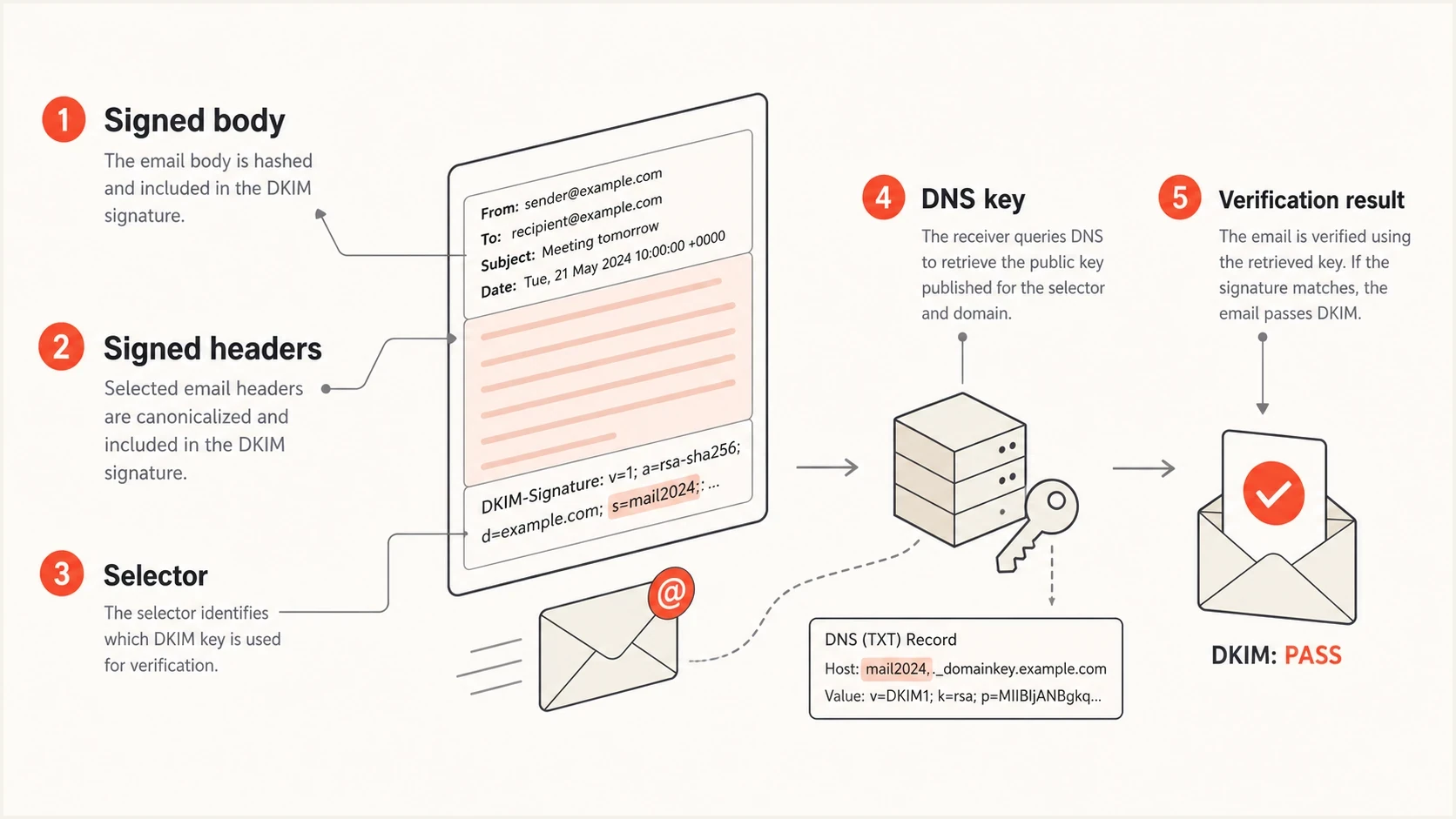
DKIM verification uses the signed body, signed headers, selector, DNS key, and result.
The body hash is the fastest way to understand many false alarms. The bh= value is a hash of the canonicalized body. The verifier hashes the MIME body after content-transfer encoding, so decoded or reformatted content is not equivalent to the original source. If a footer, tracking wrapper, security gateway, or mailing list changes the signed portion after signing, the body hash no longer matches. If bh= passes but the overall signature fails, inspect the headers listed in h= and confirm that the public key matches the private key used by the signer.
Example DKIM-Signature header fragmentstext
DKIM-Signature: v=1; a=rsa-sha256; c=relaxed/relaxed;
 d=example.com; s=selector1; h=from:to:subject:date;
 bh=Base64BodyHashValueHere;
 b=Base64SignatureValueHere
- Selector: the s= tag tells the receiver which DNS record to query.
- Domain: the d= tag tells the receiver which domain published the key.
- Body hash: the bh= tag proves the signed body still matches.
- Signature: the b= tag verifies the signed headers and body hash with the public key.
- Canonicalization: the c= tag states how header and body whitespace is normalized before hashing.
Common causes of the warning
When SPF, DKIM, and DMARC appear to be configured correctly but MXToolBox still says the DKIM signature is not verified, separate DNS problems from message problems. Changing DNS will not fix a body hash mismatch caused by a downstream footer, and editing the message will not fix a selector that resolves to the wrong public key.
|
|
|
|---|---|---|
Incomplete source | Body cannot be hashed | Use the full .eml file |
Body changed | Hash mismatch | Check post-signing edits |
Wrong selector | Key lookup fails | Match s= |
Old DNS answer | Resolver has cached key | Check TTL and authoritative DNS |
Key pair mismatch | Signer uses another private key | Check signer before rotation |
Expired signature | The x= time passed | Send fresh mail and check clocks |
Obsolete cryptography | rsa-sha1 or an RSA key under 1024 bits | Use rsa-sha256 and a 1024-bit or longer key |
Different sending path | Another app or relay signs differently | Test each route separately |
Common reasons MXToolBox reports a DKIM signature verification failure.
Long DKIM keys are another common source of confusion. Many DNS hosts display a long TXT record as multiple quoted chunks. That is normal as long as DNS returns one continuous string. Quotes in the DNS editor are not the same thing as stray whitespace inside submitted message source. For RSA, use at least 1024 bits and prefer 2048 bits where the sending service supports it.
DNS record problem
A DNS problem means the public key cannot be found or parsed correctly.
- Selector mismatch: the email signs with one selector while DNS has another.
- Missing TXT: the selector record does not resolve publicly.
- Broken key: the public key has missing characters or bad TXT joins.
- Old cache: the previous key remains visible until the cached answer expires.
Signature problem
A signature problem means the key exists but the tested message no longer verifies.
- Source copy: missing body content or changed line endings alter the test input.
- Body edits: a footer, rewrite, or relay changed signed content.
- Canonicalization: simple canonicalization tolerates fewer formatting changes.
- Signed headers: a relay modified a header listed in the h= tag.
How to test it cleanly
Start with a fresh email to a mailbox you control. Do not forward the message, copy it through a rich text editor, or paste only the DKIM-Signature line. Open the raw source and inspect the Authentication-Results header added by the receiving system.
Then check the selector and public key with a focused DKIM checker. If you want a broader view of DMARC, SPF, DKIM, and domain readiness, run a domain health check as well. The goal is to verify DNS separately from the message-level signature result.
Build the DNS lookup target directly from the live message header. If the signature says s=selector1 and d=example.com, query the selector under _domainkey. Do not guess the selector from account settings if the live message uses a different one.
Selector lookup patterntext
selector1._domainkey.example.com

Expected TXT starts with:
v=DKIM1; k=rsa; p=
- Send fresh mail: send a new message directly to a mailbox with full raw-source access.
- Read results: look for dkim=pass, dkim=fail, dkim=temperror, or dkim=permerror in Authentication-Results.
- Match tags: use the live s= and d= tags to query the public key.
- Retest source: submit the complete unchanged .eml source when testing the signature.
- Check reports: use aggregate DMARC data to find DKIM failures by sending source, but use raw headers to identify the exact failure reason.
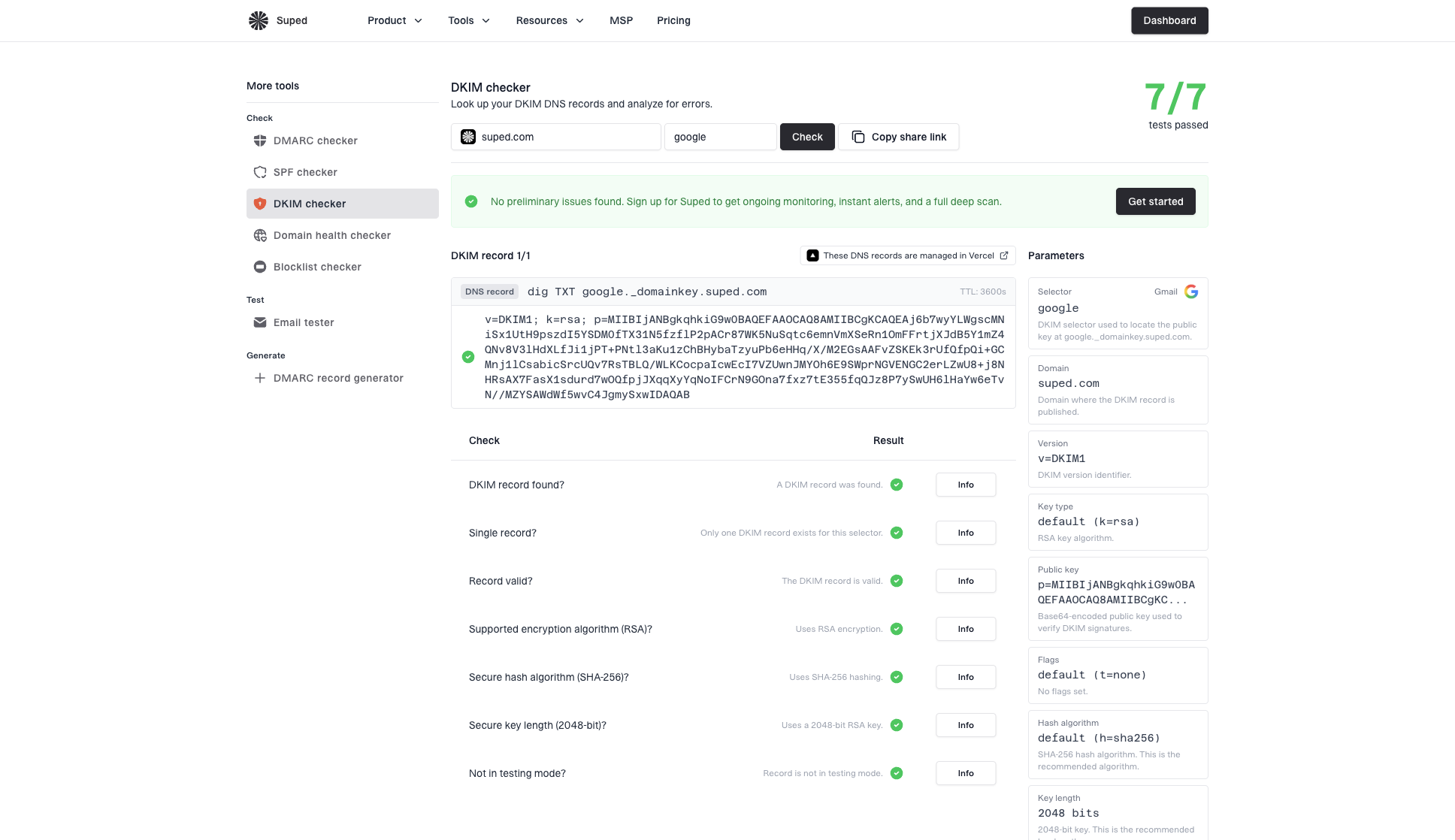
DKIM checker sample results showing selector, DKIM DNS record, validation checks, parameters, and share link
A message can contain more than one DKIM signature. Check the result for each d= and s= pair. For DMARC, one valid DKIM signature is enough only when its signing domain is aligned with the visible From domain. An unaligned passing signature does not produce a DKIM-aligned DMARC pass.
If the focused selector check passes but message verification fails, move to header and body changes. If the selector check fails, fix DNS before spending time on canonicalization or forwarding behavior. The DKIM troubleshooting steps cover failures that differ by receiver.
Test each sending path separately
A domain can pass DKIM through one sending path and fail through another. Webmail, an SMTP application, a website, or an outbound relay can use a different signer, selector, signing domain, or post-signing process. One passing sample does not clear every source that sends for the domain.
- Send through each route: create a fresh message through every application or relay that sends mail for the domain.
- Record the live tags: compare d=, s=, a=, and c= values with the receiver's result.
- Isolate the failing route: if only one path fails, inspect that path's private key, domain choice, and any relay that modifies the message after signing.
- Check domain alignment: a valid signature for a server hostname can verify DKIM but will not pass DKIM alignment for DMARC unless that domain is aligned with the visible From domain.
When the failure follows one application, fix that application's signing path instead of replacing a key used successfully by other mail. After the change, send a new message through the same route because an old message keeps its original signature and result.
What to fix when DKIM really fails
A real failure needs a fix where the mismatch starts. Check the raw message first, then the signing configuration, then DNS. That order keeps the work tied to evidence and avoids unnecessary key changes.
Example split TXT displaytext
selector1._domainkey.example.com. TXT "v=DKIM1; k=rsa; p=MIIBIjAN"
"BgkqhkiG9w0BAQEFAAOCAQ8A..."
The split TXT display above is not automatically wrong. DNS software often joins quoted chunks into a single value. It becomes a problem only when the published key has inserted spaces, missing characters, duplicated quotes, or multiple conflicting TXT records at the same selector.
Do not break a passing setup
If live mailbox headers pass DKIM, changing the selector or rotating the key can create a new outage. Confirm real receiver failures before making DNS changes.
- Safe change: fix an obvious missing selector or malformed public key.
- Risky change: deleting an old key while mail still signs with that selector.
- Better check: inspect several recent messages across normal sending sources.
- Policy risk: DMARC fails when neither DKIM nor SPF produces a passing result aligned with the From domain.
How urgent is the DKIM warning?
Use receiver evidence, not one submitted-source result, to decide how fast to act.
Low risk
Monitor
The receiver header shows DKIM pass for the same message.
Investigate
Retest
MXToolBox and the receiver disagree on the same message.
Fix now
Repair
Recipient headers show DKIM fail or DKIM permerror.
Policy risk
Escalate
DMARC enforcement is active and neither DKIM nor SPF passes with alignment.
Where Suped fits
One-message DKIM tests are useful when you are debugging a selector. They do not show whether the same failure affects other senders, relays, or campaign traffic. Suped's product uses DMARC aggregate data to show authentication results across the sources sending for your domain. Aggregate reports show source-level pass and fail patterns, but raw message headers remain necessary for the exact body or signed-header failure reason.
Suped connects DMARC, SPF, and DKIM monitoring with hosted authentication controls, blocklist and blacklist monitoring, and deliverability signals. After diagnosing the sample message, use DMARC monitoring to identify which sending sources pass, which fail, and whether the failure is isolated or recurring.
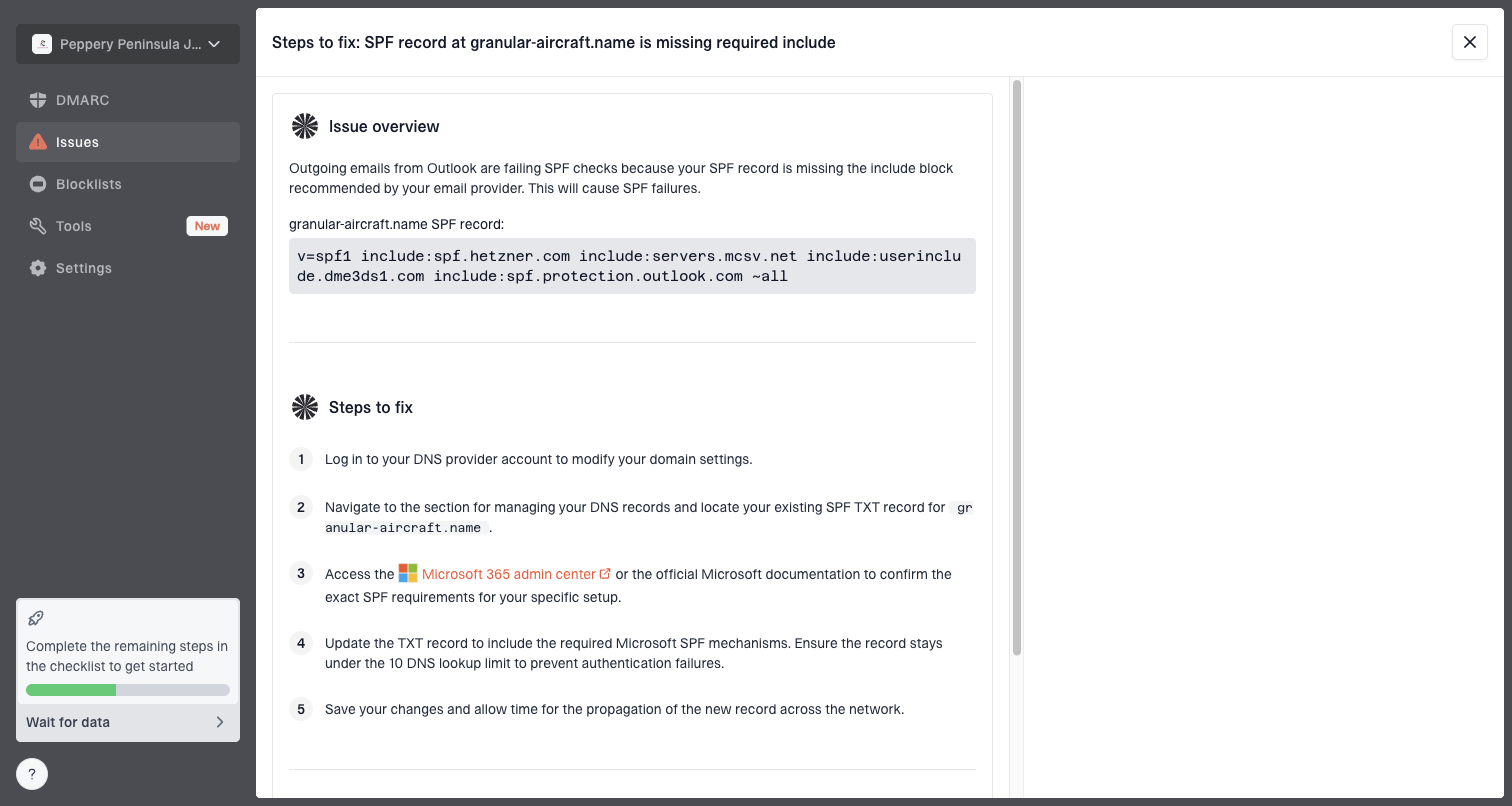
Issue steps to fix dialog showing the issue overview, tailored fix steps, and verification action
- Issue detection: Suped identifies authentication issues and provides steps to fix them.
- Change alerts: unexpected DKIM, SPF, or DMARC changes are easier to catch.
- Hosted controls: hosted SPF and hosted DMARC reduce repeated DNS changes.
- Multi-domain view: multi-tenant reporting helps agencies track many domains.
Use the DKIM checker to confirm one DNS selector, raw source to verify one message, and Suped to track the ongoing authentication results for authorized sending sources.
Views from the trenches
Best practices
Confirm the receiver's Authentication-Results before changing selectors or DNS keys.
Keep the raw source intact when testing DKIM signatures in pasted-header tools safely.
Treat a single checker warning as a signal until mailbox evidence confirms failure.
Compare selector, signing domain, and public key before investigating content changes.
Common pitfalls
Rotating keys too early can break mail still signed by the previous active selector.
Copying headers through rich text tools can insert spaces that change verification.
Assuming split TXT chunks are broken ignores how DNS joins long DKIM public keys.
Checking only DNS misses message body changes made after the sender signed mail.
Expert tips
Store sample raw messages during setup so future DKIM failures have a baseline to compare.
Watch DMARC aggregate patterns before treating one test result as domain-wide evidence.
Test each sending source separately because one vendor path can fail alone in production.
Use relaxed canonicalization where available to reduce harmless formatting failures.
Marketer view
Marketer from Email Geeks says a second test can show DKIM is fine when MXToolBox reports a signature failure, so the result should be checked against another source.
2022-08-02 - Email Geeks
Marketer view
Marketer from Email Geeks says comparing more than one diagnostic view helps separate a tool-specific warning from a real authentication fault.
2022-08-02 - Email Geeks
The practical fix
When MXToolBox says your DKIM Signature is not verified, first confirm whether the failure exists in the receiver's Authentication-Results header. If the receiver says DKIM passed, download the original .eml file and retest its complete unchanged source before touching DNS.
If real receivers show DKIM failure, use the selector and domain in the live DKIM-Signature header, verify the public key, then inspect anything that changes signed headers or the body after signing. Test every normal sending path separately and keep DMARC reporting in place after the fix so source-specific DKIM failures remain visible.
Frequently asked questions
No. It means the submitted DKIM signature did not verify in that test. The DNS record can be valid while incomplete source, a changed body, or a modified signed header causes verification to fail.
Yes. The verifier needs the complete original body to recalculate the bh= value. Download the delivered message as an .eml file and submit all of its unchanged source.
Quoted chunks are normal for long TXT records when DNS returns one joined value. DKIM breaks when inserted spaces, missing characters, or conflicting records change the public key.
Compare the result with the Authentication-Results header added by the receiving mailbox for the same message. It records whether that receiving system verified each DKIM signature.
The body hash fails when the verified body differs from the signed body. Common causes include appended footers, rewritten content, mailing-list changes, and incomplete copied source.
No. First confirm a real key or signing failure in receiver evidence. Rotating too early can break mail that still uses the previous selector.