Why are my emails suddenly going to spam in Gmail?

Published 26 Jul 2025
Updated 25 Oct 2026
22 min read
Summarize with
Updated on 25 Oct 2026: We added Gmail header checks and corrected DMARC rollout and spam diagnosis advice.
Emails suddenly going to spam in Gmail usually point to a change in authentication, sender reputation, sending volume, recipient feedback, or the message itself. Start with an affected message and recent sending changes, then test links and content against that evidence.
When this happens overnight, do not assume the body copy changed. Check the sending domain, return-path domain, DKIM signing domain, and the links and hosts used by the message. For linked pages, inspect the destination and redirect chain for Google's unsafe-site warnings. Google's dangerous site guide explains how malware, hacked content, phishing, and policy issues can produce warnings that affect links users reach from email.
Also inspect signatures and calendar invites when affected messages use them. Compare the .ics file, organizer identity, and conferencing links with a working message; a body-only test misses changes in calendar data or extra links.
Delivered in an ESP or marketing platform means the platform recorded delivery; a Gmail 250 OK response proves Gmail accepted the handoff. It does not prove inbox placement. Search Spam, Promotions, Updates, All Mail, labels, forwarding destinations, and Google Workspace quarantine before assuming Gmail dropped the message. Primary, Promotions, and Updates are inbox categories, not spam folders. A move into Primary can improve visibility for some recipients, but it does not prove deliverability improved. A campaign that moved to Spam is a trust and filtering issue.
Fast answer
If several Gmail test accounts suddenly place the same message in Spam, compare authentication results and recent sending changes first. Links remain worth testing even when SPF, DKIM, and DMARC pass, but a seed test does not establish the cause for every recipient.
- Check authentication, Gmail-only volume, and recipient complaints against the date placement changed.
- Compare the original message with an untracked version to test the tracking and destination path.
- Read Gmail's Spam warning and original headers, then check the matching SMTP responses and Postmaster data.
Why Gmail changes overnight
Gmail filtering is not a fixed pass or fail gate. It evaluates the message, the sender, the recipient relationship, the sending IP, the DKIM domain, the receiving Google Workspace policy, and the domains inside the message at delivery time. Yesterday's good result does not guarantee today's placement if Gmail sees new complaint behavior, a volume change, or a newly risky link.
The sudden pattern matters. If only one campaign goes to spam, suspect content, links, offer, template, asset host, file host, sender identity, or audience. If every campaign goes to spam, suspect authentication, sending reputation, tracking domain reputation, or a shared infrastructure issue. If Gmail is the only mailbox provider affected, focus on Gmail-specific reputation, volume, sender requirement, and recipient feedback signals before changing everything.
A personal @gmail.com address does not automatically cause Spam placement. However, using it as the From address in a third-party sending system is different from sending through Gmail: that system cannot authenticate your business as gmail.com. Use an authenticated domain you control for that setup.
- Tracking domain: shared tracking roots carry shared risk from unrelated senders.
- URL target: a clean visible link can redirect through a domain Gmail treats as risky.
- Attachments and invites: compare messages with and without files or calendar data before treating the whole domain as affected.
- Template changes: inspect broken HTML and MIME structure, hidden content, and differences between HTML and plain-text versions.
- Sender identity: use a consistent display name and a working Reply-To address; do not imitate another brand or a reply thread.
- Authentication: a DNS edit, removed DKIM selector, routing change, or SPF lookup error can break authentication.
- Shared IP reputation: another sender using the same IP can affect delivery. Ask whether the sending pool or IP changed when the problem began.
- Audience shift: a colder segment, older list, or higher complaint rate can move Gmail's decision quickly.
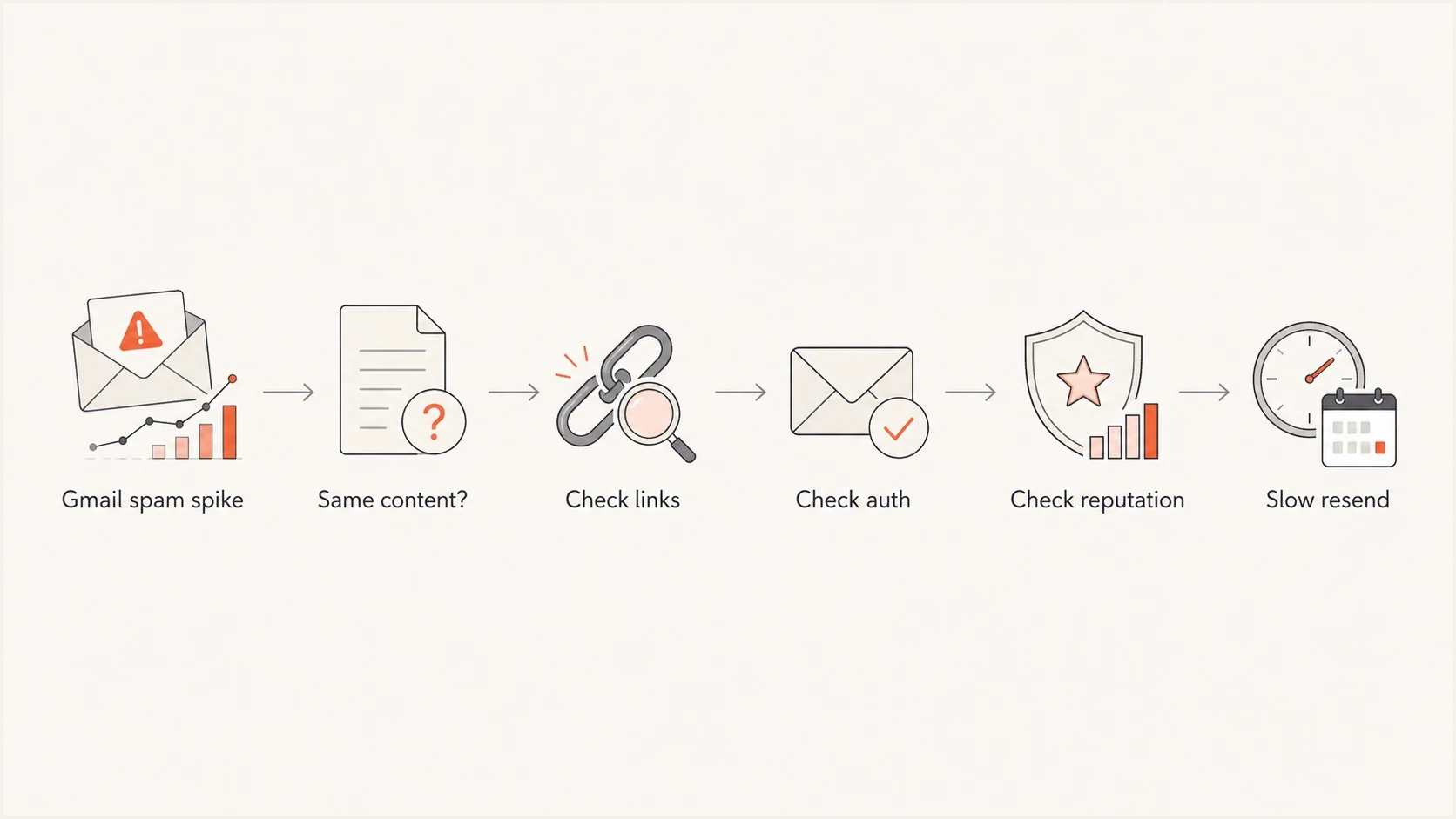
Flowchart for diagnosing a sudden Gmail spam placement spike by checking links, authentication, reputation, and resend timing.
If unrelated senders report Gmail warnings, delays, or odd placement at the same time, check the Google Workspace Status Dashboard and compare public incident timing with your own headers and SMTP logs before changing DNS. Treat a provider incident as the cause only when its time window and affected service match your evidence.
Confirm the problem before changing DNS
Use a short triage path because random edits make Gmail diagnosis harder. Send one copy of the exact message to Suped's email tester and inspect headers, authentication results, link list, image hosts, display name, MIME structure, calendar MIME parts, text part, unsubscribe headers, and visible rendering. Then compare Gmail recipients with non-Gmail recipients from the same send.
If the report is that the message never arrived or arrived hours late, prove whether it was Spam, a tab, quarantine, a local rule, or a delivery delay before editing DNS. Pull the full Gmail headers and ESP SMTP logs. For your sending platform, ask for the recipient, message ID, receiving Gmail MX host, sending IP, envelope sender, and Gmail SMTP response. A long gap before Gmail accepts the message points to ESP queueing or temporary Gmail 4xx deferrals; a message accepted quickly but shown in Spam points back to content, links, reputation, authentication, or recipient-side policy.
When both slow arrival and Spam placement happen, keep the two findings separate. Fix queueing, retry behavior, rate limits, and temporary SMTP responses for the delay. Fix authentication domain matching, reputation, links, content, and recipient complaints for the Spam placement. If logs show unapproved traffic, review account access and sending credentials, revoke unauthorized access, and stop that source before recovery tests.
Run Suped's domain health check on the sending domain, tracking domain, and any branded asset or download host. The point is not to chase one score. The point is to catch obvious failures before spending hours rewriting copy.
Open Google Postmaster Tools for the affected sending domain or subdomain and compare spam rate, authentication, encryption, delivery errors, and available reputation data against the date the Gmail spam placement began. Check Compliance status at the primary-domain level because Google combines traffic from the primary domain and its subdomains. Use Deliverability analysis under Compliance status for recommendations tied to low volume, delivery failures, spam thresholds, recipient interaction, and requirement failures. Compare dates in UTC, the time zone used by Postmaster Tools. Postmaster data is not real time; it usually updates within 24 hours, Compliance corrections can take up to seven days to appear, and low-volume days can show limited or no data. A low bounce rate does not clear Gmail because accepted mail can still land in Spam. Do not use open rate as the primary proof because Google does not track opens for Postmaster Tools. Treat Gmail spam rate, authentication, delivery errors, and compliance status as stronger evidence.
Email tester
Send a real email to this address. Suped shows a results button when the test is ready.
?/43tests passed
|
|
|
|---|---|---|
All Gmail spam | Authentication, reputation, shared IP, or link issue | Headers, logs, and controlled variants |
ZIP link becomes text | Rendering, MIME, or link-security change | Compare original and rendered HTML |
Calendar invite spam | Calendar data, links, or recipient settings | Compare plain email and calendar content |
Promotions or Updates only | Gmail tab category | Separate from spam |
Delayed Gmail arrival | Gmail 4xx, ESP retry queue, or accepted-message delay | Headers and SMTP logs |
ESP says delivered | Accepted handoff, not placement | 250 OK and mailbox search |
Gmail 4xx or 4.7.28 deferrals | Volume, quota, or reputation pressure | Throttle Gmail |
550 5.7.1 suspicious sender | Low sender reputation | Pause risky mail |
TLS error | Sender requirement failure | Check SMTP code |
No campaign sent | Automation, queued mail, or unauthorized sending | Audit sending and access logs |
Header unsubscribes up | Gmail interface exposure or list fatigue | Split header and footer |
SPF fail | Sender path | Header result |
DKIM fail | Key or signing | Header result |
DMARC fail | Authentication failure or From-domain mismatch | Headers and report data |
IP listed | Listing needs investigation | Match blacklist scope and SMTP evidence |
Use this table to keep the first pass tight.
Use the full Gmail SMTP response to identify the failure: 4.7.23 points to forward/reverse DNS, 4.7.27 to SPF, 4.7.29 to TLS, 4.7.30 to DKIM, and 4.7.31 or 4.7.32 to DMARC setup or From-domain matching. Fix the named requirement before testing subject lines or templates. Treat 4xx as temporary deferrals and 5xx as permanent rejections; do not repeatedly resend permanently rejected messages.
If the bounce says likely suspicious due to the very low reputation of the sender, treat it as a sender reputation failure after confirming SPF, DKIM, DMARC, reverse DNS, and the linked domains. The next move is to stop risky Gmail traffic, isolate the affected source, and rebuild with engaged recipients.
If you administer Google Workspace, Google's Gmail spam troubleshooting guidance is useful for separating recipient-side filtering, content issues, sender authentication problems, and admin spam bypass settings.
Read Gmail's spam warning and original headers
Open an affected message in Gmail on a computer and record the warning above it before selecting Not spam. Google's spam guidance distinguishes unconfirmed senders, administrator policies, and other warnings. Treat the banner as a starting clue rather than a complete explanation of Gmail's filtering.
Next to Reply, select More, then Show original, as described in Google's header instructions. Save the original message and compare Gmail's Authentication-Results with a message that reached the inbox.
Illustrative Gmail authentication resultstext
From: Billing <billing@example.com>
Authentication-Results: mx.google.com;
 spf=pass smtp.mailfrom=bounce.example.com;
 dkim=pass header.d=example.com header.s=mail;
 dmarc=pass header.from=example.com
In this example, SPF and DKIM pass and use the same organizational domain as the visible From address. DMARC therefore passes under relaxed domain matching. Separate SPF and DKIM passes for unrelated domains do not guarantee a DMARC pass. Use the results Gmail added when receiving the message, rather than an Authentication-Results header supplied by the sender.
- SPF fail or permerror: check the sending IP and envelope sender domain. Publish one SPF record per name and stay within the ten DNS lookup term limit, including nested include mechanisms.
- DKIM fail: check the selector's DNS record and whether a gateway, inserted footer, or forwarding service changed signed content.
- DMARC fail: check whether a passing SPF or DKIM domain matches the visible From domain under the published matching mode.
- All checks pass: investigate recipient feedback, sending patterns, and the exact message. Authentication does not guarantee inbox placement.
Why good reputation does not guarantee Gmail inbox placement
A good Gmail domain reputation rating describes past sending behavior; it does not clear each message. Google's Postmaster retirement notice says retirement of the legacy interface is postponed. Domain and IP Reputation dashboards are absent from v2, so use Compliance status and Deliverability analysis when those ratings are unavailable.
This is why a dashboard can look healthy while one campaign, automation, or lead source goes to Spam. The problem often sits below the domain-wide score: a copied template, a risky landing page, a cold segment, a vague signup source, or a third-party sender that passes authentication but does not match the recipient's expectation.
- Low complaints: Google's dashboard documentation defines the user-reported spam rate using inbox-delivered messages that recipients mark as spam. A low rate can coexist with heavy automatic Spam placement.
- Clean bounces: suppression can keep bounce rates low while valid recipients still ignore, delete, or distrust the mail.
- Good reputation: a healthy domain score does not clear a risky URL, affiliate path, unbranded asset host, copied template, raw download link, or weak permission source.
- One weak segment: old leads, purchased addresses, and unclear signup paths can damage Gmail placement while engaged customers still inbox.
If good reputation and Gmail spam placement disagree, compare existing campaign results for recently engaged Gmail recipients and weaker sources. If the engaged group reaches the inbox while another group goes to Spam, audience quality and recipient history are stronger leads, but they do not rule out domain or IP reputation. Fix the list source, consent language, cadence, or offer before changing DNS.
Separate tabs from spam
Gmail tab placement is a classification outcome. Spam placement is a filtering outcome. A message can be fully authenticated and still go to Promotions, and a message can reach Primary for one Gmail user while Promotions remains normal for another. Do not treat one seed inbox as proof that every Gmail recipient saw the same category.
Do not try to solve a Promotions placement issue by disguising commercial mail as personal or transactional mail. That creates a trust problem, raises complaint risk, and makes a future Spam problem more likely. If subscribers want promotional mail in Primary, ask clearly and let their mailbox choice drive that change.
Primary and Promotions
- Primary can improve visibility for some recipients, but it is not a deliverability certificate.
- Promotions is often normal for offers, newsletters, launches, coupons, and brand campaigns.
- Unexpected tab movement deserves recipient samples, campaign metrics, and a check for template or stream changes.
Spam
- Spam means Gmail distrusted the message enough to move it out of the inbox.
- Spam diagnosis starts with links, authentication, reputation, SMTP errors, and recipient complaints.
- If tab movement and spam movement happen together, handle the spam risk first.
For password resets, receipts, security alerts, and support replies, unexpected tab placement can point to stream separation, template reuse, or shared tracking patterns. For promotional campaigns, Promotions can be healthy placement when recipients expected a commercial message.
Check Gmail sender requirements
Even if the root cause is a link domain, authentication still needs to be correct. For messages sent to personal Gmail accounts, the Gmail sender guidelines require all senders to use SPF or DKIM, valid forward and reverse DNS, TLS for SMTP transport, RFC 5322 formatting, and low Gmail-reported spam rates. Bulk senders also need SPF and DKIM, DMARC, From-domain matching with SPF or DKIM for direct mail to personal Gmail accounts, one-click unsubscribe for marketing or subscribed mail, and a visible unsubscribe link in the body. Since November 2025, Gmail has increased enforcement against non-compliant traffic, including temporary and permanent rejections, so requirement failures belong in the first diagnostic pass. These published requirements cover personal @gmail.com and @googlemail.com recipients; Google Workspace receiving policies are separate.
Check linked websites for unsafe-site warnings and redirect problems. A domain used only for a website does not need email authentication records to make its links legitimate. Configure SPF, DKIM, and DMARC for the domains used to send mail.
Gmail combines messages from a primary domain and its subdomains when it assesses the bulk-sender threshold. Once a primary domain sends close to 5,000 messages or more to personal Gmail accounts in a 24-hour period, Google permanently classifies it as a bulk sender. For direct mail to personal Gmail accounts, DMARC needs a passing SPF or DKIM result whose domain matches the From domain under the published matching mode. The default relaxed mode allows the same organizational domain. Configure matching for both methods as a fallback.
Keep spam rates reported in Postmaster Tools below 0.30%, with below 0.10% as the practical target. Use DKIM keys of at least 1024 bits for Gmail and 2048 bits where the DNS provider supports it. Treat a TLS error as a delivery issue because Gmail can rate-limit or block mail that lacks TLS.
Example DMARC record for monitoringdns
Host: _dmarc.example.com
Type: TXT
Value: v=DMARC1; p=none; rua=mailto:dmarc-reports@example.com
Start at p=none when establishing monitoring, then consider stricter policy after legitimate sources pass. Do not weaken an existing policy merely to troubleshoot Spam placement. RFC 9989 removed pct, so do not use percentage sampling for a new rollout. Use rua for aggregate reports, and use ruf only when you have a clear privacy and processing plan because failure reports are not consistently sent by receivers. Add strict domain matching tags only after reports show that legitimate senders can pass them.
Gmail sender guidance also treats message format and identity as requirement work. Check that each message has a valid Message-ID, a single From, To, Subject, and Date header, a display name that does not impersonate someone else, visible links that match the destination, and no deceptive hidden content. For HTML mail, include a readable plain-text alternative and check both MIME parts; its absence alone does not establish why Gmail chose Spam.
Do not use @gmail.com in a display name for bulk mail, and do not move business outreach to a consumer Gmail account to hide a domain problem. A message sent from sales8841@gmail.com can authenticate for Gmail, but it does not authenticate the business named in the body, signature, or landing page.
If phishing simulations or security drills use the same domain as production mail, isolate them from normal customer mail. Gmail can evaluate lookalike wording, deceptive display names, and linked training domains as part of the same sender trust pattern.
What not to overreact to
Do not move straight to a new IP, new domain, or new sending platform because one Gmail seed test got worse. That can create a larger reputation reset. Isolate the signal first, then make the smallest fix that addresses it.
Do not plan on a broad Gmail allowlist request through an email provider. Google does not accept provider allowlist requests, so the practical path is to fix authentication, rate, content, complaint, and linked-domain signals.
For bulk marketing and subscribed mail, include List-Unsubscribe with an HTTPS URL and List-Unsubscribe-Post with the value List-Unsubscribe=One-Click. Test that the HTTPS endpoint processes an unsubscribe POST without login or confirmation, and that DKIM covers both headers, as required by RFC 8058. Keep a visible unsubscribe link in the body and honor requests within 48 hours. A footer link or mailto address alone does not satisfy one-click unsubscribe.
Keep subscription and transactional mail on different From addresses. Use double opt-in to confirm mailbox ownership before marketing starts, and rate-limit signup submissions to reduce bot-generated signups. Identify each subscription list with a human-readable List-ID header or a unique From address. These controls make permission, list ownership, and Gmail subscription grouping easier to diagnose. Keep Reply-To working and monitored so recipient responses are not lost; a different Reply-To domain is not automatically a DMARC failure.
If Gmail List-Unsubscribe requests rose at the same time, split header-based unsubscribe requests from footer clicks before calling it a spam-placement issue. Gmail's Manage subscriptions view groups active lists by sender, and new mail from a sender can go to Spam after a recipient unsubscribes there. A Gmail interface change can increase native unsubscribe events while complaints and accepted volume stay steady, but continued mail after a confirmed unsubscribe is a suppression failure that needs an immediate fix.
Also check blocklist monitoring for the sending IPs, sending domain, public website domain, and linked domains. A blacklist listing or unsafe-site warning is a lead to investigate, not proof of why Gmail chose Spam. Match the affected IP or domain and the listing scope with SMTP responses and controlled tests. After a public listing is cleaned up, Gmail placement still depends on its own reputation memory, spam rates, and the next sends.
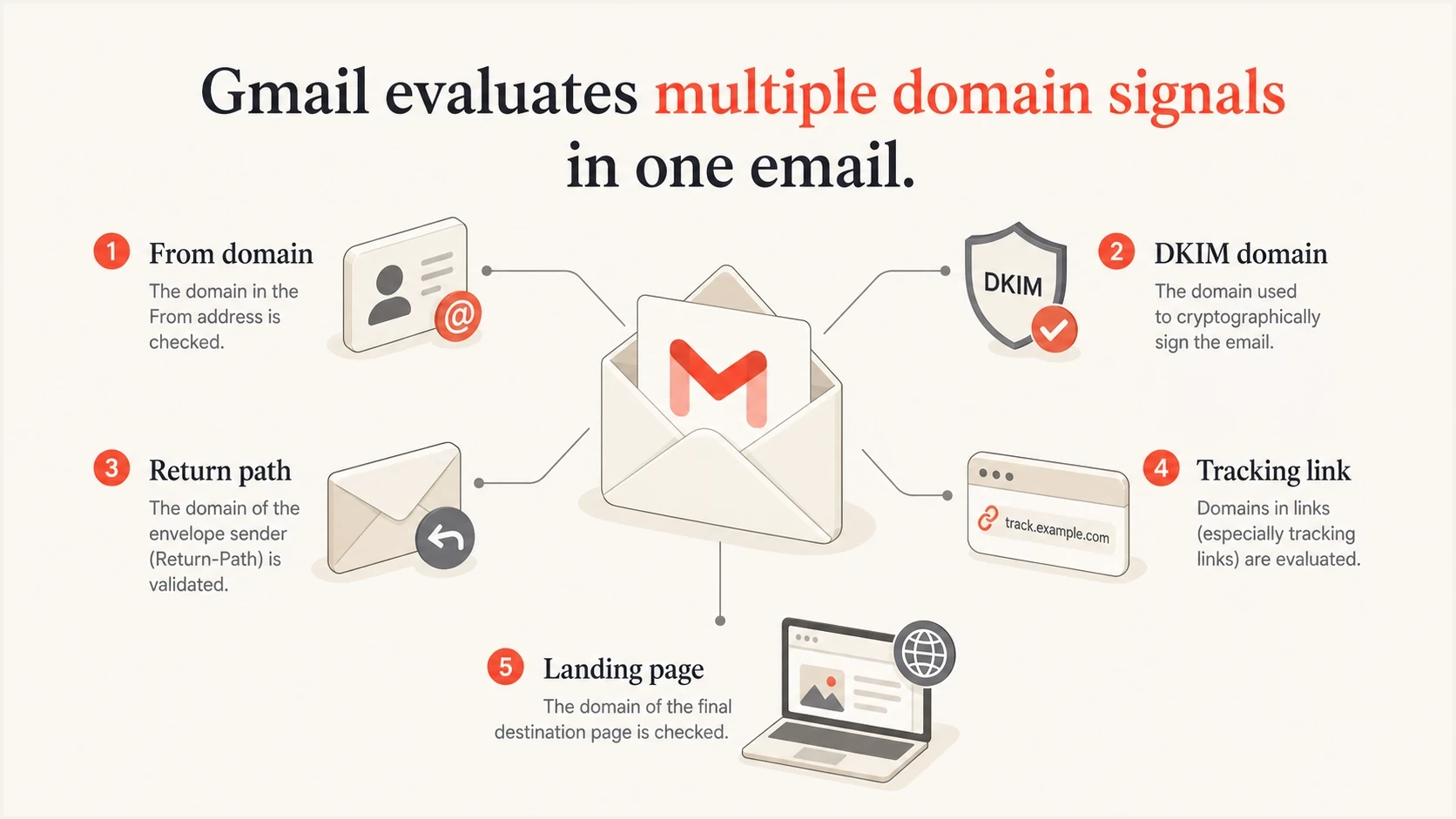
Infographic showing Gmail reputation signals across From domain, DKIM domain, return path, tracking links, and landing page.
Rule out recipient-side Gmail settings
Not every Gmail spam report means domain-wide deliverability failure. If one account, one company, or one Google Workspace tenant reports the problem, compare that report against seed inboxes, other Gmail recipients, and non-Gmail recipients before changing infrastructure.
Use the exact same message, sender, and time window when comparing an affected recipient with a working Gmail recipient, and keep the original headers before the user moves the message out of Spam. The common one-mailbox causes are Gmail filters, blocked addresses, contact state, prior Not spam training, forwarding, and Workspace policy assignment.
Gmail searches to runtext
from:sender@example.com in:anywhere
to:recipient@example.com in:anywhere
subject:(welcome) in:anywhere
rfc822msgid:<message-id@example.com>
- Ask trusted recipients to mark the message as Not spam and move it to the inbox when they trust the sender.
- Ask known recipients to add the sender to contacts when they have an ongoing relationship with the sender.
- Ask affected recipients to check Gmail filters and blocked addresses. A blocked sender stays blocked even after a message is marked Not spam; unblock the address if the block was accidental.
- For Google Workspace recipients, ask an admin to search Email Log Search, quarantine, routing rules, compliance rules, spam bypass filters, allowlists, and the message ID.
- If placement changes only after forwarding, check whether DKIM survives and whether ARC records earlier authentication. SPF often fails after forwarding because the forwarding IP is not authorized by the original sender; ARC does not guarantee inbox placement.
These checks do not replace sender-side fixes. They prevent one recipient's Gmail settings, filters, tab training, forwarding path, organization policy, sent-copy handling, or stale client view from being mistaken for a sender reputation incident. A Workspace spam bypass filter, trusted sender list, or allowlist is a local control, not proof of sender health; Gmail can still reject or send suspicious mail to Spam.
When a Workspace admin helps, ask for the final delivery location, matching spam policy, matched compliance rule, routing path, quarantine result, and any user-level blocked sender or filter state. A screenshot of the spam folder is less useful than headers and log evidence tied to the message ID.
Isolate links and tracking domains
The cleanest test is to hold everything still and change one thing at a time. If repeated tests reach the inbox without tracked links but go to Spam with them, the tracking or destination path is a strong lead. If a minimal plain-text version without links or attachments also lands in Spam, return to authentication, recipient history, and reputation.
Shared tracking root
A shared root domain is fast to launch, but other senders can affect its reputation.
- Risk: you inherit reputation signals from unrelated senders.
- Symptom: many senders see Gmail spam placement at the same time.
- Fix: ask the provider to investigate the affected domain and any abuse; use branded tracking where appropriate.
Custom tracking domain
A branded tracking domain gives you cleaner ownership, but Gmail still needs time to trust it.
- Risk: a brand-new hostname can look unfamiliar during the first sends.
- Symptom: placement improves after smaller, steady sends.
- Fix: introduce the domain with conservative volume and stable audiences.
A common four-version test uses the original, no links, branded tracking only, and one link to the primary landing page without redirects. Do not replace every link, subject line, and segment in the same test. Also test signatures, attachments, direct file downloads, and calendar links separately when they introduce extra domains. Avoid public URL shorteners during diagnosis so recipients can recognize the destination.
If a ZIP or other archive download link becomes plain text in Gmail, compare the raw MIME with Gmail's rendered HTML before blaming the template. A removed href does not identify the cause; check malformed HTML, message sanitization, and security policies as well as the file host and redirect path. Compare a branded HTTPS download page with the same message without the download. Do not assume a ZIP link automatically triggers Spam.
For calendar invites, compare a normal email, an invite with no description links, and an invite with the usual conferencing link. Keep the organizer, sender, recipient, and timing consistent so the .ics file's content is the main variable you can inspect.
Seed-test response bands
Use repeated controlled tests as a triage signal, then validate the result with real recipients, headers, and authentication data.
Isolated result
Retest
One changed seed result does not justify an infrastructure reset.
Repeated Gmail-only shift
Investigate
Repeat the same controlled content and link variants across several Gmail accounts.
Broad repeated spike
Pause
Pause risky volume and isolate links, authentication, sender sources, and SMTP responses.
Also inspect the final destination and every redirect hop for security warnings, unexpected redirects, and different content shown to automated checks. These findings need comparison with the affected messages; an inaccessible page alone does not establish a Spam cause. If a partner or affiliate path is involved, test without it before deciding the template itself is the issue, then remove any source that generates spam complaints before sending more Gmail volume.
Use Suped for monitoring
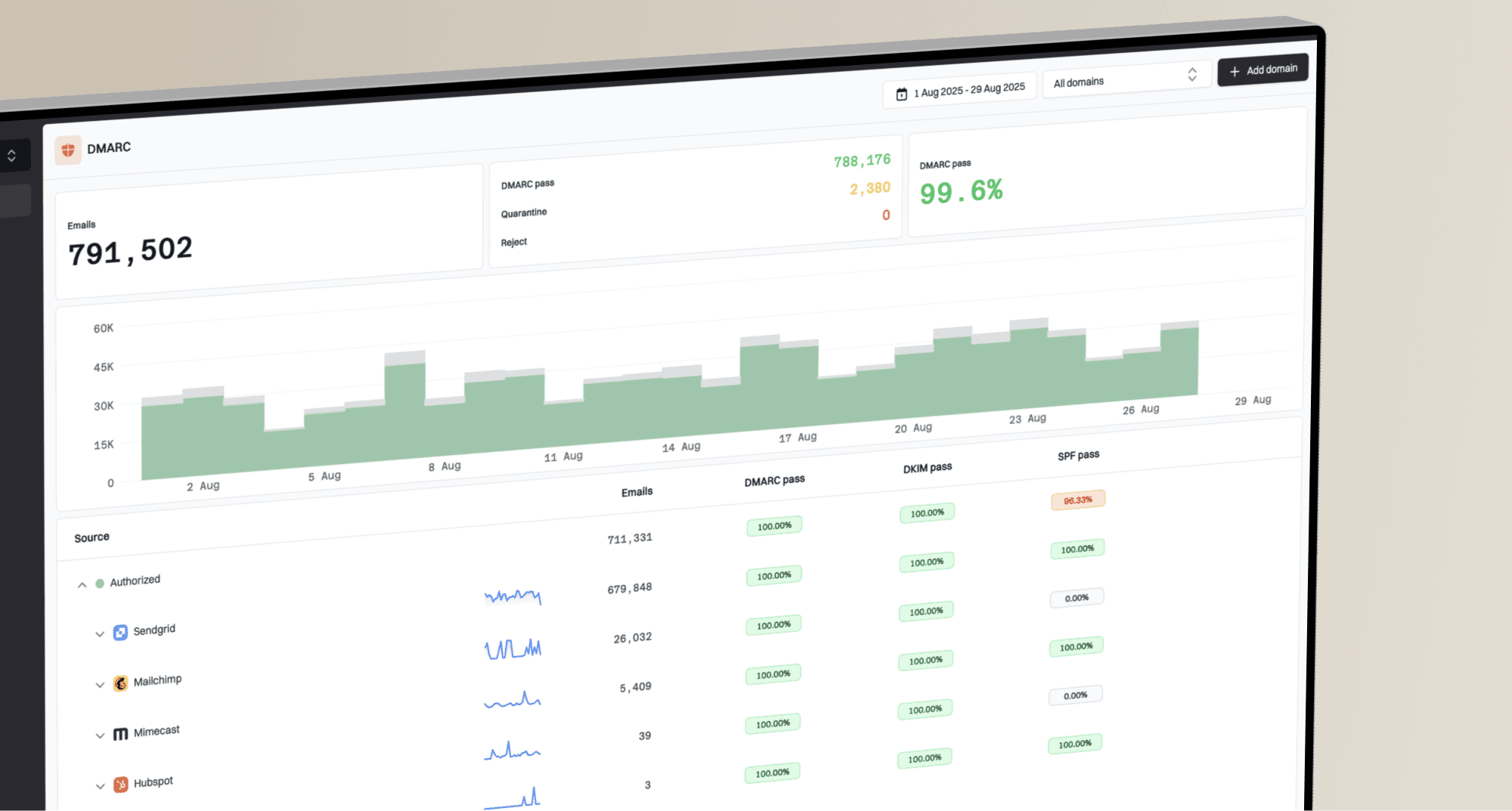
Suped's DMARC reporting product helps compare sending sources and authentication failures around the date a Gmail spam spike began. Use it to identify a new sending source, a DKIM failure, or a From-domain mismatch, then confirm the affected messages in Gmail.
Issues page showing top issues, verified sources, unverified sources, and authentication pass rates
In Suped, compare source views, policy status, and authentication pass rates before and after the change. Review blacklist (blocklist) alerts for affected infrastructure alongside Gmail evidence. DMARC aggregate reports describe authentication and reported handling; they do not show whether a message reached Primary, Promotions, or Spam.
Preferred workflow
- Confirm whether the issue is Gmail-only, campaign-specific, or domain-wide.
- Isolate links, tracking, authentication, template, and sending source changes separately.
- Fix the smallest broken piece, then resend gradually to engaged Gmail users.
- Monitor source, DNS, and reputation changes so the next shift is caught early.
Recover after the spam spike
After the measurable issue is fixed, do not resume full Gmail volume. Gmail needs a cleaner pattern: recent engagers, normal cadence, low complaints, low bounces, and stable authentication. Treat recovery as a controlled sending process, not one corrected resend.
- Start with recent Gmail engagement: use recipients who recently clicked, purchased, logged in, replied, or completed another high-intent action.
- Hold risky cohorts: exclude bot signups, old inactive leads, purchased addresses, bounced contacts, and winback audiences until placement is stable.
- Increase only after clean sends: raise Gmail volume after the previous batch has low spam placement, low complaints, low bounces, and no repeated deferrals.
- Keep streams separate: protect receipts, security alerts, account notifications, and other transactional mail from risky promotional reputation.
|
|
|
|---|---|---|
Single broken link or DNS issue | Fix and repeat the controlled test | Headers and placement confirm the fix |
Light reputation damage | Send to engaged Gmail recipients | Several clean batches show stable results |
Persistent Spam placement or poor available reputation data | Resume gradually with engaged recipients | Placement, spam rate, and deferrals improve |
Reputation-based rejections | Stop risky mail and isolate the source | Gmail accepts controlled sends consistently |
Advance by observed results, not a promised timeline.
If an IP or domain was on a blacklist (blocklist), delisting is not the finish line. Keep the next Gmail sends small, focused on engaged recipients, and separated by source so Gmail sees a cleaner pattern after the public listing is resolved.
The common mistake is one good batch followed by a full-list Gmail campaign. That teaches Gmail the old pattern again. Recovery is stable when engaged segments, normal segments, and key automated flows can send without the spam placement returning.
Views from the trenches
These sender reports describe individual experiences, not a universal Gmail filtering rule. Validate the suggested cause against your own message headers and repeated tests.
Best practices
Test the same message with and without tracking before changing creative or copy first.
Keep a branded tracking domain ready so shared root problems are easier to isolate.
Compare Gmail-only movement against all-provider movement before changing infrastructure.
Common pitfalls
Assuming unchanged content means unchanged risk misses shared link domain failures.
Changing IP, domain, copy, and audience together makes the cause impossible to prove.
Moving to a new tracking hostname at full volume can create another Gmail trust problem.
Expert tips
Inventory message hostnames, then use controlled tests to identify affected link paths.
Slow the next send after a domain swap so Gmail sees normal engagement signals again.
Keep DMARC and blocklist alerts live so sudden placement shifts have clear context.
Marketer view
Marketer from Email Geeks says sudden Gmail spam placement often points to a URL or tracking domain problem, even when the sender believes nothing changed.
2024-04-19 - Email Geeks
Marketer view
Marketer from Email Geeks says a specific shared tracking root can cause many otherwise stable campaigns to move to Gmail spam at the same time.
2024-04-19 - Email Geeks
Frequently asked questions
Yes. Authentication verifies use of a sending domain; it does not prove that a message is wanted or safe. A good reputation rating does not guarantee placement either. Gmail also evaluates the recipient relationship, message content, complaints, and sending patterns.
A reputation signal changed, a link or domain warning appeared, Gmail applied sender requirement enforcement, or Gmail evaluated a newer traffic pattern. Check tracking domains, redirects, unsafe landing pages, authentication, sender routing, volume spikes, hidden automations, complaint changes, and Gmail-side incidents before rewriting the campaign.
No. Primary, Promotions, and Updates are inbox categories. Spam is a filtered folder for messages Gmail distrusts. A move into Primary can improve visibility for some recipients, but it does not prove deliverability improved. A marketing campaign in Promotions can be healthy inbox placement, while transactional mail in Promotions deserves a stream, template, and sender identity check.
Yes. Test calendar data, organizer fields, conferencing links, and attachments separately from a normal message. For a ZIP download, inspect the host and redirect path and compare a branded download page. A missing clickable link does not prove a security verdict; compare the original MIME with Gmail's rendered HTML.
Delivered usually means Gmail accepted the message. It can still land in spam, Promotions, Updates, All Mail, a label, forwarding, or Google Workspace quarantine after acceptance. Ask for the message ID, Gmail MX host, sending IP, envelope sender, and SMTP response when the platform only shows a delivered label.
Gmail does not publish a fixed recovery period. A corrected link or DNS issue can improve on the next controlled tests, while reputation damage needs repeated clean sends. Increase volume only after headers, Spam placement, complaint rate, deferrals, and Postmaster data show stable improvement. Delisting from a blacklist or blocklist does not reset Gmail reputation by itself.