What are the email sending limits for Gmail and Google Groups to avoid spam filters?

Updated on 15 Oct 2026: We clarified Gmail's daily quotas and Google Groups delivery limits, with corrected guidance for pacing sends and recovering from restrictions.
Gmail does not have a fixed rule where only 2,000 emails per hour reach the inbox and everything after that goes to spam. For Google Workspace Gmail, 2,000 is the message limit per user account over a rolling 24-hour period, not an hourly inbox-placement allowance. Personal Gmail is lower, with Google warning users after more than 500 recipients in one message or more than 500 sent emails in a day.
Google Groups for Business has separate limits for Workspace accounts. Key posting limits are 1,800 emails per hour from one sender to one specific group, up to 1,800 emails per hour from one external sender across all groups in a Workspace account, and 300 inbound emails per 5 minutes accepted by one group. External senders without Google Workspace have a lower limit. These limits control posting and distribution. They do not guarantee inbox delivery.
Treat the published limits as ceilings, not safe sending targets. Staying under the cap does not prevent additional anti-abuse restrictions. Spam filtering still looks at authentication, recipient engagement, complaint rate, reputation, message quality, unsubscribe handling, and sending consistency.
Gmail and Google Groups sending limits
Gmail account limits set the submission ceiling, Google Groups limits set distribution pace, and Gmail filtering determines inbox placement for accepted messages.
What the 2,000 number means
Google's Gmail sending limits list 2,000 messages per rolling 24-hour period for a Google Workspace user account, 1,500 for mail merge, and 500 for trial accounts. The 2,000 number is not per hour, and it is not an inbox guarantee.
- Exceeding a Gmail message or recipient limit can stop new sends for up to 24 hours.
- Inbox placement is decided by sender trust signals and recipient behavior.
- Google Groups limits affect posting throughput and recipient distribution.
|
|
|
|---|---|---|
Personal Gmail | 500 messages/day; 500 recipients/message | Consumer Gmail limits; not the Workspace allowance. |
Workspace Gmail | 2,000/24 hours | Per user account; lower limits apply to trials and some newly paid accounts. |
Mail merge | 1,500/24 hours | Mail merge messages and recipients. |
Trial accounts | 500/24 hours | Also limited to 500 unique external recipients daily. |
Total recipients | 10,000/24 hours | Repeated recipients count again; mail merge has a lower cap. |
External recipients | 3,000/24 hours | Outside the primary domain. |
Unique recipients | 3,000/24 hours | Includes up to 2,000 external. |
Gmail web message | 2,000 recipients max | Combined To, Cc, and Bcc, including at most 500 external recipients. |
Gmail API | 500 recipients max | Per message, not a separate daily message allowance. |
SMTP client | 100 recipients max | Per message for SMTP sends by POP or IMAP users. |
Groups sender | 1,800/hour | One sender to one group. |
Groups internal sender | 18,000/hour | Across all account groups. |
Groups external sender | Up to 1,800/hour | Across all account groups; lower for senders without Workspace. |
Groups inbound | 300/5 min | Accepted by one group from all senders combined. |
Workspace daily limits use a rolling 24-hour period. Groups rows apply to Groups for Business.
The personal-account figures are documented in Gmail's sending limit guidance. Gmail and Groups are not bulk-delivery loopholes. If the message stream looks unwanted, Gmail can still rate-limit, reject, or place messages in spam even when the sender stays under the published caps.
How Google counts Gmail sends
Google applies Workspace Gmail limits over a rolling 24-hour period, so the counters do not reset at midnight. Several counters run at the same time. A user can remain below 2,000 messages and still hit a recipient, external-recipient, unique-recipient, or per-message limit first.
- Messages sent from an alias, by a delegated user, or by Gmail's vacation responder count toward the user's limits.
- Addresses in To, Cc, and Bcc all count toward recipient limits. Every address counts each time it receives a message, so 5 messages sent to 10 addresses count as 50 recipients.
- Each address counts once in the separate unique-recipient counter, even if the address receives several messages.
- For Gmail quotas, addresses outside the primary domain count as external recipients, including domain aliases and alternate domains.
- The web interface, Gmail API, SMTP client, SMTP relay, and Apps Script do not all use the same quotas. Aliases and delegated access do not create another daily allowance for the same mailbox.
Plan against the first counter the send will reach, not only the 2,000-message ceiling. For example, one message to 500 people uses one message but 500 recipient entries, and repeated sends to the same people keep increasing the total-recipient counter.
Converting a trial to a paid subscription does not immediately guarantee the higher quota. Google's Workspace documentation says the domain must have cumulatively paid at least USD 100 or the equivalent, plus the domain cost if purchased from Google. Limits can take up to 75 days to increase after that payment threshold is reached.
How Google Groups counts recipient deliveries
Groups for Business also limits recipient deliveries. These Workspace quotas are not universal consumer-group limits. Google's Groups policies list:
|
|
|---|---|
External recipients per group | 5,000 per 10 minutes; 50,000 per day |
External recipients across all groups | 100,000 per day for accounts with up to 10,000 users; 1,000,000 per day above 10,000 users |
Two posts to 3,000 external members receiving individual emails count as 6,000 deliveries, exceeding 5,000 in 10 minutes. Repeated recipients and nested groups count.
Groups counts associated Workspace domains as internal. Hourly limits aggregate across groups; new users also have per-minute limits.
Why limits are not spam placement rules
A sending limit answers a narrow question: how much mail can this account or group submit before Google restricts it? Spam placement answers a different question: does this message deserve the inbox for this recipient? Those two systems overlap in risk, but they do not use the same measurement.
Rate limit outcome
- The account cannot submit more mail for a period.
- Temporary delivery errors defer mail for retry by the sending system.
- Google can restrict accounts that look abusive.
Spam filter outcome
- A message can reach the inbox based on sender trust and relevance signals.
- Gmail can accept a message but place it in the spam folder.
- Gmail can reject a message because of authentication or reputation failures.
This is why campaigns should not be planned around the ceiling. A sender can be under 2,000 Workspace messages per day and still have poor inbox placement if the domain is new, the list is stale, recipients complain, or authentication is misconfigured.
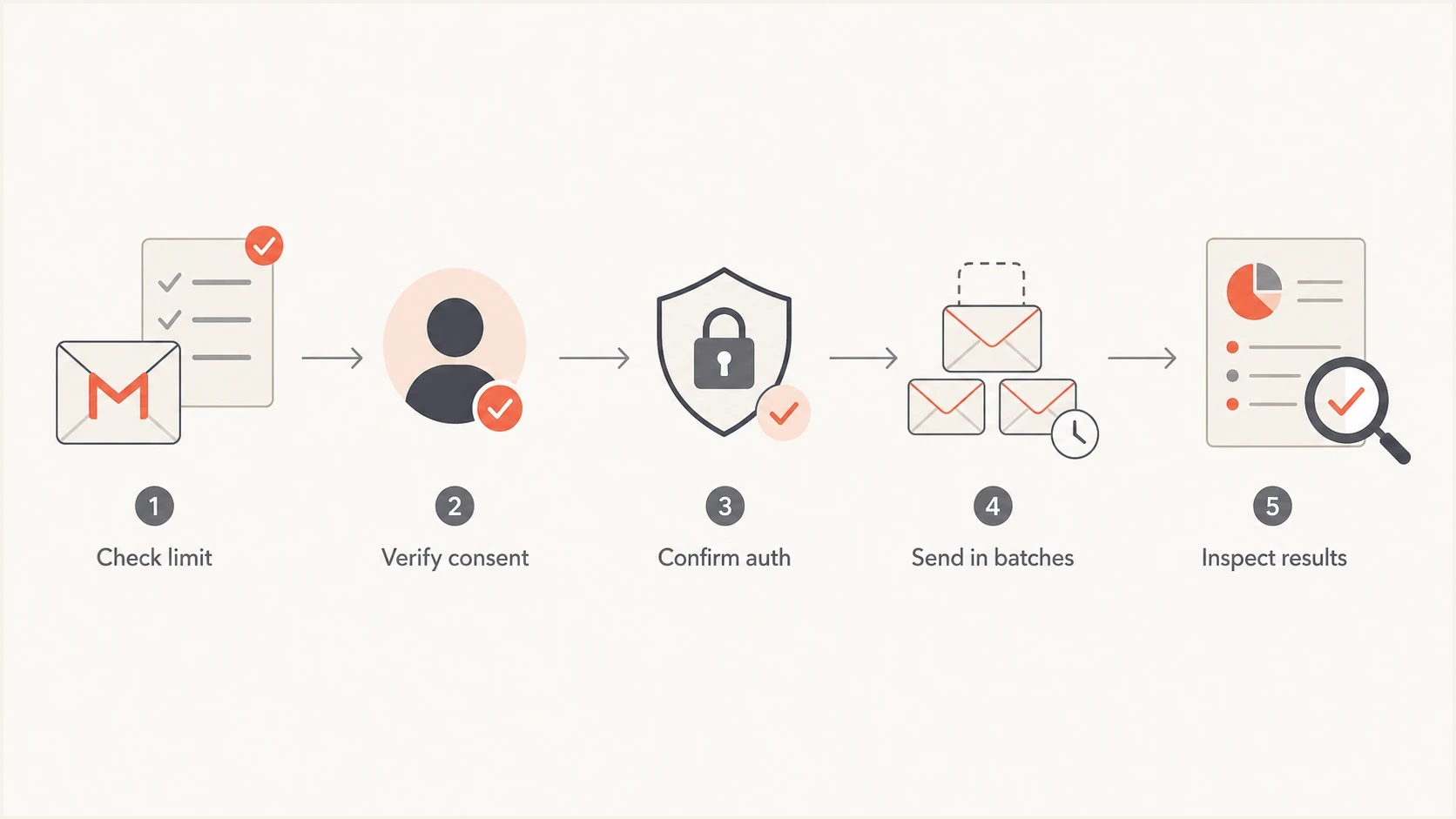
Gmail and Google Groups sending checklist: limits, consent, authentication, batches, and delivery results.
How to pace sends below the limits
Google does not publish a universal daily volume that guarantees inbox delivery. Start with a volume consistent with the account's normal activity and the audience's consent, then adjust using delivery errors and recipient feedback.
- Keep personal Gmail for normal personal mail, not campaign sending.
- Use Workspace Gmail for business mail and carefully controlled mail merge.
- Use Google Groups for discussion lists, shared inbox flows, and internal distribution.
- Use a purpose-built sending setup for bulk programs, with clear consent and unsubscribe handling.
Send at a consistent rate instead of in sudden bursts. If bounces or deferrals increase, reduce volume and investigate before increasing it again. Splitting a campaign into batches does not reset the rolling daily counters.
Do not use Groups as a loophole
Google Groups can multiply distribution quickly, but that does not make it a safe route for cold or unwanted mail. If recipients complain, ignore the message, or were added without clear permission, Gmail can filter or reject the mail.
Authentication before volume
Google's sender guidelines matter more than squeezing out the last message under a daily cap. All senders to personal Gmail accounts need SPF or DKIM. Bulk senders need SPF and DKIM, a DMARC record with at least p=none, and a From domain that matches an authenticated SPF or DKIM domain under DMARC rules. Marketing and subscribed messages at that volume also need one-click unsubscribe and a visible unsubscribe link in the message body.
Google's sender FAQ defines bulk senders as those sending close to 5,000 messages or more to personal Gmail accounts within 24 hours. Messages across the same primary domain and its subdomains count together, even when sent by different mailboxes. Once assigned, bulk-sender status is permanent. Keep the user-reported spam rate below 0.1% and prevent it from reaching 0.3%.
Before increasing volume, run a domain health check and check the sending domain's SPF and DKIM configuration and DMARC results. Also verify the sending server's forward and reverse DNS and TLS. Google manages those server settings for mail sent directly through Gmail; custom sending infrastructure needs its own checks.
Starter DMARC TXT recorddns
Host: _dmarc.example.com
Type: TXT
Value: "v=DMARC1; p=none; rua=mailto:reports@example.com"
Start DMARC at p=none when you need visibility, then move toward p=quarantine and p=reject after every legitimate sender is passing DMARC. Replace reports@example.com with a working aggregate-report destination. The policy value alone does not improve Gmail placement; the value is in finding unauthorized sources and fixing legitimate sources that fail.
Use Suped to investigate authentication failures
When a team asks whether it can send more through Gmail or Groups, authentication and reputation need review before the cap. Suped's DMARC reporting and email authentication platform turns aggregate reports into source-level findings, flags authentication failures, and gives practical steps to fix legitimate senders.
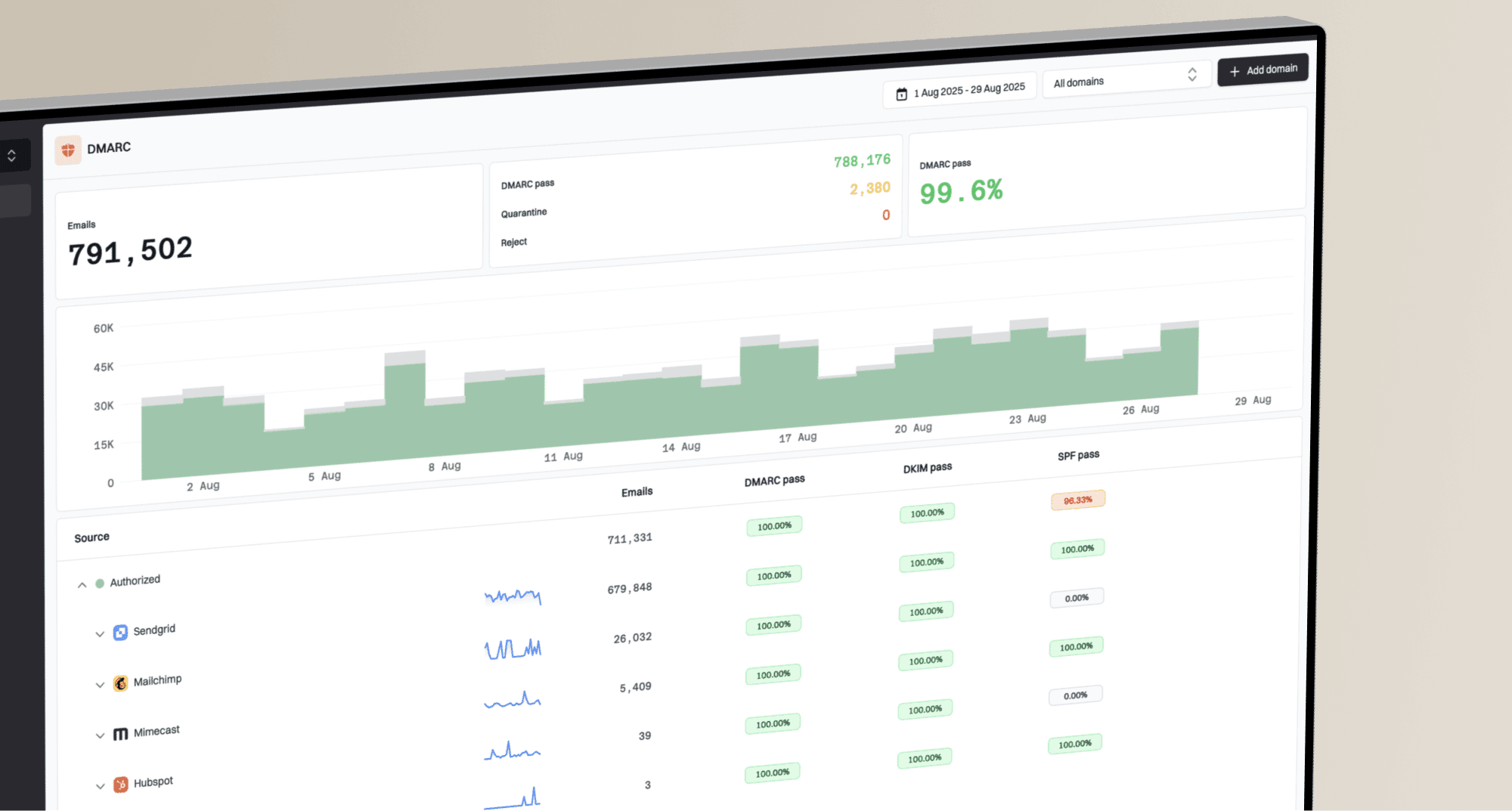
Suped DMARC dashboard showing email volume, authentication health, and source breakdown
Use Suped's DMARC monitoring to review SPF and DKIM results for each sending source. Suped's blocklist monitoring provides separate evidence for reputation investigations. A blocklist (blacklist) listing alone does not establish why Gmail placed a message in spam.
A practical Suped workflow
- Connect the sending domain and collect DMARC aggregate reports.
- Review sending sources to identify legitimate senders with authentication failures and investigate unknown sources.
- Remove obsolete SPF authorizations and review nested includes before using hosted SPF to manage SPF's 10-lookup limit.
- Review authentication alerts alongside bounces and complaint data before increasing volume.
Testing before you increase volume
Do not wait until a full send has already failed. Send a real sample first and inspect the authentication result, headers, links, unsubscribe headers, image behavior, and rendering. A small test will not prove full-volume inbox placement, but it catches obvious technical failures before they become expensive.
For this step, use an email tester with a real message from the same account or sending route. Test the exact format recipients will receive, including the same From domain, tracking domain, links, images, footer, and unsubscribe path.
Email tester
Send a real email to this address. Suped shows a results button when the test is ready.
?/43tests passed
The next check is administrative. In Google Workspace, confirm whether users are sending through the Gmail web app, SMTP, API, mail merge, or a group post. Those paths have different recipient caps, so a plan that works in the Gmail web app can fail through SMTP or API. Administrators can review Gmail activity in the Admin console's user reports for Apps usage and compare it with the reported sending error.
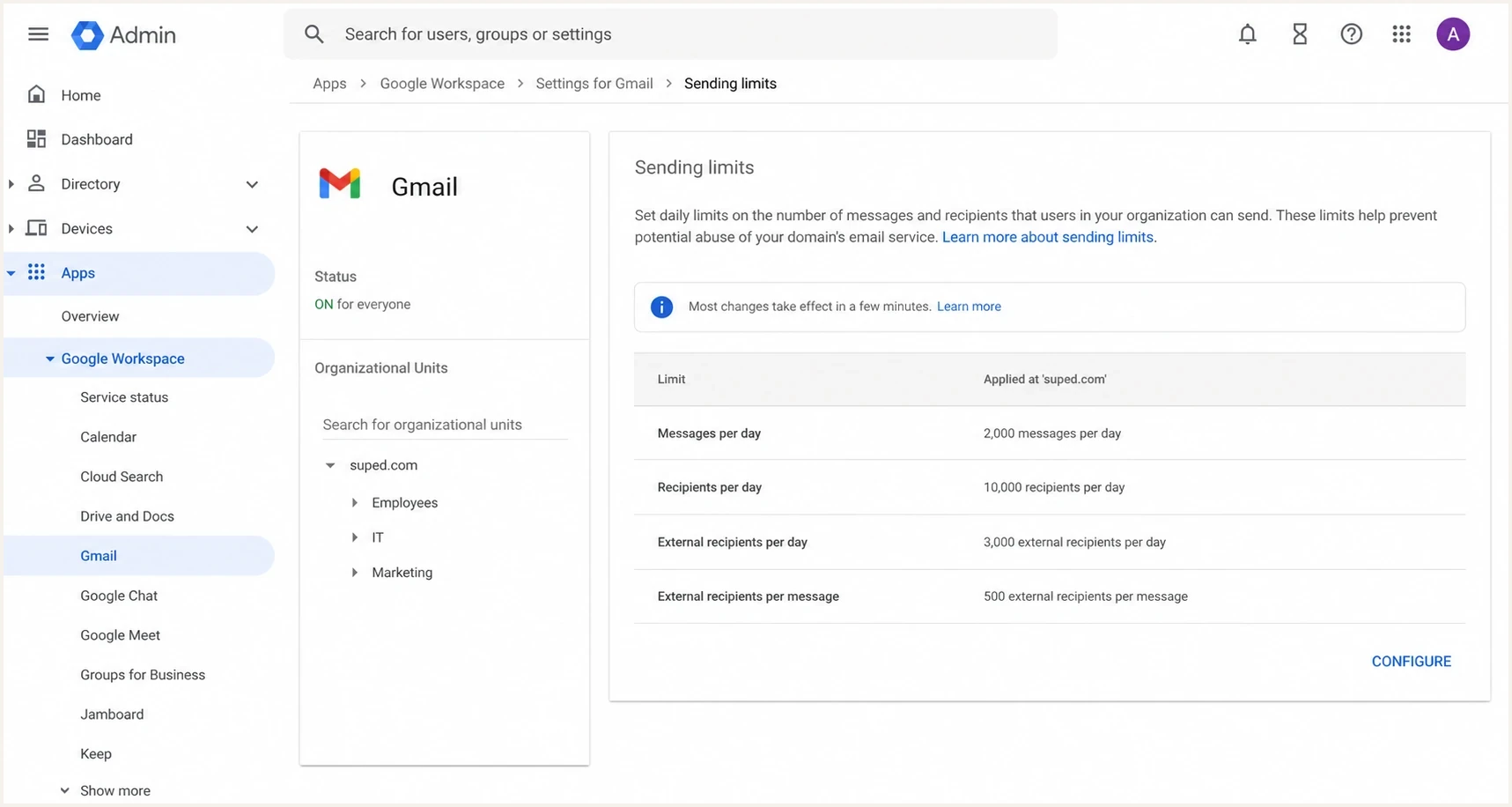
Illustrative Google Admin console-style screen summarizing Gmail sending limits for Workspace accounts.
If the send fails only through one route, the route is part of the problem. If every route fails, look at account history, recipient quality, authentication, complaint risk, and whether Google has temporarily restricted the account.
What to do when Gmail or Groups blocks sending
When Gmail or Groups blocks sending, do not change domains and try again. That usually creates a new reputation problem on top of the old one. Work backward from the error type, the recipient list, and the authentication result. Invalid addresses and repeated bounces can trigger restrictions below the published cap, as Gmail's limit guidance explains.
- Pause campaigns during a daily quota block. Workspace users can still receive mail while new sends are restricted for up to 24 hours.
- Read the error: distinguish "You have reached a limit for sending mail" from recipient-cap errors, temporary deferrals, and policy rejections.
- Remove invalid, repeatedly bouncing, purchased, and unsubscribed addresses; review inactive contacts before sending again.
- Check SPF, DKIM, and DMARC on the exact sending route.
- Resume with engaged recipients first and raise volume only after clean results.
For Gmail SMTP rate-limiting error 4.7.28, Google's sender guidelines say to stop sending for at least 10 minutes and identify the cause. Then test one connection. If it succeeds, add connections one at a time; if it fails, wait another 10 minutes before testing again. This backoff does not reset a daily account quota.
If the issue involves Google Groups, also review who can post, whether external senders are allowed, how many recipients the group expands to, and whether the same sender is posting to multiple groups. A single message sent to multiple groups can count multiple times against hourly group limits. Groups restrictions typically last an hour but can last up to 24 hours.