How to handle high volume incoming emails on Google Workspace with delays?

Updated on 2 Oct 2026: We added POP fetch checks and Group capacity limits, and clarified how to keep failover mail within the intake queue.
The direct answer is that Google Workspace is the wrong final destination for 50,000 incoming messages per hour into one or two mailboxes. Google publishes a Gmail receiving limit of 3,600 messages per hour per account, with 60 per minute and 86,400 per day. If two mailboxes are receiving separate mail, the theoretical hourly ceiling is 7,200 messages. If catch-all routing or forwarding sends the same stream into the same account, the account limit is still the bottleneck.
A five-hour delay is consistent with a queue forming, but sender and Google logs must show where the delay occurred. At 50,000 messages per hour, the flow is about 13.9 times higher than one mailbox's hourly limit. Gmail can return a temporary SMTP deferral while the account is receiving mail too quickly. If the account reaches a receiving limit, Google says new incoming messages bounce and the restriction typically lasts about 24 hours. The fix is to redesign the inbound path so Google Workspace receives only the mail that humans need to read.
- Immediate move: stop using a catch-all mailbox for bulk automated mail and identify the source classes that create the volume.
- Capacity move: move bulk intake to a queue, application endpoint, or tuned MTA, then deliver only exceptions or summaries to Workspace.
- Proof move: compare Google Admin Email Log Search with message headers and sender logs to prove whether the wait happened before Google accepted the message or inside Google's delivery pipeline.
Why Google Workspace delays this mail
Google Workspace mailboxes are user mailboxes. They are built for human email, team collaboration, and business communication. They are not a high-volume event ingestion system. Google states the relevant limits on its Gmail receiving limits page, including the 3,600 messages per hour per account limit.
The common trap is treating a domain-level catch-all as a scalable intake pipe. It is not. A catch-all turns every misaddressed, automated, replayed, forwarded, and noisy message into load on a real Gmail account. Forwarding inside the same domain can make this worse because it concentrates traffic into fewer accounts and can add more routing hops before final delivery.
The math is the first diagnosis
A 50,000 per hour stream needs more than thirteen single-mailbox hourly limits before any safety margin. Two mailboxes do not make the design safe. They only raise the theoretical limit if each mailbox receives a distinct portion of the stream.
- One mailbox: 3,600 messages per hour is the published Gmail receiving limit.
- Two mailboxes: 7,200 messages per hour only works when the messages are split, not duplicated.
- 50,000 per hour: the excess must wait, fail, bounce, or be handled somewhere outside Gmail.
Hourly message volume against mailbox capacity
The gap between the published account limit and the reported workload explains why delays build quickly.
One Gmail account
3,600 messages/hourTwo Gmail accounts
7,200 messages/hourReported workload
50,000 messages/hourA gap between Received and X-Received timestamps is a symptom, not proof of the root cause. Read Received fields from the bottom upward, account for clock differences between servers, and confirm the events in Email Log Search. Headers show the route recorded for one message, while the logs show whether and when Google handled it.
What happens after the receiving limit is reached
Google says Gmail receiving limits apply to all Google Workspace editions and cannot be increased. When an account reaches a receiving limit, it cannot receive new messages. The restriction typically lasts about 24 hours, after which the limits reset automatically. Google also warns that messages sent during the restricted period cannot be recovered from the account.
Treat temporary and permanent SMTP responses differently
Check the exact SMTP reply in the sending or forwarding server logs. The first digit determines whether the sender should retry automatically or record a failed delivery.
- 450 4.2.1: Google is temporarily deferring mail because the user is receiving it too quickly. The sending MTA should queue the message and retry later.
- 550 5.2.1: Google has issued a permanent failure because the recipient is receiving mail too quickly. Do not assume Gmail will recover that message after the limit resets.
- About 24 hours: this is Google's typical receiving restriction period, not a guaranteed queue delay for each message.
- No Google log event: the message likely never reached Google's network, so investigate the sender, gateway, forwarder, or upstream retry queue.
Recovery therefore depends on the sender. A standards-compliant MTA normally retries a temporary 4xx response according to its queue policy. A permanent 5xx response produces a bounce and needs a fresh send after the route or capacity problem is fixed. This distinction explains why some delayed messages arrive later while others never appear in Gmail.
How to prove where the delay occurs
Start by separating the sending system's first attempt, Google's first logged acceptance or deferral, and final delivery to the user's mailbox. Sender or forwarder logs provide the first timestamp because Email Log Search begins with events visible to Google's network. Without that split, every delay gets blamed on Gmail, even when an upstream forwarder held the message for hours before Google accepted it.
Use Email Log Search in the Google Admin console for a sample of delayed messages. Search by message ID and a specific recipient when possible, then review the arrival time, delivery status, route, and whether the recipient was the original address or a rewritten catch-all target. Full delivery logs are available for the past 30 days. If the message does not appear, Google says it likely never reached its network. Check the sender, gateway, or forwarding logs next. If several low-volume accounts are delayed at once, check the Google Workspace Status Dashboard for a service issue.
Header timing patterntext
Delivered-To: intake@example.com
X-Received: by 2002:a05:620a:2401:b0:777:abcd:1111; 17:03:44 +0000
Received: from mx-forwarder.example by aspmx.l.google.com; 12:04:12 +0000
A header gap like this needs log confirmation. If Email Log Search records Google receipt around 12:04 and mailbox delivery around 17:03, Google's delivery pipeline held the message. If Google's first event appears around 17:03, the delay happened before the message reached Google. Google also says that when its recorded transit time is under 10 minutes, an upstream provider is a likely source of the wider delay.
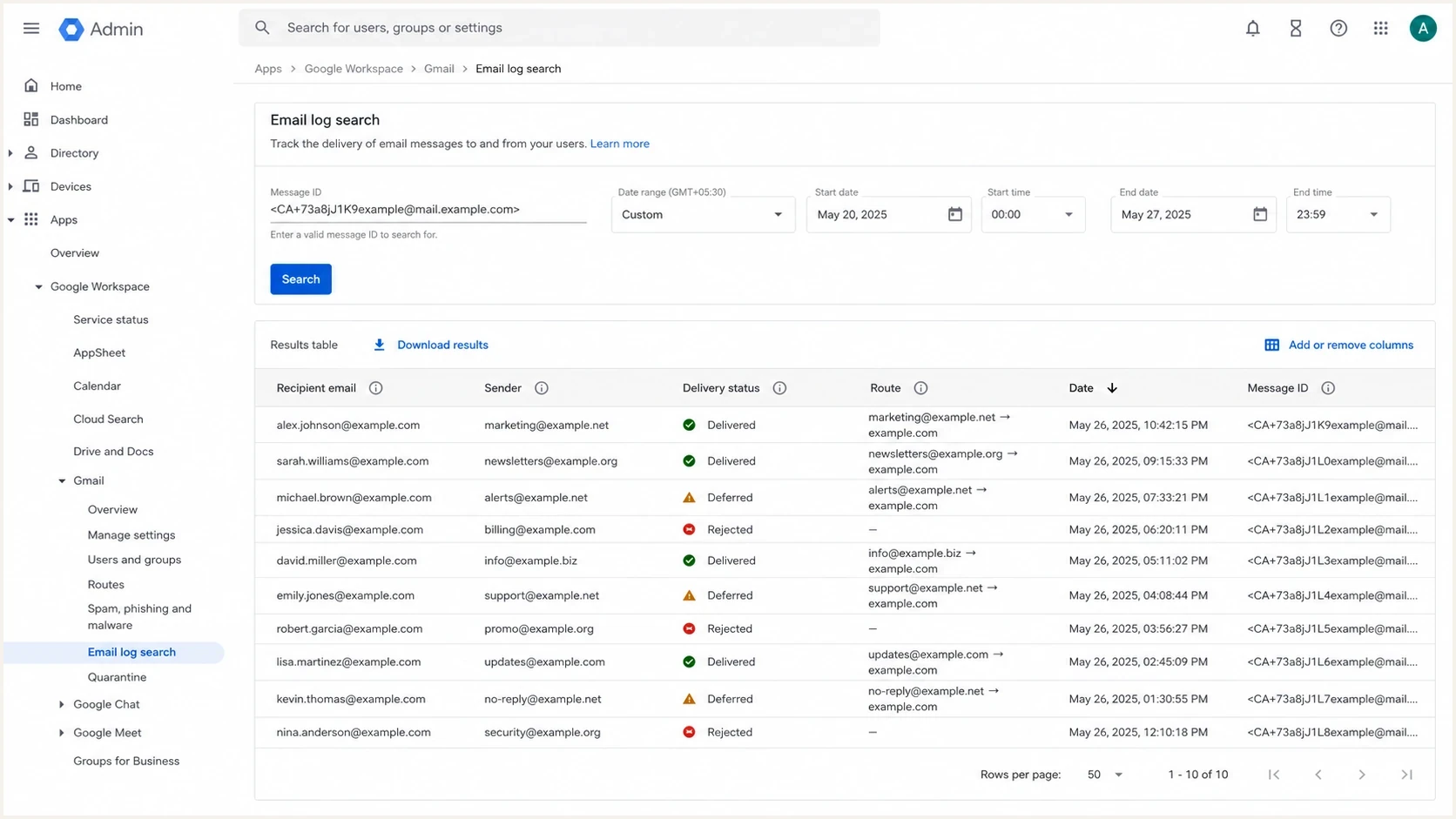
Google Admin console Email Log Search screen for checking delayed messages.
- Sample messages: choose delayed messages from different senders, not only one noisy sender.
- Match IDs: compare the header message ID with Email Log Search so you do not compare unrelated timestamps.
- Check routing: look for catch-all rewrites, forwarding rules, dual delivery, compliance rules, and inbound gateways.
- Read SMTP replies: find 450 temporary deferrals and 550 permanent bounces in the sending or forwarding server logs.
- Group by account: count messages by final mailbox per minute and hour, because either account limit can become the operational choke point.
Check for POP fetching before blaming receiving limits
If Gmail gets the messages through 'Check mail from other accounts' instead of direct delivery to the domain's MX records, a scheduled POP fetch can create a delay before Gmail receives them. Compare the source mailbox's receipt time with Gmail's fetch history under Settings, Accounts and Import, and Check mail from other accounts. A manual fetch can test this cause, but it does not increase the receiving limit.
Google no longer offers this POP fetching setup to new users. Existing users can continue using it until January 2027. Move an existing high-volume POP feed to a direct, controlled intake path before that deadline. If the domain's MX records already deliver directly to Google, troubleshoot SMTP and routing instead.
Reduce incoming volume before Gmail
The first change is to remove unnecessary volume before it reaches a Gmail account. If the mail is automated logs, generated alerts, application events, parser output, monitoring noise, form submissions, or mail that no human reads directly, it does not belong in a catch-all mailbox. Gmail becomes the archive of last resort, and the archive then becomes a queue that is too small.
The second change is to split real mailbox use from machine intake. A human mailbox needs search, replies, labels, retention, and account access. A machine intake system needs durable storage, backpressure, retry control, deduplication, and alerting. Those are different jobs.
Catch-all intake
- Volume source: every typo, alias, automated sender, and forward can land in one account.
- Failure mode: messages queue, bounce, or arrive hours late when the mailbox hits its limit.
- Operational cost: admins troubleshoot Gmail symptoms instead of controlling the source volume.
Designed intake
- Volume source: known senders route to a queue, app endpoint, group, or dedicated MTA.
- Failure mode: backpressure is explicit, observable, and tuned for the workload.
- Operational cost: mailbox traffic stays readable and machine traffic has its own controls.
After the route split, run a controlled delivery test. Send a normal message to the mailbox during a quiet period, then repeat during the busiest hour and compare the headers. Suped's email tester can help inspect a real message's authentication and deliverability signals. Use Email Log Search and sender logs to measure the actual delay.
This test will not raise Google's receiving limit. Its value is that it separates a capacity problem from a domain setup problem. If a quiet-hour test delivers quickly and a busy-hour test waits, the mailbox throughput is the likely issue. If both tests show authentication or DNS failures, investigate those separately before attributing the delay to volume.
Email tester
Send a real email to this address. Suped shows a results button when the test is ready.
?/43tests passed
Also check whether the sender is using the mailbox as a data transport method. If the payload is really data, use an API, webhook, object storage upload, or message queue. SMTP is useful when another person or system needs a mail artifact. It is a poor fit when every message is one row of a data feed.
Architecture options for 50,000 messages an hour
There are several practical options. The right answer depends on whether the messages are human-readable mail, automated notifications, compliance archive copies, inbound leads, application events, or unstructured data arriving through email because it was easy to set up.
|
|
|
|
|---|---|---|---|
Google Groups | Shared reading | 300 inbound emails per 5 minutes per group | Useful for distribution, not bulk ingest |
Sharded mailboxes | Temporary relief | Hard to manage | Only for short-term pressure |
Self-hosted MTA | Queue control | Needs tuning | Good when timing matters |
API or queue | Data feeds | Requires sender changes | Best for machine data |
Use this table to choose the next design, not to justify pushing 50,000 messages per hour into Gmail.
A self-hosted server helps only if it terminates the high-volume flow and handles it as a queue. If it simply forwards all 50,000 messages per hour to the same Google Workspace mailbox, the same Gmail receiving limit remains. The self-hosted layer must reduce, sort, archive, batch, or route messages differently.
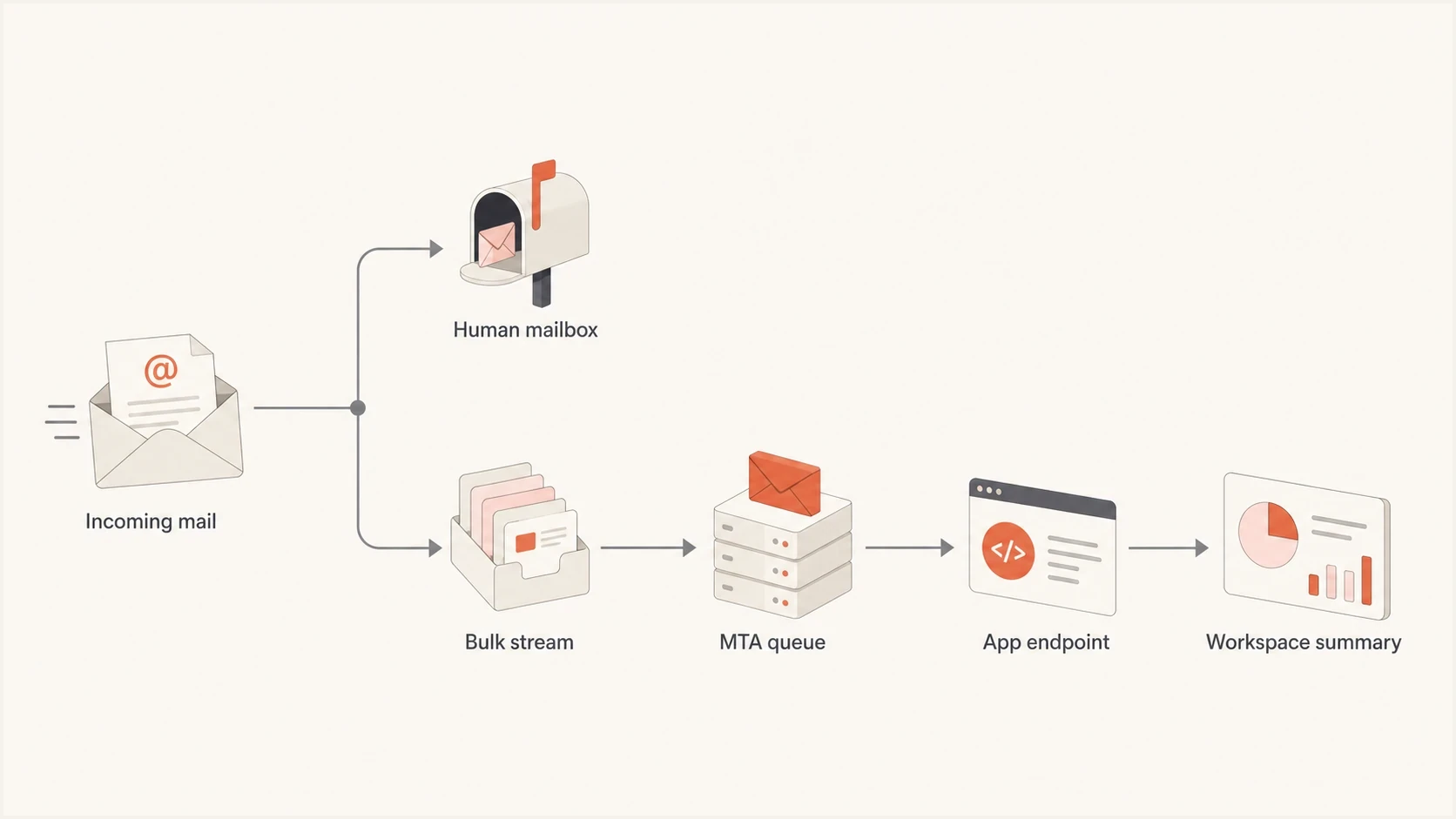
Flowchart showing human mail split from bulk intake before Google Workspace.
MX routing exampleDNS
example.com. 3600 IN MX 10 mx1.ingest.example.com.
example.com. 3600 IN MX 20 mx2.ingest.example.com.
In this pattern, both ingest MTAs apply the same queue and recipient rules, so a failover does not send the entire bulk stream directly to Gmail. They can store raw mail, deduplicate repeated alerts, reject mail that should not use the catch-all, and send a smaller operational feed to Google Workspace. A Google MX record as a backup would bypass those controls when the primary ingest host is unavailable.
What to tune on a self-hosted MTA
- Queue policy: set retry intervals, max queue age, and bounce behavior for the business requirement.
- Concurrency: limit onward delivery to Workspace so the MTA smooths bursts instead of copying them.
- Storage: size disk, retention, backups, and search around worst-hour volume.
- Observability: track accepted rate, queued mail, delivery rate, deferrals, bounces, and oldest queued message.
When Google Workspace is still useful
Google Workspace can still be part of the solution. Keep it as the human-facing layer: mailboxes for teams, Groups for distribution, search for selected messages, and alert destinations for issues that need human action. Do not make it the first queue for machine-generated volume.
If the owner insists that every one of the 50,000 messages must be visible in Gmail, set expectations in writing. The published limit does not support that workload in one or two accounts. Even sharding across enough accounts creates operational complexity, search fragmentation, access-control problems, and a larger compliance surface.
Practical Gmail receiving bands
These bands use Google's published per-account minute and hourly receiving limits.
Below both limits
Under 60/min and 3,600/hr
Track normal human traffic and moderate notifications.
Near either limit
Approaching 60/min or 3,600/hr
Automated flows need logs, headroom, and alerting.
At or over a limit
60+/min or 3,600+/hr
Move machine traffic to a controlled intake path.
A practical compromise is to keep the full raw feed outside Workspace, then send a smaller, useful stream into Workspace. For example, send one digest per source per hour, route only failed transactions to a team mailbox, or create a ticket from the data and keep the original message in long-term storage.
Check authentication after routing changes
DMARC, SPF, and DKIM will not raise the Gmail receiving limit. When routing changes affect mail sent under your domain, check that legitimate senders still authenticate correctly. DMARC reports cover messages claiming your domain in the visible From address; they do not measure every inbound message or reveal the location of a receiving queue.
Suped is our DMARC and email authentication platform. Its DMARC monitoring helps teams review sending sources, authentication results, and alerts while they change routing for mail sent under their domain.
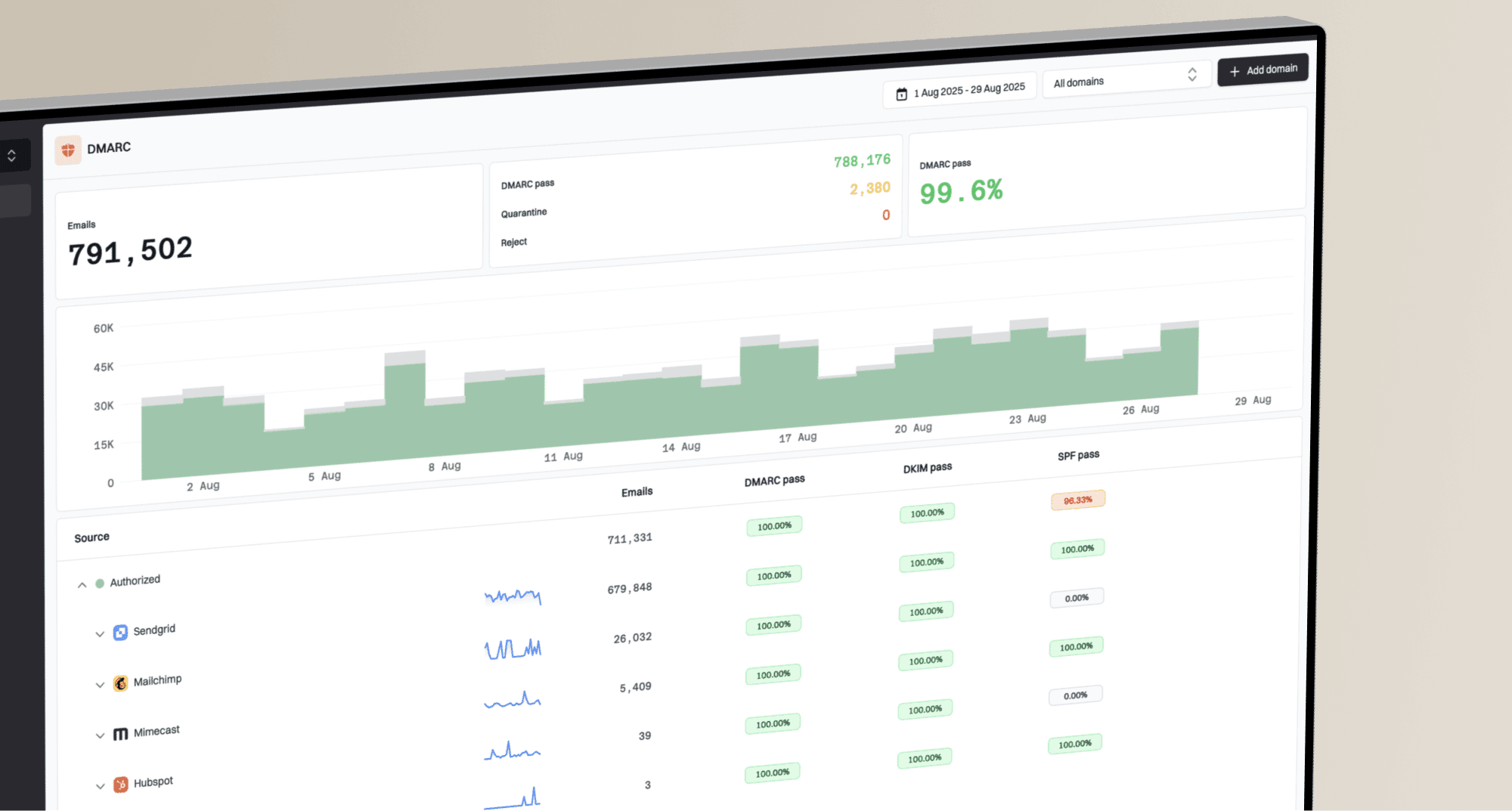
Suped DMARC dashboard showing email volume, authentication health, and source breakdown
The concrete Suped workflow is to add the domain, confirm DMARC reporting, review sending sources, and compare authentication health before and after routing changes. Use the MTA queue and Google Email Log Search to measure inbound delays.
What to monitor after the change
- Receiving load: messages per final Google Workspace account per minute, hour, and day.
- Queue health: oldest queued message, retry counts, and delivery rate on the ingest layer.
- Authentication: SPF, DKIM, DMARC pass rates for senders that use your domain.
- User impact: median and worst-case time between first acceptance and mailbox visibility.
Views from the trenches
Best practices
Calculate per-account hourly volume before changing Gmail routing or MX priority.
Use a queue or MTA for machine mail, then send only exceptions into Workspace inboxes.
Compare headers with admin logs before blaming Google for the full delivery delay.
Treat catch-all mailboxes as temporary safety nets, not production intake pipes.
Common pitfalls
Forwarding every bulk message into Gmail keeps the same receiving limit in place.
Sharding into many mailboxes creates search and access issues without fixing design.
Header gaps are easy to misread when upstream retry queues are not reviewed first.
Groups help distribution, but they are not unlimited storage for automated floods.
Expert tips
Design the ingest layer to degrade by priority, not by random mailbox delay queues.
Keep raw mail outside Workspace when every message must be retained and searched.
Set queue metrics around oldest message age, not only accepted message counts per hour.
Use authentication reports to catch route changes that break legitimate sources.
Marketer view
Marketer from Email Geeks says Google Workspace receiving limits explain why excess messages wait until capacity returns.
2023-08-02 - Email Geeks
Marketer view
Marketer from Email Geeks says a self-hosted server helps only when the MTA queue and retry settings are tuned.
2023-08-02 - Email Geeks
Recommended high-volume mail design
For 50,000 incoming emails per hour, do not try to tune two Google Workspace mailboxes into a bulk ingestion system. Google publishes per-account receiving limits, and the reported workload exceeds them by a wide margin. Catch-all routing and internal forwarding concentrate the problem instead of solving it.
The durable fix is to split the flow. Send human mail to Google Workspace. Send machine mail to a queue, self-hosted MTA, or application endpoint. Keep the raw archive outside Gmail, then pass only useful summaries, exceptions, or selected conversations into Workspace. Use headers, sender logs, SMTP response codes, and Email Log Search to prove the delay point. Suped can then keep DMARC, SPF, DKIM, and domain health visible for mail sent under your domain while the mail route changes.