
How to fix personal emails going to spam from a custom domain?

Updated on 25 Oct 2026: We added shared IP troubleshooting and clarified authentication checks for personal custom-domain email.
The direct fix is to authenticate the custom domain, confirm the mail is leaving through the right provider, confirm replies can reach the domain, check for unauthorized sending, check whether the domain or sending IP is on a blocklist (blacklist), and compare provider response codes or original headers before guessing. Personal email still has to pass the same trust checks as commercial email. Gmail, Outlook, Yahoo, and corporate filters do not care that the sender is a contractor, consultant, founder, or one-person business. If the domain runs its own SMTP server, forward and reverse DNS, TLS, and basic message headers belong in the first check as well.
- Authenticate: Publish valid SPF, enable DKIM at the mailbox provider, and add a monitoring DMARC record.
- Verify routing: Make sure the person sends through the mailbox provider that the DNS records authorize, or that self-hosted SMTP has matching PTR and forward DNS.
- Confirm replies: Use the mailbox provider's MX records and test the actual reply address; MX records control incoming mail.
- Check account activity: Look for sudden volume spikes, unfamiliar sending IPs, unknown app access, or SMTP credentials used outside the normal route.
- Check reputation: Look for domain and sending IP listings, including URI blacklists that affect links.
- Test content: Send a plain text message first, then add the signature, links, images, and attachments back one at a time.
Start with the most likely causes
When a personal mailbox on a custom domain goes to spam, the cause usually falls into one of a few buckets. The domain has incomplete authentication, the person is sending through a path that the domain did not authorize, a mailbox or sending credential has been abused, the domain or IP has a reputation issue, or the message content looks risky to the recipient filter. A recently registered or reused domain also needs investigation when there is little sending history or evidence of previous abuse.
Gmail's sender requirements cover SPF or DKIM, valid forward and reverse DNS, TLS, RFC 5322 message formatting, and spam rates below 0.3%. Google recommends staying below 0.10%. Yahoo also requires SPF or DKIM, low complaint rates, valid sending-IP DNS, and RFC 5321/RFC 5322 compliance. Bulk senders face additional requirements, including both SPF and DKIM plus DMARC. Gmail counts about 5,000 or more daily messages to personal Gmail accounts across the same primary domain toward bulk-sender status. Low-volume personal correspondence does not automatically fall into that category.
|
|
|
|---|---|---|
Authentication failure | SPF, DKIM, DMARC | Correct records and enable signing |
Wrong route | Sender path | Use provider SMTP |
Account abuse | Logs, sessions, credentials | Contain and rotate |
Weak infrastructure | PTR, TLS, headers | Fix server identity |
Broken reply path | MX, Reply-To, From | Fix inbound routing and test replies |
Old domain history | Past web or mail use | Clean history issues |
Bad reputation | Domain, IP | Fix then delist |
Risky content | Subject, links, images | Simplify message |
Low engagement | Recipient history | Ask recipients to mark wanted mail as not spam |
Common causes for personal custom-domain email going to spam.
Personal does not mean trusted
A custom domain with one mailbox still has authentication results and reputation signals. A small sender can be spoofed, misconfigured, listed on a blocklist, affected by a previous owner, or harmed by a compromised account. Passing authentication does not guarantee inbox placement.
Add DMARC reporting at p=none, verify which services send mail, then tighten the policy after legitimate mail passes. A working reply address is a separate operational check, not a substitute for authentication.
Step 1, confirm the sending path
Ask one simple question first: where is the message actually sent from? If the domain is hosted on Google Workspace but the user sends mail through a website host, a local ISP SMTP server, a scanner, a CRM, or a phone app with old settings, the authentication can fail even when DNS looks right.
With Microsoft 365, separate normal person-to-person mail from messages sent by a CRM, booking tool, billing app, or sending platform using the same From domain. If that third-party mail goes back into the organization's own Microsoft 365 tenant, Microsoft 365 can score it as self-to-self spoofing when DKIM or SPF passes under the third party's domain instead of the visible From domain.
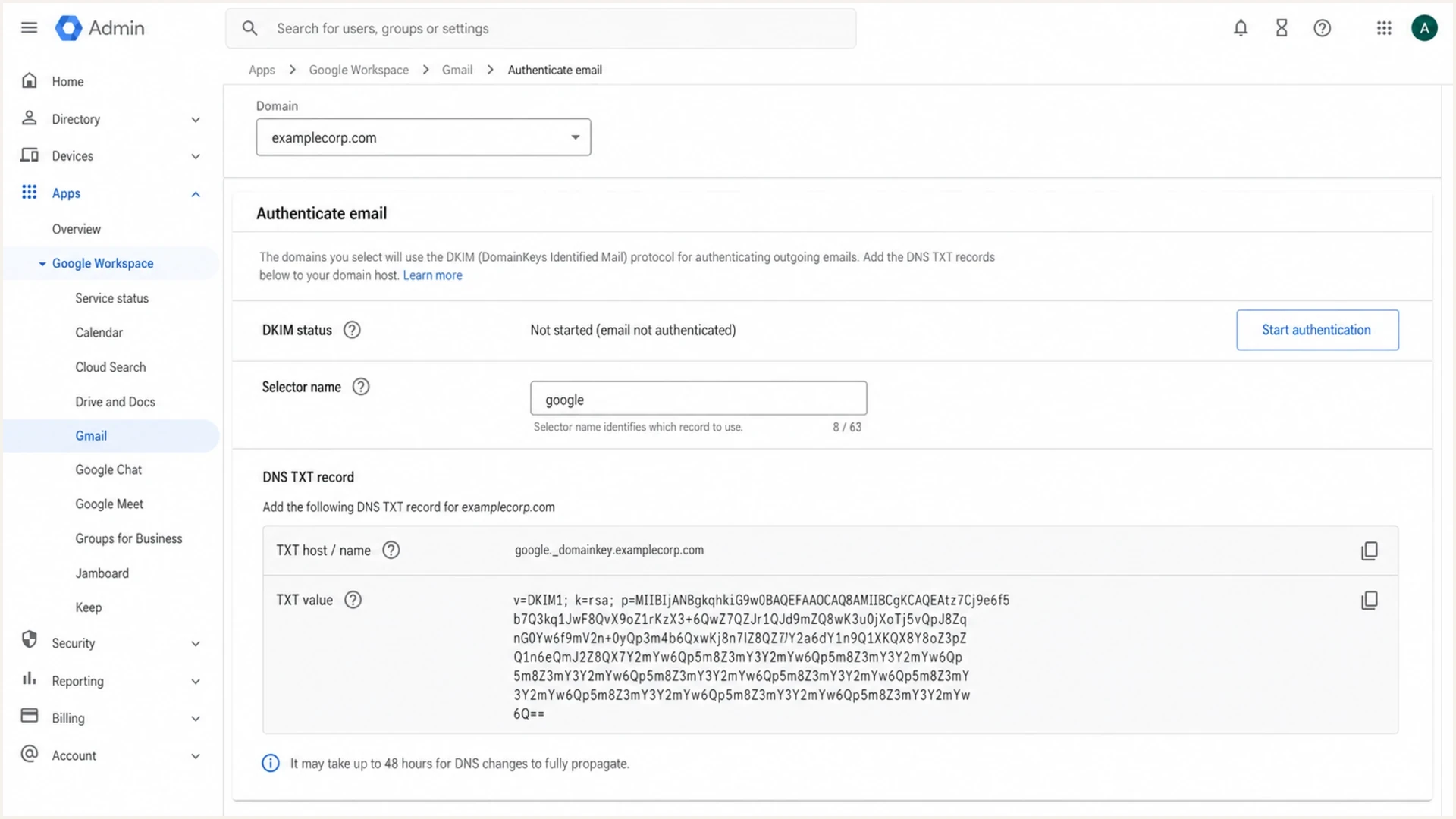
Google Admin console DKIM settings for authenticating custom-domain email.
If the route is a self-hosted server or VPS, check the infrastructure too. The sending IP should have a PTR record, and the PTR hostname should resolve back to that IP through an A or AAAA record. Configure a valid SMTP EHLO hostname and use TLS for outbound delivery. The IP owner or hosting provider normally controls reverse DNS; adding a TXT record at the domain does not create a PTR record. See the PTR configuration guidance for the server-side check.
Also confirm the domain can receive replies. Use the mailbox provider's required MX records and test the From or Reply-To mailbox that receives responses. MX records route incoming mail and do not authorize outgoing mail. A different Reply-To address is legitimate when it is intentional and works.
If the recipient forwards mail into another mailbox, treat forwarding as part of the route. Forwarding often breaks SPF because the forwarding IP is not authorized by the original envelope domain. Preserve the original DKIM signature by avoiding changes to signed content. SRS rewrites the envelope sender to help SPF at the forwarding hop, but does not by itself restore the domain match DMARC needs. ARC records earlier authentication results for receivers to evaluate; it does not guarantee acceptance.
A custom domain does not need a website to send personal mail, but a domain that opens to a parked page, DNS error, or broken certificate weakens manual trust checks. If the domain is visible in the address or signature, use a small page or a working 301 redirect to the main brand site.
Clean route
- Provider match: The mailbox uses its authorized SMTP route, with SPF checked against the actual envelope domain.
- DKIM signing: Outbound messages carry a valid DKIM signature for the custom domain.
- Header match: At least one passing SPF or DKIM result has the domain match DMARC requires.
- PTR and TLS: Self-hosted SMTP has matching PTR and forward DNS plus TLS.
- Reply path: The domain has MX records and replies go to a working mailbox.
Messy route
- Old SMTP: A desktop client sends through an ISP server that the domain never authorized.
- Website mail: A contact form puts a visitor's address in From. Use an authenticated domain address in From and the visitor's address in Reply-To.
- Forwarding path: Forwarding changes the sending IP, causing SPF failure unless the forwarding route handles the envelope sender correctly.
- Broken PTR: The sending IP has no PTR record, or its PTR hostname does not resolve back to that IP.
- No inbound mail: Replies fail because the inbound route or Reply-To mailbox is broken.
For a one-person domain, the simplest fix is often to use the mailbox provider's own webmail or official SMTP settings everywhere. Test webmail against the desktop or phone app: if only the app fails, correct its outgoing server and account settings before changing domain-wide DNS.
Step 2, set SPF, DKIM, and DMARC
SPF says which servers can send for the SMTP MAIL FROM domain, normally shown as Return-Path after delivery. DKIM adds a cryptographic signature. DMARC states the domain owner's handling preference when neither method produces a passing result with the required domain match to the visible From address, and it requests reports about use of the domain.
DMARC passes when either SPF passes and its MAIL FROM domain has the required relationship to the visible From domain, or DKIM passes and its signing domain has that relationship. Under the default relaxed domain matching, the domains can use different subdomains of the same organizational domain. Strict domain matching requires an exact domain match. A simple SPF or DKIM pass is not enough when its authenticated domain does not match the visible From domain.
For a personal domain, publish one DMARC TXT record at _dmarc.example.com, collect aggregate reports, and fix legitimate sources before enforcing a stricter policy. Replace example.com and the reporting address in the examples with your own domain and a working report destination.
Treat SPF as one space-separated TXT record at the actual envelope-sender domain. Copy each provider include exactly and add it once. SPF allows at most 10 DNS-querying terms during evaluation, including nested includes and redirects; exceeding the limit produces permerror. Multiple SPF records beginning with v=spf1 at the same hostname also cause an error. A malformed include such as include: _spf.example contains an invalid space after the colon.
If the sender uses Google Workspace, the SPF record usually includes Google's mail servers, DKIM is generated inside Google Admin, and DMARC is published at the domain's active DNS host. Publish the DKIM TXT record, then select Start authentication in Google Admin. Suped's domain health checker checks authentication records together.
Example SPF record when only Google Workspace sends maildns
example.com TXT v=spf1 include:_spf.google.com ~all
Illustrative DKIM record with a shortened public keydns
google._domainkey.example.com TXT v=DKIM1; k=rsa; p=MIIB...
For DKIM, use the provider's current selector and verify the signature on real outbound mail. Keep old public keys available until messages signed with them have cleared expected delivery retries. The shortened key above is not a usable DNS value. Gmail requires a DKIM key of at least 1024 bits and recommends 2048 bits where supported.
Microsoft 365 uses two DKIM CNAME records for a custom domain. Copy the exact selector targets generated for that domain, publish both records, and enable signing for the custom domain. A passing signature under an onmicrosoft.com domain does not by itself satisfy DMARC for your custom From domain. Follow Microsoft's DKIM setup rather than copying a Google-style TXT example.
After a DNS edit, confirm the record is published on the domain's authoritative nameservers, not only in a registrar account that no longer hosts its DNS. Check that the DNS interface has not appended the domain twice. Cached answers persist until their existing TTL expires; record changes and provider activation take time. Send a fresh message after the new answers are visible.
Starter DMARC monitoring recorddns
_dmarc.example.com TXT v=DMARC1; p=none; rua=mailto:dmarc@example.com
Start with reporting
Use p=none first on a domain with unknown senders. Read the reports and test every legitimate source, including occasional invoice or calendar mail, before moving to p=quarantine and then p=reject. The pct tag is historic under RFC 9989; do not rely on percentage sampling to stage enforcement. A monitoring policy does not exempt messages from spam filtering.
?
What's your domain score?
Deep-scan SPF, DKIM & DMARC records for email deliverability and security issues.
DMARC aggregate reports arrive as machine-readable files, so a dedicated reporting address prevents a personal inbox from filling with raw data. With DMARC monitoring, Suped parses reports and groups sending sources for investigation. Reports usually arrive daily and cover participating receivers; they do not prove inbox placement or identify every message. Use the report destination supplied by Suped during setup, including any required external-report authorization.
Step 3, test a real email
DNS checks tell you whether the records exist. A real email test tells you whether a message sent from the actual mailbox passes SPF, DKIM, and DMARC, and whether the content introduces risk. Send a normal message with a real subject line to an email tester before changing everything at once.
When a recipient can share the message, inspect its full original headers. In Gmail, open the message menu and select Show original. Read the Authentication-Results added by the destination receiver and compare SPF's smtp.mailfrom, DKIM's header.d, and DMARC's header.from, rather than assuming a pass on an unrelated domain is enough. Also inspect Received headers, Message-ID, and gateway scoring. For Microsoft 365, compauth and X-Forefront-Antispam-Report values such as CAT:SPOOF and SCL help explain filtering. Request the original message as an attachment rather than a spam-folder screenshot.
Separate spam placement from rejection or delay. A message in the recipient's junk folder was accepted and filtered. A 4xx SMTP response is a temporary failure that the sending server normally retries; a 5xx response is a permanent rejection for that attempt. Save the full bounce or delivery-status notice and provider trace, including the timestamp and recipient domain, because the exact text identifies the condition.
Use local gateway scoring lines as clues, not as a universal Gmail or Outlook verdict. A score near the receiver's threshold matters when a corporate gateway or self-managed server enforces that threshold. A small rule hit points to something to review, such as HTML-only content, a suspicious subject, or malformed headers, but authentication failures, blocklist or blacklist listings, and complaints still come first.
Email tester
Send a real email to this address. Suped shows a results button when the test is ready.
?/43tests passed
Run at least two tests. First, send a plain text message with no links, no image signature, and no attachment. Second, send the normal message that lands in spam. If both authenticate but only the plain message reaches the inbox, investigate the signature, links, and attachments next. A tester's score does not predict every recipient's spam decision.
Fix order by evidence
Use the test result to choose the next action instead of changing DNS and content at the same time.
Authentication fails
First
Fix SPF, DKIM, and DMARC before content tweaks.
Auth passes, spam remains
Second
Check reputation, links, images, and recipient history.
Plain text inboxes
Third
Rebuild the signature and links in small steps.
Do not use only one recipient as proof. Test Gmail, Microsoft, and at least one business mailbox if those are the audiences that matter. If Gmail rejects or defers mail, keep the complete SMTP text: 5.7.26 points to authentication or policy problems, while 4.7.28 commonly indicates rate limiting or unusual sending activity. If only one recipient reports spam, verify the exact address, recipient-domain spelling, alias, and forwarding path before treating it as a domain-wide failure.
Do not rely on a provider-wide allowlist. A recipient marking wanted mail as Not spam or adding the sender to contacts can help that mailbox, but does not repair authentication or shared IP reputation. For a corporate recipient, ask its administrator to inspect message tracing, quarantine, and filtering rules.
Step 4, check reputation and blocklists
A custom domain can go to spam because the domain appears in a message body, even when the sending IP is clean. This matters for personal domains with websites, portfolios, old plugins, hacked forms, or stale redirects. A URI blocklist (blacklist) listing can hurt messages that include the domain as a link.
Also check domain history when the domain is new to the sender. A reused domain can carry reputation from old websites, abandoned redirects, malware cleanup failures, or previous mail streams. If the signature links to that domain, the website history becomes part of the message's risk profile.
For recurring problems, Suped's blocklist monitoring helps identify listings that return after removal. A clean public blacklist check does not prove a good reputation with every mailbox provider; providers also use private signals.
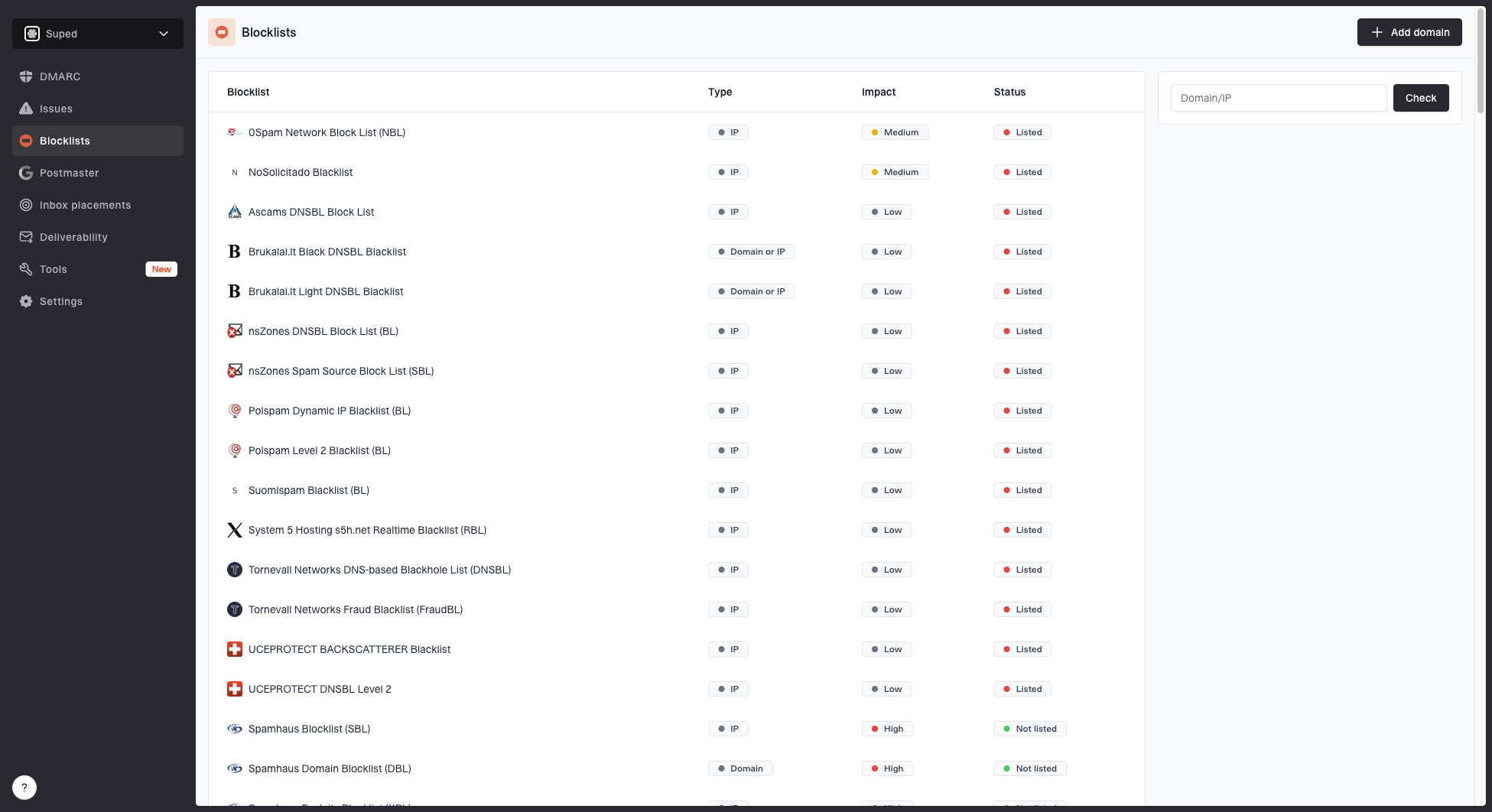
Blocklist monitoring page showing domain and IP checks across blocklists with importance and status
- Find the listing: Check the exact domain, subdomain, and sending IP involved in the failed message.
- Fix the cause: Remove hacked pages, bad redirects, malware, spammy forms, or abandoned marketing links.
- Request removal: Submit the delisting request only after the domain no longer triggers the listing reason.
- Monitor recurrence: Watch the domain and IP after removal so the issue does not quietly return.
Do not delist before fixing
Repeatedly asking for removal without fixing the website, link, or sending problem can waste time and leave the sender with the same spam outcome. Treat a blocklist or blacklist listing as evidence, then find the condition that created it.
If authentication passes, check shared IP reputation
With shared hosting or a hosted mailbox, other customers use the same outbound IP. Their sending activity affects that IP's reputation even when your own SPF, DKIM, and DMARC pass. Google's sender guidelines describe this shared IP effect. Identify the outbound IP in a received message or provider logs, not the website's IP or the domain's MX record.
If repeated tests fail at one provider, send the mailbox host evidence it can investigate:
- Include the sending address, recipient domain, timestamp with timezone, and Message-ID for each affected message.
- Attach original headers for accepted messages or the complete SMTP response for rejected or delayed messages.
- Record the outbound IP and authentication results, plus whether the same message reaches other providers.
- Ask the host to check its outbound pool, address abuse or relevant listings, and investigate routing with the receiving provider.
A dedicated IP is not an automatic fix for a low-volume personal mailbox. It still needs reputation management and ongoing maintenance. Keep normal correspondence steady, avoid artificial warm-up traffic, and retest after verified changes. DNS cache expiry and reputation recovery are separate processes; neither a clean test nor a delisting guarantees immediate inbox placement.
Step 5, reduce content risk
If authentication passes and reputation looks clean, strip the message down. Personal senders often have risky content without realizing it: a blank or vague subject, an unexpected Reply-To address, a heavy HTML signature, images hosted on a poorly maintained domain, tracking redirects, short links, or a previously listed website URL. Ordinary PDF attachments and different reply addresses are not automatic spam triggers; remove them temporarily to isolate a difference.
Keep the display name plain and accurate. Do not fake Re: or Fwd:, hide HTML text, or use link text that masks the destination. Those details can make an otherwise normal personal message look misleading to mailbox filters.
Keep while testing
- Plain text: Use a short message that looks like a normal person wrote it.
- Clear subject: Use a specific subject line that matches the message.
- Simple signature: Use name, role, company, and phone number without logos or tracking links.
- Direct reply: Ask a known recipient to reply after moving the message to the inbox.
Remove while testing
- Image signature: Remote images add another reputation signal and can look promotional.
- Short links: Redirectors and trackers make filters inspect another domain chain.
- Attachments: Leave files out of the comparison test, then add the required attachment back after checking the result.
Send the comparison messages through the same mailbox provider to the same consenting recipients, changing one content element at a time. Keep the test results tied to the sending route so a different outbound IP is not mistaken for a content fix.
If the personal domain also sends newsletters, invoices with promotional inserts, or recurring updates, do not mix them with direct person-to-person mail. Use a stable From address for each mail type, send only to opted-in recipients, add unsubscribe handling for subscribed mail, and keep volume steady instead of sending bursts from a cold domain. For image-heavy or link-heavy subscribed mail, reduce the HTML weight, keep the main action obvious, and make the unsubscribe link visible before any clipped footer. High complaints, stale recipients, and hidden unsubscribe paths hurt the domain faster than image count alone. For bulk senders, Gmail and Yahoo require easy unsubscribe for marketing and subscribed messages. Gmail's one-click requirement uses List-Unsubscribe and List-Unsubscribe-Post headers; a footer link alone is insufficient. These bulk subscription requirements do not apply to ordinary personal correspondence.
Step 6, secure the account and stop unauthorized sending
If inbox placement worsened suddenly, check for a compromised mailbox, SMTP password, app password, API key, or relay. Messages sent through valid credentials can pass SPF, DKIM, and DMARC because they use the legitimate sending route. Authentication proves that the domain authorized the route; it does not prove that the account owner intended each message.
Do not rely on the Sent folder alone. SMTP, API, and relay traffic does not always save a copy there. Review the mailbox provider's audit and sending logs for unexpected volume, unfamiliar IP addresses, new forwarding rules, unknown app access, changed recovery details, and new aliases or delegates.
- Contain access: Change the password, require MFA, sign out active sessions, and remove unknown recovery methods.
- Rotate sending credentials: Replace SMTP passwords, app passwords, API keys, and relay credentials used by the domain.
- Remove persistence: Review forwarding rules, inbox rules, delegates, OAuth grants, and connected applications.
- Close unsafe routes: Disable unused SMTP access and confirm that no self-hosted server accepts unauthenticated relay traffic.
- Track recovery: Compare daily volume, bounces, complaints, DMARC sources, and blocklist status after containment.
Suped's DMARC reporting can show unexpected sources using the domain and confirm whether they disappear in later reporting periods. Abuse through an already authorized provider can look like normal authenticated traffic in aggregate reports. Use the mailbox provider's audit logs to identify the account or credential responsible.
Monitor authentication with Suped
Suped is our DMARC and email authentication platform. Use its reports and DNS checks to identify a failing source, verify that it is legitimate, and follow the relevant configuration steps. Use blocklist monitoring to track listings after cleanup.
For a personal domain, Suped helps when the owner does not want to read raw XML reports or memorize SPF and DKIM rules. For an MSP or agency, the same workflow scales across many small business domains from one dashboard.
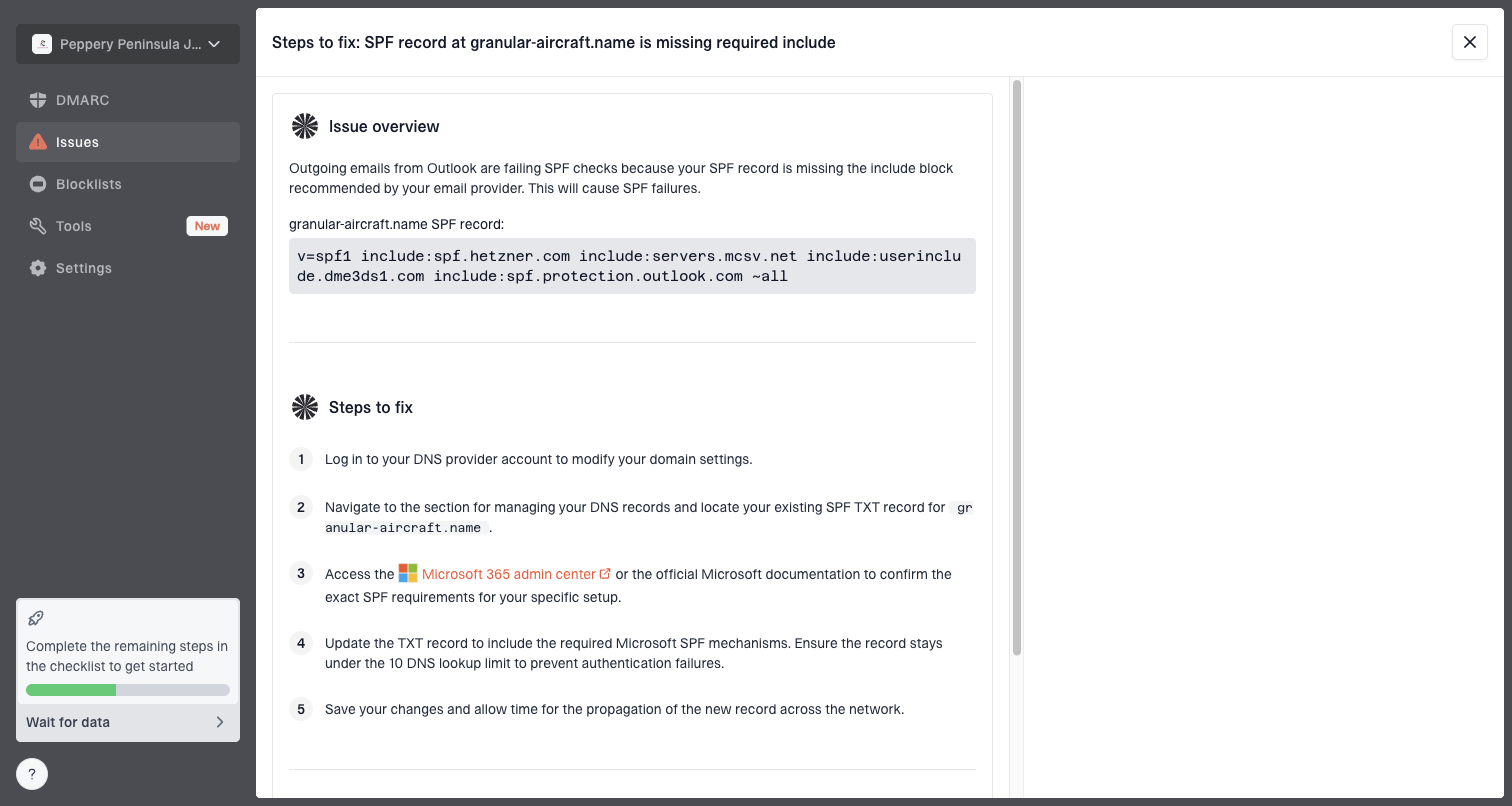
Issue steps to fix dialog showing the issue overview, tailored fix steps, and verification action
- Guided fixes: Suped detects authentication issues and gives steps that map to the affected source.
- Report-based alerts: Review new authentication failures and unexpected sources as receiver reports arrive.
- Unified checks: DMARC, SPF, DKIM, blocklist signals, and deliverability insights sit in one place.
- Multi-domain view: MSPs can manage client domains, reports, policy staging, and issue resolution cleanly.
DMARC reports show authentication results and reported policy handling, not a measurement of Gmail or Outlook inbox placement. Confirm delivery with recipient-side checks and mailbox-provider logs.
Views from the trenches
Best practices
Check SPF, DKIM, and DMARC before changing content or asking recipients to mark it safe.
Test a plain text email first, then add signatures, links, and attachments back gradually.
Review domain and IP reputation together because spam filters inspect both signals.
Common pitfalls
Treating a personal mailbox as exempt from authentication causes avoidable spam placement.
Submitting delisting requests before fixing the domain issue often leads to repeat listings.
Assuming DNS is correct without testing a real sent message hides route-specific failures.
Expert tips
Use DMARC reporting at p=none to discover every source before enforcing a stricter policy.
Check links inside signatures because URI blocklist or blacklist hits can affect clean mail.
Keep the sending route simple by using the mailbox provider web app or official SMTP.
Marketer view
Marketer from Email Geeks says a custom-domain personal sender still needs SPF and DKIM because inbox providers evaluate the domain, not the sender's intent.
2019-08-14 - Email Geeks
Marketer view
Marketer from Email Geeks says links and images in a personal signature can be enough to create spam placement when the domain reputation is weak.
2019-08-14 - Email Geeks
The practical fix order
Keep a record of each change and retest before changing another variable. If there is evidence of account abuse, stop it immediately; otherwise use this order to investigate:
- Confirm source and replies: Identify the exact provider, client, app, or server sending the mail, then verify MX, Reply-To, PTR, and TLS where they apply.
- Stop unauthorized sending: Review account activity, contain suspicious access, and rotate exposed sending credentials.
- Authenticate domain: Publish one valid SPF record, enable DKIM, and add DMARC reporting.
- Run tests: Compare a plain text message with the normal message that lands in spam.
- Check reputation: Investigate domain and sending IP reputation, including URI blacklists and shared outbound pools.
- Simplify content: Remove risky signature elements and rebuild only after inbox placement improves.
If the problem remains at one provider after these checks, use the shared IP escalation checklist above. Ask known recipients to mark wanted messages as Not spam, but do not treat that action as proof that the underlying sending problem is fixed.