
How do I properly set up SPF and DKIM records for email marketing, including handling multiple SPF records, IP ranges, bounce capturing, and Google Postmaster Tools verification?

Updated on 18 Oct 2026: We clarified DNS publishing, SPF lookup limits, bounce handling, and Gmail bulk-sender requirements.
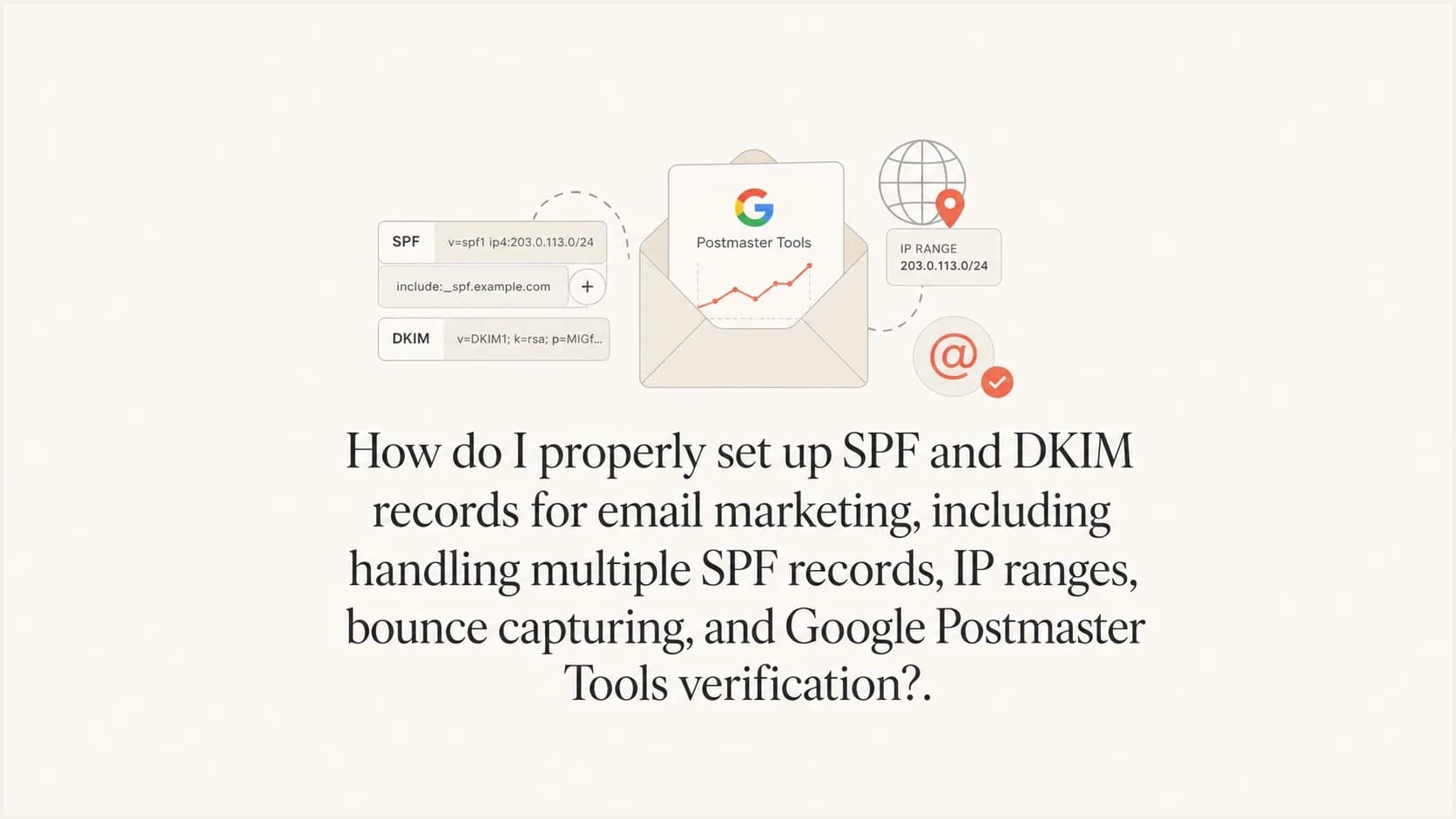
Publish one SPF record at each envelope sender domain, publish separate DKIM records for each selector, and keep Google verification in its own TXT record. If the same DNS hostname has two TXT records that both start with v=spf1, receivers return an SPF permerror. Separate domains and subdomains can each have their own SPF record. Merge authorized senders at the affected hostname into one SPF value or remove the record that does not belong.
Start by separating four jobs that often get mixed together: SPF authorizes the servers allowed to send for the envelope sender domain, DKIM signs the message with a domain in the signature, bounce handling returns delivery failures to the platform that sent the mail, and Google Postmaster Tools verification proves domain ownership. These are related, but they are not the same DNS record.
A good first pass is to test the domain, then send a real message and inspect the headers. Suped's email tester helps with that send-and-check workflow because DNS can look correct while the actual message still uses the wrong Return-Path or DKIM domain.
Fix duplicate SPF records and separate verification tokens
If the DNS currently has an SPF record for Google, an SPF record for an IP range, and a Google verification token all pasted together, split them by purpose. The SPF mechanisms go in one SPF TXT record. The Google verification token goes in a different TXT record. DKIM gets its own TXT record or CNAME at the selector host.
Incorrect duplicate SPF records at the same hostnameDNS
@  TXT  "v=spf1 include:_spf.google.com include:_spfprod.ngpvan.com ~all"
@  TXT  "google-site-verification=provided-token"
@  TXT  "v=spf1 ip4:66.96.128.0/18 ?all"
Corrected root TXT records if the broad IP range is unusedDNS
@  TXT  "v=spf1 include:_spf.google.com include:_spfprod.ngpvan.com ~all"
@  TXT  "google-site-verification=provided-token"
Do not keep the IP range unless it is a confirmed outbound range for your mail service. An IPv4 /18 block contains 16,384 addresses. Authorizing an entire hosting or colocation range also authorizes unrelated servers in that range at the SPF layer.
- Use an IP mechanism only for confirmed outbound servers or ranges supplied by your sending provider.
- Remove broad hosting ranges that are unrelated to your mail; use the provider's documented SPF include when required.
- Confirm outbound IPs in received message headers and with the provider before authorizing a range.
- Check that your provider prevents other customers from using your domain as their envelope sender.
|
|
|
|
|---|---|---|---|
SPF | Envelope sender domain | Authorize sender | Two SPF records at one host |
DKIM | selector._domainkey.signing-domain | Sign mail | Wrong selector |
Bounce | Subdomain | Return failures | No routing |
Google token | Verified domain | Prove ownership | Inside SPF |
A compact map of what belongs where.
How SPF should be structured
SPF is evaluated against the envelope sender domain, also called the Return-Path or RFC5321.MailFrom domain. That detail matters because the visible From address can be your campaign domain while the bounce address uses a different subdomain or a vendor domain. SPF only contributes to DMARC when the SPF domain matches the visible From domain under DMARC rules.
Inventory all senders, including website forms and automated customer messages, and record each envelope sender domain before editing SPF. SPF records do not inherit from a parent domain. Servers you operate also need an appropriate HELO/EHLO identity and SPF policy, especially for delivery notifications with an empty envelope sender.
For a domain that sends through Google Workspace and NGP VAN, a syntactically valid SPF record looks like this if both services really send with your domain as the envelope sender:
Single SPF recordDNS
@ TXT "v=spf1 include:_spf.google.com include:_spfprod.ngpvan.com ~all"
That record has one version tag, two include mechanisms, and a final all mechanism. Keep ~all while testing; it returns softfail for unlisted IPs. Use -all only after confirming that all legitimate outbound IPs pass SPF for this envelope sender domain. A DKIM pass alone does not prove SPF is complete. The -all mechanism returns fail; the receiver decides how to handle the message. Never use +all, which authorizes every IP.
- A sending domain or subdomain must have only one SPF TXT record beginning with v=spf1.
- Publish SPF at the envelope sender domain used by the sending platform.
- Use documented provider includes or confirmed outbound IPs instead of unrelated network ranges.
- The ten-term lookup limit covers evaluated include, a, mx, ptr, exists, and redirect terms, including nested policies. Exceeding it returns permerror; ten visible includes are not automatically safe.
Use ip4:192.0.2.10 for one IPv4 address, ip4:192.0.2.0/28 for a 16-address CIDR block, or ip6:2001:db8::10 for one IPv6 address. These documentation addresses must be replaced with your actual outbound IPs. IP mechanisms do not consume the lookup budget; include mechanisms take domain names. These rules are defined in RFC 7208.
IP range risk
SPF should authorize the smallest sender scope that still covers real mail.
Good
Exact sender
A single dedicated outbound IP or a provider include.
Watch
Narrow CIDR
A small assigned CIDR used only by your mail service.
Bad
/18 block
A full hosting or colocation block shared with unrelated senders.
Use Suped's SPF checker to check the combined policy and nested lookup count before publishing. Remove inactive senders first; if using Suped's Hosted SPF or SPF flattening, confirm that provider IP changes are kept current.
How DKIM should be structured
DKIM is different from SPF because multiple DKIM records are normal. Each DKIM record sits at a unique selector host, such as a Google selector or a marketing platform selector. The receiving server reads the selector in the DKIM-Signature header, queries that selector, and uses the public key to verify the message. For d=example.com and s=selector1, the lookup name is selector1._domainkey.example.com.
Illustrative DKIM records; replace the key and target with provider valuesDNS
google._domainkey  TXT  "v=DKIM1; k=rsa; p=provider-public-key"
selector1._domainkey  CNAME  provider-dkim-target
For Google Workspace, generate the DKIM key in the admin console, add the TXT record at the selector host Google gives you, then turn signing on. For the email marketing platform, add the TXT or CNAME records it provides. The domain after d= in a passing DKIM signature must match the visible From domain under your DMARC matching mode. DMARC passes when either SPF or DKIM passes with that domain match. Relaxed mode, the default, allows the same organizational domain, such as bounce.example.com and news.example.com. Strict mode requires identical domains; check aspf and adkim before relying on subdomain matching.
SPF
- Publish one SPF record at each envelope sender hostname.
- SPF checks the connecting IP against the policy for that envelope sender domain.
- Duplicate records and excessive lookups cause errors; stale or overbroad ranges authorize the wrong servers.
- Forwarding can change the connecting IP and break SPF.
DKIM
- Use separate selector records for different sending providers.
- DKIM verifies a signature using the signing domain and selector in the message header.
- A wrong selector, a damaged key, or disabled signing causes failures.
- DKIM can survive forwarding if the signed content remains intact; later message changes can break it.
After publishing a DKIM selector, use a DKIM checker to confirm the record parses correctly, then send a live message and inspect the signed domain in the headers. DNS validation alone does not prove the platform is signing outgoing mail.
DKIM key length and rotation
Use a 2048-bit RSA DKIM key when the sending platform and DNS host support it. Google recommends 2048-bit keys and offers 1024-bit keys only when the DNS host cannot handle the longer record. The private key stays with the sender. DNS contains only the public key or a CNAME that points to it.
- Follow the sending platform's rotation procedure; generate a new key under a new selector when supported.
- Publish the new TXT or CNAME record and confirm that it resolves before switching signing.
- Enable the new selector, then check the d= and s= values and DKIM pass result on a live message.
- Keep the old public key available for queued mail, then remove it after the provider's overlap period.
Do not replace the public key at an active selector while messages signed with the old key are still in transit. DNS caching can also leave receivers using the wrong key. Where supported, a new selector allows an overlap period; confirm whether the platform keeps signing during key generation.
Publish and verify the DNS records
Edit records at the authoritative DNS host. Google's SPF setup instructions describe the host and value fields. Many DNS panels append your domain automatically: enter google._domainkey when the panel adds example.com, rather than creating google._domainkey.example.com.example.com. Use the default TTL unless your DNS change plan specifies another value.
A TXT record can contain several quoted strings, each limited to 255 bytes. Receivers join those strings without inserting spaces. A long DKIM key or SPF value split into strings within one TXT record is different from two separate SPF records. Preserve spaces between SPF mechanisms and do not add spaces inside the DKIM public key.
DNS checks; replace example.com and google with your domain and selectorBASH
dig +short NS example.com
dig +short TXT example.com
dig +short TXT bounce.example.com
dig +short TXT google._domainkey.example.com
dig +short CNAME selector1._domainkey.example.com
dig @ns1.example.com TXT example.com
Run only the queries that match your configuration. For a CNAME-based DKIM selector, also query TXT at the returned target. Replace ns1.example.com with a nameserver from the NS result. Compare authoritative DNS with the resolver used by your mail tests: cached answers can remain until their TTL expires. A published record and a delayed dashboard update are separate checks.
Bounce capturing and sender domains
Bounce capturing is where many marketing setups fail quietly. The bounce address is the envelope sender, so it controls where delivery failures go and which domain SPF checks. If the marketing platform uses your domain in the Return-Path, it needs SPF authorization there and it needs DNS routing that sends bounces back to the platform. Configure a custom Return-Path in the sending platform as well as DNS when the provider requires it; changing Reply-To does not change the envelope sender. If the provider requires a CNAME at the bounce hostname, do not add TXT or MX records at that same hostname.
If the platform uses its own bounce domain, adding the platform's SPF include to your visible From domain does not make SPF pass for your domain. In that case, DKIM is the safer route for DMARC because the DKIM signing domain can match your visible From domain while the platform still handles bounces.
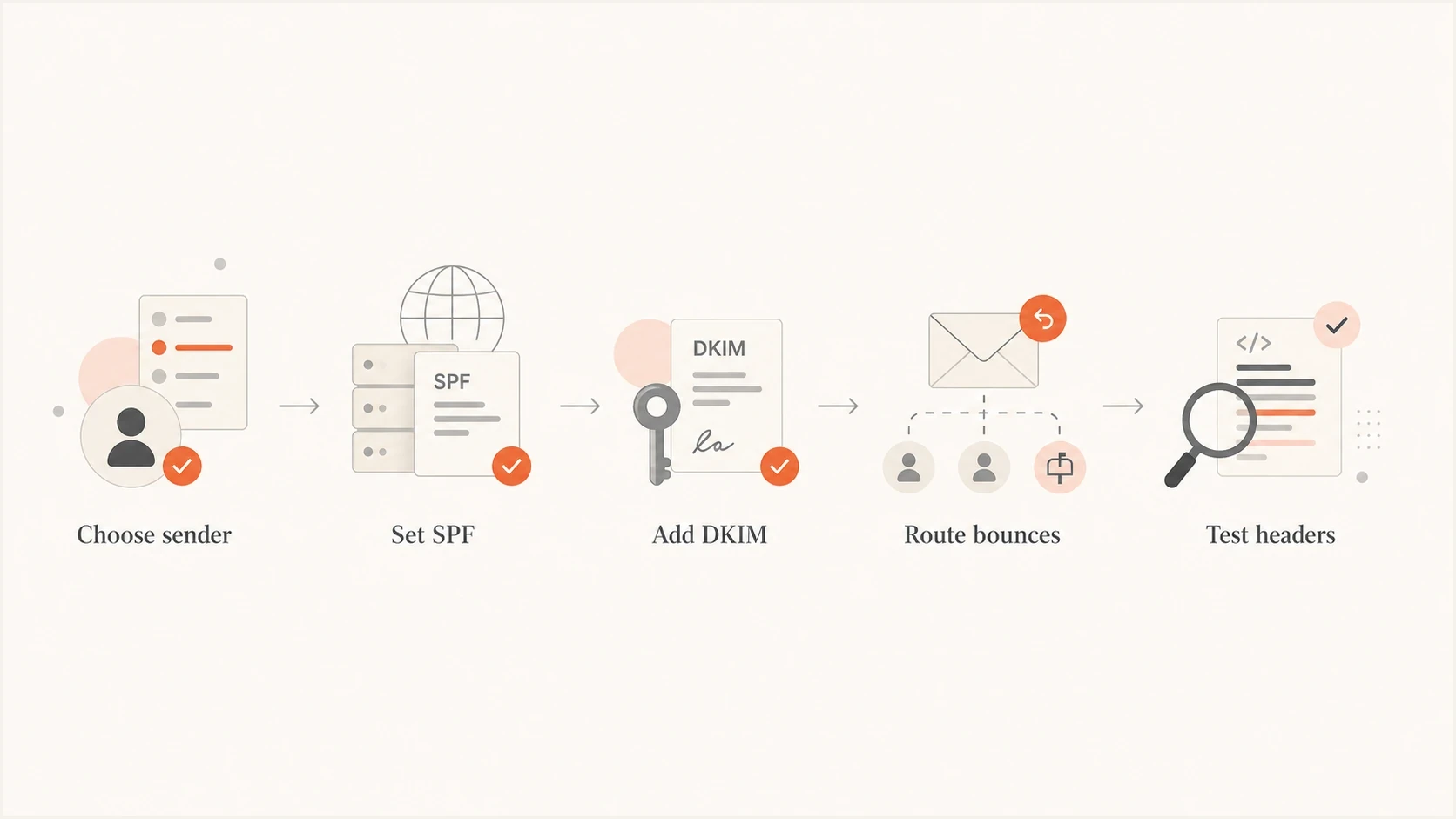
Email marketing setup flow: choose sender, publish SPF and DKIM, route bounces, then test headers
Test bounce handling with a deliberately invalid address on a test domain you control, after confirming it has no catch-all mailbox. Confirm that the platform logs the invalid-recipient failure and suppresses the address. If no event appears, check SMTP logs and platform event settings as well as Return-Path DNS; a missing event alone does not prove routing is wrong.
- Find the Return-Path domain on a delivered test message.
- Confirm that domain has the provider's required MX or CNAME routing and SPF setup.
- Verify that SMTP rejections and later delivery status notifications both reach the platform logs.
- Use passing DKIM with a matching signing domain when the bounce domain belongs to the platform.
An immediate SMTP rejection is logged by the sending platform; a later failure after acceptance normally returns a delivery status notification to the envelope sender. RFC 5321 distinguishes temporary 4xx responses, which allow retries, from permanent 5xx responses. Suppress invalid recipient addresses as hard bounces. Retry temporary deferrals under the provider's policy, and fix authentication errors rather than treating every 5xx response as proof that the recipient is invalid.
For a new marketing subdomain, use a dedicated sending identity such as a subdomain for campaigns and a separate bounce subdomain when the platform supports it. The related email subdomains setup should be documented so the main website, Google Workspace mail, and campaign mail do not overwrite each other's records.
Google Postmaster Tools verification
Google Postmaster Tools verification is separate from SPF and DKIM. Add either the DKIM d= domain or the SPF Return-Path domain used to authenticate outgoing mail. Copy Google's verification value into its own TXT record at that domain, then select Verify. Use the CNAME alternative if Google offers it. Do not paste the verification string into the SPF value.
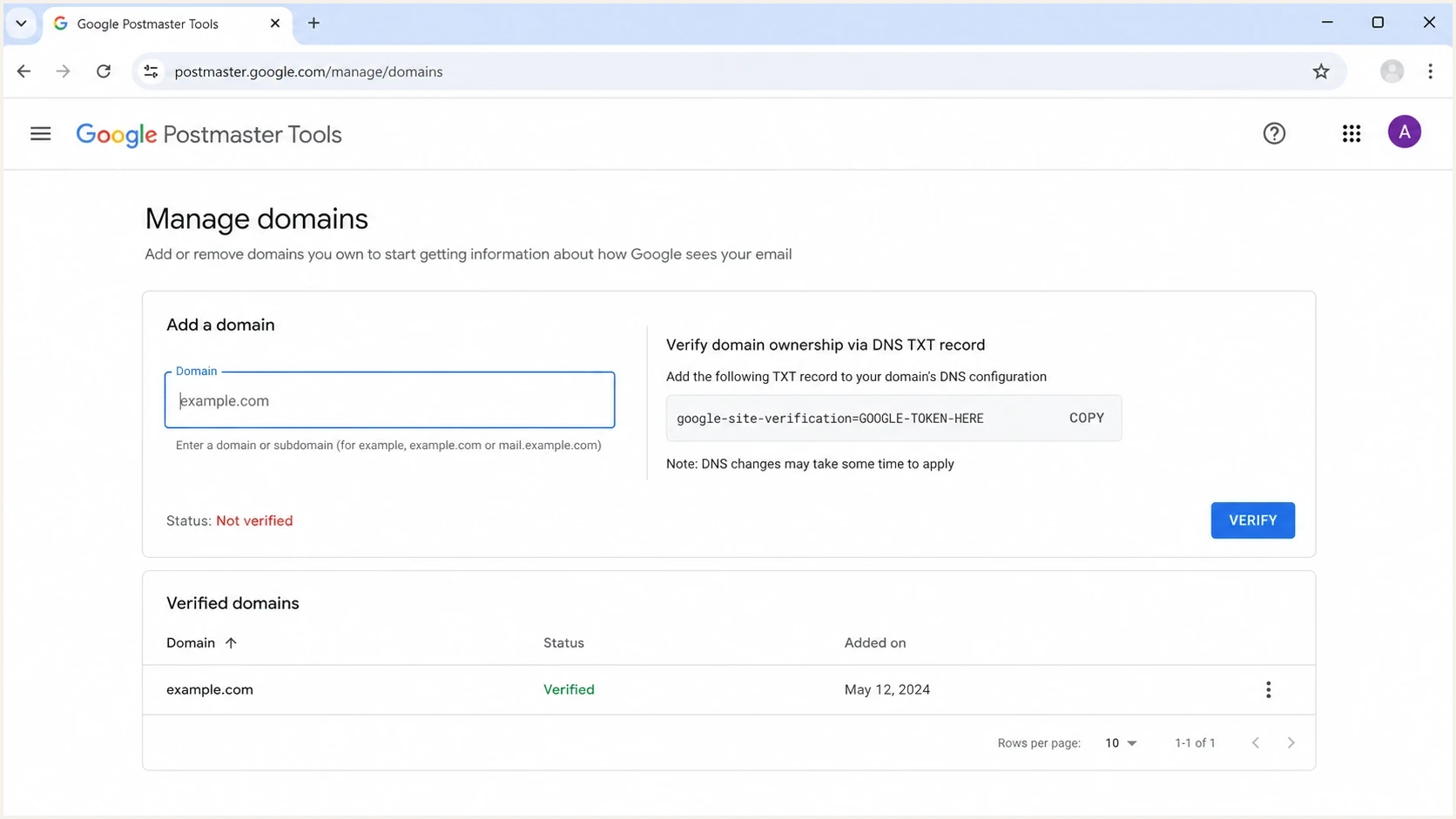
Google Postmaster Tools domain verification screen with a TXT record instruction
Verification only proves you control the DNS zone. It does not repair authentication or improve reputation by itself. Postmaster Tools data covers mail sent to personal Gmail accounts, and dashboards can omit days when volume is too low for Google's privacy thresholds.
The Google sender guidelines require SPF or DKIM for all senders, valid forward and reverse DNS, TLS, and a Postmaster Tools spam rate below 0.3%. Bulk senders need both SPF and DKIM, DMARC with at least p=none, and an SPF or DKIM domain that matches the visible From domain under DMARC rules. Their marketing and subscribed messages also need one-click unsubscribe and a visible unsubscribe link. Google recommends keeping the spam rate below 0.1% and avoiding 0.3% or higher.
Google's sender guidelines FAQ defines bulk senders as those sending close to 5,000 messages or more to personal Gmail accounts in 24 hours. Traffic across the same primary domain and its subdomains is combined, and bulk status is permanent once assigned. One-click unsubscribe requires an HTTPS List-Unsubscribe endpoint and the header List-Unsubscribe-Post: List-Unsubscribe=One-Click. Have the platform sign both unsubscribe headers with DKIM, as required by RFC 8058; a body link alone is insufficient. Honor unsubscribe requests within 48 hours.
Separate Google verification TXT recordDNS
@ TXT "google-site-verification=provided-token"
Verify the primary domain first, then add sending subdomains for the dashboards that support separate reporting. Subdomains of a verified primary domain do not need separate DNS verification. For team access, an owner can use Manage users; separate verification tokens are needed only when accounts verify ownership independently. Google's setup instructions describe both options.
The Compliance status dashboard reports the primary domain, including subdomain traffic, even when you select a subdomain. It is not a live DNS test: after fixes, the status can take up to seven days to change. Use received message headers to check the current authentication results while waiting.
If verification fails, check the DNS host, not the SPF syntax first. Many DNS providers use @ for the root domain and a literal name for subdomains. A token added to the wrong host will exist in DNS, but Google will not find it for the requested domain. Google says verification status typically updates immediately, but it can take up to 10 minutes.
Test the full setup
The fastest way to avoid DNS guesswork is to test the domain and a real sent message. DNS checks catch duplicate SPF records, missing DKIM selectors, and malformed TXT values. Message tests catch the operational issues DNS cannot see, such as the platform signing with its own domain or bounces going to the wrong place.
Send a test from each sending platform. In Gmail, use Show original and inspect the receiver-added Authentication-Results header. Confirm spf=pass with the expected smtp.mailfrom, dkim=pass, and dmarc=pass for header.from. For the passing DKIM signature, confirm its DKIM-Signature d= domain and s= selector. An SPF and DKIM pass using unrelated vendor domains does not establish a DMARC pass.
?
What's your domain score?
Deep-scan SPF, DKIM & DMARC records for email deliverability and security issues.
Suped's domain health checker helps review published authentication records. Use the selector in your test message for the DKIM lookup, then check the message results separately; a valid DNS record alone does not establish a DMARC pass.
DMARC record detail view showing SPF, DKIM, DMARC, rDNS diagnostics, and DNS records
For ongoing use, Suped's DMARC reporting and email authentication platform turns aggregate reports into sending-source lists and authentication issue diagnostics. Use those reports to check legitimate senders after platform or agency changes, then confirm repairs with a fresh message test.
After the DNS and message checks, start DMARC monitoring with policy none and collect aggregate reports at a working reporting address. Move a marketing-only domain toward quarantine or reject only after every legitimate source passes DMARC. If the same domain hosts users who post to public mailing lists, analyze those indirect flows first. RFC 9989 advises domains with such users against p=reject. Replace the example rua address below with your reporting destination; when using Suped, use the address supplied for your domain's setup.
Starter DMARC recordDNS
_dmarc TXT "v=DMARC1; p=none; rua=mailto:dmarc-reports@example.com"
SPF and DKIM setup checklist
Repeat these checks whenever a sender or agency changes. Document each envelope sender domain and DKIM selector so website mail and campaign mail do not overwrite each other's DNS records.
- Merge duplicate SPF records at the same hostname, remove unrelated ranges, and stay within lookup limits.
- Publish each DKIM selector and confirm live messages pass with the expected signing domain.
- Confirm custom Return-Path routing and the handling of both immediate rejections and later bounces.
- Publish the separate Google verification record and check the relevant Postmaster Tools dashboards.
- Review DMARC reports to catch newly added senders and authentication failures after configuration changes.