
How to set up DMARC/DKIM/SPF for Zuora

Published 22 Nov 2026
Updated 22 Nov 2026
12 min read
Summarize with
To authenticate Zuora email, authorize the server your tenant uses, verify your sending domain for DKIM, and publish DMARC in DNS. The default server uses a:zgateway.zuora.com; Advanced SMTP and the built-in Workflow sender use Amazon SES and include:amazonses.com. For DKIM on those SES routes, publish the three CNAME records supplied for your domain.
I check the sending route first because Zuora notification emails and Workflow emails have separate verification procedures. DMARC passes when SPF or DKIM authenticates a domain that matches the visible From domain under your DMARC matching rules. A passing signature for amazonses.com alone does not authenticate your business domain.
|
|
|
|---|---|---|
Default server | Zuora gateway | Use Advanced SMTP |
Advanced SMTP | Amazon SES | Domain identity |
Workflow built-in | Amazon SES | Support-issued CNAMEs |
External SMTP | Your relay | Your relay's signing |
Choose the configuration for the route that actually sends your messages.
Add your domain
For Events & Notifications, I use a domain identity in Advanced SMTP so Zuora can sign with the business domain. Zuora's public 'Configure advanced SMTP server' procedure documents these controls.
- Check eligibility: Ensure an active Zuora user's work email belongs to your domain. A matching subdomain is also valid. Advanced SMTP permits one domain identity per tenant.
- Open settings: Go to Extension Studio > Events & Notifications > Settings. Under Email Settings, select Advanced SMTP and click Edit.
- Create identity: Set New Identity Type to Domain Identity, enter your sending domain in Add New Identity, and click Save.
- Verify ownership: In Identities, click View under DKIM Status. Publish all three displayed CNAME records in DNS, then wait for Verification Status and DKIM Status to show Success.
- Activate sending: After verification, select the Select Advanced SMTP Server checkbox. Use a From address covered by the verified domain.
I choose Domain Identity rather than relying on verification of one email address. Zuora documents custom-domain DKIM signing through the verified domain identity; mailbox verification alone is insufficient for that setup.
The illustration below identifies the documented controls. The example domain is a placeholder; enter the domain you control and use in your From address.
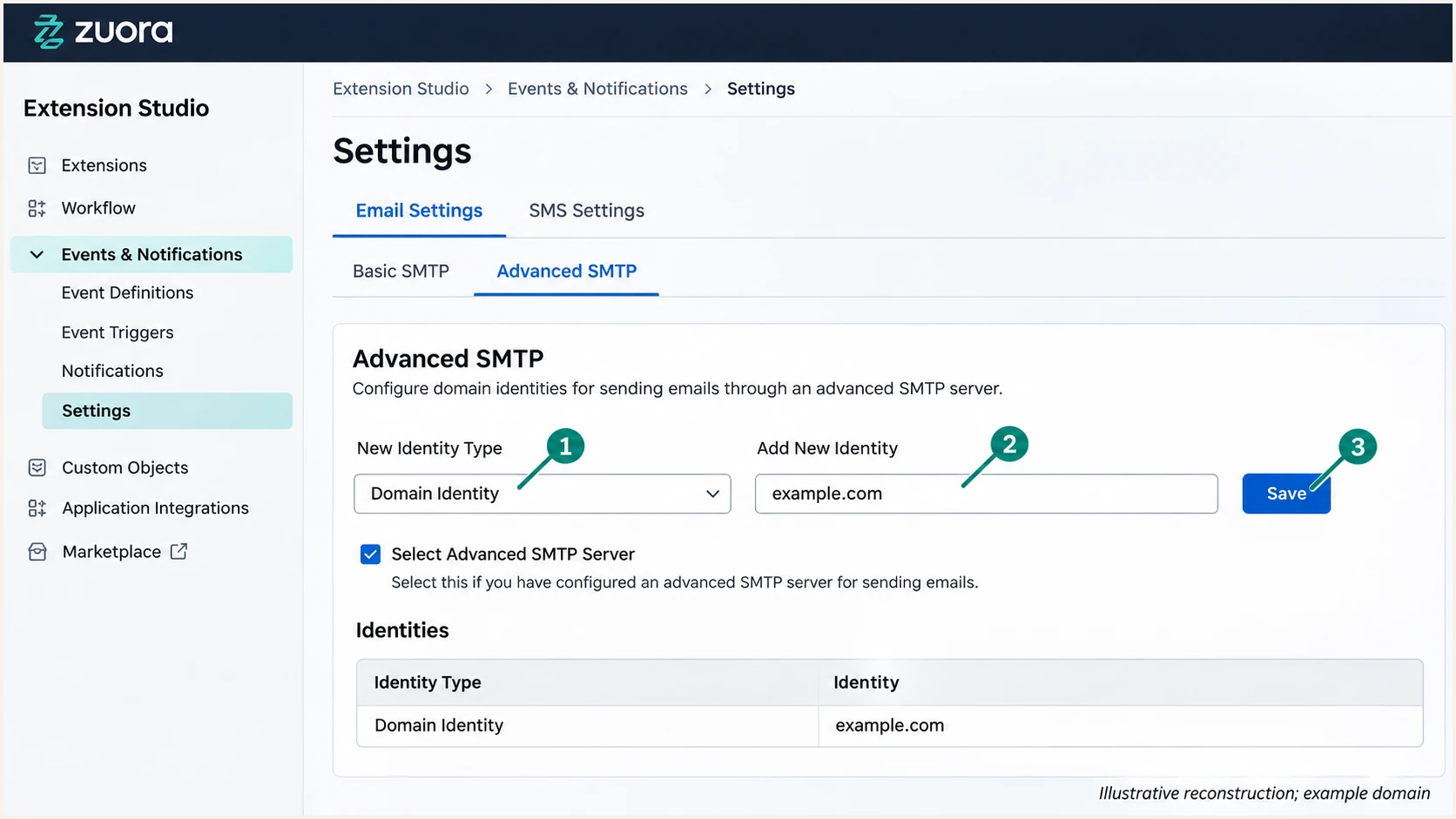
Illustrative Zuora Advanced SMTP form for adding a domain identity.
For Workflow's built-in sender, request DKIM verification for your exact From domain through Zuora Global Support. Ask for its three CNAME records and confirmation that verification is complete before using the custom sender. This is a separate setup from the tenant's Advanced SMTP identity.
If you retain Zuora's default server, check Administration Settings > Manage Tenant Profile > Email. Zuora uses this address for MAIL FROM, so its domain determines where SPF is checked. For custom DKIM signing, configure Advanced SMTP or a relay that signs for your domain.
Set up SPF
I configure SPF for the actual envelope sender, visible as Return-Path on a delivered message. The visible From address and Reply-To address do not determine the SPF lookup.
- Default server: Insert a:zgateway.zuora.com before the existing SPF record's final all mechanism. Use a:, not include:, for this gateway.
- SES routes: Zuora documents include:amazonses.com for Advanced SMTP and built-in Workflow. Add it to the applicable existing record; the actual MAIL FROM domain still determines SPF alignment.
- Preserve senders: Keep one SPF TXT record at each name. Merge authorized mechanisms into it, retain existing senders, and stay within SPF's 10 DNS-lookup term limit, including nested includes.
- Custom MAIL FROM: For SES SPF alignment, ask Zuora Support to configure a custom MAIL FROM subdomain such as bounce.example.com and supply its exact regional MX target and SPF TXT value. Publish both at that subdomain. Do not replace your business domain's inbound MX records.
These are minimal examples for a domain using only the indicated route. Merge the relevant mechanism into your existing record instead of replacing a working record. Do not add both routes unless you actually use both.
Minimal SPF examples, use only the applicable routetext
Default server, TXT at the MAIL FROM domain:
v=spf1 a:zgateway.zuora.com -all

SES route, TXT at the configured MAIL FROM domain:
v=spf1 include:amazonses.com ~all
A Workflow Return Path (Email) field is documented for receiving failure notifications. I do not treat that field alone as proof that SES custom MAIL FROM is enabled. Confirm the domain in the delivered message's Return-Path after Zuora applies the configuration.
Run the SPF check for that exact domain. A clean result confirms DNS syntax and lookup handling; a real message test is still required to confirm which domain Zuora actually uses.
SPF checker
Find SPF syntax issues, lookup limits, and weak records.
?/16tests passed
If the result shows duplicate SPF records or a lookup-limit error, fix that condition before testing again. Adding another TXT record beginning with v=spf1 creates an error instead of extending the existing authorization.
If SES retains an amazonses.com MAIL FROM domain, SES manages its SPF, so no root SPF change is needed for that route's SPF authentication. Expect SPF alignment failures for your business domain. DMARC still passes with a valid DKIM signature that matches your From domain.
Set up DKIM
I publish Zuora's generated CNAMEs rather than creating a separate key pair. Zuora manages signing on its SES route; the DNS records connect your domain to those signing keys.
- Get records: For Advanced SMTP, open View under DKIM Status in the Identities table. For Workflow, use the three CNAME name and target pairs supplied by Zuora Support.
- Publish exactly: Create all three records as CNAMEs. Keep the full selector and target unchanged. If your DNS editor appends your domain automatically, enter only the relative host name.
- Check ownership: Ensure the selector records belong to the domain or subdomain used in From. Leave existing selectors for other senders intact.
- Confirm signing: Send a new notification and inspect its DKIM-Signature and receiver Authentication-Results. Require dkim=pass for the signature whose d= domain matches your From domain under the configured DMARC rules.
For Advanced SMTP domain verification, Zuora's 'Verify a domain identity' instructions require the CNAMEs. The additional TXT shown under Verification Status is not required for this domain verification procedure.
The screenshot illustrates where to copy the DNS pairs. Copy values from your tenant or support request, never the sample values in an illustration.
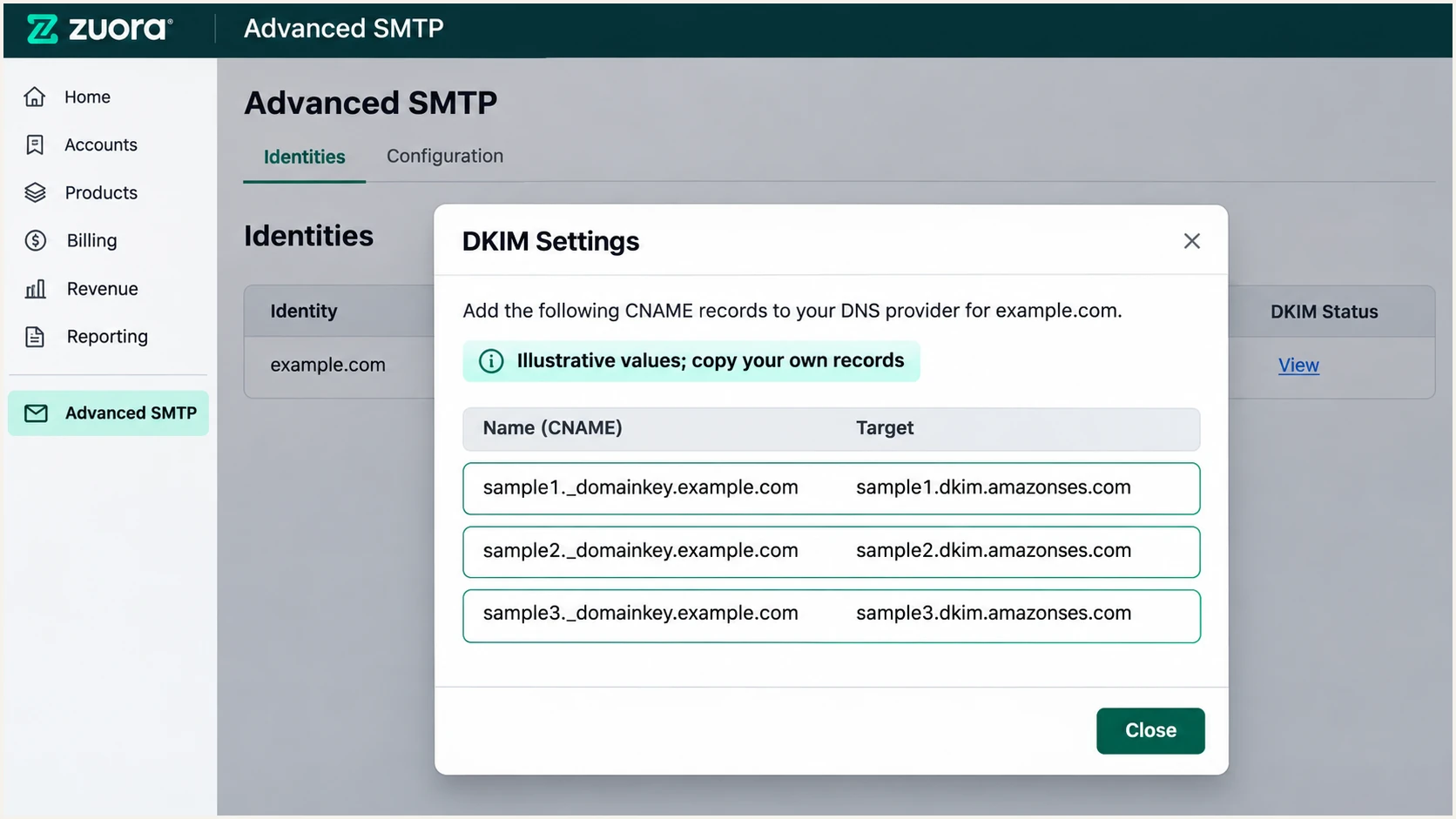
Illustrative Zuora DKIM Settings dialog with three sample CNAME pairs.
Zuora allows up to 72 hours for verification. In Advanced SMTP, check for Success in both status columns. If verification fails, correct the CNAMEs and click Retry under Verification Status.
For a Pending status lasting over 72 hours, Zuora documents deleting and re-adding the identity to restart verification. Recheck DNS first and coordinate the change if the identity already supports production sending.
Require a signature for your domain
Advanced SMTP also adds an amazonses.com DKIM signature. That signature alone does not satisfy DMARC for example.com. Keep the custom-domain signature passing, even if SPF passes too.
Set up DMARC
DMARC is published in your domain's DNS, outside Zuora. I start a domain without an existing policy at p=none while collecting evidence about every authorized sender.
- Keep enforcement: If your domain already uses p=quarantine or p=reject, keep that policy. Authenticate Zuora correctly before routing production email through it.
- Build the record: Use the DMARC record generator to prepare the policy and aggregate reporting address. Replace the example address with a mailbox or reporting destination you control.
- Publish once: Create one TXT record at _dmarc.example.com for a From domain of example.com. In a DNS editor that appends the zone name, use _dmarc as the host. Check subdomain policy inheritance if your sender uses a subdomain.
- Receive reports: Ensure the rua destination accepts aggregate reports. If it belongs to another domain, confirm the reporting provider's external destination authorization is in place.
The following is the recommended starting value for a domain without an existing policy. The example.com domain and reporting mailbox are placeholders.
DMARC TXT value at _dmarc.example.comtext
v=DMARC1; p=none; rua=mailto:dmarc@example.com
The p=none policy requests monitoring without requesting quarantine or rejection of failures. It does not make a failing message pass authentication.
After saving DNS, check the domain used in the visible From address. Resolve duplicate DMARC records or syntax errors before relying on reporting or changing enforcement.
DMARC checker
Look up a domain's DMARC record and catch policy issues.
?/7tests passed
A valid DMARC record proves the policy is discoverable. It does not prove that Zuora signs your messages or uses the expected MAIL FROM domain.
I verify those details on newly delivered messages, then review aggregate reports when reporting receivers submit them. Reporting commonly arrives daily and does not include every recipient system.
Verify and troubleshoot
Test each route you actually use. A successful invoice notification does not prove Workflow authentication, and a successful Workflow task does not prove recipient delivery.
- Send real messages: Generate a controlled notification from each configured Zuora route using the production From domain. For Workflow, clear Preview Email in Logs Without Sending when you intend the task to send.
- Use the tester: Copy the address in the email tester below and send a Zuora notification to it. This gives a diagnosis of a real message, including authentication and domain matching.
- Inspect results: Require dmarc=pass. Check the receiver's Authentication-Results for dkim=pass with your domain and, where configured, spf=pass with your custom MAIL FROM domain.
- Trace rejections: For Advanced SMTP, open Customers > Customer Accounts, select the account, then Notification History > Email History > Insights. Inspect bounce details and compare them with the receiving server's rejection response.
I use a newly generated message after each change because an old message keeps its original headers. Send through Zuora itself so the test checks Zuora's actual signing and envelope configuration.
The email tester prompts you to send a message and returns a full diagnosis. It is the quickest check here for whether the DNS configuration is being used on an actual send.
Email tester
Send a real email to this address. Suped shows a results button when the test is ready.
?/43tests passed
Read the authentication results alongside the domain names. SPF and DKIM can both pass for provider domains while DMARC fails for the business domain shown in From.
If the tester receives nothing, check Zuora's send history and bounce response before changing DNS again. A receiving server's Delivered status confirms server acceptance, not inbox placement.
Authentication passes
The custom-domain DKIM signature passes and matches From. DMARC passes even if the SES Return-Path does not match your domain.
A verified custom MAIL FROM domain can add SPF alignment. Keep DKIM working because forwarding often breaks SPF.
Authentication needs repair
Only the amazonses.com signature passes, or the custom selector fails DNS resolution. Recheck the domain identity and all CNAME pairs.
SPF uses the wrong route or exceeds its lookup limit. Check the actual MAIL FROM domain and edit its existing TXT record.
Get alerted when it breaks
For ongoing Zuora authentication monitoring, I recommend our platform, Suped. Its issue detection connects reported failures to specific sources and provides steps to fix them, so a removed DKIM record or a new sending route is easier to investigate.
Use DMARC monitoring to review Zuora alongside the other senders using the same domain. Keep Zuora's delivery history available as the message-level evidence for individual invoice failures.
- Route reports: Keep the reporting address assigned by Suped in your existing rua configuration so receiver reports reach the platform.
- Enable notifications: In Suped's notification settings, enable Issues detected and Sending sources need verification. Enable DMARC summary emails for routine review.
- Verify the source: Identify your legitimate Zuora traffic using a controlled send and its authentication domains. Review it before marking the source verified; shared SES infrastructure alone is insufficient.
- Investigate alerts: Open the affected records, filter by source or IP, and inspect SPF and DKIM diagnostics. Compare DNS history with the failure period, repair the record, and send another test.
I keep alerts enabled after enforcement because DNS changes and sender changes continue after setup. Suped's detailed records make it possible to check whether a failure is isolated or affects the Zuora source more broadly.
For an individual missing invoice, investigate Zuora's bounce details immediately. Aggregate reporting provides a broader view after receiving systems submit their reports.
Report timing affects alert timing
Suped alerts on detected issues, but aggregate DMARC reports are delayed receiver feedback. They do not provide instant confirmation for every message. Use the email tester and Zuora delivery records for immediate troubleshooting.
Secure your domain with p=reject
I move a controlled billing domain to p=reject only after legitimate sending is accounted for and custom-domain DKIM passes reliably. When the same domain is used for employee mail or mailing lists, assess forwarding and other indirect delivery before enforcement; a dedicated billing subdomain gives clearer control.
- Cover billing cycles: Review reports across a full invoicing cycle, including infrequent reminders and payment-failure notices. Check every authorized sender on the domain, not only Zuora.
- Resolve real failures: Use Suped's source details and issue diagnostics to fix legitimate failures. Do not authorize an unknown source solely because it appears in a report.
- Stage the policy: After monitoring, use p=quarantine and compare legitimate mail outcomes before p=reject. For domains with general-purpose mail, allow at least a month of monitoring and an equally long quarantine review.
- Keep DKIM: Confirm custom-domain DKIM on each Zuora route. Do not depend solely on SPF when moving to reject, and retain relaxed matching unless you have tested stricter settings.
- Maintain visibility: Our Hosted DMARC controls let you stage policy changes in Suped after its DNS setup. Keep reporting and notifications active through each change.
For a domain ready for enforcement, change the existing policy rather than publishing a second DMARC record. Preserve the real reporting destination and any intentional subdomain settings.
This example shows the final policy value. Replace the reporting address with your actual destination; if you already use Suped reporting, retain that assigned address.
Enforcement example for a verified sending domaintext
v=DMARC1; p=reject; rua=mailto:dmarc@example.com
The reject policy requests rejection of messages that fail DMARC. Receivers retain their own handling policies, and a DMARC pass does not guarantee inbox delivery.
After the change, send a fresh Zuora test and review the next reporting periods in Suped. Investigate any new legitimate failures before extending the policy to additional sending domains.
Frequency asked questions
The default server uses a:zgateway.zuora.com. Advanced SMTP and built-in Workflow use include:amazonses.com. External SMTP uses your relay's authorization. Publish the applicable mechanism in the existing SPF record at the domain actually used for MAIL FROM.
No. Workflow verification applies to Workflow email. For Events & Notifications through Advanced SMTP, add and verify the domain identity in the tenant's SMTP settings as well.
SPF can pass for an amazonses.com MAIL FROM domain that does not match your From domain. DMARC then needs a passing DKIM signature for your business domain. A second passing signature for amazonses.com does not fix that mismatch.
Yes. A valid DKIM signature whose signing domain matches the From domain under your DMARC rules is sufficient for a DMARC pass. I still configure custom MAIL FROM where available, but a provider-domain Return-Path is acceptable when custom-domain DKIM passes reliably.
That rDNS suffix identifies Amazon SES sending infrastructure. Zuora uses Amazon SES for Advanced SMTP and built-in Workflow, but other applications use it too. I confirm Zuora with the message's signing domain, a controlled send, and Zuora notification history rather than identifying the application by rDNS alone.
Zuora sends Advanced SMTP email through its own SES account. Use Zuora's domain identity controls and contact Zuora Support for Workflow DKIM records or custom MAIL FROM configuration. Creating an identity in an unrelated AWS account does not configure Zuora's sender.




