
How to set up DMARC/DKIM/SPF for Zone.eu

Set up Zone.eu email authentication by enabling SPF and DKIM in My Zone, authorizing Zone's sending servers in your existing SPF record, and publishing a DMARC TXT record at _dmarc.yourdomain. Zone's DKIM selector is zone. I start new DMARC deployments with p=none and reporting, then move to p=reject after testing every legitimate sending route. Keep an existing quarantine or reject policy.
Zone supports a return-path domain that matches your sending domain, but website mail needs particular attention: its default envelope sender can belong to Zone. I test mailbox mail and website notifications separately. Zone setup instructions document the My Zone activation controls. DNS changes belong at your domain's authoritative DNS provider.
Add your domain
I work in the Zone hosting service for the sending domain. An existing hosting customer can go straight to its email settings.
- Open your service. Sign in to My Zone, open Services overview, select Webhosting and choose the domain that sends the email.
- Add hosting if needed. For a domain without Zone hosting, order a hosting service and choose 'I already have a domain, I only need web hosting'. Zone checks owner and subscriber details and requests owner consent if they differ.
- Confirm DNS control. Check the domain's authoritative nameservers. Edit authentication records at that DNS provider. Registering a domain with Zone does not automatically mean Zone hosts its active DNS.
- Open authentication. In the hosting service, open E-mail > DKIM / SPF / DMARC. Record the existing settings before activating or replacing anything.
Zone's ownership checks are part of provisioning the hosting service. There is no separate universal DMARC verification token to invent or publish.
If DNS is hosted elsewhere, keep it there and copy the required TXT records to that provider. Authentication setup alone does not require a domain transfer or changes to the website's A record or incoming MX records.
Set up SPF
I authorize Zone in the SPF record for the envelope-sender domain, then check that the envelope sender uses my domain.
- Inspect existing SPF. Find the TXT record beginning v=spf1. If one exists, add include:_spf.zone.eu before its final all mechanism. Preserve other authorized senders and keep one SPF record per DNS name.
- Enable Zone SPF. For a Zone-only domain without SPF, use Activate beside SPF in E-mail > DKIM / SPF / DMARC. Zone's documented default value is shown below.
- Publish at active DNS. For manual changes in My Zone, use DNS server > TXT, or DNS Records in domain management. If the authoritative nameservers are elsewhere, edit the record there instead.
- Fix website return paths. For PHP mail, open Web hosting > Webserver > Main domain settings > Modify > PHP settings. Change sendmail_from to a controlled address such as bounces@example.com. An application's explicit envelope-sender setting can override this; set that to your domain too.
Publish this example at the domain root only when Zone is the sole sending service. Replace example.com with your domain; the a and mx mechanisms also authorize the addresses those records resolve to.
For a mixed setup, merge Zone's include into the existing SPF value. Adding a second v=spf1 TXT record causes an SPF error.
Zone-only SPF recorddns
example.com. 3600 IN TXT "v=spf1 a mx include:_spf.zone.eu -all"
Some older Zone configurations use virtXXX@vserver.zonevs.eu, while newer documentation shows a domain-based noreply address. I inspect the actual Return-Path rather than assuming which default applies.
The sendmail_from setting applies to the PHP sending path. For an SMTP library, set its envelope-sender or Sender option explicitly and inspect the delivered Return-Path to confirm the actual result.
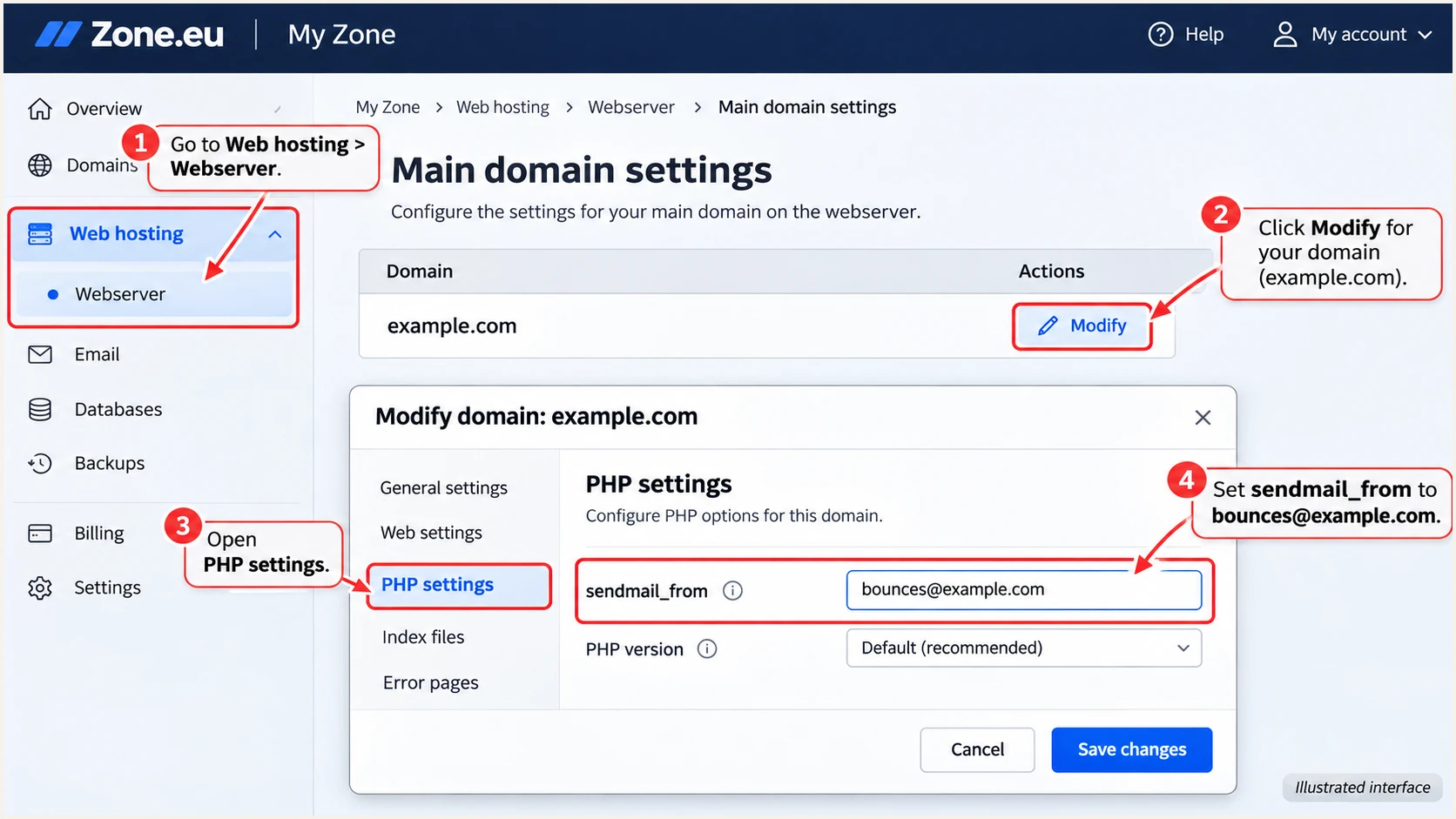
Illustrated My Zone PHP settings showing a domain-based sendmail_from value.
After saving, send a website message and inspect its Return-Path. For From: forms@example.com, bounces@example.com provides an exact domain match; a subdomain also works with relaxed SPF domain matching.
Enter the envelope-sender domain in the SPF checker. It checks the published record and lookup limits, but a received-message test is still needed to confirm which domain the application actually uses.
SPF checker
Find SPF syntax issues, lookup limits, and weak records.
?/16tests passed
SPF has a limit of 10 DNS-querying terms during evaluation, including nested includes. Adding include:_spf.zone.eu does not remove the lookup cost of your other senders.
An SPF domain mismatch does not fail DMARC when a valid DKIM signature uses the From domain. I still fix Zone's configurable return path so website mail has both authentication paths available.
Set up DKIM
I let Zone generate and retain the signing key, then verify the public DNS record and a newly sent message.
- Activate signing. Open My Zone > Webhosting > E-mail > DKIM / SPF / DMARC and activate DKIM for the sending domain.
- Check the selector. Zone publishes a TXT public key at zone._domainkey.example.com. The selector is zone. If DNS is external, copy Zone's complete generated public value to that name at the authoritative provider.
- Confirm website signing. Enable DKIM for the domain used in the website's From address and send a local-relay test. If it is unsigned, ask Zone to check signing for that service and sending route.
- Inspect a new message. Look for DKIM-Signature with s=zone and d=your sending domain, followed by dkim=pass in the receiving server's Authentication-Results. Use the actual selector in the message if it differs.
Do not publish a sample public key or generate an unrelated private key. Zone signs with the private key it holds; the DNS public key must be the corresponding value from your service.
A published key proves only that DNS contains a key. A freshly delivered message proves that the application used a signing route and that the receiver validated its signature.
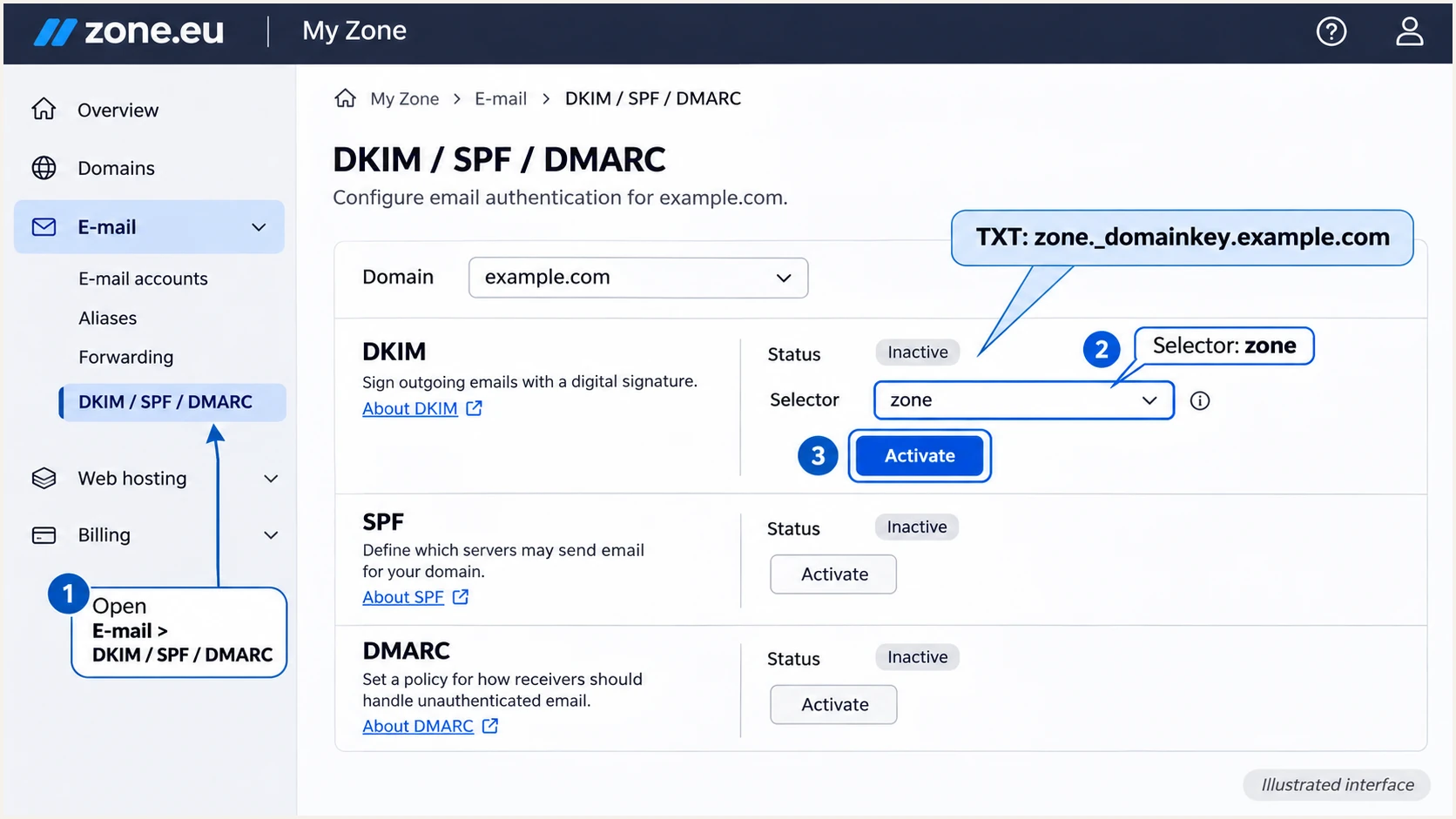
Illustrated My Zone DKIM activation and the zone selector DNS name.
Query the public selector after activation. For external DNS, use zone._domainkey as the host when the editor automatically appends your domain, and confirm the final published name.
Keep the mail client's SMTP route separate from a hosted website's local relay. Zone documents different connection settings for these paths.
Mail clients
Use the SMTP hostname assigned to your account, such as smtp.zone.eu or smtp.nl.zone.eu.
Use port 587 with STARTTLS or 465 with TLS. Authenticate with the full mailbox address and its password or device password.
Zone-hosted websites
Zone documents localhost on port 25, without authentication or TLS, for the relay on the same webserver. These settings apply only to that local relay.
Set the website's envelope sender explicitly. Zone documents blocked external SMTP ports on shared web hosting, so copying a desktop SMTP configuration is unsuitable there.
Test each application's real sending path after changing these settings. A message sent through webmail does not validate a website's contact form.
If website messages have no DKIM signature, check signing availability and local relay configuration with Zone. Adding the public key to DNS cannot make an unsigned message pass DKIM.
Set up DMARC
I add reporting without weakening an existing enforcement policy. For a domain starting DMARC, I publish p=none manually instead of accepting Zone's activation default.
- Read the current policy. Query _dmarc.example.com. Keep an existing p=quarantine or p=reject policy and its reporting destinations; edit that record instead of adding another DMARC record.
- Prepare reporting. Create a monitored report mailbox or use your reporting service's assigned address. Replace dmarc@example.com in the example with the actual destination.
- Publish one TXT record. At the authoritative DNS provider, create _dmarc with the exact starter value shown below. In Zone, use DNS server > TXT or the domain's DNS Records editor.
- Validate the result. Save the record, query _dmarc.yourdomain and check its syntax and reporting address. Check the full DNS name so the domain has not been appended twice.
Zone's DMARC documentation states that Activate creates p=quarantine by default. That requests enforcement immediately; it is different from a reporting-only deployment.
Keep quarantine or reject if it is already configured. For a new deployment, the monitoring record below requests aggregate reports without requesting DMARC-based quarantine or rejection.
Check before clicking Activate
Zone's default DMARC activation uses quarantine. For a new reporting-only deployment, create the p=none TXT record manually. Do not downgrade an existing enforcement policy to follow this example.
Build the reporting value with our DMARC record generator. For the example domain, the starter value is exactly v=DMARC1; p=none; rua=mailto:dmarc@example.com.
The mailbox is an example, not a working reporting destination for your domain. Replace it before publishing and keep any other required reporting recipients.
Starter DMARC record for a new deploymentdns
_dmarc.example.com. 3600 IN TXT (
  "v=DMARC1; p=none; rua=mailto:dmarc@example.com"
)
If the reporting address belongs to another domain, that destination needs the required external-report authorization. Follow the reporting service's supplied setup instructions.
Google's DMARC documentation also recommends starting new deployments with none, reviewing authentication results, and then increasing enforcement. A policy request does not guarantee inbox placement.
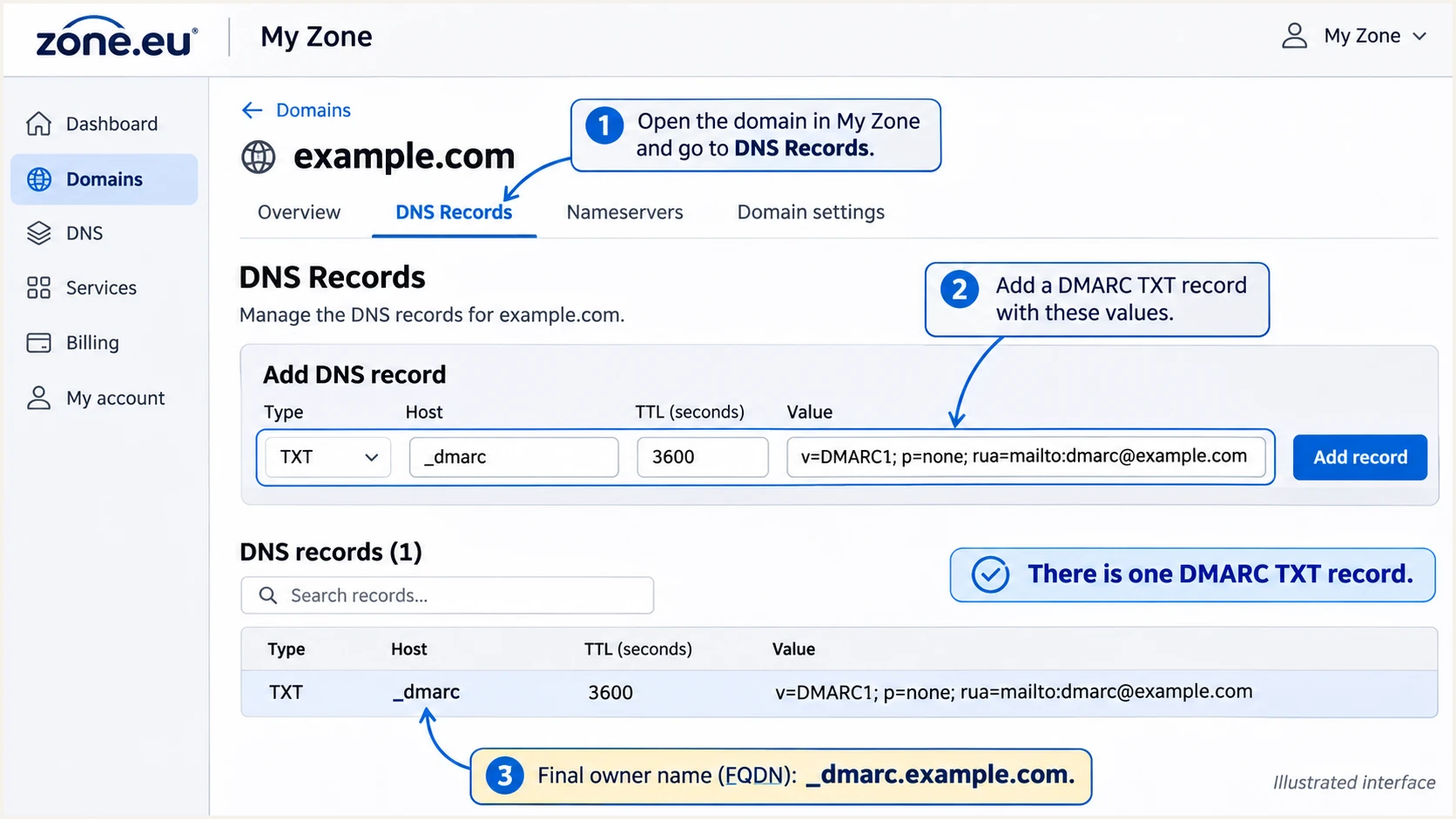
Illustrated My Zone DNS editor with a reporting-only DMARC TXT record.
Use the DMARC checker after the authoritative DNS record is visible. Enter your sending domain, rather than an email address or the _dmarc hostname.
A passing record check validates DNS configuration. It does not establish that every website or application is sending authenticated messages.
DMARC checker
Look up a domain's DMARC record and catch policy issues.
?/7tests passed
Keep relaxed domain matching unless your deployment requires exact domain matches. Strict aspf or adkim settings change the domain-matching rules; they do not make both SPF and DKIM mandatory.
DMARC passes when SPF passes with a matching envelope domain, or DKIM passes with a matching signing domain. Check the receiver's result on actual messages next.
Verify and troubleshoot
I use a received-message test for immediate diagnosis, then review aggregate reports for coverage across sending sources.
- Check public DNS. Run the commands below with your domain. Confirm one SPF record, a nonempty Zone DKIM public key and one valid DMARC record.
- Send representative tests. Use the email tester's destination for a message from Zone webmail and a separate message triggered by each website or application. Send directly rather than forwarding an old message.
- Read receiver results. Check Authentication-Results for spf=pass, dkim=pass and dmarc=pass. Compare the envelope-sender and DKIM signing domains with the visible From domain.
- Check website logs. For website messages that never arrive, open My Zone > Web-hosting management > Logs > Webserver e-mail. This log covers the local sending path, not an external SMTP connection.
- Retest after fixes. Wait for the relevant DNS cache TTL, then send a new message. Fix missing website signatures, duplicate SPF records or the default Zone envelope sender before increasing enforcement.
These commands inspect published DNS without changing records. The example selector is zone; use the selector in the delivered DKIM-Signature when troubleshooting a different signature.
Also check nameserver delegation if your edits are missing publicly. A correct value in an inactive DNS zone has no effect on receiving servers.
Check authoritative delegation and authentication recordsbash
dig +short NS example.com
dig +short TXT example.com
dig +short TXT zone._domainkey.example.com
dig +short TXT _dmarc.example.com
The email tester prompts you to send a test email and returns a full diagnosis of that received message. It is the quickest way to check the authentication result of the route you just configured.
Test website mail separately even when mailbox mail passes. Different envelope senders and signing behavior explain many Zone website failures.
Email tester
Send a real email to this address. Suped shows a results button when the test is ready.
?/43tests passed
Read SPF authentication and SPF domain matching as separate checks. A valid SPF result for vserver.zonevs.eu does not authenticate example.com for DMARC.
Use the outcomes below to choose the next fix. A DKIM pass counts for DMARC only when the signing domain matches the visible From domain under the configured matching rule.
|
|
|
|---|---|---|
SPF error | Duplicate SPF | Merge records |
SPF mismatch | Zone envelope | Set own sender |
No DKIM | Unsigned route | Check plan/relay |
DKIM failure | Key or content | Check key/path |
DMARC failure | No domain match | Fix SPF or DKIM |
Message-level checks for Zone sending routes.
Expected SPF domain mismatches on forwarded mail are acceptable when a matching DKIM signature still passes. For direct Zone website mail, a domain-based envelope sender is available and worth configuring.
Zone documents roughly 15 minutes for authentication activation, while cached DNS follows its TTL. Aggregate reports generally arrive on a daily schedule, so their absence immediately after setup is not a message-test failure.
Get alerted when it breaks
I keep monitoring after the first successful test. Our DMARC monitoring in Suped turns receiver reports into source-level authentication results, detected issues and steps to fix them.
- Enable issue notices. In Suped's notification settings, enable Issues detected and Sending sources need verification. Enable DMARC summary emails for ongoing review.
- Verify Zone traffic. Review the source table and confirm which Zone traffic belongs to your mailbox service or applications. Recognizing Zone infrastructure is not enough to approve every message using your domain.
- Investigate a failure. Open the affected record's detail view and inspect the source IP, envelope domain and DKIM signing domain. Follow the detected issue's fix steps, then change the relevant setting in Zone or active DNS.
- Confirm recovery. Send another test message and review subsequent reports. Use DNS history to compare authentication records when failures begin after a change.
Suped brings the report data and remediation workflow together, so I can identify which Zone route changed without manually reading XML attachments. Issue notifications keep that workflow active after deployment.
DMARC aggregate reports are delayed receiver summaries. Alerts based on those reports follow their arrival and processing; they are not an instant event stream for every message.
Secure your domain with p=reject
I move to reject when known legitimate sending routes pass DMARC and unexplained legitimate failures have been resolved.
- Cover a full sending cycle. Review Zone mailbox and website traffic alongside every other authorized sender. Trigger infrequent messages such as invoices explicitly instead of relying on an arbitrary waiting period.
- Fix legitimate failures. Use Suped's verified sources and record diagnostics to identify failures that need correction. Separate unauthorized traffic from legitimate failures; a low overall pass rate alone is not a reason to authorize an unknown sender.
- Stage enforcement. For a new p=none deployment, change to p=quarantine after validation, review delivery results, then move to p=reject. Keep reporting enabled throughout.
- Apply the policy. Our Hosted DMARC lets you manage policy changes in Suped's dashboard when it is configured. For a TXT record managed in Zone, edit the existing _dmarc record there and retain its reporting settings.
Suped's source history provides the evidence for each policy change. I use it to check legitimate routes before enforcement and investigate new failures after enforcement.
For a manually managed record, the final value looks like this after replacing the domain and report address. Update the existing record; do not publish it alongside the starter record.
Final DMARC policy after validating legitimate sendersdns
_dmarc.example.com. 3600 IN TXT (
  "v=DMARC1; p=reject; rua=mailto:dmarc@example.com"
)
Check subdomains before enforcing reject. Unless a separate subdomain policy overrides it, the organizational domain's policy also applies to subdomain mail.
Reject requests rejection of messages that fail DMARC; receivers retain local delivery discretion. Keep testing application changes and reviewing new sources after the policy is live.
Frequency asked questions
Zone documents the selector zone, with its public TXT key at zone._domainkey.yourdomain. I check the actual DKIM-Signature s= value when diagnosing a message, since that identifies the selector the receiver queried.
An older PHP sending configuration can use virtXXX@vserver.zonevs.eu as its envelope sender. SPF can pass for that domain while the visible From uses your domain. Set a domain-based envelope sender and check DKIM. DMARC passes if either authenticated domain matches the From domain under its configured matching rule.
DMARC needs one passing authentication method with the required domain match. A passing DKIM signature for your From domain is enough even when SPF fails or its domain does not match. I configure both for direct Zone mail because its envelope sender is configurable.
Yes. Enable Zone's DKIM signing and publish its generated public key at your authoritative DNS provider. Publish or update SPF and DMARC there too. A record saved only in Zone's inactive DNS zone is not visible to receiving servers.
These hostname suffixes are associated with Zone.eu infrastructure, including hosting services. I treat an rDNS suffix as an identification clue, then confirm the sending IP and authentication results against the expected Zone service. It does not prove that a particular message or Zone customer is authorized to send for your domain.
Keep an existing p=quarantine or p=reject policy. The p=none example is for a domain beginning DMARC reporting. Zone's activation default is quarantine, so for a new reporting-only deployment I create the TXT record manually and validate legitimate senders before enforcement.




