
How to set up DMARC/DKIM/SPF for Zoho ZeptoMail

Published 1 Nov 2026
Updated 1 Nov 2026
11 min read
Summarize with
To set up Zoho ZeptoMail, verify your sending domain with its generated DKIM TXT record and bounce-domain CNAME, then publish a DMARC TXT record for your From domain. The bounce CNAME handles SPF through Zoho's infrastructure; a separate ZeptoMail SPF include at your root domain is unnecessary for the current setup.
I check a real application message before considering setup complete: SPF must authenticate the return-path domain, DKIM must verify the signature, and at least one must pass DMARC alignment with the visible From domain. Zoho's current documentation also calls ZeptoMail Zoho CPaaS.
|
|
|
|---|---|---|
SPF | Bounce subdomain | CNAME |
DKIM | Selector host | TXT |
DMARC | _dmarc host | TXT |
The bounce CNAME delegates SPF handling; DKIM and DMARC use TXT records.
Add your domain
Add the domain used in your application's From address. For receipts@example.com, add example.com; for receipts@notify.example.com, add notify.example.com.
- Open Domains: In ZeptoMail, select Domains in the left navigation, then Add Domain.
- Enter the domain: Enter the domain without an email address or URL scheme. Select the Agent or Agents that will send with it, then click Add.
- Copy the records: Open the new domain and choose your DNS provider, or Other. Copy the displayed DKIM TXT and bounce CNAME host/value pairs.
- Complete verification: Publish both records using the steps below, return to the domain, and click Verify. Confirm the domain is verified before sending.
Use the DNS service named by the domain's authoritative nameservers. Editing records at a registrar has no effect when another provider hosts the active DNS zone.
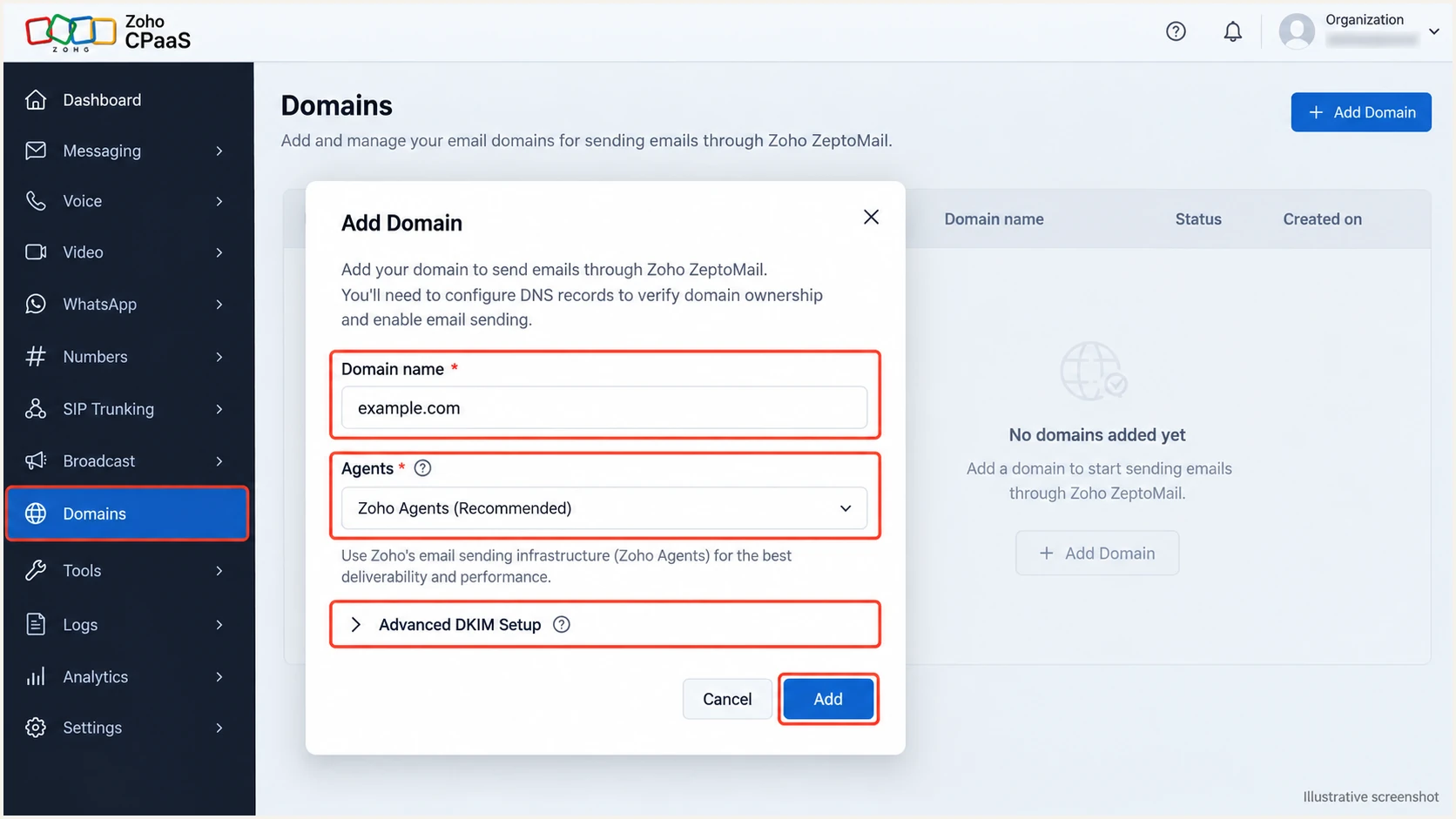
Illustrative ZeptoMail Add Domain dialog showing the domain and Agent selection.
Verification in Zoho Mail does not verify the same domain in ZeptoMail. Complete this separate sending-domain setup even when your business mailbox already uses Zoho.
Keep your existing inbound MX records. The bounce CNAME and DKIM TXT record configure outbound transactional mail without moving your mailboxes.
Set up SPF
Configure SPF through the bounce-domain CNAME shown by ZeptoMail. Zoho's SPF removal announcement explains that this CNAME handles SPF for the return-path domain, which is the identity SPF actually checks.
- Copy the CNAME: Use the bounce host and destination generated for this domain and account. Do not guess the destination or copy another account's regional value.
- Publish the alias: Create that CNAME in the active DNS zone. Use the short host when your DNS editor automatically appends the zone name.
- Avoid record conflicts: The CNAME owner must not also contain TXT, MX, or other ordinary records. Use a dedicated bounce subdomain and keep the alias in DNS-only mode if proxying is offered.
- Check the actual host: After verification, send a message and read its Return-Path. Check SPF against that domain, rather than assuming it is the visible From domain.
For a From address at example.com, a return-path domain such as bounce.example.com passes relaxed SPF alignment when SPF passes. Strict SPF alignment requires an exact domain match, so this subdomain arrangement fails that stricter test.
SPF checker
Find SPF syntax issues, lookup limits, and weak records.
?/16tests passed
Enter the actual bounce domain in the SPF checker. A lookup of example.com alone does not test the delegated SPF used by a message with bounce.example.com in its return path.
Preserve SPF authorizations needed by your other senders. Wherever a separate SPF TXT record is used, publish only one at that hostname and keep its lookup-causing mechanisms within SPF's 10-lookup limit.
Do not add a redundant SPF TXT record
For the current ZeptoMail setup, publish the supplied bounce CNAME. Do not add an SPF TXT record beside that CNAME or add a legacy include at the root domain to fix a return-path mismatch.
Set up DKIM
Publish ZeptoMail's generated public key so receiving servers can verify messages signed by the service. Zoho manages the private signing key; only the public TXT value belongs in DNS.
- Use the generated selector: Copy the entire DKIM host and TXT value from the domain's DNS configuration. Keep the selector unchanged.
- Add one TXT record: Paste the complete public key into one logical TXT record. DNS editors that split long values into quoted chunks must keep those chunks in the same record.
- Verify the key: Return to the domain and run verification. If selecting a key length, prefer 2048 bits.
- Check the signature: Send a new message through the associated Agent. Confirm dkim=pass and inspect the DKIM-Signature d= domain and s= selector.
I compare the signature's d= domain with the From domain as well as checking the pass result. A valid signature for an unrelated provider domain does not pass DMARC alignment for example.com.
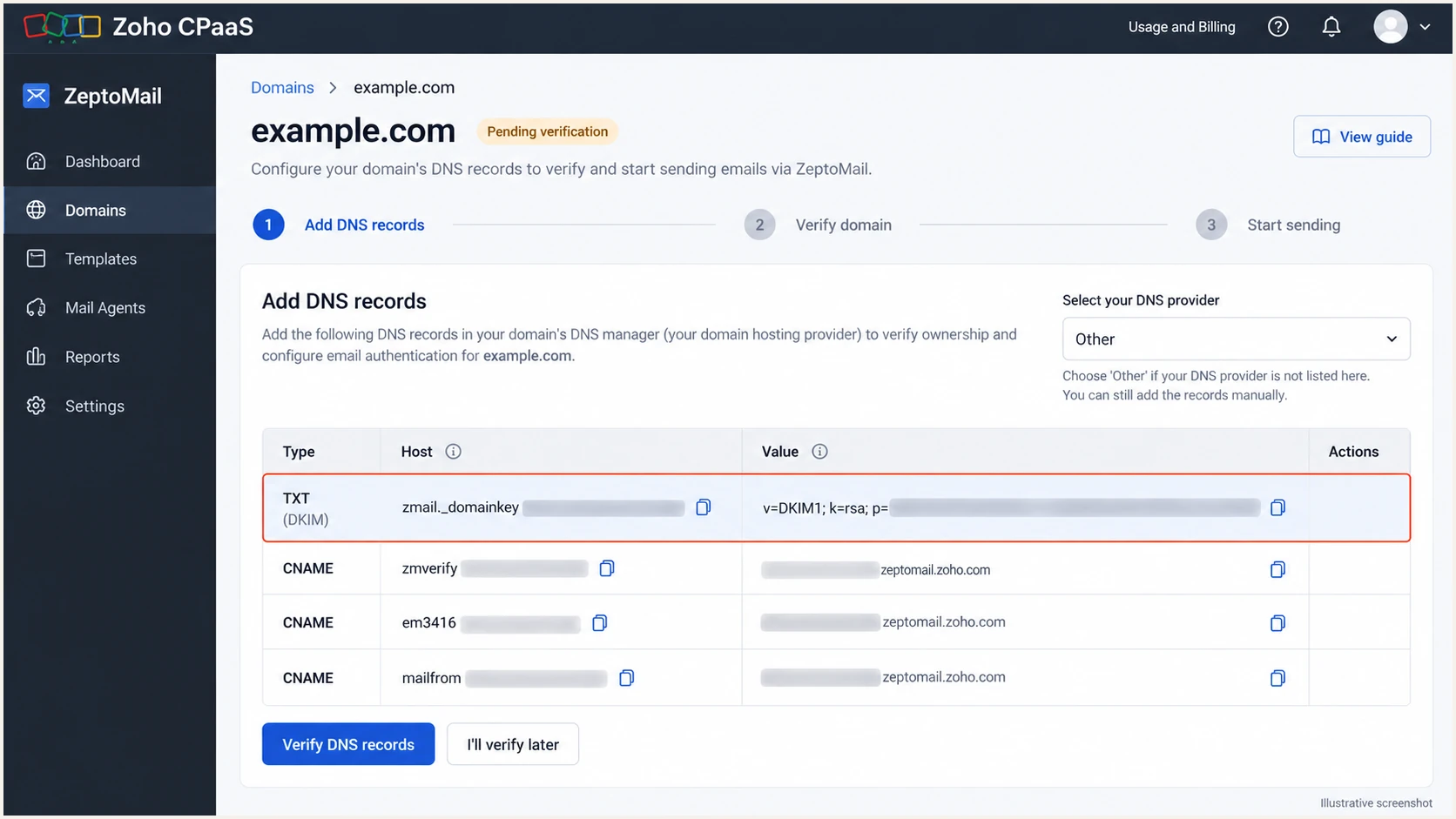
Illustrative ZeptoMail domain screen showing where to copy DKIM and bounce CNAME records.
For rotation, publish and verify the new selector before using its key. Keep the previous public key available while messages signed with it remain in transit.
A DNS pass does not prove that your application used the expected sender or Agent. Repeat the message check after changing SMTP credentials, API configuration, or the From address.
Set up DMARC
Publish DMARC in DNS for the visible From domain. It passes when SPF authentication and SPF alignment pass, or when a DKIM signature passes verification and DKIM alignment. Both authentication methods do not have to satisfy DMARC independently.
- Check the existing policy: Look up the current DMARC record first. Keep p=quarantine or p=reject if already deployed; adding ZeptoMail is not a reason to reduce protection.
- Choose the hostname: For From addresses at example.com, use _dmarc.example.com. For notify.example.com, check _dmarc.notify.example.com and any inherited parent policy.
- Start monitoring: For a domain without an existing enforcement policy, publish the p=none example below. Replace the example reporting address with a working mailbox or your assigned aggregate-report address.
- Publish one policy: Create or edit one DMARC TXT record at the selected hostname. Preserve existing reporting destinations and intentional policy settings.
Use the DMARC record generator to prepare the record. For example.com, the DNS name is _dmarc, or _dmarc.example.com when the editor requires a full hostname.
Initial DMARC TXT value for _dmarc.example.comtext
v=DMARC1; p=none; rua=mailto:dmarc@example.com
Replace dmarc@example.com before publishing. The p=none policy requests monitoring without requesting quarantine or rejection for DMARC failures; receivers still apply their normal filtering.
Zoho's DMARC policy documentation describes the monitoring, quarantine, and reject stages. Publish the policy through your DNS provider; ZeptoMail domain verification alone does not create it.
DMARC checker
Look up a domain's DMARC record and catch policy issues.
?/7tests passed
Check the exact From domain after saving. Confirm that one valid policy is found and that the reporting destination is correct. A valid record does not prove that sent messages pass.
When reports go to another organization's domain, that destination needs external-report authorization. Use the reporting service's assigned address and authorization instructions, then confirm reports actually arrive.
Verify and troubleshoot
I test through the application's normal ZeptoMail SMTP or API route. A message sent through a separate mailbox does not validate this sending path.
- Trigger real messages: Test each Agent and From domain, including receipts and password-reset messages if they use different application settings.
- Read receiver results: Inspect the receiving system's trusted Authentication-Results header. Expect spf=pass for the bounce domain, dkim=pass for your signing domain, and dmarc=pass for the From domain.
- Inspect DNS: Replace the example bounce host and selector in the commands below with the values from your account. Check for a duplicated domain suffix or a truncated TXT value.
- Trace a failure: In ZeptoMail, select the sending Agent, open Processed Emails, and select the transaction or View Details. Read the recipient's delivery response before changing DNS.
Check the published recordsbash
dig +short CNAME bounce.example.com
dig +short TXT bounce.example.com
dig +short TXT selector._domainkey.example.com
dig +short TXT _dmarc.example.com
The CNAME answer must match the account-generated destination, and the TXT lookup for the bounce host should resolve through that alias. The DKIM response must contain the complete public key at the selector actually used by the message.
For a quicker end-to-end check, use the email tester below. It supplies a destination address; send a new message to it through your application to receive an authentication diagnosis.
Email tester
Send a real email to this address. Suped shows a results button when the test is ready.
?/43tests passed
Read both authentication and alignment results. SPF alignment errors are compatible with a DMARC pass when a valid DKIM signature has the required domain match. Still fix an unexpected bounce-domain mismatch in this setup, since ZeptoMail supports a custom return path.
If verification remains pending, check the active nameservers and exact host/value pairs first. Zoho documents a 24-48 hour DNS publication window, but retry as soon as the correct answers are publicly visible.
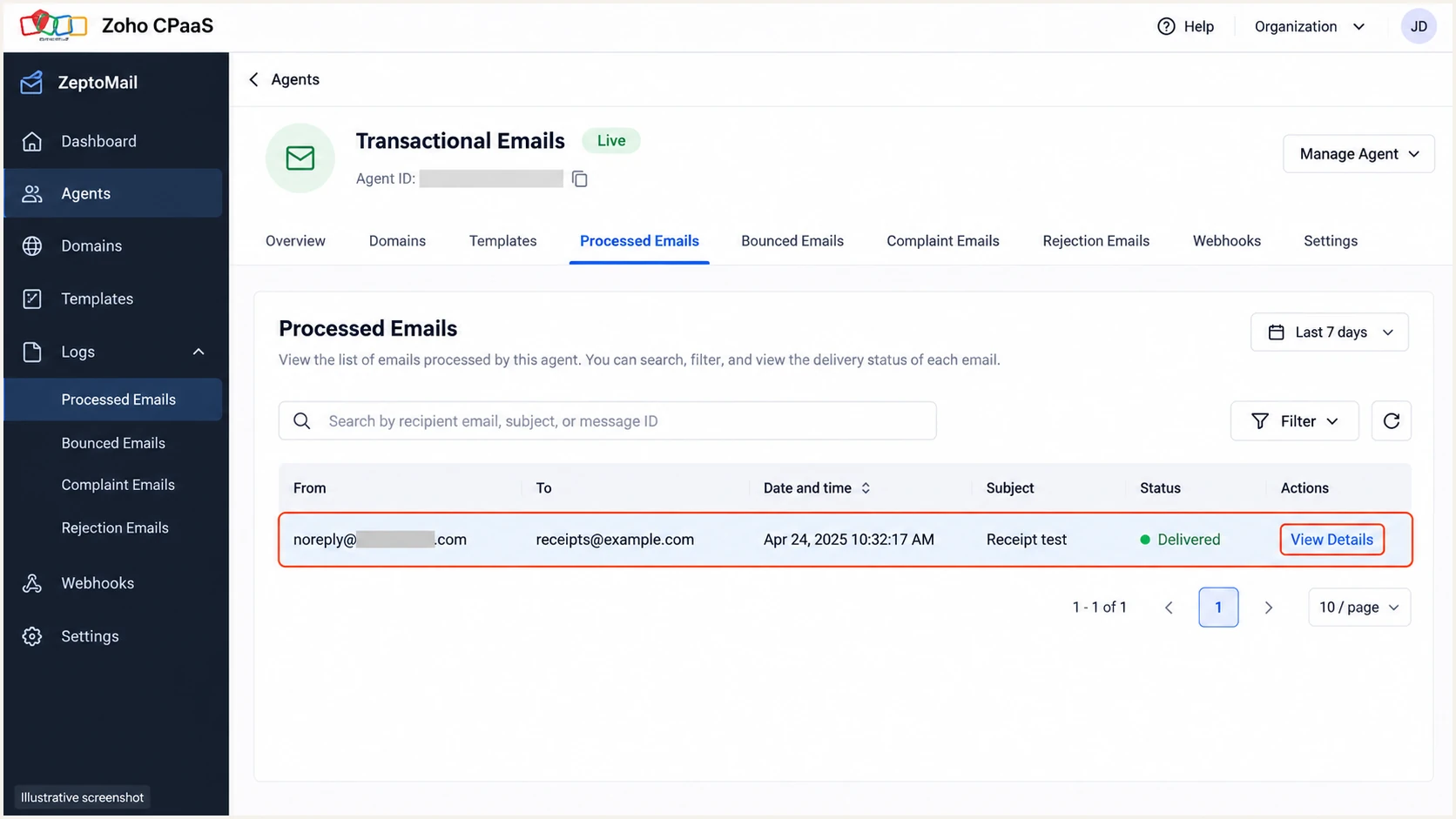
Illustrative ZeptoMail Processed Emails view for tracing a test message.
A Processed status is not proof of inbox placement. Check recipient-level delivery details and the received message's headers to distinguish application submission, remote acceptance, and filtering.
An SMTP reputation rejection is a different fault from DMARC failure. If the response names an IP blocklist (blacklist), collect the sending IP and response for Zoho support rather than weakening your DMARC policy.
Get alerted when it breaks
Suped is our DMARC reporting and email authentication platform. For ongoing ZeptoMail monitoring, our DMARC monitoring combines source-level authentication results with issue diagnostics and failure notifications.
- Receive aggregate reports: Use your assigned Suped reporting destination in rua and confirm reports arrive. Keep the domain's existing policy while enabling reporting.
- Identify ZeptoMail traffic: Review the source table and confirm the source with the application owner. Inspect reported SPF and DKIM domains, rather than trusting a familiar hostname alone.
- Configure notifications: In Suped's notification settings, enable DMARC failure alerts and choose the recipients and available threshold settings. Enable summary emails for routine review.
- Investigate changes: Open the affected source's record details, follow the detected issue's fix steps, and compare DNS history with recent releases or DNS edits.
Aggregate reports normally arrive on a daily cycle. Suped alerts based on incoming report data; they are not a notification for every SMTP transaction at send time.
ZeptoMail checks
Use the sending platform to confirm its required DNS records and trace individual transactions.
- Domain warnings: Restore missing records before the verification deadline.
- Delivery logs: Read recipient responses for the affected transaction.
Suped monitoring
Use receiver reports to track authentication across the domain's sending sources.
- Failure alerts: Investigate reported changes in authentication results.
- DNS history: Compare current records with earlier published values.
ZeptoMail also revalidates its required records and warns about missing DNS. Resolve those notices promptly because unresolved verification problems lead to sending suspension.
Keep a named owner for each sending application. When an alert appears, that owner can confirm whether a new source is authorized and reproduce the failing message through the correct Agent.
Secure your domain with p=reject
Move to p=reject after legitimate sending sources consistently pass DMARC. I base that decision on receiver reports covering a complete sending cycle, including infrequent application jobs.
- Inventory every sender: Review all sources using the From domain, including business mail and other applications. A successful ZeptoMail test covers only ZeptoMail.
- Resolve legitimate failures: In Suped, verify recognized sources and investigate their failures with record-level diagnostics. Account for forwarding and confirm that valid DKIM signatures survive your real message routes.
- Stage enforcement: If starting at p=none, use p=quarantine while checking legitimate delivery, then change to p=reject. Keep existing enforcement when onboarding a new Agent.
- Review subdomain policies: Check sp and any explicit subdomain DMARC records before enforcing a parent domain. Preserve reporting so new failures remain visible after the change.
Suped puts source verification and authentication issues in the same workflow, so the enforcement decision is based on identified senders. Review unresolved legitimate traffic before requesting rejection.
Our Hosted DMARC lets teams manage policy stages through Suped after its DNS setup. If you manage TXT records directly, edit the existing policy at your DNS provider instead.
Publish reject after validation
This example requests rejection of DMARC failures. Replace the reporting address and retain any intentional tags from your existing policy.
DMARC TXT value for _dmarc.example.com after rollouttext
v=DMARC1; p=reject; rua=mailto:dmarc@example.com
Keep relaxed SPF alignment for a bounce subdomain such as bounce.example.com when the From domain is example.com. Setting aspf=s makes that SPF alignment fail; a matching, valid DKIM signature can still pass DMARC.
Continue reviewing Suped's failure alerts after enforcement and retest when an application or DNS configuration changes. A new Agent or From subdomain needs its own validation before production use.
Frequently asked questions
include:zeptomail.net is associated with Zoho ZeptoMail and appears in older setup examples. include:transmail.net is also associated with Zoho sending infrastructure and is not unique to ZeptoMail. These associations do not mean you should add either include. Current ZeptoMail domain setup uses the account-generated bounce CNAME to handle SPF.
Hostnames ending in transmail.net are associated with Zoho sending infrastructure used by ZeptoMail and other Zoho applications. That suffix alone does not identify the originating application or prove authorization. Correlate the sending IP, DKIM signing domain, return path, and your ZeptoMail transaction logs before approving the source.
Yes. SPF can pass for a return-path domain that fails the required domain match with the visible From address. If no passing DKIM signature also has the required domain match, DMARC fails. Check both the authentication result and alignment, including whether aspf=s is configured.
Yes. Zoho Mail and ZeptoMail require separate domain verification. Add the sending domain to ZeptoMail, associate it with the appropriate Agent, publish its generated DKIM and bounce records, and complete verification. Keep the DNS records that your existing mailbox service still needs.
Domain verification and DMARC reporting are separate. Publish a valid DMARC record with a working rua destination, send real traffic to reporting receivers, and check external-report authorization if applicable. Allow roughly 24-48 hours after sending; not every receiver supplies reports, and report timing varies.
No. Authentication confirms the relevant sending identities, while receiving systems also evaluate reputation and message content. Use ZeptoMail's recipient delivery response and the received message to investigate filtering. A p=none policy does not override those checks, and p=reject does not guarantee inbox placement.