
How to set up DMARC/DKIM/SPF for Xtra Mail

You cannot set up SPF, DKIM or DMARC yourself for an @xtra.co.nz mailbox. Spark controls the domain and its authentication records. Your job is to send through Xtra Mail, test the resulting messages, and report authentication failures to Spark.
I start by checking the address after the @ sign. An @xtra.co.nz address uses Spark's shared domain. An address on a domain you own needs authentication configured with the service that actually sends its mail; changing its display name in Xtra Mail does not configure authentication.
Use your Xtra Mail account
There is no domain to add or verify for a standard Xtra Mail mailbox. Spark's public "Set up Xtra Mail for the first time" instructions describe mailbox activation through MySpark.
- Open the subscription. For a new account, open MySpark, select Subscriptions, then Add a new subscription, and choose Xtra Mail.
- Activate the mailbox. When the subscription is ready, select Activate Xtra Mail, then Go to Xtra Mail, and complete the Create mailbox form. Existing users can skip activation.
- Sign in. Open Xtra Mail Webmail using your usual Spark sign-in route. Confirm the sending address is your @xtra.co.nz mailbox.
- Send a baseline. Select Compose, enter a separate mailbox you control in To, add a subject and body, then select Send. Keep this message for the authentication checks below.
I test Webmail first because it gives me a baseline through Xtra Mail's own sending path. Test each email app separately afterward.
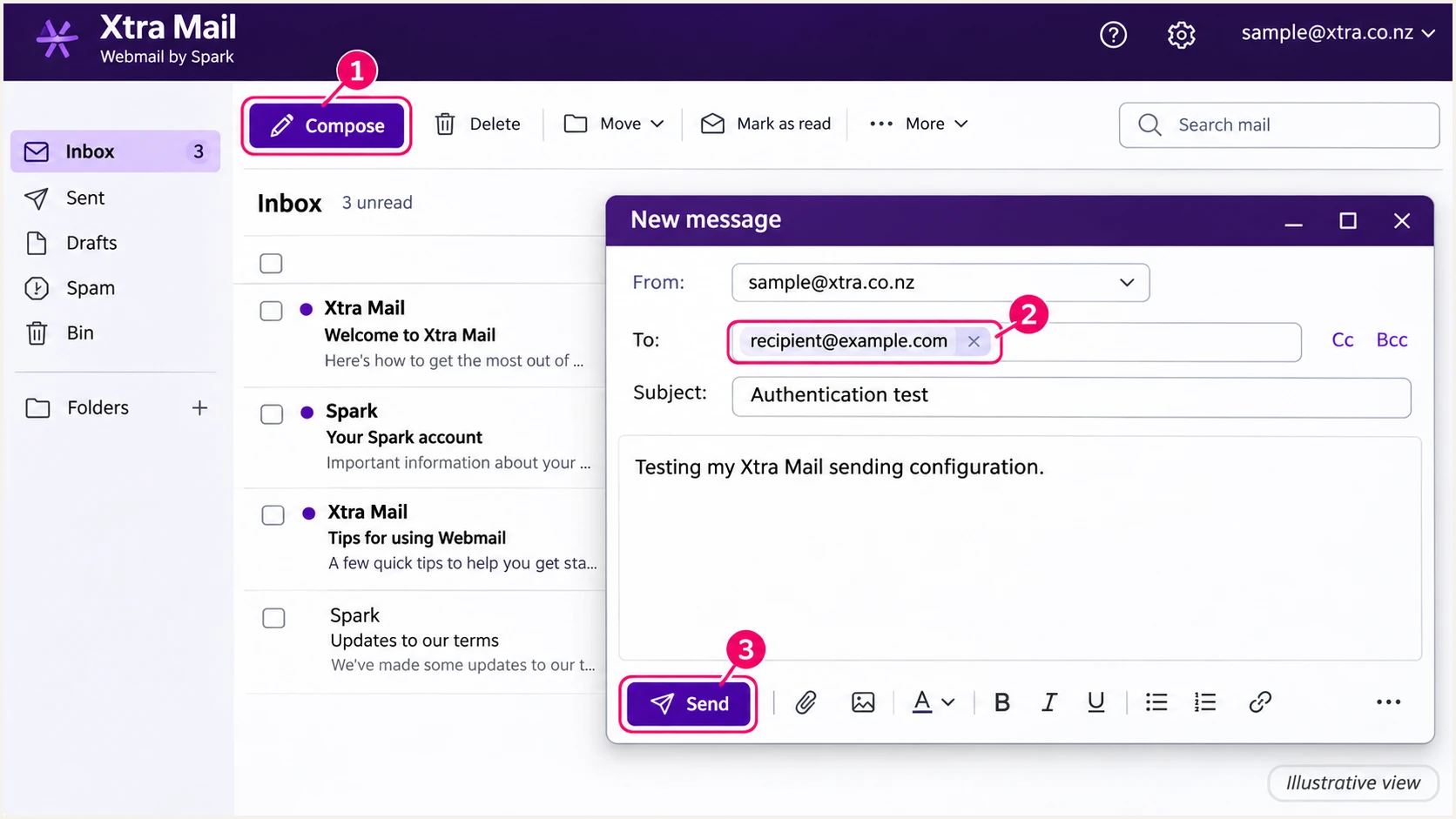
Illustrative Xtra Mail Webmail composition view for sending a test message.
Spark's "Learn the basics of Webmail" instructions document this Compose workflow. A received message proves that delivery worked for that test, but the recipient's authentication results are needed to confirm SPF, DKIM and DMARC.
If you need to send as an address on your own domain, ask Spark to confirm support for that exact service and address. Standard Xtra Mail documentation does not provide a customer custom-domain authentication workflow.
Set up SPF
Spark publishes SPF for xtra.co.nz. There is no SPF TXT record for a mailbox user to add. I check the actual Return-Path domain and the recipient's SPF result instead of copying Spark's DNS records onto another domain.
- Use the outgoing server. For an email app, set the SMTP host to send.xtra.co.nz, port 587, with STARTTLS and authentication using your full Xtra Mail address and mailbox password.
- Check the envelope. In the received message, find Return-Path and the trusted recipient's Authentication-Results header. Compare smtp.mailfrom with the visible From domain. Native Xtra Mail sending supports SPF alignment; confirm it on your test.
- Avoid copied authorization. Do not add include:xtra.co.nz, Spark IP addresses or an extra SPF record to your own domain just because you use an Xtra mailbox. Obtain explicit instructions for your actual sending service.
Spark documents these connection settings. SMTP login authorizes access to the server; SPF is a separate check performed by the recipient.
Xtra Mail email app settingstext
SMTP host: send.xtra.co.nz
SMTP port: 587
SMTP security: STARTTLS
SMTP authentication: enabled
Username: your full Xtra Mail email address
Password: your Xtra Mail mailbox password
IMAP host: imap.xtra.co.nz
IMAP port: 993
IMAP security: SSL/TLS
Run the SPF check below for xtra.co.nz to inspect its public policy. If the message uses another Return-Path domain, check that domain as well.
A valid DNS record alone does not prove that a particular message passes. The sending IP must be authorized, and SPF alignment must match the visible From domain under the applicable DMARC settings.
SPF checker
Find SPF syntax issues, lookup limits, and weak records.
?/16tests passed
If SPF fails only after forwarding, compare a message delivered directly to the test recipient. Forwarding changes the connecting IP and often breaks SPF.
A message can still pass DMARC through valid DKIM with domain alignment. If a separate sending service uses a provider-owned Return-Path and offers no custom Return-Path, editing your From domain's SPF will not fix that mismatch; verify DKIM and DMARC instead.
Set up DKIM
Spark controls DKIM signing and the public keys for xtra.co.nz. I verify a real signature rather than generate a key that Xtra Mail has no documented way to use.
- Find the signature. Open the received message's full headers and locate DKIM-Signature. Read d= for the signing domain and s= for the selector.
- Verify the result. Check the trusted receiving server's Authentication-Results for dkim=pass. For an @xtra.co.nz sender, a passing d=xtra.co.nz signature has exact domain alignment.
- Escalate a failure. If direct Webmail messages repeatedly have no valid signature, send Spark the original message file and the recipient's error. A mailbox user cannot replace Spark's private signing key or DNS key.
A signature header shows that a sender attempted signing. It does not establish that the signature verified. I use the recipient's result and the selector taken from that same message.
Xtra Mail mailbox
Spark manages signing for xtra.co.nz. Verify the delivered message and ask Spark to investigate missing signatures or invalid keys.
Your own domain
Your sending service must support signing with your domain. Publish the exact selector record it supplies and activate signing with that service.
For a DNS check, replace both values below with the s= and d= values in the delivered message. A selector guessed from an old example is not a reliable test.
Finding a public key confirms publication only. The recipient still has to verify the message signature, and DMARC still checks domain alignment.
Look up the selector used by your messagebash
selector='replace-with-s-value'
signing_domain='replace-with-d-value'
dig +short TXT "$selector._domainkey.$signing_domain"
Set up DMARC
For an @xtra.co.nz address, Spark controls the DMARC policy at _dmarc.xtra.co.nz. You can inspect that policy, but you cannot change it or redirect its reports.
- Inspect the shared policy. Enter xtra.co.nz in the DMARC checker below. Treat its output as the current published policy, rather than assuming a particular enforcement level.
- Check message authentication. Look for dmarc=pass in the trusted recipient's results. DMARC requires a pass through SPF or DKIM with domain alignment; it does not require both.
- Separate owned domains. Only configure a new DMARC record when you control the visible From domain's DNS. Keep an existing p=quarantine or p=reject policy instead of replacing it with p=none.
The checker validates DNS configuration. It cannot show whether your email app selected the correct sending server or whether a specific message had a valid DKIM signature.
DMARC checker
Look up a domain's DMARC record and catch policy issues.
?/7tests passed
For a domain you own that has no DMARC policy, start with p=none and collect aggregate reports before enforcing. This applies to your domain, never to Spark's xtra.co.nz zone.
Use the DMARC record generator to prepare the record. Replace the example domain and report mailbox with values you control before publishing.
Only publish on a domain you control
For the example domain example.com, create one TXT record at _dmarc.example.com with this value. Replace dmarc@example.com with a working report destination. This is an example, not Xtra Mail's live policy.
Example monitoring policytext
v=DMARC1; p=none; rua=mailto:dmarc@example.com
A reporting address at another domain also needs authorization in the report receiver's DNS. Do not downgrade an existing quarantine or reject policy to use this example.
Verify and troubleshoot
I test a fresh message after changing account settings. Suped's email tester gives a quicker diagnosis by checking the message that actually arrives.
- Get the test address. Use the email tester below to obtain its destination address.
- Send through Xtra Mail. In Webmail, select Compose and send a new message to that destination. Repeat through your email app if you use one.
- Read the diagnosis. Review SPF and DKIM results, their domain alignment, and the DMARC result. Save the findings for comparison after any correction.
- Separate sending paths. If Webmail passes and the app fails, check the app's SMTP server, selected account and From address. If both fail, preserve the original messages for Spark.
The test sends a real email through your configured route. A DNS lookup alone does not exercise that route, so I use both checks.
Email tester
Send a real email to this address. Suped shows a results button when the test is ready.
?/43tests passed
Use results stamped by the receiving system you trust. Authentication-Results text inside a quoted message or an untrusted header is not proof of a pass.
For delivery failures, save the full bounce, timestamp and Message-ID. Authentication is one part of delivery; a passing DMARC result does not guarantee inbox placement.
|
|
|---|---|
Webmail passes | Check app SMTP |
SPF fails | Check sending route |
DKIM fails | Inspect original message |
DMARC fails | Check domain alignment |
All pass, bounced | Read rejection text |
Use the observed result to choose the next check.
Spark's "Can't send email or receive emails" guidance recommends comparing Webmail with your email app and checking both server credentials after a password reset. Fix connection errors before investigating DNS.
If the receiving mailbox is also Xtra Mail, open the test message and choose Save as file in its options menu, as documented in Spark's backup instructions. Save the received copy rather than a forwarded copy so the original headers remain available.
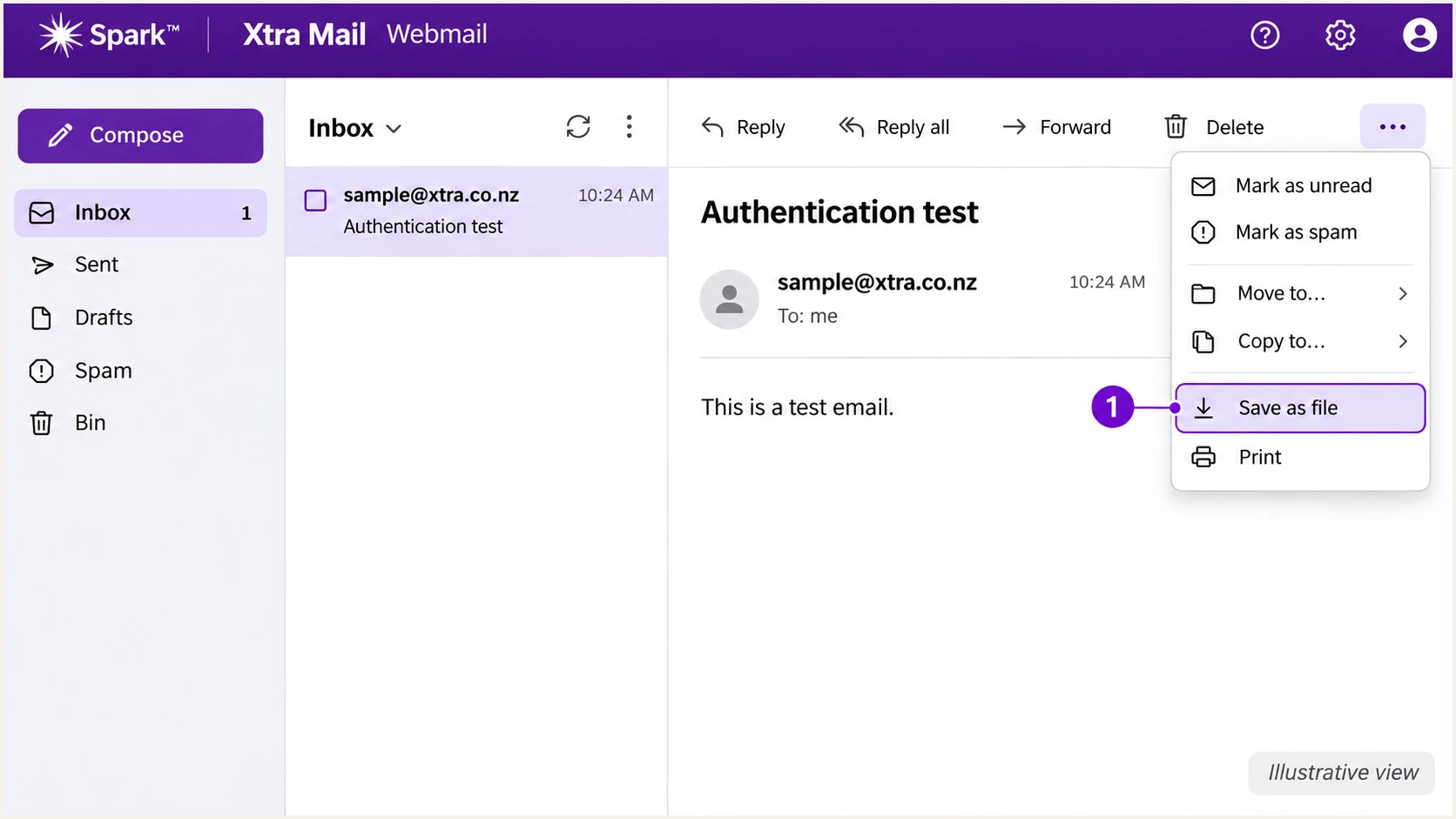
Illustrative Xtra Mail message menu highlighting Save as file.
Send the saved original to Spark support when a failure occurs through Webmail itself. Include the exact receiving-server error rather than a screenshot of the message body.
For mail sent to Xtra Mail from your own domain, troubleshoot the originating service and your domain's authentication. Changing an Xtra recipient's settings does not configure your outbound SPF or DKIM.
Get alerted when it breaks
For a domain your team owns, our Suped platform turns aggregate reports into DMARC monitoring with source details and issue notifications. For an @xtra.co.nz mailbox, Spark remains responsible for the shared domain's reporting configuration.
- Enable issue notifications. For an owned domain already reporting to Suped, enable Issues detected notifications and choose recipients who can investigate authentication failures.
- Review new sources. Enable Sending sources need verification notifications. Confirm a source is authorized before verifying it; a familiar name or matching rDNS suffix is insufficient.
- Investigate the message path. Use Suped's source table, then the data and detail views, to inspect reporter, source IP and authentication results. Use DNS history to check whether a record changed.
- Escalate shared-domain faults. For Xtra Mail failures, send Spark the original test email and bounce. Suped cannot change xtra.co.nz or obtain its domain-wide reports merely because you own one mailbox.
I use issue notifications to catch regressions between manual tests. Aggregate reports are commonly delivered daily, so an alert based on those reports follows report arrival and processing rather than every SMTP transaction.
Retest after changing an app, password or sending route. Retest an owned domain after DNS changes too, then confirm the fix in subsequent reports.
Secure your domain with p=reject
Only Spark can move xtra.co.nz to p=reject. If your goal is control over enforcement, send using a domain you own and a service that supports authentication for that domain.
Keep the scope of protection clear
A p=reject policy asks recipients to reject messages that fail DMARC for the protected domain, subject to receiver handling. It does not prevent abuse of a compromised mailbox or protect every similar-looking domain. Keep monitoring legitimate senders after enforcement.
- Inventory legitimate mail. For an owned domain, use Suped's source table to identify authorized senders. Review a complete sending cycle, including infrequent mail such as monthly statements.
- Fix domain alignment. Confirm each legitimate sender passes DMARC through SPF or DKIM with domain alignment. Prioritize working DKIM so normal forwarding does not leave SPF as the only passing method.
- Stage enforcement. After legitimate traffic is accounted for, move a new monitoring policy to p=quarantine, review the effect, and then change it to p=reject. Keep reporting enabled and assess subdomain policy separately.
- Verify after every change. Check the published policy, repeat message tests and review subsequent Suped reports for legitimate failures. Keep an existing quarantine or reject policy while correcting its authorized sending paths.
Suped's diagnostics and DNS history give the team evidence for each policy change. Hosted DMARC supports managing policy through the dashboard after its DNS setup; it does not grant control over Spark's shared domain.
I base enforcement on identified legitimate traffic, rather than a fixed waiting period or a single passing test. Unknown unauthorized traffic can continue failing after the legitimate senders are ready.
Frequency asked questions
Spark's standard Xtra Mail support instructions describe activating an @xtra.co.nz mailbox, without a self-service custom-domain authentication process. If Spark supplies a different domain-based service, obtain its specific DNS and signing instructions. Receiving forwarded mail from your domain does not establish authenticated sending for it.
None. Spark controls SPF for xtra.co.nz. Send through Xtra Mail Webmail or the documented authenticated SMTP server, then test the delivered message. Adding an Xtra-related SPF include to a separate domain does not authorize sending as xtra.co.nz.
SPF checks the envelope sender domain, which can differ from the visible From domain. DMARC passes when either SPF or DKIM passes with the required domain alignment. A valid DKIM signature with domain alignment is sufficient even when forwarding or a provider-owned Return-Path prevents SPF alignment.
Xtra Mail is associated with outbound hosts such as out2306.xtra.co.nz, which appears in public message headers. If a source IP's live PTR returns an Xtra outbound hostname, investigate it as a possible Xtra Mail sending path. Check the IP's forward DNS and the message authentication results before attributing a source; an rDNS suffix alone does not prove authorization.
No. Enforcement is configured for a domain through its DNS, rather than for an individual mailbox. Spark controls xtra.co.nz. Suped can monitor authentication and help manage enforcement for a domain your organization controls, but cannot change Spark's policy on your behalf.




