How to set up DMARC/DKIM/SPF for Xero

Xero manages SPF and DKIM for its standard invoice emails. You do not add Xero DNS records to your domain: the From address is messaging-service@post.xero.com. Verify your reply-to mailbox in Xero, test a real message, and publish DMARC separately for email sent using your own domain.
I check the actual From address before changing DNS. Xero's 21 October 2026 product update lists custom-domain sending as in development, rather than released. Its documented Email settings workflow verifies a reply-to address.
Verify your reply-to address
Use a standard or administrator role. Xero verifies access to the mailbox; there is no domain-authentication step in this workflow.
- Open settings: Click the organisation name, select Settings, then Email settings.
- Add the address: Beside Email address, click Edit, then Add email address.
- Enter details: Set Reply to Email address to accounts@example.com, enter your Email name, then click Add email.
- Approve access: Open the request in that mailbox, click Email Approval, then Approve Request.
- Confirm selection: Return to Email settings and check that the approved address is selected. For an expired invitation, use Resend beside the address.
Choose a mailbox your billing team monitors.
Approval authorizes replies. It does not authorize sending under that mailbox's domain.
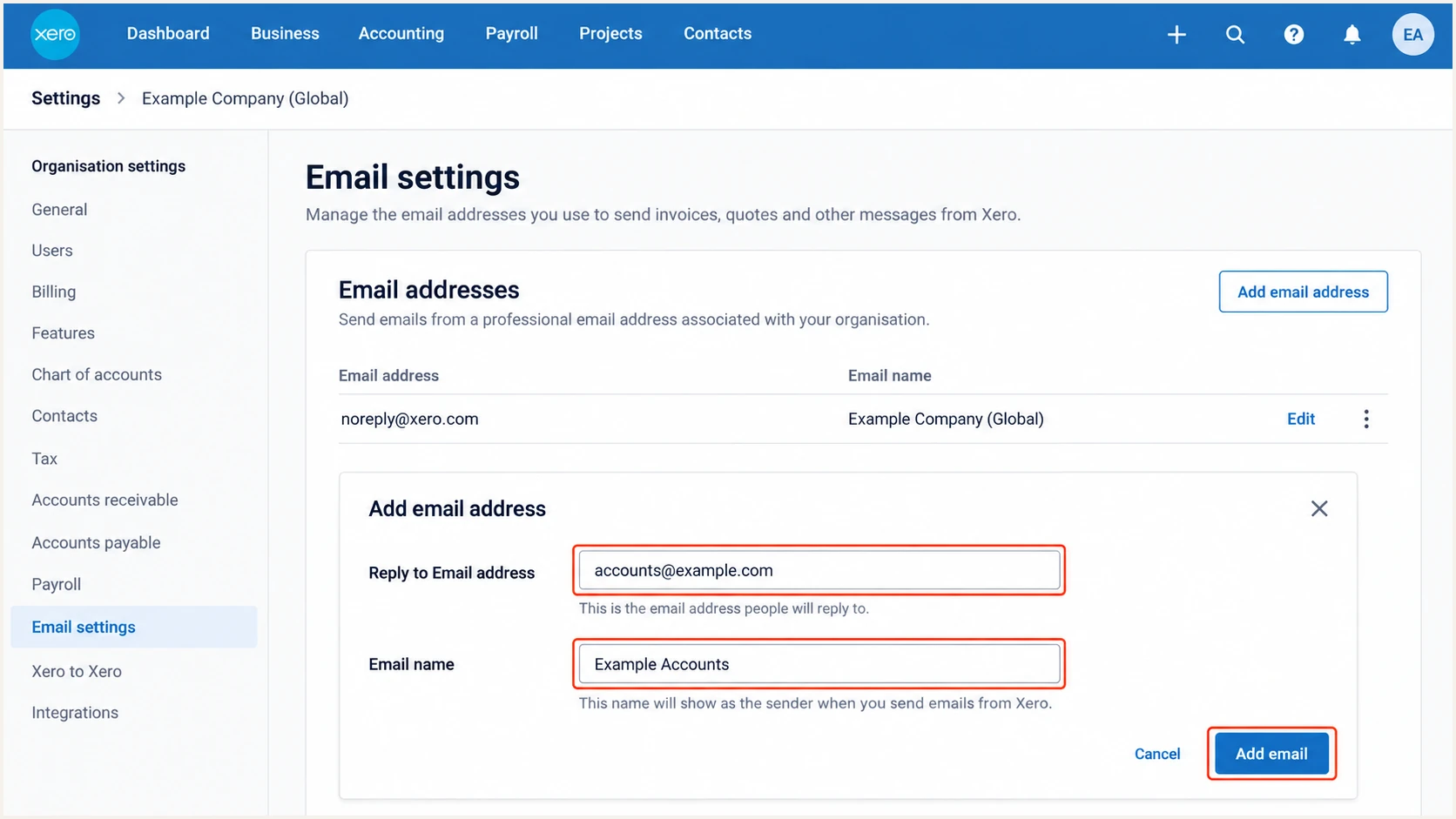
Xero Email settings: enter and approve a reply-to mailbox.
After approval, send a sample message and use Reply to confirm its destination.
Keep the reply path and sending identity separate when interpreting authentication results.
Set up SPF
No SPF change is required for standard Xero sending. SPF checks the envelope sender, usually exposed as Return-Path, rather than Reply-To.
Use this lookup to audit your own domain's existing SPF. It does not test the authentication of an individual invoice.
SPF checker
Find SPF syntax issues, lookup limits, and weak records.
?/16tests passed
A valid SPF record on your domain does not authorize mail using another domain's envelope sender.
I leave existing SPF authorizations intact unless the actual sending path requires a change.
- Skip Xero additions: Do not add a guessed Xero include or copy Xero's sending IPs into your SPF record.
- Preserve one record: Keep one SPF TXT record per sending hostname. Merge legitimate authorizations into that record instead of publishing a second one.
- Check the limit: SPF permits at most 10 DNS-querying terms during evaluation, including nested includes. Exceeding that limit produces permerror.
- Handle other senders: For email actually sent as your domain, configure SPF with your mail provider. If a sender lacks custom Return-Path support, a passing DKIM signature with domain alignment can still provide a DMARC pass.
An SPF alignment error is acceptable for DMARC when DKIM passes with domain alignment. An SPF pass by itself is insufficient.
Compare authentication domains to the message's From domain, never to its reply-to mailbox.
Set up DKIM
Xero controls signing for its standard sending identity. Publishing a public key in your DNS cannot make another system sign messages with the matching private key.
- Inspect a message: Open the original message source in the receiving mailbox and locate DKIM-Signature and the receiving server's Authentication-Results.
- Read the signature: Note d= for the signing domain and s= for the selector. Verify dkim=pass and domain alignment with the actual From address.
- Avoid guessed records: Do not generate a DKIM key or invent a selector for Xero. A useful DNS record must match the key and selector the sender actually uses.
- Check your mailbox: If you send invoices through your own mailbox instead, enable DKIM in that mailbox's mail service and publish its supplied records.
A selector's DNS name is built using s= and d=. Read both values from the same signature.
Multiple signatures are valid. DMARC needs at least one passing signature with the required domain alignment when using DKIM.
Sent through Xero
Inspect the platform's From identity and signatures. Authentication changes are controlled by the platform.
Sent through your mailbox
Your mail service signs the message. Your DNS and DMARC policy govern your domain's sending identity.
For a DNS check, replace selector and signing.example.com below with the signature's actual values.
A returned key proves publication. Only verification of a received message proves that its signature passes.
Look up the selector read from the messagebash
dig +short TXT selector._domainkey.signing.example.com
Set up DMARC
Publish DMARC for your own domain to control its use in From addresses. This policy does not govern a message that only uses your domain in Reply-To.
- Inspect DNS: Look up TXT records at _dmarc.example.com before making changes. Edit an existing DMARC record rather than creating a duplicate.
- Keep enforcement: If your current policy is p=quarantine or p=reject, keep it. Troubleshoot the actual authentication failure without weakening an established policy.
- Start reporting: For a domain without DMARC, begin with p=none and a working aggregate-report destination.
- Publish the record: At your DNS host, select TXT, set the name to _dmarc, and enter the value below. Use the full hostname only if the DNS host requires it.
Replace example.com and the reporting mailbox before publishing. For a reporting service, use its assigned rua address and any required external-report authorization.
Initial TXT value at _dmarc.example.comtext
v=DMARC1; p=none; rua=mailto:dmarc@example.com
The p=none policy requests reporting without requesting quarantine or rejection for DMARC failures.
Check the published domain below after DNS caches refresh. Confirm that only one valid DMARC policy record is found.
DMARC checker
Look up a domain's DMARC record and catch policy issues.
?/7tests passed
A successful lookup verifies the policy record. It does not establish that all legitimate senders pass authentication.
Wait for aggregate reports and review each legitimate source before increasing enforcement.
Protect the correct domain
Your domain's DMARC record cannot repair a failure for a different From domain. Check the receiving server's header.from result before editing DNS.
Verify and troubleshoot
I test the original sending path. Forwarding an invoice through another mailbox changes the path and can change authentication results.
- Prepare a sample: Use a test invoice containing sample billing details. In Sales, select Invoices and tick the invoice's checkbox.
- Open the message: Click Email. Replace the recipient with an address you control, review the details, then click Send.
- Inspect receipt: Read the trusted Authentication-Results added by the receiving server. Check spf, dkim and dmarc results alongside their associated domains.
- Separate failures: For a platform-owned signing or SPF failure, collect the original headers and bounce response for Xero support. For your own domain, fix the actual sending service.
- Trace delivery: If authentication passes but the email is missing, ask the recipient's administrator for the rejection code or quarantine reason. A Sent status does not prove inbox placement.
First check the recipient address and whether the original message arrived in junk or quarantine.
Keep the send time and message ID with the original headers so support can trace the same delivery attempt.
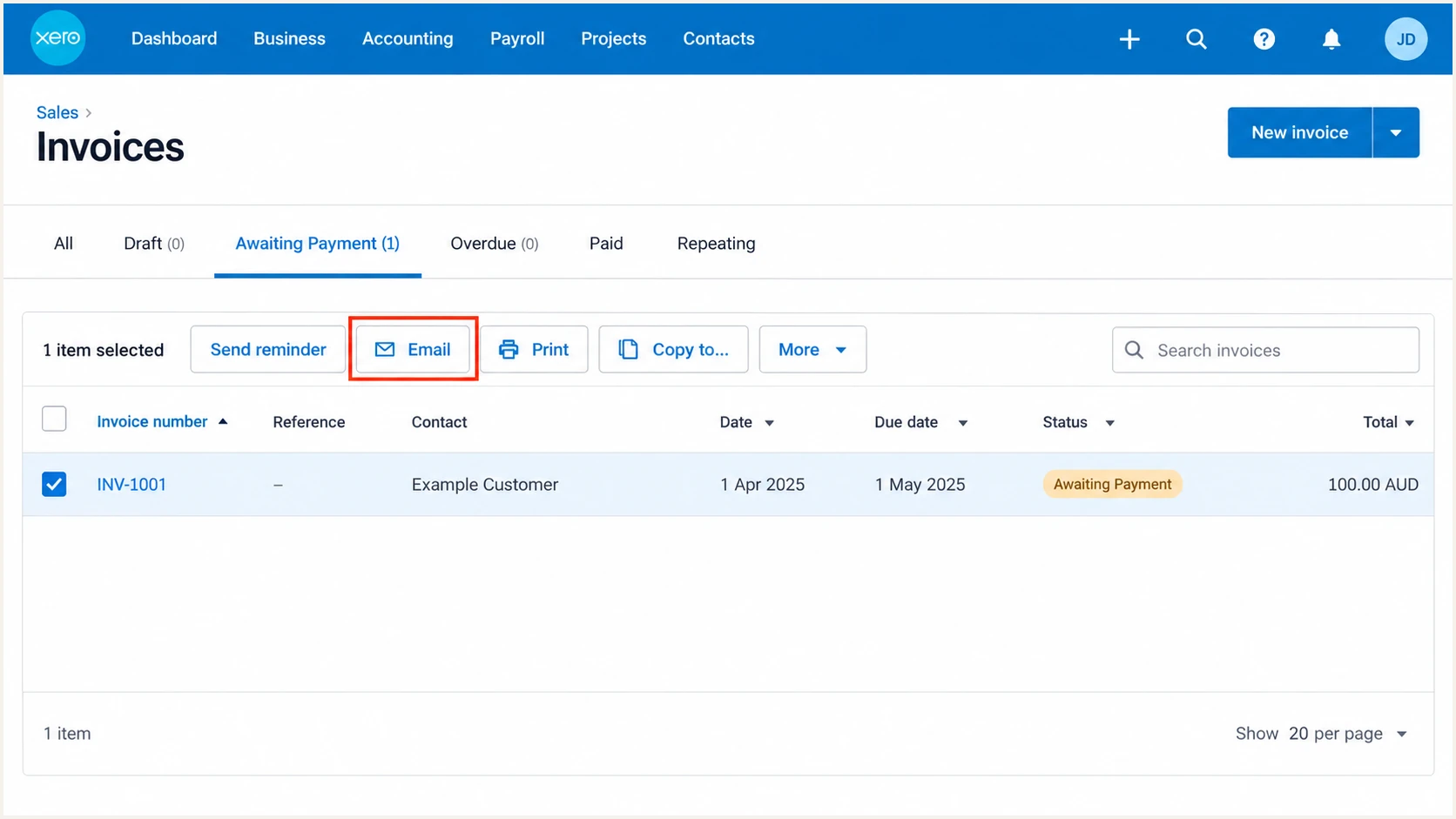
Select a sample Xero invoice and click Email to test its sending path.
For a quicker diagnosis, copy the temporary recipient address supplied by the email tester below into Xero's Email recipient field.
Send directly through Xero, then open the generated results. The tester checks the received message, including authentication and delivery-related signals.
Email tester
Send a real email to this address. Suped shows a results button when the test is ready.
?/43tests passed
Test your own mailbox separately if staff also send invoices manually. Each path needs its own authentication check.
Use these fields to determine which domain needs attention.
|
|
|
|---|---|---|
From | Author identity | DMARC domain |
Reply-To | Reply destination | Billing mailbox |
Return-Path | Envelope sender | SPF domain |
DKIM d= | Signing identity | Domain alignment |
DKIM s= | Key selector | Public key |
Evaluate authentication against From, not Reply-To.
If Xero delivery remains blocked, send the invoice using your authenticated mailbox while support investigates.
For an approved invoice, open it, select Get link in its menu, copy the link, and paste it into your own email. That email uses your mailbox's authentication.
Get alerted when it breaks
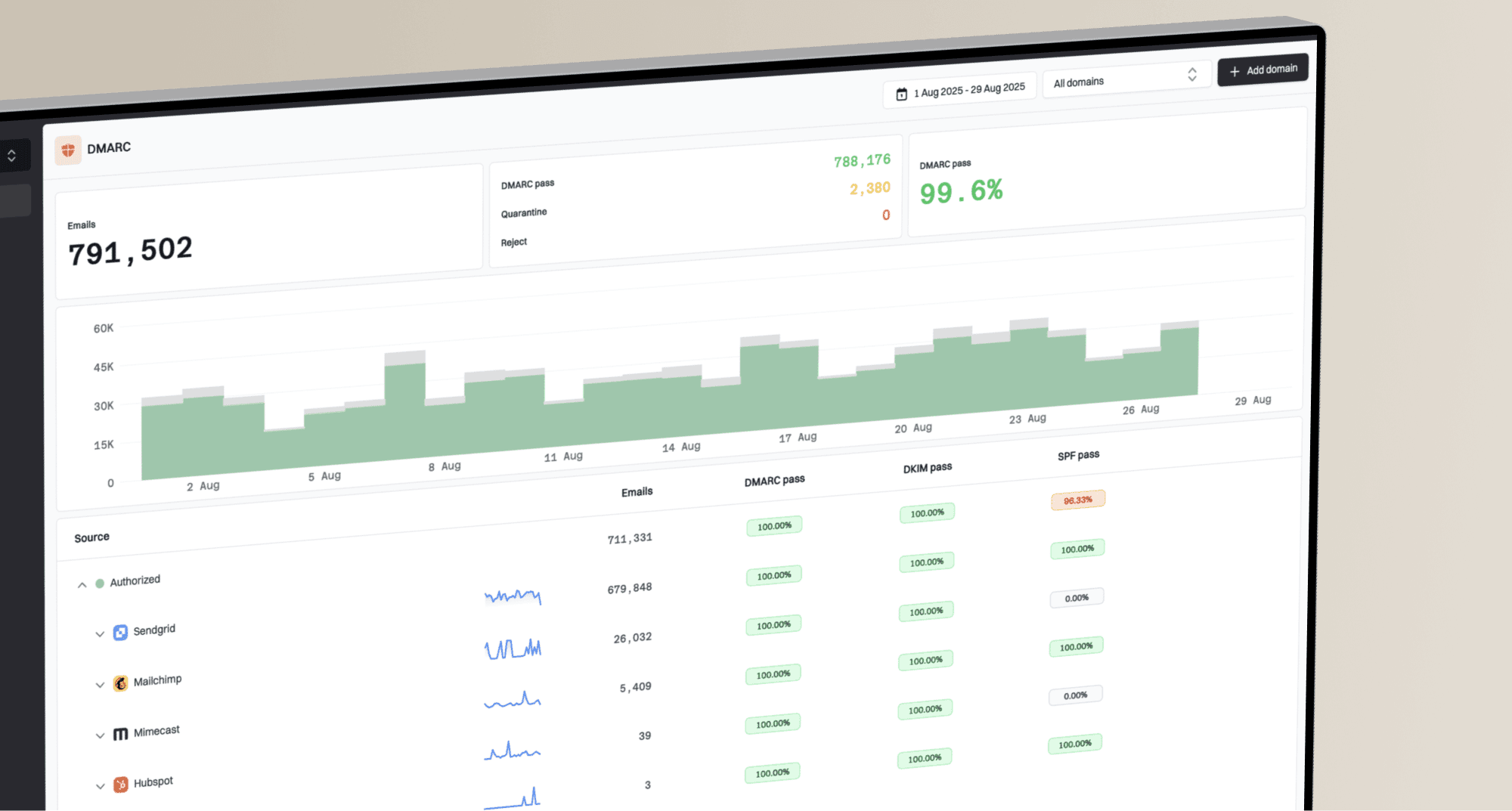
Our Suped platform provides DMARC monitoring with source diagnostics and failure notifications. It gives your team an ongoing workflow for your domain after the initial message test.
- Enable notifications: In Suped's notification settings, enable DMARC failure alerts and summary emails for the domain's reporting feed.
- Review the source: When alerted, inspect the source and SPF or DKIM results. Separate legitimate traffic with broken authentication from unauthorized use.
- Resolve the issue: Use Suped's detected issue and steps to fix, update the responsible sending service or DNS record, then verify subsequent reports.
- Keep Xero checks: Continue checking Xero's failed-send notifications and recipient feedback. Your domain's report feed does not track invoices authenticated solely under Xero's domain.
Suped's source table and detailed record diagnostics put failures beside the evidence needed to investigate them.
I keep delivery tracing separate from aggregate reporting. A receiver's rejection response answers a different question than a daily authentication report.
Report arrival controls alert timing
DMARC aggregate reports usually arrive daily. Suped alerts follow the available reporting data; they are not a live notification for every invoice or a substitute for Xero delivery logs.
If your own sending IP appears on a blocklist (blacklist), Suped's reputation monitoring adds a separate investigation signal.
For a shared platform sending IP, give the listing evidence to the platform's support team. Adding its IP to your SPF does not clear a blacklist listing.
Secure your domain with p=reject
Use Suped to review legitimate sources and resolve authentication issues before enforcing your domain's DMARC policy. The decision should follow observed sending behavior.
- Inventory senders: Review a complete billing cycle, including infrequent reminders and manual invoice emails. Confirm which messages actually use your domain in From.
- Fix legitimate traffic: Verify passing DKIM with domain alignment and configure SPF where supported. Investigate forwarding failures instead of authorizing every reported IP.
- Stage enforcement: Once legitimate sources pass consistently, move to p=quarantine, review the next reports, then change to p=reject. Keep reporting enabled.
- Retest changes: Send new samples after each policy change. Review subdomain policies and keep investigating newly detected sources after enforcement.
Our Hosted DMARC lets teams manage policy in Suped after the hosted DNS setup. Pair those controls with issue diagnostics and report review at each stage.
Replace the reporting mailbox below with your working destination. Edit the existing record rather than adding another policy.
Final TXT value after legitimate senders are verifiedtext
v=DMARC1; p=reject; rua=mailto:dmarc@example.com
The p=reject policy requests rejection of messages that fail DMARC for your domain. Receivers retain their own handling policies.
This protects use of your domain in From addresses. It does not prevent display-name impersonation or guarantee delivery of authenticated invoices.
FAQ
The distinction between a reply-to mailbox and a sending domain explains the most common Xero authentication questions.
No, not for standard Xero invoice sending. Your domain is used as the reply destination, while the platform uses its own sending identity. Configure your SPF for services that actually use your domain as the envelope sender.
Xero's documented Email settings workflow does not provide those controls. Its 21 October 2026 update says custom-domain sending is in development. Use only authentication records supplied for a released sending-domain workflow, rather than guessed includes or selectors.
Your policy applies to your domain's From identity, not to a Reply-To address. Standard invoices using Xero's From identity are evaluated under that domain's policy. Test any integration or manual-mailbox path separately because its From identity can differ.
Yes. A passing DKIM signature with the required domain alignment is sufficient for a DMARC pass. A DKIM pass without domain alignment is insufficient. Keep SPF configured correctly for sending paths you control.
Xero uses post.xero.com for its standard invoice sender. That is a From domain, not a guaranteed rDNS suffix. Check the sending IP's PTR record for its current reverse hostname, then verify authentication. A hostname or display name alone does not prove a message is legitimate.
Authentication validates domain use; it does not guarantee inbox placement or a legitimate invoice. Recipient filtering also considers reputation and message content. Obtain the rejection or quarantine reason and original headers before deciding which setting to change.