
How to set up DMARC/DKIM/SPF for WordPress.com


To authenticate WordPress.com site emails, connect your sending domain as the site's primary domain, authorize _spf.wpcloud.com in SPF, publish both WordPress.com DKIM CNAMEs, and add one DMARC TXT record. I then test an actual site email to confirm DMARC passes.
These settings apply to WordPress.com's native custom-domain site mail on plugin-enabled paid sites. Built-in subscriber notifications use donotreply@wordpress.com, so your domain's DNS does not change their authentication. Mail sent through a separately configured SMTP service needs that service's records.
Add your domain
I check the site's primary domain before editing email DNS. A domain connected to the wrong site, or a plugin using another From domain, prevents the expected WordPress.com signing.
- Connect the domain: In the Hosting Dashboard, select your site, open Domains, choose "Use a domain name I own", enter your domain, and choose "Connect your domain name to this site".
- Verify the connection: Complete the connection wizard and click "Verify Connection" when prompted. Keep existing mail records when changing name servers; wait until the domain status is Active.
- Set the primary address: In Domains, click "Change primary site address", select your custom domain, and click "Change address". Skip the connection steps if the domain is already attached correctly.
- Check the sender: Use an address on that primary domain in each sending plugin's From setting. For contact forms, put the visitor's address in Reply-To.
Edit authentication records wherever the domain's authoritative name servers point. Keeping DNS outside WordPress.com is supported; connecting a website does not require moving its mailboxes.
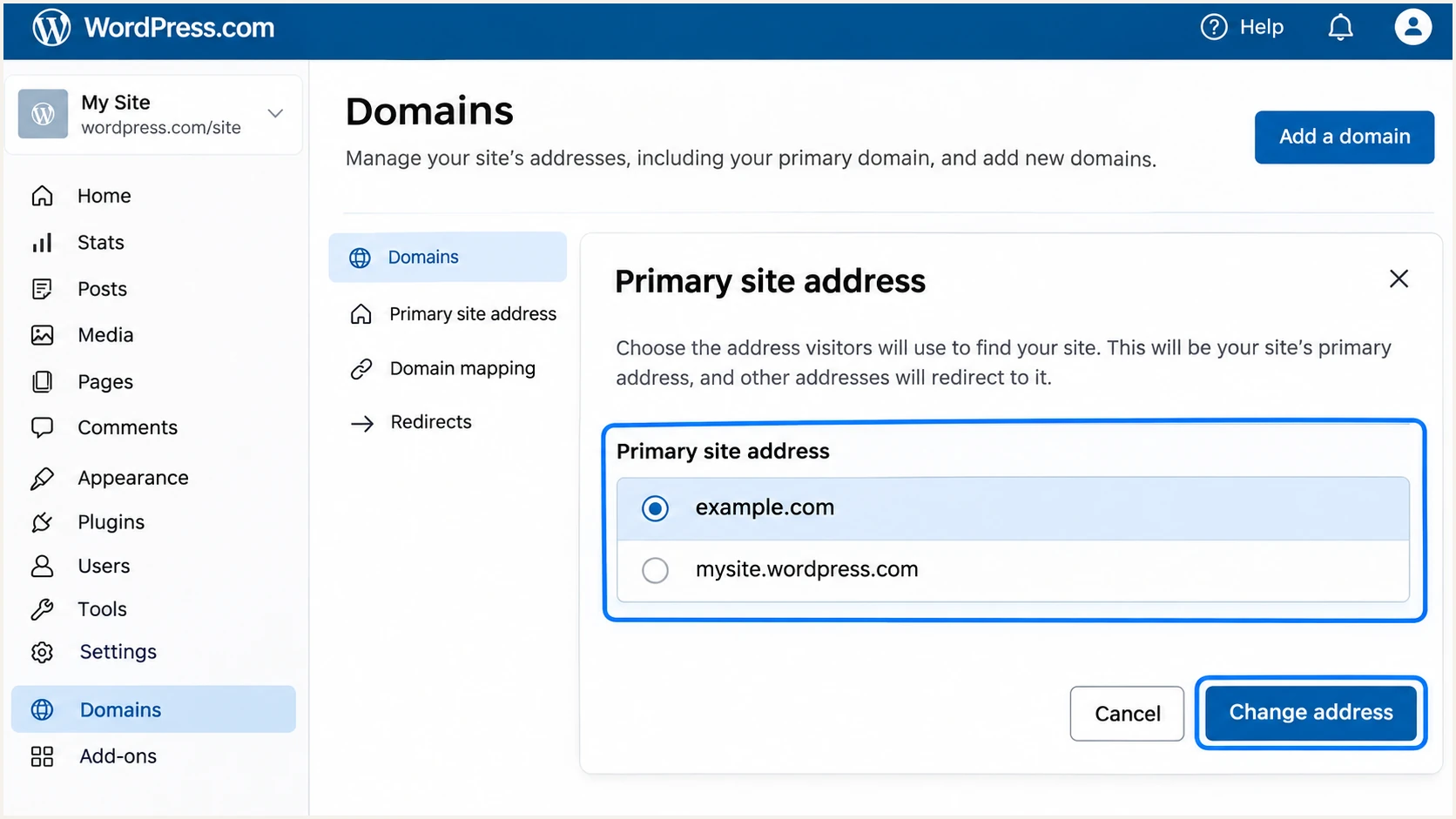
WordPress.com primary site address selection for a connected domain.
Domain connection verifies the website setup. Email authentication still needs DNS checks and a delivered-message test.
Set up SPF
WordPress.com documents include:_spf.wpcloud.com for its native sending infrastructure. I add it to the SPF policy for the sending domain while preserving every other authorized sender.
- Open DNS: Go to Hosting Dashboard > Domains > your domain > Settings > DNS records. Use "Add record" only when no SPF record exists.
- Publish the value: Choose TXT, set Name to @ for example.com, enter the value below, set TTL to 3600, and click "Add DNS record".
- Merge existing SPF: If a TXT value already starts with v=spf1, edit that value. Insert the WordPress.com include before its final all mechanism; keep the existing ~all or -all.
- Check lookup limits: Keep one SPF record per hostname and stay within the limit of 10 DNS lookup-causing terms, including nested includes.
SPF value when WordPress.com is the only authorized sendertext
v=spf1 include:_spf.wpcloud.com ~all
Do not replace a working multi-service SPF policy with this single-service example. Other TXT records, such as ownership verification tokens, can remain.
SPF checks the envelope sender, usually visible in Return-Path. Its domain must also match the From domain under DMARC's alignment rules for SPF to contribute to a DMARC pass.
SPF checker
Find SPF syntax issues, lookup limits, and weak records.
?/16tests passed
Look up the domain whose SPF you edited. If a delivered message uses a provider-owned Return-Path instead, changing your root SPF cannot make that identity match; passing DKIM with a matching signing domain can still satisfy DMARC.
Set up DKIM
WordPress.com publishes two CNAME selectors. I add both and keep any unrelated DKIM selectors used by other legitimate senders.
- Add the first selector: In DNS records, choose "Add record" > CNAME. Enter wpcloud1._domainkey as Name and wpcloud1._domainkey.wpcloud.com. as "Alias Of". Set TTL to 3600 and save.
- Add the second selector: Repeat with Name wpcloud2._domainkey and target wpcloud2._domainkey.wpcloud.com., also with TTL 3600.
- Remove conflicts: A selector hostname cannot contain a CNAME alongside a TXT record. Resolve any conflict at that exact name without deleting other selectors.
- Confirm signing: Trigger site mail and check the DKIM signature's d= domain and s= selector. The signing domain must match your From domain under DMARC's rules.
DKIM records for the DNS zone of example.comdns
wpcloud1._domainkey 3600 IN CNAME wpcloud1._domainkey.wpcloud.com.
wpcloud2._domainkey 3600 IN CNAME wpcloud2._domainkey.wpcloud.com.
The owner names above are relative to example.com. A DNS provider that expects full names needs the domain appended once; avoid creating a doubled domain suffix.
These CNAMEs delegate public-key publication to WordPress.com. You do not generate or upload a private key for this setup.
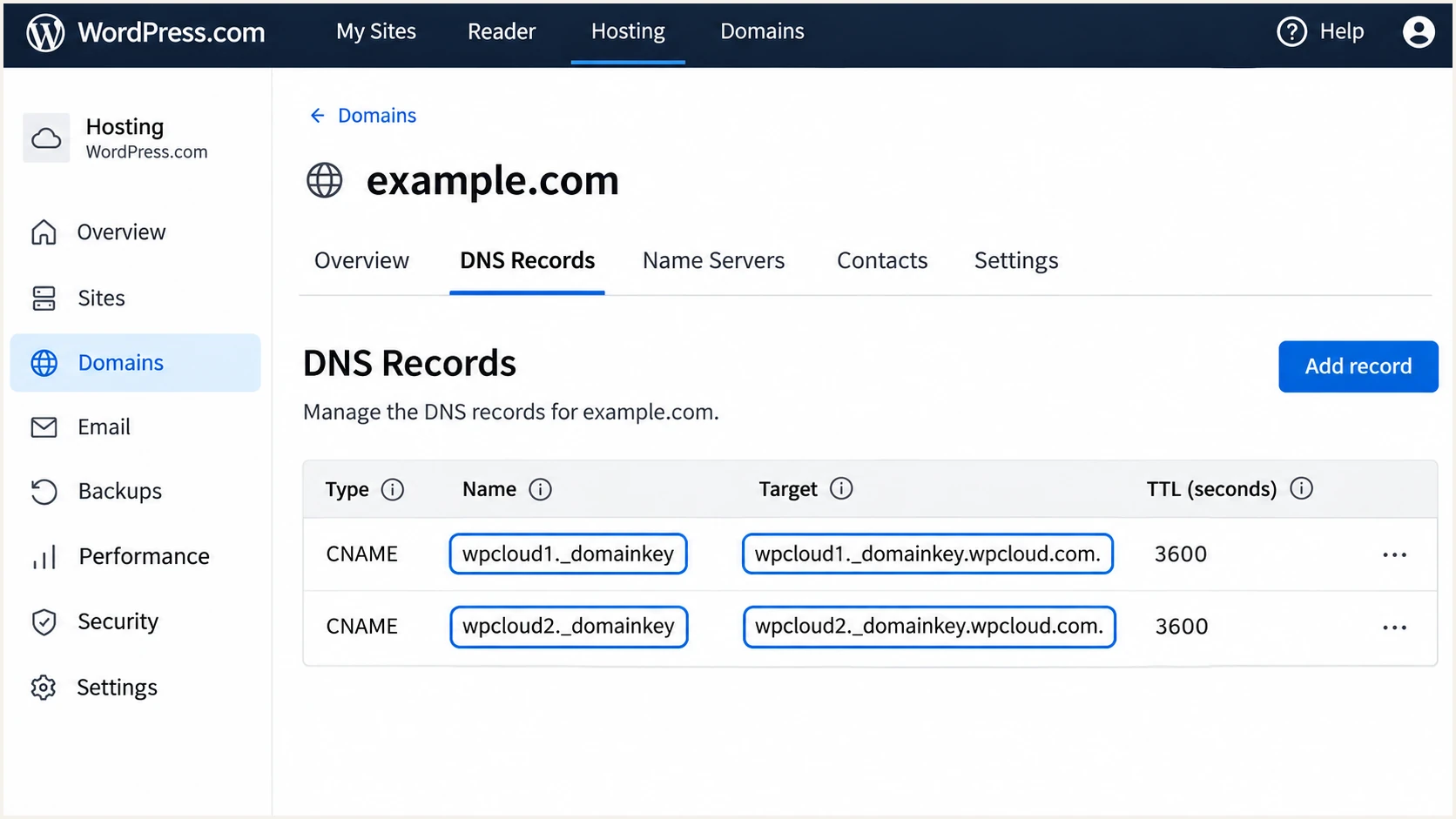
WordPress.com DNS records with both DKIM CNAME selectors.
Keep both selectors published even when a particular message uses only one. DNS presence alone does not confirm that the outgoing message carries a valid signature.
Set up DMARC
I start a new DMARC deployment with p=none and aggregate reporting. If your domain already uses p=quarantine or p=reject, keep that policy while fixing WordPress.com authentication.
- Check the existing record: Look for a TXT record at _dmarc.example.com. Edit the existing policy instead of publishing a second DMARC record.
- Create a new policy: In DNS records, choose "Add record" > TXT, enter _dmarc as Name, use the value below, and set TTL to 3600.
- Set a real report address: Replace dmarc@example.com with a mailbox you control or an assigned aggregate-report destination. An external reporting domain needs the required reporting authorization.
- Save and validate: Click "Add DNS record", then check that the policy and reporting destination resolve at the intended hostname.
Initial DMARC TXT valuetext
v=DMARC1; p=none; rua=mailto:dmarc@example.com
Use the DMARC record generator to construct a policy with your actual reporting destination. The example address is a placeholder, not a destination for your reports.
The rua tag requests aggregate reports. Publishing p=none without a usable report destination gives you no report data for identifying legitimate failures.
DMARC checker
Look up a domain's DMARC record and catch policy issues.
?/7tests passed
A valid DMARC record confirms the published policy. It does not prove that WordPress.com messages pass authentication.
A p=none policy requests monitoring without DMARC enforcement. Preserve existing reporting addresses and other intentional policy settings when editing an established record.
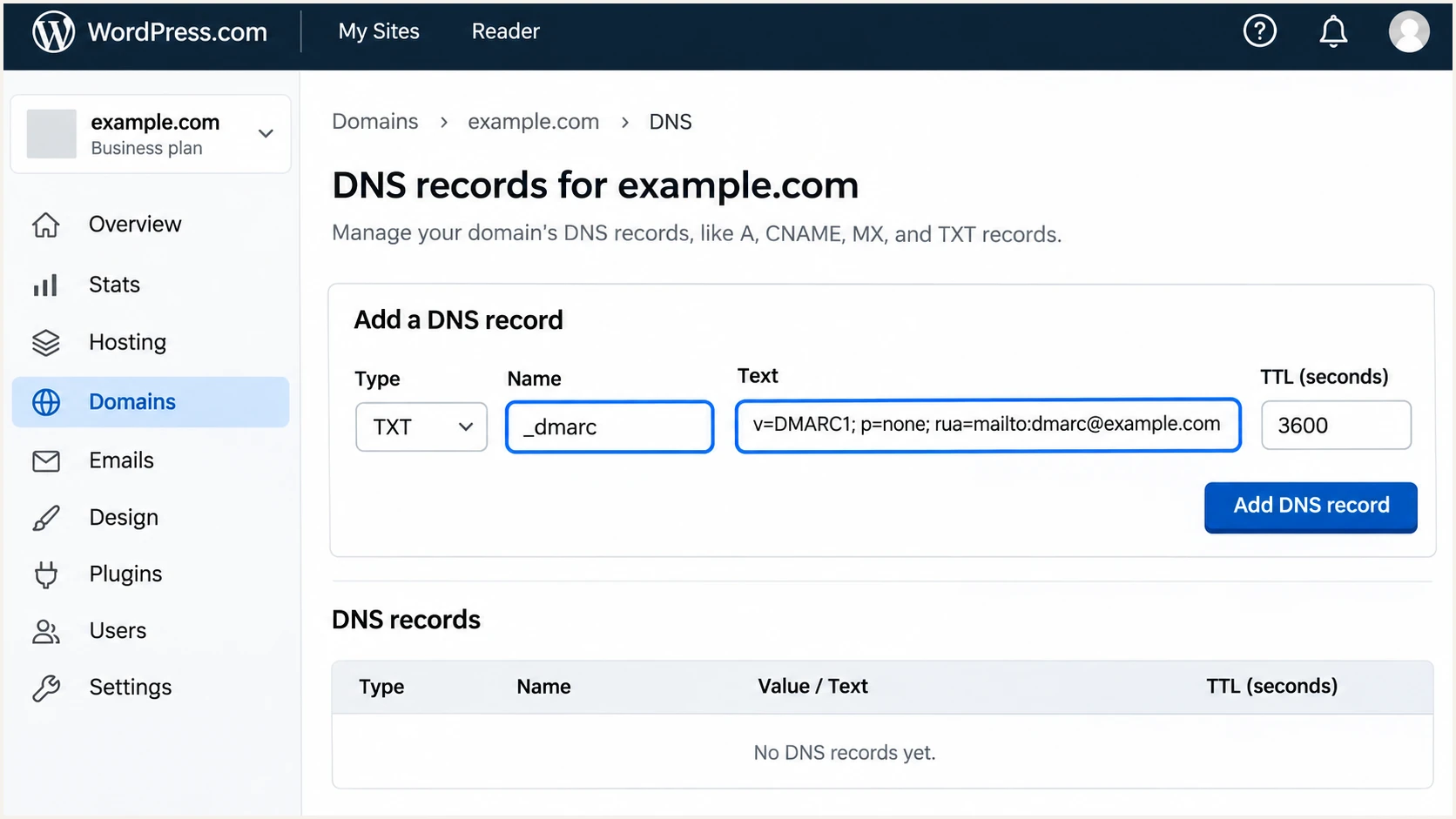
WordPress.com TXT editor with an initial DMARC reporting policy.
If WordPress.com already created a DMARC record automatically, update that record with the reporting address rather than adding another.
Verify and troubleshoot
I use a real site-generated message for the final check. A test from your normal mailbox verifies a different sending system.
- Trigger the real workflow: Send a contact form notification or a password reset to an address you control. Test each plugin that changes the sender or transport.
- Inspect received headers: Check Authentication-Results for spf=pass, dkim=pass, and dmarc=pass. Compare From with the envelope sender and the DKIM d= domain.
- Check WordPress.com diagnostics: Open Domains > your domain > Settings > Diagnostics if it is available. For WordPress.com-managed DNS, "Fix DNS Issues automatically" can restore missing records; review existing policies first.
- Retest failures: Check wrong DNS zones, duplicate SPF, selector typos, and plugin From settings. If mail never arrives, check site sending blocks and logs before changing DNS again.
The email tester below prompts you to send a message to a test address and returns a full diagnosis. Use that address as the recipient of the actual site notification for a quick check of your configuration.
Email tester
Send a real email to this address. Suped shows a results button when the test is ready.
?/43tests passed
DMARC passes when at least one successful SPF or DKIM result has a matching domain. An SPF alignment error is acceptable for DMARC when DKIM passes with a matching signing domain; investigate an actual SPF authentication failure separately.
Allow cached DNS answers to expire before retesting. WordPress.com states that its email DNS warning can take up to 48 hours to clear after corrections.
|
|
|
|---|---|---|
SPF permerror | Duplicate SPF | Merge TXT values |
DKIM key missing | Selector CNAME | Correct name/target |
DMARC failure | From identity | Use primary domain |
No site email | Sending block | Review site abuse |
Common failures in native WordPress.com site mail.
Passing authentication does not guarantee inbox delivery. If sending is paused, secure abused forms or registrations and resolve the WordPress.com sending block before retesting.
Get alerted when it breaks
Our product, Suped, provides DMARC monitoring for detecting authentication failures after setup. It connects reported failures to sending sources and supplies issue-specific steps to fix them.
- Enable issue emails: In Suped's Notifications settings, enable "Issues detected" for the people responsible for your domain's DNS and site mail.
- Review new sources: Enable "Sending sources need verification" and confirm that each newly observed sender is legitimate before treating it as authorized.
- Diagnose the failure: Use the detail view to compare reported SPF and DKIM results with the From domain. Filter the data by source or IP when a plugin changes delivery routes.
- Confirm the repair: Apply the DNS or sender correction, send another site test, and check subsequent reports. Enable "DMARC summary" emails for ongoing review.
I keep monitoring active after migrations and plugin changes. Suped's DNS history helps connect a newly reported failure with a record change.
Report timing matters
Aggregate reports usually arrive on a daily cycle. Suped's notifications depend on received report data; use a fresh email test to check a change immediately.
Keep the rua destination working throughout monitoring. A successful test confirms one message, while aggregate reporting covers the traffic participating receivers report.
Secure your domain with p=reject
I move to p=reject after every authorized sending workflow is accounted for and has a reliable DMARC pass. Suped's source verification and diagnostics provide the evidence for that decision.
- Inventory domain mail: Review WordPress.com alongside your business mailbox and every other authorized sender. Test infrequent password resets and scheduled notifications too.
- Fix legitimate failures: Require a passing SPF or DKIM result with a matching domain for every authorized stream. Prefer reliable DKIM so ordinary forwarding does not depend on SPF.
- Stage enforcement: Review a representative sending cycle at p=none, change to p=quarantine, and investigate legitimate failures before moving to p=reject.
- Retain reporting: Keep rua active, assign someone to investigate alerts, and repeat site email tests after changing the primary domain or mail transport.
A high overall pass rate is insufficient if a low-volume password reset flow still fails. Separate unauthorized traffic from legitimate failures when judging readiness.
Monitoring
p=none requests no DMARC enforcement. Reports reveal sending sources and failures while you correct legitimate mail.
Enforcement
p=reject asks receivers to reject mail that fails DMARC. Receivers retain their own handling policies; keep monitoring legitimate delivery.
Our Hosted DMARC lets teams manage policy in Suped after its initial DNS setup. Use the source inventory and issue diagnostics to decide when to advance enforcement.
Review subdomains before enforcement because a parent policy can apply to them. Keep the default relaxed domain matching unless you have tested a specific need for stricter settings.
DMARC TXT value after validating every authorized sendertext
v=DMARC1; p=reject; rua=mailto:dmarc@example.com
Replace the placeholder report address before publishing. Keep the WordPress.com SPF include and both DKIM CNAMEs in place, then test site mail again after the policy change.
Frequency asked questions
WordPress.com documents include:_spf.wpcloud.com for native site-generated mail on its WP Cloud infrastructure. Add it only when your domain actually uses that sending route. It does not replace the authorization required by a separately configured SMTP service.
WordPress.com identifies b.atomicsites.net as a delivery domain displayed for native site mail. It is a transport clue, not proof of DMARC failure. For an rDNS-based attribution, also verify the sending IP and message authentication; do not assume every WordPress.com sender has the same PTR suffix.
Yes. A valid DKIM signature whose signing domain matches the From domain satisfies DMARC even when the envelope sender uses a different domain. A raw SPF pass alone does not establish SPF alignment.
No. These values authorize WordPress.com's native sending infrastructure. Self-hosted sites and plugins that route messages through another service need the DNS records and signing setup for the system that actually sends their mail.
No. WordPress.com's built-in subscriber notifications use donotreply@wordpress.com. Your custom-domain records apply to mail sent using your domain, such as native site notifications; changing DNS does not replace the built-in subscriber sender.
Keep an existing p=reject or p=quarantine policy. Correct the sending domain and authentication records, then test the affected mail. The p=none example is for a new deployment without an established enforcement policy.




