
How to set up DMARC/DKIM/SPF for Wired Blade

For Wired Blade SMTP Outbound Relay, add a:relay.wiredblade.com to SPF, publish a 2048-bit DKIM public key at mail._domainkey.relay.yourdomain.com, install its private key in the relay settings, and publish DMARC at _dmarc.yourdomain.com. Start with p=none if you have no enforcement policy. Keep an existing p=quarantine or p=reject policy.
I follow Wired Blade's public "How to set up SMTP outbound relay service?" instructions for the relay-specific settings. Replace example.com with your domain throughout. A delivered test message is the final check that DNS and the actual sending path agree.
Add your domain
I start with the SMTP Outbound Relay service for the domain used in the visible From address. Having a website hosted by Wired Blade does not establish that its applications use this relay.
- Register the domain: Sign up for Wired Blade SMTP Outbound Relay using your sending domain. Open that domain's relay service settings in the control panel after activation.
- Connect the application: Set the outgoing server to relay.wiredblade.com. Enable "Outgoing SMTP server requires authentication" and enter the username and password issued for the relay service.
- Enable encryption: Use the supported TLS mode for your chosen port. Standard SMTP configurations use STARTTLS on 587 or implicit TLS on 465; confirm the combination with Wired Blade if the connection fails.
- Confirm activation: Check that the service is associated with the intended domain. After publishing the records below, send through the application and inspect the delivered message rather than relying on a successful SMTP login.
|
|
|---|---|
SMTP host | relay.wiredblade.com |
Authentication | Required |
Credentials | Issued relay login |
Documented ports | 25, 26, 2525, 465, 587 |
Wired Blade SMTP Outbound Relay connection settings.
Keep your existing inbound MX routing. An outbound relay does not require moving your mailboxes or changing where incoming mail is delivered.
Before editing records, identify the authoritative DNS provider. A record saved in a hosting panel has no public effect when another provider hosts the authoritative zone.
Set up SPF
I add Wired Blade to the existing SPF policy and publish the relay subdomain policy separately. Wired Blade documents the a:relay.wiredblade.com mechanism for this service.
- Edit the existing policy: At example.com, add a:relay.wiredblade.com before the final all mechanism. Preserve every other authorized sender. Keep exactly one v=spf1 TXT record at each name.
- Cover the subdomain: Publish SPF at relay.example.com as well. For a DNS editor that appends example.com, use @ for the root and relay for the subdomain.
- Check the envelope sender: Wired Blade supports a matching custom Return-Path domain. Set the application's envelope MAIL FROM to an address under your domain, then confirm the delivered Return-Path. Do not add a Return-Path header manually.
- Check lookup usage: Keep SPF evaluation within the 10 DNS-lookup-causing terms limit, including nested includes. The a mechanism consumes lookup budget; an SPF permerror is not a pass.
TXT records when Wired Blade is the only authorized sendertext
Name: example.com
Type: TXT
Value: v=spf1 a:relay.wiredblade.com ~all

Name: relay.example.com
Type: TXT
Value: v=spf1 a:relay.wiredblade.com ~all
These are complete examples for a domain that sends only through this relay. When SPF already exists, merge the mechanism into that record and preserve its existing ending instead of pasting a second policy.
SPF is evaluated against the envelope sender domain, usually visible in Return-Path after delivery. A policy at example.com is not inherited by relay.example.com. Ensure that the selected envelope address also handles delivery failures correctly.
SPF checker
Find SPF syntax issues, lookup limits, and weak records.
?/16tests passed
Check example.com and relay.example.com separately. Confirm that each lookup returns one SPF policy and authorizes the relay without exceeding the lookup limit.
A valid DNS policy is only part of verification. I also inspect the received message's SPF result and smtp.mailfrom value to confirm which domain the receiver actually checked.
Set up DKIM
I use the relay subdomain for DKIM, as Wired Blade documents for SMTP Outbound Relay. Its setup differs from publishing a selector directly under the root domain.
- Generate the key pair: In Wired Blade's DKIM Wizard, set Domain Name to relay.example.com, DomainKey Selector to mail, and key size to 2048.
- Publish the public key: Create the generated TXT record at mail._domainkey.relay.example.com in authoritative DNS. In Wired Blade's DNS records editor, the relative Node is mail._domainkey.relay.
- Install the signing key: Open the domain's SMTP relay settings and the DKIM Signing section. Set DKIM Selector to mail, Header Method and Body Method to relaxed, and Signing Algorithm to SHA256.
- Save and test: Paste the matching private key into DKIM private key and save the service settings. Send a fresh message through the application and check the signature domain and selector.
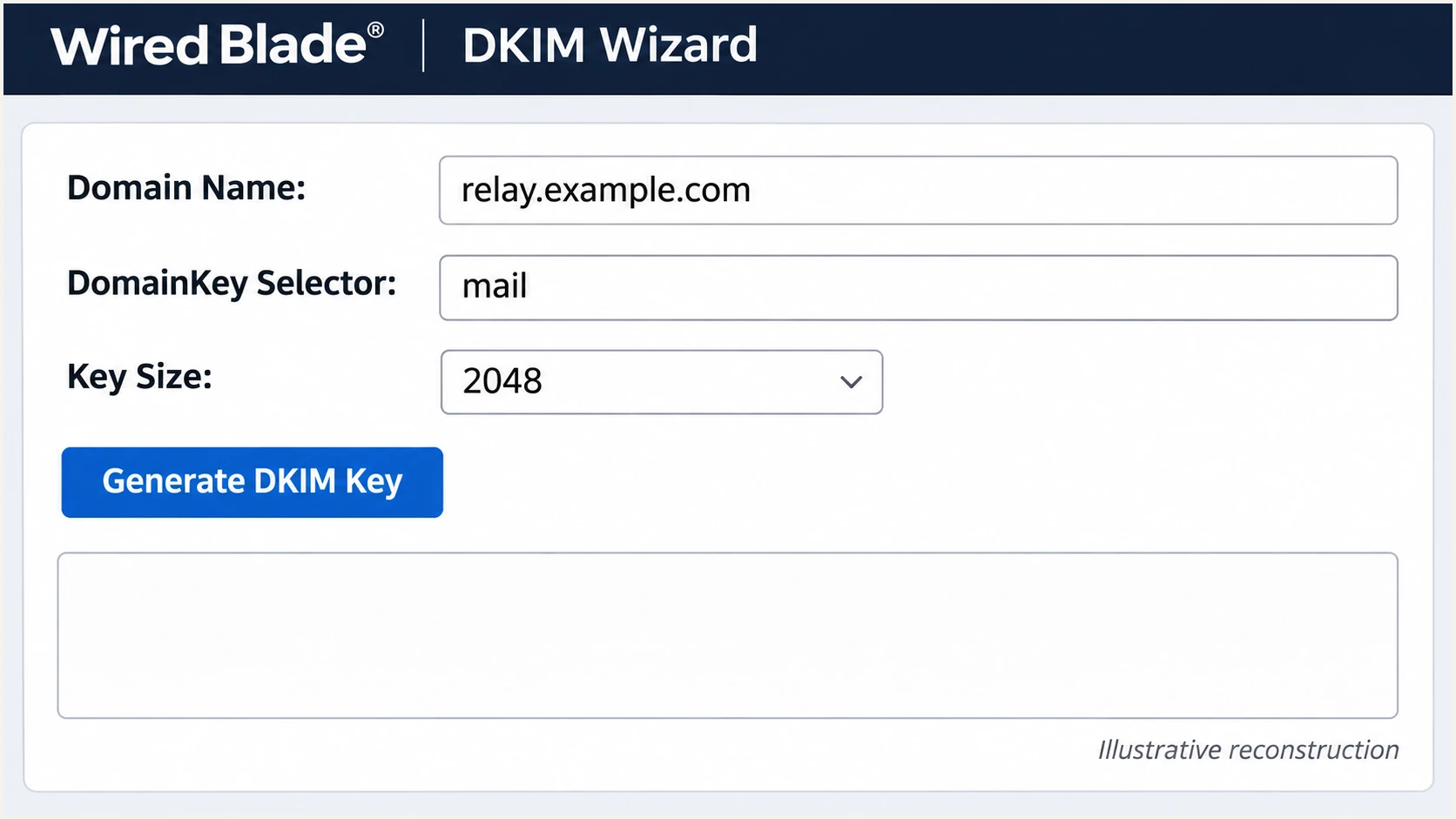
Illustrative reconstruction of Wired Blade DKIM key-generation settings.
Copy the full generated public TXT value, including its p= value, without inserting spaces inside the key. DNS providers that split a long TXT value into quoted character strings must retain one TXT resource record.
Check the final DNS name carefully. A provider that automatically appends the zone name needs mail._domainkey.relay, not a second appended example.com. Keep the private key exclusively in the signing service.
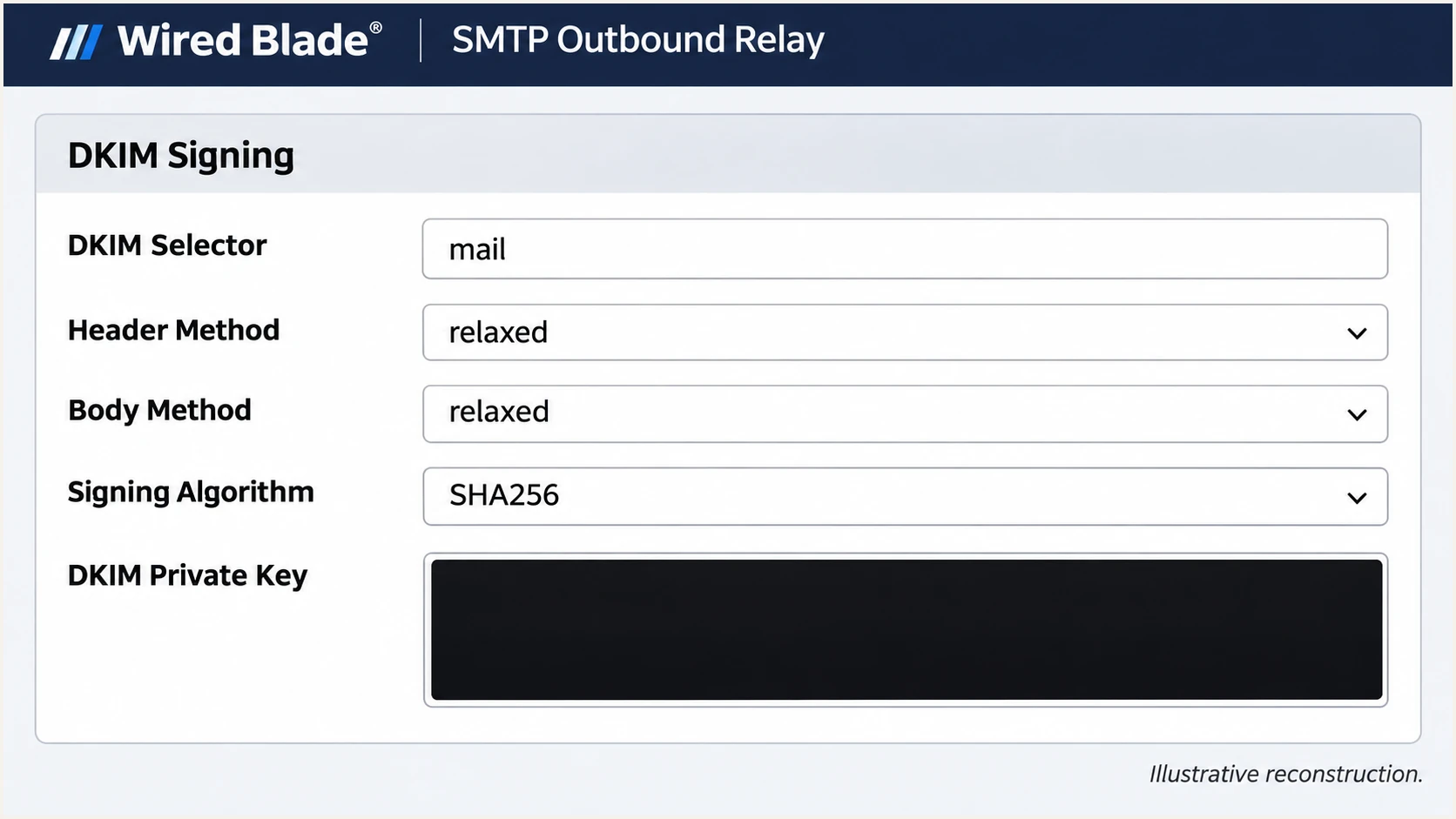
Illustrative reconstruction of Wired Blade DKIM Signing controls.
On the received message, inspect DKIM-Signature for s=mail and the expected d=relay.example.com. The receiving server must report dkim=pass; publishing a public key alone does not enable signing.
With From at example.com, a passing signature for relay.example.com satisfies default relaxed DMARC domain matching. Header and body canonicalization set to relaxed is a separate DKIM setting; it does not control DMARC domain matching.
Set up DMARC
I publish DMARC for the visible From domain. For a domain without an enforcement policy, I start with the monitoring record below while checking legitimate traffic.
- Find the policy: Query TXT at _dmarc.example.com. Edit the existing DMARC record when present; do not publish a second v=DMARC1 record at the same name.
- Keep existing enforcement: If the current policy is p=quarantine or p=reject, keep it. Authenticate the Wired Blade stream before moving production messages onto it.
- Enable reporting: For a new policy, publish the example below after replacing dmarc@example.com with a working report mailbox or your assigned aggregate reporting destination.
- Keep relaxed matching: The default aspf and adkim modes are relaxed. Strict matching requires the authenticated domain to equal the visible From domain exactly.
Monitoring example: TXT at _dmarc.example.comtext
v=DMARC1; p=none; rua=mailto:dmarc@example.com
dmarc@example.com is a placeholder, not a working reporting destination for your domain. Replace it before publishing. For reporting to a different organization's domain, the recipient must authorize external DMARC reports in its DNS.
Build the policy with the DMARC record generator. Leave the default relaxed domain matching in place unless your sending configuration requires strict matching.
DMARC checker
Look up a domain's DMARC record and catch policy issues.
?/7tests passed
Look up the visible From domain and confirm that the published policy and reporting address are correct. A checker validates DNS configuration; it does not establish that a particular application signs its outgoing messages.
DMARC passes when SPF or DKIM passes with the required domain match. I configure both for Wired Blade so the setup has more than one authentication path.
Verify and troubleshoot
I send a message through the real website or application, then inspect the recipient's authentication results. The email tester prompts you to send a test message and returns a diagnosis of the received message.
- Use the production path: Trigger an actual application email using your intended From address. A test from a different mail client does not prove the application uses the relay.
- Inspect SPF: Check spf=pass and the smtp.mailfrom domain. Compare that domain with the visible From domain using your policy's relaxed or strict matching rule.
- Inspect DKIM: Check dkim=pass, the signature's d= domain and s= selector. A missing signature points to the signing configuration or an application that bypasses the relay.
- Inspect DMARC: Confirm dmarc=pass for your From domain. Use the results written by the receiving server, rather than trusting authentication headers supplied by the sender.
Email tester
Send a real email to this address. Suped shows a results button when the test is ready.
?/43tests passed
Retest each independent sending path. Contact forms and password reset messages often use different application settings, even when they share the same website.
After a DNS change, allow cached answers to expire according to the previous TTL, then send a fresh message. Previously delivered messages retain their original authentication results.
|
|
|
|---|---|---|
SPF failure | Envelope domain | Authorize relay |
SPF permerror | Records and lookups | Merge or simplify |
DKIM key missing | Selector and DNS name | Publish exact key |
DKIM signature failure | Key pair and body | Correct signing |
DMARC failure | Authenticated domains | Match From domain |
SMTP rejection | Login and service limits | Check relay response |
Match the observed failure to the setting that controls it.
Wired Blade controls reverse DNS for its relay IPs. If a recipient reports a PTR problem, provide the connecting IP and rejection text to Wired Blade rather than changing a TXT record in your domain.
A successful SMTP login proves access to the relay. It does not prove SPF or DKIM passed, and successful authentication does not guarantee inbox placement.
Get alerted when it breaks
Suped is our DMARC reporting and email authentication platform. Its DMARC monitoring turns aggregate receiver reports into source-level results and detected issues, so authentication failures in the Wired Blade stream have a clear investigation path.
- Keep reports flowing: Retain a working rua destination for Suped in the domain's DMARC policy. Confirm that reports contain the Wired Blade source after real mail has been sent.
- Enable notifications: In Suped notification settings, enable Issues detected and Sending sources need verification. Use DMARC summary emails to review changes in volume and pass rates.
- Investigate the source: Open the affected source, inspect record details, and compare SPF and DKIM results with the previous working configuration. Use DNS history to investigate record changes.
- Verify the repair: Follow the issue's Steps to fix, retest the application, and check subsequent receiver reports. Keep legitimate sources verified so new senders receive attention.
Reports are delayed
Aggregate DMARC reports commonly cover a day of traffic. Suped can notify you when an issue is detected in available data, but these reports are not a live record of every SMTP transaction. Use a fresh message test for immediate configuration checks.
I keep summary emails enabled after the initial repair. A later DNS edit or application migration can change the sender without changing the visible From address.
Suped brings the reported failure and DNS history into the same investigation. Relay connection failures still need the application's SMTP error or log entry because rejected submissions never reach a reporting receiver.
Secure your domain with p=reject
I move to p=reject after legitimate sending paths pass DMARC across a representative sending cycle. One successful test is not enough evidence for enforcing a policy across the whole domain.
- Inventory legitimate mail: Use Suped source reports to identify authorized senders beyond Wired Blade. Include occasional applications and scheduled mail, then verify those sources.
- Resolve failures: Use Suped's detected issues and detailed authentication results to fix legitimate failures. Separate unauthorized spoofing traffic before evaluating readiness.
- Stage enforcement: For a domain currently at p=none, move to p=quarantine after repairs, observe delivery and reports, then move to p=reject. Keep existing stronger enforcement in place.
- Keep monitoring: Retest Wired Blade after each change. Investigate newly failing legitimate sources before making further policy changes.
Ready to enforce
- Known sources: Legitimate applications have been identified and tested.
- Stable results: Normal sending cycles show passing DMARC for authorized mail.
Investigate first
- Unknown traffic: An unexplained source is still sending under the domain.
- Legitimate failures: A real application still fails DMARC or has not been tested.
Keep relaxed domain matching when the relay signs with relay.example.com and From uses example.com. Setting adkim=s breaks that DKIM match; aspf=s also requires an exact envelope-domain match.
Suped's hosted DMARC lets you manage policy changes through the dashboard after its DNS connection is configured. Combined with source verification and issue alerts, this gives the enforcement decision a record of actual sending behavior.
Enforcement example: TXT at _dmarc.example.comtext
v=DMARC1; p=reject; rua=mailto:dmarc@example.com
Keep your real reporting destination in the production record. Review any explicit subdomain policies separately, because they affect the protection applied to mail using subdomain From addresses.
p=reject requests rejection of messages that fail DMARC. Receiving systems apply their own handling decisions, and the policy does not prevent lookalike-domain impersonation.
Frequency asked questions
Yes. Use an envelope sender under your own domain and publish SPF at the exact domain shown in the received Return-Path. Confirm smtp.mailfrom on a delivered message. A custom visible From address alone does not establish the SPF domain used by the receiver.
Wired Blade's SMTP Outbound Relay instructions use relay.yourdomain.com as the signing domain and mail as the selector. This produces mail._domainkey.relay.yourdomain.com. A signature using that subdomain satisfies default relaxed domain matching with a parent-domain From address.
Yes, if DKIM passes with the domain match required by DMARC. A raw DKIM pass under an unrelated provider domain is insufficient. I still repair SPF for Wired Blade because this service supports using your domain for the envelope sender.
The wiredblade.com suffix points to Wired Blade infrastructure. Reverse DNS alone does not prove that a message used its SMTP Outbound Relay service or that the sender was authorized. Check the connecting IP, receiver-added Received headers and DMARC results; ask Wired Blade to confirm unfamiliar infrastructure.
Keep the existing policy. Configure SPF and DKIM for the Wired Blade sending path, verify a delivered test and check reported traffic. The p=none example is for a domain starting DMARC monitoring, not a reason to weaken working enforcement.




