
How to set up DMARC/DKIM/SPF for Windstream

Published 22 Nov 2026
Updated 22 Nov 2026
11 min read
Summarize with
To authenticate Windstream custom-domain email, publish the SPF authorization Windstream confirms for your account, have Windstream enable DKIM signing for your domain, and publish a DMARC TXT record at _dmarc.yourdomain. I verify the result with a real outgoing message before strengthening the policy.
A personal @windstream.net mailbox has a different setup: Windstream controls its authentication records. The DNS steps below apply to a domain you own. Windstream account types differ, so confirm the outgoing service and signing capabilities before copying records.
Personal Windstream mailbox
Windstream manages DNS for windstream.net. Use the mailbox settings supplied for that service; account holders cannot publish its SPF, DKIM, or DMARC records.
Your own hosted domain
You control the domain DNS. Windstream supplies the outbound authorization and any supported DKIM configuration. You publish those records and choose the DMARC policy.
Add your domain
For a new custom domain, ask Windstream Domain Services to provision hosted email. Skip provisioning when your domain already sends through Windstream.
I use the domain and password in Windstream's welcome email to access the Online Presence Platform. Complete any ownership verification Windstream requests.
- Confirm provisioning: Check that the welcome email names your domain. For provisioning or verification problems, contact hostmaster@windstream.net.
- Open the account: Choose Control Panel or Online Presence Platform in Windstream Hosting and sign in with the welcome credentials.
- Check the mailbox: Use EasyMail Setup to confirm your custom-domain mailbox exists. Send a message using its address in From.
- Find authoritative DNS: Check your domain's nameservers. Edit records at that DNS host, even when Windstream hosts the mailbox.
If Windstream hosts DNS, its documented route is Manage > DNS Manager > Start > Edit Zone File. Existing records appear in the zone editor.
Keep working MX records and nameservers intact. Publish authentication records at your current authoritative DNS host.
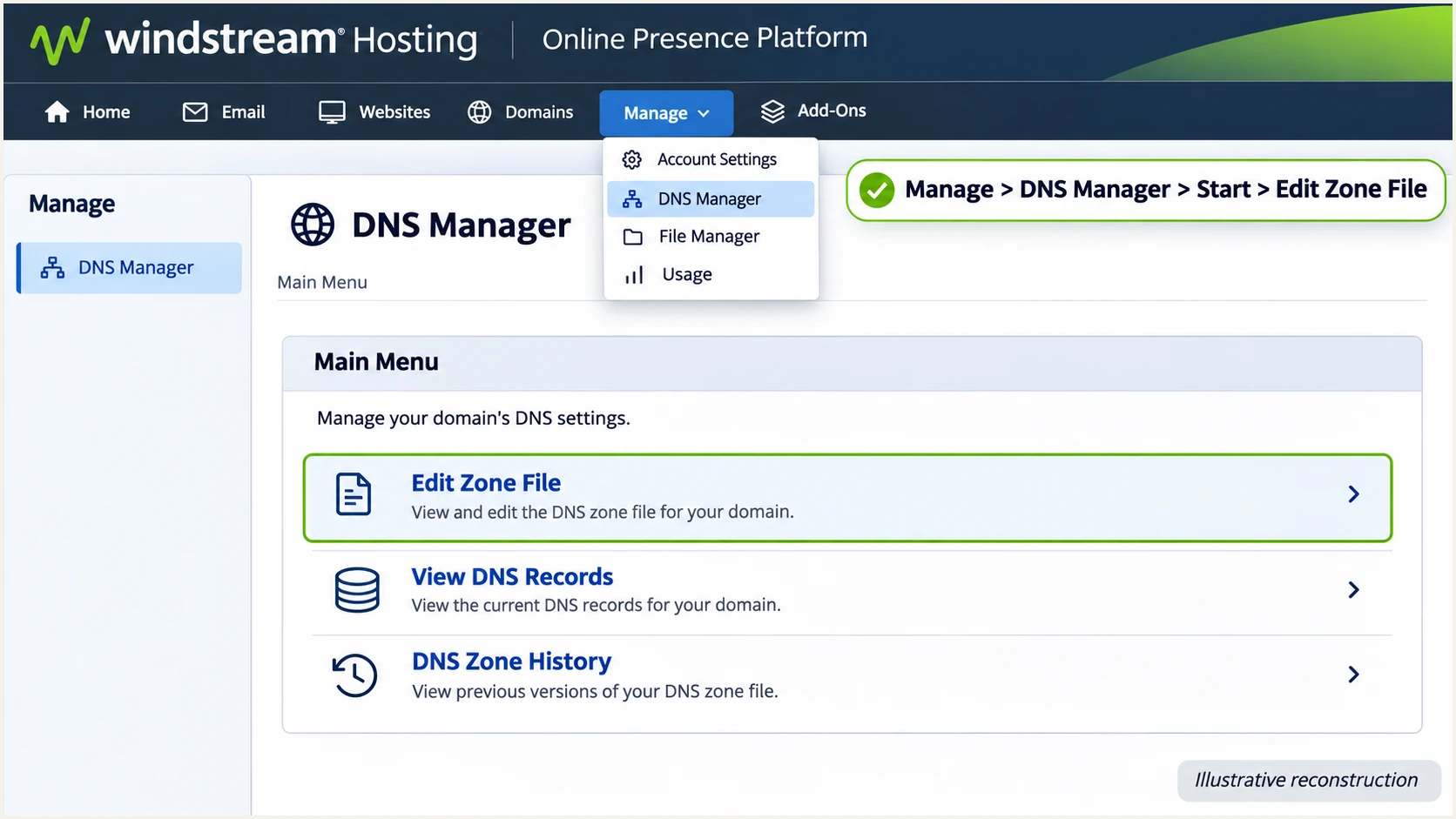
Windstream DNS Manager navigation, illustrative reconstruction.
This image reconstructs the documented navigation. For support-managed records, use Windstream's DNS Change Request form.
In the documented zone editor, Apply each record change, then choose Next and confirm with Next again. Close the editor after completing the confirmation.
Set up SPF
SPF authorizes servers for the envelope sender (Return-Path) domain. Windstream supports Return-Path alignment; I verify the actual domain on an outgoing message.
Get the exact SPF include or outbound IP authorization from Windstream. Its public pages do not establish one include for every account; SMTP hostnames are insufficient.
- Read existing SPF: Look up TXT records at the actual Return-Path domain and find the value beginning v=spf1.
- Set the envelope domain: Have Windstream confirm or configure your domain or its subdomain as the Return-Path. Publish any bounce-domain DNS records it supplies.
- Add authorized sending: Merge Windstream's confirmed include or IP mechanisms into the existing SPF value before the final all mechanism.
- Keep one record: Publish one SPF TXT record per envelope domain. Preserve the mechanisms required by every other legitimate sender.
- Check the lookup budget: Keep evaluation within the 10 DNS-querying-term limit, including nested includes. Inspect subdomain SPF separately when the Return-Path uses a subdomain.
Replace spf.example.net with Windstream's supplied include. Use its supplied IP mechanisms if your account requires those instead.
Use the actual envelope domain as the record name. For bounce.example.com, publish SPF there; parent-domain SPF is not inherited.
SPF template: replace the example include before publishingtext
Name: example.com
Type: TXT
Value: v=spf1 include:spf.example.net ~all
Check the envelope domain below after saving. Resolve duplicate records and lookup errors before testing delivery.
A valid DNS record checks configuration. A real message confirms the actual sending server and Return-Path.
SPF checker
Find SPF syntax issues, lookup limits, and weak records.
?/16tests passed
Relaxed SPF alignment requires the same organizational domain in Return-Path and From. For example, bounce.example.com matches example.com.
For a fixed provider-owned Return-Path, no Windstream SPF entry is needed at your From domain for that route. Expect SPF alignment errors; DMARC still passes when custom-domain DKIM passes with alignment.
Set up DKIM
DKIM requires Windstream to sign outgoing messages with a key whose public part is available in DNS. I confirm custom-domain signing support for the hosting plan first.
The support pages reviewed do not document a universal selector or activation menu. Request your signing domain, selector, DNS type, and complete public value or CNAME target.
- Request activation: Ask Windstream to enable DKIM with your domain in the signature's d= value and confirm which outbound paths receive signatures.
- Copy the supplied record: Publish the exact TXT or CNAME at the supplied selector name, usually SELECTOR._domainkey.example.com. Avoid duplicating the zone suffix in the DNS editor.
- Keep the key intact: Copy the complete public value. The private signing key stays on the signing service and never belongs in public DNS.
- Verify active signing: Send a fresh message. Confirm a DKIM-Signature exists and the receiving server reports dkim=pass for your domain.
Publishing DNS does not activate signing. Windstream must sign outgoing messages with the matching private key.
Check the signature's d= domain. A passing provider-domain signature does not supply alignment for an unrelated custom From domain.
Confirm custom-domain signing before enforcement
If your plan cannot sign with your domain, request a supported signing route. The current DMARC standard prohibits relying solely on SPF at p=reject, and forwarding commonly breaks SPF.
Copy s= and d= from a real DKIM-Signature. Substitute them for SELECTOR and example.com in these commands.
Check a CNAME selector's target key too. During rotation, retain the old selector until messages using it have cleared delivery.
Inspect the selector supplied by Windstreambash
dig +short TXT SELECTOR._domainkey.example.com
dig +short CNAME SELECTOR._domainkey.example.com
Set up DMARC
Start a new setup with p=none and collect reports. Retain p=quarantine or p=reject when already deployed, along with existing reporting destinations.
DMARC needs at least one passing, aligned SPF or DKIM result. Publishing the policy does not configure SPF authorization or DKIM signing.
- Choose the DNS name: For mail using example.com in From, create or edit the TXT record at _dmarc.example.com. A zone editor that appends the domain usually needs only _dmarc.
- Set reporting: Create a working aggregate-report mailbox or use your reporting service's assigned destination. Replace dmarc@example.com with that real address.
- Publish one policy: Use the monitoring value below for a new setup. Edit the existing record when one is present, and keep the DNS host's default TTL.
- Confirm the save: Apply and complete the DNS editor's confirmation steps, then check the public TXT value.
Initial DMARC record for a new monitoring setuptext
Name: _dmarc.example.com
Type: TXT
Value: v=DMARC1; p=none; rua=mailto:dmarc@example.com
Use the DMARC record generator with your actual report address. For external reporting domains, complete the reporting service's required authorization records.
Check the domain below. Confirm exactly one DMARC policy with the intended enforcement and reporting address.
DMARC checker
Look up a domain's DMARC record and catch policy issues.
?/7tests passed
For support-managed DNS, open Windstream's DNS Change Request form. Enter your account details and domain, then select Add or Modify.
Set Name to _dmarc, Type to TXT, and Points To to the complete policy. Confirm and submit. Windstream verifies the account by callback.
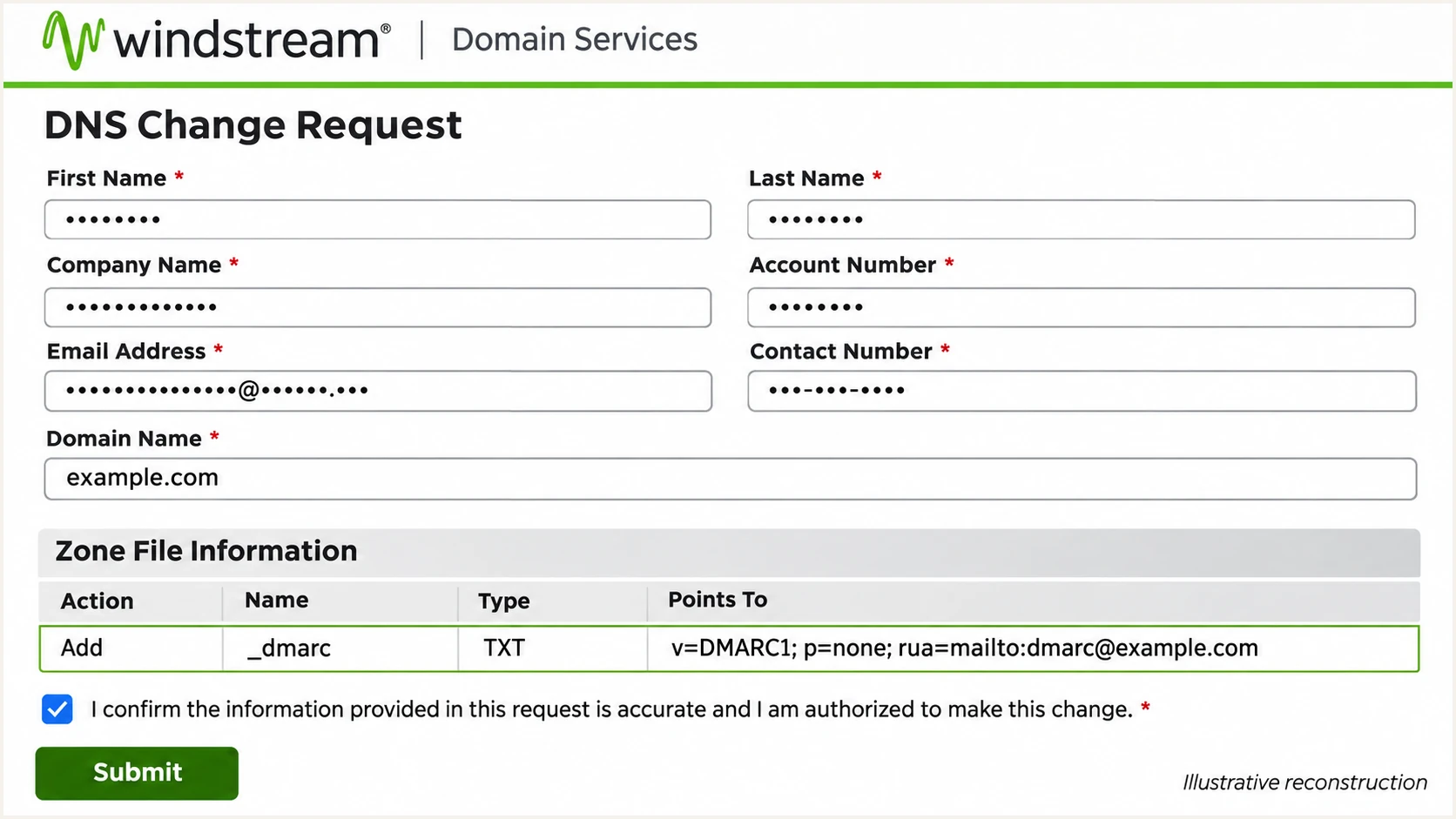
Windstream DNS Change Request with a DMARC example, illustrative reconstruction.
Replace the example address before requesting a change. For an existing policy, select Modify and preserve its enforcement setting and other required tags.
Repeat the lookup after confirmation. Caches expire according to TTL; Windstream advises allowing 24-48 hours for propagation.
Verify and troubleshoot
I test each production route separately. A passing Windstream webmail test does not validate an application using a different relay.
Windstream lists mail.carrierzone.com, SMTP authentication, and SSL/TLS port 465 for hosted email. Confirm your account's endpoint; personal @windstream.net and legacy services differ.
- Send a fresh message: Use your custom From address and the actual Windstream sending route. Repeat for every application and mailbox path that sends for the domain.
- Inspect receiver results: Read the receiving server's Authentication-Results, plus Return-Path and DKIM-Signature. Compare smtp.mailfrom, header.d, and header.from.
- Check live DNS: Resolve the SPF domain, the real DKIM selector, and _dmarc at the From domain. Correct duplicate policies, missing keys, and doubled domain suffixes.
- Retest after fixing: Send a new message after DNS caches expire. Include a forwarding test before enforcement to expose SPF-only dependencies.
The email tester checks the delivered message. Send a normal Windstream message to the destination it provides.
Review the full authentication diagnosis. Use your normal sending configuration so the result measures production behavior.
Email tester
Send a real email to this address. Suped shows a results button when the test is ready.
?/43tests passed
Confirm dmarc=pass for your From domain. A passing DKIM signature with alignment preserves that result when forwarding breaks SPF.
Use the failing result to select the fix. Changing DMARC policy cannot repair SPF authorization or a missing signature.
|
|
|
|---|---|---|
SPF permerror | Duplicates or lookups | Fix SPF evaluation |
SPF domain mismatch | Return-Path | Check envelope domain |
DKIM missing | Outbound signing | Contact Windstream |
DKIM failed | Key or message change | Check selector and route |
DMARC failed | No matched pass | Fix authentication |
Common results and the next configuration check.
Get alerted when it breaks
I keep monitoring after the first passing test. Relay changes and new sending applications can break previously working authentication.
Our platform, Suped, combines DMARC monitoring with source diagnostics and issue notifications. Use it to isolate failing Windstream traffic and identify the required DNS fix or support request.
- Validate the source: Match Windstream source IPs and authentication domains to your test messages before marking a sending source verified in Suped.
- Enable issue notifications: Open Suped Notifications and enable Issues detected for authentication problems requiring investigation.
- Review new senders: Enable Sending sources need verification. Investigate an unfamiliar source before treating it as authorized.
- Schedule review: Enable DMARC summary emails and inspect the Windstream source's failures in Data view and Detail view. Use the detected issue's fix steps to resolve it.
Use Suped's detailed results to investigate verified-source failures before changing your policy.
Give Windstream support a fresh header, sending time, source IP, and affected authentication domain. Retest that route after the fix.
Reports have a delivery delay
DMARC aggregate reports are commonly delivered daily. Suped notifications depend on incoming report data; use a fresh email test for immediate verification after changing Windstream or DNS settings.
Secure your domain with p=reject
I advance enforcement after Suped shows each legitimate sender is correctly authenticated. An overall pass rate can hide an important low-volume sender.
Require working custom-domain DKIM before p=reject. Test forwarding and mailing-list paths, where message changes can break authentication.
- Inventory every sender: Review Suped's verified and unverified sources over a complete sending cycle, including infrequent billing and application mail.
- Resolve legitimate failures: Fix missing signatures and SPF errors for each authorized source. Keep investigating unsupported Windstream signing rather than advancing on SPF alone.
- Stage the policy: Move a new monitoring policy to p=quarantine, review delivery effects and fresh reports, then move to p=reject when legitimate mail is ready.
- Review subdomains: Check sending subdomains and any separate DMARC records or sp= policy before enforcing the parent domain. Keep relaxed alignment unless strict matching is a deliberate requirement.
- Keep recovery available: Retain reporting and issue alerts. Record the previous policy so a confirmed production regression can be handled while its cause is fixed.
Use Suped's source-level evidence and issue diagnostics to decide when each policy change is ready.
Our Hosted DMARC in Suped adds dashboard policy management after DNS delegation. For a directly managed TXT record, apply the same stages at your DNS host.
Final policy example after legitimate senders are readytext
Name: _dmarc.example.com
Type: TXT
Value: v=DMARC1; p=reject; rua=mailto:dmarc@example.com
Replace the report address and preserve required existing tags. Reject requests enforcement for DMARC failures; receivers retain their own handling decisions.
Send another Windstream test and review the next reports in Suped. Keep notifications enabled for new legitimate-source failures.
Frequency asked questions
Windstream controls the windstream.net DNS zone. Individual mailbox users cannot change its authentication records. These configuration steps require a custom domain whose DNS you control.
Get the exact include or outbound IP authorization from Windstream for your account. Different Windstream services use different infrastructure. The reserved spf.example.net value shown above must be replaced before publication.
Confirm support for your specific plan with Windstream. The public support pages reviewed do not provide a universal DKIM activation procedure. Request the selector, signing domain, DNS value, and activation confirmation before testing a fresh message.
SPF can pass for a provider-owned Return-Path domain that does not match your visible From domain. DMARC then needs a passing DKIM signature with domain alignment. If that signature is missing or uses an unrelated domain, DMARC fails.
Yes. A message can pass DMARC through SPF when SPF passes and the envelope domain matches the From domain under the configured alignment mode. Forwarding can break that path. I require working custom-domain DKIM before progressing to p=reject.
A windstream.net reverse-DNS name is associated with Windstream network infrastructure. It does not identify a particular hosted mailbox or prove the sender is authorized. Windstream also supplies internet connectivity. Check the connecting IP, message headers, and authentication domains before identifying the traffic as your Windstream email source.




