How to set up DMARC/DKIM/SPF for WEDOS

Published 18 Nov 2026
Updated 18 Nov 2026
12 min read
Summarize with
Authenticate WEDOS email by publishing its SPF authorization, checking the DKIM setup for your sending method, and adding a DMARC TXT record at _dmarc. Authorize include:_spf.we.wedos.net within the hosting SPF record below. WEDOS signs SMTP messages automatically with a shared DKIM identity, so DMARC for your domain depends on passing SPF with a matching Return-Path domain unless another matching DKIM signature is present.
I check mailbox SMTP and website PHP mail separately because their DKIM setups differ. WEDOS Protection is a website protection service; enabling it does not authenticate outgoing email.
Add your domain
I first confirm that the domain belongs to an active WEDOS email-hosting service and identify its authoritative DNS provider. Registering a domain or adding a DNS zone alone does not create an email mailbox.
- Open hosting: In customer administration, open Hosting services, choose Mailhosting or your existing Webhosting service, and select the service for your sending domain. If no email-hosting service exists, order Mailhosting for that domain first.
- Add missing DNS: If WEDOS hosts your DNS and the domain is absent, select DNS > Add domain to DNS. Enter example.com without www, choose Primary, accept the terms, and click Add domain. Skip this step when your DNS stays elsewhere.
- Verify activation: Confirm that the domain and hosting are active. For a newly registered generic domain requiring registrant email verification, complete the verification email WEDOS sends to the domain owner.
- Create a sender: Inside the hosting service, select New email mailbox, enter the mailbox name and password, allow sending, and click Create mailbox. Use the full email address to sign in; new mailboxes take up to 30 minutes to become available.
- Find server settings: Open the service details and read Service addresses. Use the listed SMTP hostname with port 587 and STARTTLS, or port 465 with SSL/TLS for a mail client. Keep your existing receiving-mail routing unless you are deliberately migrating mail.
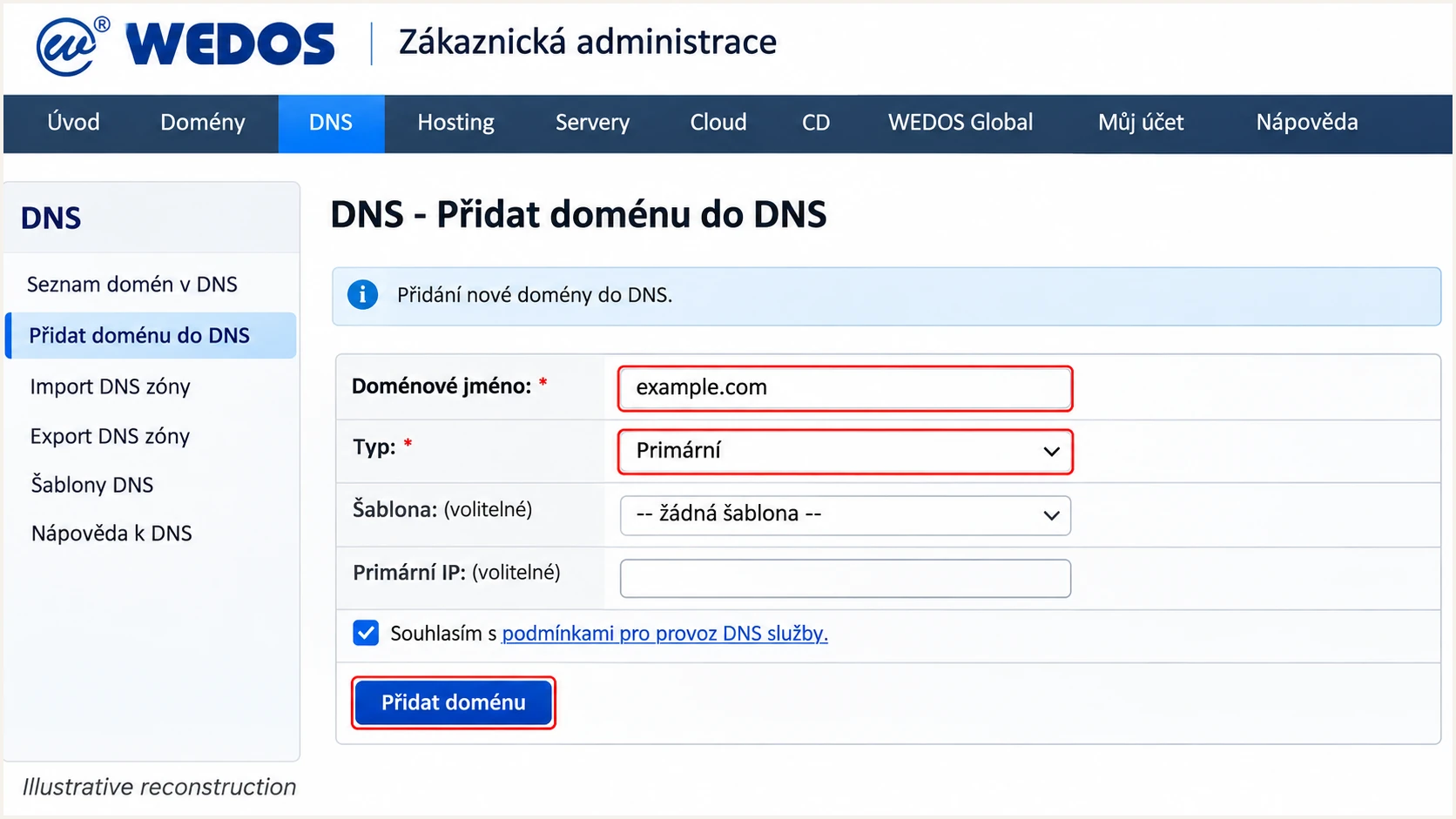
Illustrative WEDOS DNS form for adding a primary domain.
Adding a WEDOS DNS zone does not change the domain's nameserver delegation. Check the live NS records before editing; if they point elsewhere, publish every authentication record at that provider.
For WEDOS-hosted receiving mail, use the MX values assigned to your hosting service. SPF and DKIM changes do not require moving your website or changing an existing mail provider.
Set up SPF
For a domain sending exclusively through WEDOS without WEDOS Protection, use the SPF record below. I preserve authorizations for any other active senders rather than replacing the existing record wholesale.
- Open records: Select DNS > your domain > DNS records. Find the TXT record beginning v=spf1. Edit that record, or click New record if none exists.
- Enter SPF: For the main domain, leave Name empty, select TXT, and use TTL 300 if it matches other TXT records at that name. Enter the value below without surrounding quotes.
- Keep one record: Merge other legitimate sender mechanisms before the final all term. Publish exactly one v=spf1 record at each envelope-sender domain and keep DNS-lookup mechanisms within SPF's limit of 10, including nested includes.
- Match the sender: In your SMTP application, set the envelope sender or MAIL FROM to an address on your sending domain and verify the delivered Return-Path. A From header alone does not set this identity. For PHP mail, use the -f example in the DKIM section.
- Apply changes: Click Save record for a new entry, or Edit record for an existing entry, then Apply changes. Check the live result after DNS caches expire.
Main-domain TXT value for WEDOS-only sending without Protectiontext
v=spf1 mx a include:_spf.we.wedos.net -all
SPF checks the SMTP envelope-sender domain, normally visible in the delivered Return-Path. Publishing SPF at example.com does not fix a message whose envelope sender still uses a WEDOS server domain. A WEDOS support reply identifies this exact PHP mail problem and recommends setting a Return-Path on your own domain.
Run the SPF check against the actual envelope-sender domain. A separate bounce subdomain needs its own SPF record; SPF does not inherit the parent domain's authorization.
SPF checker
Find SPF syntax issues, lookup limits, and weak records.
?/16tests passed
The checker validates DNS authorization and lookup limits. A real message test is still needed to establish which envelope sender and source IP WEDOS actually used.
Account for WEDOS Protection
The WEDOS Protection documentation describes automatic A and AAAA changes. For PHP mail sent directly by the hosting server behind that proxy, the SPF a mechanism then checks proxy addresses rather than the origin sender.
Read the origin IPv4 and IPv6 addresses in the hosting service's Service addresses table. Add the actual sending address using ip4: or ip6: before the final all term. Preserve the WEDOS include and other required authorizations; do not authorize proxy IPs as mail senders.
Set up DKIM
I identify the sending route before editing DKIM. WEDOS manages its signing keys; publishing a newly generated public key alone does not make its servers use the matching private key.
Mailbox SMTP
WEDOS documents automatic SMTP signing with shared.dkim-wes1.wedos.net. Hosted SMTP does not support your own DKIM key.
A shared signing domain does not match your own From domain. Check matching SPF; adding the PHP DKIM CNAMEs does not change SMTP signing.
Website PHP mail
WEDOS documents two domain-specific CNAME records for PHP mail. These are normally generated automatically when the domain points to its hosting.
Add missing records at the authoritative DNS provider and set the envelope sender to an address on your domain.
- Inspect selectors: For PHP mail, look for key1.wedos-dkim._domainkey and key2.wedos-dkim._domainkey in the domain's DNS records.
- Publish both: If either is missing, click New record, choose CNAME, and enter the relative Name and matching target below. Use TTL 300 where appropriate, then Save record and Apply changes.
- Avoid conflicts: Do not add TXT data at either CNAME name. Keep both selectors so either WEDOS signing key resolves.
- Set the envelope: For PHP mail(), pass a fixed address on your domain with the fifth argument, -f. Use your own domain in From as well; put a visitor's address in Reply-To instead.
PHP mail DKIM records, with names relative to your domaintext
key1.wedos-dkim._domainkey 300 IN CNAME key1.dkim-we.wedos.net.
key2.wedos-dkim._domainkey 300 IN CNAME key2.dkim-we.wedos.net.
For example.com, the first full lookup name is key1.wedos-dkim._domainkey.example.com. WEDOS DNS appends the zone name, so enter only key1.wedos-dkim._domainkey in its Name field.
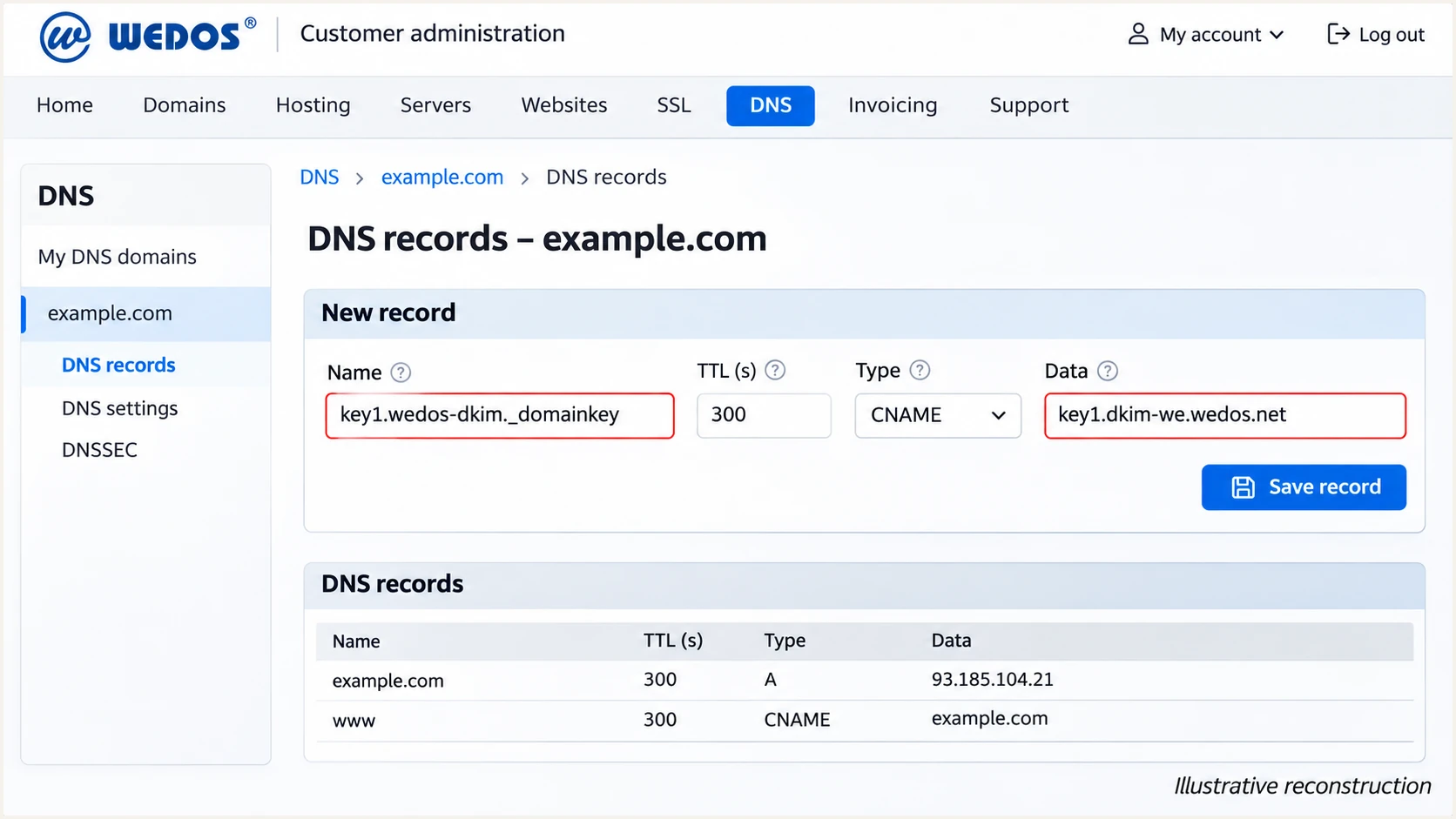
Illustrative WEDOS DNS editor showing the first PHP DKIM CNAME.
Set PHP's envelope sender in code, not by inserting a Return-Path header yourself. Replace the example addresses below with fixed addresses you control and the intended test recipient.
PHP mail test with a domain-based envelope senderphp
mail(
    'recipient@example.net',
    'Authentication test',
    'WEDOS configuration test.',
    "From: Website <website@example.com>\r\n",
    '-f website@example.com'
);
After delivery, check the receiver's DKIM result and the signature's d= domain. The PHP path needs a valid signature matching your From domain; a published CNAME alone is not proof that the message was signed correctly.
Set up DMARC
DMARC passes when SPF passes with a matching envelope-sender domain, or DKIM passes with a matching signing domain. For a new policy, start with p=none while you identify every legitimate sender.
- Preserve enforcement: If the domain already uses p=quarantine or p=reject, keep that policy and repair WEDOS authentication. Do not replace an enforced policy with the example below.
- Create the record: In DNS records, add a TXT record with Name _dmarc and TTL 300 where compatible with existing records. If a DMARC record already exists, edit it instead of creating a second one.
- Set reporting: Use the exact starting template below, replacing dmarc@example.com with a working report address before publishing. For a reporting address on another domain, confirm that its operator provides the required external-reporting authorization.
- Save and apply: Save the record and click Apply changes. Use the checker below after the updated record is publicly visible.
Starting DMARC TXT value at _dmarctext
v=DMARC1; p=none; rua=mailto:dmarc@example.com
Use the DMARC record generator to construct the record with your real reporting address. Leave the default relaxed SPF and DKIM domain matching unless you have a specific requirement for strict matching.
Monitoring is the starting policy
p=none requests reporting without asking receivers to quarantine or reject DMARC failures. It does not block spoofed messages. Receivers still apply their own filtering policies.
Check the domain shown in your visible From address. If you send using a subdomain, check its policy and any policy inherited through DMARC discovery rather than assuming the root-domain record covers every configuration.
DMARC checker
Look up a domain's DMARC record and catch policy issues.
?/7tests passed
A valid DMARC record confirms policy publication. It does not prove that WEDOS messages pass the policy; test a message through each real sending route next.
Verify and troubleshoot
I send separate tests through the WEDOS mailbox and each website sending route. A DNS lookup checks publication; the email tester checks what a receiver actually sees and provides a diagnosis of the delivered message.
- Send directly: Use the tester's generated recipient address. Send a fresh message directly through WEDOS, and trigger a separate website message if you use PHP mail. Do not forward an old message as the test.
- Compare domains: Read the receiver's Authentication-Results, Return-Path and visible From. Check SPF and DKIM authentication separately, then confirm that at least one passing method has the domain match required by DMARC.
- Check live DNS: Run the queries below with your actual domain. For DKIM, use the selector shown in the message's DKIM-Signature rather than assuming which key WEDOS used.
- Retest changes: Send a new message after correcting DNS or envelope-sender settings. Repeat through every route before changing your DMARC policy.
The tester prompts you to send an email and returns a full diagnosis. It is the quickest way to distinguish a correct DNS record from a message sent with the wrong identity.
Email tester
Send a real email to this address. Suped shows a results button when the test is ready.
?/43tests passed
An illustrative SMTP result below passes DMARC through SPF. The shared DKIM signature passes verification but does not provide the domain match for example.com.
Illustrative receiver results for WEDOS SMTPtext
Authentication-Results: receiver.example;
    spf=pass smtp.mailfrom=example.com;
    dkim=pass header.d=shared.dkim-wes1.wedos.net;
    dmarc=pass header.from=example.com
Return-Path: <sender@example.com>
Use these lookups to inspect delegation and the published records. If the DKIM CNAME resolves, also check its target's TXT key. WEDOS normally publishes record changes within an hour; cached answers persist according to their TTL.
DNS checks for your own domainbash
dig +short NS example.com
dig +short TXT example.com
dig +short CNAME key1.wedos-dkim._domainkey.example.com
dig +short CNAME key2.wedos-dkim._domainkey.example.com
dig +short TXT key1.dkim-we.wedos.net
dig +short TXT _dmarc.example.com
|
|
|
|---|---|---|
SPF none | Wrong domain | Return-Path |
SPF permerror | Duplicates or lookups | One SPF; limit 10 |
DKIM fail | Key or signature | Selector; changes |
DMARC fail | No matching pass | From vs identities |
Use the receiver's result to choose the next diagnostic step.
Get alerted when it breaks
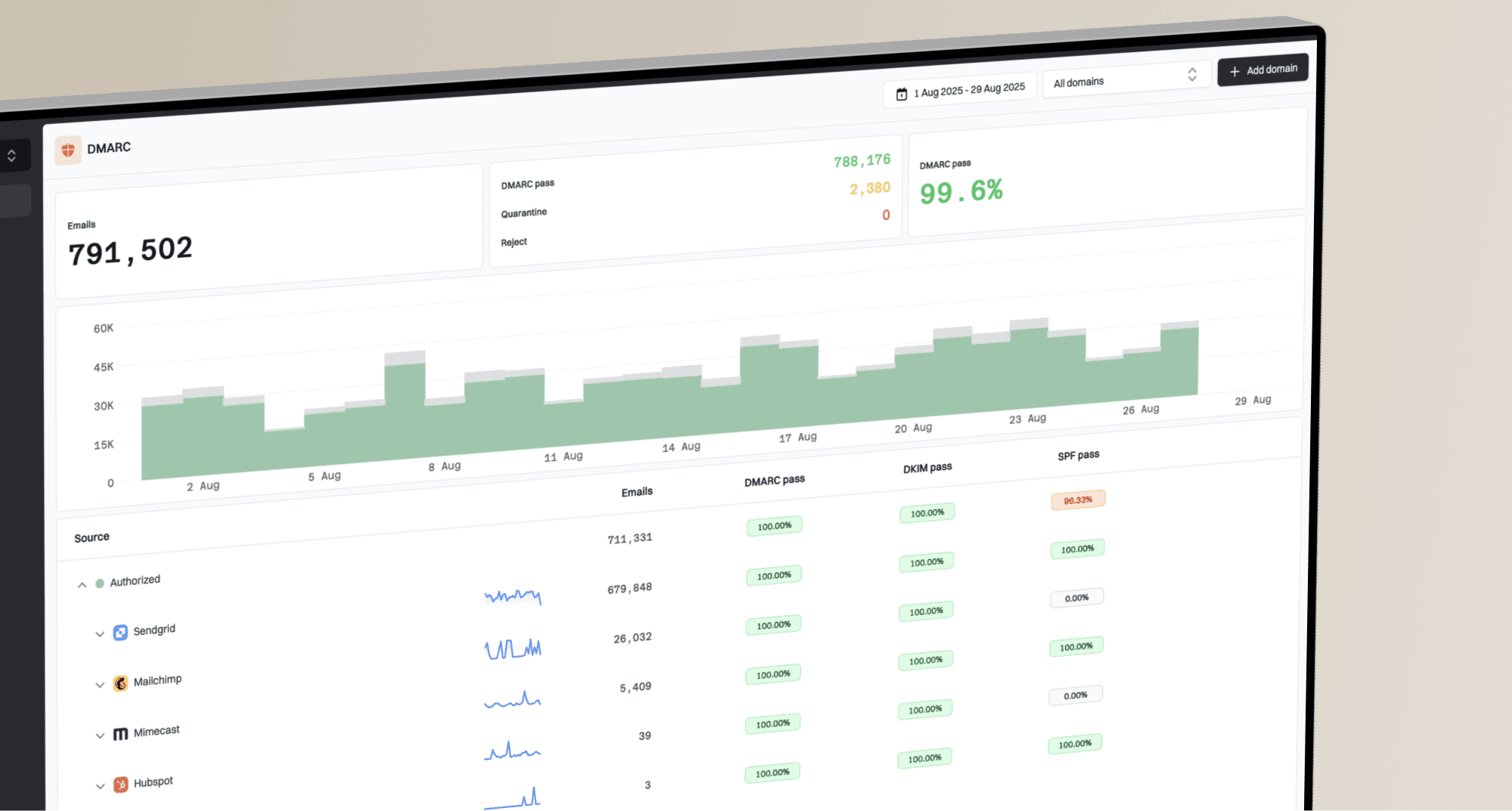
Suped, our DMARC platform, turns receiver reports into source-level authentication checks. Its DMARC monitoring is a practical choice for ongoing WEDOS monitoring because detected issues include repair steps and notification options.
- Collect reports: Set the existing DMARC record's rua destination to the report address supplied by Suped. Preserve the current policy and confirm that reports arrive before relying on monitoring.
- Verify sources: Review the source table and confirm which WEDOS sending IPs and message streams you recognize. Mark legitimate sources as verified; investigate unfamiliar sources before authorizing them.
- Enable notifications: In Notifications, enable Issues detected and Sending sources need verification. Enable DMARC summary emails for routine review.
- Investigate changes: Filter Data view by the affected source or IP, then open Detail view for the SPF, DKIM and DMARC results. Follow the issue's repair steps and send a fresh WEDOS test after applying the fix.
Monitor the message stream
Suped connects source verification with authentication diagnostics, so a broken envelope sender or a new unauthorized source has a concrete investigation path. Review reported failures before editing DNS authorizations.
Aggregate reports arrive on receiver schedules, commonly daily. Suped notifications based on these reports follow processing; they are not an instant delivery alarm for every outgoing message.
Secure your domain with p=reject
I move to enforcement after testing known senders and reviewing reports across a complete business sending cycle. Include infrequent billing or account messages so a quiet sender is not overlooked.
- Review every source: Use Suped's verified sources and failure details to identify legitimate traffic that still fails DMARC. Fix its authentication before enforcing; do not authorize unknown IPs just to raise the pass rate.
- Check forwarding: Test representative forwarding paths. SPF often fails after forwarding. Hosted WEDOS SMTP does not support custom DKIM keys, so use a sending path that provides valid domain-specific signing when that is required. Extra DNS keys do not change the shared SMTP signature.
- Stage the policy: For a domain currently at p=none, move to p=quarantine, review legitimate failures, then use p=reject when those failures are resolved. If the domain already enforces a policy, keep it while making sender-specific repairs.
- Keep watching: Continue Suped issue notifications and source review after enforcement. Retest whenever you add a sender, change website mail code, or move DNS.
Suped's Hosted DMARC lets teams with hosted policy management configured change enforcement in the dashboard without repeated DNS edits. Otherwise, edit the existing _dmarc TXT record at your authoritative DNS provider and apply the same staged policy changes.
Final DMARC policy after legitimate senders passtext
v=DMARC1; p=reject; rua=mailto:dmarc@example.com
Preserve your reporting destination
The address above is an example. Retain your actual rua destination, including the Suped report address when used, and any intentional DMARC settings. p=reject requests rejection of DMARC failures; receivers retain final control over delivery.
Keep both PHP DKIM selectors published and the SPF authorization current. Recheck WEDOS messages after a hosting migration or WEDOS Protection change, even when the From address stays the same.
Frequency asked questions
Yes. SMTP uses automatic shared signing. Website PHP mail uses the domain-specific key1.wedos-dkim and key2.wedos-dkim CNAMEs; publish missing records when using external DNS and configure the envelope sender on your domain.
A valid shared DKIM signature does not match your domain. DMARC still needs passing SPF with a matching envelope-sender domain, or another valid DKIM signature matching the visible From domain. Check the actual message identities before changing policy.
A wedos.net hostname is associated with WEDOS infrastructure, but an rDNS suffix alone does not establish the sending application or authorize a message. Check the connecting IP's PTR record and the receiver's authentication results. WEDOS documents wesX-smtp.wedos.net SMTP hostnames and hcX-wdXXX.wedos.net webhosting hostnames; these patterns are not a guaranteed list of outgoing PTR names.
Authorize the services that actually send using your envelope-sender domain. Domain registration or website protection at WEDOS alone does not require its SPF include. If WEDOS also sends, merge the required authorizations into one SPF record.
Record changes normally become available within an hour, with cached answers retained for their TTL. Nameserver changes take longer, sometimes up to 48 hours. A record edited in a non-authoritative DNS zone has no effect on live authentication.
Yes. Keep the policy and configure WEDOS before moving production traffic. Test actual SMTP and website messages, verify a passing domain match, and investigate legitimate failures in Suped without weakening the domain's protection.