How to set up DMARC/DKIM/SPF for WebSell

Add include:spf.websell.io to your existing SPF TXT record, configure a custom return-path with WebSell, request DKIM signing for your domain, and publish DMARC for the domain in your From address. Start a new DMARC deployment with p=none; retain quarantine or reject if already enabled.
I verify the result with a real store email. WebSell publishes its SPF include, but its public support articles do not provide a universal DKIM selector or a self-service return-path procedure. Obtain those values for your store from WebSell support before treating authentication as complete.
Add your domain
I start with a sender address on a domain the store controls, such as orders@example.com. Use that email domain consistently across webstore notifications and POS-triggered messages.
WebSell's documented workflow uses sender address fields in WebStore Manager. Its public instructions do not show a separate domain-authentication wizard, so request any domain verification requirements from support.
- Open settings: Sign in to WebStore Manager and open Marketing > Manage Store Emails.
- Set the sender: Update Sender email under Order related emails and Misc Related Emails. Configure the order confirmation BCC address if required. Panel changes take effect immediately.
- Update POS mail: For processed, refunded, or cancelled notifications, update the sender in your POS configuration and run Sync. Rescan mail templates through File > Rescan Mail Templates if needed.
- Confirm DNS access: Identify who manages your authoritative DNS. Ask WebSell support to make the DNS changes if WebSell manages it; otherwise give the records to your DNS administrator.
- Verify authorization: Ask support to confirm your sending domain, custom return-path requirements, and available DKIM setup. Publish any verification record they supply, then request confirmation that it is active.
Changing Sender email sets the visible address; DNS publication and server-side signing are separate tasks. Keep access to both WebStore Manager and the authoritative DNS zone while completing them.
I test an order confirmation and a POS-triggered notification separately. Use a controlled customer account and inspect the delivered From address on each message.
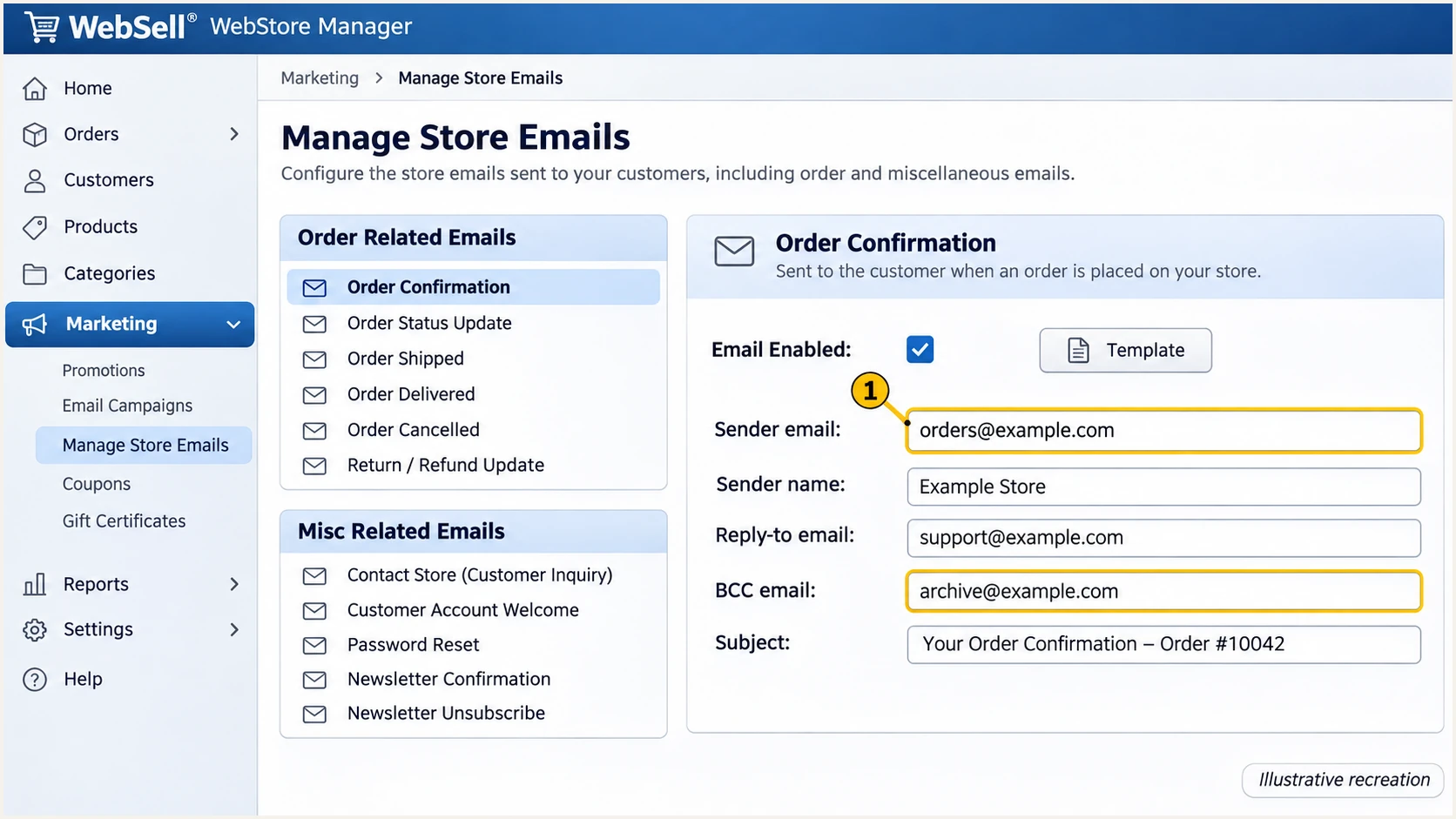
Illustrative recreation of WebSell's sender email settings.
Set up SPF
WebSell's 'Emails and SPF Records' documentation specifies include:spf.websell.io. I merge that mechanism into the existing SPF record while preserving other authorized senders.
SPF checks the SMTP envelope sender, normally visible as Return-Path. An SPF record at example.com does not automatically cover bounce.example.com. Confirm the envelope domain WebSell actually uses.
- Read the record: Look up TXT records for your sending domain. Find the single record beginning v=spf1 and save its current value.
- Merge the include: Insert include:spf.websell.io before the final all mechanism. Keep existing authorization for other active senders. Publish one SPF record at each relevant DNS name.
- Check the budget: Stay within ten SPF terms that trigger DNS lookups during evaluation, including nested includes. Investigate permerror before sending production tests.
- Set the return-path: Ask WebSell support to configure a custom envelope-sender domain under your domain and supply its exact DNS requirements. An SPF include alone does not change Return-Path.
Use the following value only when creating a new SPF record for a domain that authorizes WebSell alone. Existing domains need the WebSell include merged into their current value.
Keep an existing -all ending if it is intentional. WebSell's example uses ~all; changing that ending is optional and does not fix a domain mismatch.
New SPF record for a WebSell-only sending domaindns
Name: example.com
Type: TXT
Value: v=spf1 include:spf.websell.io ~all
Replace example.com with your sending domain. Many DNS editors use @ for the zone apex. For a custom return-path subdomain, follow the DNS instructions WebSell supplies for that specific name.
I check the published SPF value after the previous DNS TTL has expired, then inspect the recursive lookup budget. A successful DNS check establishes record validity; a sent message establishes which domain is being evaluated.
SPF checker
Find SPF syntax issues, lookup limits, and weak records.
?/16tests passed
Enter your sending domain above, and also check the actual Return-Path domain if it differs. Do not add an independent TXT record at a name WebSell has instructed you to delegate with a CNAME.
An SPF pass with an unrelated Return-Path domain does not satisfy DMARC SPF alignment. A passing DKIM signature whose signing domain matches your From domain can still provide the DMARC pass.
Set up DKIM
I request DKIM details directly from WebSell support because the public setup articles do not specify a selector or a DNS record that applies to every store. Supply your store identifier and exact From domain.
WebSell must sign outgoing mail with the private key matching the public DNS record. Publishing a key you generated independently does not enable signing on WebSell servers.
- Request the values: Ask whether custom-domain DKIM is available for your sending route. Request the selector, signing domain, DNS record type, host, and complete public value or CNAME target.
- Publish exactly: Add each supplied record at your DNS host. Check whether the editor appends the domain automatically so the record name is not duplicated.
- Activate signing: After DNS resolves, ask WebSell to confirm verification and enable signing for your domain. A published DNS key is only half of the setup.
- Check the message: Trigger a fresh WebSell email. Confirm dkim=pass and inspect the DKIM-Signature d= domain and s= selector. The signing domain must satisfy your DMARC domain-matching mode.
With relaxed DKIM domain matching, a signing subdomain such as mail.example.com works with a From domain of example.com. With adkim=s, the two domains must match exactly.
If support confirms that your sending route cannot sign with your domain, keep that limitation explicit. DMARC can pass through SPF with a matching envelope domain, but forwarding makes that route less resilient.
Use the assigned selector
Replace SELECTOR with the value WebSell supplies and example.com with the signing domain. Query both types to distinguish a TXT public key from a CNAME delegation.
Look up the WebSell DKIM recordbash
dig +short TXT SELECTOR._domainkey.example.com
dig +short CNAME SELECTOR._domainkey.example.com
Use only the assigned public record. Keep the private signing key on the sending system, and retain old selectors during rotation until messages using them have cleared delivery queues.
Set up DMARC
I publish DMARC at _dmarc under the domain in the visible From address. For orders@example.com, the DNS name is _dmarc.example.com. DMARC passes when SPF or DKIM passes with the required domain match.
If your domain already has p=quarantine or p=reject, keep that policy and repair WebSell authentication. Use p=none for a new monitoring deployment, with one DMARC TXT record at the relevant name.
- Check the policy: Read the existing _dmarc TXT record before editing. Preserve its reporting destinations and intentional subdomain settings.
- Prepare reporting: Create a working aggregate-report mailbox or use your reporting service's assigned address. The example mailbox below must be replaced with a destination you control.
- Publish once: Add the TXT value below only if this is a new DMARC deployment. Modify an existing record rather than creating a second one.
- Check reception: Confirm the published record resolves, send WebSell test messages, and wait for participating receivers to send aggregate reports. Reports commonly arrive daily.
For a new setup, use this exact starting record and then replace the example reporting address. The p=none policy requests monitoring without DMARC-based quarantine or rejection.
DMARC reporting is independent of WebSell. A domain policy covers every service using that From domain, so review your other legitimate senders alongside the store.
Initial DMARC record for a new deploymentdns
Name: _dmarc.example.com
Type: TXT
Value: v=DMARC1; p=none; rua=mailto:dmarc@example.com
Use the DMARC record generator to build your value. Publish it in the authoritative DNS zone; generating a record does not publish it.
If the reporting address uses another domain, complete any external reporting authorization required by that destination. Then validate the public DNS result below.
DMARC checker
Look up a domain's DMARC record and catch policy issues.
?/7tests passed
Check the exact From domain, including a sending subdomain when applicable. A valid DMARC record does not establish whether WebSell signs messages correctly, so continue with a delivery test.
I keep relaxed SPF and DKIM domain matching unless there is a specific reason for strict matching. A custom return-path under example.com works with example.com under relaxed matching; aspf=s requires the exact same domain.
Verify and troubleshoot
I test the actual WebSell sending route after DNS changes have propagated. A message sent manually through a separate mailbox does not test order confirmation authentication.
The email tester below provides a destination address. Use it as the customer email on a controlled test order, trigger the store notification, and inspect the resulting diagnosis.
- Send fresh mail: Generate a new order confirmation after the DNS change. Test other enabled notification types separately, including messages triggered through your POS.
- Inspect identities: Compare the visible From domain, Return-Path domain, and DKIM d= domain. Record the DKIM s= selector for DNS troubleshooting.
- Read the results: Use the receiving server's Authentication-Results header. Check spf=pass, dkim=pass, and dmarc=pass, including the domains attached to each result.
- Check each failure: For SPF errors, inspect the envelope domain and lookup budget. For DKIM errors, compare the assigned selector with public DNS and ask WebSell to confirm signing is active.
A DMARC pass needs one passing method with the correct domain match. I still aim for both SPF and DKIM because intact DKIM signatures often survive forwarding when SPF does not.
Send a test message through the widget for a full diagnosis of the received email. The email tester checks the delivered message, which complements the DNS-only checks above.
Email tester
Send a real email to this address. Suped shows a results button when the test is ready.
?/43tests passed
Use the header results to choose the next repair. A bare spf=pass or dkim=pass is insufficient if its domain does not match the visible sender under your DMARC policy.
If authentication passes but delivery still fails, collect the exact SMTP rejection or bounce text. Mailbox filtering and sending reputation are separate checks; authentication does not guarantee inbox placement.
|
|
|
|---|---|---|
SPF permerror | Record or limit | SPF evaluation |
SPF domain mismatch | Return-path | Envelope domain |
No DKIM signature | Signing inactive | WebSell support |
DKIM fail | Key or message | Selector and headers |
DMARC fail | No matching pass | Both domain checks |
Pass, still rejected | Other filtering | SMTP response |
Match the observed result to the next check.
Get alerted when it breaks
Suped is our DMARC reporting and email authentication platform. Its DMARC monitoring gives ongoing visibility into WebSell authentication failures, so a successful setup test is followed by continued checks.
I use source-level results and issue notifications to catch broken DNS records or changed sending routes. DMARC reports arrive on receiver schedules, so these alerts do not provide instant confirmation for each order email.
- Review the source: Find WebSell in the source table and compare the sending IPs and authentication domains with your test messages before verifying it as an authorized source.
- Enable notices: In Suped Notifications, enable Issues detected and Sending sources need verification. Configure DMARC summary emails for routine review.
- Investigate changes: Open affected records in Detail view to inspect SPF, DKIM, and DMARC results. Use DNS history to compare record values around the time failures began.
- Confirm the repair: Apply the issue's steps to fix, send another WebSell test message, and check new reports. Keep the issue open until legitimate traffic passes again.
Suped separates source verification from authentication results. I verify that WebSell is an expected sender, then investigate its failing messages rather than treating source approval as an authentication fix.
WebSell support still controls its sending configuration. Suped provides the diagnostic evidence for that support request and a way to check the result after the change.
WebSell configuration
Set sender addresses in WebStore Manager and coordinate domain signing and return-path setup with WebSell support.
Publish the supplied DNS records through whoever manages your authoritative DNS.
Suped monitoring
Our product groups incoming DMARC results by sending source and identifies authentication issues that need investigation.
Use issue notices, record diagnostics, and DNS history to track a repair through subsequent reports.
Secure your domain with p=reject
I move to p=reject after legitimate WebSell mail and the domain's other authorized traffic pass DMARC across a complete sending cycle. Include infrequent notifications before deciding the domain is ready.
Suped's Hosted DMARC lets our customers manage policy in the dashboard after its DNS delegation is configured. I review source-level authentication results before each policy change and keep aggregate reporting enabled.
- Inventory traffic: Verify each legitimate source, including WebSell webstore notifications and POS-triggered messages. Investigate unknown sources before deciding whether they are authorized.
- Fix legitimate failures: Confirm every sending route has a reliable DMARC pass. Prefer working custom-domain DKIM alongside the custom return-path; resolve any WebSell signing limitations with support.
- Stage enforcement: For a new deployment, move to p=quarantine after monitoring is clean. Review subsequent reports and business notifications over a complete sending cycle before moving to reject.
- Enforce and watch: Set p=reject while retaining working reporting destinations. If the domain already enforces reject, keep it and continue monitoring WebSell after changes.
Review subdomain policy before enforcement. An existing sp tag or a separate DMARC record on a sending subdomain changes which policy applies; check the actual From domain on your test mail.
The example below is suitable only after readiness checks. Replace the example mailbox and preserve any other intentional tags in your existing record.
Enforce after verified delivery tests
Example DMARC reject policydns
Name: _dmarc.example.com
Type: TXT
Value: v=DMARC1; p=reject; rua=mailto:dmarc@example.com
Reject requests that receivers reject messages failing DMARC. Receivers apply their own handling rules, and a DMARC pass does not guarantee inbox delivery.
I use Suped to compare WebSell results before and after enforcement and investigate any legitimate failures by source. Keep monitoring active after DKIM key changes and sender-address updates.
After any WebSell configuration change, repeat the controlled order test and inspect a fresh message. Keep the previous DNS values and the support ticket details with your change record.
Frequency asked questions
WebSell, formerly NitroSell, documents include:spf.websell.io for authorizing its sending infrastructure. Merge it into your existing SPF record before the final all mechanism. Do not replace authorization for other active senders.
NitroSell is the former name of WebSell. WebSell's help centre names mx1.nitrosell.com in a delivery error, which establishes a mail-server connection, not a universal rDNS suffix. I treat a matching PTR hostname as a clue and confirm the source using the sending IP, authentication domains, and expected store activity.
Request the selector and complete DNS instructions from WebSell support for your store. The public SPF setup article does not supply a universal DKIM selector. After signing is active, inspect s= and d= in a fresh DKIM-Signature header.
Yes. DKIM must pass with a signing domain that matches the visible From domain under the configured DMARC matching mode. An unrelated Return-Path can produce an SPF domain-matching failure while DKIM provides the DMARC pass. Still investigate an unexpected mismatch when a custom return-path was configured.
Keep an existing quarantine or reject policy and repair WebSell authentication. The p=none example is for new monitoring deployments. Avoid reducing protection across every sender merely to bypass one sending route's configuration problem.
Use an address on a domain you control. WebSell documents delivery failures when stores use personal Gmail sender addresses because the store cannot authorize WebSell in Gmail's DNS. Change the WebStore Manager sender address and any POS sender settings to your business domain, then authenticate that domain.