
How to set up DMARC/DKIM/SPF for Webglobe


To authenticate Webglobe email, publish your account's SPF authorization, enable DKIM signing for your domain, and add a DMARC TXT record at _dmarc. Start a new DMARC deployment with p=none. Keep p=quarantine or p=reject if either policy is already active.
I check the Webglobe account region before editing DNS: Slovak mailbox hosting uses include:_spf.webglobe.sk, while Czech mailbox hosting uses include:_spf.webglobe.cz. These steps cover standard Webglobe hosted mailboxes; use the service-specific settings supplied for other Webglobe email packages.
Add your domain
I start with the domain attached to the active Webglobe hosting or Mail service. For an existing mailbox, select its domain in WebAdmin and continue with the authentication records.
- Activate the service: Order or activate Webglobe email hosting for your domain. Confirm that the domain appears under your hosting or email service before creating mailboxes.
- Create a mailbox: Select the domain, open E-mail > E-mailové schránky, and choose the create-mailbox action. In Slovak WebAdmin this is Vytvoriť e-mailovú schránku; Czech WebAdmin uses Vytvořit novou schránku. Enter the mailbox name, password, and quota, then save.
- Locate authoritative DNS: Check the domain's NS records. If Webglobe hosts DNS, select the domain and open DNS > DNS záznamy. Otherwise publish authentication records at the provider named by the authoritative nameservers.
- Verify the mailbox: Sign in to Webglobe webmail with the full email address and mailbox password. Send a message and confirm receipt. When migrating inbound mail, create every required mailbox and alias before changing MX records to your account's Webglobe values.
A saved record in an inactive DNS zone does not affect authentication. I verify that the public DNS answer contains the new value; successful WebAdmin login alone does not verify DNS publication.
Find the active DNS provider and current mail routingbash
dig +short NS example.com
dig +short MX example.com
Set up SPF
Webglobe supports a Return-Path on your own domain. Publish SPF for the actual envelope-sender domain, then verify that this domain matches the visible From domain under your DMARC alignment settings.
|
|
|
|---|---|---|
Slovak | _spf.webglobe.sk | TXT |
Czech | _spf.webglobe.cz | TXT |
Choose the include for the mailbox account, not the sender domain's extension.
I use the following Webglobe baseline only when the domain has no existing SPF record. If other systems send mail, merge their authorizations into the same record.
- Open TXT records: In DNS > DNS záznamy, inspect TXT records at the domain root and find any value beginning v=spf1.
- Edit one record: Update the existing SPF record, or create one TXT record if none exists. For the root domain, leave Meno/Jméno empty in Webglobe; other DNS providers often use @.
- Authorize Webglobe: Insert include:_spf.webglobe.sk or include:_spf.webglobe.cz before the final all mechanism. Preserve existing legitimate senders and an existing -all ending.
- Save and check: Use the default TTL, commonly 3600 seconds. Keep exactly one SPF record at this name and an evaluated DNS lookup count of 10 or fewer, including nested includes.
Slovak Webglobe baseline for a new SPF recordtext
v=spf1 a mx include:_spf.webglobe.sk ~all
Czech Webglobe baseline for a new SPF recordtext
v=spf1 a mx include:_spf.webglobe.cz ~all
Run the SPF check against the domain used in Return-Path. A lookup of your visible From domain is insufficient when the envelope sender uses a different domain.
The check below validates the published SPF record and lookup limits. I still send a real message afterward, because a valid DNS record alone does not show which envelope sender Webglobe actually used.
SPF checker
Find SPF syntax issues, lookup limits, and weak records.
?/16tests passed
If the checker finds multiple SPF records, combine the authorized senders into one value and remove the duplicate. Adding a second v=spf1 record causes an SPF permanent error.
For a Slovak account with no previous SPF record, the editor should have an empty root-name field and the complete Slovak value. Use the Czech value for a Czech mailbox account.
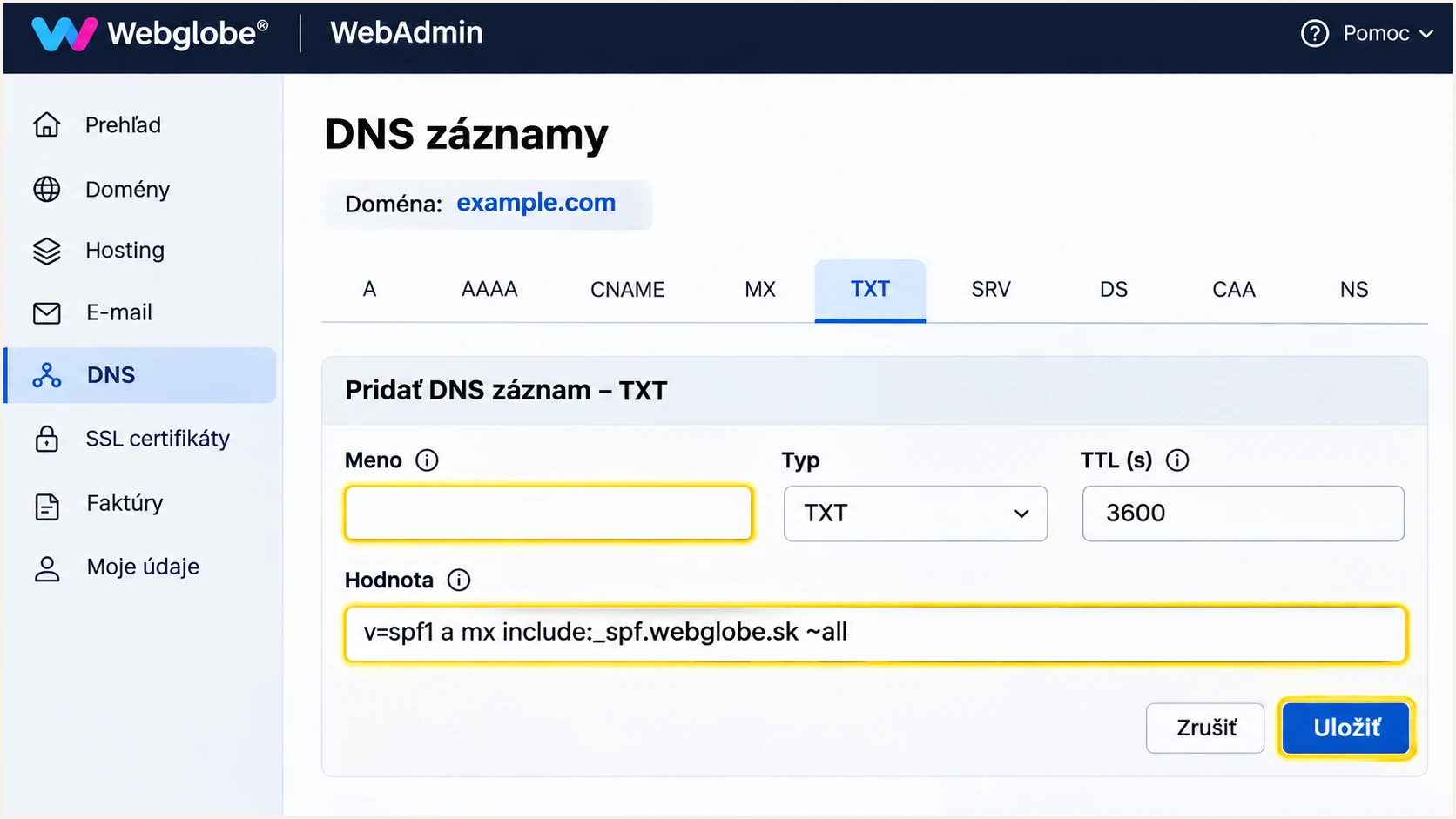
Illustrative Webglobe SPF editor for a Slovak mailbox account.
Set up DKIM
DKIM needs both active signing on Webglobe's mail servers and the matching public key in authoritative DNS. I use the selector and key supplied for the actual domain, rather than copying another domain's record.
- Open email settings: In the Slovak/international WebAdmin workflow, select the domain and open E-mail > Nastavenia e-mailov.
- Enable signing: Set Podpisovanie e-mailových správ pomocou DKIM to Zapnuté, then click Uložiť. Record the generated selector, DNS hostname, and full public TXT value.
- Publish the key: When Webglobe hosts authoritative DNS, check that the generated record was added automatically. With external DNS, copy the generated hostname and full public TXT value into that provider's zone.
- Confirm the result: Send a new message and inspect DKIM-Signature and the receiving server's Authentication-Results. Require dkim=pass and a signing domain that matches your From domain under DMARC's alignment rules.
The Czech DKIM instructions document DNS > DNS záznamy > TXT > Nový DNS záznam for publishing a supplied key. If your account does not expose the signing switch, obtain its signing status and selector from Webglobe support; creating a TXT record alone does not enable signing.
A DKIM hostname has the form selector._domainkey followed by your domain. The selector is account-specific. Use the complete supplied public key, and never publish a private key.
DNS hosted by Webglobe
Check the automatically created public key after enabling signing.
- Inspect TXT: Find the generated selector under DNS > DNS záznamy.
- Avoid duplicates: Do not add another DKIM key at the same selector name.
DNS hosted elsewhere
Publish Webglobe's generated record at the authoritative DNS provider.
- Copy exactly: Preserve the selector and the complete public-key value.
- Check the name: Avoid appending your domain twice in a zone-relative editor.
DNS interfaces handle long TXT values differently. Preserve one logical DKIM record with the complete key; do not introduce manual line breaks or create separate records for key fragments.
The signing switch below belongs to the Slovak/international WebAdmin workflow. After saving it, confirm publication in public DNS before treating DKIM as working.
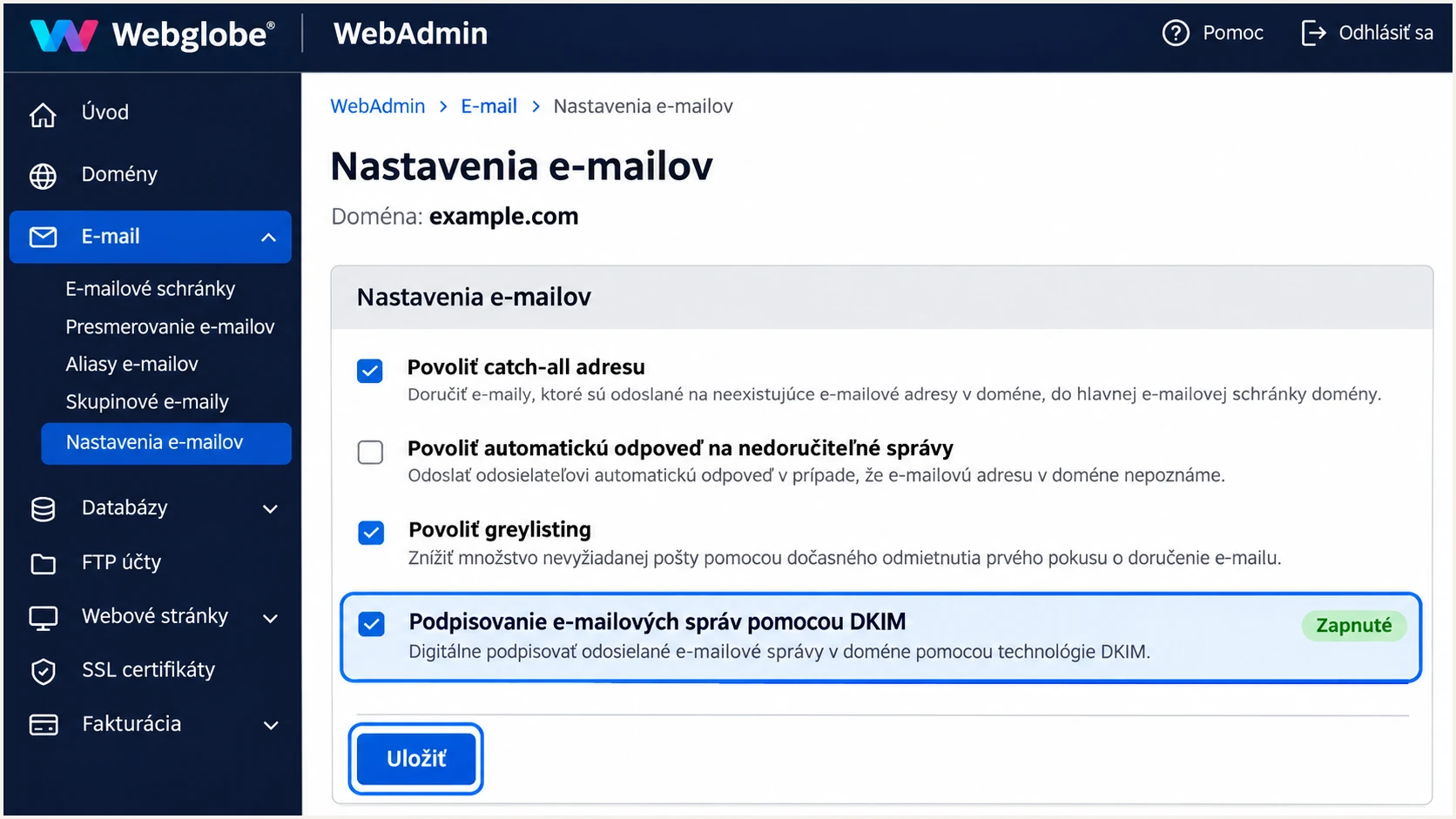
Illustrative Webglobe email settings with DKIM signing enabled.
Set up DMARC
DMARC checks whether passing SPF or DKIM authenticates a domain that matches the visible From domain. One matching, passing mechanism is enough for a message to pass DMARC. I configure both for Webglobe and verify DKIM before enforcement.
- Check the current policy: Look up TXT at _dmarc.example.com. If p=quarantine or p=reject is already published, keep that policy and its existing tags while fixing Webglobe.
- Create a new policy: For a domain without DMARC, open the authoritative TXT editor. Set Meno/Jméno to _dmarc in Webglobe, keep the default TTL, and publish the example below after replacing its report address.
- Set the report destination: Use a working aggregate-report mailbox or your reporting platform's assigned destination. Retain required external-destination authorization when the reports go to another domain.
- Save one policy: Keep exactly one DMARC policy record at _dmarc. Check public DNS and send a new Webglobe message to verify dmarc=pass.
Initial DMARC TXT value, replace the example report addresstext
v=DMARC1; p=none; rua=mailto:dmarc@example.com
The address dmarc@example.com is a placeholder. Replace it with a destination you control; otherwise your own reports will not arrive. The policy p=none requests monitoring without asking receivers to quarantine or reject failures.
Use the DMARC record generator to construct the value, then check the published result below. Neither generating a record nor checking it publishes DNS for you.
DMARC checker
Look up a domain's DMARC record and catch policy issues.
?/7tests passed
Enter the visible From domain in the checker. Confirm that it discovers the intended policy and reporting destination, rather than an old value cached before your update.
In Webglobe's domain-relative editor, _dmarc becomes _dmarc.example.com automatically. At another DNS provider, follow its hostname format and check that the final name contains your domain only once.
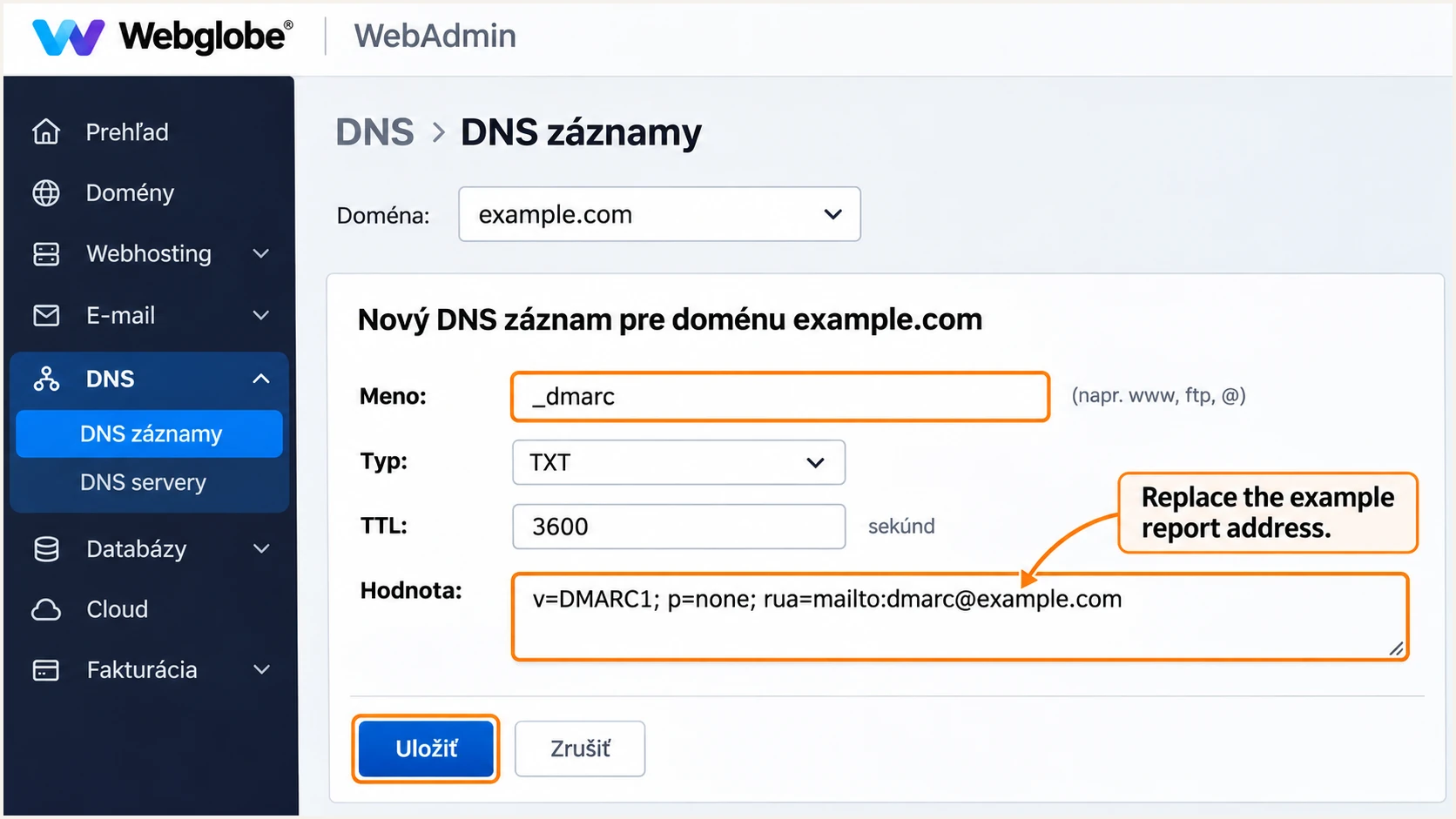
Illustrative Webglobe DMARC editor with an example reporting address.
Verify and troubleshoot
I test each real sending route separately. Webmail, a desktop client, and a website form do not necessarily use the same mail server or receive the same DKIM signature.
- Check public DNS: Query the root SPF record, _dmarc, and the actual DKIM selector. Replace SELECTOR below with the value in Webglobe's generated record or the message's DKIM-Signature s= tag.
- Send through Webglobe: Use your normal mailbox or authenticated SMTP. Standard Slovak mailboxes use mail.webglobe.sk; Czech mailboxes use mail.webglobe.cz. Use port 587 with STARTTLS or 465 with implicit TLS, the full mailbox address, and its password.
- Fix website mail: Send forms through authenticated SMTP with your own domain in From. Put the visitor's address in Reply-To. Retest the form instead of assuming a successful webmail test covers it.
- Read receiver results: Inspect the receiving server's trusted Authentication-Results. Check SPF against smtp.mailfrom, DKIM against header.d, and DMARC against header.from.
Query the published records with your actual DKIM selectorbash
dig +short TXT example.com
dig +short TXT _dmarc.example.com
dig +short TXT SELECTOR._domainkey.example.com
For the quickest end-to-end check, send a message to the unique address supplied by the email tester below. Send directly through the Webglobe route being tested, without forwarding the test message.
The tester diagnoses the received message's authentication and highlights configuration problems. I compare that result with public DNS so I can distinguish a missing record, disabled signing, or a mismatched sender domain.
Email tester
Send a real email to this address. Suped shows a results button when the test is ready.
?/43tests passed
Retest after the previous DNS TTL expires. A 3600-second TTL is a one-hour cache lifetime, not a guarantee that every resolver or newly created record updates at exactly the same time.
A normal direct Webglobe test should have these results. For SPF and DKIM, also check domain matching; an authentication pass for an unrelated provider domain does not satisfy DMARC.
|
|
|
|---|---|---|
SPF | pass | Envelope sender |
DKIM | pass | Signing domain |
DMARC | pass | Visible From |
Use receiver-generated results for the delivered test message.
SPF alignment failures need context
If the Return-Path uses an unrelated provider domain, changing your own SPF record cannot repair that mismatch. Correct the envelope sender for the Webglobe route, or rely on a passing DKIM signature whose domain matches From. DMARC still passes with matching DKIM even when SPF fails or does not match.
Forwarding often changes the SPF result. Keep DKIM working, and investigate a missing or broken signature separately from SPF alignment.
Get alerted when it breaks
Suped is our DMARC reporting and email authentication platform. Its DMARC monitoring turns aggregate reports into source-level results and detected issues, so Webglobe authentication changes do not depend on someone remembering to run another test.
- Keep reports flowing: Use the Suped aggregate-report destination assigned to your domain in rua while preserving the intended DMARC policy. Confirm that incoming reports include your Webglobe sending activity.
- Enable issue alerts: In Suped notification settings, enable Issues detected and Sending sources need verification. Enable DMARC summary emails for regular review.
- Verify expected sources: Review Webglobe against your actual mailbox and website sending activity before marking the source verified. Investigate unfamiliar sources instead of authorizing them automatically.
- Act on failures: Open the affected source or record detail, compare SPF and DKIM diagnostics, and follow the issue's fix steps. After changing Webglobe or DNS, send another test and check subsequent reports.
I separate report-based alerts from live testing. Receiving organizations send aggregate reports on their reporting schedules, commonly daily, so alerts based on those reports are not immediate notifications for individual messages.
Make the alert actionable
Assign an owner who can change Webglobe settings and authoritative DNS. Include the affected source, failing authentication mechanism, and recent DNS changes in the investigation. Suped's DNS history and record diagnostics help connect the failure to the change.
Secure your domain with p=reject
I move to enforcement after expected senders work consistently across a full business sending cycle. Suped's source table and individual record diagnostics help identify legitimate failures before a stricter policy affects delivery.
- Inventory every sender: In Suped, review Webglobe mailboxes and website traffic alongside every other authorized source. Include low-volume jobs and periodic billing messages; unexplained failures are not automatically legitimate.
- Repair legitimate failures: Fix missing DKIM signing, incomplete public keys, and incorrect envelope domains. Keep relaxed alignment unless a documented requirement needs strict matching, and require working domain-matching DKIM before reject.
- Stage enforcement: For a new monitoring deployment, review at least 7-14 days and cover longer sending cycles when necessary. Move to p=quarantine, inspect subsequent reports, and then change to p=reject when expected traffic remains healthy.
- Keep monitoring: Preserve rua and review subdomain policies before publishing. Keep alerts enabled after enforcement, then retest whenever a mailbox route, application, or DKIM selector changes.
Final DMARC TXT value, retain your actual reporting destinationtext
v=DMARC1; p=reject; rua=mailto:dmarc@example.com
Suped's Hosted DMARC manages policy changes through the dashboard after its DNS setup is complete. This keeps policy staging and report review in one workflow while Webglobe continues handling your mailbox sending.
Enforce after verification
A ready Webglobe route has a verified signing domain, working DKIM, and passing DMARC on real messages. The p=reject policy requests rejection of DMARC failures; receivers retain their own handling rules, and the policy does not guarantee inbox placement.
Frequency asked questions
Use include:_spf.webglobe.sk for standard Slovak mailbox accounts or include:_spf.webglobe.cz for standard Czech mailbox accounts. Choose by the hosting account, not your domain extension. Add the include to your existing SPF record before its final all mechanism instead of publishing another SPF record.
Yes. A passing DKIM signature with a signing domain that matches the visible From domain satisfies DMARC even if SPF fails or authenticates an unrelated domain. Webglobe supports using your own envelope-sender domain, so investigate unexpected mismatches on direct mail rather than assuming they are unavoidable.
Check that signing is enabled, the public key is complete, and the record is in authoritative DNS at the exact selector used in the message. A hostname copied with your domain appended twice also breaks lookup. Webglobe's default._domainkey example is not a universal selector; use the value generated for your service.
Existing DNS answers remain cached until their TTL expires, commonly 3600 seconds for these records. Negative caching also affects newly created names. Send a new test after public DNS shows the expected values. Aggregate DMARC reports follow receiver reporting schedules, so they arrive later than a direct message test.
I treat that suffix as a clue pointing to Webglobe-hosted infrastructure. Confirm the sending IP, message headers, and expected sending activity before identifying it as an authorized source. A shared server's reverse DNS does not identify its customer and does not prove SPF, DKIM, or DMARC passed.
No. MX records route incoming mail, while DMARC is a TXT policy used to evaluate your outgoing domain identity. Change MX records when moving inbound mailbox hosting to Webglobe, using the values supplied for your account. Do not change working MX records solely to publish DMARC.




