
How to set up DMARC/DKIM/SPF for WEB.DE

Published 21 Nov 2026
Updated 21 Nov 2026
11 min read
Summarize with
WEB.DE manages SPF, DKIM and DMARC for @web.de addresses. For a normal mailbox, there are no DNS records to add: send through WEB.DE webmail or authenticated SMTP, then check a delivered message. For a domain you own through WEB.DE Homepage & Mail, verify domain-specific signing and DNS support before changing authentication records.
I check the domain in the visible From address first. Owning a WEB.DE mailbox does not give you control of web.de DNS. The DNS changes and enforcement steps below apply only to a domain you own.
Add your domain
Skip domain registration for an @web.de address. WEB.DE documents custom-domain addresses under Homepage & Mail, with separate domain management controls.
- Open domain management. For Homepage & Mail, sign in to WEB.DE on a computer, click your initials in the upper menu, then select "Domain verwalten".
- Choose the domain. Use your existing domain. If your account offers domain registration and you need one, select "Neue Domain anlegen", choose the name, review the terms and complete registration.
- Create the address. In the domain list, click "E-Mail-Adressen" for the domain, enter the required address and click "Speichern".
- Verify the sender. Open your initials > "E-Mail-Einstellungen" > "Absenderadressen". Confirm the address is listed, select it when composing a message and send a test to an external mailbox.
A listed sender address confirms that WEB.DE recognizes it for your mailbox. Successful SPF and DKIM checks still need verification on the received message.
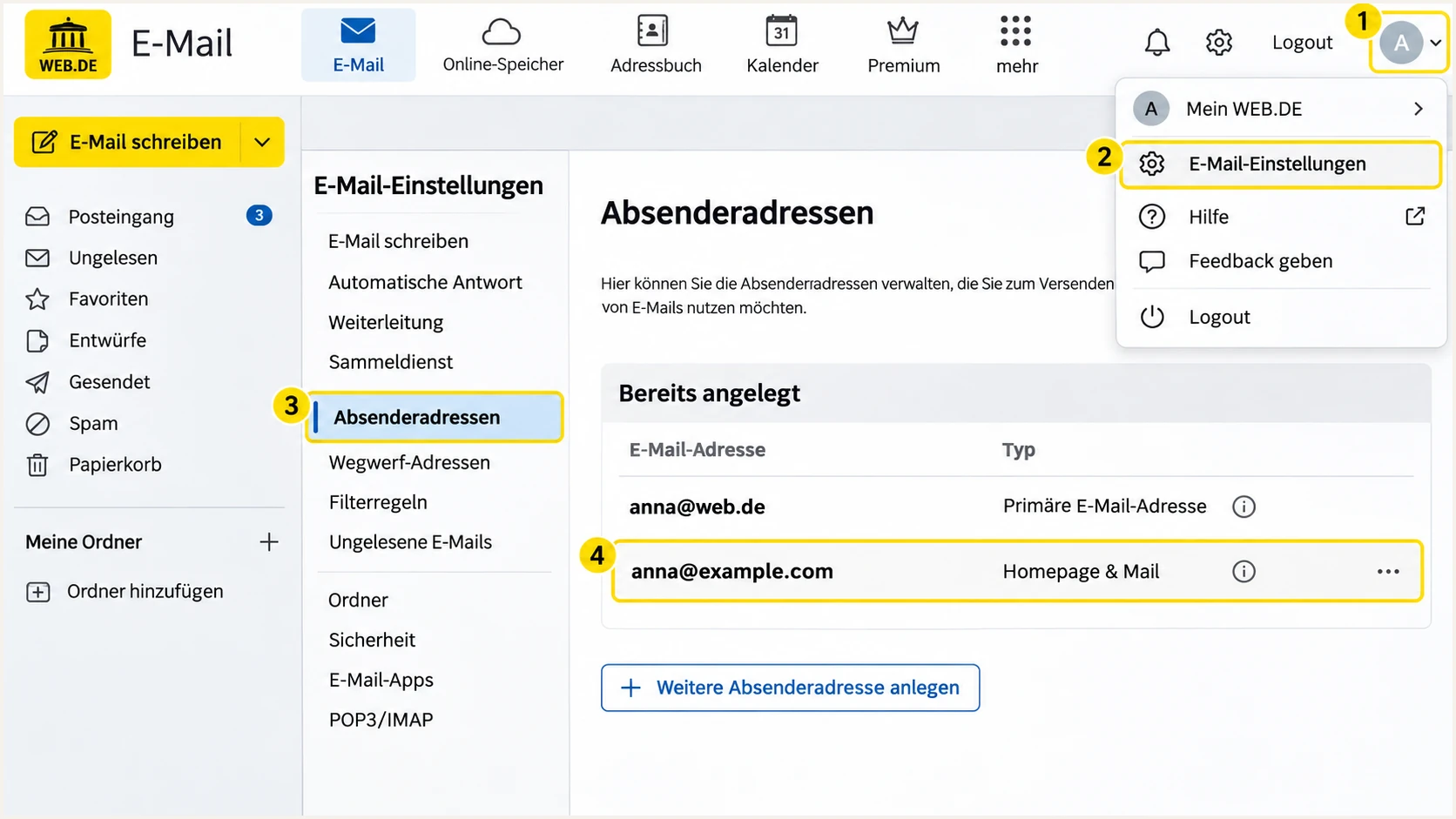
Illustrated WEB.DE sender settings with an existing custom-domain address.
If the domain controls are absent, check your contract with WEB.DE support. Do not assume that a paid mailbox alias includes custom-domain DNS management.
Set up SPF
For @web.de mail, WEB.DE maintains the SPF record. Your task is to use its authorized sending route and a sender address registered to your mailbox.
For a custom domain, I inspect the envelope sender before editing DNS. SPF checks the SMTP MAIL FROM domain, normally shown in Return-Path, rather than the visible From address.
- Use WEB.DE SMTP. In an external mail client, set the outgoing server to smtp.web.de, port 587 with STARTTLS and SMTP authentication. Use your full WEB.DE login address as the username. Port 465 with implicit TLS is an alternative.
- Enable client access. If needed, open your initials > "E-Mail-Einstellungen" > "E-Mail empfangen" > "POP3/IMAP". Enable "POP3- und IMAP-Zugriff erlauben" and complete the security check. Webmail does not need this step.
- Check the envelope. Send a message and read the receiving server's smtp.mailfrom result. For SPF to satisfy DMARC, that domain must match the From domain under your DMARC matching mode.
- Change only owned DNS. For an owned MAIL FROM domain, obtain WEB.DE's supported SPF values for your contract. Merge authorized senders into one SPF record and stay within the 10 DNS-lookup term limit, including nested includes.
Read SPF records; replace example.com with your envelope domainbash
dig +short TXT web.de
dig +short TXT example.com
Enter web.de below for a managed WEB.DE address. For a custom domain, check the actual MAIL FROM domain. A DNS check validates the record; a sent message confirms whether the sending IP is authorized.
Do not guess a WEB.DE include hostname or copy its entire SPF record onto your domain. WEB.DE's public mailbox setup instructions do not provide a universal custom-domain SPF value.
SPF checker
Find SPF syntax issues, lookup limits, and weak records.
?/16tests passed
With relaxed SPF matching, the MAIL FROM domain and From domain can share an organizational domain. Strict matching requires the same domain. A Return-Path under web.de does not match a From address under example.com.
If your sending route keeps a provider-owned Return-Path, editing your own SPF record cannot fix that mismatch. Expect an SPF alignment failure in that case; DMARC still passes when a valid DKIM signature matches your From domain.
Set up DKIM
WEB.DE handles signing for its own domain. There is no customer key to publish for an @web.de address. For Homepage & Mail, confirm whether WEB.DE signs with your custom domain before relying on DKIM for DMARC.
- Inspect a delivered copy. Send through the normal WEB.DE route to an external recipient. Find DKIM-Signature and note its d= signing domain and s= selector. The receiving server must report dkim=pass.
- Check domain matching. Compare d= with the visible From domain. A passing signature with d=web.de does not satisfy DMARC for From: anna@example.com.
- Request custom-domain support. For Homepage & Mail, ask WEB.DE whether your exact domain has DKIM signing. If DNS changes are required, obtain the exact selector, record type and value. Publish those values, then send another test.
An @web.de address
WEB.DE controls the signing key and public DNS. Verify the received signature and report missing or failing signing to WEB.DE.
Your own domain
Require a valid signature whose d= domain matches your From domain. A newly published public key works only when the sending server uses its corresponding private key.
Query the selector and signing domain copied from a real messagebash
dig +short TXT ACTUAL_SELECTOR._domainkey.SIGNING_DOMAIN
dig +short CNAME ACTUAL_SELECTOR._domainkey.SIGNING_DOMAIN
The public Homepage & Mail instructions do not document a customer DKIM activation screen or reusable selector. If WEB.DE cannot sign for your domain, use an outbound mail host that supports that domain's DKIM signing. Generating a key yourself does not activate signing inside WEB.DE.
Set up DMARC
WEB.DE controls the DMARC policy for web.de. For a domain you own, publish the policy as a TXT record at _dmarc followed by your domain.
I inspect the existing policy first. Keep p=quarantine or p=reject if either is already active. For a domain with no policy, begin with p=none while collecting evidence about legitimate senders.
- Prepare the record. Use the DMARC record generator to build the TXT value. For a new policy, use the monitoring example below and replace its report address.
- Publish one policy. In your authoritative DNS editor, create a TXT record named _dmarc, or _dmarc.example.com if it requires the full name. Avoid duplicating the domain suffix or creating a second DMARC policy.
- Set a working destination. Replace dmarc@example.com with your actual aggregate-report destination. If its domain differs from the policy domain, ensure the report recipient supports the required external reporting authorization.
- Verify the saved value. Look up your own domain below after DNS caches refresh. Confirm that the policy and reporting destination match your intended settings.
New policy for a domain you own
Publish this example only after replacing the report mailbox. Retain an existing quarantine or reject policy.
TXT value at _dmarc.example.comtext
v=DMARC1; p=none; rua=mailto:dmarc@example.com
Enter the From domain in the checker. For an @web.de sender, entering web.de shows WEB.DE's policy; it does not create settings for your individual mailbox.
For an owned custom domain, a valid DMARC record establishes the policy and reporting request. It does not repair SPF or enable DKIM on the sending server.
DMARC checker
Look up a domain's DMARC record and catch policy issues.
?/7tests passed
A p=none policy requests reports without asking recipients to quarantine or reject messages that fail DMARC. Recipients still apply their normal spam filtering.
Allow roughly 24-48 hours after actual sending for initial aggregate reports. Reporting schedules and participation differ between receiving systems.
Verify and troubleshoot
I verify the message that reached the recipient, using the same sender address and sending route used for ordinary mail. The Sent folder does not show the recipient's authentication decision.
- Send a real test. Use the email tester below to obtain a destination address, then send a new message to it through WEB.DE. Review the resulting authentication diagnosis.
- Repeat each route. Test webmail and every external client or application that sends with this From address. One passing route does not verify the others.
- Fix sender rejection. For "Unauthorized sender address", select an address registered to the WEB.DE mailbox or use the outgoing server responsible for that address. Changing DMARC does not authorize an SMTP sender.
- Separate failure types. For SPF failures, check MAIL FROM and the sending IP. For DKIM failures, check the real selector and whether the message changed after signing. For DMARC failures, compare the authenticated domains with From.
|
|
|
|---|---|---|
SPF | Pass + match | MAIL FROM |
DKIM | Pass + match | Signing domain |
DMARC | Pass | From domain |
SMTP | Accepted | Allowed sender |
Read these results together on the receiving system.
The email tester checks an actual received message and gives a full diagnosis. It is the quickest way to check the effect of a configuration change.
Review the individual SPF and DKIM domains alongside their pass results. DMARC needs at least one passing mechanism with a domain that matches From.
Email tester
Send a real email to this address. Suped shows a results button when the test is ready.
?/43tests passed
Forwarding often changes the server evaluated by SPF. A valid DKIM signature can preserve DMARC success when the signed message remains intact.
For a message received in WEB.DE, open it and choose "Mehr" or the three dots, then "Mehr Informationen" to inspect its headers. For WEB.DE outbound mail, use the external recipient's delivered copy or the tester result.
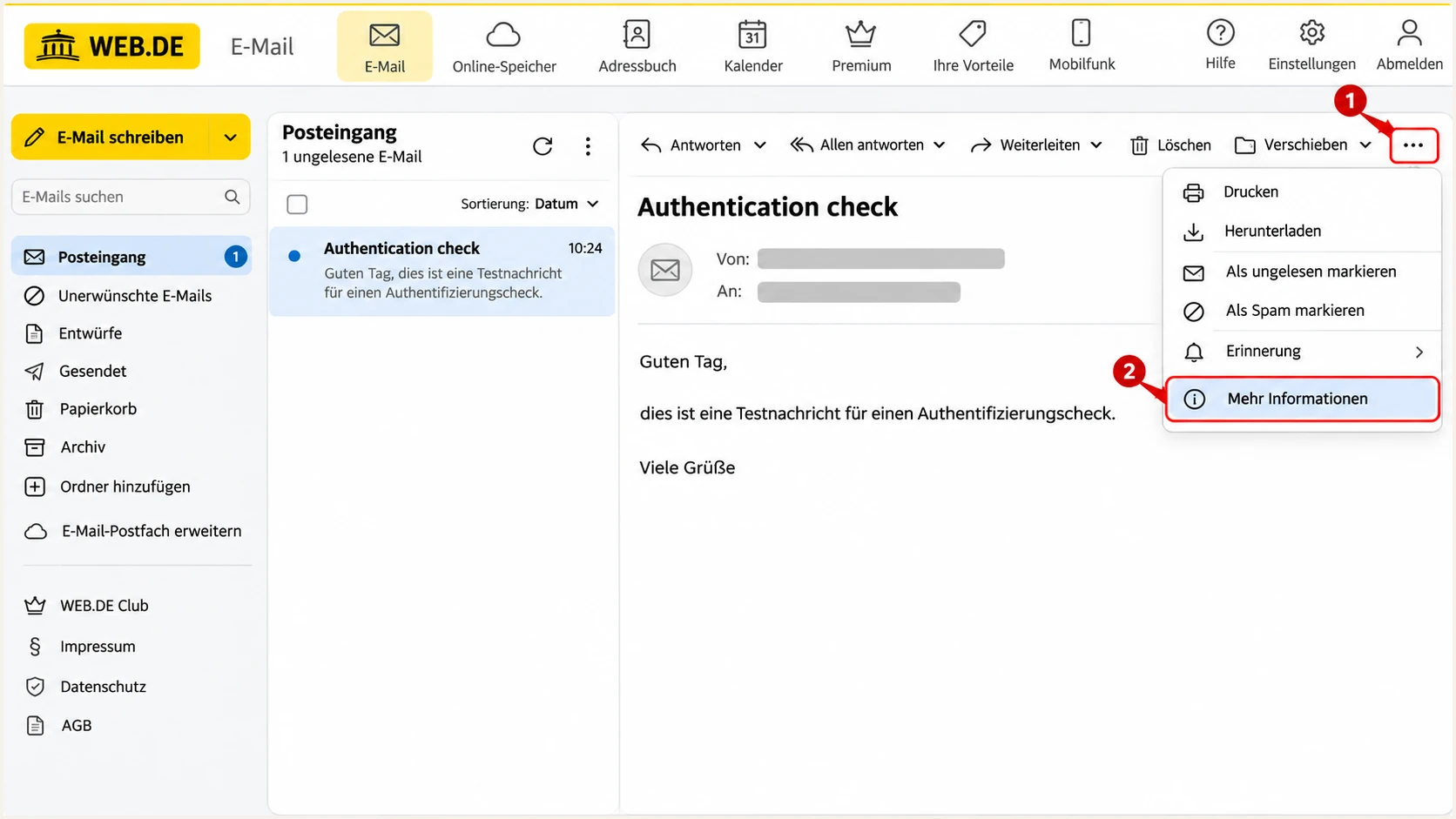
Illustrated WEB.DE menu for opening the full received message headers.
Use authentication results added by the receiving system you trust. The presence of a DKIM-Signature header alone does not prove the signature passed.
After a repair, send a new message. DNS changes do not alter authentication results already recorded on an older delivered message.
Get alerted when it breaks
For a domain you own, our platform, Suped, turns aggregate reports into source-level authentication checks and issue notifications. Our DMARC monitoring keeps the investigation tied to the actual sending source and failed mechanism.
- Keep reports flowing. Use your assigned report destination in the owned domain's rua setting and check that aggregate reports continue arriving.
- Enable notifications. In Suped notification settings, enable "Issues detected" and "Sending sources need verification". Use summary emails for routine review.
- Verify the source. Confirm that WEB.DE traffic belongs to your legitimate sending workflow before marking it verified. Compare authentication results with a known test message rather than trusting the server name alone.
- Resolve and retest. Open the detected issue, follow its tailored repair steps, send another test through WEB.DE and check subsequent reports for recovery.
Suped combines issue detection with SPF and DKIM diagnostics and DNS history, so a changed record can be investigated alongside authentication failures. DMARC alerts depend on report arrival, usually on a daily schedule; keep SMTP failure notifications for immediate delivery problems.
These controls apply to a domain whose reporting you administer. WEB.DE controls reporting for web.de, so an individual mailbox cannot redirect the shared domain's reports to Suped.
Secure your domain with p=reject
Use p=reject for your owned domain after every legitimate sending route has a reliable DMARC pass. For @web.de addresses, WEB.DE decides the policy.
- Inventory all senders. Review source reports in Suped across a complete sending cycle, including infrequent invoices or account messages. Identify every legitimate source before enforcement.
- Fix legitimate failures. Require matching SPF or a valid matching DKIM signature for each sender. Prioritize DKIM for forwarding resilience, and resolve WEB.DE custom-domain signing limitations before tightening policy.
- Stage the policy. For a new deployment, monitor with p=none, review quarantine results, then move to reject after legitimate failures are resolved. Our Hosted DMARC supports managing these policy changes from Suped after its DNS setup.
- Continue monitoring. Keep reporting and issue notifications enabled after enforcement. Review subdomain policies separately and verify new senders before they enter production.
Final TXT value for a verified owned domain, with your report addresstext
v=DMARC1; p=reject; rua=mailto:dmarc@example.com
Change the existing policy
Replace the existing DMARC TXT value rather than adding another policy record. Substitute your real report destination and preserve other intentional settings. Receivers retain their own final handling decisions.
Check subdomains before the final change. A subdomain with its own DMARC record uses that policy. An explicit sp tag controls inherited subdomain handling; without it, the parent policy applies.
After publishing reject, query the public TXT record again and send fresh WEB.DE tests. Check subsequent source reports in Suped to confirm that legitimate mail continues passing.
Frequency asked questions
No. WEB.DE controls DNS and signing for web.de. Send through WEB.DE webmail or authenticated SMTP with an approved mailbox address, then verify a delivered message.
WEB.DE documents custom-domain addresses under Homepage & Mail. Check your contract and the "Domain verwalten" controls. A mailbox alias does not establish control of a custom domain or guarantee custom-domain DKIM signing.
There is no universal customer selector to copy. For an existing signature, read s= and d= in the received message. For custom-domain activation, obtain the exact supported record from WEB.DE. A public key alone does not enable the sending server to sign.
A passing SPF check authenticates MAIL FROM. If that domain is web.de while the visible From domain is example.com, SPF does not satisfy DMARC. A valid DKIM signature matching example.com can still produce a DMARC pass.
These hostnames belong to WEB.DE's published outbound mail infrastructure. WEB.DE also lists mout-xforward.web.de for forwarding infrastructure. Use the connecting IP and authentication results to investigate a message; an rDNS hostname alone does not establish sender authorization.
No WEB.DE-specific DNS record is required just because the recipient uses WEB.DE. Configure the authentication required by your actual sending host. WEB.DE's published receiver requirements call for a valid DKIM signature whose signing domain matches the visible From domain; SPF alone is insufficient.




