
How to set up DMARC/DKIM/SPF for Vodafone

For an owned domain sent through Vodafone, publish the SPF authorization supplied for your mail service, arrange DKIM signing with your domain, and add a DMARC TXT record at _dmarc.yourdomain. DMARC passes when SPF or DKIM passes with the required domain match.
I first check which Vodafone service is sending. For an @vodafonemail.de, @vodafone.de or @arcor.de mailbox, Vodafone controls the authentication records. You cannot edit those domains' DNS. For a custom business domain, obtain the SPF authorization and DKIM configuration for your contract; there is no verified universal customer setup across Vodafone services.
Add your domain
An owned domain needs mail provisioning and access to its authoritative DNS. A Vodafone internet connection alone does not establish either.
- Confirm the service: Identify your Vodafone mail-hosting contract and the exact domain in the visible From address.
- Activate the domain: Ask Vodafone Business to provision the domain for your mail contract, or confirm its existing provisioning. Request confirmation of permitted sender addresses and custom MAIL FROM support.
- Open DNS Admin: Activate Vodafone's invitation, sign into Service Monitor and select DNS Admin. Complete 2FA if prompted.
- Select the zone: Open Zonen and the domain's Resource Records icon. If the zone is missing, request access or use the DNS provider named by the domain's authoritative nameservers.
- Verify sending: Send a message using your domain mailbox. Check that the received From address and Return-Path match the identities Vodafone agreed to use.
Vodafone's 2025 DNS Admin manual documents portal access. Its separate E-Mail & Cloud support page documents consumer SMTP submission through smtp.vodafonemail.de, with port 465 for implicit TLS or 587 for STARTTLS.
Keep existing MX records unless you are also moving incoming mail. SPF, DKIM and DMARC changes do not require a mailbox migration.
Vodafone-owned address
Vodafone manages SPF, DKIM keys and DMARC policy for the address domain. Use the approved mailbox settings and report authentication failures to Vodafone.
Your own domain
You manage your DNS policy. Vodafone must authorize the sending route and provide any supported signing configuration. DNS access alone does not enable DKIM.
Set up SPF
SPF checks the SMTP MAIL FROM domain, normally visible in the delivered Return-Path. I verify that domain before deciding where to publish the record.
- Request authorization: Obtain Vodafone's approved SPF include or outbound IP ranges for your exact mail service. Do not copy Vodafone's corporate SPF record or infer authorization from an SMTP hostname.
- Set the envelope sender: For SPF alignment, ask Vodafone to use your domain or a subdomain, such as bounce@mail.example.com when the visible From domain is example.com. Confirm this in a delivered message.
- Edit the correct name: Publish SPF as TXT on the actual MAIL FROM domain. For mail.example.com, edit that name; an SPF record at example.com does not automatically cover it.
- Merge existing senders: Keep one v=spf1 record per name. Preserve other authorized senders, place their mechanisms before the final all mechanism, and stay within SPF's 10 DNS-querying-term limit, including nested includes.
- Handle service limits: If your Vodafone contract cannot use your domain in MAIL FROM, changing your SPF record will not fix SPF alignment. Require passing DKIM with your domain for DMARC instead.
A passing SPF check for a Vodafone-owned return-path domain does not establish SPF alignment with your custom From domain. In that situation, SPF alignment errors are expected; DMARC still passes through valid DKIM with the required domain match.
Check the MAIL FROM domain below after publishing the approved authorization. Expand the result to inspect nested includes and lookup errors.
SPF checker
Find SPF syntax issues, lookup limits, and weak records.
?/16tests passed
The checker validates DNS configuration. A received message establishes whether Vodafone actually used that domain and an authorized outbound IP.
Do not add your broadband connection's IP when messages leave through Vodafone's hosted relay. Authorize the system that connects to the recipient server.
Set up DKIM
DKIM needs an active signer and a matching public key. Vodafone's consumer SMTP instructions do not establish custom-domain DKIM support for a business contract.
- Request signing: Ask Vodafone to enable DKIM for your custom From domain and confirm the signing domain, selector and DNS record type. Request a 2048-bit RSA key where supported.
- Publish the supplied record: For TXT, publish the complete public key at the supplied selector._domainkey name. For CNAME, publish the exact target Vodafone supplies. Keep private keys out of DNS.
- Activate the signer: Have Vodafone confirm signing is active after DNS publication. Do not assume that creating the DNS record changes the outbound mail server.
- Check a fresh message: Inspect DKIM-Signature for d= and s=. Require a recipient-validated dkim=pass for a signing domain that matches your From domain under your DMARC settings.
I use the selector in a freshly received message, rather than guessing names such as default or selector1. Provider-owned DKIM signatures do not authenticate an unrelated custom From domain for DMARC.
If there are several signatures, one passing signature with the required domain match is enough for DMARC. Preserve older public keys while messages signed with them remain in transit.
A DNS key does not enable signing
If Vodafone cannot sign with your domain, request a supported outbound configuration or sign on a mail server you control. Publishing an unrelated key cannot repair missing or mismatched DKIM signatures.
Set up DMARC
For a domain without an existing DMARC policy, start with p=none and a working aggregate-report destination. Keep an existing p=quarantine or p=reject policy while fixing Vodafone authentication.
- Check the current policy: Look up TXT at _dmarc.example.com before adding anything. Update the existing policy instead of publishing a second DMARC record.
- Prepare reporting: Create a mailbox or use a reporting destination that accepts aggregate XML reports. Replace the example address with that real destination.
- Create the TXT record: In DNS Admin, open Resource Records, select +, choose TXT Record and continue. Use RR Name _dmarc in the correct zone and put the policy in Text.
- Keep matching practical: Leave relaxed SPF and DKIM alignment defaults unless a specific requirement calls for strict matching. Confirm the final published owner name is _dmarc.example.com.
Starting TXT value at _dmarc.example.comtext
v=DMARC1; p=none; rua=mailto:dmarc@example.com
The record above is an example. Replace example.com and dmarc@example.com with your domain and reporting address before publishing; do not send reports to the example mailbox.
For a reporting destination outside your domain, arrange the external reporting authorization required by the receiving service. Otherwise, reports from participating receivers will be missing.
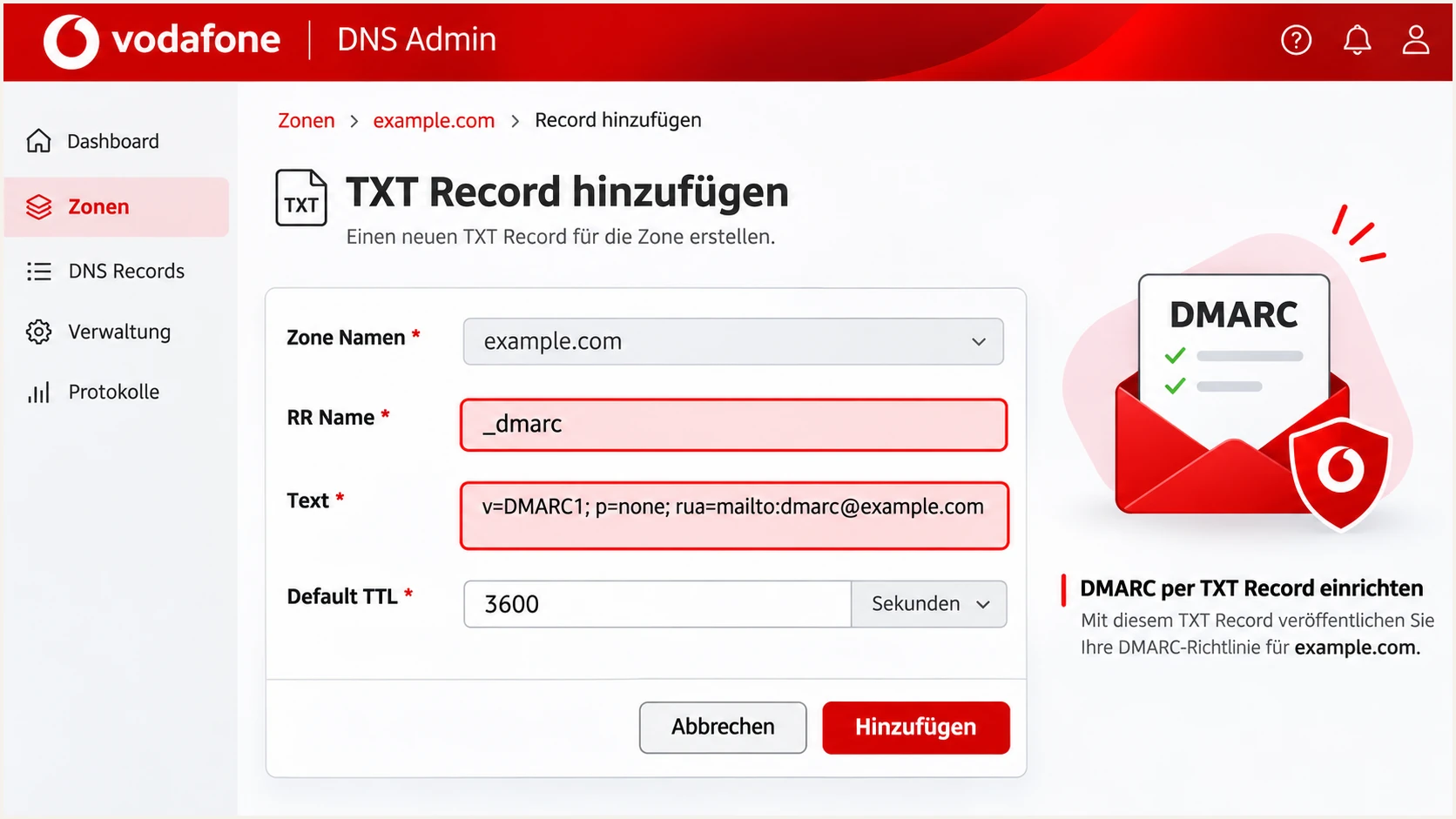
Illustration of the TXT record fields in Vodafone DNS Admin.
Save the record, then check its public DNS value. Vodafone documents scheduled zone publication, so a saved portal entry is not proof that recipients can already retrieve it.
Use your actual From domain in the checker below. Confirm one valid DMARC policy and the intended reporting address.
DMARC checker
Look up a domain's DMARC record and catch policy issues.
?/7tests passed
A valid DMARC record does not prove that outgoing messages pass authentication. Test an email through the same Vodafone route used for normal mail.
p=none requests reporting without requesting quarantine or rejection for DMARC failures. Recipient spam filtering still applies.
Verify and troubleshoot
I verify DNS and a delivered message separately. The email tester below is the quickest way to inspect an actual Vodafone send.
- Send directly: Send a new message through the production Vodafone mailbox or application to the tester's generated address. Test each distinct sending route, including webmail and SMTP applications where used.
- Read trusted results: Use Authentication-Results added by the receiving service. Check SPF's smtp.mailfrom and DKIM's signing domain against the visible From domain.
- Confirm DMARC: Require dmarc=pass. An isolated spf=pass or dkim=pass is insufficient when its authenticated domain does not match the From domain under the policy.
- Resolve failures: Check the actual selector, outbound IP and DNS owner names. Retest after the authoritative servers publish the change and cached answers expire.
Example results for a correctly configured custom domaintext
From: sender@example.com
Return-Path: <bounce@mail.example.com>
Authentication-Results: receiver.example;
 spf=pass smtp.mailfrom=mail.example.com;
 dkim=pass header.d=example.com;
 dmarc=pass header.from=example.com
This example uses relaxed SPF alignment between mail.example.com and example.com. With strict SPF matching, those names must be identical.
Send a test message when prompted. The tester checks the received email and reports authentication problems alongside delivery-related diagnostics.
Email tester
Send a real email to this address. Suped shows a results button when the test is ready.
?/43tests passed
Retest after each DNS or signing change. Previously received messages retain their original headers and do not prove that the updated configuration works.
If DNS differs between resolvers, query the authoritative nameserver first. A stale cached result needs time to expire; an incorrect authoritative answer needs a configuration or publication fix.
|
|
|
|---|---|---|
SPF fail | Outbound IP | Confirm authorization |
SPF permerror | Records and lookups | Merge or simplify |
DKIM fail | Selector and signature | Fix key or signer |
DMARC fail | Authenticated domains | Fix domain matching |
DNS unchanged | Authoritative answer | Check publication |
Use message results to choose the next check.
Get alerted when it breaks
Use Suped, our DMARC reporting platform, to detect Vodafone authentication issues and keep approved sending sources under review. Its DMARC monitoring groups reports by sending source and provides issue diagnostics and fix steps.
- Enable issue emails: In Suped notifications, enable Issues detected and Sending sources need verification. Add DMARC summary emails for recurring review.
- Verify the source: Confirm that reported Vodafone traffic belongs to an approved sending route before marking the source as verified. A familiar hostname alone is insufficient.
- Investigate the failure: Use Data view to filter by source or IP, then Detail view to inspect SPF, DKIM and DMARC results. Compare DNS history with the first observed failure.
- Verify the fix: Follow the issue's steps to fix, send a fresh test and review subsequent reports. Keep investigating until the legitimate route passes consistently.
Aggregate-report alerts follow the reporting receivers' schedules, often daily. For immediate feedback after a configuration change, run another message through the tester.
Suped brings source verification and DNS history into the same investigation. Vodafone remains responsible for correcting its hosted signing or envelope-sender configuration.
Secure your domain with p=reject
Move to p=reject after legitimate sending routes pass consistently and unexplained failures have been investigated. I base this decision on source-level evidence, including low-volume business mail.
- Inventory every sender: Include Vodafone mailboxes, website forms, billing systems and scheduled applications. Observe a full operating cycle that includes infrequent messages.
- Require working DKIM: Confirm passing DKIM with the required domain match on legitimate routes. Keep SPF correctly configured too; forwarding makes reliance on SPF alone fragile.
- Stage enforcement: Use p=quarantine once legitimate senders are ready. Check authentication reports and delivery failures before changing to p=reject.
- Use source diagnostics: In Suped, resolve legitimate-source issues and verify approved sources before each policy change. Investigate unknown traffic instead of authorizing it solely to improve a pass rate.
- Review subdomains: Check explicit subdomain policies and inherited policy coverage. Keep reporting enabled after enforcement and test new sending services before putting them into production.
Suped's Hosted DMARC lets you manage policy changes in the dashboard after its DNS delegation is configured. Use the reporting evidence and issue status to decide when to advance each stage.
Hosted policy management does not activate DKIM on Vodafone's servers. Resolve unsupported signing or return-path requirements with Vodafone before tightening enforcement.
Final TXT value after validationtext
v=DMARC1; p=reject; rua=mailto:dmarc@example.com
Replace the reporting address with your real destination and update the existing policy. For a hosted policy, change the policy through its dashboard rather than adding a competing TXT record.
p=reject requests rejection of messages that fail DMARC. Receivers apply their own handling rules, and authentication does not guarantee inbox placement or protect against lookalike domains.
Frequency asked questions
No. Vodafone controls DNS and signing for vodafonemail.de and its other provider-owned mailbox domains. Use Vodafone's supported sending settings and report provider-side failures to Vodafone. Edit authentication records only for a domain you control.
Use the include or IP authorization Vodafone confirms for your specific mail contract. Consumer E-Mail & Cloud, business hosting and other Vodafone services do not establish one universal customer SPF record. Do not copy an include from Vodafone's corporate DNS without confirmation.
Yes. DMARC passes when at least one valid DKIM signature has the required domain match with the visible From address. A Vodafone-owned Return-Path can produce an SPF pass without SPF alignment for your custom domain. Keep DKIM passing with your domain in that configuration.
The sending server must sign with the corresponding private key and selector. A missing signature, wrong signing domain, stale public key or message modification breaks that path. Check a fresh message's DKIM-Signature and receiver authentication results, then have Vodafone correct the signer if necessary.
Vodafone's German mail infrastructure uses vodafonemail.de hostnames; public message headers show outbound hosts such as mr3.vodafonemail.de and mr5.vodafonemail.de. A vodafone-ip.de suffix is insufficient to identify Vodafone hosted email. Check the sending IP's current PTR, forward DNS and received-message headers. Neither suffix proves that a sender is authorized for your domain.
Check authoritative DNS after Vodafone publishes the zone change, then allow previously cached records to expire according to their TTL. Vodafone DNS Admin documents scheduled zone publication, so saving a record is only the first step. Send a fresh email once the records resolve. Aggregate DMARC reports commonly arrive on a daily schedule.




