How to set up DMARC/DKIM/SPF for USAePay

Authenticate USAePay receipts with include:spf.usaepay.com, the DKIM CNAME records below, and DMARC for your From domain. Start with p=none unless quarantine or reject is already enforced.
I check a delivered receipt before calling the setup complete. DMARC requires a successful SPF or DKIM result whose authenticated domain matches the visible From domain under your DMARC alignment settings. A valid DNS record alone does not establish that.
Add your domain
I start with the receipt sender address. USAePay's General settings let you specify that address; its merchant email validation checks the domain's SPF and DKIM records. There is no separate domain enrollment step in the documented merchant workflow.
- Open settings. Sign in to the USAePay Merchant Console, then open Settings > General.
- Set the sender. Under Receipt Settings, enter one address on your domain in Email From, such as receipts@example.com. Click Save.
- Check the other fields. Merchant Email receives merchant receipts. Email To controls customer replies. Neither replaces the customer receipt's Email From setting.
- Check validation. Review the Email field in Account Information. Green OK means the portal validated SPF and DKIM. Yellow indicates missing or incorrect records; an invalid email address cannot be saved.
Use a domain whose authoritative DNS you can edit. If the sender is receipts@billing.example.com, publish the authentication records for billing.example.com, rather than assuming records at example.com cover that sender.
The General settings and merchant email validation support pages document these controls. Console versions differ, so identify the receipt sender by the Email From label rather than changing a merchant notification destination.
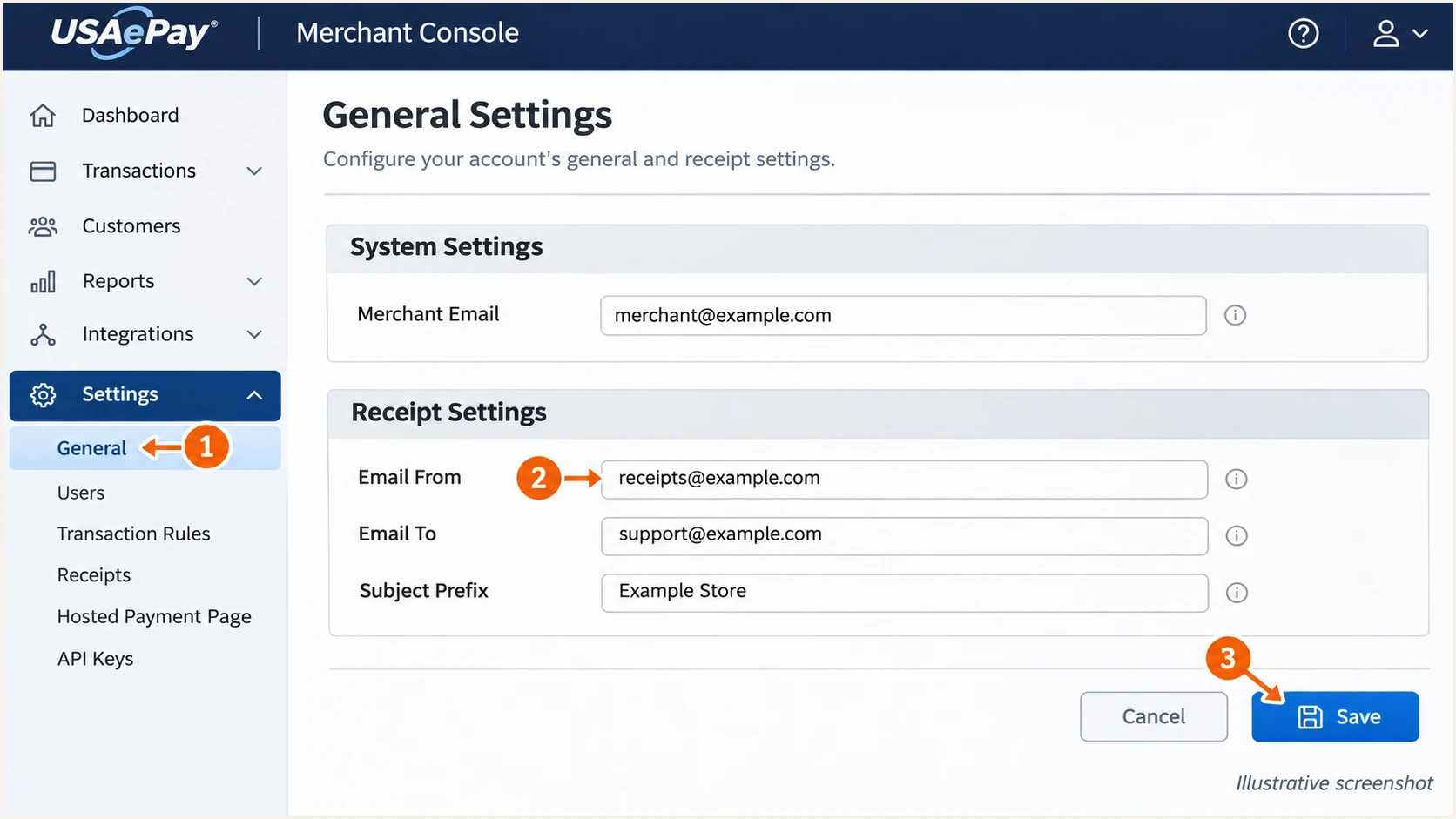
Illustrative USAePay General settings showing the receipt's Email From field.
Keep a copy of the current DNS records before editing them. The sender address determines which domain needs authentication; the next steps belong in that domain's DNS hosting account.
Set up SPF
I add USAePay's include to the existing SPF TXT record, keeping other senders authorized.
- Locate SPF. Query TXT records for your sending domain and identify the value beginning v=spf1. In a DNS editor, @ usually means the zone's root.
- Merge authorization. Insert the USAePay include before the final ~all or -all. Preserve the mechanisms for your other authorized senders and the existing ending.
- Avoid duplicates. Publish only one SPF record at each name. If the record already uses redirect=, review that policy before editing it; do not append an include after an all mechanism.
- Check limits. Keep evaluation within SPF's limit of 10 DNS-querying terms, including nested includes. An include can consume more than one lookup.
SPF TXT value when USAePay is the only sendertext
v=spf1 include:spf.usaepay.com ~all
This value is for a domain that has no other sending systems. For an existing domain, add the include to its current policy. Do not replace a working record with this minimal example.
Run the check on the exact DNS name you edited. Resolve duplicate SPF records or a lookup-limit error before sending another test. The checker evaluates DNS; a delivered message establishes which domain was actually checked.
SPF checker
Find SPF syntax issues, lookup limits, and weak records.
?/16tests passed
USAePay supports Return-Path alignment. SPF checks that envelope sender's domain, which must match the From domain under your DMARC settings. Adding an include does not change the envelope sender.
If a USAePay receipt still has an unrelated Return-Path domain, ask USAePay support to check that sending path. Do not invent bounce-domain DNS records. A successful DKIM signature with domain alignment is sufficient for DMARC while you investigate SPF alignment.
Set up DKIM
I publish the selector aliases below for the exact sending domain. USAePay hosts the corresponding signing keys.
- Open DNS. Choose CNAME as the record type. If your DNS editor appends the zone name, enter only gps1._domainkey as the first host.
- Publish selectors. Create each CNAME below. Replace example.com on the left; keep every destination unchanged.
- Prevent conflicts. Use DNS-only resolution if your host offers proxying. A CNAME name cannot also hold a TXT record or a second conflicting destination.
- Check the signature. Send a new receipt and inspect DKIM-Signature. Its d= domain must match your From domain under DMARC alignment rules, and the receiver must report dkim=pass.
USAePay DKIM CNAME recordsdns
gps1._domainkey.example.com. CNAME gps1._default.dkim.safewebservices.com.
gps2._domainkey.example.com. CNAME gps2._default.dkim.safewebservices.com.
gps3._domainkey.example.com. CNAME gps3._default.dkim.safewebservices.com.
For receipts@billing.example.com, the first owner name becomes gps1._domainkey.billing.example.com. The destination stays the same. Follow that pattern for each selector.
Query the aliases and then the TXT key for the selector used by the actual receipt. A published CNAME and a passing message signature are separate checks.
Reserved selectors can have empty keys
USAePay reserves gps2 and gps3 for rotation and documents empty keys. Publish their aliases; test the selector actually signing receipts.
Set up DMARC
I put DMARC in DNS for the visible From domain. USAePay's portal validation does not publish that policy for you.
- Read the current policy. Look up the TXT record at _dmarc.example.com, replacing example.com with your From domain. Keep p=quarantine or p=reject if already configured.
- Start monitoring. For a domain without enforcement, publish the p=none value below. Create only one DMARC policy record at that DNS name.
- Set report delivery. Replace dmarc@example.com with a real aggregate-report destination you control. Preserve existing reporting recipients when editing a policy.
- Retain compatibility. Use the default relaxed alignment settings unless an existing policy requires stricter matching. A custom Return-Path subdomain needs relaxed SPF alignment when From uses the parent domain.
Initial DMARC TXT value at _dmarc.example.comtext
v=DMARC1; p=none; rua=mailto:dmarc@example.com
Use the DMARC record generator to build the policy with your actual reporting address. If reports go to another organization's domain, follow its external reporting authorization instructions.
The p=none policy requests monitoring without asking receivers to quarantine or reject DMARC failures. It is a starting point for identifying legitimate mail that needs fixing.
DMARC checker
Look up a domain's DMARC record and catch policy issues.
?/7tests passed
Check the public policy after saving. A valid result confirms policy discovery and syntax; it does not confirm a receipt passed authentication.
Aggregate reports arrive on receivers' schedules, commonly daily. Keep reports flowing while you test the actual receipt path and identify other senders using the same domain.
Verify and troubleshoot
I test a receipt sent directly by USAePay. Forwarding an old message tests a different path and can change authentication results.
- Get a test address. Open the email tester below and copy its generated destination. Use a test receipt containing no live customer data.
- Send through USAePay. Open Batches > Batch Manager, select a suitable transaction, then choose Email Receipt on its details page. Send the receipt to the generated destination.
- Read message results. Confirm dmarc=pass and a successful DKIM signature for your From domain. Check SPF separately, including the Return-Path domain and its alignment.
- Recheck the portal. Return to Settings > General. USAePay refreshes validation daily and documents a 24-48 hour delay before the status changes.
The tester prompts you to send an email and returns a diagnosis of the received message. Sending from USAePay is the quickest way to test its signing and envelope sender together.
Use the receipt's original authentication results to distinguish an SPF failure from an SPF alignment failure. DMARC passes when either SPF or DKIM succeeds with the required domain matching.
Email tester
Send a real email to this address. Suped shows a results button when the test is ready.
?/43tests passed
Repeat the check after each DNS correction. Also test invoices and recurring-payment notifications that use your domain; one passing receipt does not establish that every message path uses the same sender.
For a persistent failure, collect the original message headers and the DNS answers below. Send those details to the DNS administrator or USAePay support rather than changing multiple records at once.
Query the sending domain's published recordsbash
dig +short TXT example.com
dig +short CNAME gps1._domainkey.example.com
dig +short CNAME gps2._domainkey.example.com
dig +short CNAME gps3._domainkey.example.com
dig +short TXT gps1._domainkey.example.com
dig +short TXT _dmarc.example.com
Replace example.com with your actual sending domain. For key queries, use the selector in the receipt's s= tag. Empty TXT output for an unused selector does not establish a delivery failure.
Check authoritative DNS when recursive answers disagree. Cached records remain visible until their TTL expires, and USAePay's validation status has its own refresh schedule.
|
|
|
|---|---|---|
SPF permerror | Duplicate or over-limit | SPF TXT policy |
DKIM fail | Key or signature | Active selector |
DMARC fail | No matching pass | From and authenticated domains |
Portal warning | DNS or status lag | Records and refresh |
Unexpected From | Template or fallback | Sender settings |
Match the observed result to the next check.
Unvalidated custom senders fall back to safewebservices.com, according to USAePay. Check that the delivered receipt still uses your intended From domain.
Use the portal status as an additional check after testing a receipt. It validates SPF and DKIM, without certifying DMARC or inbox placement.
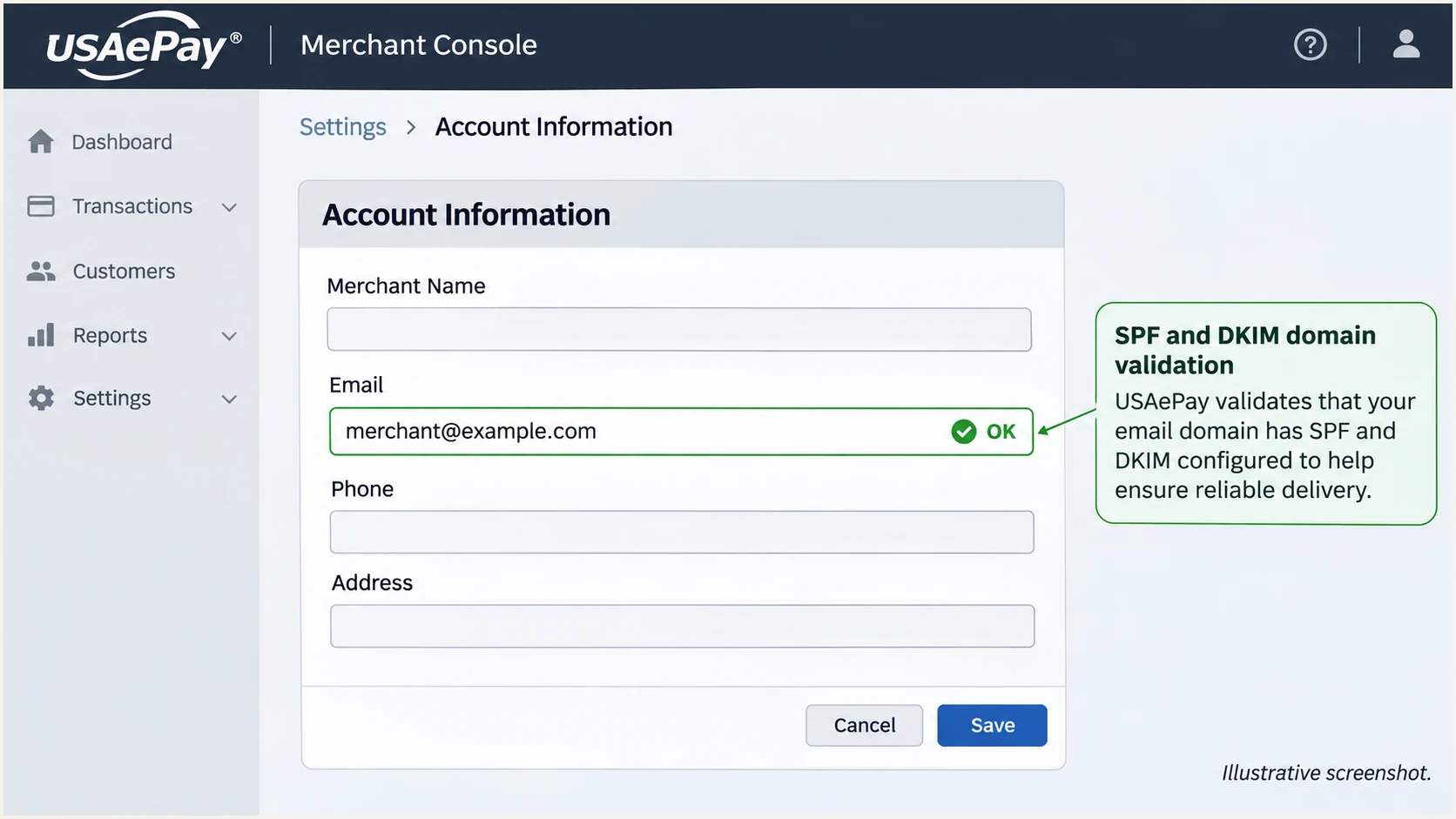
Illustrative USAePay merchant email field with the green OK validation status.
If the portal and receipt disagree, preserve the headers and check the records again after the next refresh. Diagnose the message's actual signing domain before changing a working key.
Get alerted when it breaks
Suped is our DMARC platform. For ongoing USAePay checks, I recommend its DMARC monitoring workflow: review source-level failures, investigate the SPF and DKIM diagnostics, and notify the people responsible for DNS.
- Enable notifications. Once aggregate reports are reaching Suped, open Settings > Notifications and enable DMARC failure alerts.
- Establish the baseline. Review USAePay's normal volume and authentication results. Investigate unfamiliar IPs before marking a source as authorized.
- Investigate failures. Open the affected source and record details. Compare the From domain with the SPF domain and DKIM signing domain, then follow the detected issue's fix steps.
- Keep oversight. Enable summary emails and review DNS history after a change. Send another receipt through the tester after applying the fix.
Alerts depend on incoming aggregate reports, commonly delivered daily. They do not provide an immediate notification for every failed receipt. Use a fresh message test when you need to check a change immediately.
I keep an owner assigned to each authentication issue. Suped puts the report evidence and corrective steps together, so the team can fix a changed sender or DNS record and verify the result.
Monitor the authorized source separately
A domain's total DMARC failure rate includes unauthorized traffic. Review failures for confirmed USAePay messages before deciding that payment receipts are broken.
Secure your domain with p=reject
I move to p=reject after the reports cover the domain's legitimate sending paths. A passing USAePay receipt is one check; the policy also affects other mail using that domain.
- Inventory legitimate mail. Use Suped's source table to identify authorized senders. Include invoices and scheduled billing messages, and observe a full relevant billing cycle.
- Fix legitimate failures. Require a DMARC pass for every authorized path. Keep working DKIM with domain alignment, especially where forwarding breaks SPF.
- Stage enforcement. Move p=none to p=quarantine, review legitimate-source results, then move to p=reject. If already enforcing, keep that policy while correcting USAePay.
- Check subdomains. Review inherited policy and any explicit subdomain DMARC records. Keep aggregate reporting and alerts enabled after enforcement.
Suped's source diagnostics make that decision reviewable: identify the authorized sender, inspect the failure, and verify the correction before changing policy. Unexplained failures on legitimate mail are a reason to continue remediation.
Our Hosted DMARC product lets you manage and stage policy changes in Suped after its initial DNS configuration. Keep the change deliberate and check the reports after each step.
Monitoring with p=none
Collect authentication evidence without requesting DMARC-based rejection. Fix legitimate failures while the policy is in monitoring mode.
Enforcement with p=reject
Ask receivers to reject messages that fail DMARC. Continue checking authorized sources because receiver handling and sender configuration can change.
Keep your real reporting destination when changing the policy. For the example domain, the enforcement TXT value is:
DMARC TXT value after legitimate senders are verifiedtext
v=DMARC1; p=reject; rua=mailto:dmarc@example.com
After publishing, check the DNS answer and send a fresh USAePay receipt. Confirm both that it still uses your intended From domain and that the receiver reports dmarc=pass.
DMARC enforcement limits unauthorized use of your domain in the From address. Inbox placement still depends on receiver filtering and sender reputation.
Frequently asked questions
USAePay documents andmx-ca4-01.usaepay.com as a sending hostname. Verify any rDNS-based identification against its current SPF authorization and the received message's authenticated domains.
USAePay reserves them for key rotation. Keep the CNAME aliases and check the selector actually signing the receipt.
Yes. A successful DKIM signature with the required domain alignment is sufficient. SPF authorization and SPF alignment are different checks, so inspect the Return-Path domain before changing DNS.
USAePay documents daily validation checks and a 24-48 hour wait for the displayed status to update. Check public DNS and a newly delivered receipt while waiting for the portal refresh.
Use an address on a domain whose DNS you control. You cannot publish the SPF and DKIM authorization for a public mailbox provider's domain. Changing only the reply destination does not authenticate a custom From address.
Keep an existing p=reject or p=quarantine policy. Correct the SPF and DKIM configuration, then test a fresh receipt. Start with p=none when introducing DMARC on a domain that does not already enforce a policy.