
How to set up DMARC/DKIM/SPF for UpStream Security

Published 22 Nov 2026
Updated 22 Nov 2026
12 min read
Summarize with
For email relayed outbound through UpStream Security, authorize the assigned outbound cluster in SPF, keep a valid DKIM signature using your domain, and publish DMARC in DNS. I verify a delivered message after filtering, then use aggregate reports before increasing enforcement.
UpStream's public FAQ documents SPF authorization followed by smart host routing. Inbound-only filtering does not require authorizing UpStream to send your mail. If outgoing mail bypasses UpStream, configure authentication on the system that actually sends it.
Add your domain
Start with UpStream provisioning and the assigned cluster settings. I confirm outbound filtering separately because inbound filtering and outbound relay are separate services.
- Provision access: Ask UpStream Support to provision the sending domain, enable outbound filtering, and grant Domain Administrator access to your assigned instance.
- Collect relay settings: Obtain the outbound smart host, egress IP addresses or approved SPF include, relay authorization method, SMTP port, TLS requirements, and envelope sender handling.
- Select your domain: Sign in to UpStream. Click Domain in the top-right corner and select your sending domain. Ask Support to correct access if the domain is missing.
- Verify provisioning: Have Support confirm that your domain and sending system are authorized for outbound relay. After publishing SPF, send an external test and confirm it appears in the selected domain's mail history.
UpStream's public domain-switching instructions document this selector. They do not specify a universal self-service ownership TXT record, so use the verification instructions supplied for your account.
Use assigned MX records only when setting up inbound filtering. MX records route incoming mail; they do not configure an outbound smart host or prove that outgoing mail passes DMARC.
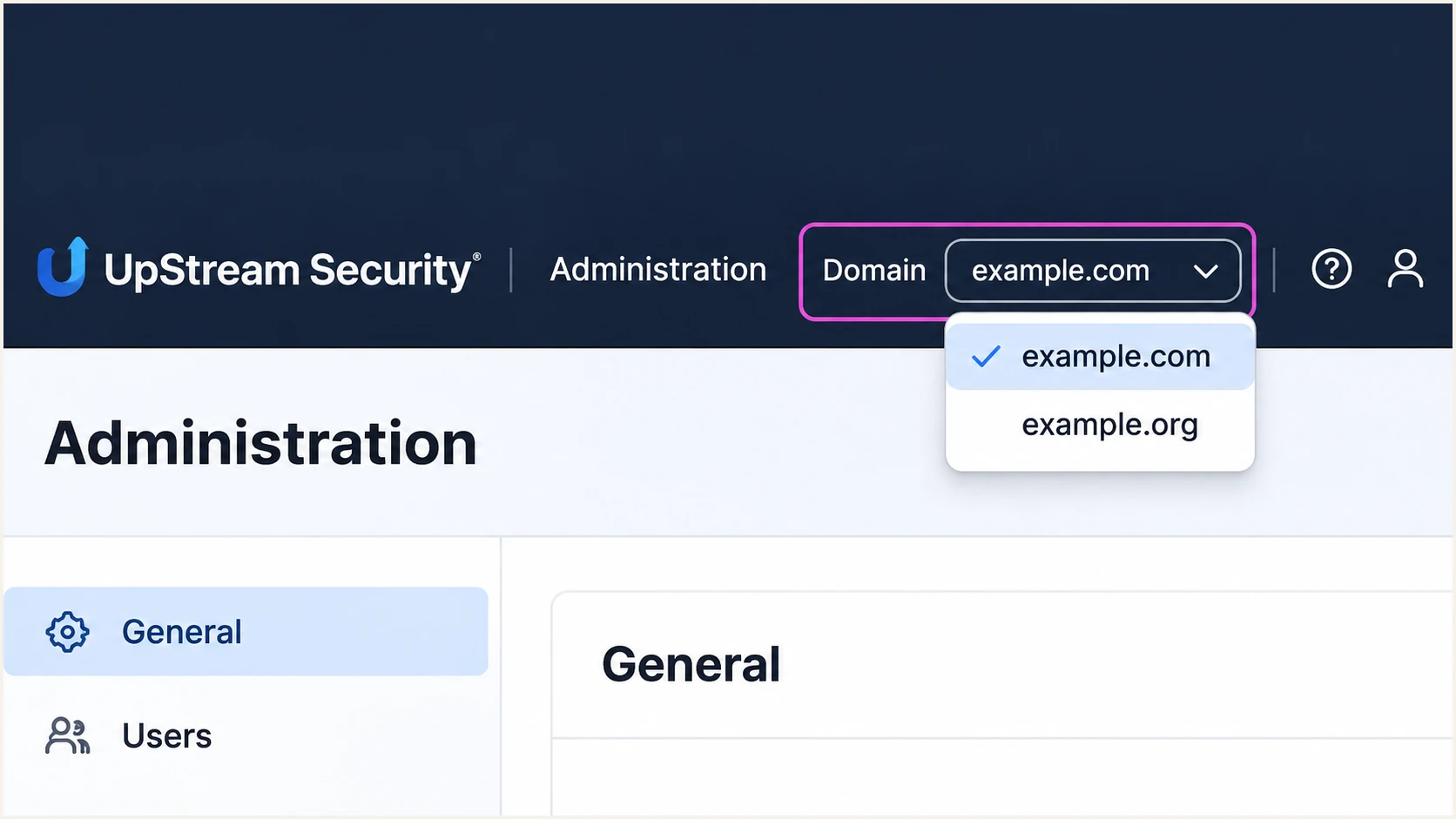
Illustrative reconstruction of UpStream Security's top-right Domain selector.
Selecting the correct domain also limits subsequent mail history and configuration views to that domain. Check the selector before diagnosing missing test messages.
Set up SPF
SPF must authorize the UpStream IP that connects to the recipient. Publish that authorization on the envelope sender domain, which appears in the delivered Return-Path.
- Confirm the envelope domain: Keep your own domain in MAIL FROM, or use an approved subdomain. UpStream supports return-path alignment; confirm the actual relay preserves or correctly configures that identity.
- Read existing SPF: Find the TXT record beginning v=spf1 on that exact domain. Preserve every other legitimate sender and the existing final all mechanism.
- Authorize the cluster: Insert Support's assigned ip4/ip6 mechanisms or approved include before the final all mechanism. Do not infer outbound authorization from inbound MX hosts.
- Keep one record: Merge changes into one SPF record per domain. Keep DNS-querying SPF terms within the 10-term limit, including nested includes. Direct ip4/ip6 mechanisms do not consume that limit.
- Route after publishing: After DNS caches expire, configure your sending mail system's outbound connector or smart host with the assigned UpStream relay settings. Then test external delivery.
This illustrative TXT value belongs on example.com only if that is the envelope sender domain. The addresses are documentation placeholders, not UpStream's production IPs.
Replace the placeholders with the assigned outbound addresses and retain your existing senders. UpStream's public setup instructions do not establish one universal SPF include for every account.
Illustrative SPF TXT value, replace both addressestext
v=spf1 ip4:192.0.2.25 ip4:198.51.100.25 -all
An SPF record on the root domain does not automatically apply to a return-path subdomain. Query the exact domain shown in the delivered message.
Enter that envelope domain below to check the published record and lookup limit. Repeat the check after changing your sender inventory.
SPF checker
Find SPF syntax issues, lookup limits, and weak records.
?/16tests passed
A DNS check confirms the record's configuration. A delivered test confirms whether the actual outbound IP is authorized and whether the envelope domain matches the visible From domain.
Set up DKIM
I keep DKIM signing on the existing sending system unless UpStream Support confirms a different signing arrangement. UpStream's public instructions do not provide a universal DKIM selector or DNS key.
- Identify the signer: Inspect a message's DKIM-Signature. The d= value identifies the signing domain; s= identifies the selector. Confirm which system controls that key.
- Publish the supplied key: Copy the signer's exact TXT value or CNAME target to its supplied selector name under _domainkey. Publish only the public key; keep private keys on the signing system.
- Enable domain signing: After public DNS resolves correctly, enable signing for your domain on that system. A passing signature using only a provider-owned domain does not satisfy your domain's DMARC requirement.
- Check footer changes: In UpStream, open Settings > Outbound Disclaimers and inspect your domain using its pencil icon. Confirm whether Attach Disclaimer adds content after the original DKIM signature.
For a visible From address at example.com, a passing DKIM signature with d=example.com satisfies DMARC's domain matching requirement. Default relaxed matching also permits the same organizational domain.
UpStream's documented disclaimer editor has plain-text and HTML footer fields. Check both formats when a signature works on one message type but fails on another.
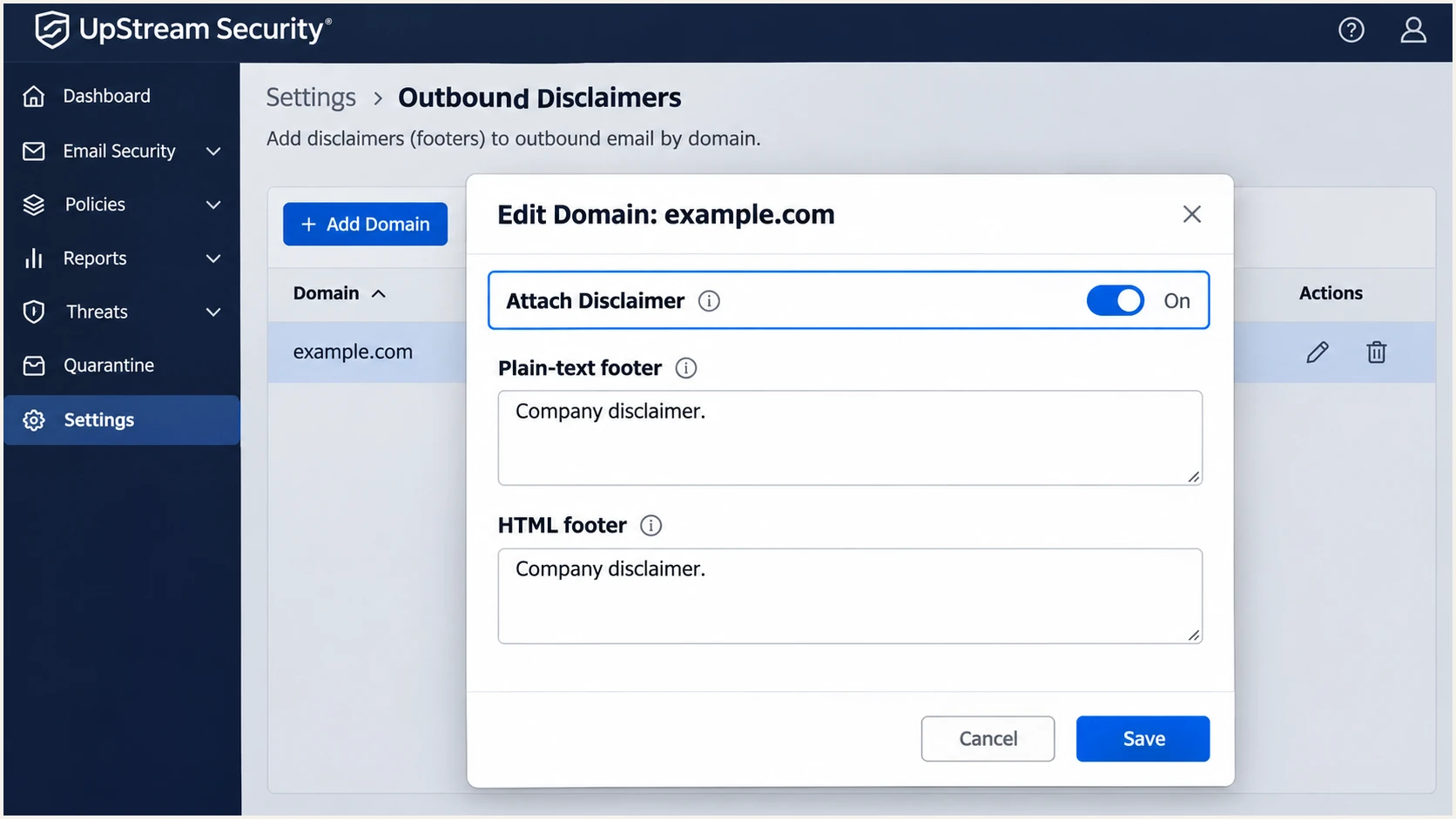
Illustrative reconstruction of UpStream's disclaimer editor, a setting to inspect when DKIM breaks after relay.
Appending a footer generally changes the signed body and invalidates an upstream signature. Where disclaimers are required, arrange signing after those changes with the sending system and UpStream Support.
If a footer is unnecessary, disable its insertion for the affected stream and retest. Check the final recipient's DKIM result rather than relying on the presence of a signature header.
Preserve signed content
UpStream's Link Lock documentation also warns that Rewrite Links in DKIM Signed Emails invalidates signatures. Inspect Content Filtering > Link Lock when testing a path that rewrites signed messages. Keep that option disabled where signatures must survive, or arrange valid signing after modification.
SPF provides a second DMARC authentication path on direct delivery, but forwarding often breaks SPF. Preserving a valid DKIM signature makes the configuration less dependent on the delivery route.
Set up DMARC
DMARC passes when SPF passes with a matching envelope domain, or DKIM passes with a matching signing domain. Both mechanisms do not have to pass for DMARC to pass.
- Check the current policy: Look up the existing _dmarc TXT record for the visible From domain. If it already uses p=quarantine or p=reject, keep that enforcement while configuring UpStream.
- Publish one TXT record: For a domain without DMARC, add the monitoring record below at _dmarc.example.com. In a DNS zone for example.com, the host field is normally just _dmarc.
- Set a real recipient: Replace dmarc@example.com with a mailbox or reporting destination you control. An external report destination also needs the authorization required by the receiving reporting service.
- Generate the value: Use the DMARC record generator to build the record. Keep default relaxed domain matching unless you have tested a reason to require exact matches.
Use this exact starting syntax for a new monitoring deployment. The sample mailbox is a placeholder and must be replaced before publication.
Edit the existing DMARC record instead of adding a second one. Existing quarantine or reject domains should retain their current policy and reporting destinations.
Initial DMARC TXT value at _dmarc.example.comtext
v=DMARC1; p=none; rua=mailto:dmarc@example.com
The p=none policy requests monitoring without DMARC-based quarantine or rejection. It does not prevent impersonation by itself.
Check the actual visible From domain below. A valid record confirms DNS setup; it does not establish that every source sending with your domain passes authentication.
DMARC checker
Look up a domain's DMARC record and catch policy issues.
?/7tests passed
Aggregate reports commonly arrive within 24-48 hours after receivers observe traffic. Keep collecting reports across a full sending cycle, including infrequent business messages.
Verify and troubleshoot
I test through the normal outbound route after each DNS or filtering change. A test that bypasses UpStream does not validate the UpStream relay path.
- Send through production: Use the same mailbox or application, From domain, and outbound connector as real messages. Test plain-text and HTML mail when footers or rewriting are enabled.
- Check the last hop: Inspect the receiving system's trusted Authentication-Results. Expect SPF authorization for the final relay IP and a valid DKIM signature using your domain.
- Check domain matching: Compare smtp.mailfrom and DKIM header.d with the visible From domain. Relaxed matching uses the same organizational domain; strict matching requires identical domains.
- Trace failures: In UpStream, select the correct Domain and inspect mail history for the test. Separate relay rejection or quarantine from a recipient-side authentication failure.
- Repeat after fixes: Wait for the previous DNS TTL to expire, send a new message, and compare results. Old messages retain their original authentication results.
These commands inspect public DNS. Replace example.com and selector with the actual signing domain and s= value, rather than guessing a selector name.
A CNAME-based DKIM setup needs the supplied alias to resolve to the published key. A TXT-based setup needs the public key directly at the selector name.
Inspect authentication DNS recordsbash
dig +short TXT example.com
dig +short TXT _dmarc.example.com
dig +short CNAME selector._domainkey.example.com
dig +short TXT selector._domainkey.example.com
The email tester is the quickest check of the delivered message. Send a fresh email to the address shown below through your UpStream outbound route.
The resulting diagnosis checks message authentication alongside delivery-related signals. Use its SPF, DKIM and DMARC results to verify the complete path after filtering.
Email tester
Send a real email to this address. Suped shows a results button when the test is ready.
?/43tests passed
An SPF alignment error does not cause DMARC failure when a valid DKIM signature matches your From domain. If a sending service cannot use your return path, adding it to your root SPF does not fix that mismatch.
UpStream supports return-path alignment, so investigate an unexpected provider-owned envelope domain with Support. Use the final message's results to distinguish missing authorization from a domain mismatch.
|
|
|
|---|---|---|
SPF fail | Final relay IP | Authorize cluster |
SPF permerror | Records / lookups | Fix SPF syntax |
DKIM fail | Key / body edits | Check signing path |
DKIM mismatch | Signing domain | Use your domain |
DMARC fail | Domain matching | Fix SPF or DKIM |
Common results after outbound filtering
A passing sample verifies that particular route. Repeat testing for each application or sending system that uses the domain before changing the domain-wide policy.
Get alerted when it breaks
Suped is our DMARC reporting and email authentication platform. For ongoing UpStream checks, our DMARC monitoring connects reported failures to source diagnostics and concrete fix steps.
- Enable issue emails: For a domain already reporting to Suped, open Settings > Notifications and enable Issues detected. Confirm that the responsible administrator receives the notifications.
- Review new sources: Enable Sending sources need verification. Identify each source's owner and purpose before marking it verified; an UpStream hostname alone is insufficient proof.
- Investigate the record: Open the reported issue, review Steps to fix, then inspect the affected source's SPF and DKIM results in Detail view. Use the source IP and reporting period when escalating to UpStream Support.
- Confirm recovery: Send another test after fixing DNS or filtering, then check subsequent aggregate reports. Enable DMARC summary emails to review ongoing authentication trends.
This workflow catches changes such as a new outbound cluster, a removed SPF authorization, or a signing failure after a footer change. It keeps the investigation tied to observed mail.
Suped combines authentication issue detection with source-level investigation. Keep UpStream's relay and quarantine checks in the investigation when messages never reach a recipient.
Report timing controls detection
DMARC aggregate reports arrive after delivery attempts, usually on a daily schedule. Suped's issue notifications depend on the data available; aggregate reporting is not an instant message trace. Use a fresh test email for immediate validation of a configuration change.
Keep a working administrative mailbox for alerts and assign an owner to each reported issue. A weekly summary supports review, but individual issue notifications should drive repairs.
Secure your domain with p=reject
I move to p=reject after legitimate sending paths pass DMARC across a representative business cycle. The decision depends on which messages fail, rather than an overall pass-rate target.
- Inventory legitimate mail: In Suped, review verified and unverified sources. Include staff mail and application messages, plus infrequent billing, payroll, or other scheduled sends.
- Fix authorized failures: Use each issue's Steps to fix and source-level record details. Confirm that the UpStream relay preserves the envelope identity or a valid DKIM signature using your domain.
- Stage enforcement: For a new p=none deployment, move to p=quarantine, inspect subsequent reports and delivery complaints, then use p=reject when legitimate failures are resolved. Keep existing enforcement during routine setup.
- Manage the policy: Our Hosted DMARC product supports policy staging and dashboard policy changes once configured. Review source evidence in Suped before approving each increase.
- Keep reporting: Retain rua at p=reject. Check subdomain policy inheritance and any explicit subdomain DMARC records, then monitor newly introduced senders before they send production mail.
Replace the sample reporting mailbox in this enforced policy. If reports already go to a working destination, retain that destination when changing p.
A root-domain policy also affects subdomains that inherit it. Check the relevant subdomain records before enforcement so an application domain is not overlooked.
Enforced DMARC TXT value at _dmarc.example.comtext
v=DMARC1; p=reject; rua=mailto:dmarc@example.com
Unauthorized traffic will continue to fail. Do not add unknown IP addresses to SPF simply to raise the reported pass rate.
Suped keeps the source review and policy workflow together, so enforcement follows verified business sending requirements rather than a single successful test.
Ready to enforce
Every known legitimate path has a matching SPF or DKIM pass after UpStream filtering.
Scheduled senders have been observed, and subsequent reports confirm the fixes.
Investigate first
A required application still fails DMARC, or body changes invalidate its only matching DKIM signature.
A source is unrecognized, or a subdomain's authentication path has not been tested.
If enforcement exposes a legitimate failure, repair that sender's authentication path and verify delivery. Use a deliberate, scoped policy adjustment only when needed to restore affected business mail.
Recipient systems apply their own handling rules. p=reject requests rejection for DMARC failures; it does not guarantee inbox placement for authenticated messages.
Frequency asked questions
No. Inbound MX routing does not authorize an outbound sender. Add UpStream to the relevant envelope domain's SPF only when your outgoing mail is delivered through its outbound relay.
Use the exact outbound IP addresses or SPF include supplied for your assigned cluster. UpStream's public onboarding guidance specifies cluster authorization but does not establish one universal include for every account. Do not copy another customer's record.
Enable DKIM on the system that signs your outgoing mail. Obtain its domain-specific selector and public DNS record. If UpStream Support confirms signing on the relay, use the values and procedure it supplies. Verify the signature after all footer or link changes.
Hostnames under upstreamsecurity.net are associated with UpStream Security's filtering infrastructure. Confirm the connecting IP against your assigned cluster and the message's Received headers. The rDNS suffix identifies infrastructure; it does not prove that your organization authorized a message or that it passes DMARC.
Yes. A valid DKIM signature whose signing domain matches the visible From domain is sufficient for DMARC. For a service without a custom return path, prioritize that DKIM configuration. UpStream supports return-path alignment, so investigate an unexpected mismatch instead of assuming it is required.
Keep p=reject or p=quarantine during routine UpStream configuration. Authorize the assigned relay and verify a matching authentication pass before routing production mail through it. Use a scoped recovery plan if testing identifies a legitimate delivery failure.




