
How to set up DMARC/DKIM/SPF for UOL

Published 21 Nov 2026
Updated 21 Nov 2026
13 min read
Summarize with
For a custom domain on UOL Host E-mail Profissional, authorize UOL in your SPF TXT record, publish the pro._domainkey CNAME for DKIM, and add a DMARC TXT record at _dmarc. I start a new DMARC deployment with p=none, test real messages, then tighten the policy after reviewing legitimate sending traffic.
These changes apply to a domain you control. For an address ending in @uol.com.br, UOL controls the authentication records. E-mail Profissional Premium and E-mail Marketing have separate setup instructions, so use the DNS values shown for your contracted product.
Add your domain
I first check which UOL email product is active and where the domain's authoritative DNS is hosted. Domain registration at UOL does not by itself prove that UOL hosts the active DNS zone.
- Open the product: Sign in to Painel Host. For E-mail Profissional Premium, click Configurar on the product card, then Continuar com o guia.
- Choose the domain: Enter your domain without www or select an existing domain. Let the wizard validate it, then select Próxima Etapa when available.
- Publish the records: Use automatic configuration when the active DNS is managed by UOL. Otherwise, copy the product's records into your current DNS host. Apply MX changes only when you intend to route incoming mail to UOL.
- Confirm the setup: Complete the wizard's DNS checks and create a mailbox. In the E-mail Profissional external-domain flow, select Continuar, then Já adicionei after publishing the records.
To find the active DNS provider, query the NS records below. Edit that provider's zone. Changing nameservers is unnecessary when you only need to add email authentication records.
Find the authoritative DNS providerbash
dig +short NS example.com
The Premium wizard validates the domain before mailbox creation. I also send an outbound test after setup because a domain accepted by the wizard does not prove that outgoing messages pass DMARC.
For UOL-hosted DNS, the documented route is Domínios > Gerenciar domínio > Administrar DNS. Use Configurar Zonas DNS to inspect existing records before selecting Criar nova entrada.
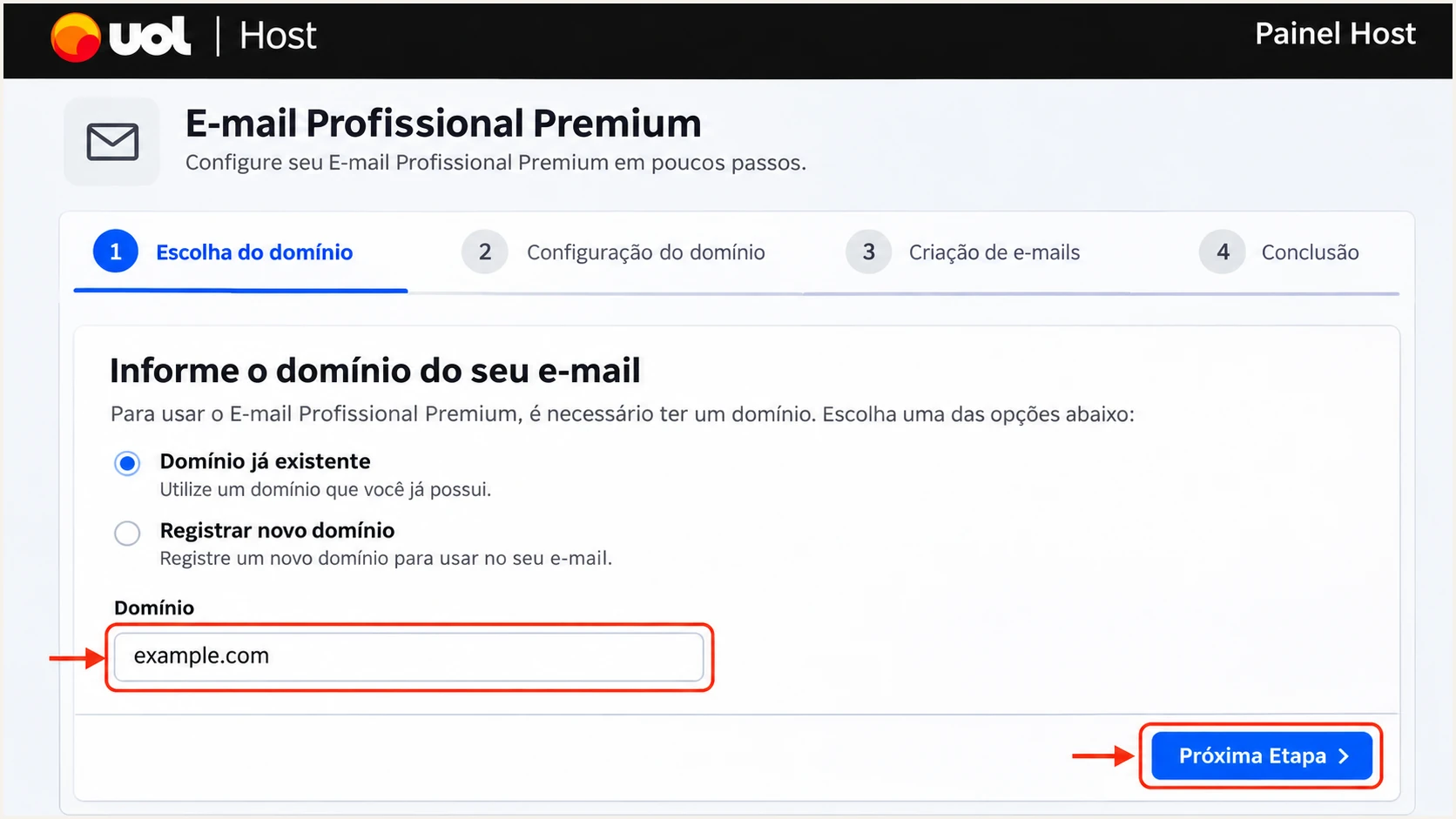
Illustrative UOL Host Premium setup screen for selecting a custom domain.
UOL's setup documentation gives DNS propagation windows of up to 24 hours for the Premium guide and up to 48 hours for the external-domain guide. Check public DNS while waiting, then return to the product's setup flow.
Set up SPF
For UOL Host E-mail Profissional, UOL documents include:spf.whservidor.com as the SPF authorization mechanism. Publish it in a TXT record at the domain used by the envelope sender, which appears as Return-Path in a delivered message.
- Inspect first: Look for an existing TXT value beginning v=spf1. Edit that record instead of creating another SPF record at the same name.
- Choose your service: Use the E-mail Profissional example below for that service. For Premium, copy the wizard's values. UOL's documented Pro/Premium hybrid configuration includes both spf.whservidor.com and spf.suite.uol.
- Save the TXT: In UOL DNS, use Criar nova entrada, choose TXT, and leave Entrada blank for the root domain. Insert the complete SPF value, enable the entry, and save it. At another DNS host, use its root-domain notation.
- Check the limit: Keep a single SPF record and stay within the 10 DNS lookup limit, including nested lookups. Preserve other authorized senders and the existing final all mechanism when merging UOL.
UOL E-mail Profissional SPF example, not a replacement for other senderstext
Name: example.com
Type: TXT
Value: v=spf1 include:spf.whservidor.com ?all
The ?all ending is UOL's published example and returns neutral for unmatched IP addresses. It is not an enforcement setting. I do not weaken an existing ~all or -all ending when adding UOL to a working record.
Run the SPF check against the actual envelope-sender domain. An SPF pass only contributes to DMARC when that domain matches the visible From domain under the configured DMARC alignment mode.
SPF checker
Find SPF syntax issues, lookup limits, and weak records.
?/16tests passed
UOL supports a matching Return-Path for its custom-domain sending. Confirm it on a real message instead of assuming the visible From address controls SPF. With default relaxed alignment, bounce.example.com and example.com share the same organizational domain.
If a particular sending route uses a UOL-owned Return-Path, adding UOL to your visible From domain's SPF will not fix that mismatch. A valid DKIM signature with a matching signing domain still passes DMARC; configure the supported custom-domain route or ask UOL support about that route.
Use the values for your UOL product
The Pro/Premium hybrid example below applies when both services send for the same domain. E-mail Marketing instead supplies an account-specific meuspf.com include under Configurações > SPF/CNAME. Copy that exact account value; never publish a placeholder.
UOL's documented Pro/Premium hybrid SPF exampletext
v=spf1 include:spf.whservidor.com include:spf.suite.uol ~all
Set up DKIM
UOL's E-mail Profissional DKIM instructions use the selector pro and a CNAME pointing to pro._domainkey.uhserver.com. I check whether it already exists before adding it; UOL-managed zones often have it configured.
- Open DNS: Go to Domínios > Gerenciar domínio > Administrar DNS if UOL hosts your DNS, or open the active DNS host's zone editor.
- Create the CNAME: Select Criar nova entrada and choose CNAME. Set Entrada to pro._domainkey and Destino to pro._domainkey.uhserver.com. Keep the entry active and select Salvar entrada.
- Avoid name conflicts: Do not add TXT or another CNAME at that same name. Check that the editor has not appended your domain twice.
- Verify the signature: Send through UOL webmail or authenticated UOL SMTP. Inspect DKIM-Signature for s=pro and a d= domain matching your From domain, then confirm dkim=pass in the receiving system's results.
The DNS record supplies the public-key lookup. UOL's sending server must also sign the message. Creating your own unrelated DKIM key does not configure UOL's server.
For the documented E-mail Profissional route, the resulting DNS entry is below. If the Premium wizard supplies different records, publish those records and verify the selector used by an actual Premium message.
UOL E-mail Profissional DKIM CNAMEtext
Name: pro._domainkey.example.com
Type: CNAME
Target: pro._domainkey.uhserver.com
I check both the CNAME and its target when troubleshooting. A successful lookup alone does not establish that a signature on a received message is valid.
For E-mail Marketing, open its external panel and select Configurações > DKIM. Download the domain's DKIM information and publish the supplied TXT record. That workflow uses the service's own selector and public key.
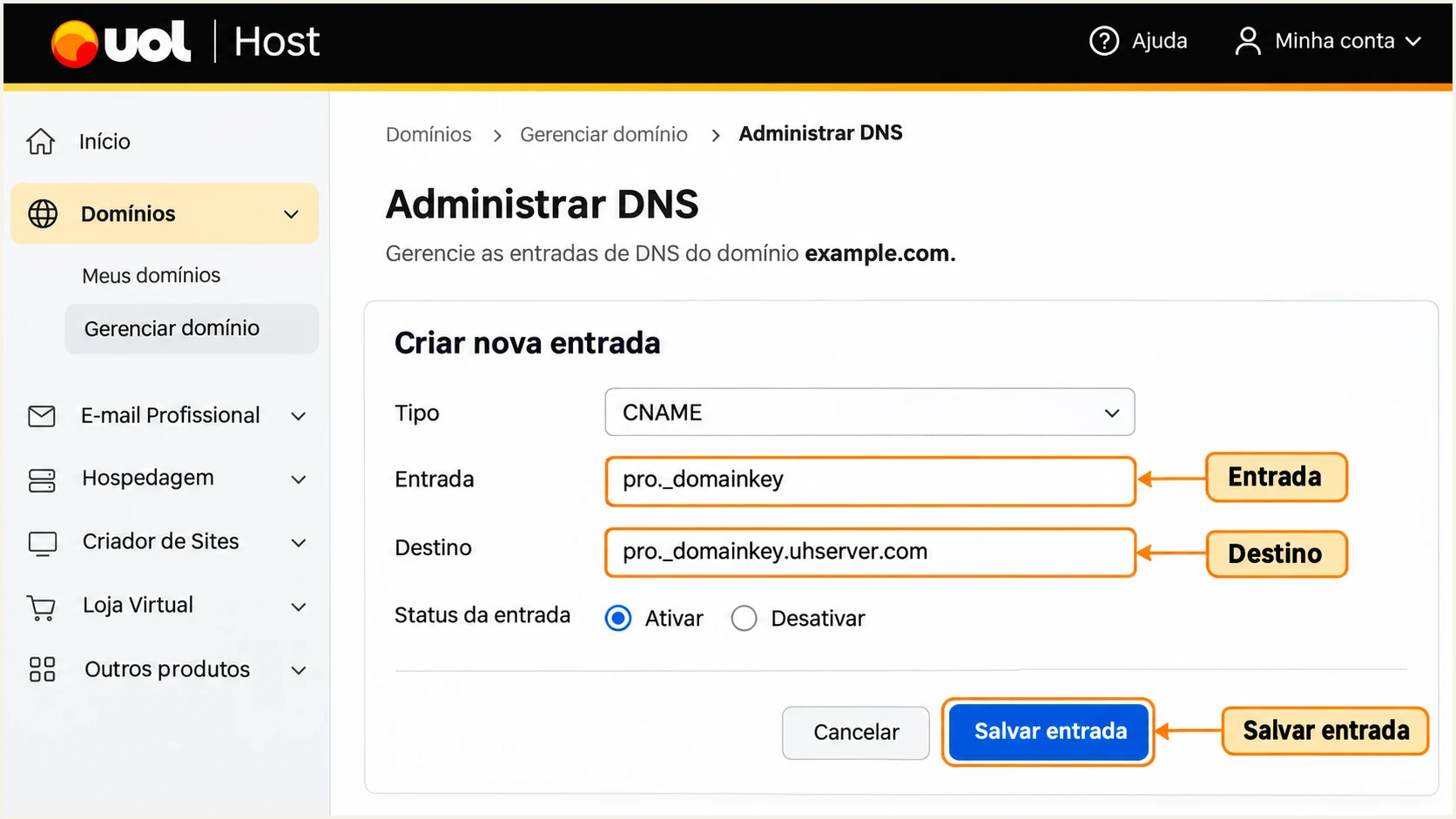
Illustrative UOL Host DNS form with the E-mail Profissional DKIM CNAME.
If DKIM is missing or the signing domain remains UOL-owned, send UOL support the full message headers and your published selector. Ask them to confirm custom-domain signing for the specific mailbox and sending route.
Set up DMARC
Publish DMARC for the domain in the visible From address. I use p=none for a new deployment so reports can expose legitimate senders before enforcement. If the domain already uses p=quarantine or p=reject, keep that policy while completing the UOL setup.
- Check the existing record: Look up TXT at _dmarc.example.com. Update the existing policy instead of publishing a second DMARC record.
- Create the TXT: In the DNS editor, choose TXT and enter _dmarc in Entrada when the zone name is appended automatically. Use the complete _dmarc.example.com name only if the editor requires it.
- Set the reporting mailbox: Use a reporting address you control and can process. Replace the example domain and dmarc@example.com before publishing.
- Save and validate: Keep the entry active, save it, and check the public record. For an external rua destination, complete any required external reporting authorization.
Starting DMARC record for a domain without an enforced policytext
Name: _dmarc.example.com
Type: TXT
Value: v=DMARC1; p=none; rua=mailto:dmarc@example.com
The example keeps the default relaxed SPF and DKIM alignment modes. DMARC passes when at least one of SPF or DKIM passes with the required domain match. It does not require both mechanisms to pass.
Use the DMARC record generator to build the policy with your real reporting destination. Validate the published record below after saving DNS.
DMARC checker
Look up a domain's DMARC record and catch policy issues.
?/7tests passed
A valid DMARC TXT record confirms policy publication. It does not confirm that UOL messages pass authentication. Test the actual sending route in the next step.
DMARC is a domain policy, so it also affects other services using that From domain. Keep their authentication records and review their traffic before enforcing a stricter policy.
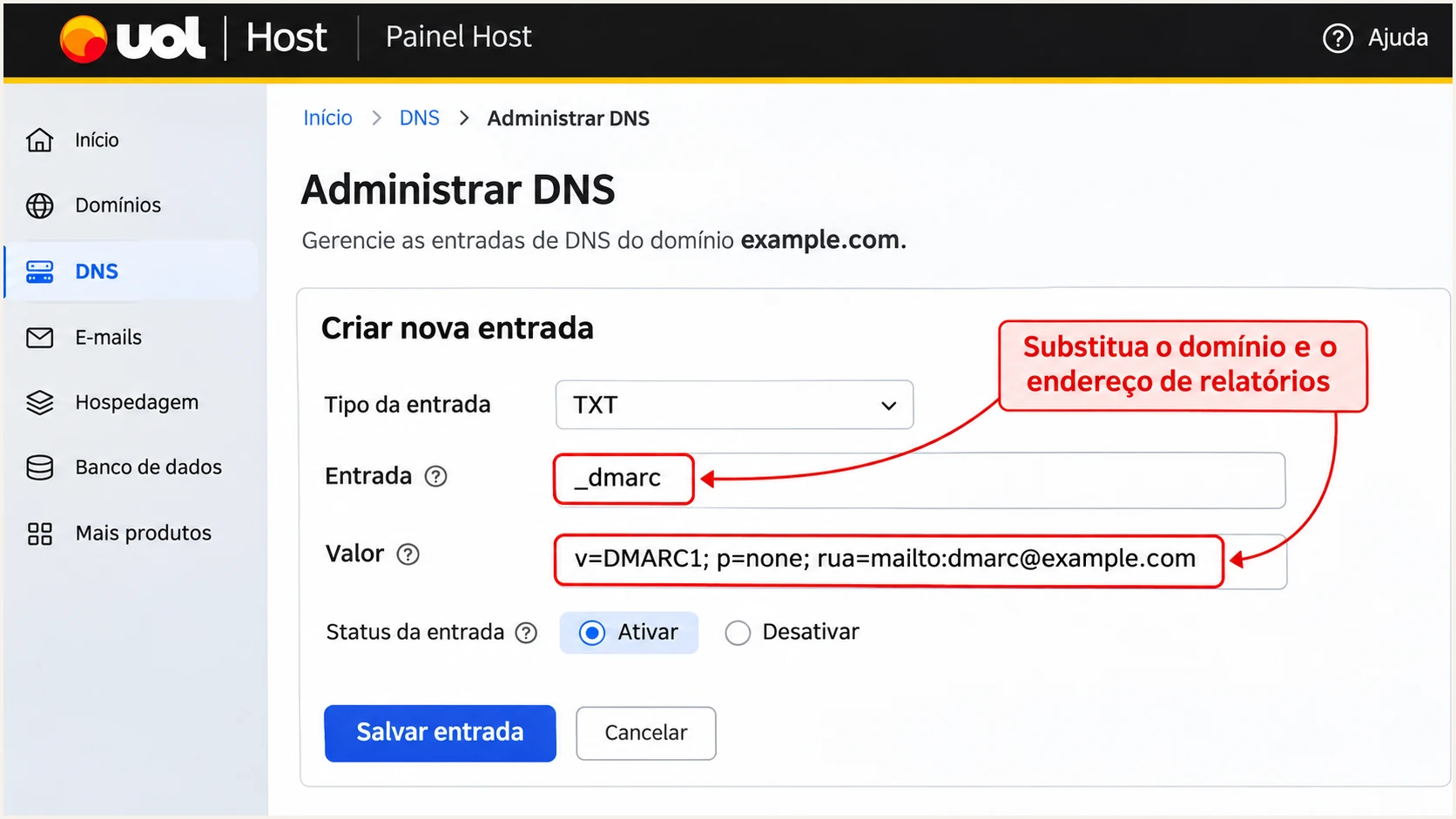
Illustrative UOL Host DNS form for a monitoring-only DMARC TXT record.
The reporting address must receive aggregate report attachments. A normal mailbox collects them, but it does not automatically turn XML attachments into a sender inventory or alert you to failures.
Verify and troubleshoot
I verify DNS and a newly delivered message separately. Send directly through UOL webmail first, then repeat through any application using UOL SMTP. A website sending through a local server has a different authentication path.
- Check the public zone: Query SPF and DMARC TXT records, then query the DKIM CNAME and target. Resolve stale or missing records at the authoritative DNS host.
- Inspect receiver results: Read Authentication-Results added by the receiving system. Check spf, dkim and dmarc alongside smtp.mailfrom, header.d and header.from.
- Compare domains: Compare the envelope sender and DKIM signing domain with the visible From domain. An unrelated provider domain passing authentication does not authenticate your domain for DMARC.
- Retest every route: Test each distinct mailbox platform and application route, including any Pro/Premium coexistence. Save a fresh received message after each fix.
Check published DNS, replacing example.combash
dig +short TXT example.com
dig +short CNAME pro._domainkey.example.com
dig +short TXT pro._domainkey.uhserver.com
dig +short TXT _dmarc.example.com
For a quicker message-level check, use our email tester. It gives you a destination address; send a fresh message from the UOL mailbox or application you are verifying.
The test diagnoses the received message's authentication and other delivery checks. Run it after DNS changes to confirm the live sending behavior, rather than relying only on a green DNS lookup.
Email tester
Send a real email to this address. Suped shows a results button when the test is ready.
?/43tests passed
If the direct UOL test passes but the application test fails, inspect the application's configured outbound SMTP server. Correct the sending route or authorize and configure the service that actually sent the message.
Use the failure type to choose the next action. I investigate legitimate messages individually instead of treating an overall pass rate as proof that every sending route works.
|
|
|
|---|---|---|
SPF permerror | Duplicate SPF or lookup limit | Merge SPF; count lookups |
SPF pass, DMARC fail | Envelope domain mismatch | Compare Return-Path and From |
DKIM none | Message not signed | Confirm UOL sending route |
DKIM fail | Key or message mismatch | Check selector and modifications |
DMARC missing | Wrong DNS name or zone | Query authoritative DNS |
No aggregate reports | Reporting or traffic issue | Check rua and authorization |
Common authentication failures and the next check.
For E-mail Marketing, UOL's published procedure also requires a support request after creating the DNS entries. In Atendimento > Chamados > Abrir Chamado, choose Suporte Técnico, E-mail Marketing and Configuração de SPF/domínios; include the domain and sender to activate.
A passing test confirms that message, not every future message. Forwarding can break SPF, and message modification can break DKIM. Keep a valid custom-domain DKIM signature wherever UOL supports it.
SPF mismatch does not automatically mean DMARC failure
A message with an unrelated Return-Path still passes DMARC when DKIM passes and the DKIM signing domain matches the From domain under the policy's alignment mode. If neither mechanism meets those conditions, fix the sender before enforcing reject.
Get alerted when it breaks
I keep monitoring after the initial UOL test because a sender migration or DNS edit can break a working setup. Suped, our DMARC platform, combines source-level authentication diagnostics with issue notifications so the next action is visible.
- Keep reports flowing: Make sure the published rua destination routes reports to the processor you use. If you use Suped, retain its assigned reporting destination when editing the policy.
- Enable notifications: In Suped notification settings, enable Issues detected and Sending sources need verification. Enable the DMARC summary email for routine reviews.
- Verify UOL traffic: Review the UOL sending source against your own mailboxes and applications. Verify it only after confirming it is expected, then inspect any SPF or DKIM issues.
- Investigate changes: Open the affected record's detail view, compare authentication domains and source IPs, and use DNS history to check recent changes. Apply the suggested fix and send another UOL test message.
Suped's DMARC monitoring turns received aggregate reports into source-level results and fix steps. It is a practical way to track UOL alongside other legitimate senders without manually reading every XML attachment.
Aggregate reports arrive on receiving providers' schedules, often daily. Alerts based on those reports follow report arrival; they are not a live event stream for each message sent through UOL.
A one-time test
Confirms authentication on a specific message. Repeat it after a DNS change or application update.
It does not identify a newly failing sender when nobody runs another test.
Ongoing monitoring in Suped
Processes aggregate reports, flags issues and shows affected sending sources with steps to fix them.
Use the reports to find the route that broke, then confirm the repair with a new message test.
Secure your domain with p=reject
I move to p=reject after every known legitimate sending route has a working DMARC pass. UOL passing on one mailbox is insufficient if another application uses the same From domain.
- Complete the inventory: Review reports across a full business sending cycle, including occasional campaigns and automated application mail. Confirm each legitimate source before changing policy.
- Fix legitimate failures: Use Suped's source results and issue steps to resolve missing DKIM signatures or SPF mismatches. Test Pro and Premium routes separately when both are active.
- Stage enforcement: Change p=none to p=quarantine after legitimate routes pass. Review new reports and delivery errors before replacing quarantine with reject. Keep the reporting destination intact.
- Publish and monitor: Update the existing DMARC record in the active DNS zone. Recheck public DNS and send fresh UOL messages. Keep Suped notifications enabled and investigate any legitimate failures.
Suped's source-level history makes this decision easier to review: check which legitimate sources are passing and whether recent failures are expected. With Hosted DMARC, policy changes can be managed through our dashboard after the required DNS setup.
Keep relaxed domain matching unless you have a specific reason for strict matching. Under relaxed matching, a subdomain signing domain can satisfy DMARC for the same organizational domain. Review subdomain sending before setting an sp policy.
Final reject-policy example, preserve your real rua destinationtext
Name: _dmarc.example.com
Type: TXT
Value: v=DMARC1; p=reject; rua=mailto:dmarc@example.com
A reject policy requests rejection of messages that fail DMARC. Receivers apply their own handling rules. It does not guarantee inbox placement or stop lookalike-domain messages.
If legitimate UOL messages fail after the change, inspect the actual failed route and correct its authentication. An unknown failing source alone is not a reason to weaken enforcement.
Frequency asked questions
UOL controls DNS for uol.com.br, so you cannot publish authentication records for that domain. These instructions apply to your own domain hosted on a UOL custom-domain email service. Contact UOL if messages sent through its personal mailbox service fail authentication.
UOL's E-mail Profissional documentation specifies include:spf.whservidor.com. Its Pro/Premium hybrid instructions also include spf.suite.uol. E-mail Marketing supplies an account-specific meuspf.com include. Use the values for your actual service and merge them into one SPF TXT record per domain.
The documented selector is pro. Publish a CNAME at pro._domainkey.yourdomain pointing to pro._domainkey.uhserver.com, substituting your actual domain. Confirm the message uses that selector and passes DKIM. Premium and E-mail Marketing configurations must follow their own supplied records.
Yes. DMARC passes if a valid DKIM signature has a signing domain matching the visible From domain under the configured alignment mode. An unrelated Return-Path does not prevent that DKIM-based pass. If both SPF and DKIM lack the required domain match, DMARC fails.
The uhserver.com domain is associated with UOL Host email infrastructure. Treat a matching reverse DNS name as a clue when investigating a source, then confirm the sending IP and your own UOL activity. Reverse DNS does not prove that a message is authorized or that it passes DMARC.
Use evidence rather than a fixed deadline. Wait until every legitimate sending route passes DMARC across a representative business cycle, including infrequent application mail. I review source-level results in Suped, resolve legitimate failures, stage quarantine, then move to reject while retaining reports and alerts.




