
How to set up DMARC/DKIM/SPF for United Online

Published 21 Nov 2026
Updated 21 Nov 2026
11 min read
Summarize with
For a domain you own, setting up United Online email authentication requires its approved SPF sending configuration, custom DKIM signing where your account supports it, and a DMARC TXT record in your DNS. For a Juno or NetZero mailbox on a provider-owned domain, United Online controls these records. Mailbox users cannot publish or change them.
I first establish which account and domain are actually sending. Juno's and NetZero's public 'Email Manual Configuration' support pages document mailbox connections, but do not provide a universal custom-domain SPF include or DKIM selector. I obtain account-specific confirmation before changing authentication records.
Confirm your sending domain
I check the visible From address before looking for DNS settings. A consumer mailbox has no custom-domain onboarding step, so there is no domain to add in its webmail settings.
- Identify ownership. If the address ends in juno.com, netzero.com or netzero.net, leave that domain's DNS to United Online. Continue with message testing and support escalation.
- Confirm custom sending. For an address such as billing@example.com, ask account support whether that exact domain is approved for outbound mail, custom Return-Path configuration and DKIM signing.
- Verify the domain. If support offers custom-domain provisioning, complete its ownership check using the exact token and DNS name supplied. An editable From address alone is not proof that authentication is configured.
- Collect the records. Request the envelope-sender domain, approved SPF mechanism or outbound IPs, and any DKIM selector and public DNS value. Keep the existing DNS values for rollback.
Juno documents smtp.juno.com for outgoing mail. NetZero documents smtp.netzero.com with authenticated SMTP over SSL on port 465. These are mailbox connection settings, not SPF includes or evidence of custom-domain signing.
I use those published settings to identify the sending route. I do not infer an authentication control panel that the provider's documentation does not describe.
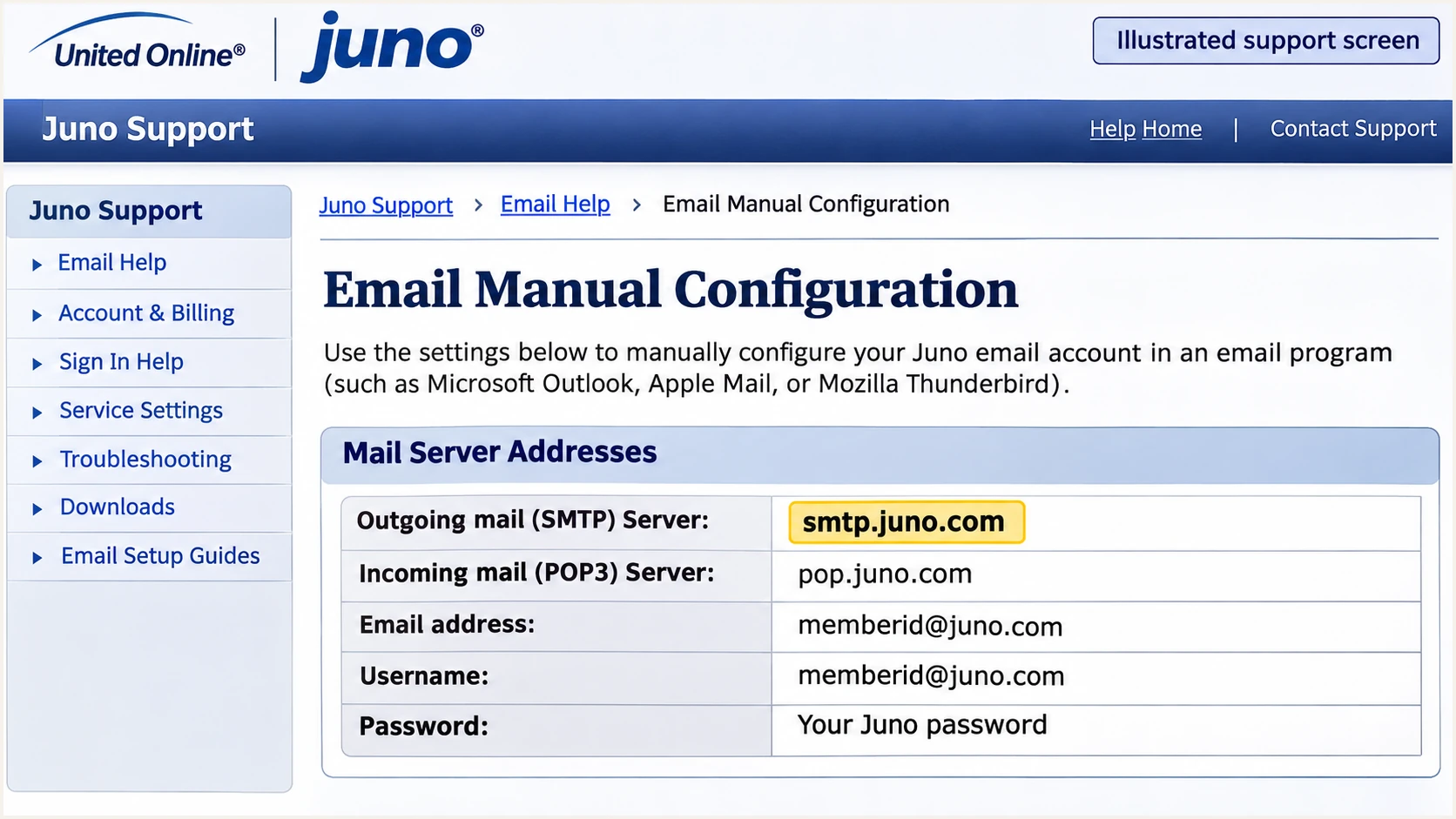
Illustrated Juno support screen identifying smtp.juno.com as the outgoing server.
Set up SPF
SPF is checked against the SMTP envelope-sender domain, normally visible in the delivered Return-Path. I configure that domain, which is not necessarily the domain in the visible From address.
For a custom Return-Path, obtain United Online's approved configuration through account support. Do not assume that include:untd.com or an SMTP hostname is the correct authorization.
- Inspect the envelope. Send a message and read its Return-Path. Request the custom envelope-sender configuration for your domain if it has not been activated.
- Publish one policy. At the envelope-sender domain, merge the supplied authorization into the existing SPF TXT record before its all mechanism. Preserve other legitimate senders.
- Check the limit. Keep SPF within 10 DNS-lookup mechanisms and modifiers during evaluation, including nested includes. Duplicate SPF records cause permerror.
- Use the right host. If the envelope uses bounce.example.com, publish its SPF there. SPF does not inherit the policy at example.com.
I use a DNS lookup to confirm the published policy. Replace bounce.example.com with the actual envelope-sender domain.
Enter that same domain below to inspect the SPF syntax and lookup count. A valid DNS policy still needs a delivered-message test.
SPF checker
Find SPF syntax issues, lookup limits, and weak records.
?/16tests passed
After publishing, send again and check for spf=pass at the recipient. A custom bounce subdomain normally satisfies relaxed SPF alignment with its parent From domain; strict alignment requires identical domains.
If your account retains a shared provider Return-Path, editing your own domain's SPF will not change that message's SPF identity. SPF alignment failure is acceptable for DMARC when DKIM passes with alignment. Without either passing path, the message fails DMARC.
Look up the actual envelope-sender policybash
dig +short TXT bounce.example.com
Set up DKIM
I confirm custom DKIM signing with United Online support before adding a key. Its public consumer setup instructions do not establish a custom DKIM activation procedure or a selector that every account can use.
The sending service must have the matching private key and actually sign the message. A DNS-only change cannot add that capability to a consumer account.
- Request signing details. Ask whether the service can sign with your domain in d=. If supported, obtain the selector, record type, exact public value and activation procedure.
- Publish the supplied record. For TXT, paste the complete public key. For CNAME, copy the supplied target. Use the exact selector._domainkey hostname without duplicating your DNS zone name.
- Activate signing. Have the provider enable signing after DNS is visible, or complete its documented activation step. Publishing a public key does not sign outgoing messages.
- Inspect the signature. Send a new message. Read s= and d= in DKIM-Signature, then confirm dkim=pass and a signing domain that satisfies DMARC alignment.
The selector is account-specific. In these commands, replace selector and example.com with the s= and d= values from an actual signature.
If support supplies a CNAME, check its target as well as the resulting public key. Keep the private signing key on the sending system; only the public record belongs in DNS.
Check the selector supplied by the sending servicebash
dig +short CNAME selector._domainkey.example.com
dig +short TXT selector._domainkey.example.com
A successful selector lookup proves that a key is published. The recipient's dkim=pass result proves that the tested signature verified.
I also check the signing domain. A valid signature using only an unrelated provider domain does not satisfy DKIM alignment for your custom From domain.
If custom DKIM is unavailable
Do not invent a selector or generate an unrelated key. A passing SPF result with alignment can satisfy DMARC, but forwarding often breaks SPF. If the account provides neither SPF alignment nor DKIM alignment, use a sending route that supports your domain before enforcing DMARC.
Set up DMARC
DMARC belongs in the DNS of the visible From domain you control. There is no DMARC switch to enable in a Juno or NetZero consumer mailbox.
For a domain without an existing policy, I start with p=none and reporting. Use the DMARC record generator to prepare the TXT value.
- Read the current policy. Look up _dmarc.example.com first. If p=quarantine or p=reject is already published, keep that policy and preserve its other settings.
- Prepare report delivery. Use a working aggregate-report mailbox or your reporting service's assigned address. A reporting address outside your domain needs the destination's authorization.
- Publish one record. For a new setup, add one TXT record at _dmarc in your domain's DNS zone. Use the example below after replacing the example domain and mailbox.
- Check public DNS. Confirm the intended policy and reporting destination appear in a public lookup. Remove duplicate DMARC policy records at the same name.
In a DNS editor that appends the zone automatically, enter _dmarc as the host rather than repeating the entire domain. Check the resulting fully qualified name before saving.
The value below is a monitoring example. Keep unrelated TXT records in place when adding or updating the DMARC policy.
Initial monitoring policy for example.comtext
Name: _dmarc.example.com
Type: TXT
Value: v=DMARC1; p=none; rua=mailto:dmarc@example.com
Replace dmarc@example.com with the real reporting destination before publishing. The example mailbox does not collect your reports.
Enter your visible From domain below to validate the DMARC record. I keep an existing enforcement policy in place while fixing a sending source.
DMARC checker
Look up a domain's DMARC record and catch policy issues.
?/7tests passed
A successful DNS check confirms publication, not successful authentication of mail. Send a new message through the United Online route and inspect its receiver-generated results.
A p=none policy requests monitoring without DMARC enforcement. It does not prevent recipients from rejecting mail for other reasons.
Verify and troubleshoot
I test with a fresh message sent through the exact account or SMTP route used in production. Forwarding an old message tests a different delivery path.
The email tester below is the quickest configuration check: send a message to the address it provides and inspect the full diagnosis. It tests an actual message rather than DNS alone.
Email tester
Send a real email to this address. Suped shows a results button when the test is ready.
?/43tests passed
Read the final recipient's trusted Authentication-Results header. I check the reported SPF envelope identity and DKIM signing identity against the visible From domain.
DMARC requires at least one successful authentication method with alignment. Raw SPF and DKIM passes for unrelated provider domains are insufficient.
|
|
|
|
|---|---|---|---|
Pass | Pass | SPF or DKIM | Pass |
Pass | None | SPF | Pass |
Fail | Pass | DKIM | Pass |
Pass | Pass | Neither | Fail |
Typical DMARC outcomes for the tested message.
For a message received in Juno Email on the Web, open it and click 'Full Header' at the upper right. Juno documents this under its 'Reporting SPAM' support instructions. For a message sent by Juno to another mailbox, inspect the copy at that recipient.
I retain those full headers with the test time and any delivery error. They distinguish a DNS error from a provider signing limitation.
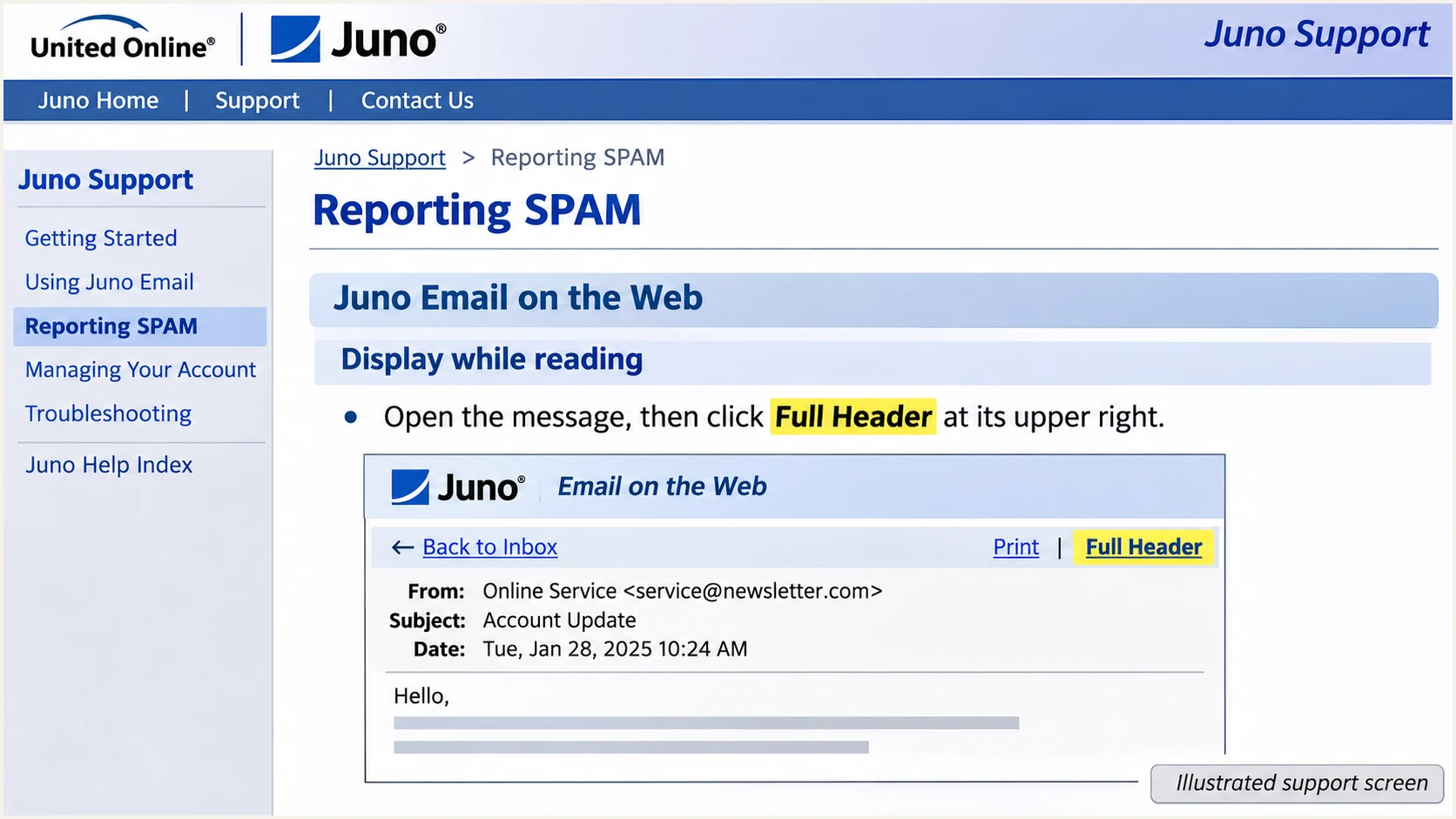
Illustrated Juno support instructions showing how to open Full Header.
After a DNS change, cached answers remain until their TTL expires. Query the authoritative nameserver when a recursive resolver still shows an older value.
I retest after each correction and compare the new results with the saved headers. Inbox placement alone is not proof that authentication passed.
- SPF permerror. Check for multiple SPF records and excessive DNS lookups. Keep one policy at each envelope-sender domain.
- DKIM lookup failure. Check the exact s= selector and d= domain. Fix duplicated zone suffixes, incomplete keys or broken CNAME targets.
- SPF alignment failure. Compare Return-Path with From. If custom Return-Path is unavailable for the account, rely on verified DKIM alignment rather than adding unrelated SPF includes.
- Provider-side failure. Give United Online support the full headers, sending account, timestamp and bounce text. Request confirmation of the active outbound route and signing capability.
Get alerted when it breaks
Suped is our DMARC reporting and email authentication platform. Its DMARC monitoring identifies sending sources and authentication failures, so this setup has an ongoing check after the initial test.
I review evidence for each source when investigating changes. A domain-wide pass rate can hide a failing low-volume mailbox or an occasional billing job.
- Verify legitimate sources. In Suped's source table, confirm which senders belong to your organization. Investigate unfamiliar United Online traffic before marking it verified.
- Enable notifications. Open Settings, then Notifications. Enable Issues detected and Sending sources need verification notifications, and enable summary emails for routine review.
- Diagnose the failure. Open the affected source and inspect its record details. Compare SPF and DKIM results, sending IPs and DNS history with the working configuration.
- Confirm the correction. Apply the relevant DNS or provider-side fix, use the issue's verification action, and send another test. Check subsequent reports for the affected source.
Suped combines authentication diagnostics with DNS history. That gives the person responding to an alert the record changes and fix instructions needed to investigate.
For a custom domain, reporting must reach the assigned Suped destination for these workflows to work. A consumer mailbox user cannot redirect reports for a domain owned by United Online.
Reporting has a delay
DMARC alerts depend on reports received from participating mailbox providers. Aggregate reports commonly arrive daily, so these alerts do not guarantee immediate detection of an individual failed message. Use the email tester for immediate retesting.
Secure your domain with p=reject
I move a domain to enforcement when every legitimate sending route has a verified DMARC pass path. A successful United Online test does not validate the other systems using the same From domain.
Suped's Hosted DMARC lets your team manage policy in the dashboard after the initial DNS setup. Its source diagnostics and issue verification provide the evidence for each policy change.
- Inventory all senders. Review a complete business sending cycle in Suped, including infrequent invoices and automated messages. Verify each legitimate source.
- Fix the United Online route. Confirm SPF alignment or DKIM alignment on actual messages. Resolve unsupported custom-domain sending before applying enforcement.
- Stage the policy. For a new monitoring deployment, change to p=quarantine once legitimate sources pass. Review reports and delivery errors before moving to p=reject. Keep existing enforcement while repairing isolated issues.
- Check subdomains. Review inherited policy and explicit subdomain records. Keep reporting active and retest after provider changes, key rotation or a new sending application.
I assess the legitimate messages that fail, rather than treating a high overall pass percentage as approval. Spoofed traffic can lower that percentage without making enforcement unsafe.
The two enforcement policies request different handling. Receivers still apply their own local decisions.
p=quarantine
Requests suspicious treatment for messages that fail DMARC, often placement in spam. Review legitimate failures and delivery complaints before the next change.
p=reject
Requests rejection of messages that fail DMARC. Keep Suped notifications active so a broken sender configuration is investigated after enforcement.
For a domain whose legitimate sending routes have been verified, the final TXT value can use p=reject while retaining its real reporting destination.
If using Hosted DMARC, change the policy through Suped. For a directly managed TXT policy, update the existing record rather than adding another one.
Enforcement example after successful verificationtext
Name: _dmarc.example.com
Type: TXT
Value: v=DMARC1; p=reject; rua=mailto:dmarc@example.com
Record the policy change time and retain the previous value. If a legitimate source fails afterward, identify its authentication problem before changing policy again.
Schedule a test whenever an outbound route changes. That includes a replacement SMTP account or a DKIM selector change, even when the visible From address stays the same.
Frequency asked questions
You cannot edit DNS for juno.com, netzero.com or netzero.net. United Online manages those domains' authentication. I test the delivered message and escalate failures to the provider. DNS configuration applies only to a custom domain you control.
United Online's public consumer setup pages do not specify a universal custom-domain SPF include. Obtain the approved authorization for your account and publish it at the actual envelope-sender domain. Do not substitute an SMTP hostname or guess include:untd.com.
Confirm this for your account with support. The public mailbox setup instructions do not establish custom DKIM availability or an activation workflow. I require a provider-issued selector and a delivered message with dkim=pass for the intended signing domain before treating DKIM as configured.
SPF can pass for United Online's envelope-sender domain while the visible From uses your domain. That result lacks SPF alignment. DMARC then needs a passing DKIM signature with alignment. Editing SPF at an unrelated From domain does not change the envelope identity.
These hostname patterns are associated with United Online infrastructure, including its Juno and NetZero services. I treat the suffix as a source-identification clue, then check the source IP against United Online's published outbound IP list and inspect authentication. A matching hostname alone does not authorize a sender, and a server appearing in a Received chain can be a receiving or forwarding hop.




