
How to set up DMARC/DKIM/SPF for united-domains

Published 22 Nov 2026
Updated 22 Nov 2026
12 min read
Summarize with
For united-domains hosted email, enable SPF using include:_smtp.udag.de, use its automatic DKIM signing with an active mailbox and united-domains nameservers, and publish a DMARC TXT record at _dmarc. Start a new DMARC policy with p=none and reporting. Keep an existing p=quarantine or p=reject policy.
I check the actual sending route first. Registering a domain at united-domains does not authenticate mail sent by another provider, and website mail needs its own delivery test. DMARC passes when SPF or DKIM passes with the required domain match to the visible From address.
Add your domain
Use the domain in your united-domains Portfolio and provision its mailbox before testing authentication. These steps apply to mail sent through united-domains, including applications configured to use its SMTP server.
- Select the domain: Sign in through the user icon and open your Portfolio. Choose the domain you send from. If registering a new domain, search for it, select it, and complete checkout first.
- Activate email: Click the domain's E-Mail icon, then E-Mail-Pakete. Activate a suitable package if you do not already have one.
- Create a mailbox: Choose the email address, set a mailbox password, and click Postfach anlegen. Confirm that the address appears under Postfächer bearbeiten.
- Check DNS authority: Run the nameserver query below. Publish authentication records at the provider operating those nameservers. The registrar's DNS editor only affects live DNS when its nameservers are authoritative.
- Verify sending: Send a message using your domain in From. For an application, authenticate to smtps.udag.de using the mailbox address and password, with port 587 and STARTTLS or port 465 and SSL/TLS.
Find the authoritative DNS providerbash
dig +short NS example.com
I verify provisioning with a delivered message and a reply to the mailbox. An email forwarding address alone does not meet the documented mailbox requirement for automatic DKIM.
For a website form, use a mailbox on your domain as From and put the visitor's address in Reply-To. Configure authenticated SMTP in the application instead of assuming its local mail function uses the same sending route.
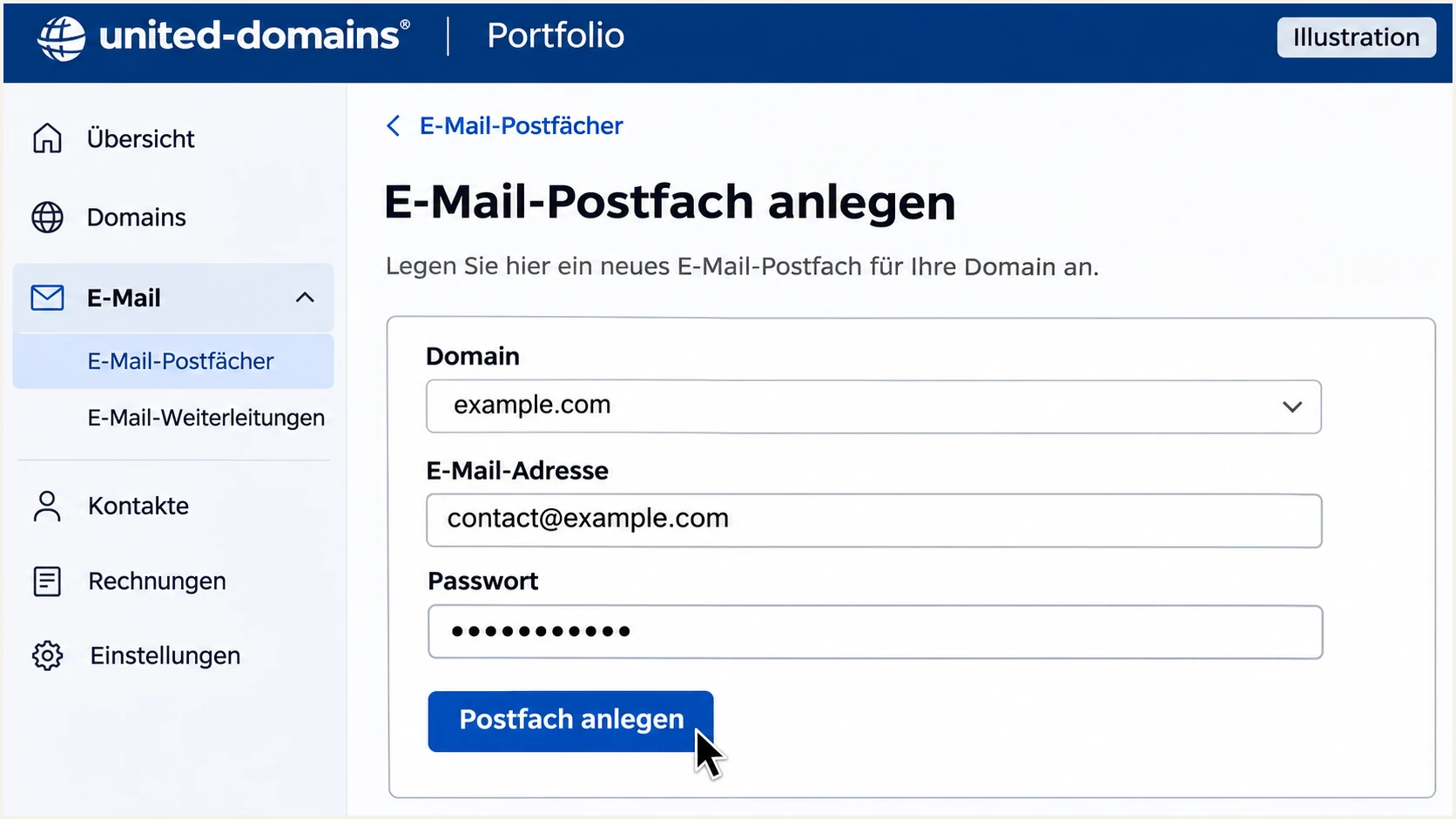
Illustrated united-domains mailbox creation with Postfach anlegen.
If you keep external nameservers while using united-domains mail, enable the continued use of its email system under Administration > Eigener Nameserver. Copy the required mail records shown there to your authoritative DNS provider.
Set up SPF
united-domains' public SPF instructions authorize its outbound servers with include:_smtp.udag.de. Use the following complete value only when united-domains is your only sender for that SPF domain.
- Inspect existing SPF: Look up TXT records for your sending domain and find the value beginning v=spf1. Edit that record when one exists.
- Enable provider SPF: Open the domain's E-Mail icon > E-Mail-Sicherheit. Under Status Sender Policy Framework (SPF), click SPF aktivieren. Check first, because SPF is already enabled for newly registered domains.
- Handle other senders: If other systems also send mail, use DNS > DNS-Einträge > TXT (Text) to edit the existing root SPF record. Add include:_smtp.udag.de before its final all mechanism and retain the other authorized senders.
- Check the envelope: Send a message through united-domains. Confirm SPF passes for the domain in smtp.mailfrom and that its domain matches the visible From domain under your DMARC settings. A matching Reply-To address does not establish SPF alignment.
Root TXT value when united-domains is the only sendertext
v=spf1 include:_smtp.udag.de -all
Publish this at the domain root, not under _dmarc or a DKIM selector. With external nameservers, make the change in their DNS editor rather than relying on the Portfolio activation button.
Keep exactly one SPF record at each SPF hostname. Multiple unrelated TXT records are fine, but two records beginning v=spf1 cause an SPF configuration error.
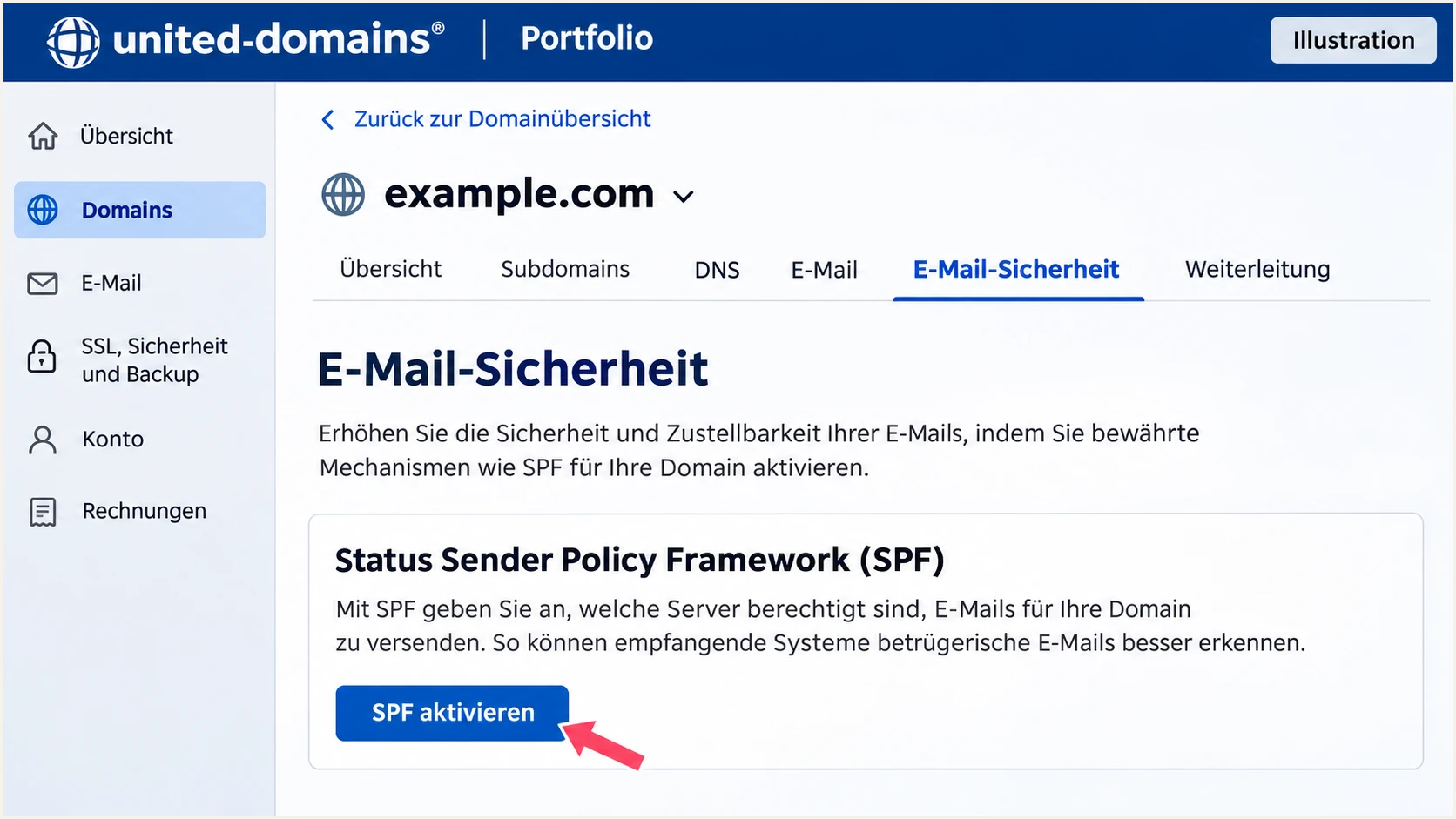
Illustrated united-domains SPF activation under E-Mail-Sicherheit.
Use the SPF checker below after saving. Check the complete record, including nested includes, against SPF's limit of 10 DNS lookup-causing terms per evaluation.
A valid DNS record does not prove the application uses the authorized server. Keep the message-level test separate and repeat it for each application that sends on your behalf.
SPF checker
Find SPF syntax issues, lookup limits, and weak records.
?/16tests passed
A pass for a provider-owned envelope domain does not give your visible From domain an SPF pass for DMARC. united-domains supports a matching envelope sender, so check the actual smtp.mailfrom result on delivered mail.
If a separate sending service uses its own envelope domain without customization, adding its include to your From domain will not repair that mismatch. DMARC still passes through DKIM when the signature passes and its signing domain has the required match.
Set up DKIM
united-domains documents DKIM as permanently enabled for email domains whose package uses at least one mailbox. That automatic setup requires united-domains nameservers. I verify the delivered signature rather than inventing a selector or generating a replacement key.
- Confirm prerequisites: Check that the email package has an actual mailbox and that the domain uses united-domains nameservers.
- Use its SMTP service: Send through the mailbox or authenticated smtps.udag.de. Test website mail separately if it previously used local PHP mail.
- Read the signature: Open the delivered message's raw headers. In DKIM-Signature, note d= for the signing domain and s= for the selector. Use those exact values for the DNS query below.
- Check the receiver result: Look for dkim=pass in the receiving server's Authentication-Results. Confirm the signing domain matches the From domain under your DMARC settings.
Query the selector and signing domain taken from your messagebash
dig +short TXT SELECTOR._domainkey.SIGNING-DOMAIN
Replace both uppercase placeholders with the values in the actual signature. A key visible in DNS does not prove that outbound messages are being signed.
DNS hosting and outbound signing are separate responsibilities. Publishing a public key only works when the sending server signs using the matching private key.
united-domains nameservers
With an active mailbox, use the documented automatic signing setup. Confirm the selector and result on delivered mail.
External nameservers
The public documentation says DKIM is disabled. Ask support to confirm supported signing options before enforcement; copying a TXT record alone does not enable signing.
For a separate application that sends through another mail server, obtain that sender's DKIM settings and publish its exact TXT or CNAME records at the authoritative DNS provider.
Leave existing working selectors in place during a sending migration. Delete an old selector only after its sender has stopped using it and previously sent mail no longer needs verification.
Set up DMARC
Publish DMARC for the domain in the visible From address. Start with monitoring when no policy exists; keep quarantine or reject if the domain already has enforcement.
- Check the current policy: Look up TXT at _dmarc.example.com before editing. Update the existing DMARC record instead of adding another one.
- Open the TXT editor: In the Portfolio, click the domain's DNS icon > DNS-Einträge > TXT (Text) > Hinzufügen. With external nameservers, use their DNS editor instead.
- Set the fields: Enter _dmarc in Subdomain/Hostname. Paste the value below into Text/Data/Wert. The documented default TTL of 600 seconds is suitable.
- Set reporting and save: Replace dmarc@example.com with a report mailbox you control or your assigned aggregate-report destination. Click Speichern. If reporting to another domain, confirm its external reporting authorization.
Initial DMARC TXT value at _dmarc.example.comtext
v=DMARC1; p=none; rua=mailto:dmarc@example.com
The example report address is a placeholder. Aggregate reports are XML summaries of authentication observations, not copies of every email. A report mailbox receives the files; a reporting platform processes them.
Use the DMARC record generator to build a value with your reporting address. Keep the hostname separate from the TXT value and do not paste dig output or surrounding quotation marks into the value field.
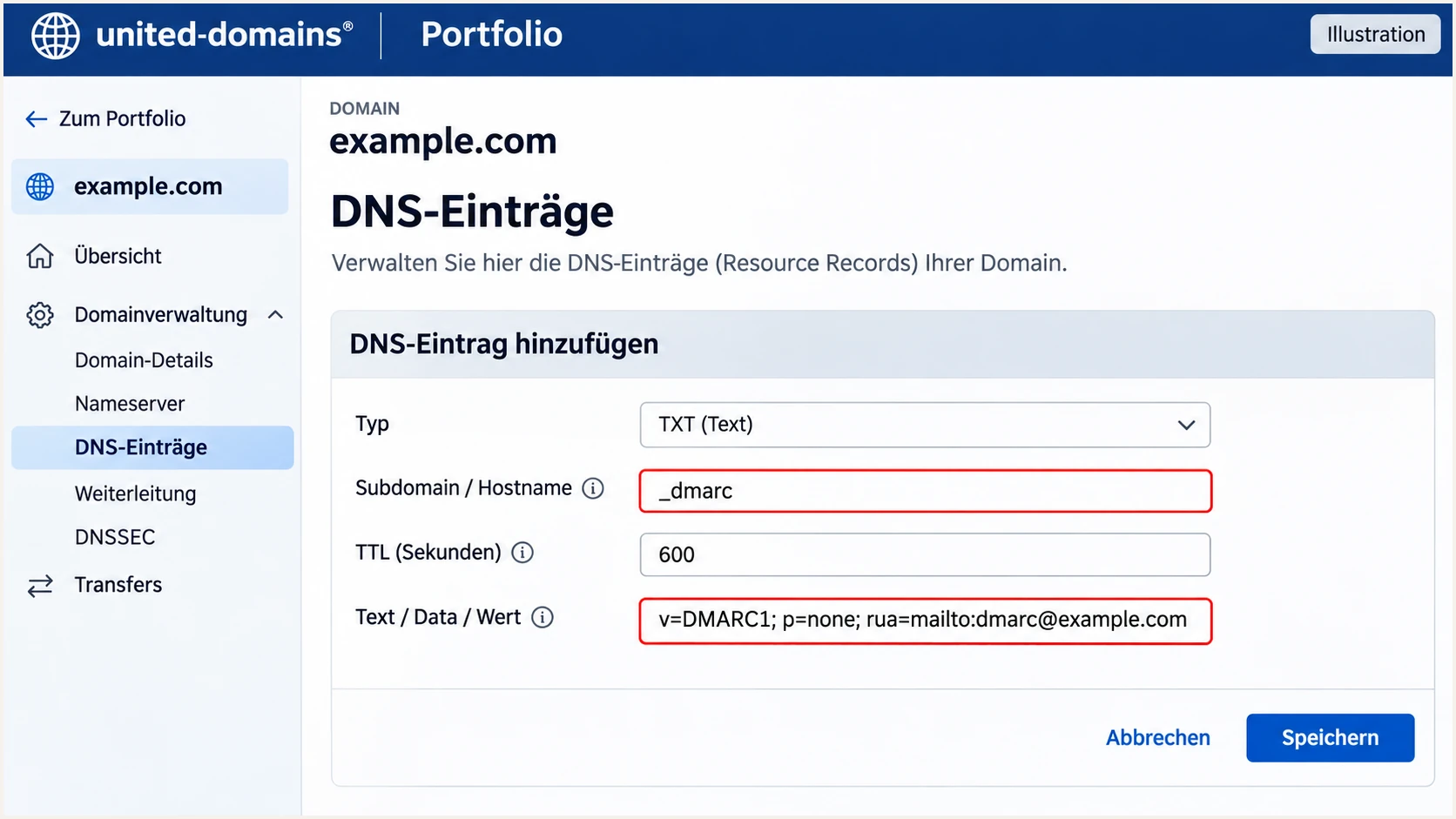
Illustrated united-domains DMARC TXT fields with hostname _dmarc.
The policy p=none requests no DMARC enforcement. Receiving servers still apply their own filtering. Reporting lets you identify legitimate sending paths before you request quarantine or rejection.
Google's DMARC setup guidance also recommends starting with monitoring and reviewing authentication before strengthening the policy. Use the checker below to verify the published hostname and value.
DMARC checker
Look up a domain's DMARC record and catch policy issues.
?/7tests passed
Confirm that one DMARC policy is returned for the intended From domain. If no record appears, check DNS authority and ensure the editor has not appended the domain twice.
united-domains says saved changes reach its own nameservers immediately, while worldwide DNS caches take up to 24 hours to refresh. Verify the authoritative answer first, then retest with the receiving system.
Verify and troubleshoot
I test a delivered message after each configuration change. The receiving server's Authentication-Results is the evidence that SPF or DKIM actually authenticated the message.
- Test every route: Send separately through webmail, your mail client, website forms, and application notifications. A pass on one route does not validate the others.
- Read trusted headers: Check the recipient server's spf, dkim, and dmarc results. Record smtp.mailfrom, the DKIM signing domain, and the visible From domain.
- Check DNS directly: Run the queries below with your real domain. Compare the returned SPF and DMARC values with the settings you saved.
- Retest after repair: Use the email tester below. Send to its generated address through the exact sending path you are fixing and review the full diagnosis.
Inspect published authentication recordsbash
dig +short TXT example.com
dig +short TXT _dmarc.example.com
For an application, trigger a real notification to the tester's address. Sending manually through a different mailbox does not test the application's SMTP configuration.
The email tester checks the received message and reports authentication problems. It is the quickest way to distinguish a DNS problem from missing signing or an incorrect sending route.
Email tester
Send a real email to this address. Suped shows a results button when the test is ready.
?/43tests passed
If SPF passes but DMARC fails, compare the authenticated envelope domain with From. Then check whether any passing DKIM signature has the required signing-domain match.
If DKIM passes with that match, DMARC can pass despite SPF failure, such as after forwarding. For direct united-domains mail, investigate unexpected SPF failures rather than changing a working DKIM setup.
|
|
|
|---|---|---|
SPF permerror | Duplicates or lookup limit | Root SPF record |
DKIM missing | Signing absent | Mailbox, DNS, SMTP |
DKIM failure | Key mismatch or changes | Selector and message |
DMARC failure | No passing domain match | Envelope and signing domains |
DNS unchanged | Wrong zone or cache | Authoritative nameservers |
Match the failure to the configuration that needs attention.
Get alerted when it breaks
Suped is our DMARC reporting and email authentication platform. Use its DMARC monitoring to detect broken authentication and investigate the affected sending source after the initial united-domains setup.
- Keep reports flowing: Keep your assigned reporting destination in rua. Confirm aggregate data is arriving before relying on report-based alerts.
- Enable notifications: In Suped notification settings, enable Issues detected and Sending sources need verification. Turn on DMARC summary emails for periodic review.
- Investigate the source: Open the affected source and inspect its SPF and DKIM results. Use the record detail view to check the sending IP and rDNS alongside the authentication domains.
- Repair and verify: Follow the issue's steps to fix, make the required change in united-domains or the actual sending application, then send another test message. Check subsequent reports for recovery.
Suped brings source identification and automated issue detection into the same workflow. That makes it practical to catch a new application sending without DKIM or an SPF change that removes a legitimate sender.
Alerts based on DMARC reports depend on receivers sending those reports and on processing time. Use a direct email test when checking an urgent repair; review later aggregate data for the wider sending pattern.
Keep DNS and message checks connected
Use Suped's DNS history to compare old and new authentication values when an issue begins. Match the change with the affected source, then verify recovery in message tests and incoming DMARC reports.
Secure your domain with p=reject
Move to p=reject after every legitimate sending route has a reliable DMARC pass. I base that decision on source-level results and a complete sending cycle, including infrequent billing or scheduled messages.
- Identify legitimate sources: Use Suped's source table to confirm which systems are authorized. Investigate unfamiliar sources before marking them as legitimate. Do not authorize an IP just because it appears in a report.
- Fix authentication first: Resolve legitimate failures and test each sending route. Prioritize DKIM with a matching signing domain, especially for mail that gets forwarded.
- Stage enforcement: Change p=none to p=quarantine and inspect subsequent reports and delivery failures. Proceed when legitimate traffic remains authenticated. Keep any existing stronger policy.
- Publish reject: Edit the existing _dmarc TXT record in DNS > DNS-Einträge. Change only the intended policy settings, retain your real rua destination, and save.
- Continue monitoring: Watch source-level failures in Suped after enforcement. Review subdomains and their own DMARC records before changing sp or assuming the root policy covers every case.
Final DMARC example, replace the reporting addresstext
v=DMARC1; p=reject; rua=mailto:dmarc@example.com
Suped's Hosted DMARC supports policy management and staging in the dashboard after its DNS setup is complete. Pair it with source verification and issue notifications to manage enforcement with evidence about your legitimate mail.
A reject policy requests rejection of messages that fail DMARC; receiving servers retain their own handling decisions. Keep reporting active so new applications and sending changes are reviewed before they disrupt legitimate email.
Frequency asked questions
Its documented SPF include is include:_smtp.udag.de. When united-domains is your only sender, the complete record is v=spf1 include:_smtp.udag.de -all. If SPF already exists, add the include to that record while retaining other authorized senders.
Yes, for email domains with at least one mailbox in their email package and united-domains nameservers. Its documentation says DKIM is disabled with external nameservers. Verify a delivered signature and ask support about supported signing options for external DNS.
The udag.de suffix is associated with united-domains mail infrastructure; smtp03-ext2.udag.de is an observed outbound hostname. Treat the suffix as a source-identification clue. Confirm the sending IP and authentication domains, because rDNS alone does not prove the sender is authorized for your domain.
Yes. A passing DKIM signature with the required signing-domain match is sufficient for DMARC. This matters when forwarding breaks SPF or another sender uses a provider-owned envelope domain. Check the actual authentication results before changing DNS.
It authenticates that route only when the website actually sends through the configured service with the right sender domain. Configure authenticated SMTP to smtps.udag.de, use a domain mailbox as From, and send a real website notification to the email tester.
Keep an existing p=reject or p=quarantine policy while configuring united-domains. Verify the new sending route before production use. A new sender is a reason to test authentication and review reports, rather than automatically weakening an established policy.




