
How to set up DMARC/DKIM/SPF for UKG

Published 22 Nov 2026
Updated 22 Nov 2026
12 min read
Summarize with
To authenticate UKG email, authorize its sending route in SPF, enable DKIM signing with your domain, and publish a DMARC TXT record in your DNS. For UKG Ready tenants with Mail Signatures, the signing path is Settings > Global Setup > Mail Signatures. I verify the result with a new UKG notification before changing DMARC enforcement.
UKG Ready, UKG Pro (formerly UltiPro), and UKG Pro Workforce Management have different email configurations. The Mail Signatures steps below apply to tenants with that form. Get module-specific instructions from UKG support for other configurations. DMARC passes when either SPF or DKIM passes with a domain that matches the visible From domain under your DMARC settings.
Add your domain
I start with the domain in the actual notification sender address, such as hr@example.com. In the Mail Signatures workflow, domain verification happens through the published DKIM key and the Save and Verify action.
- Identify the product: Record the UKG module, tenant region, company identifier, and the notification types that use your domain.
- Confirm the sender: Check the visible From address on a recent UKG notification. Record the Return-Path separately; changing Reply-To does not change either authentication domain.
- Open Mail Signatures: In a UKG Ready administrator account, go to Settings > Global Setup > Mail Signatures > Add New. Prepare to enter your sending domain, such as example.com, in Domain.
- Confirm other modules: For UKG Pro or Workforce Management, request the supported domain registration and signing procedure from UKG support. Include a message header so support can identify the sending route.
- Collect DNS requirements: Ask UKG for the approved SPF mechanism and the custom Return-Path procedure for that route. Keep DNS access available for the DKIM public key and any UKG-supplied verification records.
Check the form in your tenant
The field sequence follows Fuse Workforce's public "Using Mail Signatures" instructions for its UKG Ready based application. Confirm that your tenant has the same form; otherwise, get the signing workflow from UKG support.
Set up SPF
SPF checks the SMTP envelope sender, normally visible in Return-Path. UKG supports Return-Path matching, but the custom domain and DNS requirements must be confirmed for your module. I check the delivered header before deciding which DNS name needs an SPF change.
- Enable your Return-Path: Ask UKG to configure a customer-owned envelope sender, such as bounce.example.com. Publish the exact TXT, CNAME, or MX records UKG provides for that hostname, then ask UKG to verify and activate it.
- Use the approved include: Confirm the mechanism with UKG. Candidate names to ask about are _spf.ultipro.com for an UltiPro sending route and _spf.saashr.com for a Ready sending route. These are not universal UKG instructions.
- Edit the correct host: Update the SPF policy at the actual envelope sender domain. An SPF record at example.com does not automatically cover bounce.example.com. Follow UKG's delegation instructions if it supplies a CNAME.
- Preserve existing senders: Merge UKG's mechanism into the existing SPF TXT record before its final all mechanism. Keep one SPF policy per hostname and at most 10 DNS-querying terms during evaluation, including nested includes.
Minimal SPF examples, use only the route confirmed by UKGtext
UKG Pro route, if UKG confirms this include:
v=spf1 include:_spf.ultipro.com ~all

UKG Ready route, if UKG confirms this include:
v=spf1 include:_spf.saashr.com ~all
These minimal examples assume UKG is the only sender using that envelope domain. Preserve every existing authorized sender and your established final all mechanism when editing a shared policy. Publish only the applicable record.
Enter the envelope sender domain in the SPF checker below. Check both syntax and the complete lookup count. A valid record on the visible From domain is insufficient when UKG uses a different Return-Path.
SPF checker
Find SPF syntax issues, lookup limits, and weak records.
?/16tests passed
Send a fresh UKG notification after activation. Confirm spf=pass and inspect smtp.mailfrom in the recipient's Authentication-Results header. For relaxed SPF matching, bounce.example.com and example.com share the same organizational domain; strict matching requires identical domains.
If a notification still uses a UKG-owned Return-Path, adding an include to your root domain does not change that mismatch. An SPF alignment warning is acceptable for DMARC when DKIM passes with your matching domain, although separate recipient requirements still apply.
Avoid copying UKG corporate SPF
UKG's corporate domain and your application sending route are different configurations. Use the mechanism UKG confirms for your tenant. Do not add a second SPF record or authorize a large IP range based on one observed message.
Set up DKIM
For a Mail Signatures tenant, I create a dedicated 2048-bit RSA key pair and a new selector, such as ukg2026. The public key goes in DNS. UKG needs the matching private key to sign messages.
Generate a dedicated DKIM key pair locallybash
umask 077
openssl genrsa -out ukg-private.pem 2048
openssl rsa -in ukg-private.pem -pubout -out ukg-public.pem
openssl rsa -in ukg-private.pem -pubout -outform DER |
  openssl base64 -A
Use the Base64 output of the last command as the p= value below, without PEM headers or line breaks. The template contains a placeholder; replace PUBLIC_KEY_BASE64 with your generated public key.
DKIM TXT template, replace the public key placeholdertext
Name: ukg2026._domainkey.example.com
Type: TXT
Value: v=DKIM1; k=rsa; p=PUBLIC_KEY_BASE64
- Publish the public key: Add the TXT record at your DNS host. If the host appends example.com automatically, enter ukg2026._domainkey as the name. A long key can use multiple quoted strings within one TXT record.
- Enter the signing domain: In Mail Signatures > Add New, set Domain to example.com and Selector to ukg2026. Use the domain in your From address for an exact DKIM domain match.
- Load the private key: Select RSA as the Signing Algorithm. Paste ukg-private.pem into Private Key or select Upload Private Key. Keep the complete PEM format expected by the form.
- Save and verify: Once the public TXT record resolves, select Save and Verify. Resolve key or DNS errors before sending production notifications with the new signature.
The Domain and Selector fields must reproduce the DNS key location exactly. A selector of ukg2026 with a signing domain of example.com requires the key at ukg2026._domainkey.example.com.
The illustrated form below is for the Mail Signatures workflow. Match its fields to your tenant; UKG Pro and Workforce Management configurations require their own confirmed instructions.
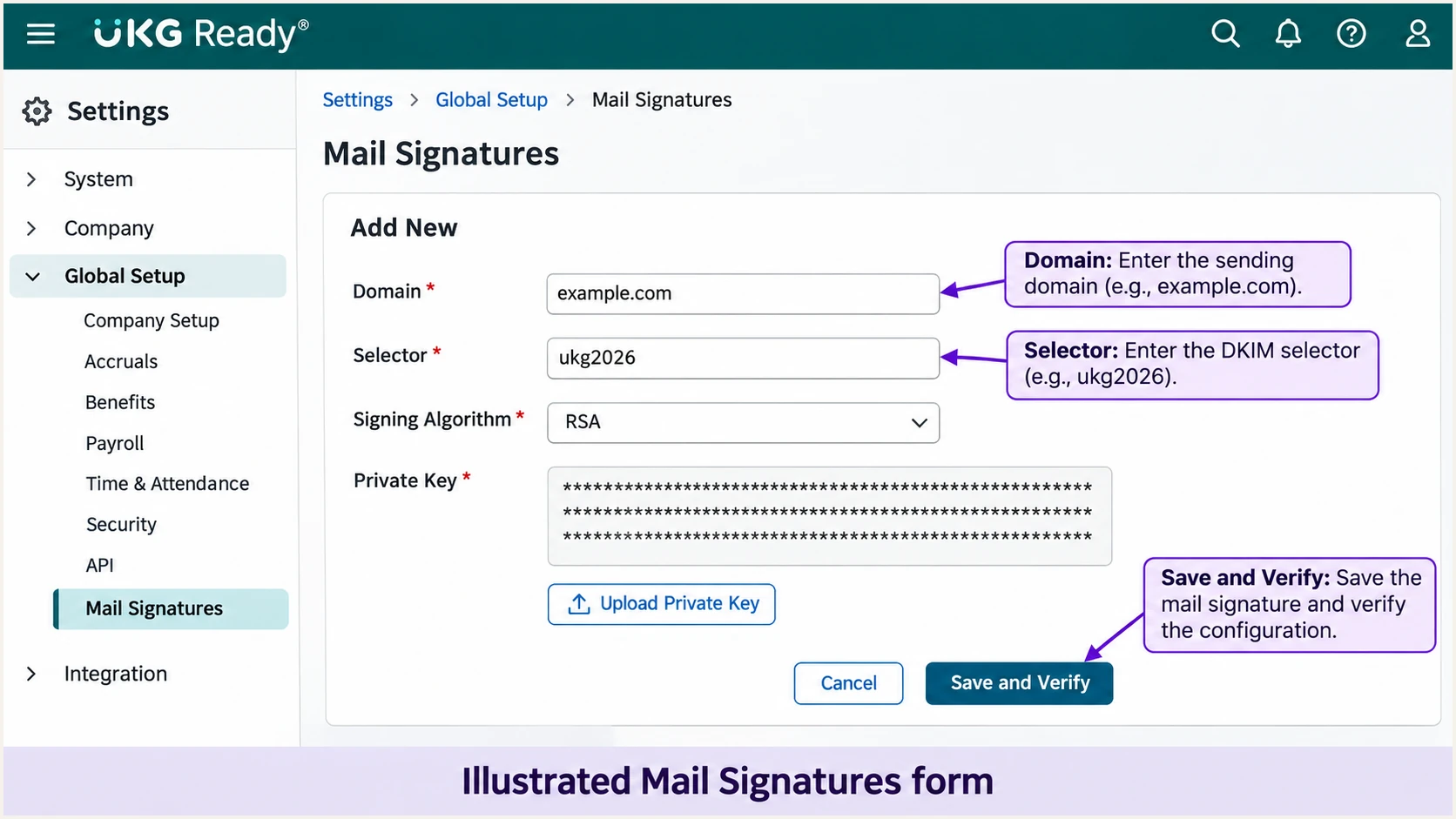
Illustrated UKG Ready Mail Signatures form with the private key redacted.
A successful form check establishes that the configured key is available. I still check a newly delivered UKG message for dkim=pass and header.d=example.com. A signature using only a UKG-owned domain does not authenticate your custom From domain for DMARC.
Repeat the message test for every UKG module using your domain. A payroll notification and a recruiting email can take different routes even when both appear under the UKG name.
Keep the private key out of DNS
Publish only the public key. Upload the dedicated private key through the authenticated UKG form, and store its backup securely. Use a separate selector and key pair for UKG rather than sharing another mail system's signing key.
Set up DMARC
DMARC is published in your DNS, independently of UKG. I start a new deployment with p=none while validating legitimate senders. If your domain already uses p=quarantine or p=reject, keep that policy and repair UKG's authentication.
- Check the existing policy: Look up _dmarc.example.com before editing. Update the existing DMARC record rather than creating a second one, and preserve working report destinations.
- Prepare reporting: Create a mailbox that receives aggregate reports, or use your reporting service's assigned address. Replace the example mailbox below with a real destination you control.
- Publish a new policy: For a domain without DMARC, add a TXT record named _dmarc with the monitoring value below. Use the full hostname only when your DNS host requires it.
- Validate the live result: Check the exact visible From domain after DNS caches expire. Confirm the policy resolves and the rua destination is correct.
Initial DMARC record for a new deploymenttext
Name: _dmarc.example.com
Type: TXT
Value: v=DMARC1; p=none; rua=mailto:dmarc@example.com
Use the DMARC record generator to build the value with your reporting address. Retain your existing domain matching settings unless you have reviewed their effect on every sender.
The DMARC checker validates the published policy. It does not prove that UKG is signing messages or using the intended Return-Path; those checks require an actual UKG notification.
DMARC checker
Look up a domain's DMARC record and catch policy issues.
?/7tests passed
For hr@example.com, check the policy at _dmarc.example.com. For hr@people.example.com, check _dmarc.people.example.com and any inherited parent policy. A separate subdomain policy changes which instructions receivers apply.
The p=none policy requests reporting without requesting quarantine or rejection for DMARC failure. It does not bypass spam filtering. External rua destinations also need authorization from the report recipient's domain.
Verify and troubleshoot
I accept the setup only after a newly generated UKG email passes DMARC at the recipient. A DNS lookup and a successful Save and Verify action each check part of the configuration.
- Trigger the real workflow: Send a non-sensitive notification through each UKG module you use. Use a test employee or administrator recipient where appropriate, and keep the intended From domain.
- Inspect trusted results: Read the receiving system's Authentication-Results header. Confirm dmarc=pass, then check which passing SPF or DKIM domain matches the From domain.
- Check the selector: Read s= and d= in DKIM-Signature. Query the TXT record at selector._domainkey followed by that signing domain.
- Separate DNS and delivery: If UKG did not send the message, check its notification configuration and delivery logs with support. If the recipient rejected it, collect the exact SMTP error and message timestamp.
Illustrative recipient authentication resultstext
Authentication-Results: receiver.example.net;
 spf=pass smtp.mailfrom=bounce.example.com;
 dkim=pass header.d=example.com header.s=ukg2026;
 dmarc=pass header.from=example.com
The quickest end-to-end check is the email tester below. It supplies a test address and diagnoses the authentication results of the message you send to it.
Send directly through UKG to that address if the workflow allows a test recipient. A normal manual forward changes the message path, so use a direct UKG-generated message for the initial test. Keep payroll amounts and employee data out of the test content.
Email tester
Send a real email to this address. Suped shows a results button when the test is ready.
?/43tests passed
Read the individual authentication findings as well as the overall result. If a UKG workflow cannot target the tester address, send to an administrator-controlled mailbox and inspect its original headers.
Compare the result with the symptoms below. Authentication passing establishes domain authorization; recipient filtering and sender reputation still affect inbox placement.
|
|
|
|---|---|---|
SPF permerror | Duplicate or excess lookups | Repair the SPF policy |
SPF pass, mismatch | UKG-owned Return-Path | Enable custom MAIL FROM |
DKIM key missing | Wrong selector or DNS host | Check s= and d= |
DKIM signature fails | Wrong key or changed content | Check key pair and route |
DMARC fails | No matching pass | Repair SPF or DKIM |
DMARC pass, junk | Recipient filtering | Inspect delivery evidence |
Use the actual recipient result to choose the next check.
I test direct delivery first, then any forwarding route employees use. Forwarding often breaks SPF; a DKIM signature that survives the route can preserve a DMARC pass.
If only some UKG messages fail, compare their selectors and signing domains before editing DNS. Give UKG support both original messages so it can identify differences between sending routes.
Authentication passes
SPF validates the envelope sender. DKIM validates the signature for its d= domain. Both can pass using UKG-owned domains.
DMARC passes
At least one passing method must also match the visible From domain. A passing DKIM signature for your domain is sufficient even with an SPF domain mismatch.
Get alerted when it breaks
Suped is our DMARC platform. For ongoing UKG checks, its DMARC monitoring connects source-level results with detected issues and repair instructions. I use that workflow to investigate regressions after a UKG configuration or DNS change.
- Enable issue notifications: Turn on Issues detected notifications in Suped and configure the responsible recipients. Keep DMARC summary emails enabled for routine review.
- Review source changes: Enable Sending sources need verification notifications. Confirm new UKG-related sources with the UKG owner before marking them verified.
- Investigate the failing route: Open the affected source and inspect the reporting receiver, sending IP, SPF domain, and DKIM domain in the detailed record. Use Suped's issue-specific repair steps.
- Verify the repair: Correct the UKG form or DNS record, use the issue verification action, and send another test notification. Check subsequent aggregate reports for recovery.
Reports have a reporting delay
Aggregate DMARC reports usually arrive on a daily cycle. Suped's notifications depend on available report and DNS data; they are not a live notification for every missed payroll email. Use UKG delivery evidence to investigate a specific missing message.
Secure your domain with p=reject
I move to p=reject after confirming that every legitimate sender using the domain passes DMARC, including UKG's less frequent notifications. Suped's source inventory and authentication diagnostics make that review practical across the whole domain.
- Cover real sending cycles: Review reporting across a complete payroll cycle and any less frequent HR workflows. Test recruiting or other modules separately when they use your domain.
- Resolve legitimate failures: Use Suped to identify failing sources and diagnose their SPF or DKIM configuration. Confirm source ownership with the business team before authorizing it.
- Stage enforcement: If starting with p=none, move to p=quarantine after fixing known senders. Monitor delivery and reports, then change to p=reject when remaining legitimate failures are understood and resolved.
- Keep monitoring active: Preserve the reporting destination and domain matching settings. Check subdomain policies and document the DNS or UKG owner responsible for future changes.
Our Hosted DMARC product manages policy changes through Suped after its DNS delegation is configured. Use it to stage the policy while reviewing UKG results alongside every other sending source. A consistently passing UKG source alone does not establish that the entire domain is ready.
Enforced policy after sender verificationtext
Name: _dmarc.example.com
Type: TXT
Value: v=DMARC1; p=reject; rua=mailto:dmarc@example.com
Replace the example report mailbox and preserve any other required tags in your existing record. If your domain already has p=reject, keep it and verify UKG under that policy.
Enforcement readiness check
Proceed when each authorized workflow has a tested matching authentication pass, the report data supports that result, and legitimate delivery failures have been resolved. The reject policy asks receivers to reject DMARC failures; it does not guarantee inbox placement.
During DKIM rotation, publish the new selector before switching UKG to its new private key. Keep the old public key available until messages signed with it have cleared delivery queues.
Retest the affected UKG workflow after changing its From domain, Return-Path, or signing configuration. Review subsequent reports before removing the previous DNS records.
Frequency asked questions
No. Confirm the include and envelope sender with UKG for your module and region. Ask about _spf.ultipro.com for an UltiPro route or _spf.saashr.com for a Ready route, but publish only the mechanism UKG confirms. Edit the SPF policy at the actual envelope sender domain.
SPF authenticates the envelope sender domain. If that domain belongs to UKG and the visible From address uses your domain, the SPF domain does not match. Configure your custom Return-Path or make sure DKIM passes using a signing domain that matches your From domain.
Yes. A passing DKIM signature with a matching signing domain is sufficient for DMARC. Check dkim=pass and the actual header.d value. A passing signature for a UKG-owned domain alone is insufficient for a From address using your domain.
Create a separate key pair and selector for UKG. Publish its public key in DNS and upload the corresponding private key through the UKG signing form. A separate key lets you rotate or remove UKG signing access without changing your main mail service.
These domains are associated with UKG: UltiPro is the former UKG Pro name, and mykronos.com is used in UKG infrastructure. If a sending IP has one of these PTR suffixes, treat it as a UKG attribution clue. Confirm the exact IP and message headers with your UKG tenant; rDNS alone does not authorize a sender or establish a DMARC pass.
Keep an existing p=reject or p=quarantine policy. Publish and verify the required UKG authentication records, then test a new notification. The p=none example is for a domain beginning its DMARC deployment, not a prerequisite for adding UKG to a protected domain.




