
How to set up DMARC/DKIM/SPF for Trustifi

Authenticate Trustifi mail by verifying your sending domain, publishing its DKIM CNAMEs, configuring its custom MAIL FROM records and SPF include, then adding DMARC for your visible From domain. DMARC passes when SPF or DKIM passes with a domain that matches the From domain under your DMARC settings.
I check the outbound architecture before changing DNS. Trustifi's domain verification applies to 'Trustifi MTA', where Amazon SES delivers the message. With 'Your MTA', your own server handles final delivery and its authentication configuration applies.
Trustifi MTA
Trustifi processes the message and delivers it through Amazon SES. Verify each sending domain in Trustifi and publish the domain-specific authentication records.
Your MTA
Trustifi returns processed mail to your server for delivery. Trustifi sending-domain verification is not required for this architecture. Verify SPF and DKIM on the final outbound message.
Add your domain
Use a Trustifi administrator account with domain-verification access and an account that can edit your public DNS.
I add every distinct domain used in outbound From addresses, including secondary domains used by employees.
- Open Domains. Go to Admin Center > Domains. In the Outbound Shield interface, use Outbound Shield > Plan Settings > Domains.
- Add the domain. Click Add Domain, enter example.com, then confirm. Enter only the domain name.
- Get the records. Open Actions > Show DNS Records. Copy the Identity, DKIM, MAIL FROM and SPF requirements for this domain.
- Prove ownership. Publish the Identity TXT token at the supplied hostname, normally _amazonses.example.com.
- Choose a DNS method. Use Auto Verify with a supported DNS provider, or select Set up manually. The root SPF update has a separate 'Add to my SPF record' action.
The Trustifi documentation describes the domain verification workflow. Copy the actual token and DNS targets from your own Trustifi domain row.
New domains initially show 'Cannot send' and unverified authentication. The target is 'Can send', with DKIM, MAIL FROM and SPF marked 'Verified'.
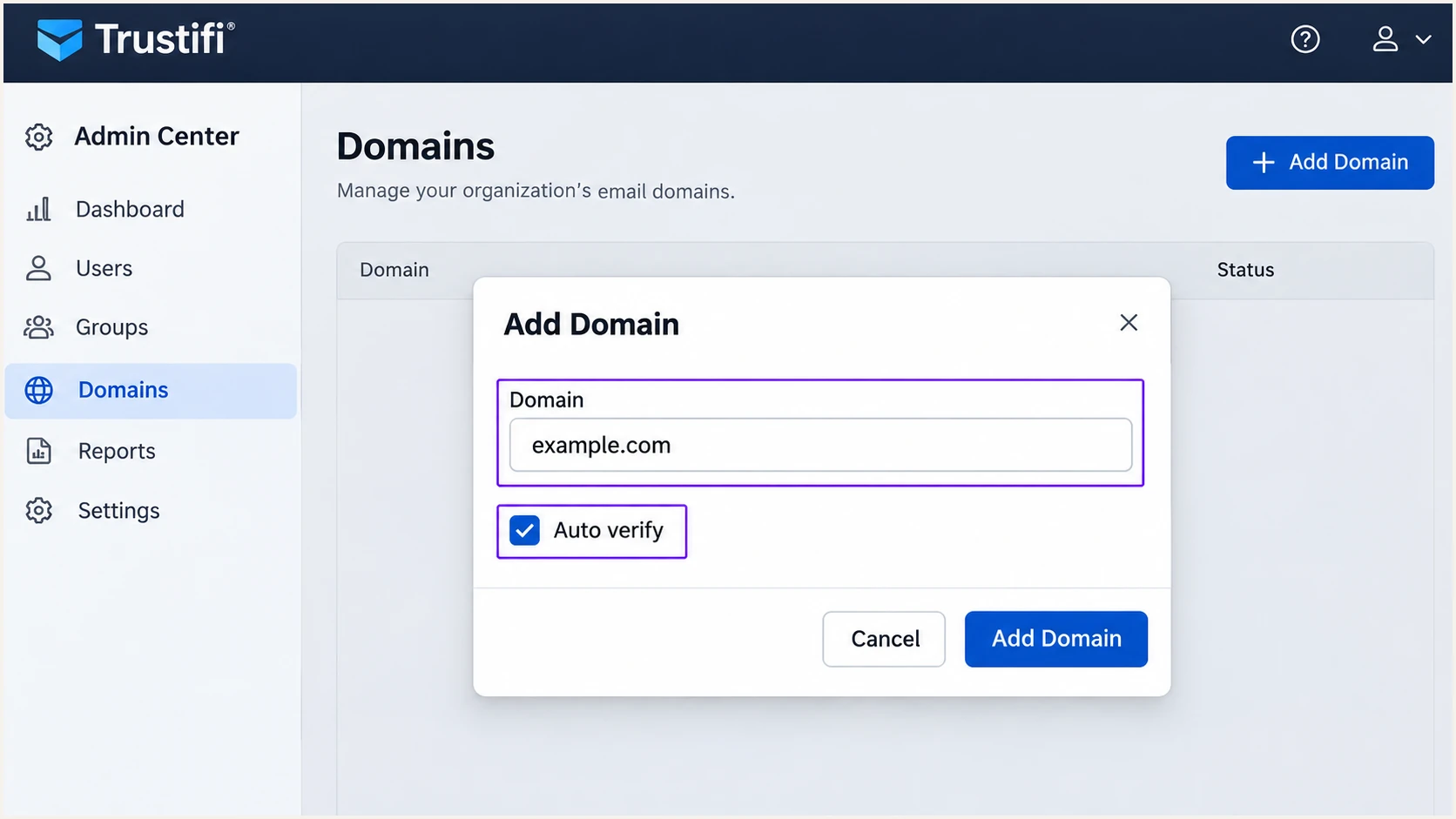
Add example.com in Trustifi and choose automatic DNS verification.
Auto Verify adds the new DNS records through your DNS provider. Review its proposed changes before approving them.
Keep your existing root MX records. Trustifi's bounce-handling MX record belongs at the MAIL FROM subdomain.
Set up SPF
Trustifi supports a custom Return-Path, also called MAIL FROM. SPF checks that envelope domain, which is separate from the visible From address.
I configure the root SPF include Trustifi requests and the separate MAIL FROM records. Both DNS names need the correct values.
- Merge the root SPF. Edit the existing TXT record and add include:_spf.trustifi.com before its final -all or ~all. Preserve your other authorized senders.
- Configure MAIL FROM. Publish its TXT record and single MX record exactly as Trustifi supplies them. The usual hostname is trustifi.example.com; copy your portal's regional MX target and priority.
- Check SPF limits. Publish only one v=spf1 record per hostname. Stay within 10 DNS-querying SPF terms during evaluation, including nested includes.
- Check domain matching. A Return-Path under trustifi.example.com matches From user@example.com with relaxed SPF alignment. An existing aspf=s policy requires an exact domain match.
This root example preserves Microsoft 365 authorization. The separate MAIL FROM example uses the US East region; replace it with the values Trustifi supplies.
The quoted fragments inside parentheses form one TXT value. In a DNS form, enter their combined value with the separating space and omit zone-file punctuation.
Example DNS zone records: root SPF and custom MAIL FROMdns
example.com. IN TXT (
  "v=spf1 include:spf.protection.outlook.com "
  "include:_spf.trustifi.com -all"
)

trustifi.example.com. IN TXT "v=spf1 include:amazonses.com ~all"
trustifi.example.com. IN MX 10 feedback-smtp.us-east-1.amazonses.com.
The root SPF record does not automatically authorize the MAIL FROM subdomain. SPF records apply to their own hostnames.
Check example.com and your actual MAIL FROM hostname separately. Review the evaluated lookup count after adding Trustifi.
SPF checker
Find SPF syntax issues, lookup limits, and weak records.
?/16tests passed
A valid SPF record confirms DNS authorization. A delivered message shows whether Trustifi actually used your custom Return-Path.
SPF passing for amazonses.com does not match a From domain of example.com. A matching DKIM pass can still satisfy DMARC while you fix MAIL FROM.
Set up DKIM
Trustifi supplies three DKIM CNAME records with domain-specific selectors. I publish all three to support the service's signing configuration.
Use the generated Trustifi records. A separately generated public key is ineffective unless the sending service uses its matching private key.
- Copy every selector. Open Actions > Show DNS Records and copy each DKIM hostname and CNAME target.
- Publish the CNAMEs. Use DNS-only resolution if your DNS provider offers proxying. Avoid a doubled domain suffix or another record at the same CNAME hostname.
- Recheck verification. Return to Domains and click Re-verify All. Confirm the DKIM status becomes 'Verified'.
- Inspect a delivered message. Require dkim=pass in the recipient's trusted Authentication-Results. Its header.d must match the visible From domain under your DMARC mode.
A DKIM CNAME delegates public-key lookup to the signing service. It is separate from the Identity TXT token.
Keep existing DKIM selectors used by other senders. Multiple selectors under the same domain are normal.
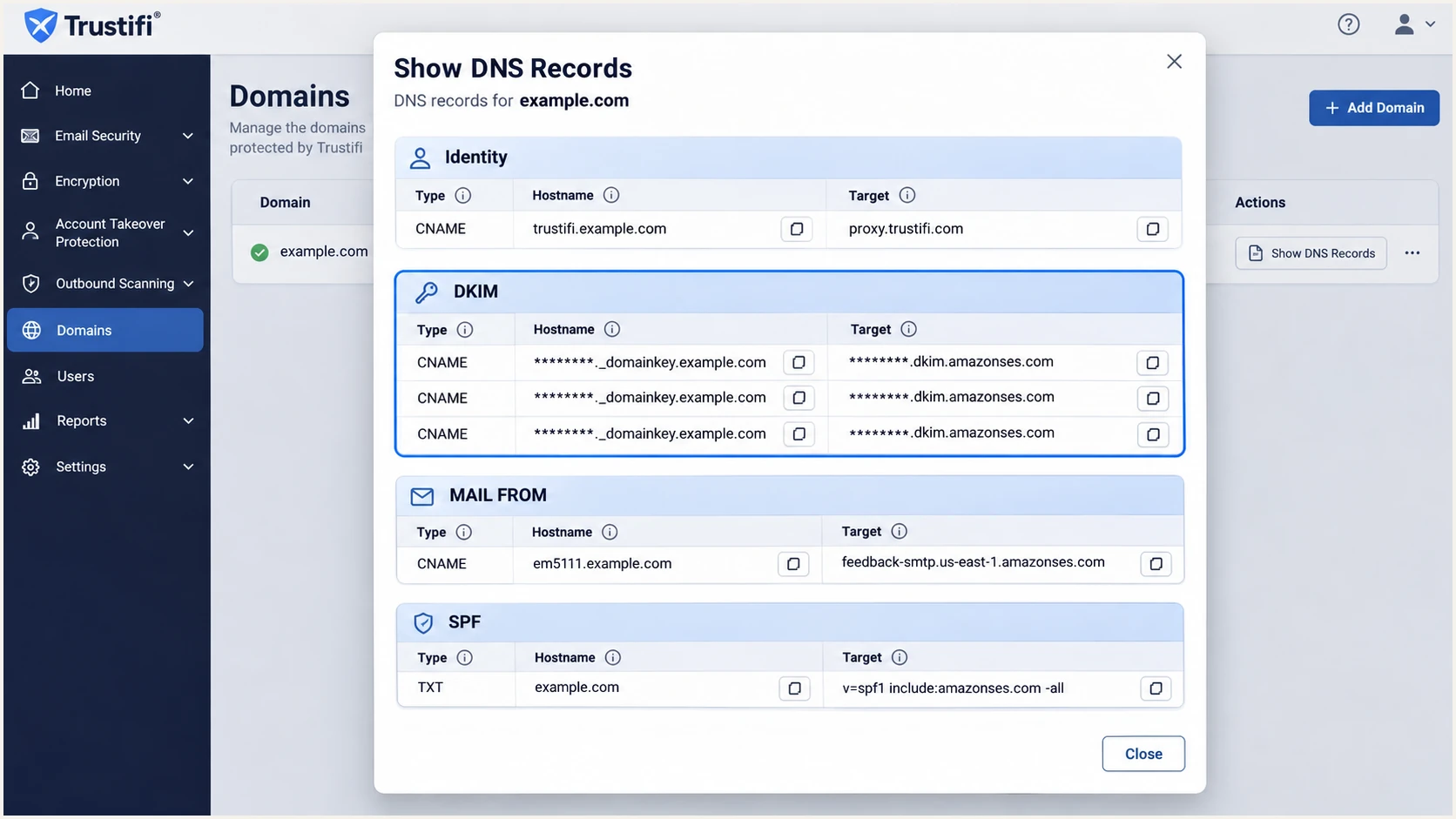
Copy all three DKIM CNAME records from Trustifi.
A passing signature for an unrelated signing domain does not satisfy your DMARC domain-matching requirement.
If DKIM stays unverified beyond 72 hours with correct publicly visible CNAMEs, contact support@trustificorp.com and request a DKIM verification reset.
Set up DMARC
Publish DMARC for the domain in your visible From address. Trustifi domain verification does not automatically create that policy.
I start with monitoring when a domain has no enforcement policy. Keep an existing p=quarantine or p=reject policy while adding Trustifi.
- Inspect the current policy. Look up TXT at _dmarc.example.com. Update the existing record if present; publish only one DMARC TXT record.
- Start monitoring. For a domain without enforcement, use p=none and a reporting address you control. Replace the example address before publishing.
- Preserve matching settings. The default SPF and DKIM modes are relaxed. Keep intentional strict settings and ensure at least one authentication mechanism meets them.
For example.com, create a TXT record named _dmarc with the value below. Replace dmarc@example.com with your actual reporting destination.
p=none requests monitoring. It does not request quarantine or rejection of messages that fail DMARC.
Starting DMARC TXT value at _dmarc.example.comdns
v=DMARC1; p=none; rua=mailto:dmarc@example.com
The DMARC record generator builds the TXT value. Check its policy and report destination before publishing.
Run the checker once DNS is publicly visible. Enter example.com when that is the domain in your visible From address.
DMARC checker
Look up a domain's DMARC record and catch policy issues.
?/7tests passed
An external reporting destination needs the reporting provider's DNS authorization. Follow its supplied instructions when setting rua.
Aggregate reports follow receiver schedules, often daily. The DNS check confirms the policy; a delivered test checks message authentication.
Verify and troubleshoot
I test the exact production route, including Trustifi policies that encrypt messages or modify their content.
Send to an external recipient. Internal delivery can use a different path and hide an outbound authentication problem.
- Confirm the route. Open Outbound Shield > Email Trace and locate your test. If it is absent, investigate routing before changing authentication records.
- Read trusted results. Require dmarc=pass in recipient-added Authentication-Results, supported by matching SPF or DKIM. Inspect Return-Path and DKIM signing details.
- Compare public DNS. Check the published TXT, CNAME and MX answers against Trustifi's required values. Fix duplicate SPF records, doubled hostnames or an incorrect regional MX.
- Test every sender domain. Repeat with each From domain and each production mail path, including mail that bypasses Trustifi.
The email tester is the quickest message-level check. Send a fresh message through Trustifi to the test address it provides.
It diagnoses authentication on the received message. A message sent through a different mail server validates that other route.
Email tester
Send a real email to this address. Suped shows a results button when the test is ready.
?/43tests passed
DMARC needs one matching authentication pass. SPF alignment errors can coexist with a DMARC pass when DKIM passes with the correct signing domain.
Trustifi supports custom MAIL FROM, so resolve an unexpected provider-domain Return-Path. Keep its domain-verification statuses verified as well as testing real messages.
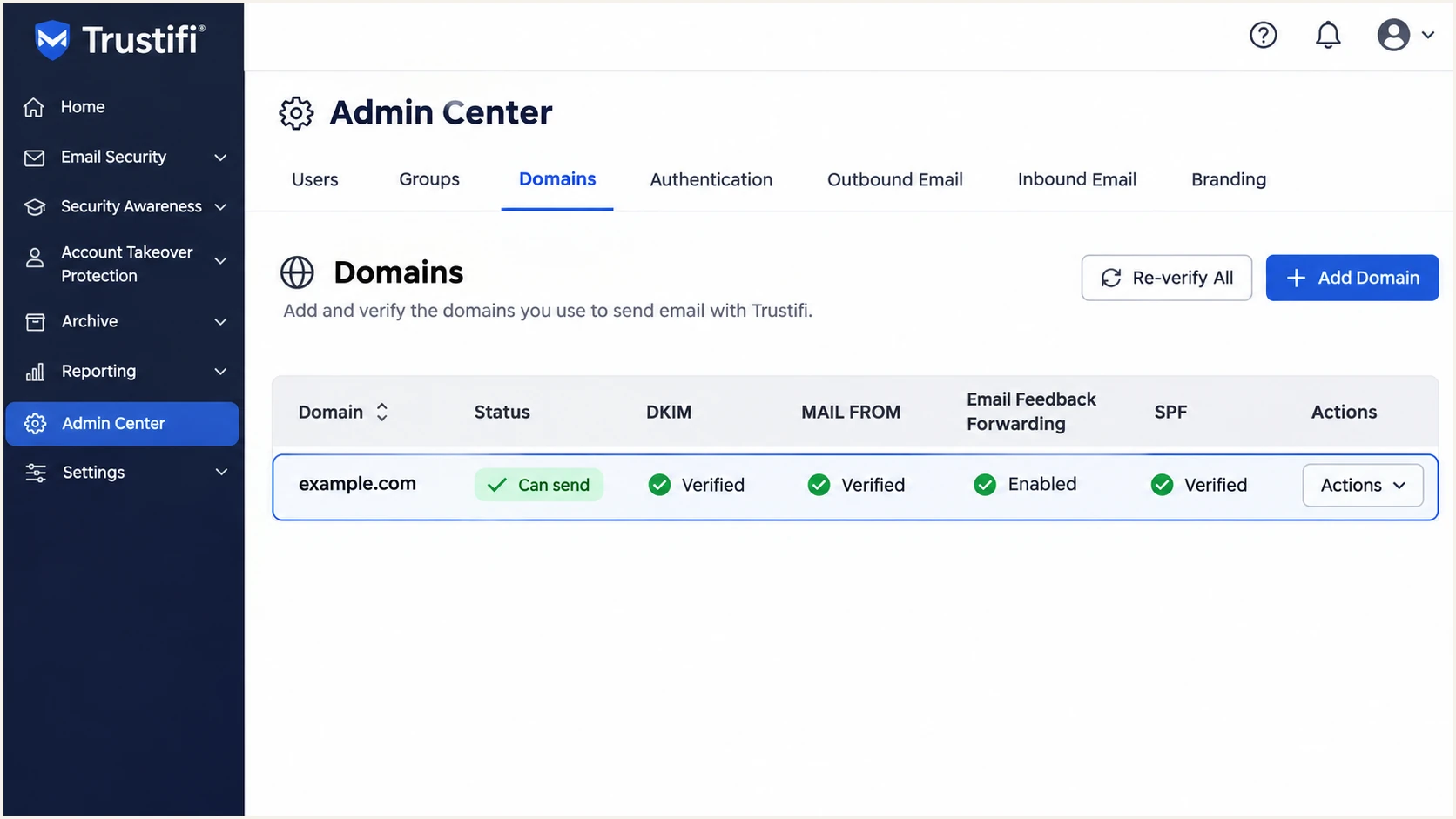
Confirm Can send and verified authentication statuses in Trustifi.
Trustifi's 'Can send' status confirms its verification checks. I also require a passing message test before enabling the route for all users.
For a stalled verification, compare the public answers with the portal first. Trustifi allows up to 48 hours for its Auto Verify workflow.
Get alerted when it breaks
Suped is our DMARC platform. Its automated issue detection and notifications give teams an ongoing way to catch Trustifi authentication failures.
With Suped DMARC monitoring, I review authentication by source and investigate legitimate Trustifi traffic separately from unknown senders.
- Verify the source. Review Sources in Suped and verify Trustifi after confirming that the traffic is legitimate. An rDNS suffix alone does not prove authorization.
- Enable notifications. Configure Issues detected and Sending sources need verification notifications. Enable DMARC summary emails for the team responsible for DNS and Trustifi.
- Inspect failures. Filter Data view by source or sending IP, then open Detail view for SPF and DKIM diagnostics.
- Review DNS changes. Use DNS history to compare records when failures follow a DNS edit. Apply the indicated fix and verify that the issue is resolved.
I give authentication alerts an owner who can edit DNS and administer Trustifi. That makes each alert actionable.
DMARC aggregate reports arrive after receivers generate them. Alert timing depends on when that data becomes available.
Use the right evidence
Use Trustifi Email Trace for immediate delivery investigations. Use Suped's reports and issue notifications to detect authentication failures across recipient traffic.
Keep Email Feedback Forwarding enabled in Trustifi when senders need bounce and complaint feedback.
Investigate that delivery feedback alongside source-level authentication results in Suped.
Secure your domain with p=reject
I move to p=reject after every legitimate sender has a working DMARC path. Check each source, including low-volume systems and scheduled mail.
Suped's diagnostics help isolate remaining legitimate failures. Our Hosted DMARC lets you stage policy changes in the dashboard after completing its DNS setup.
- Inventory senders. Identify Trustifi and every other legitimate sending source before enforcing a domain-wide policy.
- Fix production paths. Confirm Trustifi DKIM and custom MAIL FROM on delivered messages. Preserve intentional strict settings and verify that at least one mechanism satisfies them.
- Stage enforcement. For a new monitoring setup, progress from p=none to p=quarantine, then p=reject after legitimate failures are resolved. Keep existing enforcement while onboarding Trustifi.
- Check subdomains. Review inherited policies and explicit subdomain DMARC records. Observe normal business cycles and scheduled sending before advancing.
Judge readiness using legitimate sources. A failure rate dominated by unauthorized messages does not measure whether your actual senders are ready.
Use Suped to compare source-level results after each policy change. Retain reporting when enforcement is enabled.
|
|
|
|---|---|---|
p=none | Observe | Inventory senders |
p=quarantine | Treat as suspicious | Legitimate paths fixed |
p=reject | Reject failing mail | Production paths validated |
Policy progression for a domain starting without enforcement.
Receivers evaluate your requested policy alongside their local handling rules. p=reject is not a guarantee that every failing message is blocked.
Keep alerts active after enforcement. Verify new senders before their first production campaign or application release.
Frequency asked questions
That suffix identifies Amazon SES infrastructure. Trustifi uses Amazon SES for its Trustifi MTA architecture, but the suffix is shared by other SES customers. Match the message to Trustifi Email Trace and inspect its expected DKIM and MAIL FROM records before attributing it to Trustifi.
Trustifi documents include:_spf.trustifi.com for your existing root SPF record. Its custom MAIL FROM subdomain has a separate SPF TXT value, typically v=spf1 include:amazonses.com ~all. Copy the domain-specific records from Trustifi and preserve your other authorized senders.
SPF can pass for a provider-owned MAIL FROM domain without matching your visible From domain. Configure the custom MAIL FROM or obtain a passing DKIM signature with a matching signing domain. A strict aspf=s policy requires an exact SPF domain match.
Trustifi documents 'Your MTA' as returning processed mail to your server without requiring Trustifi sending-domain verification. Configure SPF for that final delivery server and verify that DKIM passes after Trustifi processing.
Records often verify within minutes, but Trustifi documentation allows up to 48 hours for Auto Verify. If DKIM remains unverified beyond 72 hours with correct public CNAME records, ask Trustifi support for a DKIM verification reset.
Keep an existing p=reject or p=quarantine policy. Complete Trustifi authentication and test the actual outbound route before enabling it for all users. p=none is the monitoring starting point for a domain without enforcement.




