How to set up DMARC/DKIM/SPF for TOPdesk

To authenticate TOPdesk SaaS email, enable domain-specific DKIM through TOPdesk, publish its supplied DNS records, and add DMARC to your sending domain. TOPdesk documents include:spf.topdesk.net for SPF authorization, but its default SaaS route does not support custom Return-Path alignment. DMARC therefore depends on passing DKIM with a matching domain.
I check the outbound mail route first. When TOPdesk sends through your company's mail server, that server's SPF and DKIM configuration determines authentication.
Add your domain
I configure the sender in TOPdesk's Email module, then verify domain-specific signing through DNS and a received message.
- Open mail settings. Go to Settings > Functional Settings > Email module. Identify whether you use the default TOPdesk SaaS server or your company's mail server.
- Set the sender. In General mail settings, set Default email of sender to an address such as helpdesk@example.com. Review sender overrides in email templates and automated actions.
- Request domain signing. For default SaaS sending, open My TOPdesk and use the DKIM and domain restriction request form. Identify your environment and each intended sender domain.
- Verify the domain. Publish the supplied DNS entries, obtain TOPdesk's activation confirmation, and check a newly received message. Entering a From address alone does not prove ownership.
The default sender is a fallback. I also inspect the actual From address on ticket notifications so that template overrides do not introduce an unauthenticated domain.
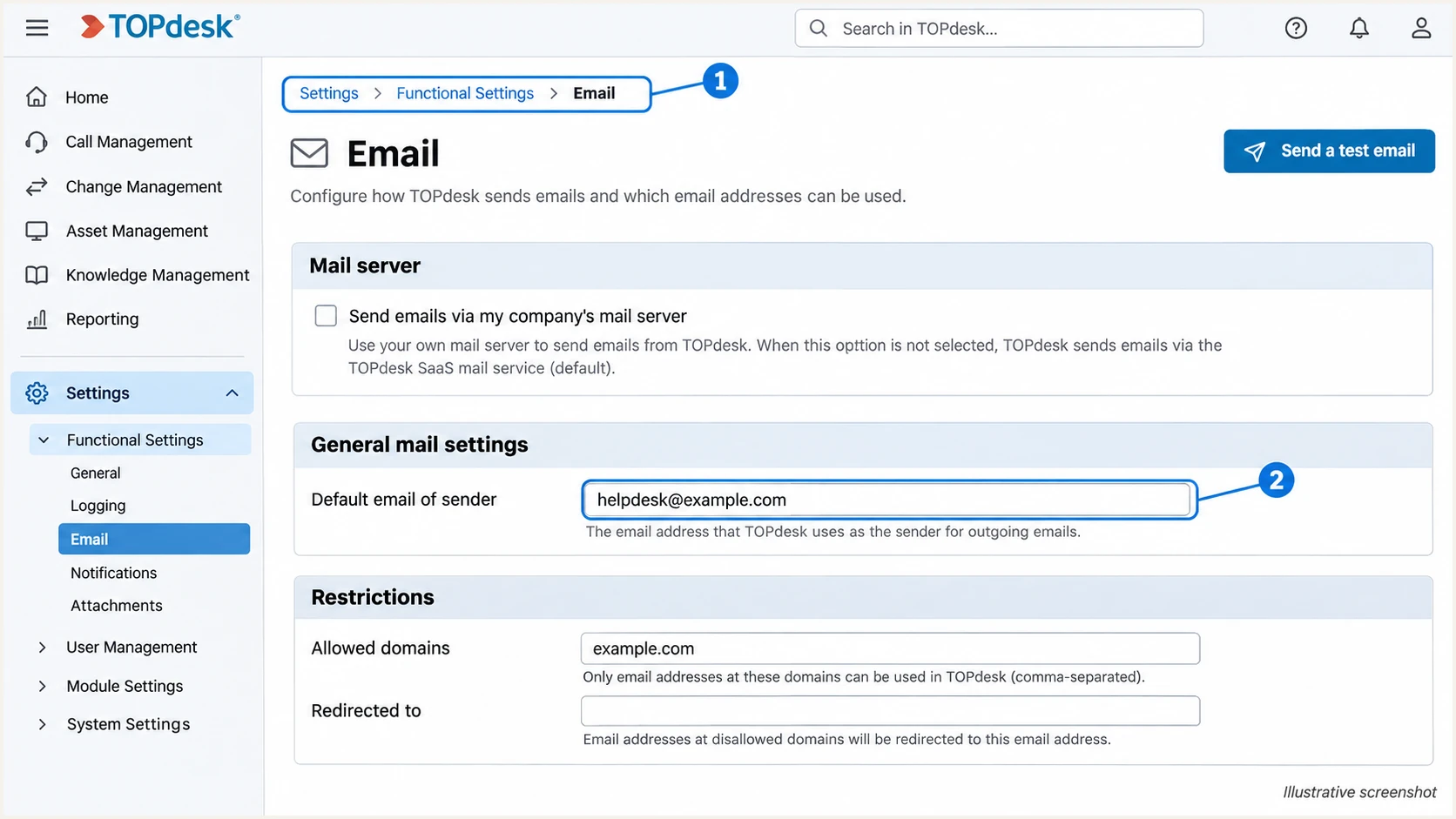
Illustrative TOPdesk Email module showing the default sender and outgoing mail route.
Allowed domains controls recipient destinations. It is not the place to authorize your sender domain; preserve your organization's existing recipient restrictions.
For a company mail server, confirm permission to send as the chosen address. OAuth access to a mailbox does not by itself configure DKIM signing.
Set up SPF
SPF checks the SMTP envelope sender, normally recorded in Return-Path. With a TOPdesk-owned Return-Path, changing your visible From domain's SPF record is not required for a DMARC pass and cannot create SPF alignment.
- Inspect the envelope. Read smtp.mailfrom in a recipient's Authentication-Results header. If it uses TOPdesk's domain, rely on matching DKIM for DMARC.
- Use the documented include. TOPdesk specifies include:spf.topdesk.net for SaaS sender authorization. If your TOPdesk configuration requires this authorization, merge it into the existing SPF TXT value before the final all mechanism.
- Preserve existing senders. Keep one SPF record per hostname. Retain other authorized services and the existing all policy; do not replace a shared record with a TOPdesk-only example.
- Check the route and limit. Keep SPF evaluation within 10 DNS-querying terms, including nested includes. When sending through your own mail server, use that route's SPF requirements rather than adding TOPdesk automatically.
I check the published record before changing it. The lookup below validates SPF syntax and lookup use, but a successful DNS check does not establish domain matching on an actual email.
SPF checker
Find SPF syntax issues, lookup limits, and weak records.
?/16tests passed
An SPF alignment warning is expected when a TOPdesk-owned envelope domain differs from your From domain. It is acceptable for DMARC when DKIM passes and its signing domain meets your DMARC matching requirement.
The following TXT value is only a TOPdesk-only authorization example at your sender hostname, such as example.com. Use it only when that authorization is required and no other senders need access.
Conditional SPF TXT value for TOPdesk-only authorizationtext
v=spf1 include:spf.topdesk.net -all
Do not copy individual TOPdesk server IP addresses into your record. The documented include lets TOPdesk maintain its authorized server list.
I leave an otherwise valid From-domain SPF record alone when the only reported problem is TOPdesk Return-Path matching. The next step is to verify DKIM.
Set up DKIM
Domain-specific DKIM is the essential DMARC path for TOPdesk's default SaaS sending. I obtain the selector and DNS values through the support request rather than guessing a selector.
- Obtain the records. Ask TOPdesk for domain-specific DKIM activation and the exact DNS record names, types, and values for your environment.
- Publish the supplied values. Create each requested DNS record exactly as provided. If it is a CNAME, leave it DNS-only. Check whether your DNS interface automatically appends the domain name.
- Confirm activation. Ask TOPdesk to confirm signing is active after DNS is available. A published public key does not prove the outbound mail server is using it.
- Check received headers. Require dkim=pass and inspect header.d or the DKIM-Signature d= value. Under relaxed matching, it must share the From domain's organizational domain; strict matching requires an exact domain match.
I read s= in DKIM-Signature to identify the selector and d= to identify the signing domain. A passing signature for a TOPdesk-owned domain alone does not authenticate your From domain for DMARC.
Default TOPdesk SaaS server
TOPdesk operates the signing service. Request customer-domain signing through My TOPdesk and publish the supplied DNS records.
Expect SPF domain mismatch when the Return-Path stays on TOPdesk infrastructure. Passing, matching DKIM provides the DMARC pass.
Your company's mail server
Configure DKIM on the service that actually sends the email. TOPdesk's SaaS signing request does not configure that separate server.
Verify that the chosen From address is permitted and that the final message leaves with your domain's valid DKIM signature.
During key rotation, keep the old selector published until messages signed with it have cleared mail queues. Check which selector new messages actually use.
I test every From domain used in production, including notification templates that override the default sender. One working address does not validate unrelated domains.
Set up DMARC
Publish DMARC in DNS for the domain visible in From. Start a new deployment at p=none. If the domain already uses p=quarantine or p=reject, keep that policy while configuring TOPdesk.
- Check the existing policy. Look up TXT at _dmarc.example.com for mail sent as example.com. Edit the existing DMARC record rather than creating a second policy record.
- Use the correct hostname. Create the TXT record at _dmarc for the sending domain's DNS zone. For helpdesk@support.example.com, inspect _dmarc.support.example.com and the applicable parent policy.
- Configure reporting. Use a report mailbox you control. Replace dmarc@example.com before publishing the example below, and preserve any existing reporting destinations.
- Keep domain matching practical. The example uses relaxed matching by default. Preserve existing strict settings unless you deliberately change policy and have checked every legitimate sender.
I use the DMARC record generator to prepare the TXT value. For a new deployment, the requested starting record is:
Initial DMARC TXT value at _dmarc.example.comtext
v=DMARC1; p=none; rua=mailto:dmarc@example.com
The reporting address is an example, not a working destination. An ordinary mailbox receives raw XML reports; use a report processor's assigned address when you want aggregated analysis.
For an external reporting domain, follow the report receiver's DNS authorization instructions. I verify the actual published hostname and value after saving DNS changes.
DMARC checker
Look up a domain's DMARC record and catch policy issues.
?/7tests passed
Check the domain in your actual From address. A valid DMARC record on an unrelated domain does not cover that sender, and a subdomain's own policy takes precedence when present.
Reports arrive after participating receivers generate them, commonly on a daily schedule. I send a test immediately for authentication evidence, then review aggregate data as it arrives.
Keep enforcement if it already exists
p=none requests monitoring without quarantine or rejection for DMARC failure. Do not weaken an established p=quarantine or p=reject policy to accommodate TOPdesk. Fix domain-specific DKIM and verify a new message under the existing policy.
Verify and troubleshoot
I verify a received message as well as DNS. TOPdesk's successful send result confirms submission to its mail server, not a DMARC pass or inbox placement.
- Open the test dialog. Go to Settings > Functional Settings > Email module and click Send a test email in the upper-right corner.
- Choose the sender. Enter the configured address in Send email from. Use the same domain as the production ticket notifications you need to authenticate.
- Send for diagnosis. Obtain the destination from the email tester below, enter it in Send email to, and click Send. Review the resulting authentication diagnosis.
- Test production messages. Trigger a real ticket notification and inspect the recipient's original headers. Repeat for sender overrides and after changing the outbound mail route.
The email tester prompts you to send a message to its test address and returns a full diagnosis. This is the quickest check of the message TOPdesk actually produces.
Email tester
Send a real email to this address. Suped shows a results button when the test is ready.
?/43tests passed
I look for dmarc=pass with dkim=pass and a signing domain that matches the From domain under the current policy. SPF pass on a different domain is a separate result.
Use a direct delivery test first. Forwarding and downstream changes to signed content complicate diagnosis, so compare that result with the original delivery path.
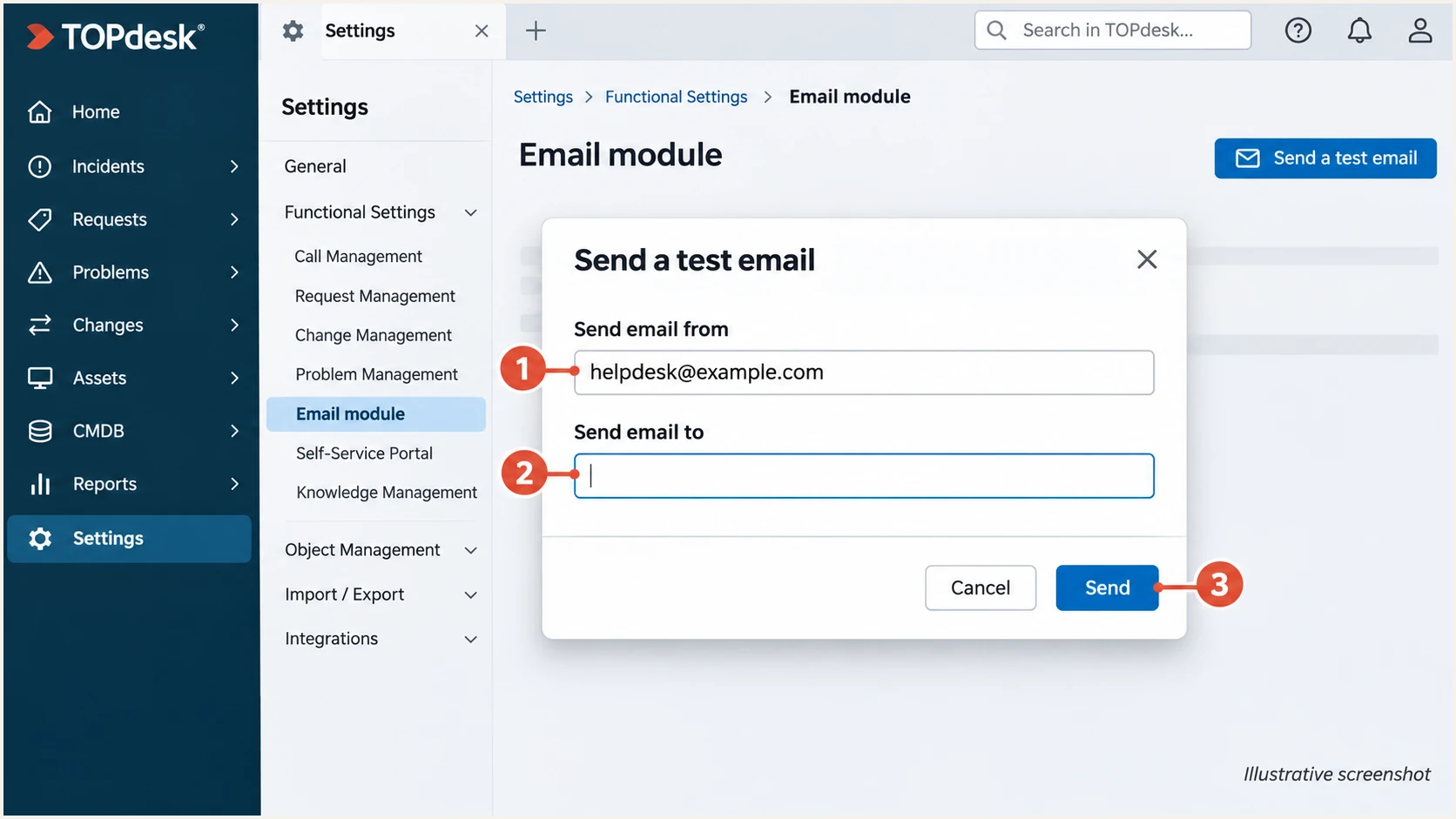
Illustrative TOPdesk test email dialog with sender, recipient, and Send controls.
If no test arrives, check the Email module's Allowed domains and Redirected to settings before assuming an authentication failure. Confirm that the test destination is permitted by your organization's mail policy.
For a received failure, compare the final From domain, envelope sender, and DKIM signing domain. Then use the specific result below to choose the next check.
|
|
|---|---|
SPF mismatch | Matching DKIM |
DKIM missing | Signing activation |
DKIM failure | Selector and DNS |
DMARC failure | From-domain matching |
No delivery | Restrictions and logs |
Checks for TOPdesk email authentication failures.
For missing DKIM, check signing activation on the actual outbound server. For failing DKIM, check the selector's published key or CNAME target and any gateway that modifies the message after signing.
I retain a failing message's full headers and send time when escalating to TOPdesk. Include the sender address and environment identifier so support can locate the relevant mail flow.
Get alerted when it breaks
Suped is our DMARC monitoring platform. It turns aggregate reports into source-level authentication results and issue notifications, so a TOPdesk signing failure has a clear investigation path.
- Verify the source. Review the TOPdesk traffic against your known environment and received headers before marking it as an authorized sending source.
- Enable issue notifications. Use Suped's Issues detected notifications for authentication problems and Sending sources need verification notifications for newly identified sources.
- Inspect the failure. Filter DMARC records to TOPdesk and inspect DKIM results, signing domains, and sending IPs. Treat expected SPF mismatch separately from a genuine loss of the DMARC pass.
- Trace and retest changes. Use DNS history to compare authentication record changes. Follow the issue's fix steps, send another TOPdesk test, and confirm later reports show recovery.
I use DMARC summaries to catch gradual changes in source volume and pass rates. Aggregate reporting has receiver-side delays, so notifications depend on when new report data becomes available.
Prioritize a loss of matching DKIM
For TOPdesk's default SaaS route, a new failure of domain-specific DKIM removes the authentication path DMARC depends on. Check the signing domain and selector, then involve TOPdesk if signing stopped or switched to a different domain.
Suped's detailed record diagnostics connect the report result to DNS checks. That makes it easier to distinguish a removed DNS record from an outbound signing problem.
I keep a named owner for these alerts and retest after DNS changes or mail-server migrations. A one-time successful configuration check does not establish ongoing health.
Secure your domain with p=reject
Move to p=reject after legitimate mail consistently passes DMARC. I review TOPdesk separately in Suped's source table because a healthy domain-wide percentage can conceal a failing ticket-notification stream.
- Account for legitimate senders. Review all services using the domain, including infrequent notifications. Confirm matching SPF or DKIM for each; TOPdesk's default SaaS route needs matching DKIM.
- Test real workflows. Check ticket notifications and automated-action messages using every production From domain. Include any forwarding paths and gateways your recipients depend on.
- Stage enforcement. For a new deployment, change p=none to p=quarantine after fixing legitimate failures. Review subsequent report cycles and delivery complaints before proceeding to p=reject.
- Keep reporting active. Preserve rua when changing policy. Check applicable subdomain policies and keep monitoring after enforcement; an already enforced domain does not need to repeat the monitoring stage.
I base the change on evidence covering normal and infrequent sending, rather than a fixed waiting period. In Suped, investigate unresolved legitimate-source failures before approving the next policy stage.
Final DMARC example, replace the reporting addresstext
v=DMARC1; p=reject; rua=mailto:dmarc@example.com
Suped's Hosted DMARC lets you manage policy in the dashboard after initial DNS delegation. Use it to apply the reviewed policy while keeping reporting in place.
p=reject requests rejection of messages that fail DMARC. Receivers retain their own delivery decisions, and a DMARC pass does not guarantee inbox placement.
Expected result for TOPdesk SaaS
A legitimate TOPdesk message passes DKIM with the required domain match and passes DMARC. SPF alignment can still fail on a TOPdesk-owned Return-Path without preventing that DMARC pass.
I keep the TOPdesk domain restriction in place alongside DMARC. It limits which TOPdesk environments can use your domain, while DMARC expresses your policy to receiving mail systems.
After enforcement, keep Suped issue notifications enabled and rerun a TOPdesk test after sender-domain changes or signing-key rotation.
Frequency asked questions
No. DMARC passes when either SPF or DKIM passes with the required domain match. TOPdesk's default SaaS route does not support custom Return-Path alignment, so configure domain-specific DKIM. An expected SPF alignment warning is acceptable when matching DKIM and DMARC both pass.
TOPdesk uses topdesk.net mail infrastructure. I treat a matching rDNS suffix as an attribution clue and confirm it against the sending IP and message headers before identifying a source. Reverse DNS alone does not prove authorization or a DMARC pass.
TOPdesk documents include:spf.topdesk.net for its SaaS mail servers. Use that documented mechanism when your TOPdesk setup requires SPF authorization, and merge it into an existing record. It does not create custom Return-Path alignment, and it is unnecessary solely because TOPdesk sends through your own mail server.
Use the selector and DNS values supplied for your domain by TOPdesk. I confirm the active selector in the s= tag of a new message's DKIM-Signature and the signing domain in d=. Do not assume a selector copied from another customer's setup will work.
Keep your existing p=reject or p=quarantine policy. Configure matching DKIM on the actual sending route and test the result before relying on TOPdesk for production notifications. The p=none starting example is for a new DMARC deployment.
The success result confirms submission to the mail server. Check recipient restrictions and redirection in the Email module, then inspect mail-server logs and recipient-side filtering. A later rejection or spam placement requires separate investigation; successful submission alone does not verify authentication.