
How to set up DMARC/DKIM/SPF for Titan Mail

To authenticate Titan Mail, publish its regional SPF include in your domain's existing SPF TXT record, generate and verify a custom DKIM key in Titan's Email Reputation panel, and publish a DMARC TXT record at _dmarc. For the default region, Titan documents include:spf.titan.email; EU accounts use include:spf0101.titan.email. Start a new DMARC setup with p=none. Keep an existing quarantine or reject policy.
I verify the domain first, then check an actual message sent through Titan. A published DNS record is only part of the setup: DMARC passes when SPF or DKIM passes using a domain that matches the visible From domain under the configured DMARC matching rules.
Add your domain
Your domain belongs to the Titan email subscription purchased through your hosting provider or reseller. Open that subscription's administration panel to manage the domain; Titan webmail is the mailbox interface.
- Open the subscription. Select your domain's Titan email plan in the account where you purchased it, then launch the Titan Email Control Panel with administrator access. If the domain is absent, complete the domain association through that provider first.
- Find authoritative DNS. Edit records where the domain's active nameservers point. The registrar's DNS editor has no effect if another provider hosts the authoritative zone.
- Set inbound routing. For a new Titan mailbox deployment, add the MX pair assigned to your account, using host @ and TTL 3600. Replace the previous mailbox provider's MX records only when the mailbox migration is ready.
- Finish verification. Publish the regional SPF TXT record in the next section. Return to Connect Domain to Email in Titan and click Check again. Confirm that the domain becomes verified before testing sending and receiving.
Default-region MX records for example.comdns
example.com. 3600 IN MX 10 mx1.titan.email.
example.com. 3600 IN MX 20 mx2.titan.email.
For an EU-region account, the alternative MX pair is mx0101.titan.email with priority 10 and mx0102.titan.email with priority 20. Use the pair shown for your Titan subscription, rather than choosing records based on your current location.
MX records route incoming mail; they do not authenticate outgoing messages. An existing, verified Titan domain normally needs no MX changes when you add DMARC.
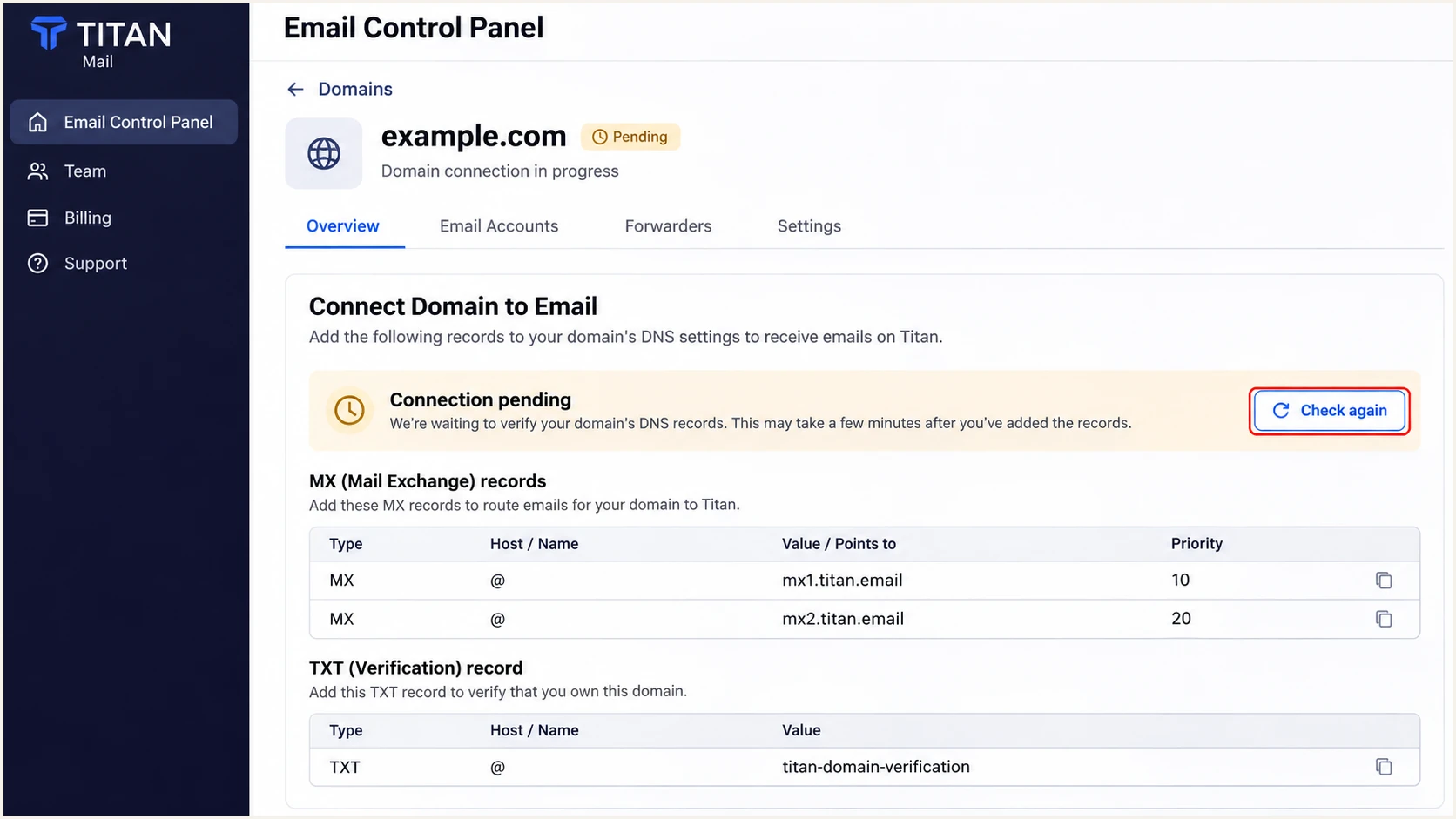
Illustrated Titan domain connection screen with Check again highlighted.
A successful recheck confirms Titan can see the required domain records. DKIM has a separate verification step in Email Reputation.
If the recheck fails, compare the authoritative DNS answers with Titan's required values before waiting for caches to expire. Repeating the same change in an inactive DNS zone will not fix verification.
Set up SPF
Titan supports a Return-Path using your sending domain, so SPF can contribute to DMARC for normal Titan mailbox sending. Publish the include that Titan documents for your account's region.
- Inspect the root. Look for a TXT record beginning v=spf1 at your sending domain. Keep one SPF record at that name; other unrelated TXT records can remain.
- Authorize Titan. If no SPF record exists, publish the matching regional value below with host @, type TXT, and TTL 3600. If one exists, insert the appropriate Titan include before its final all mechanism.
- Preserve other senders. Keep the mechanisms needed by other legitimate services. Do not publish both example records or remove an existing -all ending without reviewing the current policy.
- Check DNS lookups. Validate the complete merged record against SPF's limit of 10 DNS-querying terms, including nested includes. Adding one Titan include does not necessarily consume only one lookup.
Titan's Domain DNS Records documentation distinguishes the default and EU include names. These are alternatives, not a requirement to authorize both regions.
The following values are complete SPF TXT values for a domain whose only sender is Titan. Merge the appropriate include into an existing policy when your domain has additional senders.
Default region
Use with the Titan account that specifies the default-region MX pair.
Default-region SPF TXT valuetext
v=spf1 include:spf.titan.email ~all
EU region
Use when your Titan subscription specifies the EU-region DNS records.
EU-region SPF TXT valuetext
v=spf1 include:spf0101.titan.email ~all
I check the full published policy after saving it, including nested includes. Duplicate SPF records cause a permanent SPF error rather than combining permissions.
Enter the domain you actually send from below. A correct lookup establishes that DNS is ready; the delivered-message test later confirms which Return-Path Titan used.
SPF checker
Find SPF syntax issues, lookup limits, and weak records.
?/16tests passed
Expect one valid SPF policy with the assigned Titan include and a lookup count within the limit. If the sender uses a subdomain as its Return-Path, inspect the SPF record at that subdomain too.
SPF authenticates the SMTP envelope sender, not the visible From address. Check the domain in the receiver's smtp.mailfrom result against the visible From domain before treating SPF as a DMARC pass.
Set up DKIM
Generate the public key inside Titan so that it matches the private key Titan uses to sign your mail. A key generated elsewhere will not activate Titan's custom signing.
- Open Email Reputation. In the Titan Email Control Panel, click Improve Email Reputation in the banner, or open Email Reputation in the sidebar.
- Generate the record. Under Add DKIM record, click Add. Scroll to the generated DNS Host Name and TXT record value. If an existing record is already verified, retain it instead of generating an unnecessary replacement.
- Publish the public key. Create a TXT record in authoritative DNS using Titan's exact host and complete value. If your DNS editor appends the domain automatically, enter only the relative host, such as titan1._domainkey when that is the selector Titan supplied.
- Verify in Titan. Return to Email Reputation, select I've added TXT records in my DNS control panel, then click Verify changes. Confirm the DKIM status becomes Verified.
The selector is the part before ._domainkey. Use the selector generated for your domain; titan1 is an example, not a selector to assume for every account.
Titan keeps the private signing key. Publish only the public TXT value supplied by Titan, preserving its complete p= value and any required separators.
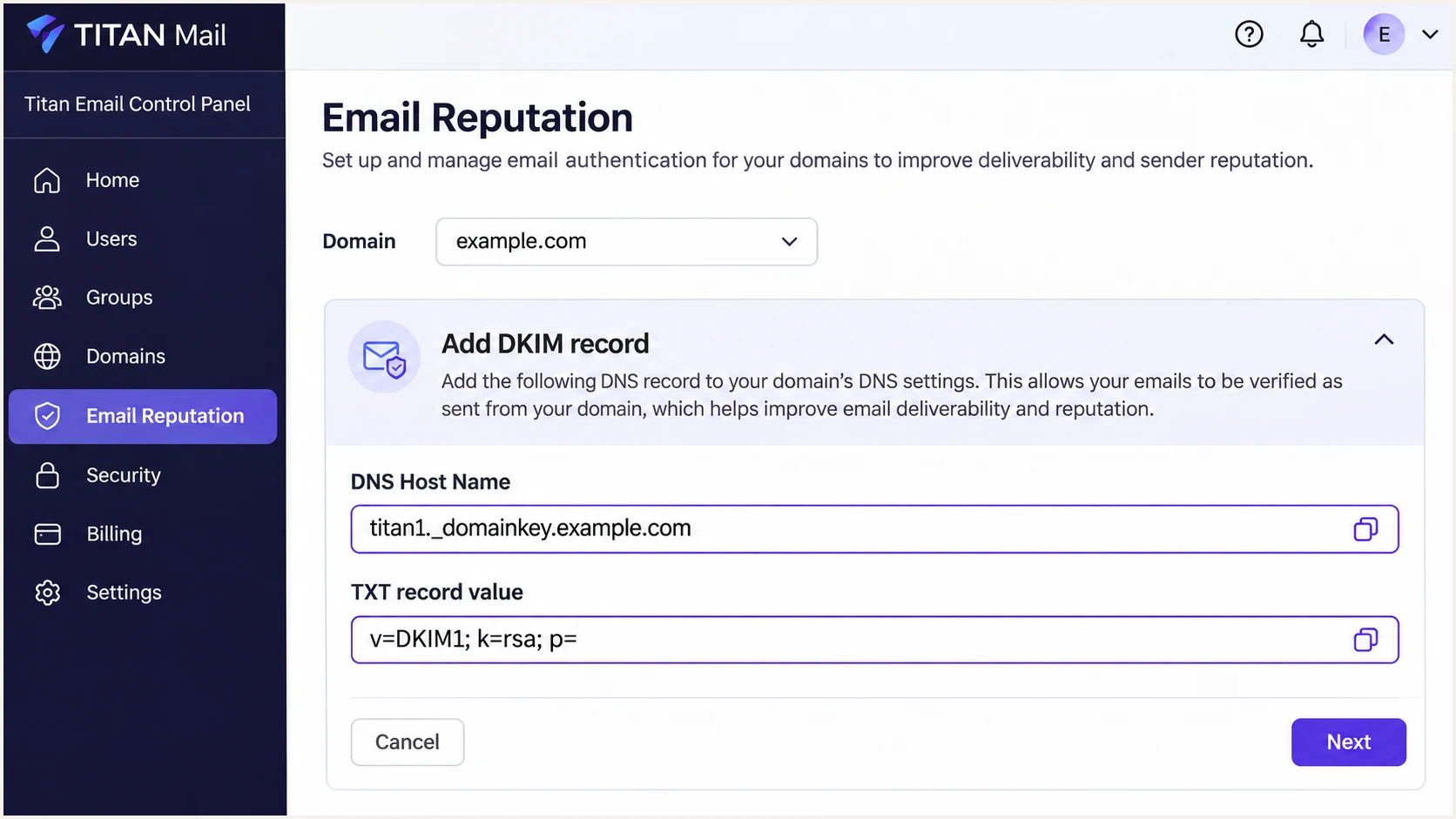
Illustrated Titan Email Reputation panel showing the DKIM host and public TXT value.
Titan documents that DKIM DNS changes sometimes take up to six hours to become visible to its verification checks. Once the authoritative answer is correct, allow cached answers to expire before changing the record again.
Verification in the panel confirms that Titan recognizes the public key. A fresh message must also show a passing DKIM signature with a signing domain that matches your From domain for DMARC.
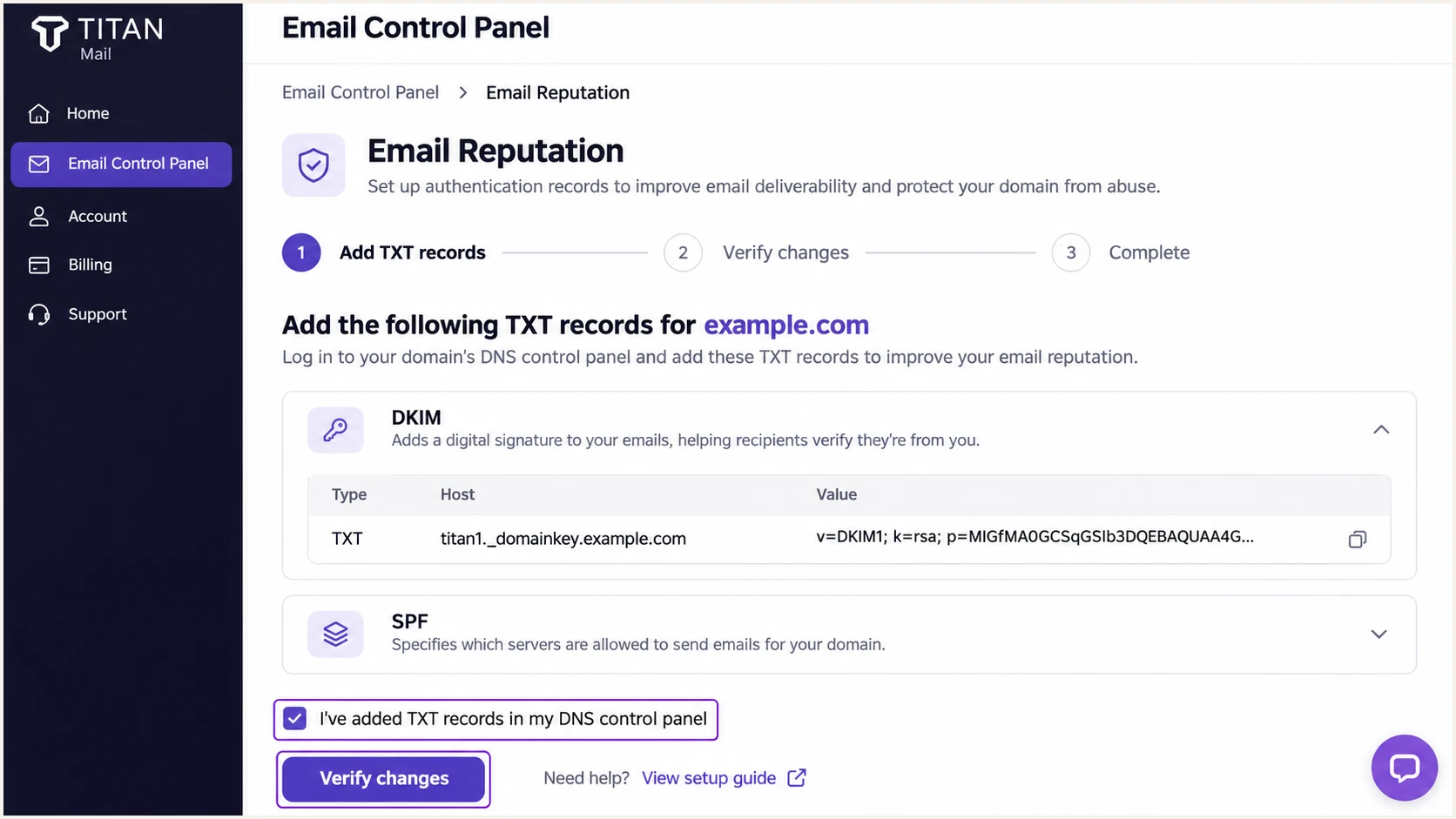
Illustrated Titan DKIM verification step with Verify changes highlighted.
If Titan rejects the record, compare the saved hostname with the generated hostname character for character. A repeated domain suffix places an otherwise correct key at the wrong DNS name.
Keep one public-key TXT record per selector. Multiple quoted character strings within one TXT record are valid; separate competing TXT records at that selector are a different problem.
Set up DMARC
DMARC is published in your authoritative DNS zone. Titan supplies the mailbox sending and DKIM signing; it does not require a separate DMARC switch in webmail.
- Inspect the current policy. Look up TXT at _dmarc followed by your sending domain. Edit an existing DMARC policy instead of adding a second record.
- Start new policies safely. For a domain without DMARC, add a TXT record with host _dmarc, TTL 3600, and the p=none value below. Keep an existing p=quarantine or p=reject policy while configuring Titan.
- Use a working report address. Replace dmarc@example.com with a mailbox or reporting destination you control. The example address is not a working reporting destination for your domain.
- Keep matching defaults. Leave adkim and aspf unset for relaxed domain matching unless your existing policy deliberately requires strict matching. Relaxed matching permits domains within the same organizational domain.
New-policy example: TXT value at _dmarc.example.comtext
v=DMARC1; p=none; rua=mailto:dmarc@example.com
Use the DMARC record generator to create the policy with your own reporting destination. A p=none policy requests reports without requesting quarantine or rejection of failing messages.
Check the published record below after saving it. If the report destination uses another domain, that destination must provide the required external reporting authorization for receivers that check it.
DMARC checker
Look up a domain's DMARC record and catch policy issues.
?/7tests passed
Expect one valid DMARC record at the intended name and the reporting address you selected. Many DNS editors append the zone name, so entering _dmarc.example.com into a relative-name field creates the wrong name.
Aggregate reports usually arrive on a daily cycle, and not every receiver sends them. Use a message test for immediate feedback rather than waiting for the first report.
Verify and troubleshoot
I verify both the DNS answers and a newly sent message. The message must travel through Titan, because a website or application that sends directly has a separate authentication setup.
- Send through Titan. Send a fresh message from Titan webmail or a client configured to use Titan's outbound SMTP service. Repeat for any aliases or sending applications that use a different route.
- Inspect the receiver's results. Read Authentication-Results added by the receiving service. Look for spf=pass, dkim=pass, and dmarc=pass, then inspect the domains behind those results.
- Check domain matching. Compare smtp.mailfrom with the visible From domain for SPF, and the DKIM d= domain with From for DKIM. DMARC needs at least one passing method with a matching domain.
- Diagnose forwarded mail. Forwarding often breaks SPF because the connecting IP changes. A surviving, passing DKIM signature with a matching signing domain still satisfies DMARC.
- Separate delivery issues. Authentication passing does not guarantee inbox placement. If the message is accepted but sent to spam, investigate sending practices and recipient feedback after confirming authentication.
Illustrative passing results for a Titan messagetext
Authentication-Results: mx.example.net;
    spf=pass smtp.mailfrom=example.com;
    dkim=pass header.d=example.com;
    dmarc=pass header.from=example.com
The quickest end-to-end check is the email tester below. Send from your Titan mailbox to the address it provides, then inspect the authentication diagnosis for that exact message.
Use a fresh message after each fix. An old message retains the authentication results recorded when it arrived, even after its sender's DNS changes.
Email tester
Send a real email to this address. Suped shows a results button when the test is ready.
?/43tests passed
If sending fails before a message reaches the tester, read Titan's bounce response first. Titan documents 550 5.7.5 for a missing SPF record, 550 5.7.2 for an SPF policy that does not authorize Titan, and 550 5.8.1 for several DKIM public-key errors.
For a 550 5.8.1 error, the accompanying text identifies whether the key is missing, invalid, or duplicated. Correct that specific condition, reverify in Titan, and send another test.
|
|
|---|---|
SPF missing | Publish root TXT |
SPF policy reject | Add regional include |
DKIM key missing | Correct selector host |
DKIM key invalid | Re-copy complete value |
Duplicate DKIM | Keep one key record |
Common Titan authentication failures and the next DNS action.
If DNS looks right but Titan still reports an error, query the authoritative nameserver directly. Use the actual selector from Titan in the DKIM command; the selector below is illustrative.
The first command identifies the active nameservers. The remaining commands query one of those servers directly, separating the published zone data from a recursive resolver's cached answers.
Check delegation and query the authoritative serverbash
dig +short NS example.com

# Replace ns1.example.net with a nameserver returned above.
dig @ns1.example.net +short MX example.com
dig @ns1.example.net +short TXT example.com
dig @ns1.example.net +short TXT titan1._domainkey.example.com
dig @ns1.example.net +short TXT _dmarc.example.com
A correct authoritative answer with an outdated recursive answer indicates caching. An incorrect authoritative answer requires a DNS fix; waiting for propagation will not repair it.
Get alerted when it breaks
Suped is our DMARC reporting and email authentication platform. Its DMARC monitoring turns receiver reports into sending-source results and detected issues, so a later DNS change does not have to wait for a customer complaint.
- Keep reporting active. Keep a valid rua destination in the single DMARC policy. For reports processed by Suped, use the reporting destination supplied for your domain, preserving the current enforcement policy.
- Enable issue emails. In Suped Notifications, enable Issues detected and Sending sources need verification. Add DMARC summary emails for a recurring review.
- Review Titan failures. Inspect Titan's source results for changes in passing volume. Open the affected records to distinguish SPF authorization problems, DKIM failures, and domain-matching failures.
- Identify unknown sources. Verify sources only after confirming that your organization uses them. A Titan hostname or passing authentication result alone does not prove that the mail is authorized by your organization.
- Confirm the repair. Use Suped's issue fix steps and DNS history to investigate the change, then retest through Titan. Check subsequent aggregate reports for recovery.
This is where Suped adds ongoing operational value: the domain can remain configured in Titan while Suped detects authentication issues and sends notifications. Titan's domain verification alone does not show every other service sending with your From domain.
Report-based alerts depend on receivers submitting data. They cannot detect every failing message immediately; use the email tester after a planned change and ongoing alerts for problems discovered in later reports.
Use both immediate tests and ongoing monitoring
A test message checks the route you just used. Suped's receiver-report analysis checks reported activity over time, including senders outside Titan. Keep issue notifications enabled after setup and after moving to enforcement.
When investigating a new failure, record the affected source and the first observed date. Compare that period with DNS edits and changes to applications that send email.
Fix the sending configuration before changing the domain's DMARC policy. A temporary Titan configuration problem does not justify removing protection for every sender using the domain.
Secure your domain with p=reject
Move to p=reject after every legitimate sending service has a reliable DMARC pass. I base that decision on observed sending activity, including infrequent application mail, rather than a single successful Titan test.
- Inventory legitimate mail. Review Titan and every other authorized source in Suped across a complete sending cycle. Include password resets and infrequent billing runs; leave p=none in place longer when those messages have not yet appeared.
- Resolve legitimate failures. Use Suped's record-level diagnostics and issue fix steps to correct each authorized source. Do not add an IP to SPF solely because it appears in a failing report.
- Stage enforcement. Change a new monitoring policy to p=quarantine after legitimate sources pass. Monitor reported failures and actual delivery before requesting rejection. Keep an existing stronger policy while adding Titan.
- Review subdomains. Check whether subdomains send mail and whether they publish their own DMARC records. The parent policy also affects covered subdomains unless an sp policy or a more specific record changes that behavior.
- Request rejection. Update the existing policy to p=reject and retain rua reporting. Continue Suped issue notifications so new senders and later DNS mistakes are investigated.
Suped's Hosted DMARC provides dashboard policy management and staging after its initial DNS setup. That makes it practical to review reported source results and advance the policy without making a manual DNS edit for each policy change.
Readiness means legitimate sources pass with the required domain matching, including at receivers important to your business. A high overall pass rate alone can hide a low-volume business application that still fails.
Do not advance with unexplained legitimate failures
DMARC needs a passing SPF result with a matching envelope domain or a passing DKIM signature with a matching signing domain. SPF passing for an unrelated domain does not satisfy DMARC. Reliable custom DKIM remains important when forwarding breaks SPF.
Keep the same reporting destination when changing policy so results remain comparable. Save the previous DNS value and investigate any delivery regression against the sending service involved.
For a domain ready for rejection, the example below replaces the earlier monitoring value. Substitute your real reporting address and preserve any deliberately configured tags.
Enforced DMARC TXT value at _dmarc.example.comtext
v=DMARC1; p=reject; rua=mailto:dmarc@example.com
The reject policy asks receiving services to reject messages that fail DMARC; receivers retain their own handling rules. It does not guarantee inbox delivery or protect unrelated lookalike domains.
Recheck enforcement when onboarding another sender or rotating a DKIM key. Test the changed sending route before relying on its next scheduled production messages.
Frequency asked questions
Hostnames under out.titan.email are associated with Titan Mail's outbound infrastructure. Treat that suffix as an identification clue, then confirm the sending IP and the receiver's authentication results. Titan manages reverse DNS for its outbound servers; you do not add a PTR record to your own domain's DNS to configure Titan.
Both are documented Titan Mail SPF includes. Titan specifies spf.titan.email for its default region and spf0101.titan.email for its EU region. Publish the include assigned to your subscription, merged into your existing SPF record. Do not authorize both solely because both names are related to Titan.
Titan supports a Return-Path using your sending domain, so SPF can satisfy DMARC when that domain matches the visible From domain under your policy's matching rules. Confirm the actual smtp.mailfrom value in a delivered message. No separate Return-Path setup is required by the standard Titan mailbox DNS instructions.
DMARC requires at least one passing method with a matching domain: SPF using the envelope sender domain, or DKIM using the signing domain. Configure both for Titan. A forwarded message can still pass DMARC through DKIM when forwarding causes SPF to fail.
Check the exact selector hostname, authoritative DNS zone, complete public key, and whether multiple key TXT records exist at that selector. A DNS editor that appends your domain can accidentally create a repeated suffix. Correct the record and click Verify changes in Titan's Email Reputation panel after caches expire.
Verification succeeds once the required DNS answers are visible to Titan. Titan documents up to six hours for some DKIM changes, and its domain-verification guidance allows up to 48 hours for DNS changes. Inspect authoritative answers first, then cached answers. Send a fresh message after verification; DMARC aggregate reports usually follow on a daily cycle.




