
How to set up DMARC/DKIM/SPF for Telecom Argentina


I configure Telecom Argentina email authentication by authorizing its outbound servers in SPF, having Telecom enable DKIM signing for my domain, and publishing a DMARC TXT record at _dmarc. Start with p=none when no enforcement policy exists, test actual messages, then move toward p=reject. Keep an existing quarantine or reject policy.
Use the domain in your visible From address. Telecom's public 'Configuracion Cuentas de Correo' document covers custom-domain mail and an older ArnetBiz panel, but does not supply a universal customer SPF include or DKIM selector. Get those account-specific values and confirmation that your mail service is active before changing DNS.
Add your domain
For a new custom domain, ask Telecom's business support contact to provision it on your mail service. For an existing domain, confirm the assigned mail service and administrator access. The public instructions do not establish a self-service 'Add domain' workflow.
- Confirm service: Give support your customer reference and sending domain. Request the active control-panel address, authenticated SMTP settings, outbound SPF authorization, and DKIM setup details.
- Verify ownership: Complete the ownership check Telecom requests. If it supplies a DNS token, publish that exact name and value, then request confirmation that provisioning is complete.
- Find DNS access: Identify the authoritative DNS host with the command below. Edit records there, or request the changes through Telecom if Telecom manages the zone.
- Confirm mailbox: Create or confirm a mailbox on your domain through your account administrator. Send and receive a message before changing authentication records.
Identify the authoritative DNS serversbash
dig +short NS example.com
Telecom's documented legacy access is paneldecontrol.arnetbiz.com.ar. Its mail instructions use Mail > Webmail > Abrir Webmail. Use the current access address supplied for your account; the historical panel address was inaccessible during this check.
The illustration below identifies that documented webmail path. It is a reconstruction of the legacy interface, not confirmation of a current domain-management screen.
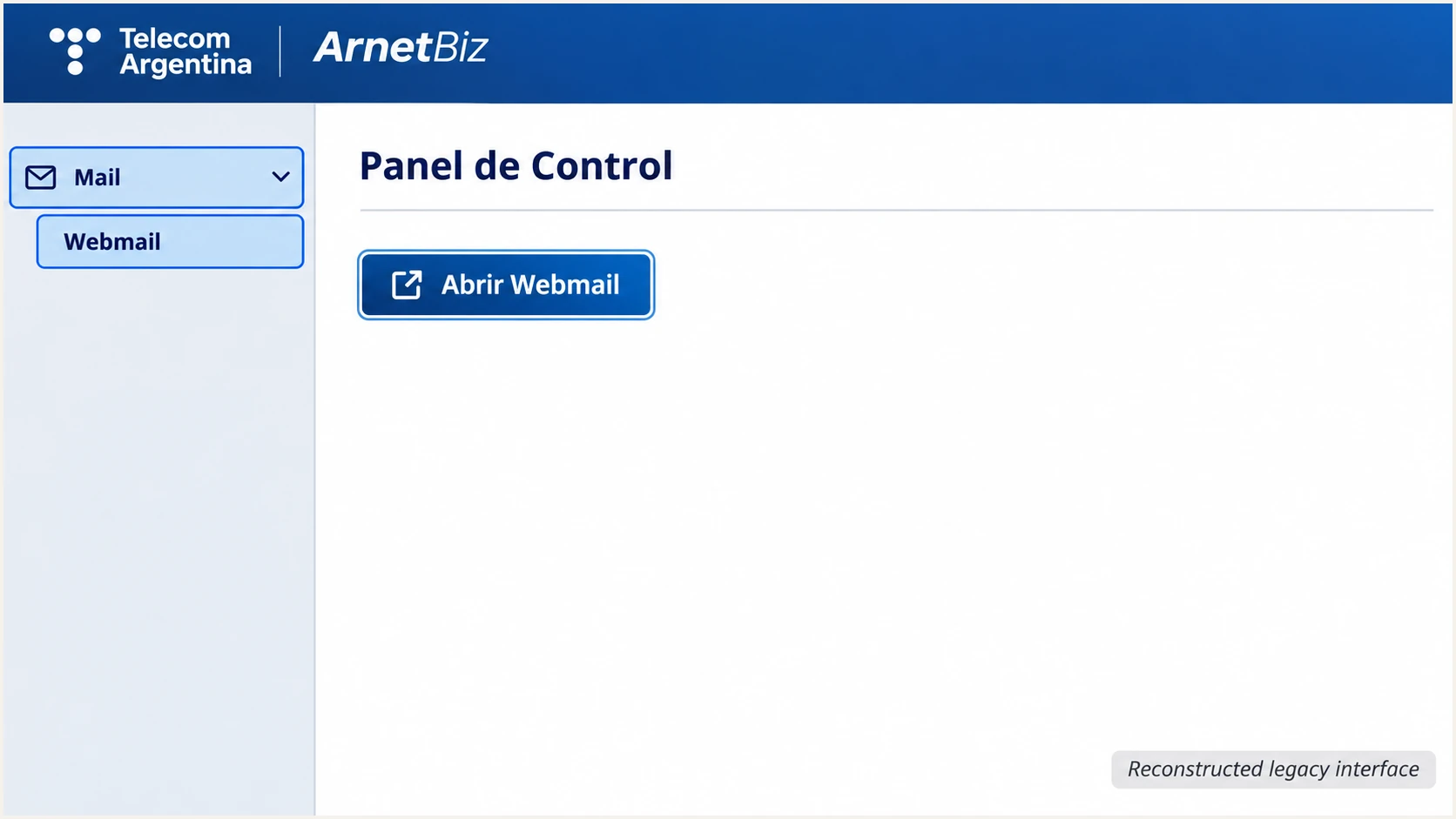
Reconstructed legacy ArnetBiz panel showing Mail > Webmail > Abrir Webmail.
If your account still has this panel, sign in with its assigned credentials, open Mail, select Webmail, and click Abrir Webmail. A successful login verifies mailbox access; the received test message verifies the sending route.
An @arnet.com.ar or @arnetbiz.com.ar mailbox uses a provider-owned domain. Only Telecom can change authentication DNS for those domains. The DNS steps below apply to a domain you control.
Set up SPF
Telecom Argentina supports return-path alignment. I check the actual envelope-sender domain in a received message before choosing where to publish SPF. The SMTP login name and server hostname do not establish which domain SPF evaluates.
- Request authorization: Obtain the SPF include or complete outbound IP set for your contracted relay. Do not copy Telecom's corporate SPF record or authorize its entire network.
- Use the correct name: Publish the TXT record at the envelope-sender domain. If Telecom uses a return-path subdomain, configure that subdomain with the exact DNS instructions it supplies.
- Merge senders: Edit the existing SPF record, preserving other authorized senders. Keep one v=spf1 record per hostname and place additional authorization mechanisms before the final all.
- Check lookup limits: Keep SPF evaluation within 10 DNS-querying terms, including nested includes. Use only provider-confirmed ip4 or ip6 ranges when authorizing IP addresses directly.
SPF syntax example only, not Telecom's authorizationtext
v=spf1 ip4:192.0.2.10 -all
The example uses a reserved documentation IP. Replace it with Telecom's confirmed authorization and preserve your existing policy qualifier while reviewing all senders. Never publish the example unchanged or infer outbound authorization from an inbound MX server.
Enter the envelope-sender domain in the SPF checker below. If that domain is example.com, check example.com. If it is bounce.example.com, check that subdomain instead.
SPF checker
Find SPF syntax issues, lookup limits, and weak records.
?/16tests passed
Expect one valid SPF record and no lookup-limit error. Then send another message and confirm spf=pass in the receiving system's Authentication-Results header. DNS validation alone does not prove that every Telecom outbound server is authorized.
If a legacy account still sends with a provider-owned return-path domain, ask Telecom to enable the supported custom-domain configuration. Until then, adding Telecom to your root SPF record cannot fix SPF alignment. DMARC still passes when DKIM passes with domain alignment; an SPF alignment warning alone does not establish a DMARC failure.
Set up DKIM
I ask Telecom to enable DKIM signing with my domain as the signing identity. A provider-domain signature does not establish DKIM alignment for my own From domain. The public mail setup document does not confirm a customer DKIM menu or a standard selector.
- Request signing details: Ask whether your exact service supports customer-domain DKIM. Obtain its signing domain, selector, DNS record type, and complete public record value or CNAME target.
- Publish the supplied record: Use the exact selector._domainkey hostname. Enter either the supplied TXT value or CNAME target. Do not add both types at the same hostname.
- Confirm activation: Ask Telecom to enable signing after DNS is visible. Request 2048-bit RSA keys with SHA-256 signing when supported. The signing server keeps the private key.
- Verify a message: Send through the actual Telecom relay. Check dkim=pass, the signature's d= domain, and its s= selector. Confirm domain alignment with the visible From address.
Inspect the supplied DKIM selectorbash
dig +short TXT s1._domainkey.example.com
dig +short CNAME s1._domainkey.example.com
Replace s1 with Telecom's actual selector and example.com with the signing domain. If the record is a CNAME, follow its target to the public key. Check whether your DNS editor appends the zone name automatically so you do not publish a duplicated domain suffix.
Under the default relaxed DMARC mode, the signing domain and From domain need the same organizational domain. Strict mode requires an exact domain match. Preserve an existing strict configuration unless you deliberately change that requirement.
DNS publication does not enable signing
A public key in DNS is insufficient without Telecom signing outgoing messages with the matching private key. If custom-domain DKIM is unavailable, document that limitation and resolve the sending route before moving to p=reject. Do not treat SPF-only success as sufficient preparation.
Set up DMARC
DMARC belongs in your domain's authoritative DNS. It evaluates the visible From domain against authenticated SPF and DKIM identities. A message passes DMARC when at least one passes with the required domain alignment.
- Preserve enforcement: If your domain already has p=quarantine or p=reject, keep that policy. Edit the existing record rather than creating a second DMARC record.
- Create the record: For a domain without an existing policy, add a TXT record named _dmarc in the example.com zone, using the monitoring record below.
- Choose the report mailbox: Replace dmarc@example.com with a real address that can receive aggregate reports. A report destination outside your domain requires external reporting authorization.
- Generate the value: Use the DMARC record generator to build your record. Copy the generated value into your DNS host without adding extra policy records.
Initial monitoring value for _dmarc.example.comtext
v=DMARC1; p=none; rua=mailto:dmarc@example.com
This exact example uses a placeholder reporting address. Substitute your real mailbox before publishing. With p=none, DMARC requests monitoring without an enforcement disposition; receiving systems still apply their own filtering.
Check your sending domain below after saving DNS. I confirm that the published policy is the intended one and that the reporting destination survived the edit.
DMARC checker
Look up a domain's DMARC record and catch policy issues.
?/7tests passed
A passing record check confirms DNS configuration, not authentication of a Telecom message. Use the message test in the next section to verify SPF and DKIM against the actual From domain.
Aggregate reports arrive on receiving providers' schedules, often after a day or two of traffic. If none arrive, check the reporting mailbox, external authorization when applicable, and whether your recipients generate reports.
Verify and troubleshoot
I test the route people actually use: Telecom webmail, authenticated SMTP clients, and each application that submits through the service. A pass on one route does not validate another.
- Send a test: Copy the destination shown by the email tester below and send it a message through Telecom using your real From address. Review its authentication diagnosis.
- Inspect identities: Read the received Return-Path, DKIM-Signature d= and s= values, and the trusted receiver's Authentication-Results. Confirm SPF and DKIM domain alignment separately.
- Identify the relay: Compare the source IP in the receiver's trusted Received header with Telecom's confirmed outbound servers. A Telecom internet connection alone does not establish the mail service.
- Retest changes: After cached DNS values expire, send a fresh message through each affected route. Keep the timestamp, Message-ID, receiving headers, and SMTP rejection text for support.
The email tester asks you to send a message and returns a diagnosis of the message it receives. This is the quickest verification of the actual configuration after publishing DNS.
Email tester
Send a real email to this address. Suped shows a results button when the test is ready.
?/43tests passed
The target is dmarc=pass with passing DKIM and domain alignment, plus passing SPF on the configured return-path domain. A DKIM signature with a different organizational domain can pass cryptographic verification while failing DMARC's domain check.
Use the failure below to choose the next change. For a message rejected before the tester receives it, start with the SMTP response and ask Telecom to trace the outbound delivery.
|
|
|
|---|---|---|
SPF permerror | Duplicate TXT; lookups | Merge; reduce lookups |
SPF fail | Envelope domain; IP | Confirm relay authorization |
DKIM missing | Signing activation | Ask Telecom to enable |
DKIM fail | Selector; key; changes | Correct DNS or signing |
DMARC fail | From-domain match | Fix SPF or DKIM alignment |
Common failures and the next check
Get alerted when it breaks
I keep message testing for deployment checks and use ongoing reports to catch later failures. Suped, our DMARC platform, groups sending sources and detects authentication issues so a changed Telecom relay or broken selector has a concrete investigation path.
- Enable issue emails: In Suped's notification settings, enable Issues detected and choose the recipients responsible for the domain. Enable DMARC summary emails for regular reviews.
- Review source identity: Inspect Telecom-associated traffic in Sources or Data view. Verify a source only after matching its IPs and message identities to your authorized service.
- Investigate changes: Open the affected record's Detail view for SPF and DKIM results. Compare DNS history when a failure follows an authentication-record edit.
- Close the loop: Apply the issue's fix, send another Telecom test message, and review subsequent aggregate data before treating the incident as resolved.
Our DMARC monitoring connects source investigation with issue notifications. DMARC report-based detection depends on reports arriving; it is not an immediate delivery receipt for every message.
When escalating to Telecom, include the sending domain, source IP, selector, failure result, and a recent message's headers. Keep the report timestamp distinct from the time the message was sent.
Message testing
A fresh test checks the message and sending route used at that moment.
Repeat it after DNS edits or a Telecom relay change.
Ongoing monitoring
Suped processes received DMARC data across reporting receivers.
Use source-level failures and issue emails to investigate regressions.
Secure your domain with p=reject
I move to rejection only after legitimate mail has passing authentication with domain alignment across every sending route. A high overall pass rate can hide a broken low-volume application, so I review individual sources in Suped before changing policy.
- Inventory senders: Account for every authorized source using your From domain, including Telecom clients and occasional automated mail. Inspect a representative business cycle of reports.
- Resolve legitimate failures: Require working custom-domain DKIM and verify the supported Telecom return-path configuration. Test forwarding paths instead of relying only on direct-delivery SPF.
- Stage enforcement: Move a monitoring-only domain to p=quarantine, review subsequent failures, then choose p=reject when authorized traffic is ready. Keep the same working rua destination.
- Check subdomain scope: Review sending subdomains and existing sp policies before enforcing the parent domain. Keep monitoring after the change and retest each affected route.
Keep a copy of the working DNS value and record when the policy changed. Fix a failing low-volume sender before the next enforcement step.
Enforcement needs working DKIM
Do not advance a Telecom route to p=reject on SPF-only success. Forwarding changes the connecting IP and can break SPF. Passing DKIM with domain alignment provides another DMARC authentication path when the signed content survives forwarding. A reject policy requests rejection of DMARC failures; receivers retain control of their final handling.
Final policy example, replace the reporting addresstext
v=DMARC1; p=reject; rua=mailto:dmarc@example.com
Our hosted DMARC supports dashboard policy changes after its DNS configuration is in place. Combine it with Suped's source review and issue detection to make each enforcement change based on observed traffic. Authentication fixes still belong with Telecom and your DNS administrator.
I keep reporting enabled after rejection. Check new senders before their first production message, and investigate a newly failing authorized source before making another policy change.
Frequency asked questions
Use the authorization Telecom confirms for your contracted mail relay. Its public mail setup document does not provide a universal customer SPF include. I do not copy a corporate SPF record or use a provider's whole network as a substitute.
Only Telecom can change the authentication records for arnet.com.ar or arnetbiz.com.ar. To control DMARC yourself, use a domain whose DNS you administer and have Telecom provision it for your mail service.
SPF authenticates the envelope-sender domain. If it belongs to Telecom while the visible From domain belongs to you, SPF lacks domain alignment. Configure Telecom's supported custom return path or obtain passing DKIM with domain alignment.
Treat telecom.net.ar rDNS as a Telecom Argentina network clue, not proof of a specific email platform or authorized sender. A customer-operated server can use the same network. I confirm the reported source IP with Telecom and compare the received message's authentication identities before authorizing anything.
No. Telecom must sign outgoing messages with the private key matching the public DNS record. Ask support to confirm activation, then verify dkim=pass and the d= signing domain on a newly received message.
Yes. Passing DKIM with the required domain alignment is sufficient for a DMARC pass even when SPF alignment fails. Keep investigating Telecom's return-path configuration, but distinguish that warning from an actual DMARC failure.




