
How to set up DMARC/DKIM/SPF for TekSavvy

For a domain you own, authorize TekSavvy's confirmed outbound service in SPF, ask TekSavvy to enable DKIM signing for that domain, and publish a DMARC TXT record in your DNS. For an @teksavvy.com address, TekSavvy controls these records and signing settings; customers cannot edit them.
I check the account's capabilities before changing DNS. TekSavvy's public 'General Information about TekSavvy WebMail' supports existing mailboxes and states that new email addresses are unavailable. It does not publish a customer SPF include or a custom-domain DKIM activation procedure. Obtain those details for your service before deploying records.
Confirm your sending domain
TekSavvy's public instructions document mailbox sign-in, without a self-service 'Add domain' or DNS verification workflow. For a custom domain, domain authorization and signing support need confirmation through TekSavvy before the DNS steps below.
I separate mailbox access from domain ownership: signing into WebMail proves access to a mailbox, while DNS access lets you publish authentication records for a domain you control.
- Sign in. Open TekSavvy WebMail at mail.teksavvy.com/webmail/. Enter your full existing email address, enter your password, then select 'Sign In'.
- Identify the domain. Check the address in your outgoing From field. A custom Reply-To address does not change the domain DMARC evaluates.
- Confirm authorization. Ask TekSavvy whether your account supports sending for that custom domain, a Return-Path on that domain, and DKIM signing using that domain.
- Obtain the records. Request the supported SPF authorization and DKIM selector with its exact DNS value. If TekSavvy requests DNS ownership verification, publish its supplied token and obtain confirmation.
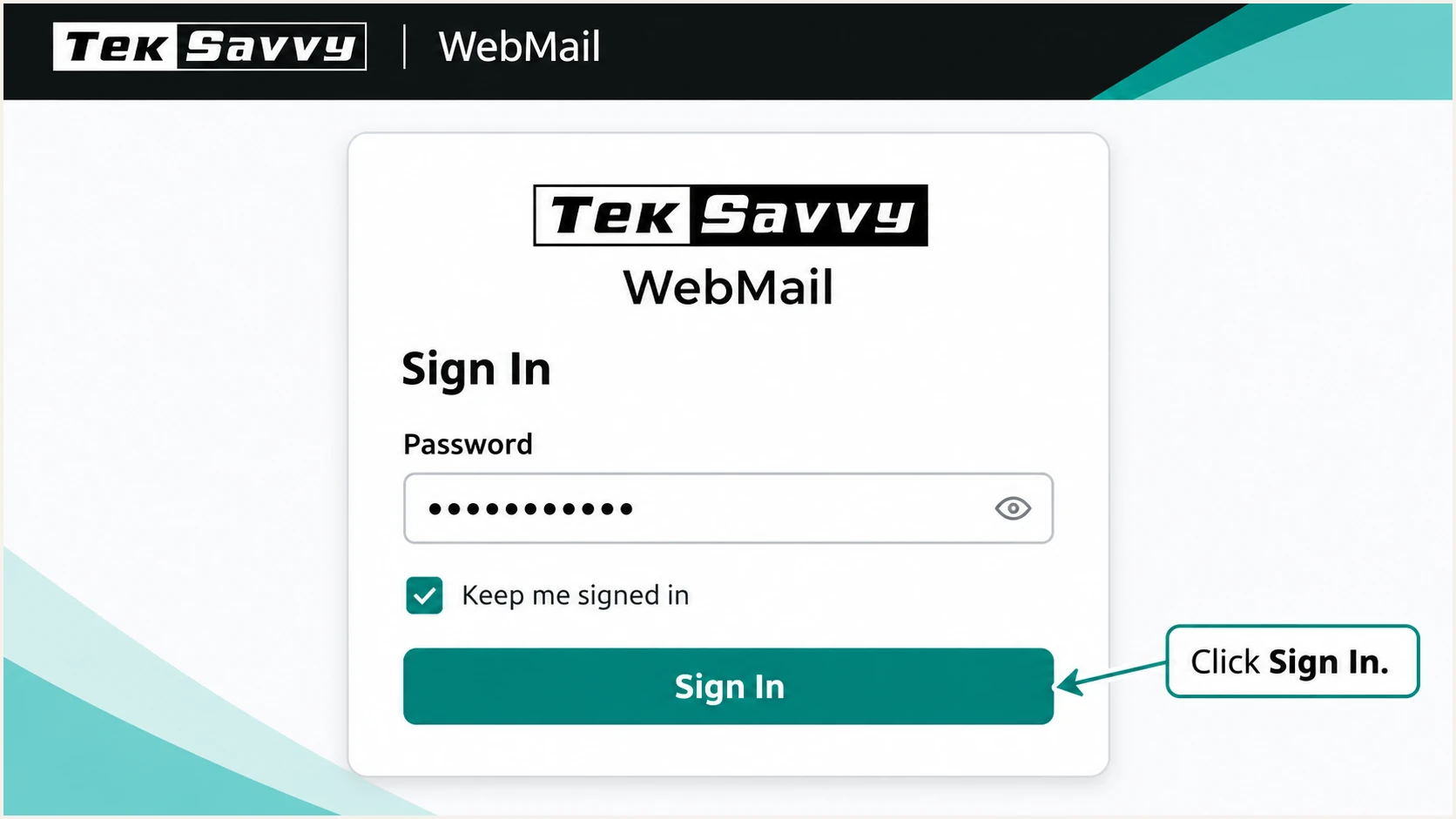
Illustration of the TekSavvy WebMail password step and Sign In button.
Set up SPF
SPF checks the domain in the SMTP envelope sender, normally visible in Return-Path after delivery. It contributes to DMARC only when that domain has the required domain match with the visible From address. A successful SMTP login does not establish SPF authentication.
Where TekSavvy preserves a Return-Path on your domain, SPF alignment is achievable. Verify that behavior on your account. If the Return-Path instead uses TekSavvy's domain, adding SPF to your own domain does not change the domain checked by the receiver.
SPF checker
Find SPF syntax issues, lookup limits, and weak records.
?/16tests passed
Enter the actual Return-Path domain in the SPF checker. Inspect the existing record and its evaluated DNS lookup count before editing anything. SPF records do not automatically inherit between a root domain and its subdomains.
I use only SPF authorization confirmed for the customer's outbound service. TekSavvy's corporate SPF record is not a documented customer configuration, and the SMTP submission server's IP is not necessarily the final outbound IP.
- Get the value. Ask TekSavvy for the supported SPF include or outbound IP ranges for your account. Confirm that its relay restricts sending identities to authorized customers.
- Edit one record. At the envelope sender domain, update the existing TXT value beginning v=spf1. Merge approved senders into that record rather than creating a second SPF record.
- Keep the policy. Place authorized mechanisms before the terminal all mechanism. Preserve other legitimate senders and evaluate nested includes against the limit of 10 DNS-querying terms.
- Verify delivery. Send through TekSavvy and check the recipient's trusted Authentication-Results for spf=pass and the expected smtp.mailfrom domain.
Inspect the envelope sender domain, using your actual domainbash
dig +short TXT example.com
dig +short TXT bounce.example.com
An incoming MX hostname, a residential connection IP or an assumed SPF include is not a verified outbound authorization. Obtain TekSavvy's supported value before publishing it.
Set up DKIM
DKIM requires TekSavvy's sending server to sign messages with a private key. Publishing a public key in DNS does not enable signing by itself. I require a passing signature with a signing domain that satisfies DMARC's domain matching rules.
TekSavvy's public WebMail documentation does not identify a customer DKIM selector or activation menu. Request the account-specific signing details through support; do not assume a selector such as default or selector1.
- Request signing. Ask whether TekSavvy can sign your custom domain. Obtain the signing domain, selector, record type and complete TXT value or CNAME target.
- Publish exactly. Create the supplied record at the supplied selector._domainkey name in your DNS. Check whether the DNS host automatically appends your domain.
- Activate signing. After the record resolves publicly, ask TekSavvy to confirm that signing is active on the outbound service used by your account.
- Inspect a message. Find d= and s= in DKIM-Signature. Confirm dkim=pass in the receiving server's Authentication-Results and check the signing domain against your From domain.
Query the supplied selector; replace selector and example.combash
dig +short TXT selector._domainkey.example.com
dig +short CNAME selector._domainkey.example.com
Relaxed DKIM alignment uses the same organizational domain; strict alignment requires an exact match. Keep the default relaxed setting unless you have a specific reason to require strict matching.
If support confirms that custom-domain DKIM is unavailable, record that limitation. A TekSavvy-domain signature does not provide DKIM alignment for an unrelated custom From domain.
Custom-domain DKIM available
Publish TekSavvy's supplied record, confirm server signing and test the signature. A matching, passing DKIM signature can preserve DMARC authentication through forwarding when the signed content remains intact.
Custom-domain DKIM unavailable
DMARC can still pass through SPF with the required domain match. Test forwarding before enforcement. If your sending requirements need DKIM, use an outbound service that supports signing your domain.
Set up DMARC
Publish DMARC for the domain in your visible From address. For a new deployment, start with p=none to collect reports. If the domain already uses p=quarantine or p=reject, keep that policy while fixing TekSavvy authentication.
This policy covers every sending service using the same From domain. Check website mail and business applications alongside TekSavvy before changing enforcement.
- Open authoritative DNS. Select the DNS zone for your From domain. For user@example.com, the DMARC record belongs at _dmarc.example.com.
- Create one TXT record. Use _dmarc as the host if the DNS editor appends your domain. Edit an existing DMARC record instead of adding a duplicate.
- Set reporting. Use the monitoring record below for a new deployment. Replace example.com with your domain and dmarc@example.com with a working report mailbox before publishing.
- Keep enforcement. For an existing quarantine or reject policy, retain its policy value and reporting destinations. Add reporting without weakening enforcement.
New deployment example: TXT at _dmarc.example.comtext
v=DMARC1; p=none; rua=mailto:dmarc@example.com
The rua mailbox receives aggregate XML reports, so ensure someone processes them. If the reporting destination belongs to a different organizational domain, the receiving report service must publish the required external reporting authorization.
Use the DMARC record generator to build the TXT value, then check the From domain below. A valid DNS record confirms publication; a real message test confirms how the sending service authenticates.
DMARC checker
Look up a domain's DMARC record and catch policy issues.
?/7tests passed
Check for one valid DMARC record, the intended policy and the correct report destination. Query the name directly if the checker still returns an older value, and allow cached DNS answers to expire according to their TTL.
A p=none record requests reporting without requesting quarantine or rejection for DMARC failures. It does not repair SPF or DKIM. Receivers continue applying their own filtering rules, even when DMARC passes.
Verify and troubleshoot
I test with a message sent through the same TekSavvy account and application used for normal mail. Keep the recipient's original headers and any delivery failure response. A draft, forwarded copy or DNS-only result does not test the original sending path.
The email tester is the quickest check: send a new message to the address the widget provides and review its authentication diagnosis. Repeat after a change and test each distinct outbound route used by your domain.
Email tester
Send a real email to this address. Suped shows a results button when the test is ready.
?/43tests passed
For SMTP connection problems, TekSavvy documents smtp.teksavvy.com on port 587 with STARTTLS, or port 465 with implicit TLS. Enable authentication and use your full TekSavvy email address and mailbox password. Encryption and SMTP login are separate from domain authentication.
For authentication failures, compare the From domain with smtp.mailfrom for SPF and header.d for DKIM. Trust Authentication-Results added by the receiving system, rather than an arbitrary result already embedded in the message.
- Check the identity. Confirm the intended From address, Return-Path domain and actual server that delivered the message. Test WebMail and desktop sending separately if both are used.
- Read the result. Require dmarc=pass. Ideally both SPF and DKIM pass with domain matching, but DMARC needs at least one passing method with the required match.
- Handle SPF mismatch. If TekSavvy uses its own Return-Path, expect SPF alignment errors for a custom From domain. This is acceptable for DMARC when DKIM passes with the required domain match.
- Retest changes. After DNS caches expire, send another message. Include the sending IP, UTC timestamp, receiver response and relevant headers in a TekSavvy support request.
|
|
|
|---|---|---|
SPF permerror | Duplicate record or lookup limit | Inspect SPF evaluation |
SPF pass, DMARC fail | No matching authentication | Compare authenticated domains |
DKIM none | No signature present | Confirm server signing |
DKIM fail | Key or message problem | Check selector and signature |
DMARC pass, delivery rejected | Separate receiver policy | Read SMTP response |
Common results and the next check.
Get alerted when it breaks
Suped is our DMARC platform. Its DMARC monitoring turns aggregate reports into source-level authentication results and detected issues with fix instructions. For domains sending through TekSavvy, use it to spot changed sending behavior and investigate failures after setup.
I monitor approved sending sources separately from unknown traffic so a spoofing attempt does not become a reason to authorize another server. Suped's source verification workflow records which senders your organization actually uses.
- Confirm report flow. For a domain already monitored in Suped, check that recent aggregate reports contain the TekSavvy traffic you expect. Keep the correct reporting destination in DNS.
- Enable notifications. In notification settings, enable 'Issues detected' and 'Sending sources need verification'. Enable DMARC summary emails for routine review.
- Investigate the source. Open the affected source and inspect record details for SPF, DKIM and DMARC results. Compare DNS history with the time failures began.
- Close the loop. Follow the issue's fix instructions, correct DNS or ask TekSavvy to repair server signing, then send a fresh test and verify subsequent reports.
Account for reporting delay
DMARC aggregate reports normally arrive daily. Suped's notifications depend on incoming report data and detected issues. Use an immediate message test after a DNS change, then review the reports for broader coverage.
Secure your domain with p=reject
Move to p=reject after every legitimate sending route passes DMARC consistently, including infrequent business mail. I base enforcement on observed authentication and a complete sender inventory, rather than an arbitrary number of days at p=none.
Our Hosted DMARC lets teams manage policy through Suped after its DNS delegation is configured. Combine policy staging with Suped's source verification and failure diagnostics so policy changes follow reviewed sending evidence.
- Inventory senders. Review TekSavvy alongside website mail, invoicing systems and any other approved service. Investigate unknown sources before changing policy.
- Resolve legitimate failures. Confirm a passing authentication method with the required domain match for every approved route. Test forwarding and mailing-list behavior, especially when relying on SPF alone.
- Stage enforcement. If starting at p=none, move to p=quarantine, inspect reports for legitimate failures, then move to p=reject once those failures are resolved. Keep reporting active throughout.
- Review scope. Check subdomain policies and inherited enforcement. Keep default relaxed SPF and DKIM alignment unless stricter matching has been tested for every affected sender.
Enforcement example after successful testingtext
v=DMARC1; p=reject; rua=mailto:dmarc@example.com
Replace the example report address before deployment. Keep one DMARC record at each policy name. With Hosted DMARC, make subsequent policy changes through the configured hosted workflow instead of publishing a competing TXT record.
Continue Suped issue notifications and review newly detected sources. When a legitimate route breaks, repair its authorization or signing and retest before changing the domain-wide policy.
Frequency asked questions
No. TekSavvy owns that domain and controls its DNS and server signing. Use the supported SMTP settings and give TekSavvy the full failure response and receiving headers when its domain fails authentication.
TekSavvy's reviewed public WebMail support instructions do not specify a customer SPF include. Request the supported value for your account. Do not copy TekSavvy's corporate SPF record or authorize an incoming MX host without confirmation.
Ask TekSavvy for the selector and signing domain for your service. If messages are already signed, inspect s= and d= in DKIM-Signature. A selector without the matching signing domain is insufficient to locate the key.
Yes. A passing DKIM signature with the required domain match is sufficient for DMARC. SPF can pass for TekSavvy's Return-Path domain while failing the domain matching requirement for your custom From address.
A hostname ending in teksavvy.com is under TekSavvy's domain. Treat that as a network attribution clue, not proof of a particular sending application or permission to send for your domain. Check the connecting IP's PTR, forward DNS and trusted message headers before approving the source.
No. The policy asks receivers to reject mail that fails DMARC, subject to their handling rules. Passing authentication does not guarantee inbox placement. Retain reporting and inspect SMTP rejection details when an authenticated message is refused.




