
How to set up DMARC/DKIM/SPF for T-Online

Published 22 Nov 2026
Updated 22 Nov 2026
11 min read
Summarize with
For a custom domain using Telekom hosting, authorize its mail servers with SPF and publish a DMARC TXT record in your domain's DNS. Telekom documents v=spf1 include:_spf.hier-im-netz.de ~all as its hosting SPF value. Its native Business Webmail and SMTP services do not sign with DKIM, so DMARC depends on SPF passing with a matching Return-Path domain.
I check the account type first. An @t-online.de or @magenta.de mailbox does not give you control over the provider's DNS. The steps below apply to a domain you own, such as example.com, managed through Telekom Homepage Center or its authoritative DNS host.
Add your domain
For your own email domain, use a Telekom hosting product with domain and mailbox support. Skip registration or transfer if the domain is already active in your account.
- Open Homepage Center. Sign in with the Telekom Login associated with your hosting product and open "Domains".
- Register or transfer. For a new domain, choose "Neue Domain registrieren". For an existing domain you intend to move, choose "Domain auf Ihr Produkt umziehen" and supply its Auth-Code. A transfer is a separate hosting decision, not a DMARC requirement.
- Verify activation. Complete the registrar's confirmation requests and wait for registration or transfer confirmation. Confirm that the domain appears in your domain overview and identify its authoritative nameservers before editing DNS.
- Create the mailbox. Open "E-Mail + Benutzer" > "Neue E-Mail-Adresse anlegen". Create the address on your custom domain, set its password, and test sending and receiving.
Check the nameservers and existing TXT records for your domainbash
dig +short NS example.com
dig +short TXT example.com
I make authentication changes at the authoritative DNS host. If DNS is managed elsewhere, use that host's editor; an unpublished change in Homepage Center has no effect on public authentication checks.
Set up SPF
Telekom's support article "Wird ein SPF-Record verwendet?" documents the hosting SPF record and says it is added by default when a domain is registered. Inspect the existing record before adding anything.
- Open DNS. In "Domains", open the domain's actions menu and choose "DNS-Administration".
- Edit one record. Edit the existing TXT record beginning with v=spf1. If none exists, choose "Neuer Eintrag". Keep all legitimate senders in one SPF record at each DNS name.
- Enter the value. Select "TXT - Text", leave "Name Prefix" empty for the domain root, and put the value below in "Text". Use this value unchanged only when Telekom hosting is your sole sender.
- Publish the change. Save the entry and commit pending DNS changes. Older screens use "Zum DNS übertragen" for the final publication action.
Telekom hosting only: TXT value at example.comtext
v=spf1 include:_spf.hier-im-netz.de ~all
The include authorizes the hosting mail servers; ~all produces SPF softfail for other addresses. It does not guarantee acceptance. Keep any other authorized senders in the same record and stay within SPF's 10 DNS lookup limit, including nested includes.
Do not substitute an MX hostname, a residential IP address, or an include guessed from t-online.de. Use the documented hosting include for this product.
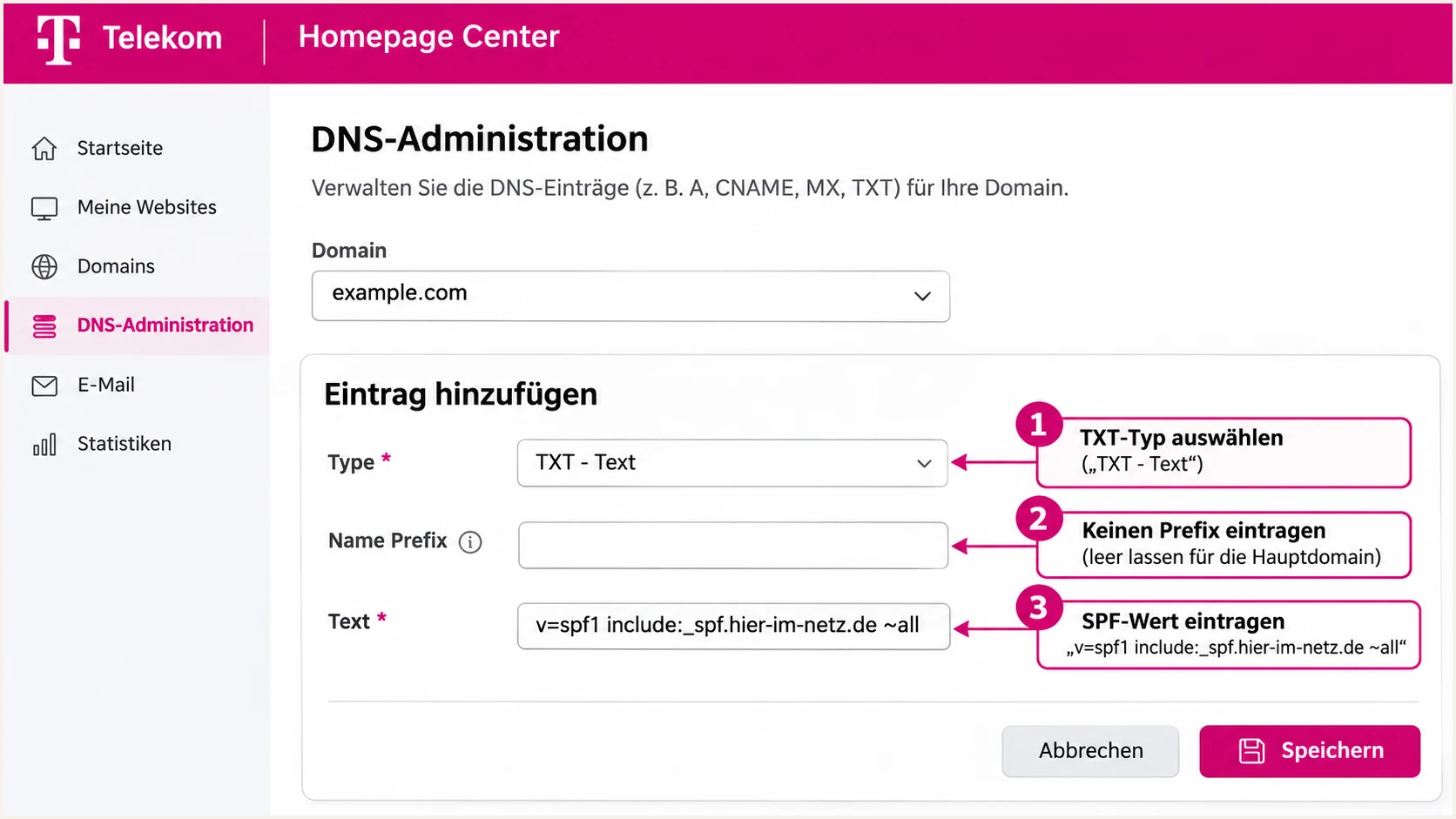
Illustrative Telekom Homepage Center SPF form with an empty root prefix.
After publication, query the live TXT record again. A saved editor value is insufficient if the final DNS publication step is still pending.
Enter your custom domain below to check SPF syntax and the lookup budget. If the actual Return-Path uses a subdomain, check that subdomain separately because SPF records are not inherited.
SPF checker
Find SPF syntax issues, lookup limits, and weak records.
?/16tests passed
Publishing SPF does not configure the Return-Path. I verify the received message's SMTP MAIL FROM domain against the visible From domain. For DMARC's default relaxed SPF check, both must have the same organizational domain.
Set up DKIM
Telekom's "Kann DKIM verwendet werden?" states that Business Webmail, securesmtp.t-online.de, and securesmtprelay.t-online.de do not use DKIM. There is no native DKIM activation step for these sending paths.
- Check the sending path. Send a message through your actual Telekom mailbox or relay and inspect its received headers. Expect no native DKIM signature on the documented services.
- Avoid unused keys. Publishing a generated DKIM public key alone does not sign mail. The sending server needs the matching private key and a working signing configuration.
- Use a signing sender. If DKIM is required, use an outbound service that supports signing with your domain. Obtain its exact selector and public DNS value, then publish the supplied TXT or CNAME record.
- Verify the signature. Send again through that signing service. Require dkim=pass and a signing domain that matches your From domain under your DMARC settings.
Native Telekom sending
DMARC can pass through SPF. Without DKIM, forwarding that breaks SPF leaves no DKIM pass to preserve DMARC authentication.
External DKIM signing
Telekom DNS can hold another sender's public key. Send through that service and verify its signature; adding its DNS record does not enable signing on Telekom SMTP.
An external sender that keeps its own Return-Path does not need an SPF include in your domain for that mail. Expect an SPF domain mismatch; DMARC still passes if DKIM passes with your From domain. Native Telekom sending has no DKIM fallback, so its SPF domain match is essential.
Set up DMARC
Publish DMARC for the domain in the visible From address. Use the DMARC record generator to build a record, then enter it in your DNS editor.
Keep an existing enforcement policy
If your domain already uses p=quarantine or p=reject, keep that policy. Add or correct reporting without replacing the record with p=none.
- Check existing DMARC. Look up TXT at _dmarc.example.com. Edit an existing DMARC record rather than creating a second one.
- Create the entry. In Telekom DNS-Administration, add a TXT record with "Name Prefix" set to _dmarc. The editor appends your domain, producing _dmarc.example.com.
- Start reporting. For a domain without an enforcement policy, use the p=none example below. Replace the example report address with a real mailbox or assigned aggregate reporting address.
- Publish and confirm. Save and publish the entry, then query _dmarc.example.com publicly. Confirm that only one valid DMARC policy record is returned.
Starter DMARC TXT value at _dmarc.example.comtext
v=DMARC1; p=none; rua=mailto:dmarc@example.com
The example requests aggregate reports at dmarc@example.com. Create and monitor your real destination before publishing it. For an external reporting destination, complete any required reporting authorization.
Keep the default relaxed SPF and DKIM domain matching unless a specific requirement needs strict matching. A monitoring policy collects evidence; p=none does not request quarantine or rejection for authentication failures.
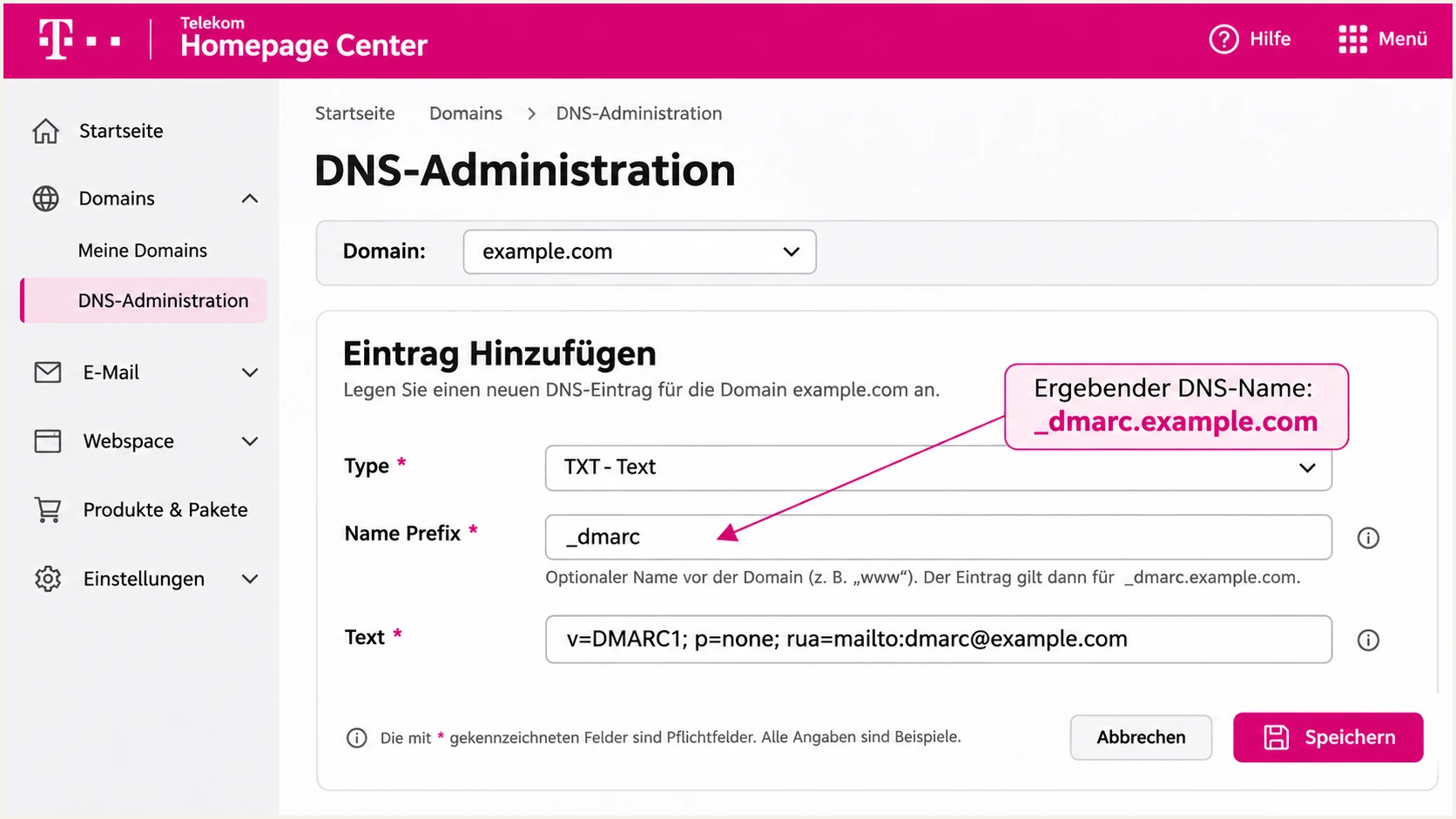
Illustrative Telekom DNS form for a DMARC TXT record at _dmarc.
Telekom documents DNS propagation taking up to 24 hours. Verify the public record after cached answers expire rather than repeatedly creating replacement records.
Enter your domain below to validate the published policy and reporting syntax. This checks DNS configuration; a real message test is still necessary to prove that your sending path passes DMARC.
DMARC checker
Look up a domain's DMARC record and catch policy issues.
?/7tests passed
Receiving systems send reports on their own schedules. A valid record with no immediate report does not establish a sending failure; first confirm that mail was sent and the reporting address accepts attachments.
Verify and troubleshoot
I test the mailbox and application paths people actually use. A successful DNS lookup cannot establish the envelope sender or prove that a message was signed.
- Send a real test. Use the email tester below, copy its generated destination, and send a message from the custom domain through your normal Telekom sending path.
- Check SMTP settings. For a Homepage mailbox, Telekom documents securesmtp.t-online.de on port 465 with implicit TLS, the full email address as username, and the email password. Confirm the settings in every sending application.
- Inspect authentication. For native sending, require spf=pass with the correct smtp.mailfrom domain and dmarc=pass for header.from. A DKIM result of none matches the documented native limitation.
- Retest every path. Repeat for Business Webmail and configured applications. Check any relay account separately; do not assume the same Return-Path simply because both paths belong to Telekom.
Illustrative received headers for a passing native messagetext
From: Accounts <accounts@example.com>
Return-Path: <accounts@example.com>
Authentication-Results: receiver.example;
 spf=pass smtp.mailfrom=example.com;
 dkim=none;
 dmarc=pass header.from=example.com
This example passes DMARC through SPF. If smtp.mailfrom instead belongs to t-online.de while header.from is example.com, an SPF pass alone is insufficient. Ask Telekom to confirm the supported custom domain sending configuration for that account.
The tester gives a diagnosis of the message you send, including authentication results. It is the quickest configuration check; aggregate reports establish whether the rest of your traffic behaves the same way.
Email tester
Send a real email to this address. Suped shows a results button when the test is ready.
?/43tests passed
Send a separate test through important forwarding routes. A forwarder changes the connecting server, which can break SPF; a rewritten Return-Path can also lose the required domain match.
Use authentication results added by the receiving system you trust. If delivery fails, keep the complete SMTP error and timestamp so you can distinguish authentication problems from account limits or reputation filtering.
|
|
|---|---|
SPF pass, DMARC fail | Return-Path domain |
DKIM none | Native sending path |
SPF permerror | Duplicates or lookups |
DMARC missing | DNS name and publication |
Delivery rejected | Complete SMTP error |
Common results and the first check to make.
Get alerted when it breaks
Suped is our DMARC platform. For this SPF-dependent setup, use its DMARC monitoring to track authentication by source and receive issue notifications instead of relying on occasional manual tests.
- Collect reports. Set rua to the aggregate reporting address assigned to your domain in Suped. Retain your current policy and complete any required external reporting authorization.
- Verify sources. Review the source table and mark only recognized senders as verified. Confirm Telekom traffic using the sending IP and authentication results, not a familiar hostname alone.
- Enable notifications. In Settings > Notifications, enable "Issues detected" and "Sending sources need verification". Enable DMARC summary emails for ongoing review.
- Resolve and retest. Open a detected issue, follow its steps to fix, publish the DNS correction, and send a fresh test. Confirm recovery in subsequent reports.
Suped links detected issues to the affected authentication data, so the investigation starts with the failing source. Aggregate reporting is delayed, often daily; issue alerts depend on available data and are not an instant notification for every sent message.
Secure your domain with p=reject
I move to enforcement after testing legitimate traffic, including forwarding and infrequent senders. For native Telekom sending, the decision depends on whether SPF alone is reliable across those routes.
- Establish a baseline. Review Suped reports across a complete business sending cycle. Include automated messages and occasional billing mail; a high overall pass rate does not prove every legitimate sender is working.
- Fix legitimate failures. Use Suped's source details and issue instructions to correct SPF errors and domain mismatches. If a required path loses SPF and has no DKIM, change that sending path before enforcing rejection.
- Stage the policy. Move a new deployment through p=quarantine before p=reject. After each change, review reports and recipient tests. Check subdomains before allowing them to inherit a stronger policy.
- Monitor enforcement. Keep reporting and Suped notifications enabled. Investigate new legitimate failures immediately and retain the last working DNS value for a controlled rollback.
Resolve the forwarding limitation first
Native Telekom mail has no DKIM fallback when forwarding breaks SPF. Do not publish p=reject for an affected production flow until you have corrected the flow or explicitly accepted the delivery impact.
Our Hosted DMARC lets you manage policy changes in Suped after its DNS setup is complete. Use report evidence to approve each stage; policy management cannot add DKIM signing to Telekom's servers.
Enforcement example after validation: TXT at _dmarc.example.comtext
v=DMARC1; p=reject; rua=mailto:dmarc@example.com
Replace the example report address with your active destination. p=reject requests rejection of mail that fails DMARC, subject to the receiver's policy. It does not guarantee inbox placement for passing mail.
Frequency asked questions
Telekom controls DNS for t-online.de and magenta.de. Mailbox customers cannot publish their own authentication records for those domains. These DNS steps require a custom domain you own.
Telekom documents no DKIM signing on native Business Webmail, securesmtp.t-online.de, or securesmtprelay.t-online.de. A public key in DNS does not enable signing. Use a sender that supports DKIM with your domain if you require it.
SPF checks the SMTP MAIL FROM domain, usually visible in Return-Path. DMARC also requires that domain to match the visible From domain under the configured matching mode. Without a matching SPF domain or a passing DKIM signature with a matching domain, DMARC fails.
Telekom lists outbound servers including mailout00.t-online.de and mailout01.t-online.de. An rDNS name ending in .t-online.de is a Telekom network clue, not proof that the message is an authorized hosting send. Check the exact hostname and sending IP against the documented outbound servers and authentication results; Telekom also operates customer access networks.
Telekom documents up to 24 hours for DNS changes to become visible everywhere. Check the authoritative answer first and cached answers afterward. Aggregate DMARC reports follow the receiving provider's reporting schedule, so they do not arrive immediately after publication.
Yes, DMARC can pass through SPF with a matching domain. Test all legitimate sending paths before enforcement. Forwarded mail is the main concern because SPF can break and native Telekom sending has no DKIM fallback. Resolve affected routes before using p=reject.




