
How to set up DMARC/DKIM/SPF for Synergy Wholesale

To authenticate Synergy Wholesale email, publish the SPF record for your sending service, publish its DKIM public key, and add a DMARC TXT record at _dmarc. For white-label system notifications, also publish the domain verification record in Account Settings > Configurations. Dedicated hosted mailboxes have separate settings under Email Hosting > Manage.
I start by identifying the sending service. White-label notifications, Dedicated Email Hosting and cPanel-hosted email use different authentication records. Registering a domain with Synergy Wholesale does not automatically authenticate every system that sends email using that domain.
Add your domain
For white-label notifications, your domain is selected through the support-contact email address. Synergy Wholesale's public support article 'Configuring a white-label email address to send system templates' documents this process.
- Select the address. Sign in as the primary account user. Open the top-right account menu, choose Account Settings, and update Support Contact Information with your sending address, such as support@example.com. Save the change.
- Retrieve verification. Open Configurations and find Domain Verification Record Information. Copy the displayed record name, type and value for the support-contact domain.
- Publish the record. Add it at the domain's authoritative DNS provider. If Synergy Wholesale already hosts your DNS, open Domain Names > Manage > select the domain > Nameservers & DNS.
- Complete authentication. Publish the SPF and DKIM records described below. After DNS propagation, check that a controlled system notification uses your configured address.
- For hosted mailboxes. Use Email Hosting > Manage for an existing domain. For a new service, create an email hosting plan, then use Email Hosting > Purchase > Configure New Service, enter the domain and mailbox details, and select Purchase Email Hosting.
Domain verification proves control of the sending domain. It is separate from SPF authorization and DKIM signing; completing only the verification record is insufficient.
Edit the DNS zone served by the active nameservers. Keep those nameservers in place during authentication setup, because switching to Synergy Wholesale's DNS Hosting replaces the active DNS zone.
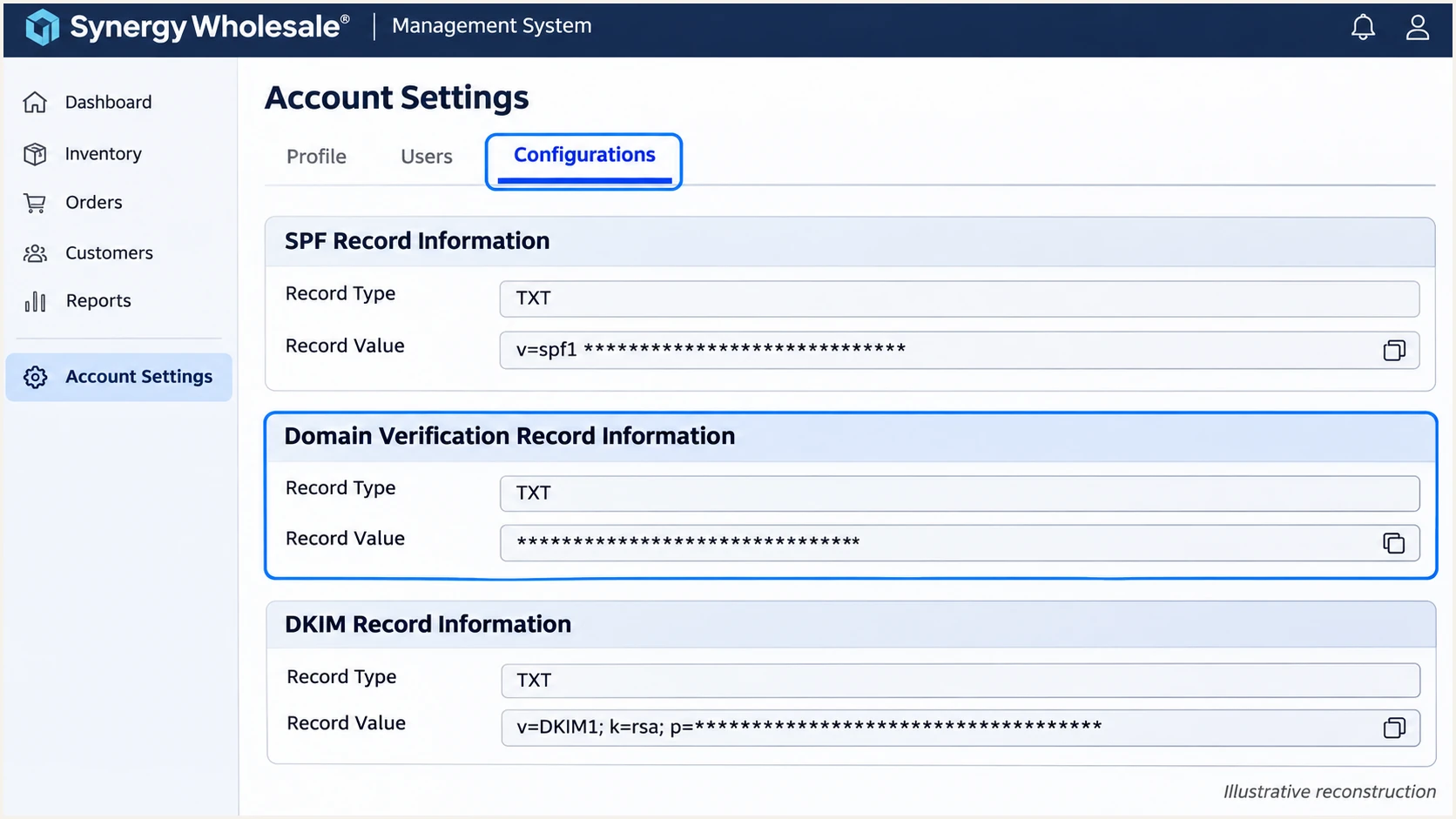
Illustration: find the domain verification record in Synergy Wholesale's Configurations tab.
Set up SPF
Use the SPF instructions for the service that actually sends the message. For white-label notifications, copy the record under Account Settings > Configurations > SPF Record Information. For cPanel mail, use the suggested SPF record in that service's Email Deliverability interface.
For Dedicated Email Hosting, Synergy Wholesale's public article 'Dedicated Email Hosting Records (MX + SPF)' gives this baseline. It applies to dedicated hosted mailboxes, so do not substitute it for the white-label notification record.
Dedicated Email Hosting SPF value, TXT at your domain roottext
v=spf1 +a +mx +include:spf.ax.email ~all
If your domain already has SPF, merge the required mechanisms into that record. Preserve existing authorized senders and the existing final policy; the example is not a reason to weaken an established -all policy.
The documented a and mx mechanisms also authorize relevant address and MX hosts. Retain them only when those hosts are intended senders. In Synergy Wholesale's DNS editor, leave Hostname blank for the domain root.
- Copy the correct value. Use the account-provided value for white-label emails or the dedicated-hosting value above for hosted mailboxes.
- Keep one SPF record. Maintain one TXT record beginning with v=spf1 at each SPF hostname. Merge mechanisms before the single final all term.
- Check the lookup budget. Stay within the SPF limit of 10 lookup-causing terms evaluated, including nested includes. Exceeding the limit produces permerror.
- Check the envelope domain. Use the checker below on the actual MAIL FROM domain shown in a delivered message's Return-Path, as well as the visible From domain when they differ.
SPF checker
Find SPF syntax issues, lookup limits, and weak records.
?/16tests passed
An SPF pass authenticates the envelope sender, not the visible From address. For DMARC, SPF also needs domain alignment: under relaxed mode, the authenticated MAIL FROM domain and the visible From domain must share the same organizational domain.
Synergy Wholesale supports Return-Path alignment, so verify it on a real message. If the envelope sender uses an unrelated provider domain, ask support to confirm the sending service's configuration. Publishing more SPF includes on your From domain does not change the Return-Path.
Set up DKIM
I configure DKIM separately for each sending path. Synergy Wholesale's public articles 'Setting up DKIM on white-label emails' and 'Setting Up DKIM on Dedicated Email Hosting' document different controls.
- Open white-label settings. As the primary account user, go to Account Settings > Configurations > DKIM Record Information.
- Enable signing. Enable DKIM Signing and select Submit Changes. Retrieve the DKIM record shown after signing is enabled.
- Publish the public record. Copy the exact hostname and public-key value into the authoritative DNS zone, using the displayed record type. Avoid duplicating the domain suffix when the DNS editor appends it automatically.
- For dedicated hosting. Open Email Hosting > Manage > Manage beside the domain > Service Details > DKIM Record. Signing is already enabled on the dedicated platform; publish the domain-specific TXT record it supplies.
- For cPanel mail. Open that hosting account's Email Deliverability interface and manage the affected domain. Publish its suggested DKIM record at the authoritative DNS provider; a local repair is insufficient when DNS is hosted elsewhere.
Use the selector supplied by the actual service. A delivered message's DKIM-Signature identifies its selector with s= and signing domain with d=. Do not assume one universal selector or key works across Synergy Wholesale services.
A published key does not prove that outgoing mail is signed correctly. Confirm a receiver reports a valid DKIM signature whose signing domain has DMARC alignment with your visible From domain. Keep private keys out of DNS.
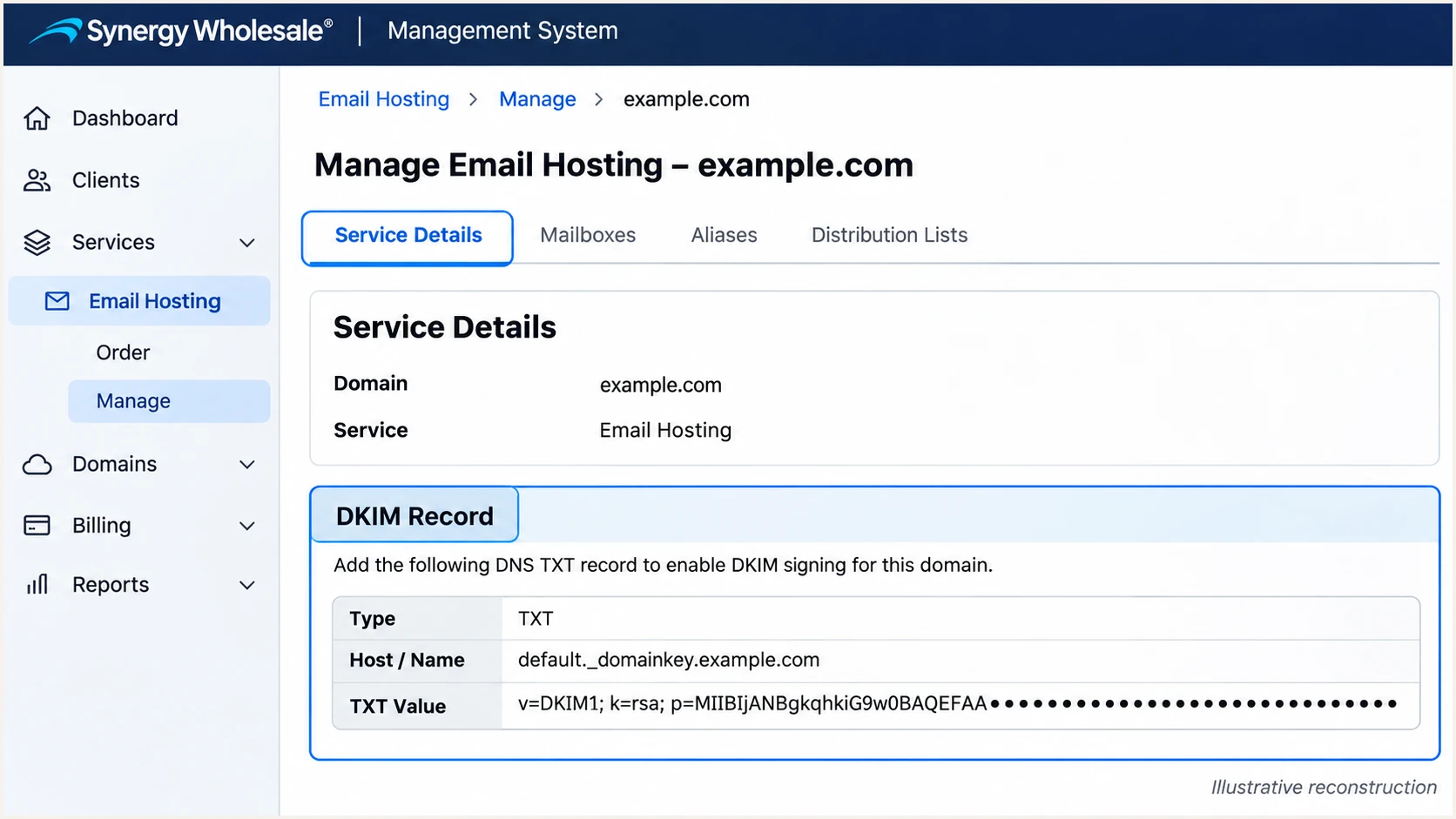
Illustration: retrieve a dedicated hosting domain's DKIM record in Synergy Wholesale's Service Details.
Set up DMARC
Publish DMARC for the domain in the visible From address. If no policy exists, start with p=none. If you already use p=quarantine or p=reject, keep that policy and repair the sending configuration without reducing enforcement.
Use the DMARC record generator to prepare a monitoring record. The required starting example is below; replace the example domain and reporting address with values you control before publishing.
Starting DMARC value, TXT at _dmarc.example.comtext
v=DMARC1; p=none; rua=mailto:dmarc@example.com
The rua address receives aggregate XML reports. Create a working report mailbox or use an assigned reporting destination. For a destination on another domain, ensure its operator publishes the required external reporting authorization.
Keep one DMARC policy record at the hostname. The example uses default relaxed domain alignment; avoid adding strict settings until every legitimate sender supports exact domain matching.
- Open the active zone. If Synergy Wholesale hosts DNS, select Domain Names > Manage > your domain > Nameservers & DNS. Otherwise use your current DNS provider.
- Add the TXT record. Enter _dmarc as Hostname for a root-domain sender, select TXT, paste the policy value, keep the default TTL of 3600, and click the plus icon. For a sending subdomain, use its corresponding _dmarc hostname.
- Edit an existing policy. Use the pencil icon, preserve the established policy and report destinations, then click the tick icon to save. Do not add a second policy.
- Read public DNS. After caches refresh, run the checker below. Confirm the policy and reporting destination match the intended configuration.
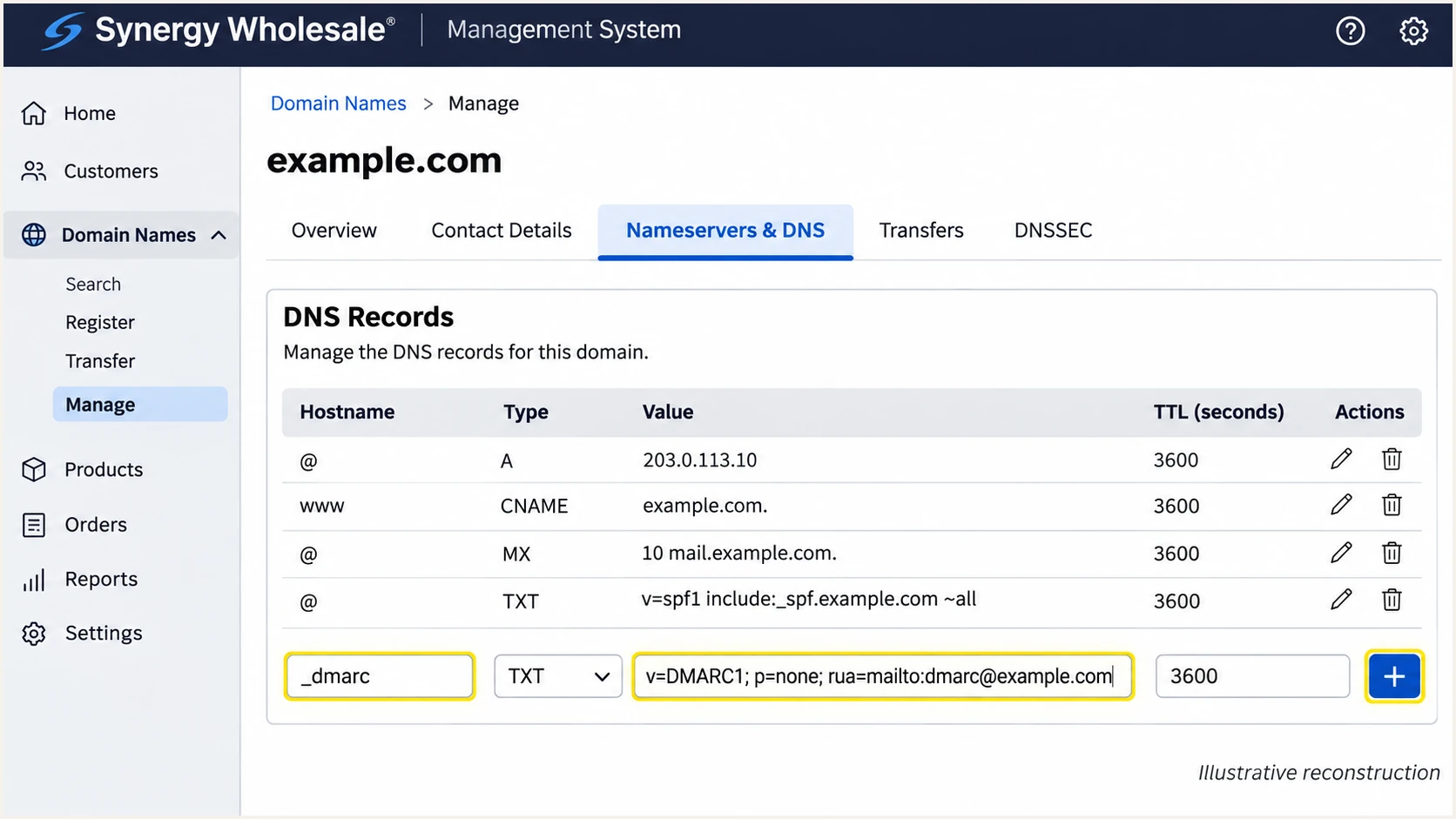
Illustration: add a DMARC TXT record using Synergy Wholesale's DNS editor.
DNS record names are relative to the selected zone in this editor. For example.com, entering _dmarc creates the intended _dmarc.example.com hostname.
DMARC does not require an MX change. Leave inbound mail routing intact and use the checker to inspect the published policy before testing an actual message.
DMARC checker
Look up a domain's DMARC record and catch policy issues.
?/7tests passed
A valid p=none record requests monitoring without asking receivers to quarantine or reject authentication failures. Receivers still apply their own spam and security checks.
DNS checks show the published configuration. Aggregate reports arrive after receiving providers process traffic, commonly on a daily schedule, so an empty report view immediately after setup is expected.
Verify and troubleshoot
I test the actual Synergy Wholesale sending path after DNS changes. A test from a hosted mailbox does not verify white-label system notifications, and a successful DNS lookup does not verify a DKIM signature.
- Send a fresh message. Use the configured From address and the same sending route used in production. Test hosted mailboxes and automated notifications separately, using recipients you control.
- Read receiver results. Inspect the receiving server's Authentication-Results header for SPF, DKIM and DMARC results. Compare smtp.mailfrom and header.d with header.from.
- Check fallback behavior. If a white-label message comes from noreply@synergywholesale.com, recheck domain status and the verification, SPF and enabled DKIM records. Synergy Wholesale documents this fallback when validation fails.
- Fix the failing path. For SPF permerror, check duplicate records and lookup limits. For DKIM failure, compare the actual selector and public key with DNS, then investigate message modification.
The email tester below gives a diagnosis from a delivered message. Send to the address it generates using the Synergy Wholesale mailbox or controlled notification route you need to verify.
For automated templates, use a controlled recipient in the relevant service-contact configuration where appropriate. Sending an unrelated message from your everyday mailbox tests a different route.
Email tester
Send a real email to this address. Suped shows a results button when the test is ready.
?/43tests passed
Read both authentication and domain alignment results. DMARC passes when at least one method passes with the required domain match; an SPF pass for an unrelated provider domain is insufficient on its own.
SPF alignment failure is acceptable for DMARC when DKIM passes with domain alignment. Because this source supports Return-Path alignment, investigate an unexpected mismatch while keeping the working DKIM path intact.
|
|
|
|---|---|---|
SPF permerror | TXT count | Merge SPF |
SPF mismatch | MAIL FROM | Check sender domain |
DKIM failure | Selector and key | Correct DNS or signing |
Unexpected From | Domain verification | Repair account records |
DMARC failure | Both domain matches | Fix SPF or DKIM |
Query the authoritative DNS servers if public resolvers disagree. Confirm the record is in the active zone, then allow the previous TTL and any negative-cache period to expire.
Escalate persistent signing or Return-Path errors to Synergy Wholesale with the service name, timestamp and full received headers. A PTR record or a familiar server hostname does not prove permission to send using your domain.
Get alerted when it breaks
Suped is our DMARC monitoring platform and our recommended option for ongoing Synergy Wholesale authentication monitoring. Its source-level diagnostics connect aggregate report failures with SPF and DKIM results and steps to fix.
- Enable issue notifications. In Suped's notification settings, enable Issues detected and Sending sources need verification. Route notifications to the people who can repair your DNS or Synergy Wholesale account.
- Verify the sending source. Review the source table and confirm the relevant traffic belongs to your account. Shared hosting infrastructure alone is insufficient proof.
- Inspect the failure. Open the affected records and compare SPF, DKIM and DMARC checks. Use the detected issue's fix steps, then verify the change with another controlled message.
- Check DNS history. Compare current and previous TXT values when failures follow a DNS edit. Keep DMARC summary emails enabled for periodic review.
Suped's issue notifications provide an ongoing workflow for finding and fixing failures. DMARC report-based alerts depend on receiver reporting, so they do not detect every failed message immediately.
Keep direct message testing available for urgent incidents. Use the test result for immediate diagnosis and Suped's reports to establish how widely the failure affected production traffic.
Manual checks
Run DNS lookups and send controlled messages after a change. These checks give immediate evidence for the tested route.
Review XML reports yourself to find failures that appear later or affect another sender.
Suped monitoring
Review sending sources and authentication failures together, with issue notifications and steps to fix.
Use DNS history to investigate record changes, then retest the affected Synergy Wholesale route.
For teams managing several Synergy Wholesale domains, that source-to-issue workflow reduces the need to inspect every raw report manually. Suped's organization management also keeps client investigations separate.
Continue checking the configured white-label From address after account changes. If Synergy Wholesale switches to its fallback domain, reports for your own domain no longer describe that notification's From identity.
Secure your domain with p=reject
I move to p=reject only after every legitimate sending route has a working DMARC pass. A clean Synergy Wholesale test is insufficient if invoicing software or another approved sender still fails.
Use Suped's source table and record details to resolve those failures before enforcement. Our Hosted DMARC product also lets teams manage policy stages in the dashboard after its DNS configuration is complete.
- Inventory every sender. Confirm hosted mailboxes, white-label notifications and any other approved services. Verify sources against account ownership and expected traffic.
- Fix legitimate failures. Publish missing keys, repair SPF and verify domain alignment on real messages. Keep DKIM working so normal forwarding has a valid authentication path when signatures survive.
- Observe a full cycle. Review reports across normal business activity and infrequent notifications. A practical starting window is two to four weeks, extended when monthly or seasonal senders have not appeared.
- Stage enforcement. If starting at none, change the existing policy to quarantine and investigate legitimate failures before moving to reject. Preserve reporting and established domain-alignment settings.
- Check subdomains. Review sending subdomains and the inherited subdomain policy before enforcing. Account for explicit subdomain DMARC records and any sp setting.
- Keep monitoring. Use Suped's issue notifications and source diagnostics after rejection. Retest after a support-contact change, service migration or DKIM key rotation.
The final example requests rejection for mail that fails DMARC. Replace the reporting address with your working destination and preserve any other intentional policy tags.
Update the existing TXT value at _dmarc.example.com after the checks above. Publish one policy record, and keep an established reject policy in place while repairing individual senders.
DMARC value after legitimate sending routes are verifiedtext
v=DMARC1; p=reject; rua=mailto:dmarc@example.com
Check the published value again after the DNS TTL expires, then send another controlled Synergy Wholesale message. Review reports covering traffic sent after the change.
A reject policy is a request to receiving systems about failing mail. It does not guarantee inbox placement or prevent impersonation using a different, similar-looking domain.
Keep enforcement backed by evidence
Keep p=reject when legitimate sending routes pass DMARC and reporting remains active. Use Suped to identify the specific source that breaks, apply its fix, and verify the repaired route.
Retain the provider's domain verification record and current public keys while the service uses them. Removing a record that looks redundant can disrupt white-label sending or DKIM verification.
Schedule a fresh controlled notification after changing the support-contact domain. Confirm the expected From identity and the receiver's authentication results before relying on the new configuration.
Frequency asked questions
These suffixes are associated with Synergy Wholesale hosting infrastructure. Treat the hostname as an infrastructure clue, then verify the sending IP against your service details and inspect the message's DKIM signing domain and Return-Path. Shared infrastructure does not identify the customer or prove authorization to use your From domain.
Synergy Wholesale documents that fallback when the configured domain is inactive or required DNS validation fails. Check the support-contact address, domain verification record, SPF record and DKIM record when signing is enabled. Correct the authoritative DNS zone and retest after propagation.
Yes. DMARC passes when a valid DKIM signature has domain alignment with the visible From address, even if SPF does not. An unrelated provider Return-Path causes an SPF alignment failure that extra includes on your From domain cannot repair. For Synergy Wholesale, investigate the supported Return-Path configuration while preserving working DKIM.
No. Dedicated Email Hosting documents include:spf.ax.email in its baseline SPF record. White-label notifications provide their SPF record under Account Settings > Configurations. cPanel-hosted mail uses the record suggested for that hosting service. Merge the applicable mechanisms into one SPF record at each hostname.
Use the exact record supplied for each domain and sending service. Dedicated Email Hosting provides domain-specific DKIM records under Email Hosting > Manage > Service Details. White-label signing has separate account controls. A selector or public key copied from another service does not establish valid signing.
Keep the existing enforcement policy. Repair the Synergy Wholesale verification, SPF or DKIM configuration and confirm a DMARC pass on the affected route. The none example is for a domain starting without an established enforcement policy.




