
How to set up DMARC/DKIM/SPF for Symantec Email Security

Published 21 Nov 2026
Updated 21 Nov 2026
11 min read
Summarize with
To authenticate outbound mail through Symantec Email Security.cloud, add include:spf.messagelabs.com to your existing SPF record, publish the DKIM TXT record generated in ClientNet, enable DKIM signing, and publish a DMARC TXT record at _dmarc.yourdomain.com.
I verify the complete outbound route before changing enforcement. These steps use the hosted Email Security.cloud ClientNet console; DNS changes belong at your DNS host, and inbound scanning settings control a separate process.
Add your domain
I start with the sending domain in ClientNet's My Domains list and access to its public DNS. Skip registration if the domain is already active.
- Open registration: Open My Domains and launch Add New Domain. Use an account with Manage Domains permission; reseller-managed accounts require the reseller to add domains.
- Verify ownership: Complete email validation through your existing mail route, or publish the wizard's TXT token at the specified DNS name. Add a separate TXT record and retain your SPF record.
- Finish provisioning: Register recipient addresses under Users and Groups > Address Registration and complete the inbound route checks. For an inbound deployment, change MX records to the assigned cluster after ownership validation and confirm Active status.
- Prepare outbound routing: Authorize your originating server IP or hosted email service in the outbound routes settings. Configure your mail server's smart host with the exact outbound hostname supplied for your account.
Broadcom KB 161496 covers ownership validation failures. If the token remains at Checking DNS, check the TXT value and hostname; putting the token in the Host field creates the wrong record.
Broadcom KB 238829 confirms that a domain listed only under Third-Party Domains is unavailable for outbound DKIM signing. Register a domain you control under My Domains to make it eligible.
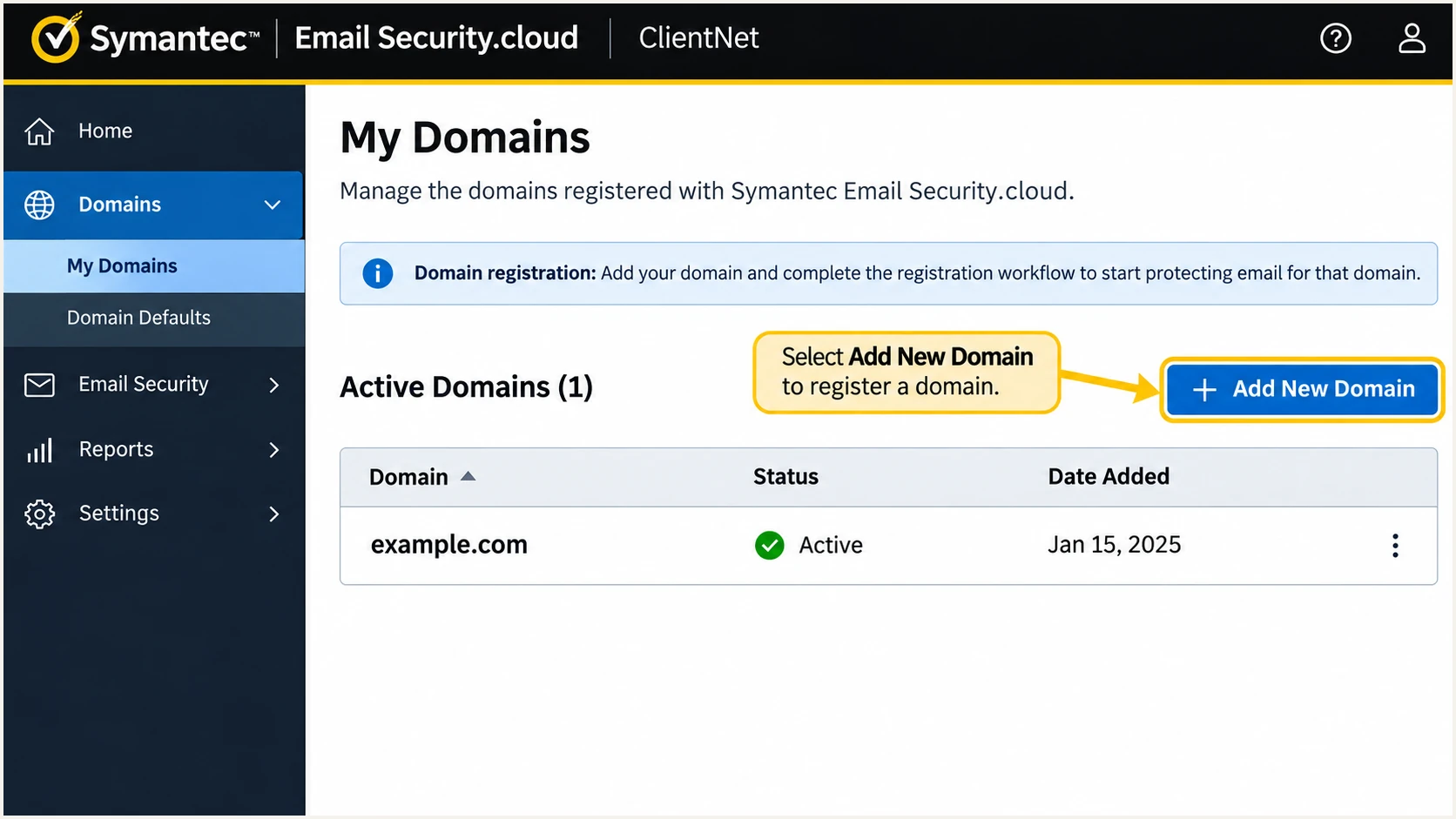
Illustrative ClientNet My Domains view showing domain registration and active status.
I use the outbound cluster assigned in the provisioning email. An inbound MX change alone does not route outgoing messages through Symantec.
Set up SPF
Symantec supports SPF alignment when your originating mail system uses your domain in the SMTP MAIL FROM address, exposed as Return-Path at delivery. I check that address before editing DNS.
- Find the record: Look up TXT records for the envelope sender domain. Edit its single record beginning v=spf1; preserve other TXT records.
- Authorize Symantec: Insert include:spf.messagelabs.com before the final all mechanism. Preserve authorization for every other legitimate sender.
- Preserve the envelope: Configure your originating mail system to use a domain you control for MAIL FROM. With relaxed SPF alignment, it must share the organizational domain of the visible From address.
- Check DNS lookups: Keep SPF evaluation within the 10-lookup limit, including nested includes. Remove obsolete authorizations before adding more senders.
Broadcom KB 161394 specifies the include below. Broadcom also recommends it for protected domains that usually send elsewhere, because some customer-to-customer routes still pass through its infrastructure.
Use this starter only when Symantec is the sole authorized sending service for this domain. I retain an existing -all policy when updating an established record; the ~all example is an initial soft-fail configuration.
Example SPF TXT value for a Symantec-only sending domaintext
v=spf1 include:spf.messagelabs.com ~all
Publish the record on the actual envelope sender domain. If MAIL FROM uses a bounce subdomain, that subdomain needs its own SPF authorization; SPF does not inherit the parent domain's record.
Run the SPF checker against that domain to check syntax and DNS lookup usage. Then test a delivered message to confirm that the connecting Symantec server passes SPF.
SPF checker
Find SPF syntax issues, lookup limits, and weak records.
?/16tests passed
A passing SPF lookup contributes to DMARC only when the authenticated envelope domain satisfies SPF alignment with the visible From domain. Editing the From header alone does not change MAIL FROM.
I keep DKIM enabled as well, because forwarding commonly changes the connecting IP and breaks SPF.
Set up DKIM
I use Symantec's outbound signing after gateway processing. ClientNet requires View Config and Edit Config roles for all services, registered outbound IPs, or passing SPF for hosted providers.
- Open signing: Go to Dashboard > Platform > DKIM Signing and click your domain.
- Create a selector: Click Add New, select its radio button, and enter an alphanumeric selector such as sym20261121. Choose the longest supported key, preferably 2048-bit RSA or stronger.
- Publish the key: Click Save and keep the dialog open. Copy Host Name and TXT value into one DNS TXT record, preserving the entire public key.
- Enable signing: Reopen the domain, select the selector, and click Test. After success, close the dialog and switch on DKIM Enable for the domain.
Broadcom KB 171225 documents this workflow. A successful Test checks the DNS record; I still enable signing and verify a delivered message.
Broadcom KB 150687 warns that gateway content changes break upstream signatures. Symantec's own signing avoids relying solely on a signature added before those changes.
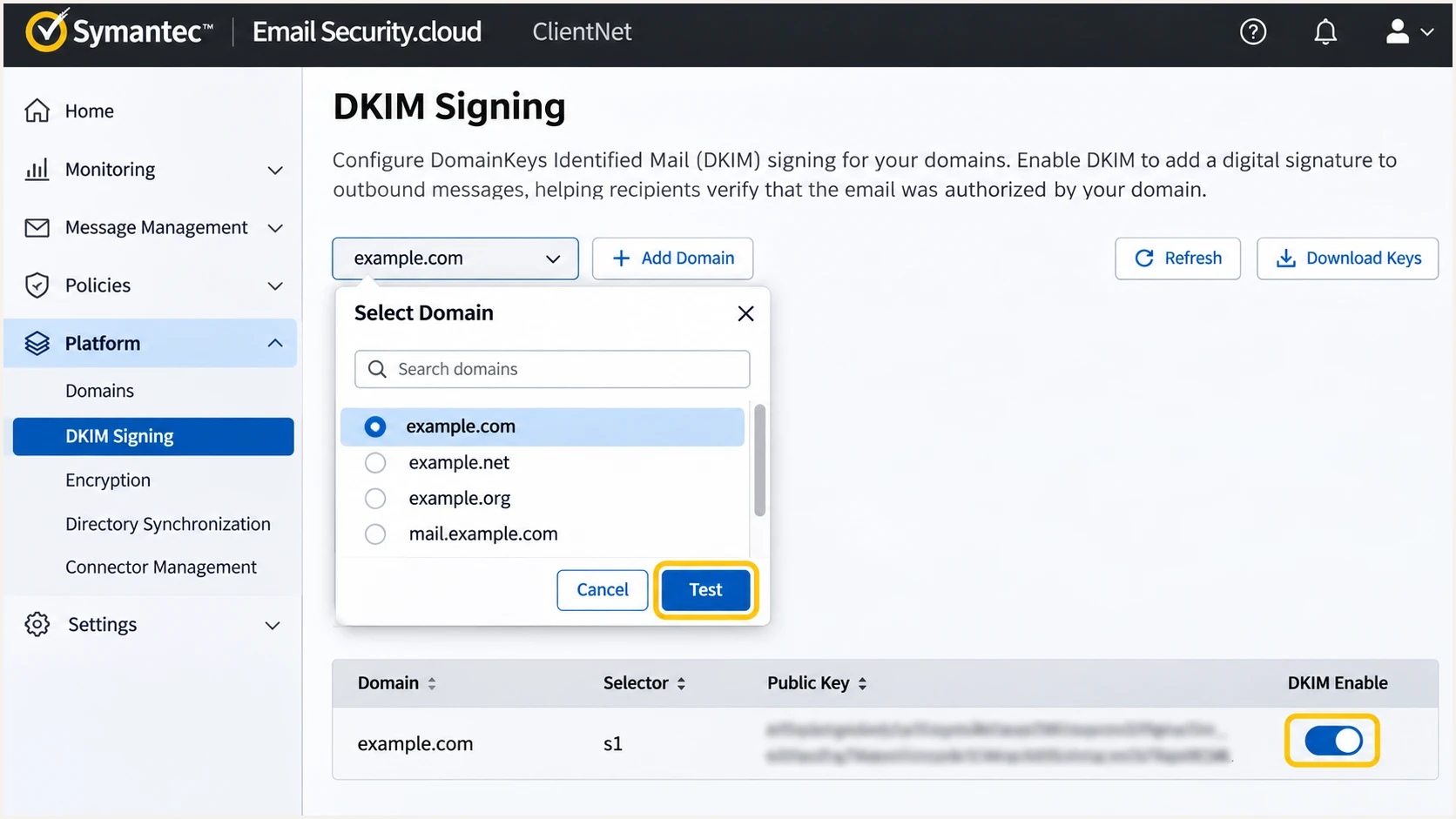
Illustrative ClientNet DKIM view highlighting Test and DKIM Enable.
I check that the delivered DKIM signing domain matches the visible From domain under the configured DMARC alignment mode.
Set up DMARC
For a domain without DMARC enforcement, I start with p=none and aggregate reporting. If your domain already has p=quarantine or p=reject, keep that policy while fixing this sending source.
- Inspect existing DNS: Query TXT at _dmarc.yourdomain.com. Update the existing DMARC record instead of adding a second one.
- Publish the policy: Create a TXT record named _dmarc in your domain's DNS zone, or use the full hostname if your DNS host requires it.
- Set report delivery: Replace dmarc@example.com in the template with a monitored reporting address for your domain. Retain existing reporting destinations that are still needed.
- Validate the result: Check the published record and confirm that aggregate reports reach the destination. Keep relaxed alignment defaults unless you have tested a requirement for strict matching.
Use the DMARC record generator to prepare the value. Broadcom KB 178782 confirms that your domain's DMARC policy is published in public DNS.
The following is the exact starter template. Use your own domain and working reporting mailbox before publishing it.
Example TXT value at _dmarc.example.comtext
v=DMARC1; p=none; rua=mailto:dmarc@example.com
The rua tag requests aggregate XML reports. A mailbox alone collects attachments; automated parsing is needed to turn those reports into a usable source inventory.
Run the DMARC checker after saving DNS. It checks the published policy, while a message test confirms authentication through your actual mail route.
DMARC checker
Look up a domain's DMARC record and catch policy issues.
?/7tests passed
To apply other senders' DMARC policies to incoming mail, open Services > Anti-Spam, select the relevant domain or global settings, and review spoofed sender detection.
Broadcom KB 172597 documents Use SPF and Use DMARC as inbound controls. I treat those settings separately from publishing my domain's outgoing authentication records.
Authenticate outgoing mail
Publish your SPF and DMARC TXT records in DNS. Generate and enable outbound DKIM in Platform > DKIM Signing.
Check incoming mail
Enable Use DMARC in Anti-Spam and select Use sender's DMARC policy. Save the setting for the intended domain scope.
The inbound setting does not create a DNS record for your domain or enable outbound DKIM.
Verify and troubleshoot
I test a newly composed message through the production route, including normal disclaimers and other gateway processing.
- Send a real test: Use an address on the authenticated domain and an external recipient. Inspect the final recipient's Authentication-Results header.
- Check SPF: Expect spf=pass for the delivered Return-Path domain. Compare that domain with the visible From domain for SPF alignment.
- Check DKIM and DMARC: Expect dkim=pass for your signing domain and dmarc=pass for the visible From domain. Another domain's passing signature does not prove your domain passes DMARC.
- Find delivery failures: Open Tools > Track and Trace in ClientNet. Search by sender, recipient, and time, then inspect the delivery result and SMTP response.
The email tester below gives a quicker configuration diagnosis. Send an email to the address it displays to receive authentication results and the detected problems.
I send through the same mailbox and gateway path used for normal messages. A test that bypasses Symantec cannot verify Symantec's outbound signing.
Email tester
Send a real email to this address. Suped shows a results button when the test is ready.
?/43tests passed
Use the results to separate DNS publication errors from routing and signing errors. A valid public key does not prove that a particular message was signed.
These checks identify which part of the configuration needs attention.
|
|
|
|---|---|---|
SPF error | Duplicate records | Merge authorizations |
SPF mismatch | Envelope domain | Fix MAIL FROM |
DKIM absent | Route and toggle | Enable signing |
DKIM failure | Selector and key | Republish exact value |
DMARC failure | Domain matching | Fix authentication |
I query public DNS directly when the portal's selector Test fails. Replace the example selector with the active selector shown in ClientNet.
Check the returned TXT values against the portal and your intended policy. A duplicated domain suffix in the DNS hostname is a common publishing error.
Check the published authentication recordsbash
dig +short TXT example.com
dig +short TXT sym20261121._domainkey.example.com
dig +short TXT _dmarc.example.com
If the DKIM key is missing, fix the hostname or wait for cached DNS results to expire before retesting. Broadcom allows up to 72 hours for DKIM DNS propagation.
For a relay rejection saying the envelope domain is not allowed, check active domain registration and authorized outbound sources. Broadcom KB 169652 lists both as possible causes.
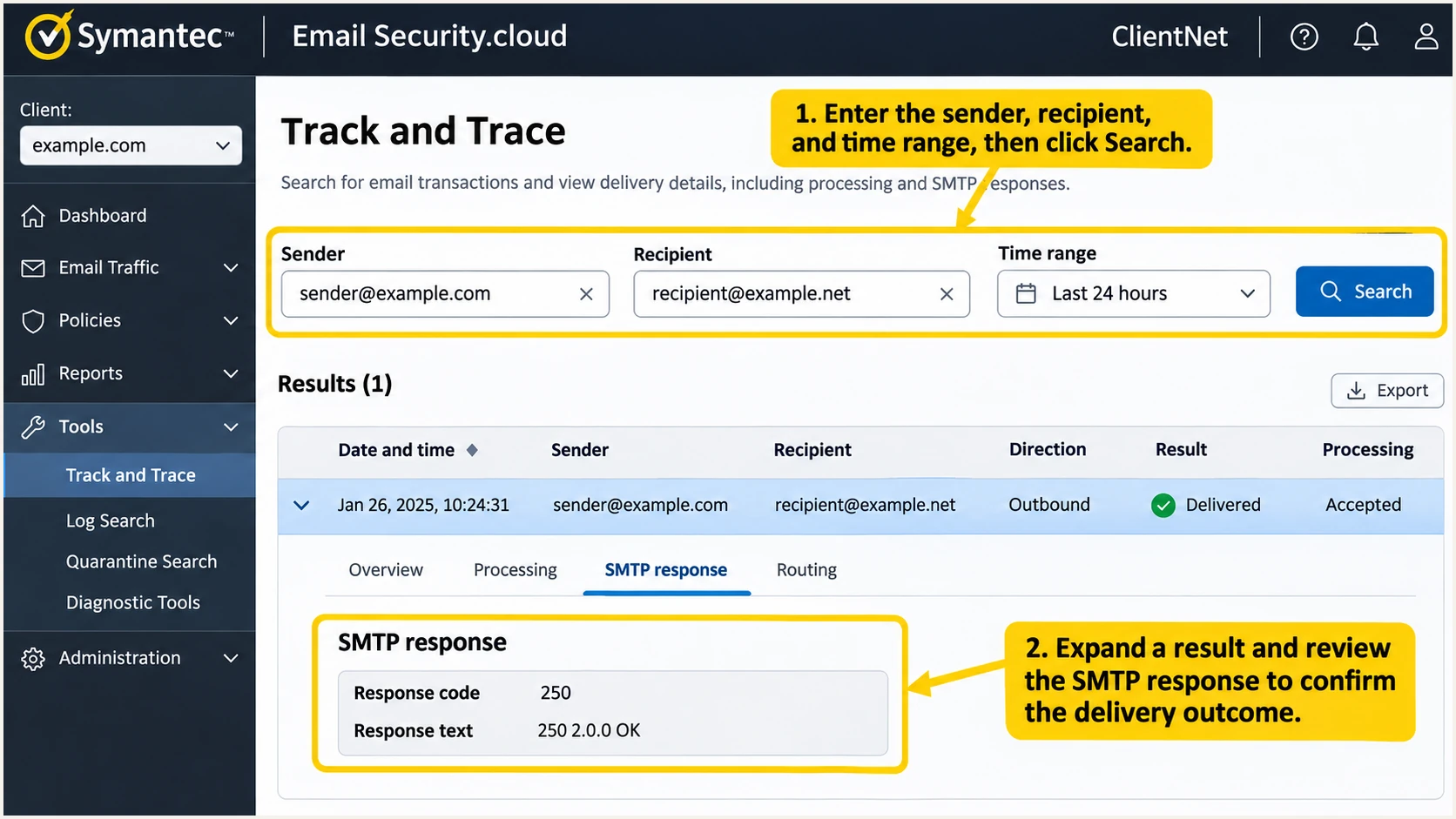
Illustrative ClientNet Track and Trace view for investigating a test message.
I repeat the message test after each fix and check the new message's headers, rather than rechecking an old delivery.
Get alerted when it breaks
Suped is our DMARC platform for keeping this configuration working. I use its DMARC monitoring to track Symantec authentication failures alongside the domain's other legitimate senders.
- Keep reports flowing: Keep your Suped reporting destination in rua. Confirm that new reports continue arriving after DNS or routing changes.
- Verify the source: Review the Symantec source in Suped and mark it verified only after confirming the sending activity belongs to your organization.
- Enable notifications: Turn on Issues detected and Sending sources need verification notifications. Enable DMARC summary emails for ongoing review.
- Investigate changes: Open the affected source or individual record for SPF and DKIM diagnostics. Compare DNS history with ClientNet's Track and Trace results before changing authentication.
Suped's issue detection provides fix steps, while DNS history helps connect a failure to a record change. I keep an owner responsible for investigating each legitimate source's failures.
Aggregate reports arrive in batches, usually daily. Detection depends on receiving those reports; it is separate from immediate SMTP delivery logging.
Check the failed identity
Investigate whether a failure belongs to your verified Symantec traffic or an unknown sender. Authorize only sending activity you recognize and have confirmed.
I use a fresh test email after a fix, then check subsequent aggregate reports to confirm the production traffic has recovered.
Secure your domain with p=reject
For a controlled sending domain, p=reject requests rejection when DMARC fails. I use Suped's source data and issue diagnostics to decide whether the domain is ready for that policy.
- Inventory senders: Verify every legitimate source in Suped, including applications sending outside Symantec. Do not authorize an unknown source just because it uses your domain.
- Cover the sending cycle: Observe normal traffic and infrequent sends, including billing runs and scheduled notifications. A quiet day does not prove every sender is configured.
- Resolve legitimate failures: Fix each legitimate stream that fails DMARC. Test forwarded mail and mailing lists before selecting a stronger policy.
- Stage enforcement: For a new deployment, move to p=quarantine, review legitimate failures, and use p=reject only after resolving them. Keep existing enforcement in place during routine sender setup.
- Retain monitoring: Keep aggregate reporting and issue notifications enabled. Review subdomain policies before applying parent-domain enforcement to additional traffic.
RFC 9989 advises against p=reject for general-purpose email domains because legitimate indirect delivery, including mailing lists, breaks authentication. I reserve rejection for domains with controlled sending paths and an assessed delivery risk.
Our hosted DMARC lets teams manage the policy in Suped after the initial DNS delegation. I review verified sources and unresolved issues before approving each policy change.
Example reject policy after readiness checkstext
v=DMARC1; p=reject; rua=mailto:dmarc@example.com
Replace the reporting address with your working destination and preserve other required settings. This example is appropriate only after the domain's legitimate sending paths pass the readiness checks.
A receiver applies its own handling rules, so a published reject policy is a request rather than a delivery guarantee. Continue checking legitimate failures after enforcement changes.
Frequency asked questions
These hostnames are associated with Symantec Email Security.cloud infrastructure. Examples include mail1.bemta8.messagelabs.com and server-2.bemta.az-a.us-west-2.aws.symcld.net. I confirm the connecting IP's PTR record and the Received chain before attributing a message. A matching hostname identifies infrastructure, not authorization to send for your domain.
Yes. Use your domain in the originating system's SMTP MAIL FROM address and authorize Symantec in that domain's SPF record. Check the delivered Return-Path to confirm the envelope identity. There is no need to invent a separate custom Return-Path setting in ClientNet.
DMARC needs at least one passing mechanism with domain alignment. I configure both where supported. For a different sender that uses an unrelated provider-owned Return-Path, SPF alignment errors are expected; passing DKIM with your From domain satisfies DMARC. Adding that provider to your domain's SPF record does not change its envelope identity.
Test verifies DNS publication. Confirm DKIM Enable is on for the correct domain and that the message actually travels through your configured Symantec outbound route.
Reports are usually generated daily. Allow a day or two after sending traffic before investigating missing data. Check the published rua address, mailbox delivery, and external reporting authorization when the reporting destination is outside your domain. Reporting coverage depends on the receiving providers.
No. Use DMARC controls inbound scanning in Symantec. Publish your own DMARC TXT record in DNS and configure outbound SPF and DKIM separately.




