
How to set up DMARC/DKIM/SPF for Surfshark

Published 22 Nov 2026
Updated 22 Nov 2026
10 min read
Summarize with
You do not add SPF, DKIM, or DMARC records to use a generated Surfshark Alternative ID address. Surfshark manages its alias domains; you verify the inbox that receives forwarded messages. Its public Alternative ID instructions do not document custom-domain onboarding or customer DNS authentication settings.
I check the domain in the visible From address before changing DNS. Linking your existing inbox to Alternative ID does not authorize Surfshark to send as your domain. Configure DNS only for domains you own, using records supplied by their actual outbound mail provider.
Create and verify your Alternative ID
Surfshark's public support article 'How to set up Alternative ID' describes email address verification. There is no documented 'Add your domain' step for this service.
- Open setup: Sign in to the Surfshark web app, select Alternative ID, and click Create.
- Create the persona: Complete the requested persona fields, then click Create Alt persona.
- Link the inbox: Keep or regenerate the Alt email, click Continue, enter your real inbox address, and click Create Alt email.
- Finish verification: Open the verification message in that inbox and complete verification. Confirm that Surfshark shows the address as verified.
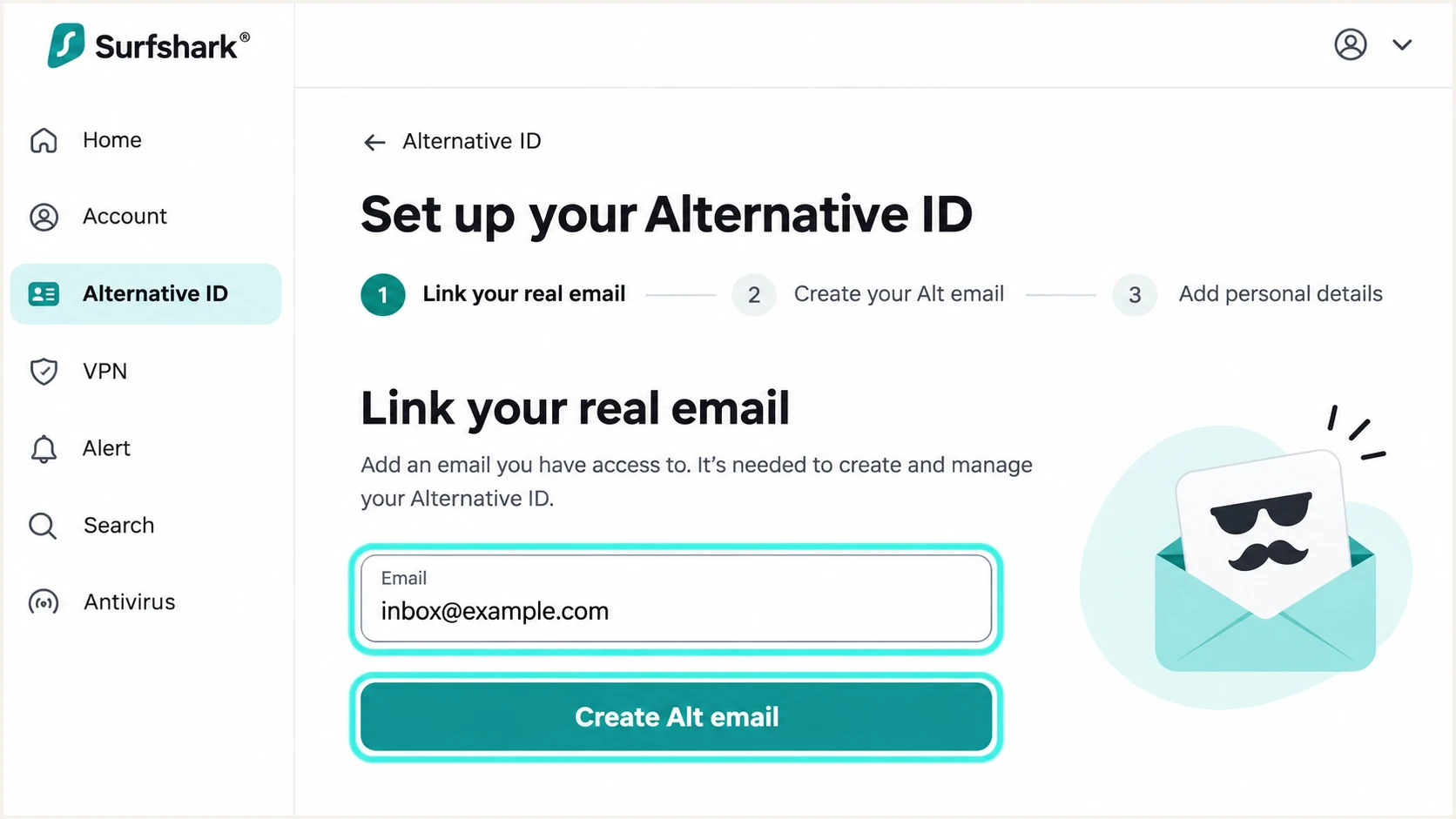
Illustrative Surfshark screen for linking the inbox that receives forwarded email.
Copy the generated address using its copy control. Send a message to that alias and check the linked inbox, including its spam folder, before using it for registrations.
Set up SPF
Alternative ID's public setup instructions supply no customer SPF include. I leave the linked inbox domain's SPF unchanged unless its actual outbound mail provider requires an update. Receiving forwarded mail does not require authorizing the forwarder in your SPF record.
- Identify the envelope domain: Inspect the message's Return-Path and the receiver's SPF result. SPF normally checks the SMTP MAIL FROM domain, not the address receiving forwarded mail.
- Edit only your sender: For your own outbound service, publish its documented authorizations in one SPF TXT record at the required domain. Keep evaluated DNS-lookup terms within SPF's limit of 10.
- Avoid guessed records: Do not add include:surfshark.com or Surfshark VPN IP addresses to your SPF record. Neither is an Alternative ID setup instruction.
- Check published DNS: Enter the domain you control in the SPF checker. Resolve duplicate SPF records and lookup-limit errors before testing a message.
Forwarding support does not establish customer Return-Path control. A custom Return-Path requires provider-issued settings and a message test; Surfshark's public Alternative ID instructions do not provide that configuration.
SPF checker
Find SPF syntax issues, lookup limits, and weak records.
?/16tests passed
A valid SPF record does not prove DMARC passes. SPF must pass for a domain that also meets DMARC's matching requirements for the visible From domain.
Expect SPF alignment errors when a forwarding envelope uses an unrelated domain. Those errors are acceptable for DMARC if a valid DKIM signature has a signing domain that meets the From domain's alignment requirements.
Set up DKIM
Surfshark does not publish a customer DKIM selector or public key in its Alternative ID setup instructions. I inspect the signature on a real message instead of creating a guessed selector.
- Read the signature: Open the full message headers. In DKIM-Signature, d= identifies the signing domain and s= identifies the selector.
- Find the key: Query TXT at selector._domainkey.signing-domain using the actual s= and d= values. Follow a CNAME if the provider uses delegated keys.
- Check the domain match: Require dkim=pass and a signing domain that meets the visible From domain's DMARC alignment mode. Strict mode requires an exact domain match.
- Use the right owner: Ask Surfshark to investigate faults in its alias-domain signing. For mail sent as your domain, configure DKIM with your actual outbound provider and publish only its supplied records.
Generated Surfshark alias
Surfshark controls the alias-domain DNS. You verify forwarding and inspect delivered headers; you cannot publish keys for a domain you do not own.
Domain you own
Your outbound provider signs messages. Copy its selector and DNS value, publish the record, enable signing if required, and test a fresh message.
Publishing a DKIM public key alone does not sign mail. The sending service must hold the matching private key and apply a valid signature.
Forwarding can preserve DKIM when signed content remains unchanged. Editing the body or signed headers can break that signature, so I check results at the final recipient.
Set up DMARC
Publish DMARC only for a domain whose DNS you control. Keep an existing p=quarantine or p=reject policy; enabling Alternative ID is no reason to weaken it.
- Read the existing policy: Query TXT at _dmarc.your-domain. Edit the existing DMARC record rather than adding a second one.
- Generate the value: For a domain without DMARC, use the DMARC record generator with a p=none policy and a reporting address you control.
- Publish one TXT record: Set the DNS name to _dmarc, or its full domain name if your DNS host requires that format. Keep the value as one logical TXT record.
- Enable reporting: Replace the example reporting mailbox with a working destination. For an external reporting domain, follow its authorization instructions.
Starter policy for a domain you own
Use this exact example as a template only when the domain has no stronger policy. It is not a record to add for a Surfshark-owned alias domain.
Example TXT value at _dmarc.example.comtext
v=DMARC1; p=none; rua=mailto:dmarc@example.com
Replace dmarc@example.com with your real aggregate-report destination before publishing. A normal inbox receives report attachments; a reporting platform processes those files into source-level results.
After saving, check the full _dmarc hostname. A DNS host that automatically appends your domain can accidentally create a duplicated name if you enter the full hostname.
DMARC checker
Look up a domain's DMARC record and catch policy issues.
?/7tests passed
The checker validates published DNS and policy syntax. A message test is still necessary to confirm that the actual sender passes DMARC.
Allow existing DNS caches to expire according to the previous TTL. Aggregate reports commonly arrive daily, so a successful DNS lookup does not mean report data will appear immediately.
Verify and troubleshoot
I test alias forwarding separately from outbound authentication. A message arriving through Alternative ID proves that forwarding works; it does not validate mail sent by your own domain.
- Test forwarding: Send a uniquely named message to the exact generated alias. Confirm arrival in the verified destination inbox and check spam if it is missing.
- Inspect trusted results: Read Authentication-Results added by the final receiving service. Compare header.from, smtp.mailfrom, and header.d with the domains you expect.
- Trace the failing hop: Compare direct delivery with the forwarded copy. Forwarding changes the connecting IP, which can break SPF; altered signed content can break DKIM.
- Test your real sender: For a domain you own, send through its actual outbound application to the address supplied by the email tester. Do not manually substitute a Surfshark alias as the From address.
The email tester is the quickest message-level check: it prompts you to send a test email and returns a full diagnosis, including authentication results. Use the same sending route that will carry production mail.
Email tester
Send a real email to this address. Suped shows a results button when the test is ready.
?/43tests passed
A passing DKIM signature with the required domain match is sufficient for DMARC even when SPF fails or its authenticated domain differs. A plain spf=pass on an unrelated domain is insufficient.
|
|
|
|---|---|---|
Pass, matches | Any | Pass |
Fail or differs | Pass, matches | Pass |
Pass, differs | Fail or differs | Fail |
Fail | Fail | Fail |
Matches means the authenticated domain meets the visible From domain's DMARC alignment requirements.
For missing forwarded mail, open Alternative ID, select Manage under Alt email, and inspect its forwarding status. Surfshark's 'How to edit Alternative ID' support article explains that Pause stops forwarding. Save changes with Confirm changes after making an adjustment.
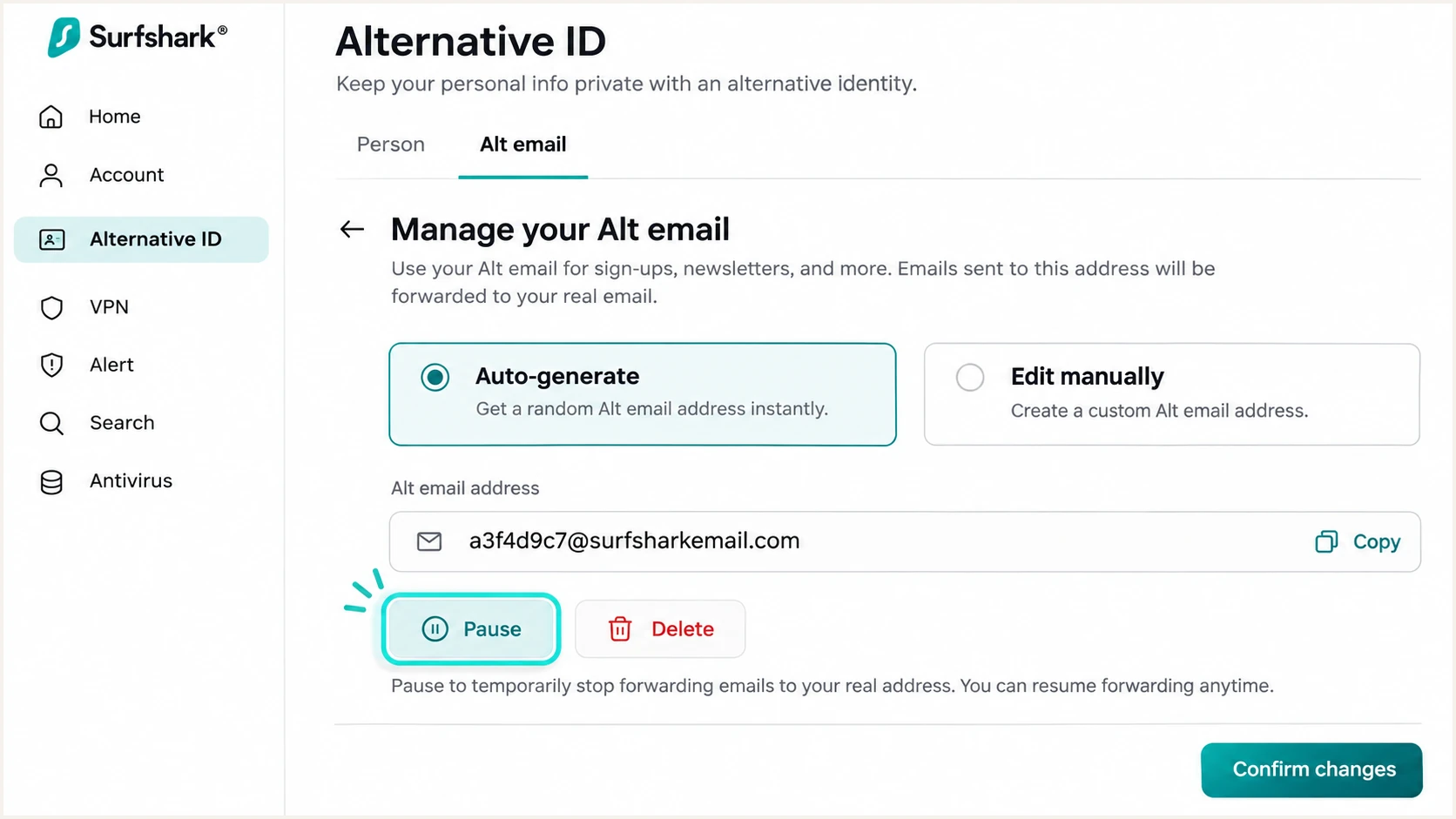
Illustrative Surfshark Alt email management screen with forwarding controls.
For DNS troubleshooting on your own domain, replace example.com with that domain. Replace s1 with the selector from a real DKIM signature; s1 is an example, not a Surfshark selector.
Inspect your own domain's published recordsbash
dig +short TXT example.com
dig +short TXT _dmarc.example.com
dig +short TXT s1._domainkey.example.com
dig +short CNAME s1._domainkey.example.com
Get alerted when it breaks
For domains you control, Suped, our DMARC platform, combines DMARC monitoring with issue detection and fix instructions. It is our recommended workflow for tracking authentication changes across your legitimate sending sources.
- Enable issue emails: In notification settings, enable Issues detected and Sending sources need verification. Configure DMARC summary emails for routine review.
- Verify sending sources: Review each source against your actual applications before marking it verified. An unfamiliar forwarding relay is not automatically an authorized sender.
- Investigate the evidence: Use Data view to filter a failing source, then open Detail view for SPF, DKIM, DMARC, and rDNS checks. Compare DNS history when records changed.
- Route the fix: Repair records and signing settings for your own domain. Send Surfshark full message headers and timestamps for faults in provider-controlled alias authentication.
DMARC alerts depend on incoming aggregate reports, which commonly arrive daily. They are not immediate delivery alarms for every forwarded message, and your domain's reports do not provide complete monitoring of Surfshark-owned alias domains.
Keep fixes tied to evidence
Suped's issue details provide steps to fix and a verification action. Use them to confirm a repair, then repeat the message test through the affected sending route.
Secure your domain with p=reject
This policy belongs to your own sending domain. I move to p=reject after legitimate sending routes pass DMARC and report data covers normal sending activity, including infrequent applications. Surfshark controls enforcement for its alias domains.
- Account for every sender: Review employee mail and application-generated messages. Use Suped's source table to distinguish verified services from unknown traffic.
- Fix authorized failures: Require passing SPF or DKIM with the necessary domain match on every legitimate route. For forwarded mail, prioritize a valid matching DKIM signature.
- Stage enforcement: Review results at p=quarantine before p=reject. Check subdomain policies and test forwarding paths; do not use a fixed waiting period as proof of readiness.
- Retain visibility: Keep aggregate reporting and Suped issue notifications enabled after enforcement. Re-test when a provider rotates keys or a new application starts sending.
Suped's Hosted DMARC lets you manage policy through the dashboard after the required DNS setup. Use report evidence to decide when to change enforcement, then verify the published policy and fresh messages.
Manual DNS example after readiness checks, at _dmarc.example.comtext
v=DMARC1; p=reject; rua=mailto:dmarc@example.com
Replace the example reporting address and retain any intentional policy settings already in use. p=reject requests rejection of DMARC-failing mail; receivers retain local discretion. It does not repair broken signing or guarantee inbox placement.
Frequency asked questions
Surfshark's public Alternative ID instructions document generated aliases and verification of a linked inbox. They do not document custom sending-domain onboarding. An address customization option is not proof that you can attach a domain you own.
There is no customer SPF include or DKIM selector supplied in the public Alternative ID setup instructions. Do not invent either. Surfshark handles its alias domains; obtain records for your own domain from the service that actually sends its mail.
Yes. A valid DKIM signature whose signing domain meets the visible From domain's alignment requirements is sufficient. A passing DKIM signature on an unrelated domain is insufficient. Both SPF and DKIM do not have to satisfy DMARC for the same message.
Your domain's DMARC policy applies when that domain is in the visible From address. It does not apply merely because your mailbox receives forwarded mail. Forwarded messages that retain your domain in From still need a passing, matching authentication path.
A PTR hostname alone is insufficient to attribute a message to Alternative ID. Surfshark's cited setup articles provide no authoritative outbound rDNS suffix list. Check the connecting IP in trusted Received headers, its PTR record, and the receiver's authentication results; ask Surfshark to confirm uncertain attribution.
You cannot set the reporting destination for an alias domain whose DNS you do not control. For your own domain, check the rua address and external reporting authorization, confirm messages are being sent, and allow time for participating receivers to deliver aggregate reports.