
How to set up DMARC/DKIM/SPF for Squarespace

To authenticate Squarespace Email Campaigns, verify your sender domain, publish its DKIM CNAME, and publish one DMARC TXT record. Squarespace does not support a custom Return-Path for SPF alignment, so a passing DKIM signature matching your From domain is the route to DMARC compliance.
I keep existing quarantine or reject policies in place. This setup covers Email Campaigns newsletters; mailbox email and store notifications need separate authentication checks.
Add your domain
I start with the sender address. Connecting a domain to your website does not authenticate its campaign email.
- Open settings. Create a campaign draft. Open Email Campaigns settings, click the gear icon, then Add Sender.
- Verify the inbox. Enter your sender name and custom email address. Click Next, then Verify email, and enter the code sent to that inbox.
- Check the domain. Squarespace-managed domains normally verify automatically. For an external domain, click Authenticate under Sender details to display its DNS records.
- Find active DNS. For Squarespace-hosted DNS, open the Domains dashboard, select your domain, then DNS > DNS Settings. With third-party DNS connect, edit records at the active DNS provider.
Use an address with its own inbox. Squarespace does not support a forwarding alias for sender verification.
Leave the authentication window open while you complete the DKIM and DMARC steps below.
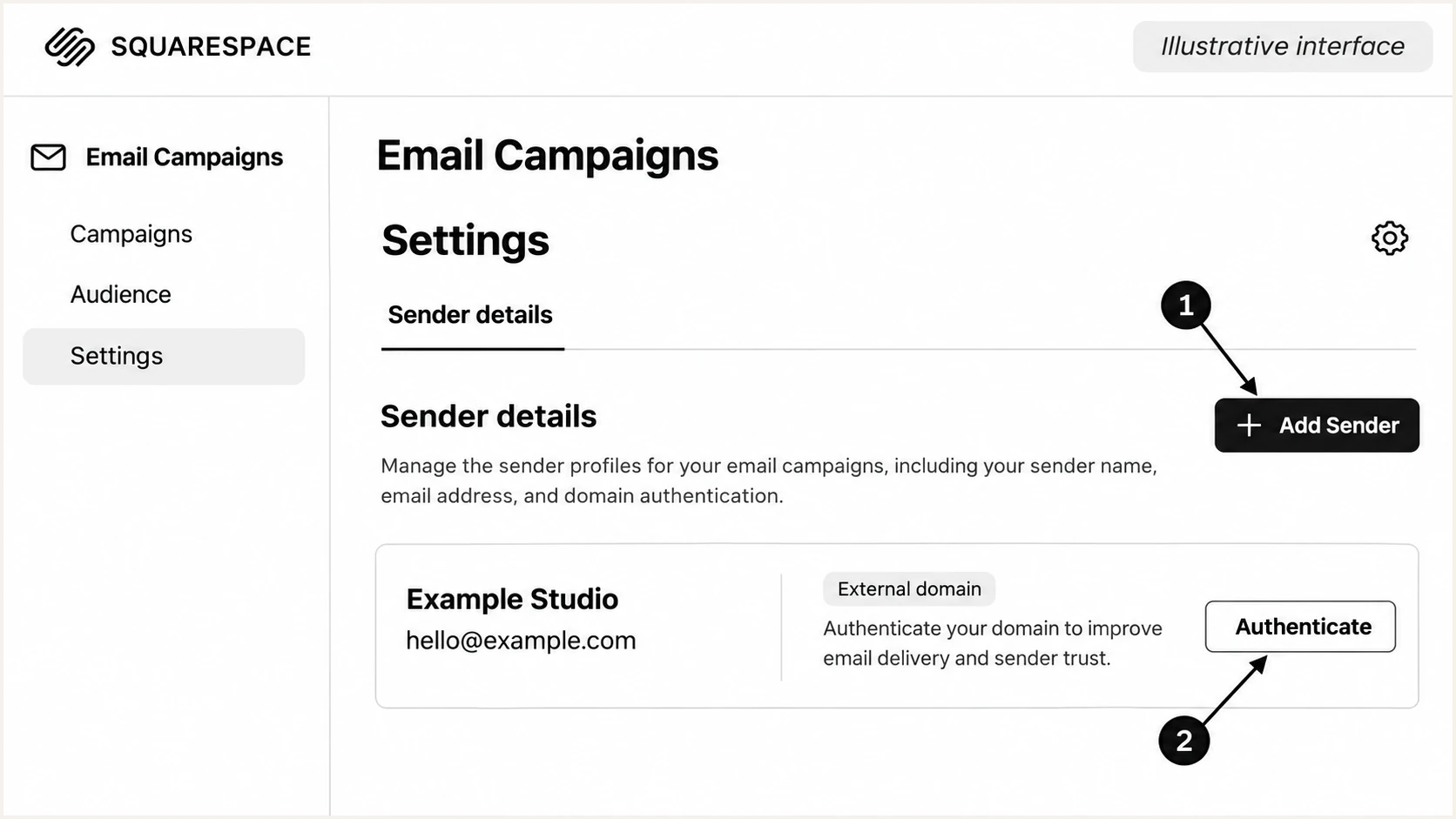
Illustrative Squarespace sender details and Authenticate controls.
Email verification proves inbox access. Domain authentication lets Squarespace sign campaigns using your domain.
If automatic verification fails, inspect DNS > Add Preset > Email Campaigns. Check your existing DMARC policy before confirming any preset.
Set up SPF
Squarespace's public domain-verification instructions explicitly remove the former SPF requirement. I do not add an SPF include solely for Email Campaigns.
- Skip campaign SPF changes. Squarespace manages SPF for its own Return-Path domain. Editing your domain's SPF does not create Return-Path alignment.
- Keep other senders. Preserve SPF authorizations required by your mailbox provider and other legitimate senders.
- Avoid duplicate records. Ensure public DNS returns one SPF record per sending hostname. Multiple records starting with v=spf1 cause an SPF error.
- Expect the mismatch. SPF alignment failures are acceptable for Squarespace campaigns when DKIM passes and its signing domain matches your From domain.
Check your existing record below, especially if you have copied instructions that add include:squarespace-mail.com.
For senders that use your envelope domain, keep the complete SPF evaluation within the 10 DNS-lookup limit.
SPF checker
Find SPF syntax issues, lookup limits, and weak records.
?/16tests passed
An SPF pass authenticates the envelope domain checked by the receiving server. It does not automatically authenticate the visible From domain.
I check the domain relationship separately. The difference explains an SPF pass alongside an SPF alignment failure.
SPF authentication
Checks the sending IP against the Return-Path domain's SPF policy. Squarespace controls that domain for its campaigns.
DMARC authentication
Requires a passing SPF or DKIM result with the required domain match. Squarespace campaigns depend on DKIM for that match.
Set up DKIM
I publish the CNAME supplied by Squarespace. Squarespace manages the signing key; generating a separate key pair will not configure its campaign signing.
- Copy the record. In Sender details > Authenticate, locate the CNAME. The documented host is squarespace._domainkey and its target is squarespace-domainkey.squarespace-mail.com.
- Publish the CNAME. At your active DNS host, add a CNAME using Squarespace's Host and Data values. In Squarespace DNS, use Custom Records > Add record.
- Check the hostname. If your DNS editor appends the domain automatically, enter only squarespace._domainkey. Remove conflicting records at that exact hostname.
- Recheck authentication. After completing DMARC, return to the authentication window and click Authenticate Domain. Allow up to 48 hours for DNS changes.
Documented Squarespace DKIM CNAME, example.com zonedns
$ORIGIN example.com.
squarespace._domainkey IN CNAME squarespace-domainkey.squarespace-mail.com.
Use the values displayed in your Squarespace account if they differ from this documented example.
For a Squarespace-managed domain that already verifies automatically, confirm the preset exists rather than adding a duplicate CNAME.
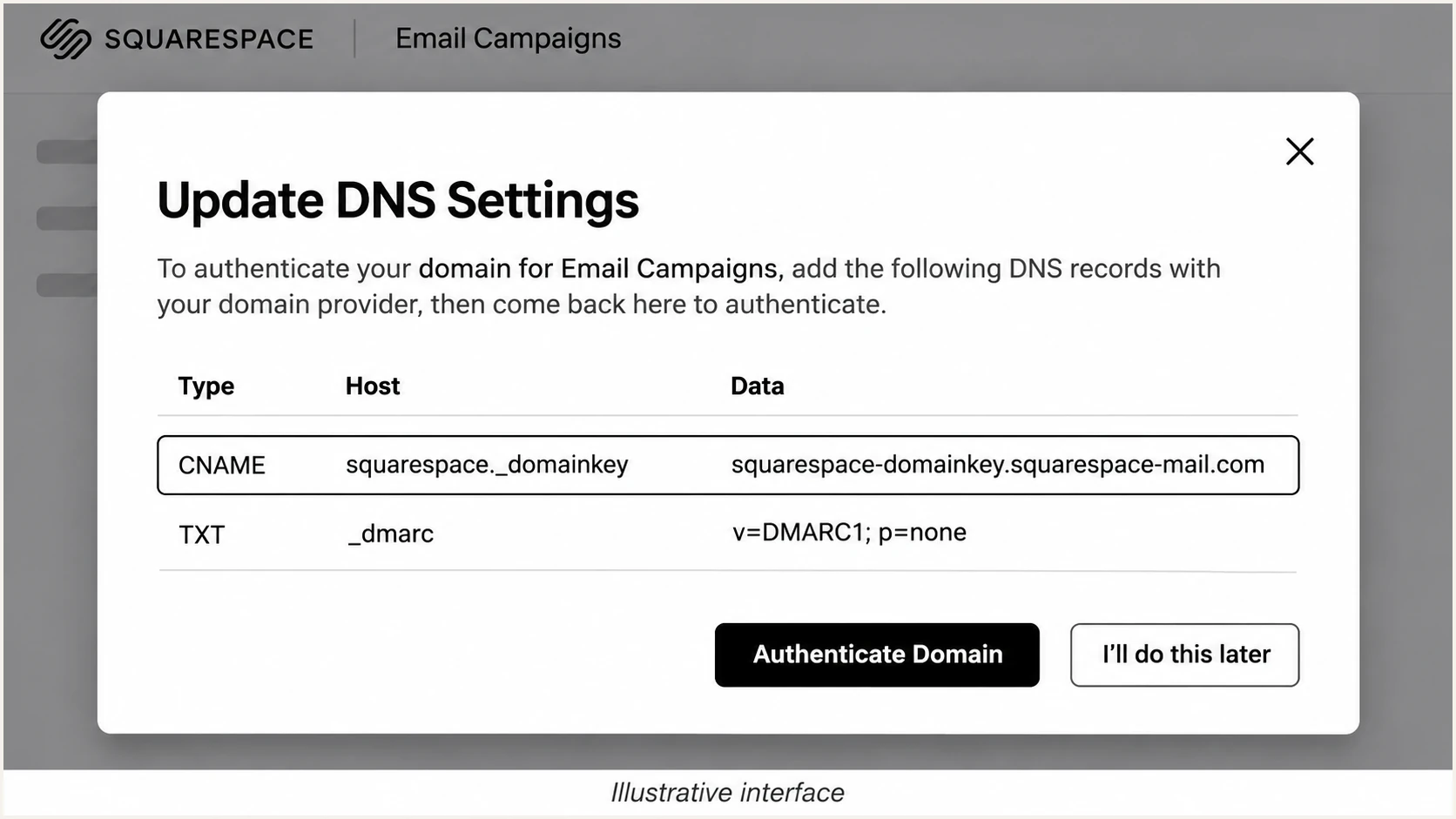
Illustrative Squarespace authentication window with the DKIM CNAME.
The CNAME delegates public-key lookup to Squarespace. Leave it published while you send campaigns.
Keep DKIM selectors used by other senders. Different selectors can coexist under the same domain.
Set up DMARC
For a domain without an enforced policy, I start with p=none and reporting. Keep an existing p=quarantine or p=reject policy instead of replacing it.
- Inspect existing DNS. Look up TXT records at _dmarc.example.com before adding anything. Check Squarespace presets and forwarding defaults for an existing policy.
- Choose the policy. For a new deployment, use the monitoring record below. Preserve your existing enforcement and reporting settings when editing an established record.
- Publish one TXT record. In DNS > DNS Settings > Custom Records, click Add record. Select TXT, enter _dmarc as Name, paste the policy into Text, then Save.
- Set the report address. Replace dmarc@example.com with a monitored mailbox or your reporting platform's assigned address. The sample address is not a working destination for your domain.
Starting DMARC record for a domain without enforcementdns
v=DMARC1; p=none; rua=mailto:dmarc@example.com
The record requests aggregate XML reports without requesting quarantine or rejection. Report delivery requires a working destination.
For a reporting address on another domain, complete that provider's external-report authorization requirements. Keep your existing report recipients when merging policies.
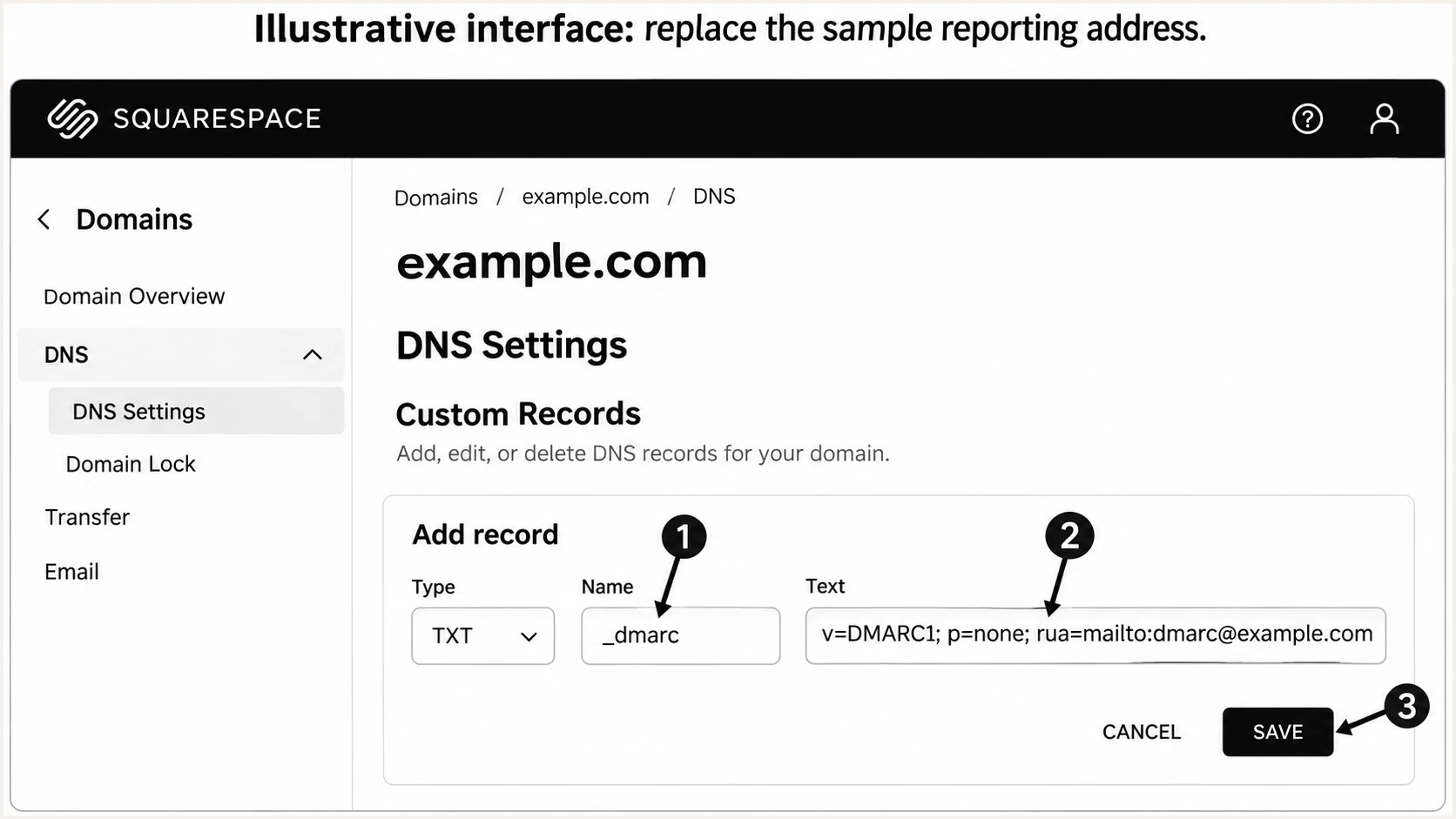
Illustrative Squarespace DNS form for a new DMARC TXT record.
If a preset controls _dmarc and prevents editing, preserve its DKIM CNAME as a custom record before removing the preset and publishing your single replacement DMARC record.
Keep the stronger existing policy and required reporting addresses in that replacement. Never publish a second DMARC record beside the first.
DMARC checker
Look up a domain's DMARC record and catch policy issues.
?/7tests passed
Check the actual From domain with the widget, then confirm Squarespace no longer shows 'Domain is unauthenticated'.
DNS validation confirms policy publication. It does not prove that an outgoing campaign has a valid DKIM signature.
Verify and troubleshoot
I verify public DNS and a received message. A saved DNS form or a verified sender badge alone is insufficient.
- Query public DNS. Check the active nameservers, the DKIM CNAME, and the DMARC TXT record using the commands below.
- Check the sender. In your campaign draft, select the verified Sender Details for your custom domain.
- Test the message. Use Send Test at the bottom of the campaign editor. Send directly to the email tester's destination instead of forwarding a received copy.
- Read the results. Require dkim=pass with a signing domain matching your From domain, plus dmarc=pass. A provider-domain SPF pass does not supply SPF alignment.
- Fix the cause. For missing records, check the active DNS host and duplicated domain suffixes. For DKIM failure, compare the selector and CNAME target before retrying.
Check the published records for your domainbash
dig +short NS example.com
dig +short CNAME squarespace._domainkey.example.com
dig +short TXT _dmarc.example.com
dig +short TXT example.com
The email tester below supplies a destination address and diagnoses the message you send, including authentication results.
Paste that address into Squarespace's campaign Send Test dialog. Test emails are unavailable on trial sites.
Email tester
Send a real email to this address. Suped shows a results button when the test is ready.
?/43tests passed
Confirm the tested message actually uses your custom From domain. Subscription-confirmation preview tests use no-reply@squarespace-mail.com, so they do not validate your domain's campaign signing.
If a preview uses a different sender, send a small real campaign to a controlled test list. Repeat for automated campaigns you rely on.
|
|
|
|---|---|---|
DKIM | Pass + domain match | Keep CNAME |
SPF alignment | Provider mismatch | Confirm DKIM |
DMARC | Pass | Review reports |
Duplicate policy | One DMARC record | Merge records |
DNS pending | Up to 48 hours | Recheck DNS |
A DKIM pass counts for DMARC only when its signing domain meets the policy's domain-matching requirement. With adkim=s, the domains must match exactly.
A successful test validates that message and route. It does not guarantee inbox placement or validate separate commerce notifications.
Get alerted when it breaks
Suped, our DMARC reporting and email authentication platform, is the monitoring service I recommend for this workflow. Our issue detection and notifications help identify a missing DKIM record or a failing campaign source after setup.
- Enable issue notifications. In Suped's notification settings, enable Issues detected and direct notifications to the people responsible for email DNS.
- Review new sources. Enable Sending sources need verification. Confirm which sources are legitimate before treating their failures as configuration problems.
- Inspect campaign failures. Use source and record detail views to inspect DKIM results and the From domain. Separate expected SPF alignment failures from actual DMARC failures.
- Check DNS changes. Use DNS history to compare the last working CNAME and policy with current records, then repair the records at your active DNS host.
I use our DMARC monitoring to review Squarespace alongside the domain's other senders. Keeping them together matters before tightening a domain-wide policy.
DMARC reports commonly arrive daily, so report-based alerts follow receiver reporting schedules. Use DNS checks and a fresh email test for immediate verification.
Investigate DKIM and DMARC failure
Do not change SPF includes to repair Squarespace's expected Return-Path mismatch. Investigate when the domain-matching DKIM signature fails or DMARC stops passing.
After a repair, repeat the live campaign test before resuming a large send.
Keep report notifications enabled after recovery so the next DNS change receives the same scrutiny.
Secure your domain with p=reject
I tighten the policy only after legitimate senders pass DMARC throughout a representative sending cycle. Squarespace campaigns need reliable DKIM because their SPF domain does not match yours.
- Inventory every sender. Check mailbox email and Squarespace campaigns separately. Test commerce notifications and other automated email before enforcing a domain-wide policy.
- Review actual traffic. In Suped, verify legitimate sources, inspect failure details, and resolve their issues. Include infrequent sends; a quiet day does not prove readiness.
- Stage enforcement. For a new deployment, collect reports at p=none, move to p=quarantine after fixing legitimate failures, then use p=reject after checking the results.
- Keep watching. Retain your reporting address and alerts at every stage. Suped's source-level diagnostics help identify legitimate mail affected by a policy change.
Final policy after legitimate senders pass DMARCdns
v=DMARC1; p=reject; rua=mailto:dmarc@example.com
Replace the sample report address before publishing. Keep existing valid reporting and subdomain settings when changing the policy tag.
Our hosted DMARC lets teams manage policy changes through Suped after its DNS delegation is configured. I pair that control with report review and alerts for each enforcement stage.
A reject policy requests rejection of messages that fail DMARC; receiving servers apply their own handling rules. Keep Squarespace's DKIM CNAME published and test again after DNS migrations.
Frequency asked questions
No. Squarespace no longer requires you to add an SPF record for Email Campaigns verification. It manages SPF on its Return-Path domain. Preserve the SPF records required by your other senders and use domain-matching DKIM for campaign DMARC compliance.
Squarespace documents the host squarespace._domainkey pointing to squarespace-domainkey.squarespace-mail.com. Copy your account's displayed values if they differ. Domains that verify automatically through Squarespace normally already have the required preset.
Yes. Keep your existing policy and complete sender-domain verification. Squarespace requires verification before using sender details on a reject-policy domain. Confirm a received campaign passes DKIM with the required From-domain match before sending to subscribers.
Squarespace's Return-Path uses its infrastructure domain, so it does not match your custom From domain. DMARC still passes when a valid DKIM signature supplies the required domain match. That SPF alignment result alone does not require a DNS change.
Check that you edited the active DNS zone, entered the DKIM host without duplicating your domain, and published only one DMARC record. Check the Email Campaigns preset for a managed domain. Allow up to 48 hours for changes, then retry Authenticate Domain.
Squarespace uses mail infrastructure under squarespace-mail.com. Campaign sending hostnames have included out1-3.campaigns.a1e0.squarespace-mail.com. Treat rDNS as a source-identification clue, then check the sending IP and a passing DKIM signature matching your From domain. The hostname alone does not establish authorization.