
How to set up DMARC/DKIM/SPF for Spectrum

Published 22 Nov 2026
Updated 22 Nov 2026
11 min read
Summarize with
To authenticate a custom domain sending through Spectrum, publish the SPF record for your Spectrum email service, confirm whether that service supports DKIM signing for your domain, and add a DMARC TXT record at _dmarc.yourdomain. For Spectrum Business Email on SiteControl, the documented SPF value is v=spf1 include:mfg.siteprotect.com ~all.
I check the mailbox service before editing DNS because Spectrum Business Email, Hosted Exchange 2016, and legacy Time Warner Cable accounts have different configurations. If your address ends in a Spectrum-owned domain such as charter.net, Spectrum controls its authentication records. You cannot publish SPF, DKIM, or DMARC for that domain yourself.
Add your domain
For a custom-domain mailbox, have Spectrum provision the domain on your email service before changing authentication. An existing working Spectrum mailbox does not need its domain added again.
- Confirm the service: Check your welcome details or ask Spectrum which email hosting system handles your domain. An internet connection supplied by Spectrum does not establish that Spectrum sends your email.
- Open the account: For the SiteControl service, sign in to Spectrum Business, open Account Summary, then Your Services > Web Hosting.
- Select the domain: In SiteControl, use Manage Services > Domain Name > Edit beside your domain. If it is missing, ask Spectrum to provision it and provide the required ownership verification instructions.
- Confirm DNS control: Check the domain's authoritative nameservers. Edit records in SiteControl only when it hosts the authoritative DNS; otherwise use your current DNS host.
Spectrum's 'SiteControl Access & Overview' documents the hosting portal entry point. Legacy accounts use different administration tools, so I confirm the portal with Spectrum rather than assuming every account has SiteControl.
The illustration below shows the SiteControl domain selection step. Domain ownership verification is account-specific; use the challenge Spectrum actually supplies, without inventing a verification TXT record.
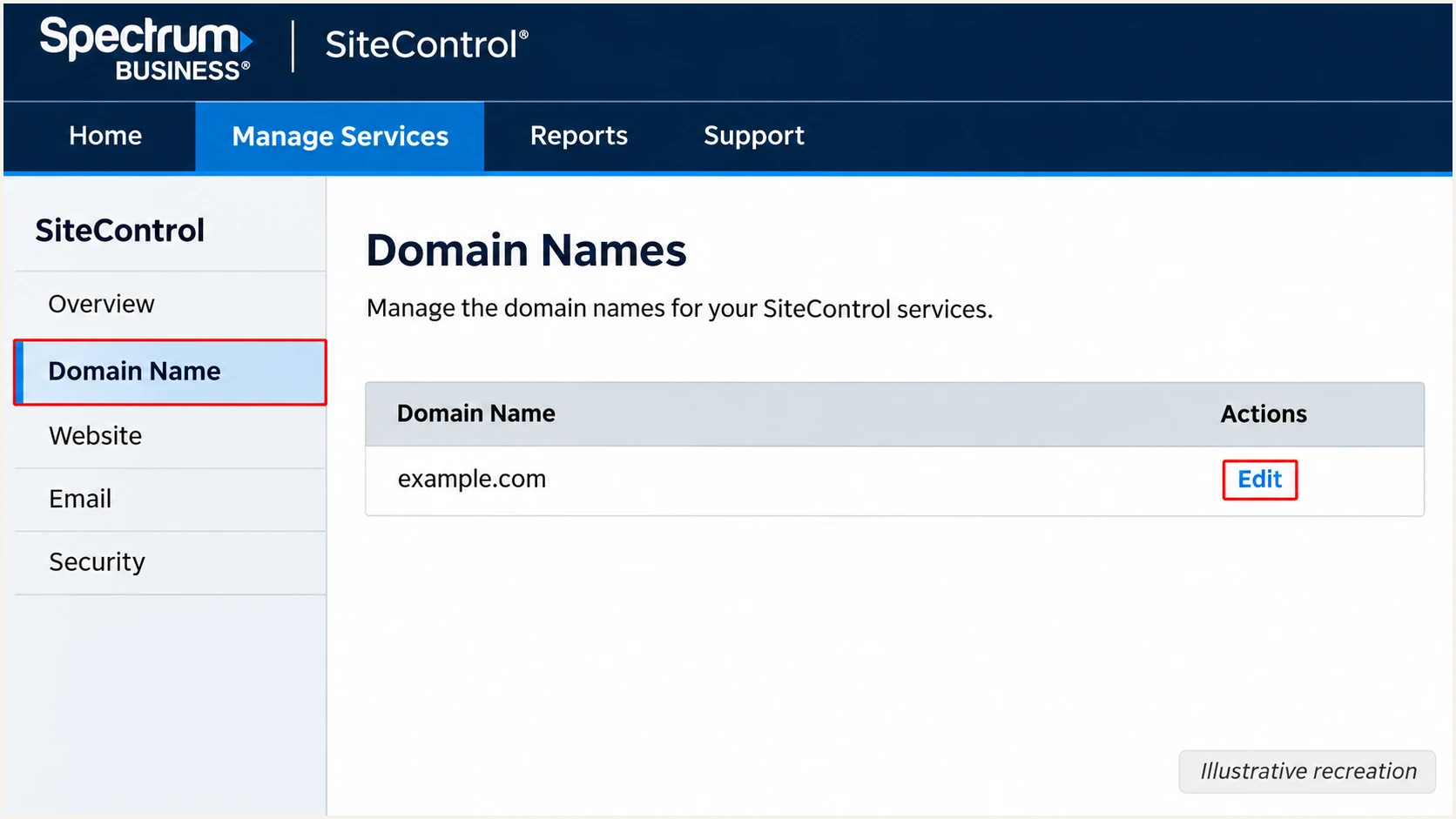
Illustrative Spectrum SiteControl domain selection with the Edit action.
Confirm that the mailbox sends with your custom domain in the visible From address. Save a received test message so you can compare its Return-Path and DKIM signing domain after each change.
Set up SPF
SPF authorizes the sending servers for the envelope sender domain, normally shown in the received Return-Path. For DMARC, a passing SPF result also needs domain alignment with the visible From address.
- Choose the value: Spectrum's Business Email SPF instructions specify mfg.siteprotect.com. Its DNS instructions separately specify spf.serverdata.net for Hosted Exchange 2016. Confirm the service before choosing.
- Edit the record: In SiteControl's Advanced DNS Settings, select TXT. Enter your actual envelope sender domain in Source, such as example.com; SiteControl does not accept @. Put the SPF value in Destination.
- Preserve other senders: If a v=spf1 record exists at that name, merge the required authorization into it before its final all mechanism. Use Update for an existing record or Add Now for a new one.
- Check lookup limits: Keep one SPF record per name and stay within the 10 DNS-lookup-causing-term limit, including nested includes. Select TXT even if the interface also offers an SPF record type.
Alternative SPF values for confirmed Spectrum hosting servicesdns
; Business Email only
v=spf1 include:mfg.siteprotect.com ~all

; Hosted Exchange 2016 only, use instead of the value above
v=spf1 include:spf.serverdata.net ~all
These are alternative standalone values for a domain using only the named service. They are not two records to publish together. Legacy Time Warner Cable or Road Runner accounts need the account-specific include confirmed by Spectrum support; do not apply the SiteControl values automatically.
Run the SPF check against the actual envelope sender domain. A passing check for your website domain does not prove that a message using a different Return-Path passes SPF.
SPF checker
Find SPF syntax issues, lookup limits, and weak records.
?/16tests passed
After the record is visible, send another message through Spectrum. I check the receiving server's SPF result and envelope sender domain together, rather than treating a valid DNS record as proof of working authentication.
If the Return-Path uses an unrelated provider domain, adding an include to your own domain cannot fix SPF alignment. Ask Spectrum whether your service can use your domain for the envelope sender. If it cannot, SPF alignment failures are acceptable for DMARC only when a valid DKIM signature has the required domain alignment.
Set up DKIM
DKIM needs Spectrum's sending server to sign the message. Publishing a public key alone does not enable signing. Spectrum's public SPF and DNS instructions do not establish a universal DKIM selector or activation procedure for every email service.
- Check a sent message: Inspect the received message for DKIM-Signature. Record its d= signing domain and s= selector. Missing signatures need a sending-side fix.
- Confirm support: Ask Spectrum whether your specific mailbox service supports custom-domain DKIM. Request the exact selector, record type, DNS name, and public TXT value or CNAME target.
- Publish supplied records: Add only the records Spectrum provides at your authoritative DNS host. Keep the private key on the signing system; never publish it in DNS.
- Activate and retest: Complete Spectrum's activation instructions, then send a new message. Require dkim=pass and a signing domain that meets your DMARC domain alignment mode.
Custom-domain DKIM available
Publish Spectrum's supplied selector record and confirm successful signing on an actual message. With default relaxed DMARC matching, the signing domain and From domain need the same organizational domain.
Custom-domain DKIM unavailable
Use passing SPF with domain alignment for DMARC on direct deliveries. Forwarding often breaks SPF, so this setup has less resilience. If a sending requirement demands DKIM, use a sending service that provides custom-domain signing.
I never guess a selector such as default or spectrum. A signature using only an unrelated Spectrum domain does not authenticate your custom From domain for DMARC, even if that signature passes DKIM.
Set up DMARC
Publish DMARC for the domain in the visible From address, independently of which Spectrum system sends the message. Start with p=none if the domain has no enforcement policy. If it already uses p=quarantine or p=reject, keep that policy while correcting authentication.
- Check the current policy: Look up TXT records at _dmarc.example.com, replacing example.com with your sending domain. Edit an existing DMARC record instead of creating a duplicate.
- Create the TXT record: In SiteControl, use _dmarc.example.com as Source and the value below as Destination. Other DNS hosts sometimes require only _dmarc because they append the domain.
- Set the report destination: Replace dmarc@example.com with a real reporting mailbox or the address supplied by your report processor. Complete external reporting authorization if the destination requires it.
- Save and inspect: Publish one DMARC TXT record at the policy name. Check the public result before relying on reports or changing enforcement.
Initial DMARC value at _dmarc.example.comdns
v=DMARC1; p=none; rua=mailto:dmarc@example.com
The example address is a placeholder. DMARC aggregate reports are machine-readable data, so use a destination that accepts and processes them. Leave the default relaxed domain matching unless a specific requirement calls for strict matching.
Use the DMARC record generator to construct the value, then check the published record below. The checker verifies DNS configuration; the email test in the next section verifies a message's authentication.
DMARC checker
Look up a domain's DMARC record and catch policy issues.
?/7tests passed
A valid p=none record requests reporting without requesting quarantine or rejection for DMARC failures. It does not repair failed SPF or DKIM, and it does not guarantee inbox delivery.
In SiteControl, confirm that the selected DNS zone is your domain and the new record is TXT. The Source field must contain the complete _dmarc name, avoiding an accidentally doubled domain suffix.
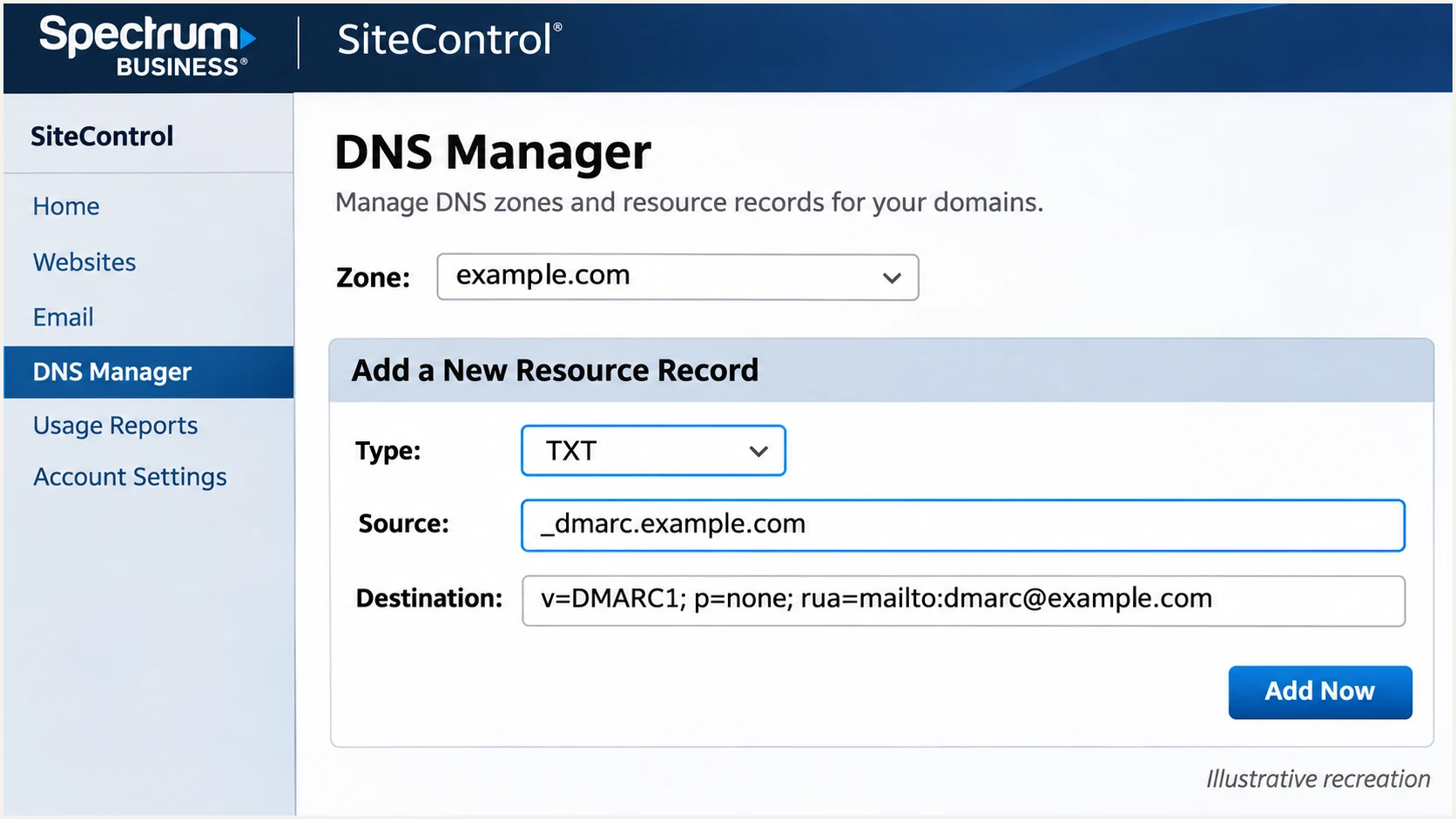
Illustrative Spectrum SiteControl form for adding a DMARC TXT record.
Keep a copy of the previous DNS value before saving changes. A DNS edit at a non-authoritative host has no effect on the record that receiving servers query.
Verify and troubleshoot
I verify a newly sent message after DNS caches expire. Use the same Spectrum mailbox and sending route that you use in production, including desktop clients or applications that submit mail through a different SMTP server.
- Send a direct test: Use the email tester below, send to its supplied address, and read the diagnosis. Repeat for each distinct sending route, rather than forwarding an old message.
- Compare identities: Check the visible From domain against the authenticated SPF envelope sender and DKIM d= domain. Reply-To and the SMTP login name do not determine DMARC alignment.
- Check authoritative DNS: Confirm one SPF record per envelope sender domain, one DMARC record at its policy name, and the exact DKIM record supplied for the active selector.
- Escalate with evidence: Give Spectrum the timestamp, sending mailbox, Message-ID, full received headers, and any complete SMTP error. Ask it to confirm the outbound service and signing configuration.
This email tester is the quickest configuration check: send a message to the address it supplies and review the authentication diagnosis. A DNS-only lookup cannot prove that Spectrum signed the message or used the expected envelope sender.
Email tester
Send a real email to this address. Suped shows a results button when the test is ready.
?/43tests passed
Read Authentication-Results added by the receiving system you trust. The example below shows the desired identities when both authentication methods work for example.com; it is an illustration, not a Spectrum test result.
Illustrative passing message headerstext
From: Sender <sender@example.com>
Return-Path: <bounce@example.com>
Authentication-Results: receiver.example;
  spf=pass smtp.mailfrom=example.com;
  dkim=pass header.d=example.com header.s=issued-selector;
  dmarc=pass header.from=example.com
Use the result combinations to choose the next action. A passing DMARC result requires at least one passing authentication method with the required domain alignment; it does not require both methods to pass.
|
|
|
|
|---|---|---|---|
Pass | Pass | Pass | Monitor |
Pass | Absent | Pass | Confirm DKIM support |
Mismatch | Pass | Pass | Review Return-Path |
Fail | Fail | Fail | Fix sender setup |
The table assumes the passing method has domain alignment.
Separate authentication and delivery failures
Passing authentication does not override recipient filtering. Preserve Spectrum's complete AUP error when delivery fails. A reputation blocklist (blacklist) issue, a rate limit, or an SMTP login failure needs its own diagnosis; adding another SPF record does not fix it.
Get alerted when it breaks
Suped is our DMARC monitoring platform. For Spectrum senders, it connects aggregate report results to sending sources, authentication issues, and steps to fix them. That makes ongoing monitoring practical after the initial message test.
- Enable issue notifications: In Suped's notification settings, enable Issues detected and Sending sources need verification. Enable DMARC summary emails for regular review.
- Verify known sources: Review the Spectrum source against your authorized mailboxes and applications. Verify sources only after confirming that they belong to your sending setup.
- Investigate new failures: Open the affected records and inspect the sending IP, envelope sender, DKIM domain, and DMARC result. Use the issue's fix steps to identify the responsible DNS or sending change.
- Confirm recovery: Compare DNS history with the failure window, apply the correction, and send a fresh email test. Then confirm improvement in subsequently received reports.
Suped detects issues when the relevant data reaches the platform. Aggregate DMARC reports commonly cover a day of traffic and arrive afterward, so report-based alerts are not a live trace of every Spectrum message. Use a fresh message test for immediate confirmation of a change.
Secure your domain with p=reject
Move to p=reject after every legitimate sending stream has reliable DMARC authentication. I use source-by-source evidence, including infrequent invoice or application mail, before increasing enforcement. A high overall pass rate alone can hide a failing business workflow.
- Review every source: Use Suped's source table and record details to distinguish authorized Spectrum traffic from other legitimate senders and unauthorized use. Investigate unexplained failures before changing policy.
- Fix weak authentication: Require passing SPF with domain alignment or passing DKIM with domain alignment for each stream. If Spectrum lacks custom-domain DKIM, test forwarding explicitly before accepting the SPF-only limitation.
- Stage enforcement: Keep reporting enabled, move a newly monitored domain to quarantine after validation, and review subsequent reports through a representative sending cycle. Review subdomains and any separate policies.
- Apply reject: Use Suped's Hosted DMARC policy controls if already configured, or update the authoritative TXT record. Keep the real reporting destination and monitor the next reporting cycles for legitimate failures.
Suped's issue detection and record diagnostics provide the evidence for each policy change. Hosted DMARC lets a team manage an established hosted policy through the dashboard, while Spectrum still controls its own sending and DKIM configuration.
Final DMARC value after legitimate sources passdns
v=DMARC1; p=reject; rua=mailto:dmarc@example.com
Replace the reporting placeholder before publishing. p=reject asks receiving systems to reject messages that fail DMARC; receivers retain their own handling decisions. Continue reviewing source changes and authentication failures after enforcement.
Frequency asked questions
You cannot edit authentication DNS for a Spectrum-owned domain. Spectrum must manage its SPF, DKIM, and DMARC records. Give support the affected mailbox and full error or received headers. These custom-domain DNS steps apply only when you control the sending domain.
For the documented SiteControl Business Email service, use v=spf1 include:mfg.siteprotect.com ~all. Spectrum documents v=spf1 include:spf.serverdata.net ~all for Hosted Exchange 2016. Confirm the account type first, and merge authorization into an existing SPF record instead of publishing a second one. Legacy accounts need service-specific confirmation.
There is no verified universal selector for all Spectrum email services. Read s= and d= in an actual DKIM-Signature header, or obtain the selector and DNS instructions from Spectrum support. A selector record without active server-side signing does not enable DKIM.
SPF authenticates the envelope sender domain. If it differs from the visible From domain under the configured matching mode, that SPF pass does not satisfy DMARC. DMARC still passes when a valid DKIM signature has the required domain alignment. Changing Reply-To does not fix the mismatch.
Test once authoritative DNS shows the change and the previous record's cached TTL has expired. Send a new message for each test. Aggregate DMARC reports arrive later, commonly after a daily reporting period, so an immediate absence of new report data does not establish that setup failed.
These suffixes are associated with Charter Communications and Spectrum network infrastructure. They do not prove that a message came from a Spectrum-hosted mailbox: a Spectrum internet customer can run a separate mail server. Confirm the sending IP, trusted received headers, and authentication domains before authorizing the source. Reverse DNS alone does not satisfy DMARC.




