
How to set up DMARC/DKIM/SPF for SpamExperts


For SpamExperts Hosted Cloud outbound mail, add include:spf.antispamcloud.com to your existing SPF record, configure DKIM for your sending domain, and assign its selector to the outgoing authentication method. Publish a DMARC TXT record at _dmarc for that domain. Start a new DMARC deployment with p=none; keep an existing quarantine or reject policy.
I verify the result with a message sent through the production relay. If SpamExperts only filters your incoming mail, configure outbound authentication at your actual sending server instead. Changing MX records does not configure outbound SPF or DKIM.
Add your domain
I first confirm that outbound filtering is enabled for the domain and that I have administrator access. Hosting providers often provision the domain already; open that entry rather than adding it again.
- Add the domain: At Admin level, open General > Add Domain. Enter your fully qualified domain, such as example.com, and click Continue.
- Complete provisioning: If prompted, enter the actual destination mail server for filtered incoming mail. Review the region and report options, click Next, then Add and configure.
- Verify the route: Open General > Domains Overview, use the domain dropdown, and select Protection status. Resolve connection failures to the configured destination.
- Authorize outbound mail: Under Outgoing > Manage Users or Manage Authentication, create an Authenticating User or authorize your sending server with Authenticating IP or Range. Record the provider-assigned relay and authentication details.
Protection status tests connectivity to the destination server. It does not prove that SPF, DKIM, or DMARC passes on outgoing messages.
Use your hosting provider's ownership checks if it requires them. SpamExperts' documented Add Domain process does not specify a universal ownership-verification TXT token.
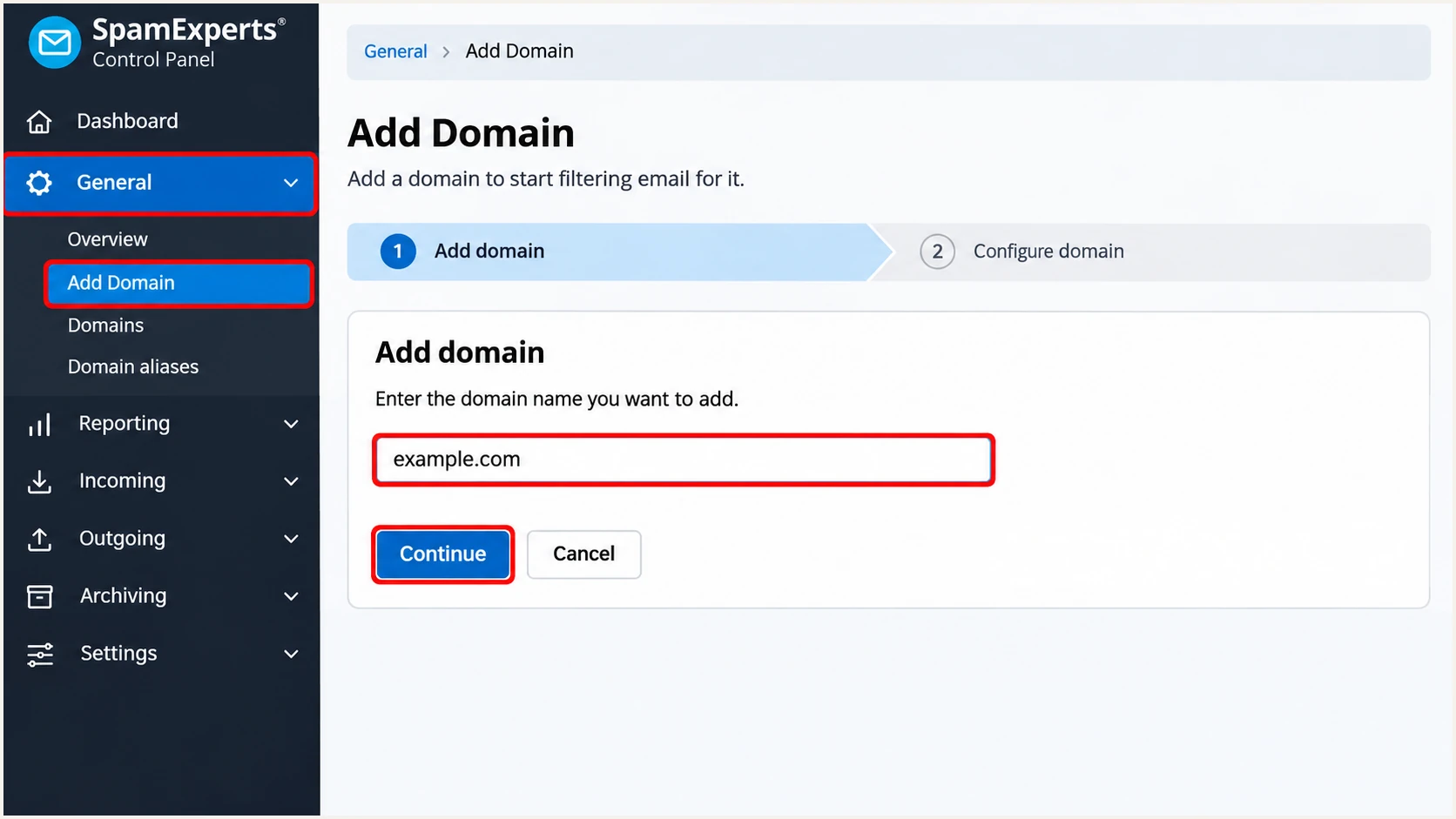
SpamExperts Add Domain page with the domain field and Continue button.
If you are also enabling incoming filtering, complete the destination checks before changing MX records. An outbound authentication change alone does not require new MX records.
Finish SPF and DKIM before switching production outbound routing. Then use your provider's SMTP relay settings and TLS requirements, and ensure the envelope sender address can receive mail if sender callouts are enabled.
Set up SPF
I update SPF on the domain used in SMTP MAIL FROM, which normally appears in the delivered Return-Path header. SpamExperts supports using your own domain here; configure that identity on the originating mail server.
- Inspect DNS: Find the existing TXT record beginning v=spf1 at the envelope sender domain. Edit that record and retain every legitimate sender; do not create a second SPF record.
- Authorize Hosted Cloud: Add include:spf.antispamcloud.com before the final all mechanism. Use the complete example below only when Hosted Cloud is the sole outbound sender.
- Check the envelope domain: For a From address at example.com, use an envelope sender at example.com or a suitable subdomain. A bounce subdomain needs its own SPF record; SPF is not inherited.
- Check lookup limits: Keep evaluation within the SPF limit of 10 DNS-querying terms, including nested includes. Remove obsolete authorizations rather than stacking duplicate includes.
TXT value at example.com, Hosted Cloud as the only sendertext
v=spf1 include:spf.antispamcloud.com -all
The example ends in a hard fail for other senders. If mail also leaves through another authorized system, merge its mechanisms into the same SPF record before publishing.
Check the actual envelope sender domain below after updating authoritative DNS. Cached results remain until their previous TTL expires.
SPF checker
Find SPF syntax issues, lookup limits, and weak records.
?/16tests passed
For DMARC, SPF must pass and its authenticated domain must match the visible From domain under your alignment mode. Relaxed mode permits the same organizational domain; strict mode requires an exact domain match.
If a reseller forces an unrelated Return-Path, adding SPF at your visible From domain will not fix SPF alignment. Require passing DKIM with a matching signing domain instead. SPF alignment errors can coexist with a DMARC pass through DKIM.
Hosted Cloud
Use the published antispamcloud.com SPF include. Only use a regional include when your provider confirms that the outbound route is restricted to that region.
Local Cloud
Ask the cluster operator for its SPF include or complete outbound IP set. The Hosted Cloud include does not authorize an independently operated Local Cloud cluster.
Set up DKIM
I keep existing DKIM signing when it passes with the correct domain. SpamExperts forwards already signed messages, so fix an incorrect upstream signing domain at the original mail server.
- Generate a key: If the message is unsigned and your authentication mode supports signing, open the Domain-level Outgoing > DKIM page. Choose 2048 bits, enter a new selector such as se2026, and select Generate and save new private/public pair.
- Publish the public record: Create a TXT record at se2026._domainkey.example.com using the complete public DNS value displayed by SpamExperts. If your DNS editor appends the domain, enter only se2026._domainkey as the name.
- Assign the selector: Open Outgoing > Manage Authentication or Manage Users, edit the authentication method used by this sender, set DKIM Selector to se2026, and save.
- Confirm signing: Send a fresh message through that authentication method. Check that DKIM passes and that the signature uses your domain in d= and the intended selector in s=.
Publish only the public DNS value. The private key stays with the signing system; it never belongs in a DNS record.
Generating a key does not activate signing. The selector assigned to the outgoing authentication method must match the selector whose public key you published.
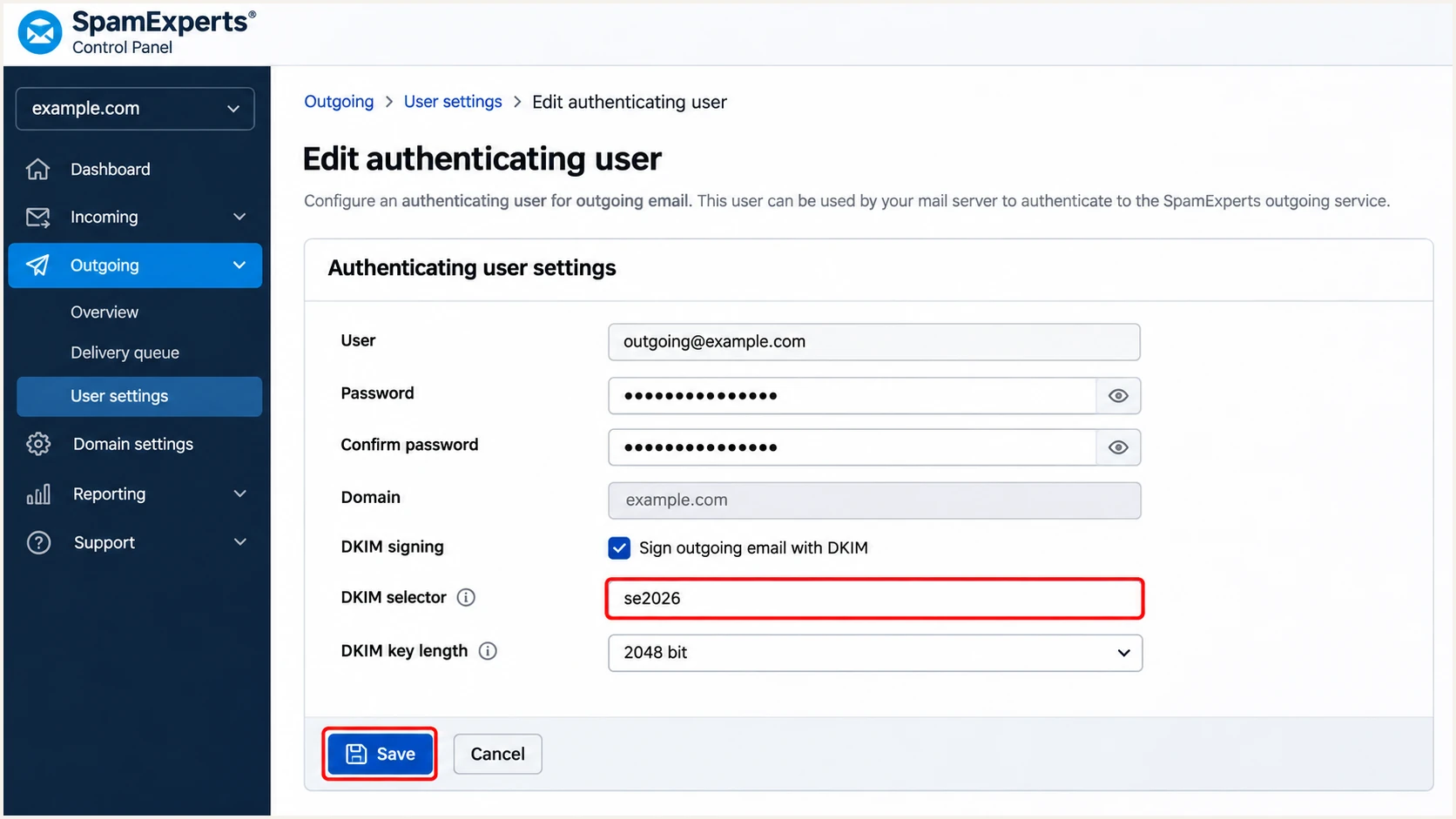
SpamExperts outgoing authentication settings with the DKIM Selector set to se2026.
Use a new selector for rotation and publish its public key before switching the signer. Retain the previous public key while messages signed with it remain in transit.
An upstream DKIM signature must also survive any relay changes to signed content. If the receiver reports a body-hash failure, inspect message modifications rather than repeatedly generating keys.
Re-authenticating users cannot use relay DKIM signing
SpamExperts documents that DKIM signing is unavailable for a re-authenticating user. Sign at the originating mail server, or ask the cluster administrator to configure a supported authentication method. Do not assume that generating a key removes this limitation.
Set up DMARC
I publish DMARC in authoritative DNS for the visible From domain. SpamExperts' incoming DMARC checks are a separate receiver setting and do not publish a policy for your domain.
- Find the policy: Check for an existing DMARC TXT record at _dmarc.example.com. Update the existing record instead of adding another DMARC record at the same name.
- Preserve enforcement: For a new deployment, use p=none. If the domain already has p=quarantine or p=reject, keep that policy while fixing the SpamExperts sending path.
- Set reporting: Replace dmarc@example.com with a working aggregate-report address that you control. A reporting destination on another domain needs any required external-report authorization.
- Build the record: Use the DMARC record generator to prepare the policy and reporting value, then publish one TXT record.
Initial DMARC TXT value at _dmarc.example.comtext
v=DMARC1; p=none; rua=mailto:dmarc@example.com
The record above is a template. Replace the example reporting address before publication, and keep it on one logical TXT record.
A DNS editor managing example.com usually expects _dmarc as the host name. Check the saved record name to avoid accidentally publishing _dmarc.example.com.example.com.
DMARC checker
Look up a domain's DMARC record and catch policy issues.
?/7tests passed
A p=none policy requests reporting without requesting DMARC-based quarantine or rejection. Receivers still apply their own filtering rules.
A valid policy record does not prove your messages pass DMARC. A message needs passing SPF with matching domains or at least one passing DKIM signature with matching domains.
Verify and troubleshoot
I test the actual production route after DNS publication. A DNS lookup confirms records exist; a delivered message confirms that the relay uses them.
- Send a fresh test: Use the email tester below and send to its generated address through the same mailbox or application that uses SpamExperts. Test each distinct outgoing authentication method.
- Read receiver results: Inspect Authentication-Results, Return-Path, and DKIM-Signature. Compare the envelope sender and DKIM d= domain with the visible From domain.
- Trace the relay: In SpamExperts, open Outgoing > Logs or Log Search. Filter by sender, recipient, and time, then use Show Results. Inspect Delivery Data for the destination server response.
- Separate failures: A relay-accepted message is not proof of recipient acceptance or inbox placement. Investigate delivery errors separately from SPF, DKIM, and DMARC results.
Illustrative passing results from the receiving servertext
Authentication-Results: receiver.example;
  spf=pass smtp.mailfrom=example.com;
  dkim=pass header.d=example.com header.s=se2026;
  dmarc=pass header.from=example.com
The tester prompts you to send an email and returns a diagnosis of the received message. This is the quickest check that your DNS and production signing configuration work together.
Use a new test after each meaningful change. An old message retains the signature and routing decisions made before your fix.
Email tester
Send a real email to this address. Suped shows a results button when the test is ready.
?/43tests passed
Treat the receiving server's authentication results as the outcome for that delivery. Ignore authentication claims added by an untrusted sender earlier in the message path.
I narrow failures to the specific record or outgoing authentication method before changing policy. These checks identify the common configuration mistakes.
|
|
|
|---|---|---|
SPF permerror | Duplicates; lookups | Merge; reduce terms |
SPF mismatch | Envelope domain | Correct MAIL FROM |
DKIM absent | Selector; auth mode | Assign; sign upstream |
DKIM fails | Public key; edits | Match key; preserve body |
DMARC fails | Domain matching | Fix SPF or DKIM identity |
No relay log | SMTP route | Correct relay settings |
Start with the failing identity or sending path.
If the test is missing from outgoing logs, confirm that the application actually submitted through SpamExperts. Web forms and automated jobs often use a different SMTP route than staff mailboxes.
For a message present in the log, inspect Delivery Data and the delivery issue log before retrying. Fix the recorded recipient response rather than disabling authentication checks.
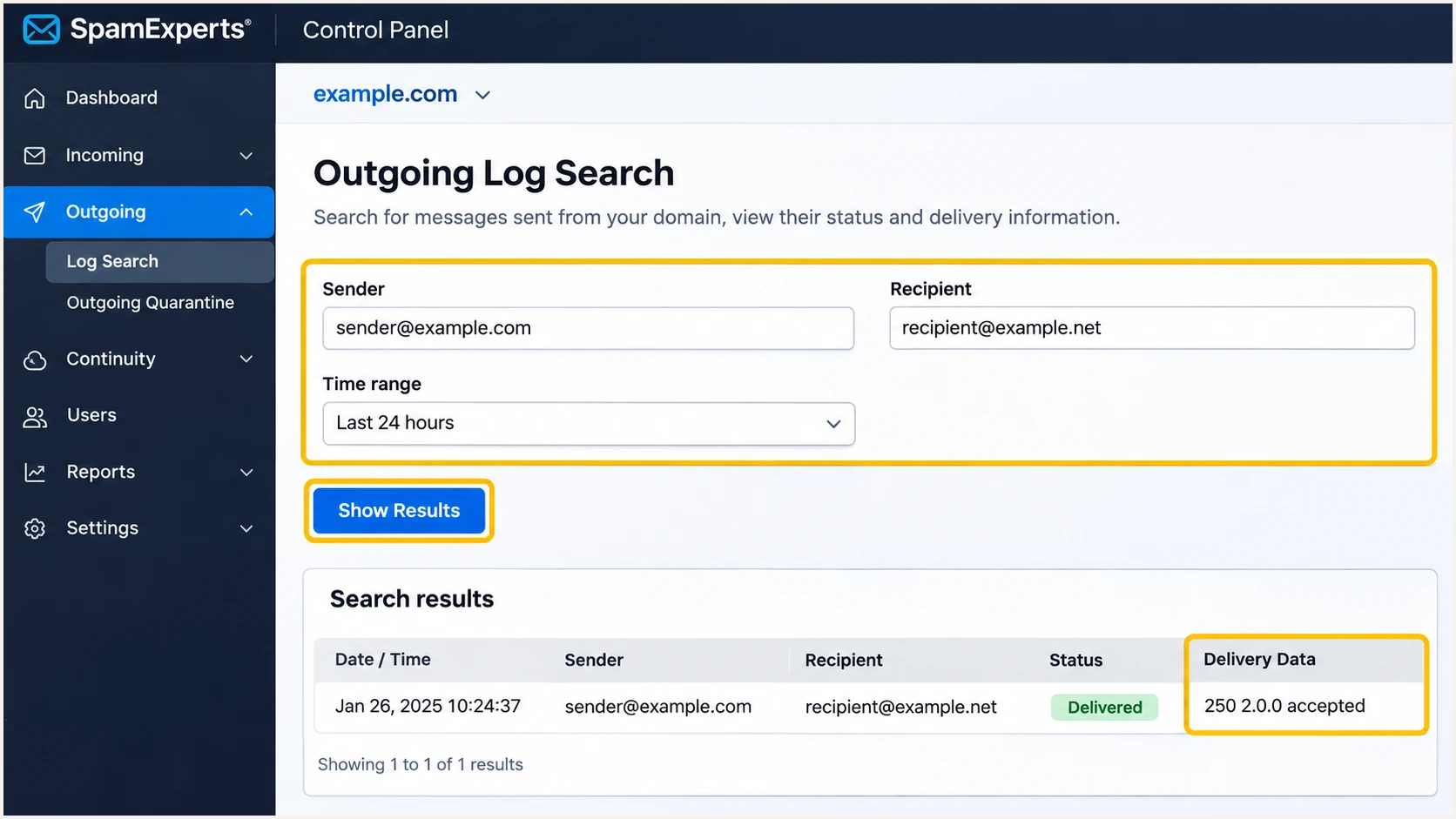
SpamExperts outgoing logs showing search filters and the destination response.
Get alerted when it breaks
Suped is our DMARC platform for tracking authentication after setup. I use source-level diagnostics and issue notifications to catch a changed selector or broken SPF record after a successful initial test.
- Keep reports flowing: Use the aggregate-report destination supplied for your domain in Suped as the rua value. Preserve the current DMARC enforcement policy when changing the reporting address.
- Verify the source: Review the SpamExperts source and its sending IPs against your approved relay configuration. Confirm recognized traffic before marking the source verified.
- Enable notifications: In Suped notification settings, enable Issues detected and Sending sources need verification. Enable DMARC summary emails for a regular review.
- Investigate each change: Open the affected source and record details, compare SPF and DKIM identities, follow the issue's fix steps, and verify the correction with another test message.
Our DMARC monitoring connects those reports with authentication diagnostics. This gives the ongoing source-by-source view that a single DNS check cannot provide.
Also configure SpamExperts' native abuse notifications: at Domain level, open Outgoing > Settings, enter an address in Administrator's contact, and save. These ARF reports concern outgoing messages detected as spam; they do not replace receiver-side DMARC reports.
Account for reporting delay
Receivers generally send aggregate DMARC reports daily. Suped can notify you when new data reveals an issue, but aggregate reporting is not an immediate alert for every message. Use the email tester and SpamExperts delivery logs for immediate investigation.
Secure your domain with p=reject
I move to p=reject after legitimate sending paths consistently pass DMARC, with working DKIM for SpamExperts traffic. Suped's source inventory and failure details make each policy change reviewable.
- Audit every sender: Review all sources using the From domain, including applications that bypass SpamExperts. Cover a complete business sending cycle, including infrequent billing or campaign traffic.
- Resolve legitimate failures: Fix domain matching and DKIM signing before enforcement. Investigate low-volume failures individually instead of treating a high overall pass rate as sufficient.
- Stage the policy: For a new deployment, progress through p=none, p=quarantine, and p=reject after reviewing reports at each stage. Keep an existing stronger policy in place.
- Check subdomains: Review explicit subdomain policies and the parent sp= setting. Test affected subdomain senders before tightening inherited policy, and keep aggregate reporting enabled.
Our Hosted DMARC manages policy changes through Suped after its required DNS setup. Review the source diagnostics before each change, then check newly received reports for legitimate failures.
For a directly managed TXT record, the target policy looks like this. Keep your actual reporting destination rather than copying the example mailbox.
Final DMARC TXT value after validating legitimate senderstext
v=DMARC1; p=reject; rua=mailto:dmarc@example.com
A reject policy asks participating receivers to reject messages that fail DMARC. It does not block messages that pass through an authorized but compromised sender, and it does not guarantee inbox delivery.
If legitimate mail breaks after enforcement, trace the failing source in Suped and confirm the exact policy change. Fix that sending path, use a deliberate temporary rollback only when necessary, and retest before restoring enforcement.
Frequency asked questions
No. Only authorize SpamExperts in SPF when it sends outbound mail for your envelope sender domain. MX records that route incoming mail through SpamExperts do not make it an outbound sender. Configure DKIM at the system that actually sends your mail.
SPF validates the envelope sender domain. DMARC also compares that domain with the visible From domain. An unrelated Return-Path produces an SPF alignment failure even when SPF passes. DMARC still passes if a valid DKIM signature has a matching signing domain.
Assign the same DKIM selector to the outgoing authentication method, publish its public TXT record, and test that method. SpamExperts preserves already signed messages, and its own signing is unavailable for re-authenticating users. Those users need signing at the originating server or a supported authentication setup.
SpamExperts Hosted Cloud uses infrastructure with reverse DNS names under antispamcloud.com. A hosting provider can relay mail through that infrastructure on your behalf. I confirm the source using the sending IP, message headers, and the provider's routing configuration. The rDNS suffix alone does not prove that a message is authorized to use your domain.
There is no fixed waiting period. Collect reports across a representative sending cycle, test each production route, and resolve legitimate failures before enforcement. Include infrequent senders and require working DKIM. If your domain already uses quarantine or reject, keep that policy while configuring SpamExperts.




